What's inside
- Key Takeaways
- Quick Picks
- How Did We Choose These Best WiFi Boosters and Extenders?
- What Actually Makes a WiFi Booster Worth Buying?
- How Do the Six Boosters Compare Side by Side?
- Where Should You Place an Extender for the Best Result?
- Extender, Access Point or Mesh: Which Fix Does Your House Actually Need?
- What Mistakes Do Buyers Make With WiFi Boosters?
- How Do You Set Up a WiFi Extender Properly, Step by Step?
- Should You Choose WiFi 6, and Does Band Choice Change the Result?
- Final Recommendation
- Frequently Asked Questions
- Related Guides
As an Amazon Associate I earn from qualifying purchases. This post may contain affiliate links at no extra cost to you.
widgetverdict.com is reader-supported. When you buy through links on our site, we may earn an affiliate commission.
Where to buy: every pick in this guide is sold through Amazon, and the links beside each name take you straight to the listing we verified for this roundup. Stock on the two newest unbranded boosters moves quickly, so if a listing shows a different model name than the one printed here, back out and search by the exact name instead of settling for a lookalike.
Searching for the best wifi boosters and extenders usually starts with one stubborn room: the back bedroom where video calls freeze, the kitchen where a smart display drops off the network twice a day, the converted garage that the router simply cannot reach. A booster does not make your internet faster at the source. It takes the signal your router already produces, catches it partway across the house, and rebroadcasts it into the space the router could not cover on its own. Done well, that turns a dead zone into an ordinary room. Done badly, it creates a second weak network that your phone clings to at exactly the wrong moment.
The six picks below were chosen to cover the realistic spread of homes rather than to crown one winner. There is a WiFi 6 extender from TP-Link for people who want a current-standard unit from a brand with a real support page. There is a compact NETGEAR plug for smaller flats. There are three aggressively priced high-coverage boosters whose manufacturer coverage claims should be read as optimistic ceilings rather than promises, and there is a dual-band repeater aimed at households with a long device list. Each one is judged on the same questions: how cleanly it sets up, how honestly its coverage claim maps to a real floor plan, what its Ethernet port lets you do, and whether it plays nicely with the router you already own.
One warning before the list itself. An extender can only repeat the signal it receives, so placement matters more than the number printed on the box. Every pick here will disappoint if it is plugged into the dead zone itself, because by then there is almost nothing left to repeat. Halfway between the router and the problem room, in a spot where your phone still shows a solid connection, is where these devices earn their money. Keep that rule in mind while reading, because it explains most of the gap between delighted and furious owners of the exact same hardware.
Key Takeaways
- A booster repeats the signal it can hear, so halfway placement beats raw coverage numbers every time.
- The TP-Link RE500X is the safest all-round buy here: WiFi 6, a Gigabit Ethernet port, and a manufacturer rating of up to 1,500 sq. ft. and 25 devices.
- The huge coverage figures on the unbranded boosters are manufacturer claims for open space; treat them as ceilings, not floor-plan promises.
- An Ethernet port on an extender is more valuable than it looks — it turns the unit into a bridge for a TV, console or desktop.
- Dual-band matters: the 5 GHz band carries speed over short hops, while 2.4 GHz carries reach through walls.
- If three or more rooms are dead, stop shopping for extenders and price a mesh system instead.
Quick Picks
| Pick | Badge | Why it earns its place |
|---|---|---|
| TP-Link AX1500 WiFi Extender Internet Booster WiFi 6 (RE500X) | Best overall | WiFi 6, a Gigabit port and AP mode from the most dependable name in this list. |
| NETGEAR WiFi Extender EX6120 | Best compact plug | A small wall-plug unit in the 1.2 Gbps class, maker-rated for homes up to fifteen hundred square feet. |
| 2026 WiFi Extender | Widest claimed reach | A WiFi 6 AX3000 booster whose maker claims 21,099 sq.ft and 165+ devices. |
| 12880 Sq.Ft Range WiFi Extender Signal Booster Dual Band 5GHz/2.4GHz | Best for many devices | Dual-band coverage with a stated 105-device compatibility figure. |
| WiFi Extender Signal Booster for Home | Best simple repeater | A long-range repeater with an Ethernet port aimed squarely at dead zones. |
| 2026 Fastest WiFi Extender | Best budget reach | Maker-rated for up to 10,000 sq.ft and 80 devices with quick setup. |
How Did We Choose These Best WiFi Boosters and Extenders?
We started from the questions readers actually ask after a first extender disappoints them. Why did the signal bar go up while the video call still froze? Why does the phone stay glued to the weak router network in the hallway? Why did the cheap booster work in the shop demo and fail at home? Those questions shaped the shortlist more than headline speeds did, because headline speed is the one number an extender almost never delivers in a real house with real walls.
Each candidate had to clear four bars. First, it had to be a true dual-band design or a current WiFi 6 unit, because single-band 2.4 GHz repeaters halve your throughput by design and belong to an earlier era. Second, it needed an Ethernet port or an access-point mode, since a wired backhaul option rescues many awkward floor plans. Third, setup had to be achievable through a phone app or a WPS button without a networking qualification. Fourth, the manufacturer coverage claim had to be stated plainly enough that we could flag where it stops being realistic. Units that failed the dual-band bar were cut even when their claimed coverage was enormous.
We also weighted brand accountability. TP-Link and NETGEAR publish firmware updates, keep support pages alive for years, and answer for their products in a way a rotating cast of marketplace labels cannot. That is why the two big-brand units sit at the top of the table even though two of the unbranded boosters claim ten times the coverage. The unbranded picks are here because their value is real for the right buyer — a renter covering one stubborn room, a workshop at the end of a garden — but they are recommended with their claims clearly labelled as manufacturer figures, and with the expectation that you will test them inside the return window.
Finally, we checked each pick against the jobs in this guide’s title. A booster for a studio flat and an extender for a three-storey house are different purchases wearing the same name. The list therefore spans compact plugs, mid-range WiFi 6 hardware and wide-claim repeaters, and the detailed sections below say plainly which home each one suits and which home should skip it. If none of the six fits, the buying guide further down explains the exact point at which a mesh kit or a wired access point becomes the smarter spend.
What Actually Makes a WiFi Booster Worth Buying?
The honest answer is: less than the box suggests, and more than the cynics claim. An extender sits between your router and your device and speaks to both, and every conversation it relays costs airtime. On a single-band unit, the relay happens on the same channel as the original conversation, so throughput drops by roughly half before walls take their share. Dual-band designs soften that penalty by receiving on one band and transmitting on the other, and WiFi 6 units add scheduling tricks that keep many small devices — bulbs, plugs, cameras, speakers — from tripping over each other in a crowded home.
What a booster genuinely buys you is coverage shape. Routers radiate unevenly: strong down a hallway, feeble through two brick walls and a bathroom’s worth of tile and plumbing. Moving the rebroadcast point even three metres closer to the dead zone can matter more than doubling the router’s power, which regulations cap anyway. That is why a modest extender placed well outperforms an expensive one placed where the signal has already died, and why the setup sections in this guide keep returning to the halfway rule.
The second thing worth paying for is a wired option. An extender with an Ethernet port can work in reverse: run a cable to it, or plug a stationary device into it, and the weakest link in the chain disappears. A television that streams perfectly through the extender’s port while stuttering over its own WiFi radio is a common and satisfying outcome. Access-point mode goes further, letting a long Ethernet run from the router feed the extender so it broadcasts a fresh, full-strength network instead of repeating a tired one.
What is not worth paying for is a coverage figure with five digits. Coverage claims are measured by manufacturers in open space, without the walls, floors, metal appliances and neighbouring networks that define a real home. A unit claiming 10,000 square feet will not cover a 10,000-square-foot house; it might cover a barn, a warehouse aisle or a very open-plan loft. Read every such number in this guide as the maker’s own ceiling, and judge the pick by its band support, its port, its setup and its return terms instead.

TP-Link AX1500 WiFi Extender Internet Booster WiFi 6 (RE500X) — Best overall
The RE500X is the pick we would hand to a friend without a follow-up lecture, and that is rarer in this category than it should be. TP-Link rates it, in its own listing, as covering fifteen hundred square feet and twenty-five devices, and those are the most believable numbers in this entire guide — modest enough to describe a real flat or the far half of a real house. As a WiFi 6 unit it handles a crowded device list gracefully, and its dual-band design means the hop back to the router does not have to strangle the hop out to your laptop.
The Gigabit Ethernet port is the quiet reason this unit outlasts cheaper rivals. In repeater mode it gives a television or desktop a wired feed from a wireless bridge. In access-point mode it accepts a cable run from the router and broadcasts a fresh network at full strength, which is the correct fix for a garden office or a converted loft where a long cable is practical but a repeated signal is not. Most buyers never use AP mode on day one; many are grateful for it in year two when the house changes shape around them.
Setup through the Tether app is the calmest experience in this roundup: the app finds the unit, shows the signal strength of the spot you have chosen, and tells you honestly when that spot is too far from the router. That feedback loop matters, because it teaches the halfway rule at the exact moment it counts. The unit also supports TP-Link’s OneMesh feature with compatible routers, which lets it share the router’s network name and hand devices over more gracefully than a separate extender network does.
Limits deserve stating. Twenty-five devices is a realistic ceiling for a busy household once phones, tablets, televisions, speakers and smart-home clutter are counted, and a large family home with two dead wings will outgrow a single RE500X. Its coverage rating also assumes it starts from a decent signal; plugged into a room the router barely reaches, it will faithfully repeat that weakness. Within its intended job — one or two problem rooms in an ordinary home — it is the most complete answer here.
- Standard: WiFi 6 (802.11ax), dual band
- Manufacturer rating: covers up to 1,500 sq.ft and 25 devices
- Port: Gigabit Ethernet, with AP mode
- Setup: TP-Link Tether app or WPS button
Strengths
- WiFi 6 dual-band design keeps the relay penalty low
- Gigabit port plus AP mode gives it a second career as a wired access point
- Tether app shows placement signal strength during setup
Trade-offs
- Maker-rated 25-device ceiling suits average homes, not device-heavy ones
- OneMesh roaming needs a compatible TP-Link router
- Cannot fix a dead zone that has no usable signal to repeat
Best for: flats and houses with one or two problem rooms and a TP-Link or any modern dual-band router.
Not suited for: covering several dead rooms at once, or homes already past thirty connected devices.
NETGEAR WiFi Extender EX6120 — Best compact plug
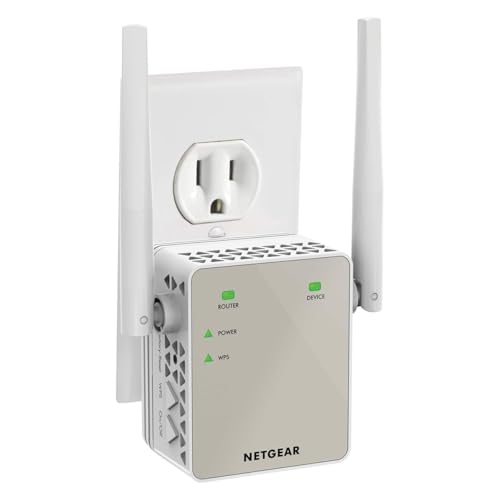
The EX6120 has been on sale long enough that its listing reads like a survivor’s résumé: NETGEAR rates it for fifteen hundred square feet of coverage at the 1.2 Gbps class, supporting twenty-five devices, in a compact plug-sized body that disappears into a hallway socket. That longevity is itself a feature. Firmware, setup guides and troubleshooting threads exist in depth, and the unit’s behaviour is a known quantity in a way that this season’s marketplace boosters are not.
Its natural home is the smaller property: a flat where the router lives by the front door and the bedroom sits behind two walls, a cottage with one thick stone partition, a student house where the far room loses the network every evening. The plug-in form factor helps here, because there is no shelf hunt and no trailing power brick — the unit lives in the socket at the halfway point and stays there. NETGEAR’s setup assistant walks through network selection and placement in a browser, and the signal indicator guidance steers you away from the classic too-far placement.
Because it works with any router, the EX6120 is also the pick for households locked into an internet provider’s bundled router that cannot be replaced. You keep the provider box, add this plug where the signal fades, and the dead corner joins the network. The trade for that universality is a separate extender network name in most configurations, which means a phone may cling to the router’s weakening signal as you walk toward the bedroom until you toggle WiFi. For a mostly stationary fix — a desk, a television, a smart display — that barely matters.
Age is the honest caveat. This is a WiFi 5-era design, so it lacks the multi-device scheduling polish of the WiFi 6 picks, and its 25-device maker rating will feel tight in a gadget-dense home. It also tops this guide’s compact class rather than its performance class: large homes and heavy streaming households should step up to the RE500X or across to mesh. Judged as a small, proven, brand-backed plug for one problem area, though, it remains easy to recommend.
- Form: compact wall-plug design
- Maker rating: fifteen hundred square feet, 1.2 Gbps class, 25 devices
- Compatibility: works with any router, per maker
- Setup: browser-based assistant or WPS
Strengths
- Compact plug body fits hallway sockets without furniture
- Long-lived model with deep support and setup documentation
- Works with any router, including provider-supplied boxes
Trade-offs
- WiFi 5-era design lacks WiFi 6 device-handling refinements
- Separate extender network name in most setups
- 25-device maker rating is modest for smart-home-heavy houses
Best for: flats, cottages and smaller homes fixing one weak room behind a provider router.
Not suited for: large multi-room dead zones or households wanting the newest WiFi standard.

2026 WiFi Extender — Widest claimed reach
This is the pick whose box copy needs the firmest translation. The maker describes a WiFi 6 AX3000 booster claiming 21,099 sq.ft of coverage and support for 165+ devices. No plug-in extender covers twenty-one thousand square feet of walled home, and we are not going to pretend otherwise in a buying guide. What those figures signal, read properly, is intent: this unit is built and marketed for reach — big open interiors, long single-storey layouts, workshops and yards where the signal path is mostly air rather than masonry.
In that setting the proposition makes sense. A barn conversion, a warehouse-style loft or a sprawling ranch house presents distance without much obstruction, and a high-output dual-band repeater with an Ethernet port can genuinely stretch a network across it. The Ethernet port matters here too: park the unit where it still hears the router clearly, then wire the one stationary device that matters — a till, a workshop PC, a camera recorder — instead of asking its radio to do every job.
The 165+ device figure deserves the same treatment as the coverage figure. It describes connection capacity under the maker’s testing, not a promise that a hundred and sixty-five devices will stream happily through one repeated link back to the router. That backhaul is the real bottleneck in any extender setup, and it is shared by everything the unit serves. A household that truly runs that many devices needs a designed mesh system or wired access points, not a single booster of any brand.
Buy this unit for the right reason and it is a rational purchase: maximum attempted reach for open space at an aggressive price, bought from a listing you can return if your building disagrees. Buy it expecting the headline number to survive contact with a three-storey brick house and you will join the reviewers who feel misled. The halfway rule applies with extra force — in a long building, walk the unit toward the far end in stages, checking the signal it receives at each candidate socket.
- Standard: WiFi 6, AX3000 class per maker
- Manufacturer claim: 21,099 sq.ft coverage and 165+ devices
- Port: Ethernet port fitted
- Positioning: long-range booster for large spaces
Strengths
- WiFi 6 AX3000-class hardware aimed at maximum reach
- Ethernet port supports a wired bridge for one key device
- Suits open-plan and single-storey layouts where distance is the problem
Trade-offs
- Coverage and device figures are open-space manufacturer ceilings
- Shared backhaul limits real multi-device throughput
- Unbranded support and firmware future are less certain than big-brand rivals
Best for: large open interiors, ranch layouts and workshops where distance, not walls, kills the signal.
Not suited for: multi-storey brick or stone houses expecting the headline coverage figure literally.

12880 Sq.Ft Range WiFi Extender Signal Booster Dual Band 5GHz/2.4GHz — Best for many devices
Strip the five-digit coverage claim out of this unit’s name and a sensible product remains: a dual-band extender working across 5 GHz and 2.4 GHz, sold in the 1,200 Mbps class, with a stated compatibility figure of 105 devices. The dual-band split is the substantive part. The 5 GHz band gives nearby devices a faster lane for streaming and calls, while 2.4 GHz does the unglamorous work of reaching through walls to the far bedroom and keeping low-power smart devices connected.
That split suits the device-crowded home better than the speed-obsessed one. Most smart-home clutter — plugs, bulbs, sensors, speakers — lives on 2.4 GHz and asks for reach rather than bandwidth, while the handful of devices that actually stream or download live within a room or two of wherever the extender sits. A booster that keeps both populations fed is more useful day to day than one chasing a single headline speed, and this pick is arranged exactly along those lines.
The 105-device compatibility figure should be read the way all such figures should: as a statement about how many connections the unit will hold open, not how much work it can do. A hundred idle or near-idle smart devices is a plausible load; thirty active streamers is a different universe, and the shared link back to the router decides the outcome long before the connection count does. Place this unit centrally among the devices it serves, not at the edge of the house nearest the one loud television.
Installation is pitched as simple, and in practice these unbranded dual-band units follow the familiar pattern of WPS pairing or a phone-browser setup page. The step owners skip is verification: after setup, walk the house with a phone and check the rooms that prompted the purchase, because a booster that lights up happily in the hallway can still leave the original dead zone dead if it was placed where the router’s signal had already faded. Bought as a dual-band crowd-pleaser rather than a coverage miracle, it earns its place.
- Bands: dual band 5GHz and 2.4GHz
- Manufacturer claim: 12,880 sq.ft range, 1,200 Mbps class
- Device figure: 105-device compatibility per maker
- Setup: simple installation positioning
Strengths
- True dual-band layout serves both streaming devices and smart-home clutter
- High stated device-compatibility figure suits gadget-dense homes
- 1,200 Mbps class is honest mid-range extender territory
Trade-offs
- Coverage figure in the name is an open-space manufacturer claim
- Throughput still limited by the shared link back to the router
- Brand support depth trails TP-Link and NETGEAR
Best for: homes with long lists of smart devices spread across several rooms.
Not suited for: buyers expecting the named square footage inside a walled, multi-floor house.
WiFi Extender Signal Booster for Home — Best simple repeater
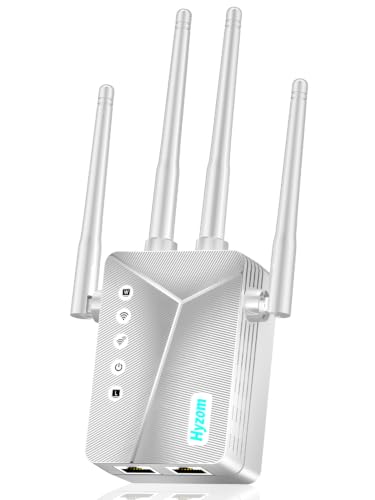
Some buyers do not want a networking project; they want the buffering wheel in the spare room to go away. This repeater is pitched at exactly that person: a long-range signal booster for the home, with an Ethernet port, sold on the promise of calmer streaming in the rooms the router underserves. Its listing language about reducing buffering is worth reading carefully, because it points at the true mechanism — a stronger, steadier local signal means fewer retransmissions and fewer stalls, even though the underlying broadband speed never changes.
The Ethernet port lifts it above the truly disposable repeaters. A smart television is the classic beneficiary: televisions often have mediocre WiFi radios wedged inside metal-backed panels, and feeding one by cable from a nearby booster routinely transforms it. The same trick serves a desktop in a rented room where running a long cable from the router is not allowed, or a games console whose downloads crawl over a contested wireless hop.
What this class of unit does not give you is management depth. Expect a straightforward setup, a repeated network, and little in the way of apps, roaming intelligence or firmware ceremony. That is a fair trade for the buyer it targets, provided expectations are set correctly at the start: it extends the network you have, with the speeds that network can spare, into the room that lacked it. It will not modernise an ancient router, and it cannot outrun a slow broadband line.
Placement decides everything, as with every pick here, but this one’s simplicity makes the mistake easier to commit: plug it into the dead room because that is where the problem is, watch it repeat a whisper, and conclude that extenders do not work. Put it in the doorway-adjacent socket where the router still sounds clear, and the same hardware tells a different story. If your need is one room, one television or one desk rescued without ceremony, this is the straightforward way to do it.
- Role: long-range wireless repeater for dead zones
- Port: Ethernet port fitted
- Aim: reduces buffering on extended connections
- Setup: positioned as quick home installation
Strengths
- Simple repeater brief: install, place halfway, forget
- Ethernet port rescues televisions and desktops with weak radios
- Directly targets buffering caused by weak local signal
Trade-offs
- Minimal management features or app polish
- Cannot improve a slow broadband line or ancient router
- Performance collapses if placed inside the dead zone itself
Best for: rescuing one room, television or desk with the least possible setup fuss.
Not suited for: whole-home coverage projects or users wanting app-managed networking.

2026 Fastest WiFi Extender — Best budget reach
The word “fastest” in this unit’s name is marketing, and the honest version of its pitch is still appealing: a budget repeater whose maker claims coverage up to 10,000 sq.ft and 80 devices, with an Ethernet port and quick setup. Read the coverage claim as open-space ambition rather than a floor-plan guarantee, and what remains is the cheapest route in this guide to testing whether an extender solves your problem at all — which, for a renter or a first-time buyer, is a genuinely useful thing to be able to buy.
That test-first logic is how we recommend using it. Some dead zones are placement problems that any competent repeater fixes; others are building problems — foil-backed insulation, metal structures, a router trapped in a utility cupboard — that no booster at any price will cure. Spending the least money that answers the question is rational, and if the answer turns out to be that your home needs mesh or a wired access point, you have learned it at the lowest tuition in this list.
The Ethernet port again earns its mention, because at this price it is not guaranteed. It lets the unit bridge one wired device, and it gives you a diagnostic tool: if a laptop wired into the extender performs well while the same laptop on the repeated WiFi struggles, you have learned that the unit hears the router fine and the last wireless hop is your problem — knowledge that guides the next purchase either way.
The 80-device maker figure needs the usual discount: connections held, not streams sustained. For a modest household — phones, a couple of laptops, a television, a scatter of smart devices — that is comfortable headroom on paper. Set it up, place it halfway, and judge it inside the return window on the rooms that made you buy it. As a low-cost probe and a light-duty fix, it does its job.
- Role: repeater and booster with Ethernet port
- Manufacturer claim: covers up to 10,000 sq.ft and 80 devices
- Setup: quick setup positioning
- Aim: low-cost long-range home coverage
Strengths
- Lowest-cost way in this guide to test the extender approach
- Ethernet port included despite the budget positioning
- Quick setup suits renters and first-time buyers
Trade-offs
- “Fastest” and coverage figures are manufacturer marketing, not measurements
- Light-duty hardware for modest households only
- Unbranded long-term firmware support is uncertain
Best for: renters and first-time buyers testing whether a repeater fixes their dead zone.
Not suited for: heavy multi-user homes or anyone reading the coverage claim as a promise.
How Do the Six Boosters Compare Side by Side?
| Pick | Badge |
|---|---|
| TP-Link AX1500 WiFi Extender Internet Booster WiFi 6 (RE500X) | Best overall |
| NETGEAR WiFi Extender EX6120 | Best compact plug |
| 2026 WiFi Extender | Widest claimed reach |
| 12880 Sq.Ft Range WiFi Extender Signal Booster Dual Band 5GHz/2.4GHz | Best for many devices |
| WiFi Extender Signal Booster for Home | Best simple repeater |
| 2026 Fastest WiFi Extender | Best budget reach |
Read the table by job rather than by order. The two brand-name units — the TP-Link and the NETGEAR — trade headline reach for support, firmware and believable ratings. The three wide-claim boosters trade that accountability for attempted distance and price. The simple repeater trades features for calm. None of those trades is foolish; each is foolish only when matched to the wrong house. A buyer in a stone cottage gains nothing from a 21,099-square-foot claim and everything from a compact plug placed well, while a buyer in a barn conversion may find the big-claim unit is the only one that reaches the far wall at all.
The shared limitation is worth one more repetition because it governs every row: each of these devices can only spend the signal it receives. Your router, its position and your walls set the budget. If the router itself is a decade old or trapped inside a metal cabinet, the highest-value upgrade in the house may be moving or replacing the router before any extender is bought — a point the mistakes section below develops.
Where Should You Place an Extender for the Best Result?
Walk from the router toward the dead zone with your phone showing its WiFi signal indicator, and stop at the last point where the connection still looks strong and a speed test still returns most of your normal result. That socket — typically halfway, often a hallway or landing — is where the extender belongs. From there it hears a healthy signal worth repeating and stands close enough to the problem room to cover it properly. Every metre beyond that point trades input quality for output proximity, and input quality is the one that cannot be recovered.
Height and openness help more than owners expect. A socket at waist height in open air beats one hidden behind a sofa, inside a cupboard or beside a radiator, because furniture, metal and water-filled objects all absorb or reflect the signal. Keep the unit away from microwave ovens and thick chimney breasts where possible, and if your home has two dead wings in opposite directions, accept that one extender serves one direction — two modest units, or a mesh kit, beat one expensive unit asked to be in two places.
After placement, verify like a sceptic. Run a speed test in the rescued room at the hour the household actually uses it, stream the service that used to stall, and make the video call that used to freeze. An extender that lifts a signal bar without lifting those experiences has been placed for the indicator rather than for you, and it should move a socket or two closer to the router before it is judged a failure.
Extender, Access Point or Mesh: Which Fix Does Your House Actually Need?
These three products are constantly confused because they all promise to fix the same symptom. An extender, the subject of this guide, repeats an existing wireless signal and needs no cable. An access point broadcasts WiFi from a wired connection, so it needs an Ethernet run to wherever it sits — from the router, from a switch, or over a powerline link of the kind covered in our powerline guide. A mesh system replaces or extends the router with cooperating nodes designed from the start to hand devices between them under one network name.
The decision turns on two questions. First, can you run a cable? If a cable can reach the problem area — through a loft, along a skirting route, into a garden building — a wired access point or an extender in access-point mode such as the RE500X will beat any wireless repetition, because the backhaul stops competing for airtime. Houses mid-renovation should treat cable runs as part of the works; it is the cheapest networking decision they will ever make. If no cable is possible, the wireless extender is the tool, with the placement discipline this guide keeps repeating.
Second, how many separate problem areas are there? One or two defined rooms point to an extender. A house where coverage fails in different places on different days, or where people roam constantly with laptops and expect calls to survive the journey, points to mesh. Mesh costs more and asks more of you at setup, but it replaces a patchwork of repeated networks with one managed system. Several readers buy two extenders a year apart and end up spending mesh money for a worse result; counting your dead zones honestly at the start prevents that slow overpayment.
There is also a respectable fourth option: moving the router. Routers are often installed where the broadband line enters, which is rarely where the house needs the signal to originate. A longer cable between the wall socket and a centrally placed router has rescued more homes than any product in this guide, and it costs almost nothing. Try it before spending anything. If the router must stay put and the dead zone persists, then choose from the six picks above with confidence that the problem is genuinely an extender-shaped one.
What Mistakes Do Buyers Make With WiFi Boosters?
Plugging the extender into the dead zone itself is the founding error of this category, and it accounts for a remarkable share of one-star reviews across every brand. The second mistake is believing the largest coverage number on the page: five-digit claims describe open air, and a buyer who measures a walled house against them will feel cheated by hardware that is performing as physics allows. The third is forgetting the router. An extender faithfully repeats whatever the router produces, including the output of a failing, overheating or ancient router that should have been replaced first.
A fourth mistake is network-name confusion. Extenders that broadcast a separate network name can leave phones clinging to the distant router as you move through the house, which owners misread as the extender failing. Units that clone the router’s name, or mesh-linked setups like the RE500X with a compatible router, soften this; with a separate name, the fix is simply knowing that a quick WiFi toggle in the in-between rooms is normal behaviour, not a defect.
Finally, buyers often purchase an extender to solve a broadband problem. If speeds are poor beside the router itself, no booster in this guide will help, because the weakness is the line or the router rather than the coverage. Test beside the router first. Only when the connection is strong there and weak in the target room is an extender the right tool — and in that situation, chosen and placed well, it is a very good tool indeed.
Security deserves a paragraph of its own, because an extender joins your network and should be treated as part of it. Buy units that support current encryption standards, change any default admin password the setup offers you the chance to change, and keep firmware updated through the maker’s app. This is another quiet argument for the established brands in this guide: their update channels and support pages persist for years, while a discontinued marketplace label may never publish another firmware revision. An extender is a small computer plugged into your wall full-time; choose one whose maker still answers for it.
Finally, a note on expectations for streaming and calls, since those are the tasks that send people shopping. A well-placed extender typically turns an unusable room into a perfectly serviceable one for video meetings, homework, browsing and high-definition streaming. It is less likely to satisfy a competitive gamer in the far room or a household trying to push several simultaneous ultra-high-definition streams through one repeated link. Those workloads are not extender failures; they are signals that the house wants a wired connection or a designed mesh system, and the gaming guide in our related links treats the latency question in the depth it deserves.
How Do You Set Up a WiFi Extender Properly, Step by Step?
Begin beside the router, not in the problem room. Plug the extender into a socket within a metre or two of the router for the initial pairing, because setup is a conversation between the two devices and it goes fastest when they can hear each other perfectly. Connect through the maker’s app or the WPS button as the instructions direct, confirm the extender has joined your network and taken its extended name or cloned your existing one, and only then unplug it and carry it to its working position. This two-stage approach separates setup problems from placement problems, which owners constantly confuse.
At the working position, use whatever feedback the unit offers. Better extenders show a signal indicator or report received strength in their app; the TP-Link in this guide tells you during setup whether your chosen spot is too far away, and that single feature prevents the most common failure in the category. Aim for the strongest received signal you can get while still standing meaningfully closer to the dead zone than the router is. If the indicator complains, move one socket closer to the router and test again rather than arguing with it.
Once the unit is placed, configure the two details owners forget. First, update the firmware if the app offers an update, because extender firmware fixes real bugs in roaming and band steering. Second, decide deliberately about the network name: cloning your router’s name is convenient and works well with modern phones, while a separate extended name gives you manual control over which network a stationary device joins. There is no universally right answer, but choosing on purpose beats accepting a default you do not understand.
Finish with a verification walk, at the time of day your household actually loads the network. Test the room that prompted the purchase, then the rooms around it, then the route between them where phones hand over. Make the call, run the stream, load the game. If one spot still fails, the extender moves a socket closer to the router or the house is telling you the problem is bigger than one unit. Either way you now know, and knowing is what the setup hour is for.
Should You Choose WiFi 6, and Does Band Choice Change the Result?
WiFi 6 on an extender buys you composure rather than miracles. Its scheduling improvements let many devices share airtime without the collisions that make older extenders feel erratic in a busy home, and its target-wake features suit battery-powered gadgets. It does not repeal the relay penalty, extend through extra walls, or speed up a slow broadband line. That is why this guide places a WiFi 6 unit first without insisting every buyer needs one: a small flat with a dozen devices will be served perfectly well by the WiFi 5-era NETGEAR, while a gadget-dense family home will feel the WiFi 6 unit’s calm.
Band choice shapes the experience just as much. The 5 GHz band offers the speed for streaming, calls and downloads, but fades faster through walls; the 2.4 GHz band travels further and serves the long tail of smart devices that neither need nor can use high throughput. A good extender keeps both lanes open and lets each device ride the appropriate one. When owners complain that an extender feels fast in one room and sluggish in the next, they are usually describing a device that has fallen back to the slower band at distance — normal physics, and a reason to position the unit so the rooms that matter stay within 5 GHz reach of it.
One more specification deserves demystifying: the speed class printed on listings, such as the 1.2 Gbps figure attached to the EX6120, is the sum of theoretical maximums across bands under laboratory conditions. No single device will ever see it. Treat the class as a rough size label — bigger classes generally indicate more capable radios — and spend your attention on placement, band support and the Ethernet port instead. Buyers who internalise that one paragraph are nearly immune to extender marketing.
Renters face one extra consideration that owners can ignore: everything in this guide plugs in and leaves with you, which is precisely why extenders suit rented homes better than any wired alternative. No drilling, no cable runs, no landlord negotiation — a socket at the halfway point and ten minutes of setup. When you move, the unit moves too, and the placement lessons transfer unchanged to the next flat. For a first networking purchase in a home you do not own, that portability is worth as much as any specification in the tables above.
Final Recommendation
For most homes the TP-Link RE500X is the buy: current WiFi 6 hardware, believable maker ratings, a Gigabit port with access-point mode, and setup software that teaches good placement while it works. Smaller properties behind a provider router should take the NETGEAR EX6120 and enjoy its compact, proven simplicity. Device-crowded homes will get on well with the dual-band 105-device pick, open-plan and single-storey spaces can justify the wide-claim WiFi 6 booster, and renters should start with the budget repeater and let the return window arbitrate. Choose by the shape of your home rather than the size of the number on the box, place the unit where the router still sounds strong, and a modest box on a hallway socket will quietly retire the room everyone used to apologise for.
Frequently Asked Questions
Will a WiFi booster make my internet faster?
No — it makes your existing speed available in more places. Your broadband rate at the router is the ceiling for the whole house. What a booster changes is how much of that rate survives the journey to a distant room: a laptop that managed a stuttering fraction of your line in the back bedroom may get most of it once an extender repeats a strong signal from the hallway. If speeds disappoint beside the router itself, the line or the router is the problem, and an extender cannot fix either.
What is the difference between a booster, an extender and a repeater?
In modern listings the three words describe the same job: receiving your router’s signal and rebroadcasting it further. Retailers use them interchangeably, and the products in this guide mix all three terms in their names. The distinctions that actually matter are band support, whether an Ethernet port and access-point mode are fitted, and whether the unit can share your router’s network name — not which of the three synonyms the box prefers.
Does an extender create a separate network name?
Most do by default, typically your router’s name with an extension suffix, though many can be set to clone the original name. A separate name is not a fault, but it explains why a phone may hold onto the weakening router signal as you walk across the house. Mesh-linked units and name-cloning setups hand devices over more smoothly. If your devices mostly stay in one room — a desk, a television — you will rarely notice the difference either way.
When should I buy mesh instead of an extender?
When the problem is plural: several dead rooms, two dead wings, or a house where people roam with laptops and expect the connection to follow them. Mesh systems are designed as one coordinated network with proper handover, and past a certain house size they stop being the expensive option and start being the only one that works calmly. A single extender remains the right, cheaper answer for one or two defined problem rooms.
Can I use two extenders in one house?
Yes, with care. Place each one within strong range of the router rather than chaining the second extender off the first, because a repeater repeating a repeated signal compounds the speed penalty and the instability. Give each its own direction of the house to serve. If you find yourself planning a third, that is the house telling you it wants a mesh system instead.
Why does my extender show a strong signal but slow speeds?
Because the bar measures the extender’s signal to your device, not the extender’s signal back to the router — and the second hop is usually the weak one. Move the unit closer to the router until its own received signal is strong, even if that means it sits further from the room it serves. Wiring a stationary device into the extender’s Ethernet port is the other reliable cure, since it removes one wireless hop entirely.
Do extenders work with any router, including my provider’s?
Generally yes. Extenders are built to join standard WiFi networks regardless of which router produced them, and the NETGEAR in this guide is sold explicitly on working with any router. Provider routers occasionally hide settings that complicate setup — a combined band name is the usual culprit — but the maker’s app or WPS pairing resolves nearly every case. If your provider router is very old and only offers the 2.4 GHz band, a dual-band extender will still work, limited to the band the router can offer.
Will an extender help with a garden office or outbuilding?
It can, provided the extender can sit somewhere it still hears the house network clearly — a window line facing the building is the classic spot. Distance over open air is friendlier than distance through walls, which is why the wide-claim boosters in this guide find their happiest customers in exactly this scenario. For a building with power on the same electrical circuit, a powerline kit feeding an access point is often steadier still, and our powerline guide covers that route in detail.
Related Guides
- Best Long Range Outdoor WiFi Extenders
- Best Powerline WiFi Range Extenders
- Best Range Extenders for Gaming