What's inside
- Key Takeaways
- Quick Picks
- How We Chose These Picks
- SATA or NVMe — Which Terabyte Does Your Computer Actually Want?
- Comparison
- How Do You Clone Your Old Drive and Swap in an SSD?
- How Much Free Space Should You Leave, and Why Do SSDs Slow Down When Full?
- Which Errors Do SSD Shoppers Repeat Most Often?
- What Does an SSD Actually Change for Games?
- How Should Heavy Writers — Editors, Creators, Downloaders — Choose?
- What Firmware, Warranty and Health Habits Keep an SSD Honest?
- Can a 1TB SSD Serve in a Console, a Camera Rig or a Tiny PC?
- How Do You Decide Between One 1TB Drive and Saving for 2TB?
- What Should the First Day With a New SSD Look Like?
- One Last Distinction: Why Brand Matters More With Flash Than It Did With Disks
- And a Word for the Machine You Are Not Upgrading Yet
- A Brief Note on Screws, Spacers and the 7mm Question
- Final Recommendation
- Frequently Asked Questions
- Related Guides
As an Amazon Associate I earn from qualifying purchases. This post may contain affiliate links at no extra cost to you.
widgetverdict.com is reader-supported. When you buy through links on our site, we may earn an affiliate commission.
People search for the best 1tb ssd hard drives using the vocabulary of the spinning era, and the slight mismatch is worth honouring, because the question underneath it is the most practical one in all of PC upgrading: which single terabyte of fast storage will make my computer feel new again? This guide answers it with six drives — five with verified listings spanning the two great families of solid-state storage, and a sixth described in words alone, the verified pool having offered nothing for it that we were willing to put our name under. Four are SATA drives in the classic 2.5-inch shape that fits almost anything with a drive bay; one is an NVMe drive on a stick, dramatically faster, for machines with the slot to host it; and the ranking explains, pick by pick, which family your computer actually belongs to.
Ordering is simple once the family question is settled. Use the Amazon listing attached to your chosen pick — check price on Amazon there — and read the format line twice before ordering: 2.5-inch SATA and M.2 NVMe look similar in a search result and fit entirely different homes, a confusion responsible for more returns in this category than every other cause combined. The prose-only pick sells through ordinary retailers under its exact model name. Every drive here is a current retail product from a maker with real warranty infrastructure; at 1TB, no saving justifies an unbranded drive with a fantasy specification sheet, and none appears below.
The promise, stated plainly before the rankings: any pick on this page will transform a computer that currently boots from a hard drive, and the differences among them — real, measurable, worth understanding — are differences of degree and duty, not of kind. Choose by interface first, by workload second, and by brand confidence third, and you will choose well.
Key Takeaways
- The Samsung 870 EVO is the SATA benchmark: the most refined 2.5-inch drive here, with a five-year warranty and superb sustained behaviour.
- WD’s Black SN770 shows what NVMe does to the same terabyte — several times the throughput, for machines with an M.2 slot.
- Crucial’s MX500 remains the value connoisseur’s SATA drive, with power-loss protection rare at its price.
- The BX500 and PNY CS900 serve tight budgets and light duties honestly, with shorter warranties as the visible trade.
- Interface decides first: a SATA drive fits nearly everything, an NVMe drive fits only M.2 slots and rewards them hugely.
- Whichever you buy, leave free space on it — SSDs hold their speed best when they are not filled to the brim.
Quick Picks
| Pick | Badge | Why it makes the cut |
|---|---|---|
| Samsung 870 EVO 1TB SATA SSD | SATA Benchmark | The complete package: speed, endurance, software and warranty at the top of the 2.5-inch class. |
| WD Black SN770 1TB NVMe SSD | NVMe Performance Pick | Gen4 throughput that makes the same terabyte feel like a different technology entirely. |
| Crucial MX500 1TB SATA SSD | Value Connoisseur’s Choice | Near-flagship SATA manners and hardware safeguards at a midrange price. |
| Crucial BX500 1TB SATA SSD | Budget Revival Pick | The inexpensive drive that still transforms an old laptop’s daily manners. |
| PNY CS900 1TB SATA SSD | Simple Second-Drive Pick | An uncomplicated terabyte for game libraries and secondary storage. |
| Kingston A400 1TB | The Ubiquitous Alternative | Sold everywhere on Earth, perfectly serviceable for light-duty upgrades. |
How We Chose These Picks
Interface honesty came first. A guide that mixed SATA and NVMe drives without ranking the distinction would mislead more than it helped, so the six picks are presented as what they are: the best of the universal-fit family, the flagship of the slot-fit family, and clear guidance about which family your machine belongs to. Within SATA, we ranked by sustained-write behaviour — the specification that separates flagship drives from budget ones the moment a large copy begins — followed by endurance rating, warranty length, and the quality of the maker’s software and support ecosystem.
Endurance deserves its translation, since it is printed on every box and understood on few. A drive’s terabytes-written rating estimates how much data can be written across its life before the flash wears beyond the maker’s warranty promise. For ordinary users even the humblest rating here represents many years of service; for video editors and heavy downloaders, the flagship ratings buy genuine headroom. We weighed the figure accordingly — a tiebreaker for most buyers, a headline for heavy writers.
We also required the unglamorous infrastructure of trust: firmware updates that actually arrive, cloning software a first-time upgrader can use, a warranty process with a physical address behind it. An SSD holds your system and your files in a single silent package with no moving parts to warn you of trouble, so the maker’s competence is part of the product. Every name below has earned that trust at scale.
SATA or NVMe — Which Terabyte Does Your Computer Actually Want?
Start with the slot, not the speed chart. NVMe drives in this guide use the M.2 stick format and a PCIe connection; if your motherboard or laptop has a free M.2 slot that supports NVMe — most machines of the last several years do — the SN770’s multi-gigabyte-per-second throughput is available to you, and for program loading, game streaming and file work it is a difference you can feel in your shoulders. If your machine offers only a 2.5-inch SATA bay, as millions of older laptops and desktops do, that question answers itself, and the SATA picks here will still deliver the transformation that matters: the end of spinning-disk waiting.
Understand what SATA’s ceiling means in practice. The interface caps throughput at a level every pick here approaches, so among SATA drives the competition is about sustained behaviour, endurance and refinement rather than headline speed. In daily use — booting, launching, browsing, documents, most games — a flagship SATA drive and a budget one feel far closer than their prices suggest, because the work is dominated by small, random accesses where all SSDs humiliate hard drives equally. The gaps open during long writes, heavy multitasking and years of accumulated wear, which is why this guide ranks those qualities rather than pretending the box-top number tells the story.
One hybrid pattern deserves naming: many desktops can take both. In that house, the grown-up configuration is the NVMe drive as the system disk and a SATA terabyte — the CS900 or BX500 below — as the library, giving each workload the tier it deserves for less than two flagship drives would cost. The ranking that follows is written to serve that pattern as much as any single-drive choice.
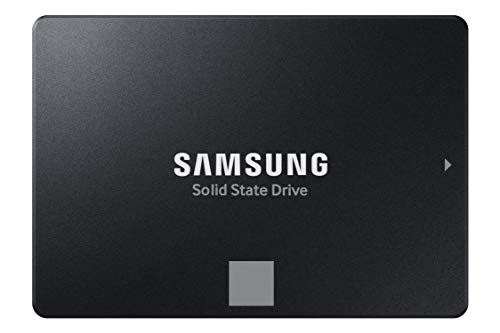
Samsung 870 EVO 1TB SATA SSD — SATA Benchmark
The 870 EVO is what a technology looks like when it has finished maturing. Samsung controls its own flash, its own controller and its own firmware, and the result is a 2.5-inch SATA drive that does everything the interface allows, does it consistently, and keeps doing it through write workloads that expose lesser drives’ shortcuts. Copy a hundred gigabytes in one motion and the EVO holds its pace with a composure that budget drives — faster for the first minute, slower for the next twenty — cannot imitate. That sustained honesty is the flagship trait, and it is why this drive tops the ranking despite sharing an interface ceiling with drives costing far less.
The ownership layer is equally finished. Samsung’s Magician software is the best utility in the class: health at a glance, firmware updates without drama, cloning that a first-time upgrader can complete confidently, and diagnostics that speak plainly. The five-year warranty matches the endurance rating’s ambition, and the drive’s power behaviour in a laptop — efficient at idle, decisive under load — respects battery life while removing the old hard drive’s heat and noise entirely. In a desktop it disappears into a bay and is forgotten, which is the destiny great storage aspires to.
Its honest limitation is the interface itself. No SATA drive can approach NVMe throughput, and in a machine with a free M.2 slot, the SN770 below is the faster terabyte for similar money. The EVO’s kingdom is the enormous world of machines without that slot — or with it occupied — and within that kingdom it has no serious rival for the buyer who wants the best and intends to keep it longest.
Buy it for the laptop you love, the desktop you are keeping for five more years, the single-drive machine whose storage must simply never be the problem. It is the reference point the rest of this ranking is priced and judged against.
- Interface: SATA, 2.5-inch form factor
- Endurance: flagship-class terabytes-written rating
- Warranty: five years
- Software: Samsung Magician utilities and cloning
- Best role: primary system drive in any SATA machine
Strengths
- Sustained-write composure that budget drives cannot match.
- Best-in-class software, support and warranty infrastructure.
- Consistent behaviour under mixed, real-world workloads.
Trade-offs
- SATA’s ceiling caps its throughput far below NVMe.
- Costs the most among the 2.5-inch picks here.
- Its advantages hide during light, bursty everyday use.
Best for: a keeper machine with a SATA bay whose owner wants the finest drive that fits it.
Not suited for: a machine with a free M.2 slot, where the SN770 delivers far more speed for the money.

WD Black SN770 1TB NVMe SSD — NVMe Performance Pick
Place the SN770 beside the SATA picks and the numbers stop sounding like the same product category: where SATA measures its ceiling in hundreds of megabytes per second, this Gen4 NVMe drive reads in the several-thousands, and the subjective effect in a modern machine is a second awakening on top of the SSD awakening itself. Games stream their assets without a murmur, enormous files move like small ones, a system that felt instant feels instantaneous. It is the pick that demonstrates why the interface question in this guide’s introduction outranks every other decision.
WD engineered the SN770 around efficiency as much as speed — a design without its own DRAM cache that nonetheless sustains excellent real-world behaviour through smart cache management, and that runs cool enough for laptops and compact desktops where flagship Gen4 drives sometimes need heatsinks and headroom. In a PlayStation-class expansion context or a slim gaming laptop, that thermal politeness is the difference between a drive that fits the brief and one that merely fits the slot. The Black line’s five-year warranty and WD’s dashboard software complete a package aimed squarely at enthusiasts who measure things.
The checks before buying are compatibility checks, and they are absolute. Your slot must be M.2 with NVMe support — some older M.2 slots speak only SATA, and an SN770 in such a slot is an expensive ornament. The drive’s length is the standard 2280; compact machines with shorter slots need a different product entirely. Confirm both on the maker’s page for your exact machine, because returns for slot confusion are this category’s most common and most avoidable errand.
Choose it when the slot exists and the machine deserves it: the gaming PC, the creator’s workstation, the laptop bought to keep. Against the SATA flagship above, it trades universal fit for a different league of speed, and in the right machine that trade is not close.
- Interface: NVMe Gen4, M.2 2280 stick
- Throughput class: several times SATA’s ceiling
- Warranty: five years
- Thermal character: efficient design suits laptops and compact builds
- Compatibility check: slot must support NVMe, not SATA-only M.2
Strengths
- Transformative throughput for games, files and program loading.
- Cool, efficient running fits slim machines other Gen4 drives challenge.
- Five-year Black warranty and mature dashboard software.
Trade-offs
- Useless to any machine without an NVMe-capable M.2 slot.
- Benefits shrink in purely office workloads that never stretch it.
- DRAM-less design trails flagship NVMe drives in extreme sustained writes.
Best for: a gaming or creative machine with a free NVMe slot that will feel every bit of its speed.
Not suited for: any SATA-only machine, or a light-duty laptop whose workload never leaves the launch screen.

Crucial MX500 1TB SATA SSD — Value Connoisseur’s Choice
The MX500 has spent years as the answer informed buyers give when the EVO’s price raises an eyebrow, and age has not dulled the argument. It matches the flagship’s essential manners — strong sustained behaviour for its class, a real DRAM cache, a five-year warranty — and adds a feature Samsung’s consumer line historically reserved for business drives: power-loss protection for data in flight, guarding what the drive was writing at the instant power vanishes. For a drive that will hold a family’s only copy of anything, that safeguard is not a footnote.
Crucial’s ownership experience leans practical. The company’s cloning partnership and clear documentation make the upgrade path friendly, firmware support has been steady across the model’s long life, and the drive’s behaviour in mixed household duty — part system disk, part photo vault, part game shelf — is unflustered in the way that only a mature controller and honest flash produce. It is very slightly less brilliant than the EVO at the extremes and indistinguishable from it across an ordinary month, which is precisely the profile of a value champion.
It also serves the second-drive role beautifully. Behind an NVMe system disk, an MX500 terabyte is a library drive with flagship manners: games load nearly as fast as from the primary, media streams instantly, and its endurance rating shrugs at the write patterns of a download-heavy household. Buyers assembling the hybrid pattern described earlier in this guide will find this the library drive that never needs an apology.
Take it when the budget is real but the standards are not negotiable. The MX500 is the pick for people who read endurance tables for fun and still expect change from their money — the connoisseur’s compromise, which is to say no compromise that matters.
- Interface: SATA, 2.5-inch form factor
- Cache: DRAM-equipped design
- Safeguard: power-loss protection for in-flight data
- Warranty: five years
- Best role: primary SATA drive or a flagship-mannered library drive
Strengths
- Near-flagship SATA behaviour at a midrange price.
- Power-loss protection is rare and valuable in this class.
- Long, well-supported service life from a first-tier maker.
Trade-offs
- A shade behind the EVO in ultimate sustained extremes.
- Software ecosystem is plainer than Samsung’s polish.
- Same SATA ceiling as every 2.5-inch pick here.
Best for: a value-conscious buyer who wants flagship SATA manners and safeguards without the flagship invoice.
Not suited for: a buyer who wants the absolute best SATA drive regardless of price — that is the EVO’s chair.

Crucial BX500 1TB SATA SSD — Budget Revival Pick
The BX500 exists for the most common upgrade story in computing: a laptop or desktop that is old, slow and one component away from usefulness, owned by someone whose budget for the rescue is firmly capped. Its job is not to win benchmarks but to perform the resurrection — and at that job it is superb, because the leap from any hard drive to any honest SSD is the largest single improvement a computer can receive, and the BX500 delivers that leap at the gentlest price in this guide from a maker whose warranty means something.
Know its engineering trade-offs, because they are the price made visible. There is no DRAM cache, so sustained writes settle to a slower pace once the fast cache region fills — copying a season of video in one motion will show you the drive’s two speeds. The warranty runs shorter than the MX500’s, and the endurance rating is sized for ordinary rather than punishing duty. For the laptop that browses, writes, streams and carries a modest game library, none of those limits will ever be met in anger; for a creator’s scratch disk, they would be met weekly, and the MX500 or EVO is the correct spend.
Its lightness and silence make it a natural laptop drive, and its price makes it the natural choice for the second machine, the child’s homework laptop, the media PC’s system disk — the places where a terabyte of solid-state decency transforms daily life without a flagship’s ceremony. Crucial’s documentation keeps the installation friendly for first-timers, which matters, because this drive’s buyers are disproportionately people performing their first upgrade with a borrowed screwdriver and a video tutorial paused on their phone.
Buy it to save a machine, not to crown one. Judged on that mission, it may be the most satisfying purchase in this entire guide.
- Interface: SATA, 2.5-inch form factor
- Cache: DRAM-less design with a fast write cache region
- Warranty: shorter than the MX500’s — check the term when buying
- Best role: budget laptop and desktop revivals
- Character: light, silent and frugal
Strengths
- Delivers the full SSD transformation at the guide’s gentlest price.
- From a first-tier maker with a real warranty behind it.
- Ideal manners for older laptops: light, cool and silent.
Trade-offs
- Long sustained writes slow once the cache region fills.
- Endurance and warranty are sized for ordinary duty only.
- No DRAM places it behind the MX500 under heavy multitasking.
Best for: rescuing an ageing laptop or desktop on a firm budget for everyday use.
Not suited for: a creator’s scratch drive or any workload built on huge daily writes.

PNY CS900 1TB SATA SSD — Simple Second-Drive Pick
PNY’s CS900 is the straightforward terabyte: a no-drama SATA drive from a long-established memory brand, priced for the roles where storage is a supporting actor. Its natural home is the second bay — the game library beside a fast system drive, the media shelf in a living-room PC, the bulk volume in a desktop whose NVMe already handles the thinking. In those roles its specification sheet’s modesty is irrelevant and its virtues — price, silence, simplicity — are the whole story.
As a primary drive it still performs the essential SSD miracle for light machines: boots that stop being events, programs that open when clicked, a general evaporation of the waiting that defines hard-drive computing. Its sustained-write behaviour and endurance rating sit in the budget class alongside the BX500, and its warranty term reflects that tier, so the same guidance applies: everyday duty, happily; a daily hundred-gigabyte ingest, look up the page. PNY’s support operation is a known quantity, which separates this drive from the unbranded crowd at similar prices — when a budget drive fails, the difference between a brand and a mystery is the difference between a replacement and a write-off.
Installation and ownership ask nothing special: standard 2.5-inch fit, standard SATA, firmware that minds its business. It is the drive you buy on the same order as a case or a power supply, install while the machine is open anyway, and think about approximately never again — which, for a library drive, is the highest available praise.
Choose it when the system drive is already fast and the need is simply more room that behaves like the future rather than the past. A terabyte of quiet, adequate speed at a supporting-actor price is a genuinely useful thing, and the CS900 is this guide’s honest version of it.
- Interface: SATA, 2.5-inch form factor
- Class: budget tier — everyday endurance and warranty terms
- Best role: second drive for games and media libraries
- Maker: established memory brand with real support channels
- Character: simple, silent, unceremonious
Strengths
- Keen price for a branded, warranted terabyte.
- Perfectly matched to library and second-drive duties.
- Silent, cool and effortless to install and forget.
Trade-offs
- Budget-class sustained writes and endurance ratings.
- Shorter warranty than the flagship SATA picks.
- No software ecosystem to speak of beyond the basics.
Best for: adding a quiet terabyte of game and media storage beside an existing fast system drive.
Not suited for: a heavy creator workload or a buyer who wants flagship endurance cover.
Kingston A400 1TB — The Ubiquitous Alternative
The A400 is the drive the whole world can buy: Kingston stocks it in every market, every electronics aisle and every marketplace, at prices that make it the default first SSD for millions of machines. No link rides along with this entry, since the pool we verified for this batch contains no A400 1TB listing we are willing to stand behind; fortunately the drive’s ubiquity makes the workaround painless — search the full model name at any reputable retailer and it will be there. What arrives is a competent budget SATA drive whose ambitions match its price: transform an old machine’s manners, hold a light workload, and ask little.
Its profile mirrors the budget class honestly. Everyday responsiveness is fully present — the boot, launch and browse transformation that is the entire point at this money — while sustained writes, endurance and warranty terms sit at the modest end, sized for the student laptop, the spare desktop, the point-of-sale or family machine whose storage duties are measured in documents and photographs rather than video projects. Kingston’s scale brings one underappreciated benefit: firmware, documentation and warranty handling exist in every language and timezone its buyers inhabit.
The shopping caution is channel discipline, because ubiquity attracts imitation. Buy the A400 from authorised sellers, check the packaging and serial on arrival, and be suspicious of prices that undercut the entire legitimate market at once — counterfeit storage is a real economy, and its products fail in ways that take your data with them. Bought through a proper channel, the A400 is exactly what it claims to be, which cannot be said of the no-name drives priced beneath it.
Take it when it is the drive in stock, at the right price, for a machine whose needs are ordinary. Not every purchase needs to be an optimisation exercise; sometimes the correct drive is the good one you can have today, and the A400 has built a global career on being precisely that.
- Interface: SATA, 2.5-inch form factor
- Class: budget tier for light, everyday duty
- Availability: the widest retail footprint in this guide
- Buying note: authorised channels only — imitation storage targets popular models
- Warranty: budget-class term; confirm at purchase
Strengths
- Available everywhere, usually at the sharpest price in town.
- Full everyday SSD transformation for light machines.
- A global maker’s documentation and warranty infrastructure.
Trade-offs
- Modest sustained writes and endurance for heavy workloads.
- Popularity makes channel discipline genuinely important.
- Nothing here tempts a buyer who can stretch to the MX500.
Best for: a light-duty machine anywhere on Earth that needs a good drive today at a gentle price.
Not suited for: sustained heavy writing, or any listing whose price seems too kind to be genuine.
Comparison
| Drive | Interface | Warranty class | Defining trait |
|---|---|---|---|
| Samsung 870 EVO | SATA 2.5-inch | Five years | SATA flagship refinement |
| WD Black SN770 | NVMe Gen4 M.2 | Five years | Multi-gigabyte throughput |
| Crucial MX500 | SATA 2.5-inch | Five years | Safeguards at a midrange price |
| Crucial BX500 | SATA 2.5-inch | Budget term | Gentlest price for a revival |
| PNY CS900 | SATA 2.5-inch | Budget term | Simple library drive |
| Kingston A400 | SATA 2.5-inch | Budget term | Available everywhere |
How Do You Clone Your Old Drive and Swap in an SSD?
The upgrade that frightens people is, in practice, an afternoon of mostly waiting. Connect the new SSD first — by a USB-to-SATA cable for a 2.5-inch drive, or in its M.2 slot while the old drive still runs the system — then use the maker’s cloning software, which Samsung and Crucial both provide in friendly form, to copy the old drive’s contents wholesale. The software handles partitions, boot records and alignment; your job is to select the correct source and destination, a decision worth reading twice, because cloning in the wrong direction erases the new drive’s emptiness onto your full one in the only genuinely dangerous moment of the process.
When the clone completes, shut down, swap the drives physically if the new one was on a cable, and boot with the old drive disconnected for the first start. A machine that boots cleanly to your familiar desktop, with your files in their places and a great deal less waiting in its manners, has told you the operation succeeded. Reconnect the old drive afterwards, format it, and keep it as the backup target or the library — the two-drive pattern this guide recommends assembles itself naturally out of the upgrade’s leftovers.
Laptops with a single bay follow the same script with the USB cable as the bridge, and one extra courtesy: charge the battery or stay on mains throughout, because a cloning run interrupted by a flat battery is a mess nobody needs. Verify the new drive’s full capacity shows in the system, enable the operating system’s trim function if it is not already on — modern systems handle this automatically — and the job is done. Keep the old drive untouched for a week before formatting it, as your insurance policy, and the upgrade carries no risk worth the name.
How Much Free Space Should You Leave, and Why Do SSDs Slow Down When Full?
An SSD is a city of memory cells that a controller must constantly tidy: writing new data into a medium that can only erase in large blocks requires shuffling, and the shuffling needs empty rooms to work in. That is why every SSD slows as it approaches completely full — the controller’s housekeeping runs out of workspace — and why the practical rule is to keep a visible margin free, roughly a tenth of the drive or more, rather than treating the last gigabytes as usable. The flagship picks here manage their internal spare area more gracefully than the budget tier, but no controller repeals the physics.
The same housekeeping explains the budget drives’ two-speed character during long writes. New data first lands in a fast cache region; when a copy outruns that region, writing continues at the flash’s native pace, which on DRAM-less budget designs is markedly slower. Neither behaviour is a defect — both are the engineering that makes the prices possible — but knowing them turns a moment of benchmark confusion into an informed nod. For ordinary use, where writes arrive in bursts the cache absorbs, the distinction may never appear at all.
Practical care follows directly. Let the operating system’s trim run, avoid filling the drive past the comfortable margin, and do not defragment an SSD — the old hard-drive ritual is useless to flash and consumes its write endurance for nothing. Do those three things, or rather refrain from those two and permit the first, and any pick in this guide will hold its pace for its whole service life.
Which Errors Do SSD Shoppers Repeat Most Often?
Interface confusion stands first, in both its costumes: the NVMe drive bought for a SATA-only M.2 slot, and the 2.5-inch drive bought for a laptop whose only bay is a stick slot. Five minutes with the machine’s specification page prevents both, and yet returns departments meet them weekly. Second is capacity theatre — filling a new terabyte to the brim in the first month by migrating every archive onto it, then blaming the drive for the fullness slowdown this guide just explained. An SSD is a working surface, not a warehouse; the warehouse is a hard drive’s job, and our companion guides cover it.
Third, buyers chase the box-top sequential figure and ignore sustained behaviour and endurance, which are the specifications that predict year three rather than minute one. The ranking above exists largely to correct that ordering. Fourth is the unbranded bargain: a terabyte at a price no legitimate flash supply chain can build, whose capacity is sometimes literally fictional. Storage is the worst category in computing for too-good prices, because the product’s entire purpose is holding things you value.
Finally, people forget the old drive’s fate. Wipe it before it leaves your possession, keep it as a backup if it stays, and never let a drive full of your life depart in a donation or a trade-in unexamined. The upgrade is finished when the data’s whole story — new home, old home, backup — has been thought through, not when the new drive first boots.
What Does an SSD Actually Change for Games?
Loading screens are the obvious dividend, and they are real: levels, fast travel and respawns all compress dramatically versus a hard drive, with the SN770 ahead of the SATA picks where a game streams large assets continuously. Open-world titles benefit in a subtler way that matters more — texture and geometry streaming keeps pace with movement, so the pop-in and hitching that plague spinning storage fade into the background, and the world simply looks finished when you arrive in it. Competitive players gain the least glamorous and most practical edge: being in the match, loaded, while hard-drive opponents are still watching a progress bar.
Set the boundary honestly. An SSD does not raise frame rates in any meaningful way; the graphics card owns that number, and a game that ran at forty frames on a hard drive runs at forty frames from an SSD, merely arriving there sooner and streaming more smoothly. Buy the drive for time and texture, not for frames, and it will never disappoint you. Size the library with the free-space rule in mind, too: a terabyte holding six enormous games and nothing else is a terabyte with no breathing room, and the hybrid pattern — current games on the SSD, the backlog on a hard drive — exists precisely to solve that arithmetic.
Installation habits for game drives are simple. Keep the launcher libraries on the SSD pointed at the titles in active rotation, move the dormant ones to bulk storage rather than deleting and re-downloading them, and let the platform’s own move tools do the carrying so nothing breaks. Your future self, returning to a sequel’s predecessor on a whim, will find it waiting on the spinner, one transfer away from the fast lane.
How Should Heavy Writers — Editors, Creators, Downloaders — Choose?
If your workload writes all day, the ranking reorders itself around one specification: endurance. Video editors rendering and re-rendering, photographers ingesting shoots, virtual-machine users, anyone whose drive absorbs tens of gigabytes daily as a matter of routine — these buyers should start at the flagship end, where the terabytes-written ratings and warranties are built for exactly that punishment. The 870 EVO and MX500 among the SATA picks, and the SN770 on the NVMe side, carry the headroom; the budget trio’s ratings, honest for ordinary duty, can be consumed years early by a scratch-disk lifestyle.
Cache behaviour matters to this group almost as much, because their writes arrive in exactly the long, sustained form that exhausts budget drives’ fast regions. A creator copying a card, rendering a timeline and exporting a master in one sitting will meet the two-speed character of a DRAM-less drive within the first project. That meeting is not a failure — the drive still finishes every job — but across a working year the accumulated minutes become the flagship’s price several times over, paid in the least refundable currency there is.
The professional pattern, where the budget allows, separates the roles: an NVMe drive as the scratch and system disk, absorbing the violent daily writes where its speed shortens them, and a SATA flagship or a hard drive as the vault where finished work rests. Each tier then does the work its endurance was priced for. Buyers who must choose one drive should choose by their heaviest week, not their average day, because endurance is bought for the peaks.
What Firmware, Warranty and Health Habits Keep an SSD Honest?
SSDs fail differently from hard drives: silently, electronically, often without the acoustic warnings spinners provide. The defence is a light routine. Install the maker’s utility — Magician, WD Dashboard, Crucial’s tool — and glance at the health percentage and temperature whenever you are in it for another reason. Update firmware when the maker offers it, reading the release note first and never during a storm, a deadline or a battery-powered afternoon. Those two habits catch most of what can be caught, because a drive’s own controller knows its wear state precisely and the utility is how it tells you.
Register the warranty at purchase and keep the receipt with the same file that holds your backup schedule. The flagship picks’ five-year terms are only as real as your ability to invoke them, and the difference between a smooth replacement and an abandoned claim is usually a proof of purchase nobody saved. Note the serial in your records, as with every drive in this series of guides, so the conversation with support starts from facts.
And keep the backup doctrine that this whole category of guides repeats, because SSDs sharpen rather than soften it: a drive with no moving parts gives no death rattle, so the copy of your data that lives elsewhere is the only warning system that never fails. The picks above are the most reliable storage most readers will ever own. Back them up anyway. Reliability is a probability; a backup is a fact.
Can a 1TB SSD Serve in a Console, a Camera Rig or a Tiny PC?
The 2.5-inch SATA picks travel well beyond computers. Consoles of the drive-swap generation accept them exactly as they accept the mobile hard drives in our companion guide, with the SSD removing load-screen pain the console was born with. Camera and video rigs that record to standard SSDs — cinema cameras and external recorders built around the 2.5-inch format — prize exactly the sustained-write composure that ranks the EVO and MX500 at the top of this page, and punish exactly the cache exhaustion that limits the budget tier; match the pick to the bitrate, and the pairing is professional. Tiny PCs and single-board projects take either family depending on their slots, and in fanless enclosures the SATA drives’ cool, undemanding running is a feature no benchmark prints.
Each of those habitats adds one verification to the buying ritual: the host’s own compatibility expectations. Consoles format what they accept and reject what they do not by rules worth reading first; recorders certify specific drives for specific bitrates and treat uncertified media as the operator’s risk; tiny PCs vary in the power they promise their slots. The drives in this guide are the right answers in each world, provided the world’s own rulebook gets its five minutes before the order is placed.
What unites these uses is the same trait that drives the whole ranking: an SSD is storage that behaves like electronics rather than machinery — silent, shock-tolerant, indifferent to orientation, sipper of power. Anywhere a spinning drive was a compromise with physics, a terabyte of flash is the compromise removed.
How Do You Decide Between One 1TB Drive and Saving for 2TB?
Decide by trajectory, not by today’s usage. Add up what you will store in eighteen months: the game library’s growth, the photo archive’s annual intake, the projects that never quite get deleted. If that honest total sits below seven hundred gigabytes, the terabyte with its breathing room is the right-sized purchase, and the saving against a 2TB drive funds the enclosure, the backup or the memory upgrade that completes the machine. If the total crowds the terabyte already, no discipline will save you — a too-small SSD is a subscription to storage anxiety, and the larger drive is cheaper than the second purchase it prevents.
Price per terabyte improves with size in this market, which tempts buyers upward, but an oversized drive in a machine retired in two years is stranded capacity, while a right-sized one gets fully used. Laptops you will keep, desktops with spare bays that forgive a later addition, consoles with fixed appetites — each argues its own answer. The pattern this guide recommends, one fast terabyte now and bulk spinning storage beside it, remains the value champion for most households precisely because it lets each kind of data pay only for the tier it needs.
What Should the First Day With a New SSD Look Like?
Resist the urge to benchmark it into the evening and go looking for the numbers the box promised; a fresh drive in a real machine, mid-clone, with the operating system indexing its new home, will show you figures that mean nothing. Instead, spend the first day on the commissioning that pays: confirm the full capacity and the interface speed in the maker’s utility, check that trim is enabled, set the power plan so the drive is not being put to sleep mid-task by an over-eager laptop profile, and run one large real copy — your photo library, a game — while watching the utility’s temperature readout. A drive that moves your actual data at a steady pace, at a sane temperature, with its health at full, has passed the only examination that matters.
Then do the human part: use the machine. Notice the boot, the launches, the absence of the old drive’s thinking noises, and let the improvement register, because that felt difference — not a synthetic score — is what the money bought. Defer judgement on anything subtler for a week, until indexing settles and your own habits have re-formed around a computer that no longer makes you wait. Owners who commission this way rarely join the forum threads of the disappointed, because their expectations were set by their own workload rather than by a graph.
Close the day by scheduling the backup that the old drive, now formatted and waiting, exists to receive — tonight, automatically, without your attendance. The upgrade story that begins with speed should end with safety, and a first day that delivers both is the complete version of the one this guide set out to help you have.
One Last Distinction: Why Brand Matters More With Flash Than It Did With Disks
A hard drive’s quality announces itself in sound and motion; an SSD is a silent slab whose entire character lives in its controller’s firmware and its flash’s provenance — things no buyer can inspect. That invisibility is why the maker’s name carries more weight in this category than in any other in this guide series. The controller decides how the drive behaves when it is full, when it is hot, when power vanishes mid-write; the flash’s grade decides how many writes it survives; and both are promises only a real manufacturer with a reputation to lose can make credibly. Every pick above is such a maker. The drives priced beneath them, wearing unknown names and heroic specifications, are asking you to trust the two things you cannot see to people you cannot find. Decline, politely, at any discount.
And a Word for the Machine You Are Not Upgrading Yet
Reading this guide for a computer you do not own yet is a legitimate strategy, because the picks double as a specification checklist for the machine itself: a free NVMe slot at full length, a spare 2.5-inch bay, a maker whose drives appear on pages like this one. When the next laptop or desktop is chosen with its storage expansion already mapped, the terabyte decision that fills guides like this one becomes a five-minute errand instead of a research project — and the old machine, upgraded with one of these drives in the meantime, gets to retire as the household’s backup box rather than its e-waste. Good storage decisions compound exactly like the foresight in our other guides: bought once, correctly, they keep paying in machines you have not met yet.
A Brief Note on Screws, Spacers and the 7mm Question
The physical ritual deserves its thirty seconds, because 2.5-inch SSDs are thinner than the hard drives they replace. Most bays and caddies accept the standard slim SSD profile directly, some older laptop trays expect a spacer to take up the difference, and many drives include that spacer in the box for exactly this reason. Keep the caddy’s screws, work on a clear table, and photograph the original installation before disturbing it. For the M.2 pick, the ritual is a single small screw and a standoff that must sit at the correct length position; lose neither, overtighten neither, and the installation is the easiest in all of computing. The upgrade’s difficulty was never the hardware — it was always the decision, and you have just finished making it properly. Keep the removed screws in a saucer, not on the desk, and the ritual stays as calm as the drive it installs. A magnetic tray is better still, and it will earn its drawer space across every future upgrade this machine ever receives, long after the details of this particular installation have faded into the general competence it quietly created in the person who performed it. That competence, once earned, tends to spread — to the next family laptop, the spare desktop, the friend who calls because their machine has become unbearably slow and somebody mentioned your name.
Final Recommendation
If your machine takes NVMe, take the WD Black SN770 and enjoy the full modern measure of what a terabyte can do. If it takes SATA — as most of the world’s upgradeable machines do — the Samsung 870 EVO is the finest drive that will ever fit it, with the Crucial MX500 a breath behind at a kinder price and the pick we would hand a careful friend. The BX500 revives the machines that need saving most, the CS900 fills a library bay without ceremony, and the A400 stands ready in every shop on Earth for the buyer who needs a good drive today.
Whichever name lands in your machine, the ritual is the same: clone carefully, leave it breathing room, and let the old drive retire into backup duty. A terabyte of flash, chosen this way, is the closest thing computing offers to a new computer at a fraction of the price — and the day it boots in seconds for the first time, you will understand why this guide took its six picks so seriously.
Frequently Asked Questions
Will an SSD really make an old computer feel new?
For the things people actually wait on — booting, launching programs, opening files, waking from sleep — yes, more than any other single upgrade, including memory in most cases. The processor still limits heavy computation, so a decade-old chip will not suddenly edit video like a new one, but the daily texture of using the machine changes completely. It is the highest-satisfaction upgrade in this entire site’s catalogue.
Is 1TB enough, or should I buy 2TB instead?
A terabyte holds an operating system, a full set of programs and a large game or media library for most people, with the breathing room this guide recommends. It runs short for video creators and for game collectors who keep everything installed at once. If your current drive is nearly full at 500GB of things you genuinely use, the terabyte is right; if you are already rationing a terabyte, buy the larger drive and skip a year of rationing.
Can I use the SN770 in a laptop?
Yes, if the laptop has an M.2 slot that supports NVMe at the 2280 length — a common arrangement in gaming and performance laptops of recent years. Its efficient, cool-running design suits laptop duty well. Confirm the slot’s protocol and length for your exact model first, since some slim machines use shorter slots, and some older M.2 slots are SATA-only.
Do I need a heatsink for an NVMe drive?
In a desktop with ordinary airflow, the SN770’s efficiency makes a heatsink optional for typical workloads, though many motherboards include one on the slot cover — use it if provided. In a console expansion or a sealed compact build under sustained heavy writes, a slim heatsink is cheap insurance. For the SATA picks, the question never arises.
How long will a 1TB SSD last?
Under ordinary use, longer than the computer around it: even the budget tier’s endurance ratings translate to many years of typical writing, and the flagship ratings multiply that. Drives usually retire because the machine does, or because capacity outgrows them, not because the flash wore out. Keep the free-space margin, let trim run, and longevity stops being a question you need to ask.
What happens to my old hard drive after the upgrade?
Give it the second career this guide keeps recommending: format it, house it in an inexpensive enclosure or a spare bay, and let it serve as the backup target or the media warehouse behind your new SSD. If it leaves your possession instead, wipe it thoroughly first. Either way, do not throw away a working terabyte — it is the cheapest backup you will ever own.
Related Guides
Round out the machine with our look at the best 1 tb hard drives for bulk storage and the best 10tb hard drives for a home archive, plus our graphics companion on the best 200 used graphics cards for a full system revival.
Related guide: Best Seagate Hard Drives
Related guide: Best Western Digital Hard Drives