What's inside
- Key Takeaways
- Where to buy
- Quick Picks
- How the picks were chosen
- Side-by-side comparison
- How to choose a laptop for Photoshop and Lightroom
- A working photographer’s setup routine
- Catalogue hygiene: keeping Lightroom fast on any of these
- Tethering and backup: the photographer’s two non-negotiables
- When the stills machine must also cut video
- Printing and soft-proofing from a laptop screen
- Companions: second screens, drawing tablets and the pen question
- Common mistakes
- Frequently asked questions
- Final recommendation
As an Amazon Associate I earn from qualifying purchases. This post may contain affiliate links at no extra cost to you.
[SITE_DOMAIN] is reader-supported. When you buy through links on our site, we may earn an affiliate commission at no extra cost to you. Prices and availability change; check the Amazon listing for the current details.
Photography punishes laptops in two specific places: the screen, where every editing decision is made and remade, and the catalogue, where thousands of raw files wait to be scrolled, rated and rendered under deadline. The best laptops for Photoshop & Lightroom are the machines that respect both halves of that punishment — and this guide’s six picks approach the problem from genuinely different directions. Four are ASUS ProArt or Zenbook machines built around OLED panels, one is Apple’s MacBook Pro 14 on M5 Pro silicon, and one is a detachable Snapdragon tablet-laptop that trades raw power for a pen-friendly form and genuine travel lightness. Memory runs from 16GB to 64GB, storage from 512GB to 2TB, and the honest differences between them — of platform, of shape, of who stands behind the configuration — are the subject of everything below.
A discipline note before the reviews: colour claims in this guide come only from listing titles. Where a title states a figure — a brightness number, an OLED panel type, an XDR display with its reference reputation — the review uses it, gratefully and exactly. Where titles stay silent on gamut percentages, as most of these honestly do, the guide says so and treats colour accuracy as a matter of panel class and calibration practice rather than invented numbers. Photographers, of all readers, deserve that restraint: a gamut figure is a measurement, not an adjective, and a buying guide that invents one has failed at the exact point where accuracy was the entire product.
The workload split matters as much as the hardware split. Lightroom catalogue work — importing, culling, scrolling previews — rewards memory, fast storage and a responsive processor. Photoshop layer work rewards single-core pace and, increasingly, GPU acceleration for filters and AI features. Retouching rewards the screen above all. The six machines below weight those virtues differently, and the reviews name the weighting each time, so a wedding photographer, a landscape printer and a commercial retoucher can each find a different favourite without any of them being wrong.
Key Takeaways
- Four of the six picks carry OLED or AMOLED touchscreens; the MacBook Pro counters with its 14.2-inch Liquid Retina XDR display.
- The ProArt P16 is the specification ceiling: 4K OLED touch, RTX 5070 graphics, 64GB of memory and a 2TB drive — in a configuration assembled by reseller HIDevolution, flagged in its review.
- The ProArt PX13 pairs a Ryzen AI Max+ 388 with 32GB of memory in a 13.3-inch 2-in-1 — the most portable serious editing machine here.
- Two picks carry 16GB of memory — the StudioBook 16 OLED and the Zenbook 14 OLED — adequate for stills work, tight for very large catalogues and layered files.
- The ProArt PZ13 is a detachable 2-in-1 on Snapdragon power: the pen-and-travel option, with a keyboard situation its review treats honestly.
- No gamut percentage is printed in any title here except as panel class, so colour judgement rests on OLED/XDR panel quality and calibration practice, both covered in the guide sections.
- Storage variants hide inside two listings — the PX13’s title spans 512GB to 2TB — so the exact configuration must be confirmed at purchase, not assumed from the headline.
Where to buy
- ASUS ProArt PX13 — Check price on Amazon
- ASUS ProArt P16 (H7606WP) — Check price on Amazon
- ASUS ProArt StudioBook 16 OLED — Check price on Amazon
- Apple MacBook Pro 14 (M5 Pro) — Check price on Amazon
- ASUS Zenbook 14 OLED (512GB) — Check price on Amazon
- ASUS ProArt PZ13 — Check price on Amazon
Quick Picks
| Pick | Best for | Processor | Display | Check |
|---|---|---|---|---|
| ASUS ProArt PX13 | Portable editing with pen input in a 2-in-1 | Ryzen AI Max+ 388 | 13.3-inch OLED 2.8K touch | Check price on Amazon |
| ASUS ProArt P16 (H7606WP) | Maximum stills and layered-file performance | Ryzen AI 9 HX 370, RTX 5070 | 16-inch 4K OLED touch | Check price on Amazon |
| ASUS ProArt StudioBook 16 OLED | Large-screen editing on Intel and RTX 4060 power | Intel Core i9-13980HX, RTX 4060 | 16-inch 3.2K OLED touch | Check price on Amazon |
| Apple MacBook Pro 14 (M5 Pro) | The macOS editing platform with an XDR screen | Apple M5 Pro, 15-core CPU, 16-core GPU | 14.2-inch Liquid Retina XDR | Check price on Amazon |
| ASUS Zenbook 14 OLED (512GB) | Travel editing in an ultra-light clamshell | Ryzen AI 9 465 | 14-inch OLED touch, 2K, 500 nits HDR | Check price on Amazon |
| ASUS ProArt PZ13 | Detachable pen-first culling and light editing | Snapdragon X Plus X1P-42, 45 TOPS | 13.3-inch 2.8K AMOLED touch, detachable | Check price on Amazon |
How the picks were chosen
Every pick had to be a laptop first and a specification second — the first search for this topic surfaced monitors, which were set aside regardless of quality, because a screen without a computer answers a different question entirely. Each machine then had to state, plainly in its own title, the facts photo work depends on: panel type, processor, memory and storage. Machines that hid any of those facts behind marketing language were passed over in favour of the six verifiable, checkable configurations below.
Panel class did the first sort. OLED and AMOLED panels dominate because their contrast and per-pixel control flatter photographic work and because the ProArt line is built around them; the MacBook Pro’s Liquid Retina XDR display is the established alternative technology at this tier and earns its place as the representative of the macOS platform. Processing and memory did the second sort: stills work is not video work, and this guide weights catalogue responsiveness, preview rendering and layered-file headroom over export theatrics.
Form factor did the last sort, deliberately. A detachable, a 2-in-1, two sizes of clamshell creator laptop and Apple’s conventional notebook give the reader the full shape of the current market rather than six copies of one idea. Where a listing is configured by a reseller rather than sold in a factory configuration — the ProArt P16’s case — the review says so once, plainly, because who assembles and supports a configuration is part of what a buyer is purchasing. Photographers assembling a field kit rather than a desk may also want our guide to compact cameras with a 1-inch sensor, the natural companions to these machines.
A word about what was not used as a filter: benchmark theatre. Stills applications reward a balance of single-core pace, memory behaviour, storage speed and GPU assistance that no single score summarises, and this guide’s reviews therefore reason from each configuration’s stated components against the known shape of the Photoshop and Lightroom workloads, rather than crowning a winner by a number imported from a different task. The reader’s own largest file, opened on the reader’s own current machine, remains the most honest benchmark available — and the reviews are written to be mapped against it.

ASUS ProArt PX13
Best for: photographers who edit on the move and retouch with a pen, in the smallest serious chassis in this guide.
Not suited for: marathon catalogue sessions at a desk — a 13.3-inch screen crowds Lightroom’s panels, however good the panel itself is.
- Display: 13.3-inch OLED 2.8K touchscreen
- Form: 2-in-1
- Processor: Ryzen AI Max+ 388
- Memory: 32GB LPDDR5X (ME2 Customized configuration)
- Storage: SSD, 512GB / 1TB / 2TB options in the title — confirm the variant at purchase
- Graphics: AMD Radeon
- Wireless: WiFi 7, Bluetooth 5.4
- Operating system: Windows 11 Pro
- Weight: Not stated in the listing title — verify with the manufacturer documentation
The PX13 compresses the creator brief into 13.3 inches without apologising for it. Its OLED touchscreen runs at 2.8K — a resolution that at this size renders raw files and interface text with exceptional density — and the 2-in-1 hinge folds the machine into a drawing surface, which is how a growing share of retouching actually happens: pen on glass, sliders under the other hand, the photograph filling the frame. ASUS’s ProArt line exists for exactly this user, and the PX13 is its most portable expression.
The silicon is the surprise. The Ryzen AI Max+ 388 is a high-integration processor whose Radeon graphics share the machine’s fast LPDDR5X memory — here 32GB in the listing’s ME2 Customized configuration — an arrangement that suits photo workloads well, because Lightroom previews, Photoshop layers and GPU-accelerated filters all draw on the same generous memory pool rather than negotiating a small dedicated frame buffer. For stills, this class of integrated solution is not a compromise; it is a coherent design. The title’s storage line lists 512GB, 1TB and 2TB options under one listing, so confirm the exact variant before ordering — catalogue size makes that choice a real one, and 1TB is the sensible floor for a working photographer.
Windows 11 Pro, WiFi 7 and a backlit keyboard complete a specification with no apologetic corner. The limits are physical rather than electronic: 13.3 inches is a small canvas for Lightroom’s module panels, and sustained heavy exports in a compact 2-in-1 chassis will always trail the 16-inch machines below. As the laptop that goes where the photographs are — location, client site, the road — the PX13 is the most convincing machine in this guide, and the one its reviewers would pack first.
It also sets the guide’s pattern for pen work: if your retouching is brush-led, a folding or detachable machine is not a gimmick but the tool’s natural shape, and the PX13 is that shape with the strongest portable specification here.
There is a small, telling pleasure in editing on a machine this size that the specification cannot convey: the photograph is close. Held in tablet form or propped in tent mode, a 13.3-inch 2.8K image sits at reading distance, and retouching decisions — a dodge here, a mask edge there — are made at the intimacy of a print rather than across a desk. Photographers who grew up in darkrooms recognise the feeling; the PX13 is the first machine in this guide that reliably reproduces it, and for portrait and detail-led work that closeness is a genuine creative feature rather than a novelty.
Strengths
- 2.8K OLED touch in a 2-in-1 makes pen retouching a first-class workflow.
- Ryzen AI Max+ 388 with 32GB of fast shared memory suits layered stills work.
- WiFi 7 and Windows 11 Pro keep the professional platform current.
Trade-offs
- 13.3 inches crowds Lightroom’s interface for long catalogue sessions.
- Storage is sold in variants under one title — the exact capacity must be confirmed.
- Compact chassis trails the 16-inch picks on sustained export pace.
Location photographers can check price on Amazon for the PX13, confirming the storage variant in the listing before ordering.
ASUS ProArt P16 (H7606WP)
Best for: the heaviest stills workloads in this guide — huge catalogues, dense layered files, AI-heavy features — on a 4K OLED canvas.
Not suited for: purchases that require a factory-standard configuration under the maker’s own storefront terms; this listing is configured by a reseller, as detailed below.
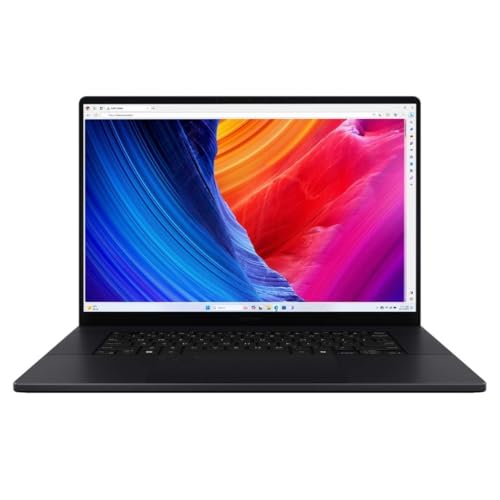
- Display: 16-inch 4K OLED touch
- Processor: AMD Ryzen AI 9 HX 370, 2.0GHz
- Graphics: NVIDIA RTX 5070
- Memory: 64GB LPDDR5X RAM
- Storage: 2TB PCIe SSD
- Operating system: Windows 11 Pro
- Configuration: assembled and sold by HIDevolution (2025 listing)
- Weight: Not stated in the listing title — verify with the manufacturer documentation
- Gamut figure: Not stated in the listing title — verify with the manufacturer documentation
Read the P16’s specification as a list of ceilings removed. A 16-inch 4K OLED touchscreen — the largest, sharpest panel in this guide. An RTX 5070 discrete GPU, the strongest graphics named here, feeding Photoshop’s GPU-accelerated filters and AI features. Sixty-four gigabytes of LPDDR5X memory, double the next tier down, so a browser, a catalogue of tens of thousands and a layered file with dozens of strata coexist without the machine asking anything to close. A 2TB PCIe drive, so the working catalogue lives locally at full speed. For stills work, there is no specification line left to wish for.
The disclosure its verdict line promised: this listing is configured by HIDevolution, a specialist reseller known for assembling and upgrading machines to order, rather than sold as an ASUS factory configuration. That is neither scandal nor secret — the title names the seller openly — but it changes the purchase’s terms in ways a buyer should register: the configuration’s exact components, warranty handling and support path run through the reseller, and the sensible buyer reads those terms in the full listing with the same care given to the specification. Many professionals buy through such specialists deliberately, for configurations factories do not catalogue.
With that understood, the P16 is the desk anchor of this guide: the machine for the studio’s main seat, where catalogues are largest and deadlines least forgiving. Its Ryzen AI 9 HX 370 brings the AI acceleration Adobe’s current features increasingly assume, and the 4K OLED gives retouching a canvas where a 100% view still shows context around the detail. Nothing this size travels casually, and nothing in this guide out-works it at a desk.
Photographers whose work is moving rather than still should cross-check the video side of the same tier in our guide to laptops for Premiere Pro 4K, where this class of hardware is judged on timelines instead of catalogues.
Consider what the 64GB figure does to a working day, since memory is the least visible specification and the most felt. The morning’s wedding catalogue — thousands of frames — stays open. The hero image’s layered file, with its retouching strata and adjustment history, stays open beside it. The browser carrying the client gallery, the delivery upload running in the background, the reference board: all open, all instant. Work at this tier stops being a sequence of closings and re-openings and becomes a single continuous surface. That continuity, more than any export time, is what the P16’s specification purchases, and professionals who bill by the delivered job feel it as pure margin.
Strengths
- RTX 5070, 64GB of memory and 2TB of storage are the guide’s highest figures in all three lines.
- 16-inch 4K OLED touch is the largest and sharpest editing canvas here.
- Ryzen AI 9 HX 370 keeps AI-driven Adobe features on fast local hardware.
Trade-offs
- Reseller-configured listing: warranty and support terms are HIDevolution’s, to be read in full.
- Flagship specification is surplus for casual or purely social-media workloads.
- The title states no gamut percentage, so colour-critical buyers should verify panel figures with the seller.
Studio photographers buying the ceiling can check price on Amazon for the HIDevolution-configured P16 and its stated terms.

ASUS ProArt StudioBook 16 OLED
Best for: editing work built around a 16-inch 3.2K OLED studio machine on Intel power with discrete RTX graphics, in a single-maker configuration.
Not suited for: very large layered files held open alongside a big catalogue — 16GB of memory is this specification’s clear ceiling.
- Display: 16-inch 3.2K OLED touch
- Processor: Intel Core i9-13980HX
- Graphics: NVIDIA GeForce RTX 4060
- Memory: 16GB DDR5 RAM
- Storage: 1TB SSD
- Operating system: Windows 11 Home
- Model: H7604JV-PS94T, Mineral Black
- Wireless standard: Not stated in the listing title — verify with the manufacturer documentation
- Weight: Not stated in the listing title — verify with the manufacturer documentation
The StudioBook 16 OLED is the traditionalist’s creator laptop: a big 3.2K OLED touchscreen, an Intel Core i9-13980HX — an HX-class processor built for sustained loads — and a discrete RTX 4060 to accelerate Photoshop’s GPU features and Lightroom’s increasingly GPU-assisted rendering. The ProArt StudioBook line predates the current AI-branded generation, and its virtues are the established ones: a large colour-focused canvas, honest discrete graphics, and a chassis designed as a studio tool rather than a travel accessory.
Its ceiling is equally established, and the review’s duty is to state it without flinching: 16GB of DDR5 memory. For Lightroom catalogue work of moderate size and Photoshop files of ordinary layer counts, 16GB remains workable — Adobe’s stills tools were shaped in an era of such machines. For the contemporary high end — hundred-megapixel files, panoramas stitched from dozens of frames, catalogues kept entirely in fast local storage with previews rendered at full size — 16GB is where the machine starts asking applications to take turns. Buyers whose work lives at that scale should step to the 32GB PX13 or the 64GB P16 and not negotiate with this figure.
Windows 11 Home rather than Pro is the second honest note: immaterial for a solo photographer’s own machine, relevant for a studio joining domains or enforcing device policies. Within those two bounds, the StudioBook offers something the newer machines do not — the combination of a 3.2K OLED canvas and discrete graphics in a mature, single-maker configuration whose behaviour professionals have documented for years. Predictability is a professional feature too.
For the editor whose files are large but not enormous, and whose studio values a known tool, the StudioBook 16 OLED remains a coherent and satisfying answer.
Its 3.2K resolution deserves a specific defence, because it sits between the fashionable numbers. At 16 inches, 3.2K renders Lightroom’s interface and a fit-to-screen image with a crispness that 2.8K approaches and 4K exceeds at real cost in scaling compromises and power. For a studio machine that will spend its life at 100% and fit views in equal measure, it is arguably the most considered resolution in this guide — chosen, like the rest of the StudioBook’s specification, by a generation of designers who optimised for the work rather than the brochure. Newer is available elsewhere in these pages; better-judged is a different claim, and the StudioBook makes it credibly.
Strengths
- 16-inch 3.2K OLED touch gives retouching a large, dense, pen-ready canvas.
- i9-13980HX and RTX 4060 pair sustained CPU pace with discrete GPU acceleration.
- Mature StudioBook platform with a documented professional track record.
Trade-offs
- 16GB of memory caps very large catalogues and dense layered files.
- Windows 11 Home omits Pro management features some studios require.
- The title omits the wireless standard and weight — confirm both in the full listing.
Editors who value the established platform can check price on Amazon for the StudioBook 16 OLED in the H7604JV-PS94T configuration.

Apple MacBook Pro 14 (M5 Pro)
Best for: photography invested in the Apple platform, centred on the XDR display and unified-memory architecture at 14 inches for everyday work.
Not suited for: pen-on-screen retouching — the MacBook Pro’s display is not a touch surface — or Windows-only studio pipelines.
- Display: 14.2-inch Liquid Retina XDR
- Processor: Apple M5 Pro, 15-core CPU, 16-core GPU
- Memory: 24GB unified memory
- Storage: 1TB SSD
- Wireless: Wi-Fi 7
- Colour: Silver
- Model year: 2026
- Operating system version detail: Not stated in the listing title — verify with the manufacturer documentation
- Port selection: Not stated in the listing title — verify with the manufacturer documentation
The MacBook Pro is the alternative civilisation in this guide, and for a large share of working photographers it is simply the home platform. Its M5 Pro chip — 15-core CPU, 16-core GPU in the title’s figures — drives Adobe’s applications in their Apple-silicon-native forms, and its 24GB of unified memory serves CPU and GPU from one pool, an architecture that suits photo workloads’ constant shuttling between preview rendering, filter acceleration and interface. The 14.2-inch Liquid Retina XDR display is the established reference screen of the laptop world for photographic work: the panel photographers calibrate against, present on, and trust.
Position its memory honestly against the Windows machines. Twenty-four gigabytes of unified memory is neither the 16GB floor nor the 32GB comfort tier of the ASUS line; in practice, unified architecture spends memory efficiently, and Lightroom catalogues with Photoshop files open together sit comfortably within it for most professional stills work. The very largest layered files and panorama assemblies will still prefer the P16’s 64GB. The 1TB drive matches the guide’s sensible floor, and Wi-Fi 7 keeps the platform current.
What the MacBook asks in return is platform commitment. There is no touch layer for pen retouching — the Apple Pencil belongs to the iPad’s side of the fence — and studios whose pipelines, plug-ins or tethering tools are Windows-shaped should not cross platforms for a screen. Photographers already inside Apple’s ecosystem, by contrast, gain the integration that never appears in a spec box: the same colour management culture from capture to delivery, and a machine whose resale and support ecosystems are the industry’s most predictable.
In a guide dominated by one maker’s creator line, the MacBook Pro 14 is the necessary counterweight — the machine against which the ProArt proposition must argue, and frequently the machine that wins the argument on platform alone.
The XDR screen’s role in a photographer’s economy deserves one more sentence of precision. Colour decisions made on a trusted display are decisions made once; colour decisions made on an untrusted one are remade at proofing, at the client’s screen and at the printer, each time at the cost of the photographer’s scarcest resource, which is certainty. The MacBook Pro’s display is the industry default for that certainty at laptop scale, and for professionals whose clients also judge work on Apple screens — as a great many do — the shared reference is worth more than any single specification in this guide.
Strengths
- Liquid Retina XDR is the reference-class laptop display for photographic judgement.
- M5 Pro with unified memory runs Adobe’s Apple-silicon builds with deep optimisation.
- 24GB and 1TB sit at the professional comfort tier for stills workloads.
Trade-offs
- No touch or pen input on the display for direct retouching.
- 24GB trails the 32GB and 64GB Windows picks for extreme layered files.
- Platform switch costs apply to Windows-shaped studio pipelines.
Apple-platform photographers can check price on Amazon for the MacBook Pro 14 with M5 Pro in Silver.

ASUS Zenbook 14 OLED (512GB)
Best for: travelling photographers who cull and edit on the road in an ultra-light machine and finish heavy work at a desk.
Not suited for: being the studio’s only machine for large catalogues — 16GB of memory and 512GB of storage are travel figures, not archive figures.
- Display: 14-inch OLED touchscreen, 2K, 500 nits HDR
- Processor: AMD Ryzen AI 9 465
- Memory: 16GB RAM
- Storage: 512GB SSD
- Keyboard: backlit
- Operating system: Windows 11 Pro
- Platform: Copilot+ PC for business and office
- Gamut figure: Not stated in the listing title — verify with the manufacturer documentation
- Weight: Not stated in the listing title — verify with the manufacturer documentation
The Zenbook 14 OLED is the traveller’s interpretation of this guide’s brief. ASUS’s own title leads with ultra light and long battery life, and the specification follows that lead: a 14-inch OLED touchscreen at 2K with 500 nits of HDR brightness — a panel bright enough for a café window and contrast-rich enough for honest culling — over a Ryzen AI 9 465 with 16GB of memory and a 512GB drive. It is a business-travel chassis that happens to carry exactly the screen a photographer would choose, which makes it the natural second machine for professionals whose main seat is elsewhere.
Work with its limits as design rather than deficiency. Five hundred twelve gigabytes holds a trip’s shoot and the working catalogue’s travelling subset, not the archive; sixteen gigabytes culls, rates, applies global edits and builds previews at full pace, then hands the panorama stitches and the hundred-layer composites to the desk machine without shame. The Ryzen platform keeps every Windows tool available — tethering software, backup utilities, the photographer’s whole road kit — and Windows 11 Pro suits the business travellers ASUS also aims at.
The colour note from this guide’s discipline applies cleanly here: the title states brightness and HDR but no gamut percentage, so judge the panel as a high-quality OLED for culling and general editing, and leave final colour-critical sign-off to a calibrated reference screen if your delivery demands it. That is, in truth, how most travelling professionals already work — the road machine judges composition, exposure and selection; the desk machine judges colour.
As that road machine, the Zenbook 14 OLED is close to ideal: light enough to be unmissed in a camera bag’s laptop sleeve, bright enough for the field, and honest about the desk it partners with. Night shooters building a travel kit around it may also want our guide to compact cameras for low light, the other half of the after-dark problem.
The road workflow this machine enables is worth describing end-to-end, because it is the template most travelling photographers actually live. Shoot all day; cull in the evening on the Zenbook’s bright OLED, cards backed up to the internal drive and a portable SSD in parallel; apply the global grade and build the selects; sleep while the previews render. The heavy finishing waits for the desk, and the Zenbook’s job — judgement at the point of capture, when reshoots are still possible — is the highest-leverage editing of the entire trip. A machine that does that job lightly, brightly and without fuss has earned its place in the bag against far more powerful competition.
Strengths
- Ultra-light brief with a 500-nit HDR OLED — the field-culling screen of this guide.
- Ryzen AI 9 platform keeps the full Windows photography toolkit available.
- Touch input suits fast rating and selection during culls.
Trade-offs
- 512GB of storage holds a trip, not an archive.
- 16GB of memory is the travel tier, not the studio tier.
- No gamut figure is stated in the title for colour-critical sign-off.
Travelling photographers can check price on Amazon for this 512GB Zenbook 14 OLED configuration.

ASUS ProArt PZ13
Best for: pen-led culling, markup and light editing in a detachable form that travels like a tablet and presents like a sketchbook.
Not suited for: sustained heavy editing sessions — the detachable keyboard arrangement and Snapdragon platform serve mobility, not marathon desk work.
- Display: 13.3-inch 2.8K AMOLED touch
- Form: detachable 2-in-1
- Processor: Qualcomm Snapdragon X Plus X1P-42, 45 TOPS
- Memory: 16GB
- Storage: 1TB
- Keyboard: backlit (detachable arrangement — see review)
- Wireless: WiFi 7, Bluetooth 5.4
- Operating system: Windows 11 Home
- Included: DKZ USB hub
- Weight: Not stated in the listing title — verify with the manufacturer documentation
The PZ13 is the detachable member of the ProArt family, and its form is its argument. A 13.3-inch 2.8K AMOLED touchscreen that separates from its keyboard becomes, in sequence: a tablet for culling on a sofa or a train, pen in hand, rating frames at arm’s length; a presentation surface for showing a client the day’s take; and, keyboard attached, a small Windows laptop for captions, metadata and light edits. The included DKZ USB hub in the title acknowledges the detachable class’s port economy and answers it in the box.
Now the keyboard honesty the form demands. A detachable’s keyboard is a cover-class accessory: excellent on a desk or a table, compromised on a lap, where the whole arrangement’s balance and kickstand geometry fight long typing sessions. Photographers whose editing is pen-led and whose typing is captions will never notice. Writers who happen to photograph should choose the PX13’s hinged 2-in-1 instead, whose keyboard is a structural part of the machine. Neither judgement is a criticism; they are the two shapes pen computing comes in, and this guide contains both so the choice can be made knowingly.
The Snapdragon X Plus brings the platform’s standard exchange: efficiency, cool running and a 45-TOPS AI engine, against the need to confirm that your specific tools — tethering software above all — run well on Windows on ARM. Adobe’s flagship applications are the safe centre of that question; the long tail of plug-ins and camera utilities is where verification belongs before purchase. Sixteen gigabytes and a full terabyte suit the culling-and-light-editing brief precisely, and Windows 11 Home fits the solo practitioner’s likely use.
As the lightest interpretation of the creator brief here, the PZ13 earns its place not by out-powering anything but by being present — in the bag, on the train, at the client’s table — at the moments photographs are selected and first shaped.
Client work reveals the detachable’s second talent. A photographer’s selections land differently when the client holds the image — slate-style, at reading distance, nothing between the photograph and the eye but glass. The PZ13 in tablet form is a portfolio that happens to contain the entire working catalogue, and approval conversations conducted over it tend to end with decisions rather than follow-up emails. No specification table captures that, and no clamshell in this guide can do it at all. For photographers whose business is relationships as much as files, the detachable earns its compromises back in the room where the money is decided.
Strengths
- Detachable 2.8K AMOLED form makes pen culling and client presentation natural.
- 1TB of storage at this size is generous for a travelling working set.
- Snapdragon efficiency and 45-TOPS AI suit mobile, battery-conscious work.
Trade-offs
- Detachable keyboard is desk-shaped; lap typing is the form’s known compromise.
- Windows on ARM requires checking tethering tools and plug-ins before purchase.
- 16GB of memory and Windows 11 Home mark it as the mobile tier, not the studio tier.
Pen-led photographers can check price on Amazon for the PZ13 with its included USB hub.
Side-by-side comparison
| Pick | Processor | Memory / Storage | Display | Form |
|---|---|---|---|---|
| ProArt PX13 | Ryzen AI Max+ 388 | 32GB / 512GB-2TB variants | 13.3-inch OLED 2.8K touch | 2-in-1 |
| ProArt P16 | Ryzen AI 9 HX 370, RTX 5070 | 64GB / 2TB | 16-inch 4K OLED touch | Clamshell |
| ProArt StudioBook 16 OLED | Intel i9-13980HX, RTX 4060 | 16GB / 1TB | 16-inch 3.2K OLED touch | Clamshell |
| MacBook Pro 14 (M5 Pro) | Apple M5 Pro | 24GB / 1TB | 14.2-inch Liquid Retina XDR | Clamshell |
| Zenbook 14 OLED | Ryzen AI 9 465 | 16GB / 512GB | 14-inch OLED touch, 2K, 500 nits HDR | Clamshell |
| ProArt PZ13 | Snapdragon X Plus X1P-42 | 16GB / 1TB | 13.3-inch 2.8K AMOLED touch | Detachable 2-in-1 |
How to choose a laptop for Photoshop and Lightroom
How much memory does a photo workflow honestly need?
Follow the files, not the folklore. Sixteen gigabytes — the StudioBook, Zenbook and PZ13 tier — runs Lightroom catalogues of ordinary size and Photoshop files of ordinary layer counts without complaint, and was the professional standard not long ago. Thirty-two gigabytes, the PX13’s tier, is where very large catalogues, high-resolution files and several applications in parallel stop negotiating. Sixty-four gigabytes, the P16’s tier, serves the extreme end: stitched panoramas, hundred-layer composites, catalogues that live entirely in local fast storage. Buy the tier your largest regular project demands, with one tier of headroom if your file sizes are still growing — as, for most photographers, they are.
OLED, AMOLED or XDR: which screen should judge your colour?
All three panel families here are photographic instruments; the differences are of character. OLED and AMOLED panels give per-pixel contrast that makes shadow detail legible and editing in dim rooms a pleasure. Apple’s Liquid Retina XDR is the reference implementation of the mini-LED approach, with the brightness headroom for HDR work. What none of the titles here does is print a gamut percentage, so the professional answer is procedural: whichever machine you choose, calibrate it, keep a known reference file to sanity-check against, and soft-proof work destined for print or for clients’ screens. Panel class gets you into the right neighbourhood; calibration practice decides the address.
Does discrete graphics matter for stills, or only for video?
Increasingly, stills. Photoshop’s filter gallery, neural features and canvas operations lean on the GPU, and Lightroom’s develop rendering and AI masking have moved the same way. The RTX 5070 in the P16 and the RTX 4060 in the StudioBook accelerate exactly those paths, while the integrated solutions in the PX13 and MacBook Pro — both designed with large shared memory pools — handle them by architecture rather than by a separate card. The practical divide is not capable versus incapable; it is how the heaviest AI features feel at the largest file sizes. Casual stills work never finds the line; production retouching lives beyond it.
Which form factor fits an editing life?
Match the hinge to the hand. Pen retouchers should shortlist the PX13’s folding 2-in-1 and the PZ13’s detachable, and choose between them by where the keyboard must work — desk and lap favour the hinge; sofa, train and client table favour the detachable. Keyboard-first editors should take the clamshells and spend the difference on screen size: the 16-inch machines for the studio seat, the Zenbook or MacBook Pro at 14 inches for the road. Form is not a preference question in this category; it is a workflow question with a right answer per photographer.
A working photographer’s setup routine
Whichever machine you choose, the first hour’s setup decides how trustworthy it feels for years. Calibrate the display before judging a single frame, then set Lightroom’s catalogue to live on the internal drive — every machine here has the fast storage for it — with previews built at the size your screen rewards. Point the catalogue’s backup at an external drive or a cloud folder, because a laptop is the most losable object a photographer owns. Configure Photoshop’s scratch disk to the internal SSD and give the application the memory share your tier allows. Finally, tether-test your camera before the first paid shoot: tethering is the workflow most sensitive to platform and port details, and it should be proven at home, not discovered on location.
Catalogue hygiene: keeping Lightroom fast on any of these
Hardware buys headroom; habits keep it. Keep one master catalogue rather than a thicket of small ones, so previews and metadata compound instead of fragmenting. Render standard previews on import while the machine is plugged in and idle, and let the cull happen against finished previews rather than raw renders. Archive finished years to external storage with the catalogue’s folder structure intact, keeping the working set — this season’s shoots — on the internal drive where every machine in this guide is fastest. Prune rejected frames honestly at cull time; a catalogue is a garden, and the 512GB Zenbook in particular rewards gardeners. None of this is glamorous, and all of it is worth more frames per second of scrolling than a processor tier.
Two further habits pay compound interest. Keywords and collections, applied at import with even minimal consistency, turn a hundred-thousand-frame catalogue from a warehouse into an index — the difference between scrolling for a frame and summoning it. And a monthly optimisation of the catalogue file itself, a two-minute Lightroom maintenance task, keeps the database lean as deletions and edits accumulate. Photographers tend to credit hardware for a fast catalogue and blame it for a slow one; the truth, on any of these six machines, is that the catalogue is a practice before it is a specification.
Tethering and backup: the photographer’s two non-negotiables
A laptop in a photography practice is not an island; it is the middle of a pipeline that begins at the camera and ends at the archive. Tethering — shooting directly into Lightroom or a capture application — is the pipeline’s most fragile joint, because it depends on the camera maker’s software, the cable, the ports and the platform agreeing simultaneously. Every machine here can serve as a tether station, but the verification burden differs: the Windows x86 machines inherit decades of tethering support, the MacBook Pro runs the platform most studio software is written for first, and the Snapdragon PZ13 asks for the explicit check its review describes. Prove the chain at home, with your camera and your cable, before any client does it for you.
Backup is the second non-negotiable, and it is a habit rather than a product. The working rule is two copies on two devices before the memory card is formatted — the laptop’s internal drive and a portable SSD is the field version, with the catalogue itself additionally backed up to cloud or a home drive on return. The machines here support that rule in proportion to their storage: the 2TB P16 can hold a season internally, the 512GB Zenbook demands the portable drive as a constant companion. Choose the machine whose storage fits your discipline, or adopt the discipline that fits your machine — but one of the two must happen.
When the stills machine must also cut video
Many photographers now deliver motion alongside stills, and the honest question is how far each of these machines stretches toward that second job. The P16, with its RTX 5070, 64GB of memory and 2TB drive, is a genuine hybrid workstation that will cut 4K timelines as a primary tool. The MacBook Pro’s media-engine heritage makes it the other natural hybrid at 14 inches. The StudioBook’s RTX 4060 handles respectable editing duty. The PX13, Zenbook and PZ13 are stills-first machines that will assemble short clips and social cuts without disgrace. The distinction matters because it is cheaper to buy the hybrid once — photographers whose contracts already include motion should weight the top of this guide accordingly, and the dedicated Premiere guide linked earlier exists for exactly that deliberation.
Printing and soft-proofing from a laptop screen
Print remains photography’s strictest examiner, and a laptop screen — however good — is a emissive rectangle judging a reflective medium. The working method that bridges them is soft-proofing: Photoshop and Lightroom both simulate the printer and paper’s gamut and contrast on screen, showing which saturated colours will compress and which shadow detail will block up, before ink is committed. Every machine in this guide runs that workflow, and the OLED and XDR panels show the simulation at its most legible. Two habits make it reliable. First, proof at the brightness you calibrated at, in the room you calibrated in — a screen brightened for a sunny café will flatter shadows that paper will render heavier. Second, keep one known reference print beside the machine: a physical anchor that catches calibration drift the way a tuning fork catches a wandering ear.
Photographers who print seriously should also budget the laptop’s ecosystem honestly: a colorimeter is not an accessory but a component, as much a part of the machine as its drive. The best screen in this guide, uncalibrated, will lose an argument with a mid-range screen that has been profiled monthly — a sentence worth reading twice before spending on panel class over process.
Companions: second screens, drawing tablets and the pen question
Few professional editing setups end at the laptop’s own panel, and the machines here differ in how gracefully they accept companions. A drawing tablet is the traditional retouching instrument, and it pairs with every clamshell in this guide — the MacBook Pro and the StudioBook most conventionally. The 2-in-1 PX13 and the detachable PZ13 internalise that instrument: the screen is the tablet, which removes a device from the bag and a translation layer from the hand, at the cost of editing on the same surface that displays the palettes. Professionals divide sincerely on which arrangement serves a long retouching day, and the deciding factor is ergonomic — a separate tablet lets the screen sit at eye height while the hand works low; an integrated surface keeps the whole studio in one object that travels.
Second screens follow a similar logic. A laptop whose panel is already photographic-class, as all six here are, can serve as the reference display beside a larger working monitor, or as the tool palette screen beneath it. When you next upgrade the desk, the machine you bought for its screen keeps earning in that second role — one more reason this guide weights panel quality as heavily as it does, and one more argument for buying the screen you trust at the laptop stage rather than planning to compensate for it later.
Common mistakes
Judging a screen by its showroom brightness alone. Editing happens at working brightness, in your room, on your files. A panel’s contrast behaviour, calibration stability and size for your interface matter more than a peak figure — which is why this guide reports stated brightness without crowning it.
Buying memory for the catalogue you have instead of the files you are starting to shoot. Camera resolutions only move one direction. A machine bought at the exact ceiling of today’s files becomes the bottleneck of next year’s, and memory in most of these designs is not a later upgrade.
Ignoring who configured the listing. The P16’s reseller configuration is disclosed in its title and review because support and warranty follow the seller, not just the badge. That check — who stands behind this exact configuration — applies to every listing in this category.
Taking a detachable on a typing-heavy assignment. The PZ13’s keyboard is a desk tool. Writers, caption-heavy journalists and editors whose deliverable is text should take the PX13’s hinge or a clamshell, and leave the detachable to the pen-led work it was shaped for.
Frequently asked questions
Is 16GB of RAM enough for Lightroom and Photoshop?
For catalogues and files of ordinary professional size, yes — three picks here carry it and run both applications properly. It becomes the limit with very large catalogues, high-resolution layered files and panorama work, which is why the guide also offers 24GB, 32GB and 64GB tiers and names the boundary in each review.
Why does this guide print no colour gamut percentages?
Because the listing titles do not state them, and this guide’s rule is to print only what listings establish. The panels here — OLED, AMOLED and Liquid Retina XDR — are photographic-class displays; exact gamut figures for a specific configuration should be confirmed with the manufacturer or seller, then verified by calibration in your own workflow.
Mac or Windows for a photography studio?
Both platforms run Adobe’s applications in native, optimised forms, as this guide’s MacBook Pro and ProArt picks show. Choose by your existing pipeline — tethering tools, plug-ins, file habits and the rest of the studio’s machines — rather than by abstract preference. The expensive mistake is switching platforms for a specification and discovering the workflow cost afterwards.
Does the Snapdragon PZ13 run Photoshop properly?
Adobe’s flagship applications are the well-supported centre of Windows on ARM, and the PZ13’s brief — culling, markup, light editing — sits inside it. The verification that matters is your own long tail: tethering software, plug-ins and printer utilities. Check those before purchase, as its review advises.
Which pick is best for a student photographer?
The Zenbook 14 OLED for portability and value of specification, or the PX13 if pen retouching is central to the course’s work. Both keep the full Windows toolkit available, and both screens teach the eye on photographic-class panels from the first semester.
Should I buy an external monitor instead of a better laptop screen?
For a fixed studio seat, a large calibrated external monitor is a legitimate alternative — and every machine here can drive one. The laptop screen still matters for location work, client presentation and the days the studio is a kitchen table, which is why this guide judges the built-in panel first. Many professionals end with both: the laptop chosen for its own screen, the desk extended when the work is stationary.
How important is storage speed for Lightroom?
More than processor bragging, for catalogue work. Preview rendering, scrolling and import all lean on the drive, and every pick here uses SSD storage — the P16’s 2TB PCIe drive and the PX13’s fast internal storage being the strongest arrangements. Capacity planning matters equally: a catalogue that outgrows its drive degrades the whole workflow, whatever the processor.
Final recommendation
The ProArt PX13 is this guide’s recommendation for the largest number of working photographers: a genuinely portable machine whose 2.8K OLED, 32GB of memory and pen-ready 2-in-1 form cover location work, retouching and catalogue duty without a weak line. The desk-bound should take the P16’s ceiling — with its reseller terms read and accepted — and Apple-platform photographers should take the MacBook Pro 14 without a backward glance. The StudioBook serves the traditional studio seat, the Zenbook the road, and the PZ13 the pen. Photography rewards the machine that matches the hand and the workflow, and among these six, the PX13 matches the most hands most completely. Buy the screen you can trust, the memory your largest file demands, and the shape your hand prefers — in that order — and the catalogue will take care of itself for years to come.