Our Top Picks




What's inside
- Why a feeder changes how a wireless printer feels day to day
- ADF, flatbed, and sheet-fed: three different ways to scan
- Single-pass, reversing, and manual two-sided scanning
- Feeder capacity: what 20, 35, and 50 sheets really mean
- Scan speed: reading ipm and ppm figures honestly
- Print speed, duty cycle, and recommended monthly volume
- Automatic two-sided printing is a separate feature
- Inkjet with a feeder: strengths and compromises
- Laser with a feeder: strengths and compromises
- Connectivity: Wi-Fi generations, Ethernet, and direct modes
- Printing and scanning from phones and tablets
- Scan destinations, file formats, and searchable documents
- Paper handling beyond the feeder: trays, bypass slots, and output
- Choosing for a solo home office
- Choosing for a small team or shared workspace
- Choosing for paperwork-heavy roles
- Preparing stacks so the feeder can do its job
- Keeping the feeder reliable: cleaning and wear parts
- Security and privacy for a networked scanner
- Running costs without the guesswork
- Troubleshooting common feeder problems
- Specifications checklist before you decide
- Frequently asked questions
- Bringing the decision together
- Check prices on Amazon
- Affiliate disclosure
As an Amazon Associate I earn from qualifying purchases. This post may contain affiliate links at no extra cost to you.
Why a feeder changes how a wireless printer feels day to day
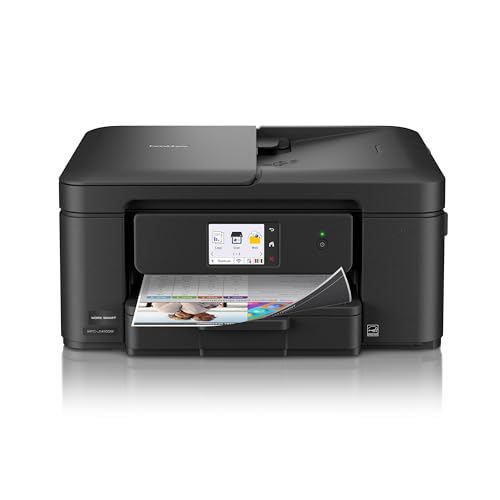
A wireless printer without a document feeder asks you to handle every page twice: once to place it on the glass, and again to remove it, align the next sheet, and close the lid. That rhythm is tolerable for a single passport copy. It becomes punishing when a signed agreement runs to eighteen pages, when receipts for a quarter need digitising before a deadline, or when a small team shares one machine and each person queues with a folder under one arm. An automatic document feeder, usually shortened to ADF, removes the repeated lifting and aligning. You stack the pages, press scan or copy, and the mechanism draws each sheet across the scanning sensor in sequence while you return to your desk.
The feeder also changes what wireless printing means in practice. Without a feeder, scanning stays tethered to the machine because your hands are part of the process. With a feeder, a multi-page scan becomes a job you can start from a laptop in another room, monitor from a phone, and collect later. Copying a double-sided handout, scanning a contract to a shared folder, or sending a batch of invoices to cloud storage all become background tasks rather than chores performed standing beside a humming lid. For home offices and small workgroups, that shift in workflow matters more than a modest difference in headline print speed.
This guide explains how feeders differ, which specifications predict real throughput, and where buyers commonly misread a data sheet. It separates three ideas that marketing pages often blur together: feeding pages automatically, scanning both sides of a page, and printing on both sides of a sheet. Those are independent capabilities. A model can offer any combination of them, and the combination you need depends on whether your paperwork is mostly single-sided forms, double-sided contracts, fragile originals, or a mixture of everything.
Our research compared manufacturer specification sheets, user manuals, and published duty-cycle figures across inkjet and laser all-in-one models that include a feeder. We compared specifications for feeder capacity, scan speed in images per minute, supported paper weights, wireless standards, and tray configurations, then organised the findings around the decisions a buyer actually faces. No single feeder design suits every office, so the sections below emphasise matching mechanism, capacity, and connectivity to the volume and shape of your paperwork.
ADF, flatbed, and sheet-fed: three different ways to scan
A flatbed scanner uses a fixed glass platen. The original stays still while a light bar travels beneath it. Flatbeds handle bound books, thick card, damaged pages, and items that must never bend. Their weakness is labour: one page per lid lift, with alignment left to you. Nearly every all-in-one with a feeder also keeps a flatbed underneath, because some originals should never pass through rollers. When you evaluate a feeder model, check that the lid opens wide enough for a book spine and that the hinges lift slightly for thicker material.
A dedicated sheet-fed scanner has no flatbed at all. Pages travel through a narrow paper path, which keeps the device compact and fast for uniform stacks. The trade-off is inflexibility: no glass for fragile or bound items, and less tolerance for mixed sizes. Most home-office buyers are better served by an all-in-one that pairs a feeder with a flatbed, gaining batch speed for ordinary stacks while retaining a gentle option for the exceptions.
An automatic document feeder sits on top of the flatbed lid and automates the flatbed workflow in one of two ways. In many inkjet designs, the feeder pulls each page across a fixed scan window built into the lid area. In other designs, the page moves over the glass itself. Either way, rollers grip the leading edge, transport the sheet at a controlled pace, and eject it into a small output slot or onto the lid surface. Feed reliability depends on roller condition, paper quality, and how carefully the stack was prepared before loading.
- Flatbed scanning suits books, passports, artwork, and damaged pages that need a stationary, gentle scan.
- Feeder scanning suits uniform stacks of loose office paper where speed and unattended operation matter most.
- Dedicated sheet-fed designs suit desks with very limited space and consistently uniform document batches.
- Combination machines with both feeder and flatbed cover the widest range of everyday paperwork.
Understanding that distinction prevents a common disappointment. Buyers sometimes expect a feeder to handle everything the flatbed handles, including thick media and bound volumes. It cannot. A feeder is a paper-transport system designed for loose sheets within a stated weight range, commonly around 60 to 105 grams per square metre for standard models, with some business designs accepting heavier stock. Anything outside that range belongs on the glass.
Single-pass, reversing, and manual two-sided scanning
Reversing feeders: RADF explained
A reversing automatic document feeder, often labelled RADF, scans one side of a page, then physically flips the sheet inside the paper path and scans the reverse. The advantage is cost and mechanical simplicity: only one scan sensor is required. The disadvantages show up in speed and handling. Flipping adds time, adds roller contact, and adds opportunities for a skew or a jam, especially with thin paper, curled pages, or sheets that have been folded for mailing. Published two-sided scan speeds for reversing designs are therefore much lower than their one-sided figures, sometimes less than half.
Reversing feeders remain a sensible choice when two-sided originals are occasional rather than constant. If most of your scanning is single-sided forms, receipts, and letters, and only the odd contract arrives printed on both sides, the slower reversing path costs you a few extra seconds per document. Paying more for a faster mechanism would buy capability you rarely invoke.
Single-pass feeders: DADF and dual-sensor designs
A duplexing automatic document feeder in the strict sense, often called DADF or single-pass duplex, carries two scan sensors, one facing each side of the sheet. Both sides are captured during one journey through the path, with no flip and no second pass. Two-sided scan speeds stay close to one-sided speeds, mechanical handling is gentler because the page travels a simpler route, and thick stacks finish noticeably sooner. Business-oriented models advertise this clearly because it is a genuine differentiator, not a cosmetic one.
Terminology is inconsistent across brands, which creates confusion. Some manufacturers use duplex feeder to describe any feeder that can produce a two-sided scan, including reversing designs. Others reserve the phrase for single-pass hardware. The reliable check is the published speed table: if the two-sided figure in images per minute nearly matches the one-sided figure, the machine almost certainly scans both sides in one pass. If the two-sided figure drops sharply, the feeder reverses each sheet.
A third possibility is manual duplex scanning, where software prompts you to remove the stack, turn it over, reload it, and then collates the two sets of images into one file. This works, but it reintroduces the standing-and-waiting labour the feeder was meant to remove, and it invites ordering mistakes with larger stacks. Treat manual duplex as a fallback feature on entry models, not as equivalent to either reversing or single-pass hardware.
- One-sided originals scan at full rated speed on every feeder type, reversing or single-pass.
- Reversing designs scan the second side after flipping the sheet, so duplex jobs take longer.
- Single-pass designs capture both faces together and preserve speed on contracts and reports.
- Manual duplex relies on you reloading the stack, which suits only very occasional two-sided work.
Feeder capacity: what 20, 35, and 50 sheets really mean
Feeder capacity is quoted in sheets of standard office paper, typically 80 grams per square metre, loaded correctly and in good condition. A 20-sheet feeder handles a short report, a handful of forms, or a week of receipts without reloading. A 35-sheet feeder absorbs most home-office batches comfortably: a tenancy agreement with annexes, a set of school forms, or a monthly bundle of statements. A 50-sheet feeder serves shared machines and heavier digitising projects, where stopping to reload every few minutes would fragment the work.
Capacity figures assume uniform paper. Mix in a thick cover sheet, a glossy page, or several sizes in one stack and the practical capacity falls, because friction between dissimilar sheets varies and separation becomes less predictable. Manuals usually advise against mixing sizes or weights in a single batch. If your paperwork routinely mixes A4 letters with smaller receipts, plan to scan those groups separately rather than forcing them through together and blaming the rollers for the resulting misfeeds.
Capacity also interacts with output handling. Some feeders eject scanned pages onto a small ledge that holds far fewer sheets than the input tray accepts. A 50-page job can overflow the output area and push earlier pages onto the desk if nobody collects them. That is not a defect, but it is worth knowing before you launch a long unattended scan and walk away. For very long batches, emptying the output ledge midway keeps pages ordered and prevents the last sheets from landing on top of scattered earlier ones.
Consider your longest routine document, not your longest imaginable one. Buying a 50-sheet feeder for a yearly 60-page archive project, when every weekly job is under twelve pages, adds cost and machine bulk for little benefit. Conversely, a bookkeeper, paralegal assistant, or administrator who scans client files daily will recover the price difference in saved reloading time within weeks. Readers weighing feeder size against general value may also find our roundup of best affordable wifi printers useful for context on how feeder capacity is distributed across price tiers, though feeder mechanics deserve the closer look given here.
Paper weight, size, and the limits in the fine print
Every feeder specifies a supported range for paper weight, minimum and maximum sheet size, and sometimes a separate, lower capacity for heavier stock. Lightweight paper below the stated minimum can double-feed because sheets cling together; heavy card above the maximum can stall or skew because rollers cannot grip and bend it through the path. Legal-size support is not universal: some feeders accept legal paper through an extended guide, others top out at A4 or letter. If legal documents feature in your work, confirm feeder support specifically, since flatbed legal support and feeder legal support are separate specifications.
Long-page or banner scanning appears on a minority of models and usually carries a reduced resolution or a dedicated software mode. Receipt scanning has its own constraints: narrow receipts can twist in a wide feeder unless the guides close down snugly to their width. Adjustable side guides are therefore more than a convenience. Slide them until they lightly touch the stack edges on every load; a few millimetres of play is enough to produce visibly tilted scans across a long batch.
Scan speed: reading ipm and ppm figures honestly
Scanning speed is quoted in images per minute, abbreviated ipm, where one image means one side of one page. A two-sided page scanned in single-pass mode produces two images. Printing speed uses pages per minute, a different measure for a different engine, and the two numbers should never be compared directly. A machine that prints quickly can still scan modestly, and a fast feeder does not make the print engine any quicker.
Published scan speeds are measured under stated conditions, commonly at 200 or 300 dots per inch in monochrome or colour, using a standard test pattern. Colour scanning at higher resolution slows every feeder, sometimes dramatically. If a data sheet lists an impressive ipm figure without stating resolution and colour mode beside it, treat the number as a best case. Manuals usually include a fuller table showing speeds for monochrome and colour at several resolutions; that table predicts your experience far better than a headline claim.
Real throughput also includes everything around the transport itself: the pause while the first page is drawn in, processing time between pages, file writing, and network transfer when scanning to a folder or cloud destination. A feeder rated at 25 ipm may deliver a finished 20-page PDF in well under a minute on a wired connection, yet take noticeably longer when sending colour pages over a congested wireless link to a cloud service that must acknowledge each upload. Judge speed as a pipeline, not a single component.
- Check whether quoted scan speeds were measured in colour or monochrome, and at which resolution.
- Compare two-sided ipm separately from one-sided ipm to reveal whether a feeder reverses pages.
- Allow extra time for network transfer and file processing on top of raw transport speed.
- Expect glossy, thick, or damaged sheets to move more slowly than plain office paper.
Print speed, duty cycle, and recommended monthly volume
Print speeds in pages per minute follow an international test standard based on a set of office documents, measured after the first page emerges. First-page-out time matters as much as sustained speed for the short jobs that dominate home-office printing: a two-page letter cares little whether the engine sustains 20 or 30 pages per minute, but cares greatly whether it wakes, processes, and prints within ten seconds or half a minute. Feeder models aimed at business users usually publish both figures.
Maximum duty cycle and recommended monthly volume are frequently confused. The maximum is a ceiling the hardware can survive in an exceptional month; the recommended range describes the workload the machine is designed to sustain month after month without accelerated wear. Buying a machine whose recommended range comfortably covers your typical month, with headroom for your busiest month, is the reliable rule. A feeder adds its own wear items to that calculation, because rollers and separation pads are consumable parts rated for a certain number of sheets.
Volume also shapes the inkjet-versus-laser decision covered later in this guide. Low-volume users who print in bursts after idle weeks face different failure modes from steady daily users. A feeder that sits unused for months can develop flat spots or dust accumulation on its rollers, so an occasional cleaning cycle and a short test scan after long idle periods keep it ready for the next large batch.
Automatic two-sided printing is a separate feature
Duplex printing means the printer places images on both sides of a sheet without you reinserting pages by hand. It saves paper on long reports, produces professional-looking handouts, and reduces the bulk of filed printouts. It is entirely independent of duplex scanning. A model can print two-sided while scanning only one side through its feeder, scan two-sided while printing only one side, offer both, or offer neither. Product names rarely make the combination obvious, so verify each function on the specification sheet individually.
Two-sided printing runs slightly slower than one-sided printing because the sheet travels an extra loop through the duplex path. It also imposes paper limits: very thick media, envelopes, and labels generally print one-sided only. Borderless photo printing, where offered on inkjet models, is likewise a one-sided feature. None of this diminishes duplex printing for its main purpose, which is economical, tidy production of ordinary office documents.
When two-sided output is central to your work, our overview of best automatic duplex printers examines that capability across a wider set of machines. Within feeder models specifically, the practical advice is simple: confirm automatic duplex printing in writing on the spec sheet, confirm it applies at the paper sizes you use, and confirm the driver exposes booklet and binding-edge options if you produce bound handouts.
Inkjet with a feeder: strengths and compromises
Inkjet all-in-ones dominate the feeder market for homes and very small teams because they combine colour printing, copying, and scanning in a compact footprint at accessible purchase cost. Modern business inkjets use page-wide or fast-moving printheads that rival entry laser speeds for mixed office documents, while home-oriented models prioritise photo quality and low purchase price over pace. Their feeders typically hold 20 to 35 sheets, with reversing duplex scanning common at lower tiers and single-pass designs appearing as you move toward business ranges.
Inkjet strengths extend beyond purchase price. Colour graphics print richly, photos on dedicated media look markedly better than laser output, and many models accept a wide range of paper types, from matte presentation stock to iron-on transfers in specialist cases. Tank-based inkjets, which refill from bottles into built-in reservoirs, changed running-cost expectations for higher-volume colour printing and removed the frequent cartridge swaps that once defined home inkjet ownership.
The compromises are equally specific. Liquid ink can smudge on unsuitable paper if handled immediately, text on plain paper may look slightly less crisp than laser toner under magnification, and printheads need occasional maintenance cycles that consume small amounts of ink, particularly after idle periods. Feeder scanning quality on inkjet all-in-ones is generally strong for documents, but buyers digitising photographs at high resolution should examine the optical resolution and bit depth of the flatbed sensor rather than assuming feeder specifications tell the whole story.
Cartridge, tank, and subscription ink arrangements
Cartridge inkjets divide into standard and high-yield cartridge families. High-yield cartridges lower cost per page and reduce swap frequency, which matters when a feeder encourages larger copy and print batches. Tank models shift the economics further: a single bottle refill can cover thousands of pages, and transparent reservoirs make remaining ink visible at a glance. The trade-offs are a higher initial purchase figure and a little more care during refilling, though keyed bottle necks have made spills uncommon on current designs.
Subscription ink services, where a plan ships cartridges based on pages printed, can suit predictable low-to-moderate volumes but require an ongoing connection and a plan that matches your habits. Whatever supply system you choose, check whether scanning and copying remain fully available when a colour supply runs empty. Most machines continue scanning regardless, but some restrict colour copying or printing until the empty supply is replaced, which can surprise a shared office mid-batch.
Laser with a feeder: strengths and compromises
Laser and LED all-in-ones pair naturally with feeders in busier offices. Toner produces sharp, water-resistant text that tolerates highlighting and handling, engines sustain higher print speeds without the drying concerns of idle ink, and recommended monthly volumes climb well beyond typical inkjet ranges. Feeder capacities of 50 sheets and single-pass duplex scanning appear more frequently in this category, reflecting the document-heavy workloads these machines are built to absorb.
Colour laser models close much of the graphics gap for charts, diagrams, and branded documents, though photographic reproduction still favours inkjet on suitable media. Monochrome laser models remain the efficiency champions for text-dominated offices: one toner supply, fast first pages, and feeders tuned for relentless form and correspondence processing. Anyone whose scanning is mostly contracts and whose printing is mostly letters should give monochrome laser serious attention before paying for colour capability that sits idle.
Compromises include larger, heavier hardware, higher purchase figures for colour models, warm-up behaviour on older designs, and toner cartridges that represent a bigger single purchase when replacement day arrives, even though cost per page over the cartridge life is usually favourable. Laser machines also draw more power while printing, though sleep consumption on current models is low. Our comparison of best color laser printers home office explores colour laser trade-offs in depth for readers leaning in that direction.
Toner, drums, and long-life components
Some laser designs combine toner and drum in one cartridge, so every replacement renews the imaging surface. Others separate a long-life drum from the toner supply, lowering the cost of routine replacements while adding an occasional drum change to the maintenance calendar. Neither approach is universally better. Combined units simplify stocking for a small team; separate drums reward higher volumes with lower ongoing expense. Feeder wear parts follow a similar pattern: some rollers are user-replaceable with a part number listed in the manual, while others require a service visit, a distinction worth checking if you expect heavy scanning over several years.
Connectivity: Wi-Fi generations, Ethernet, and direct modes
Wireless printing only feels effortless when the connection is stable, so the wireless specification deserves the same scrutiny as the feeder. Wi-Fi 5, formally 802.11ac, handles office printing comfortably. Wi-Fi 6, formally 802.11ax, improves performance in crowded radio environments with many connected devices, which describes most modern homes. Dual-band support matters more than the headline generation for many buyers: the 5 GHz band offers cleaner air in apartment buildings and dense neighbourhoods, while the 2.4 GHz band reaches further through walls. A printer limited to 2.4 GHz can still perform well, but it competes with every legacy gadget on the busiest band.
Some printers support only infrastructure mode through a router; others add Wi-Fi Direct, which lets a phone or laptop connect straight to the printer without a router. Direct mode helps in temporary offices, guest printing, and troubleshooting, though it usually means the client device leaves its normal network while connected unless the printer supports concurrent connections. A few models offer near-field tap-to-connect pairing for phones, which simplifies first setup for less technical users.
Ethernet, where fitted, remains the most dependable option for a shared feeder machine. A wired connection removes wireless dropouts from the scanning pipeline, keeps scan-to-folder transfers brisk, and gives the printer a fixed presence on the network that survives router wireless changes. If your desk layout allows a cable run, wired networking plus wireless convenience for mobile devices is the strongest combination, and many business models happily run both at once.
- Prefer dual-band wireless when several rooms or many devices separate printer and router.
- Use wired networking for a shared machine that scans long batches to a network folder.
- Keep direct wireless mode in mind for guests, temporary spaces, and router-free printing.
- Place the machine where signal strength is solid, not merely present, for reliable jobs.
Printing and scanning from phones and tablets
Mobile printing standards have consolidated around a few platform services built into phones and tablets, supplemented by each manufacturer’s own app. For straightforward printing of documents, photos, and web pages, the platform service usually suffices and requires no extra account. Manufacturer apps earn their place when you need the feeder: initiating a multi-page scan, choosing duplex mode, selecting resolution, and routing the result to cloud storage are typically app-driven tasks, because the generic print dialogues do not expose scanner controls.
Test the app experience in your planning, not just the hardware. An app that remembers your preferred scan profile, names files sensibly with dates, and offers optical character recognition or straightening earns its space on your phone. Conversely, an app that demands account sign-in for basic local scanning, or buries duplex settings three menus deep, will quietly discourage the very batch-scanning habits the feeder was bought to enable.
Scan destinations, file formats, and searchable documents
A feeder earns its keep when finished scans land where they are needed without extra steps. Common destinations include a computer, a network folder, an email address, a USB drive inserted in the printer, and cloud storage services configured through the manufacturer’s platform. Scan-to-folder suits offices archiving to a local server or network drive. Scan-to-email suits short documents sent to a known recipient. Scan-to-cloud suits distributed teams whose files live in shared online workspaces.
File format choices shape the usefulness of every batch. PDF dominates for documents, with searchable PDF, produced through optical character recognition, as the most valuable variant: text inside the scan becomes selectable, copyable, and findable by your computer’s search tools. Multi-page PDF should be the default for feeder work. JPEG suits photographs and single-page images. TIFF persists in some professional and archival workflows. A minority of models offer compact high-compression PDF modes that shrink colour file sizes considerably, at a small quality cost that most office documents never reveal.
Resolution selection balances quality against speed and file size. For ordinary office text, 200 to 300 dots per inch produces clean, legible results and searchable files of manageable size. Photographs and fine artwork justify 600 dots per inch or higher on the flatbed. Scanning everything at maximum resolution is a common beginner habit that multiplies transfer times and storage consumption without improving plain-text legibility at all.
- Choose searchable output for contracts, statements, and records you may need to search later.
- Use moderate resolution for routine correspondence to keep batches fast and files compact.
- Reserve the highest resolutions for photographs, artwork, and fine detail on the flatbed.
- Confirm the machine can send scans to the folder, mailbox, or service your workflow uses.
Paper handling beyond the feeder: trays, bypass slots, and output
Input trays determine how often printing pauses for refills and how easily you switch media. A 150-sheet tray suits light home use; a 250-sheet tray suits shared machines and longer print runs. Some models add a second tray or an optional tray accessory, letting plain paper live in one cassette while letterhead, labels, or heavier stock wait in another. A single-sheet bypass or priority slot, common on laser models, feeds envelopes and special media one piece at a time without emptying the main tray.
Maximum paper size, supported weights through the main tray versus the bypass, and envelope capacity all appear in the paper-handling section of the specification sheet. Check the weight limit for the duplex path separately, since it is often narrower than the one-sided limit. Output capacity matters on longer runs too: a 100-sheet output area that fills mid-job can curl or scatter pages on some designs, though most home-office runs finish well below that threshold.
Straight-through paper paths, offered on some models via a rear door, give thick or easily marked media a nearly flat route through the printer. That feature pairs with the feeder story in a complementary way: the feeder accelerates ordinary loose sheets, the flatbed protects delicate originals, and the straight path prints demanding media. Machines offering all three cover an unusually wide range of small-office work. Buyers comparing general all-in-one layouts will find broader context in our survey of best aio printers, which looks at how tray and finishing options vary across the category.
Choosing for a solo home office
A solo home office usually blends modest print volume with irregular scanning bursts: a quiet week, then a tax-preparation weekend with a shoebox of receipts and a stack of forms. For that pattern, a 20- or 35-sheet reversing feeder covers nearly every batch, single-pass speed is a luxury rather than a necessity, and compact footprint plus quiet operation may matter more than raw pace. Tank inkjet models suit this profile well when colour printing is regular; a monochrome laser suits it when printing is overwhelmingly text and scanning bursts are document-only.
Prioritise dependable wireless, a clear mobile app, and automatic two-sided printing, which you will use weekly even if duplex scanning is monthly. Check sleep-mode behaviour and wake time, because a solo user prints many tiny jobs and waits for each one. Also consider where scanned output goes: a solo operator benefits most from scan-to-cloud or scan-to-computer profiles configured once and reused, rather than emailing every scan and downloading it again.
Desk placement shapes satisfaction here too. A feeder needs vertical clearance for its open lid and for loading pages that stand upright in the input tray. Measure the shelf or cabinet space with the feeder lid open, not closed, and allow room above for the tallest stack you load. Machines with rear paper feeds need depth clearance as well. Five minutes with a tape measure prevents the classic discovery that a new printer only fits with its feeder permanently half-open.
Choosing for a small team or shared workspace
Shared machines accumulate queues, mixed habits, and higher volumes, so the priorities shift toward capacity, durability, and administration. A 50-sheet single-pass feeder keeps two-sided client files moving without babysitting. A 250-sheet tray, or dual trays, reduces the refill interruptions that otherwise land on whoever sits nearest. Recommended monthly volume should cover the team’s combined output with headroom, not merely exceed its average.
Administrative features become practical rather than ornamental. User codes or PIN release for sensitive print jobs protect confidential documents left in the output tray. Address-book entries on the touchscreen let any team member scan to the shared folder or group mailbox without configuring anything. Usage reporting helps whoever orders supplies anticipate toner or ink replacement before a deadline week exposes an empty machine.
- Shared spaces benefit from larger feeders, larger trays, and higher recommended volumes.
- Touchscreen address books let every colleague scan to shared destinations without setup help.
- Secure release features keep sensitive pages from waiting unattended in an output tray.
- A wired network connection gives a shared machine the most stable scanning pipeline.
Agree on simple house rules for the feeder: remove staples and clips, straighten folded corners, and keep a small waste bin nearby for the envelopes and backing sheets that should never enter the path. Most feeder jams in shared spaces trace back to preparation shortcuts rather than hardware faults, and a thirty-second stack check is cheaper than a mid-batch rescue.
Choosing for paperwork-heavy roles
Bookkeepers, administrators, legal assistants, property managers, and healthcare office staff share a pattern: scanning is not occasional, it is the job. For these roles the feeder specification is the product. Single-pass duplex scanning at the highest available ipm, a 50-sheet or larger feeder, robust separation that tolerates lightly mixed batches, and direct scan-to-folder delivery matter more than photo quality or borderless printing, which may never be used.
Software features carry unusual weight here. Reliable optical character recognition, blank-page skipping, automatic rotation of sideways pages, skew correction, and barcode or patch-code batch separation on advanced models can save more time than any hardware speed difference. Confirm which of those features live in the printer itself, which live in the bundled computer software, and which require a paid tier, because the answer varies and affects daily workflow design.
Also examine the rated life of feeder consumables and how replacements are obtained. A heavy scanner can consume roller kits on a predictable schedule measured in tens of thousands of sheets. Knowing the part number, the replacement interval, and whether fitting is a tool-free user task or a service call lets a paperwork-heavy office budget accurately and avoid downtime surprises.
Preparing stacks so the feeder can do its job
Feeder reliability is half hardware, half preparation. Remove staples, paper clips, sticky notes, and tape. Fan the stack gently to separate sheets that cling from humidity or static, then tap it square on the desk so edges align. Flatten pages that were folded for mailing, and let freshly printed pages cool and dry briefly before scanning them, since warm output can stick together. Load the stack within the capacity marks on the guides, never by compressing extra sheets on top.
Order matters for two-sided and collated work. Most feeders expect the first page face-up or face-down in a stated orientation, and the manual illustrates it with a diagram worth taping inside a cabinet door for occasional users. If a test batch emerges in reverse order or upside down, adjust the load orientation or the software’s rotation and ordering settings once, note the working combination, and reuse it. A two-page trial before a fifty-page commitment is always cheaper than rescanning.
Fragile, torn, or irreplaceable originals belong on the flatbed regardless of feeder convenience. Photocopy a damaged page first and feed the copy if the original must enter an archive workflow. Carbonless multi-part forms, thermal receipts that curl tightly, and pages with raised seals all deserve the same caution. The feeder is a speed tool for ordinary paper, not a test of what paper can survive.
Keeping the feeder reliable: cleaning and wear parts
Dust, paper fibres, and ink residue accumulate on feeder rollers and the narrow scan window, announcing themselves as streaks down every scanned page, more frequent misfeeds, or pages that hesitate at pickup. A vertical line appearing in the same position on feeder scans but not on flatbed scans points directly at debris on the feeder scan window, and a lint-free cloth lightly dampened with water, applied as the manual directs, usually clears it. Never use abrasive materials on that window; fine scratches become permanent lines.
Roller cleaning follows the manual’s procedure, typically involving a cleaning mode that rotates the rollers while you hold a moistened cloth or a manufacturer cleaning sheet against them. Cleaning after a dusty paper batch, or whenever pickup becomes hesitant, restores grip that owners often misdiagnose as mechanical failure. Separation pads and pickup rollers eventually wear smooth despite cleaning; replacement intervals are published for business models and are a normal cost of heavy scanning, comparable to replacing toner.
Firmware updates occasionally improve feeder behaviour, wireless stability, and security, so enabling update notifications during setup is worthwhile. Keep the paper path free of torn fragments after any jam by opening every access point the manual shows, removing stuck sheets by pulling in the direction of travel where instructed, and checking the sensor area before closing up. Rushing a jam clearance by dragging a sheet backwards is how small tears and lingering fragments are born.
Security and privacy for a networked scanner
A feeder-equipped all-in-one is a network computer that copies your most sensitive documents, so its security settings deserve deliberate attention. Change the administrator password from its default during setup. Disable network services you do not use, such as email-to-print from the open internet, if your workflow never needs them. Keep firmware current, since updates close vulnerabilities in network services and wireless handling.
Scanning destinations deserve the same care as the documents themselves. Scan-to-email configured with weak authentication can expose credentials; scan-to-folder should use an account with access limited to the intended folder. On shared machines, secure print release prevents confidential pages from sitting in the output area, and clearing stored address-book entries and any internal document storage before selling or recycling the machine protects the previous owner’s correspondents and clients.
Wireless security settings should match your router’s strongest mutually supported standard, currently WPA3 where available, with WPA2 as the common fallback. Guest networks isolate visitors nicely but will also isolate their devices from the printer unless the router offers a deliberate bridging option, so place the printer on the network segment its regular users actually inhabit.
Running costs without the guesswork
Cost per page depends on the supply system, the yield standard used to rate it, and your ratio of text pages to graphics-heavy pages. Published yields follow standard test documents; a page of dense colour charts consumes far more colour supply than a page of correspondence. Rather than pursuing a single cost figure, compare yield ratings within the same standard, favour high-yield or tank and toner options when volumes justify them, and remember that feeder-driven copying consumes the same supplies as printing.
Paper is a real running cost that duplex printing directly reduces. Offices that switch long internal documents to two-sided output commonly cut paper consumption for those jobs close to half, with the side benefits of thinner files and lighter postage for mailed reports. Energy costs on current models are modest, dominated by laser fuser warm-up on print jobs and by sleep-state draw the rest of the time; automatic sleep and wake-on-job settings keep that draw low without inconveniencing users.
Factor feeder consumables and a realistic service life into comparisons between a lower-priced home model and a business model. A machine bought for intensive scanning that needs early roller replacement or proves under-rated for its monthly volume can cost more in disruption than the business model would have cost at purchase. Matching recommended volume honestly to your workload is the single most effective running-cost decision available.
Troubleshooting common feeder problems
Misfeeds, double feeds, and skewed pages
When two sheets travel together, the usual causes are clinging pages that were not fanned, a stack loaded beyond its capacity mark, worn or dirty separation components, or mixed paper types in one batch. Reduce the stack, fan and square it again, clean the rollers, and retry. Persistent double-feeding on plain, fresh paper at modest stack heights suggests the separation pad or rollers have reached their service interval.
Skewed scans, where text drifts across the page, usually trace to guides left wider than the stack, a single narrow sheet wandering in a wide path, or one damaged leading corner catching at entry. Set guides snugly, align leading edges carefully, and place damaged pages on the flatbed instead. Mild residual tilt can be corrected by automatic deskew in the scan software, but prevention at loading is faster than correction across a long batch.
Jams and streaks
A jam announcement names or illustrates the zone to open. Work through each access point in order, remove paper gently in the travel direction, and inspect for fragments under good light before closing the covers and resuming. Resuming from the jammed page rather than restarting the whole batch is possible on many models through the software’s recovery prompt, which saves considerable time on long jobs.
Streaks confined to feeder scans indicate the feeder scan window, as described in the maintenance section. Streaks appearing on both feeder and flatbed scans suggest the main sensor or, for copies, the print engine. Blank streaks on printed output belong to the printing side entirely: a blocked ink nozzle or a damaged toner component, diagnosed through the machine’s own quality tools rather than feeder cleaning.
Specifications checklist before you decide
- Feeder type: single-sided only, reversing duplex, or single-pass duplex scanning.
- Feeder capacity in sheets, plus supported paper weights and maximum sheet size.
- One-sided and two-sided scan speeds, with the resolution and colour mode stated.
- Automatic two-sided printing: present or absent, and its paper weight limits.
- Main tray capacity, bypass or priority feed, output capacity, and optional trays.
- Wireless bands and standards, Ethernet availability, and direct wireless support.
- Recommended monthly volume for both printing and the feeder wear components.
- Scan destinations, searchable file support, and the quality of the mobile app.
- Supply system type, high-yield availability, and feeder roller replacement method.
Work through that checklist against your own longest routine batch, your most common document type, and your busiest month. A model that answers each point comfortably will feel right long after a model chosen on one headline speed figure has started to frustrate. Where two models tie, let software quality, app design, and the clarity of the manual decide, because those shape every working day with the machine.
Frequently asked questions
Can a feeder scan photographs and fragile pages safely?
It can transport ordinary photographic prints in good condition on some models, but the flatbed remains the safer and higher-quality route for photographs, and the only sensible route for fragile, torn, or valuable originals. Rollers bend every sheet through a curved path and grip its surface; anything that should not bend or be gripped belongs on the glass. For bulk digitising of family snapshots, many owners scan a feeder-safe trial print first and compare quality and handling before committing a box of memories.
Does a bigger feeder make scanning faster?
Capacity and speed are separate specifications. A 50-sheet feeder can hold more pages, but its transport speed in images per minute may match a 20-sheet model exactly. Bigger capacity saves reloading pauses on long batches; higher ipm shortens the batch itself. Paperwork-heavy users want both. Occasional users may find a modest capacity with respectable speed perfectly adequate, since their batches rarely exceed the smaller tray anyway.
Why do two-sided scans run slower on many models?
On reversing feeders, each sheet must travel, flip, travel again, and exit before the next sheet completes the same journey, so two-sided throughput falls well below the one-sided figure. Single-pass feeders avoid the flip with a second sensor and keep two-sided speeds close to one-sided speeds. Checking both published figures before purchase reveals which mechanism a model uses, regardless of the marketing label attached to it.
Will a feeder handle envelopes, labels, and receipts?
Envelopes and label sheets are printing media, generally fed through the main tray or bypass slot for printing, not through the document feeder, which exists to scan and copy loose originals. Receipts can pass through many feeders if they are long enough to engage the rollers and the guides close to their width, but tightly curled thermal receipts often behave better flattened briefly under a book and scanned on the flatbed, or fed one at a time where the manual permits it.
What does searchable scanning require?
Searchable output requires optical character recognition, performed either inside the printer, in its companion software, or in a cloud service the scan passes through. Check where recognition happens on any model you shortlist, which languages it supports, and whether searchable files are produced at your preferred destinations, since some machines offer recognition only when scanning to a computer running their software, not when scanning directly to a folder or mailbox from the touchscreen.
Bringing the decision together
Start from the paper, not from the product page. Gather a typical week’s originals and measure them honestly: how many pages in the longest batch, how many are two-sided, how many are fragile or odd-sized, and where finished scans must arrive. Those four answers select the feeder type, the capacity tier, the destinations, and the software features that matter. Print requirements then narrow the engine: colour richness and photo work point toward inkjet, relentless text volume points toward laser, and many households land on a capable inkjet while many shared offices land on laser for sound, workload-based reasons.
Next, confirm the unglamorous specifications that govern daily reliability: dual-band wireless or Ethernet for a stable scanning pipeline, recommended monthly volume above your busiest month, automatic two-sided printing if paper savings matter, tray capacity that matches your refill tolerance, and a supply system whose yields fit your volume. Read the feeder’s paper-weight and size limits in the manual rather than the brochure, and check how its rollers are cleaned and replaced.
Finally, weigh the ownership experience: the mobile app you will use to drive scans, the touchscreen that guests and colleagues must understand unaided, the clarity of jam-recovery guidance, and the availability of replacement wear parts in your region. A feeder-equipped wireless printer is a long-lived desk companion for paperwork, and the right match is the one whose mechanism, capacity, and software align with the stacks you actually feed it, week after week.
Check prices on Amazon
Live listings for the shortlist in this guide are pulled from Amazon below, so prices and availability are always current at the moment you look.


Canon PIXMA TR7820 – Wireless Home All-in-One Printer


Affiliate disclosure
Paperwork piles up differently in every home, so this feeder-focused guide is published by a site that earns commissions through affiliate links, and that relationship is worth stating plainly before you act on anything written here. When a reader follows a link from this site to a retailer and completes a purchase, the site may receive a commission from that retailer at no additional cost to the reader. That income supports the research, writing, and maintenance behind guides of this kind. Recommendations in this article rest on specification comparisons, manual review, and the buying criteria described in the sections above, and commission arrangements do not determine which feeder types, capacities, or engine technologies are described favourably. Prices, availability, and specifications change over time, so confirm the details that matter to you on the product page before ordering. If you choose to buy through a link here, thank you for supporting independent buying guidance.
May your next tall stack of paperwork glide through the feeder in one calm pass while the kettle boils and your desk stays blissfully clear.