What's inside
- Key Takeaways
- Quick Picks
- How Did We Choose These 27-Inch 4K Monitors?
- What Does 4K at 27 Inches Actually Change Day to Day?
- How Do the Six Compare on Paper?
- How Do You Set Up a 27-Inch 4K Monitor Correctly?
- What Mistakes Do 27-Inch 4K Buyers Make?
- Which Colour Space Should Your Work Live In?
- How Much Docking Do You Actually Need?
- How Do You Game Well at Native 4K?
- What Is Each Pick Like After a Month?
- Should You Choose 27-Inch 4K, 32-Inch 4K or 27-Inch QHD?
- What Panel Imperfections Should You Accept — and Which Should You Return?
- How Does a Second Screen Pair With a 27-Inch 4K Main?
- How Do You Keep a High-Density Screen Comfortable?
- Is a 27-Inch 4K Monitor a Good Long-Term Buy?
- What If You Are Buying for a Whole Studio?
- What Cable Does 4K at High Refresh Actually Need?
- Can These Screens Be the House’s Film Screen Too?
- How Do You Read the Calibration Report in the Box?
- Does the Operating System Change the 4K Experience?
- Final Recommendation
- Frequently Asked Questions
- Related Guides
As an Amazon Associate I earn from qualifying purchases. This post may contain affiliate links at no extra cost to you.
widgetverdict.com is reader-supported. When you buy through links on our site, we may earn an affiliate commission.
Where to buy: all six picks below link to verified Amazon listings from our checked pool — four professional 4K screens and two 4K gaming screens, all at 27 inches.
The best 27 computer monitors 4k live at the resolution’s natural home. A 3840 × 2160 panel at 27 inches yields roughly 163 pixels per inch, dense enough that text stops looking like a grid of dots pretending to be letters and starts looking like print — and small enough, unlike the 32-inch 4K screens, that the whole canvas stays inside a desk’s comfortable field of view. That is why this size-and-resolution pairing has become the default serious upgrade: photographers and designers came for the colour and the detail, developers and writers stayed for the text, and in the last few years the gaming world arrived with 160Hz-and-above 4K panels that ended the old assumption that 4K meant slow. This guide covers both tribes honestly, because a modern 27-inch 4K shortlist that ignored either would mislead the other.
The split is real and worth understanding before the picks. The professional four — two ASUS ProArt models and two BenQ PD models — are built around colour accuracy, factory calibration, USB-C docking and stands designed for eight-hour days; their refresh rates are working rates and their gaming is a hobby. The gaming pair — an LG UltraGear with a dual-mode trick and an ASUS TUF — invert the priorities: high refresh and sync first, colour a strong second, docking an afterthought. Neither tribe is the “real” 4K monitor. They are two answers to two different days that happen to share a resolution, and the guide’s job is to make you certain which day is yours before money moves.
Key Takeaways
- At 27 inches, 4K density (about 163 ppi) makes text and photographs look printed; run a scaled setting for comfortable interface size and keep the sharpness.
- The ASUS ProArt PA279CRV leads the professional picks: 99% DCI-P3, 99% Adobe RGB-class coverage and 96W USB-C power delivery.
- BenQ’s PD2706U counters with 90W USB-C, DisplayHDR 400 and the HotKey Puck — the control-obsessive’s professional screen.
- Gaming at 27-inch 4K is no longer a slideshow: the LG 27G810A runs 180Hz at 4K and 360Hz in its FHD dual mode.
- The ASUS TUF VG27UQ1A brings 4K 160Hz to a friendlier commitment than the flagship gaming panels.
- Every professional pick here is factory-calibrated with wide-gamut coverage; buy on colour space and docking first, refresh second.
Quick Picks
| Pick | Badge | Why it earns its place |
|---|---|---|
| ASUS ProArt PA279CRV | The creator’s benchmark | Calman Verified colour, both P3 and Adobe RGB-class gamuts, and 96W USB-C docking in a 27-inch 4K frame. |
| ASUS ProArt PA279CV | The proven professional | The earlier ProArt formula — 4K, 100% sRGB and Rec. 709, 65W USB-C and a USB hub — refined by years of studio use. |
| BenQ PD2705U | The Mac-ready designer | AQCOLOR accuracy, 65W USB-C, KVM and the HotKey Puck, tuned for designers who live in Mac workflows. |
| BenQ PD2706U | The HDR-leaning upgrade | 90W USB-C, DisplayHDR 400 and 95% P3 push BenQ’s PD formula toward video-facing work. |
| LG UltraGear 27G810A-B | The dual-mode gamer | 4K at 180Hz for cinema play, FHD at 360Hz for competition — one panel, two personalities. |
| ASUS TUF Gaming VG27UQ1A | 4K speed, friendlier terms | 160Hz 4K with ELMB Sync and 95% DCI-P3 for players who want the resolution without the flagship toll. |
How Did We Choose These 27-Inch 4K Monitors?
Eligibility was strict on the two numbers in the title: a 27-inch-class panel and a native 3840 × 2160 resolution, verified — no “4K-ish” QHD panels borrowing the term, no 28-inch outliers rounding themselves in. Within that field we split the candidates by tribe and judged each tribe by its own criteria. The professional screens were weighed on colour: gamut coverage in the spaces creators actually deliver to, factory calibration and verification, uniformity behaviour, and the docking story — USB-C wattage, hub ports, daisy-chaining, KVM — because a professional monitor is infrastructure. The gaming pair were weighed on motion: refresh rate at native 4K, sync range, response behaviour and the honesty of their HDR claims.
Two further filters applied to all six. The stand had to suit a full working day or a long session, because 27-inch 4K buyers keep their monitors for years and feel ergonomics daily. And every model had to be verifiable in our checked pool at the time of writing, so the listing you open is the monitor this guide describes. The result is a shortlist with a deliberate shape: four professionals that differ in ecosystem and emphasis, two gamers that differ in ambition, and no filler pretending the tribes are one.
What Does 4K at 27 Inches Actually Change Day to Day?
Text, first and most. At 163 pixels per inch, a scaled desktop renders letterforms with the pixel surplus that makes edges disappear; long reading and writing sessions carry a quietness that QHD owners notice within minutes of sitting at one of these screens. Code gains a second benefit: more legible lines at smaller sizes, which developers convert into either more code visible or the same code kinder to the eyes. Photographs gain the obvious — detail that survives zooming — and a subtler one: at this density, sharpening and noise judgements made on screen correspond far better to the final print or post than they do on coarser panels, which is precisely why the professional picks exist.
The honest costs are two. Your graphics hardware works harder everywhere: games at native 4K are the heaviest mainstream load there is, and even desktop compositing and video playback ask more of an ageing machine than QHD did. And interface scaling becomes a setting you must choose rather than ignore — run 4K at one-to-one on 27 inches and the interface shrinks to ant-writing; the scaled modes that everyone actually uses are not a failure of the resolution but its intended mode, giving you a QHD-sized workspace rendered with double the pixels behind every edge. Buyers who understand that sentence will love this class; buyers who wanted four times the workspace of a 1080p screen should read the ultrawide and dual-screen guides instead.

ASUS ProArt PA279CRV — The creator’s benchmark
The PA279CRV is the professional pick against which the rest of this guide is measured, because it makes the fewest apologies. Its 27-inch 4K IPS panel covers around 99 percent of DCI-P3 and reaches into Adobe RGB territory, arrives Calman Verified with a factory delta-E under 2, and presents colour the way a delivery pipeline needs it: predictable. Photographers moving between print and screen work will feel the Adobe RGB reach immediately — cyans and greens that sRGB-only panels clip into sameness stay distinct here — while video-facing creators get the P3 coverage their timelines assume. This is a panel bought to be trusted, and its specification reads like a list of the ways trust is earned.
The infrastructure matches. USB-C carries the image and up to 96 watts of power — enough for essentially any laptop you would dock — alongside DisplayPort daisy-chaining for a second screen and a hub that absorbs the desk’s peripherals. The stand is the full ergonomic set, the bezels are LuxPixel-treated to kill reflections in bright studios, and ASUS’s ProArt software habits assume a user who switches colour spaces deliberately and wants the switch to be one action rather than a menu expedition. Its refresh rate is a working rate and its gaming is casual; that is the tribe’s treaty and this pick honours it without pretending otherwise. For the creator whose monitor is a measuring instrument, this is the benchmark because it behaves like one.
- Panel: 27-inch IPS, 3840 × 2160
- Colour: around 99% DCI-P3, 99% Adobe RGB-class, Calman Verified, Delta E < 2
- Connectivity: USB-C with 96W power delivery, DisplayPort daisy chain, USB hub, HDMI
- Stand: full height, tilt, swivel and pivot
- Finish: anti-glare LuxPixel treatment
Strengths
- Dual-gamut coverage serves print and video creators in one panel.
- 96W USB-C ends the laptop charger conversation completely.
- Factory verification you can build a delivery pipeline on.
Trade-offs
- Working refresh rate — competitive players belong with the gaming pair.
- Wide gamut demands colour management discipline from its owner.
- The professional premium is real, though honestly itemised.
Best for: photographers, designers and video creators whose screen is a measuring instrument. Not suited for: high-refresh gamers, or unmanaged-colour casual use where its gamut becomes a liability of oversaturation.
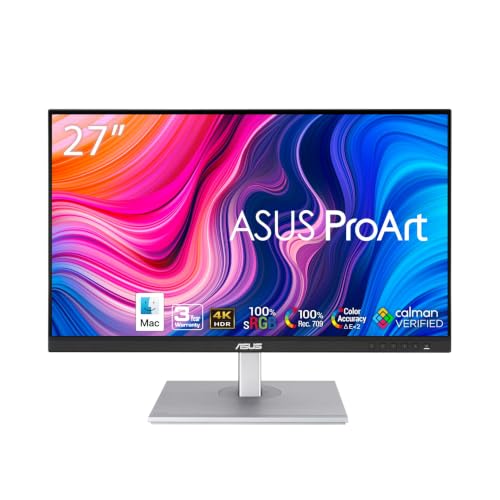
ASUS ProArt PA279CV — The proven professional
The PA279CV is the CRV’s elder sibling and the line’s long-serving workhorse, and its continued presence in this guide is a compliment to how right the original formula was. The panel is a 27-inch 4K IPS calibrated to 100 percent of sRGB and Rec. 709 with the same sub-2 delta-E factory discipline, which makes it the natural professional pick for the huge class of creators whose delivery world is the web, broadcast-standard video and office graphics rather than print’s wider gamut. Where the CRV reaches outward into Adobe RGB and P3, the CV concentrates on being exactly correct in the spaces most work actually ships in — and there are studios full of them, quietly producing, that constitute the strongest review a monitor can earn.
Its docking story is a generation older and still entirely sufficient: USB-C with 65 watts of power delivery, which covers ultraportable laptops completely and larger machines at a slower sip, a USB hub, and the same full ergonomic stand and daisy-chain thinking as its sibling. The differences that matter are therefore honest ones — narrower gamut ambition, lower charging wattage — and they map onto real buyers: the web-and-video professional whose laptop is light and whose deliverables are sRGB is not underspending by choosing the CV, they are declining to pay for gamut they will never open. In a guide organised by tribes and decisions, the CV is the decision to buy proven correctness over maximum reach, and for a great many working desks it remains the right one.
- Panel: 27-inch IPS, 3840 × 2160
- Colour: 100% sRGB and Rec. 709, Calman Verified, Delta E < 2
- Connectivity: USB-C with 65W power delivery, USB hub, DisplayPort, HDMI
- Stand: full ergonomic adjustment
- Character: the studio-proven formula
Strengths
- Exactness in the spaces most work ships in, proven over years.
- Full docking and ergonomics at a gentler commitment than the CRV.
- Factory calibration discipline matches its sibling’s.
Trade-offs
- No Adobe RGB reach for print-led workflows.
- 65W charging is light for power-hungry laptops under load.
- A generation older in its connectivity details.
Best for: web, video and office-graphics professionals who want verified correctness without paying for unused gamut. Not suited for: print photographers who need the CRV’s wider reach, or owners of very thirsty laptops.

BenQ PD2705U — The Mac-ready designer
BenQ’s PD line speaks to designers in their own vocabulary, and the PD2705U is its clearest sentence. The 27-inch 4K IPS panel carries BenQ’s AQCOLOR discipline — factory calibration, uniformity technology that works to keep the whole surface consistent rather than just its centre, and coverage of 99 percent of sRGB and Rec. 709 with HDR10 support — wrapped in a design language that assumes a Mac on the desk: the colour modes include an M-book mode intended to match MacBook displays, so what you design on the big screen resembles what the laptop’s audience sees. For the enormous population of designers whose pipeline is Apple-shaped, that empathy is a feature no specification table captures.
The working furniture is BenQ’s best. The HotKey Puck — a small wired dial that lives on the desk — switches inputs, colour modes and brightness with a physical immediacy that menu systems cannot imitate, and once a designer has lived with it, other monitors feel like they are missing a limb. A built-in KVM lets two computers share the screen and its peripherals, USB-C delivers 65 watts, and the ergonomic stand completes a package aimed at people who bill by the hour and resent every minute spent fighting their tools. Against the ProArts it trades gamut reach for workflow intelligence; against its own sibling below it trades a little power and HDR ambition for a gentler entry. Designers choosing within this guide should weigh those trades by the shape of their actual day — and for Mac-led design days, this pick’s shape is uncannily right.
- Panel: 27-inch IPS, 3840 × 2160
- Colour: AQCOLOR, 99% sRGB / Rec. 709, factory calibrated, uniformity tech
- Connectivity: USB-C with 65W, KVM switch, USB hub, DisplayPort, HDMI
- Control: HotKey Puck dial included
- Modes: Mac-matching M-book mode among its colour presets
Strengths
- The HotKey Puck genuinely changes daily workflow for the better.
- Mac-empathetic colour modes serve Apple-led studios directly.
- KVM and uniformity tech respect professional realities.
Trade-offs
- Gamut ambition is sRGB-centred; print and P3 pipelines should look to the CRV or its sibling.
- 65W USB-C is mid-weight charging for larger laptops.
- HDR10 is support, not a headline experience.
Best for: Mac-led designers and studios who value workflow intelligence as highly as colour. Not suited for: wide-gamut print specialists, or anyone who would never touch the puck — its magic is in the using.

BenQ PD2706U — The HDR-leaning upgrade
The PD2706U is the PD line’s step toward the video-facing desk. Its 27-inch 4K IPS panel widens the family colour story to 95 percent of DCI-P3 alongside its sRGB discipline, adds DisplayHDR 400 certification — modest as HDR goes, but a real step in a professional line that usually treats the badge with suspicion — and raises USB-C power delivery to 90 watts, which settles the charging question for all but the thirstiest workstation laptops. The AQCOLOR foundations remain: factory calibration with tight delta-E, uniformity technology, the designer’s mode set including CAD/CAM and animation-flavoured presets that earn their keep in technical workflows. Think of it as the PD2705U’s argument, extended one notch in every direction a video-leaning designer asked for.
The HotKey Puck returns, because BenQ correctly understands it as the line’s signature, and the KVM and hub arrangements carry over for the two-machine desk. Where does that leave the choice between the two BenQs? The 2705U is the Mac-design purist’s pick, sRGB-centred and gentle in its demands; the 2706U is for the designer whose timelines have started arriving in P3 and whose laptop drinks more power — the creator whose work is quietly becoming video work. It still is not a gaming screen and its HDR remains a supporting actor rather than a headline, but as the professional pick for the desk whose deliverables are changing, it is the most forward-looking of the four professionals here.
- Panel: 27-inch IPS, 3840 × 2160
- Colour: 99% sRGB-class, 95% DCI-P3, DisplayHDR 400, Delta E ≤ 3 class
- Connectivity: USB-C with 90W power delivery, KVM, USB hub
- Control: HotKey Puck included
- Modes: designer presets including CAD/CAM and animation
Strengths
- P3 coverage and 90W charging answer the video-leaning desk.
- The puck-and-KVM workflow furniture remains best in class.
- Factory calibration and uniformity keep it a trustworthy tool.
Trade-offs
- DisplayHDR 400 is a step, not a cinema transformation.
- Print’s Adobe RGB reach still belongs to the ProArt CRV.
- Working refresh rate, as with all four professionals.
Best for: designers drifting into video work who want P3, power and the BenQ workflow in one screen. Not suited for: print-led colour pipelines, or gamers — the next two picks are yours.

LG UltraGear 27G810A-B — The dual-mode gamer
Cross to the gaming tribe and the numbers change their meaning. The 27G810A runs its 27-inch 4K IPS panel at 180Hz — a figure that would have been fantasy at this resolution not long ago — and then, with its dual-mode switch, drops to Full HD and runs at 360Hz for competitive titles. One panel, two honest personalities: the full-density cinema mode for the games that are films you steer, and the speed mode for the games that are sports you play. G-Sync compatibility and FreeSync Premium keep both modes tear-free, DisplayHDR 400 gives highlights a modest stage, and the colour coverage reaches wide enough that the screen’s second life as a media and browsing display is a pleasure rather than a penance.
The ownership reality is a graphics-card conversation, stated plainly: 4K at 180Hz in modern titles is flagship hardware territory, and most owners will live between 90 and 150 frames at native resolution with sync smoothing the ride, reaching for the dual mode when a competitive title rewards frames over pixels. That is not a flaw in the monitor; it is the correct way to buy a panel that will outlast two graphics cards, growing into each. The stand adjusts properly, the design is UltraGear’s angular house style, and the whole package is the strongest argument in this guide that the professional-versus-gaming split at 4K is about priorities, not quality tiers. If your evenings are the main event and your days are light-duty, this is your 27-inch 4K monitor.
- Panel: 27-inch IPS, 3840 × 2160
- Refresh: 180Hz at 4K; dual-mode FHD at 360Hz
- Sync: G-Sync Compatible, FreeSync Premium
- Colour: wide-gamut class, DisplayHDR 400
- Stand: tilt, height and pivot adjustment
Strengths
- Dual mode ends the resolution-versus-speed argument in one panel.
- 180Hz at native 4K future-proofs through GPU generations.
- Colour is strong enough for a credible second life in media and light creation.
Trade-offs
- Your current GPU will not feed it 180 frames at 4K in heavy titles.
- No professional docking story — this is a display, not a hub.
- HDR400 remains a supporting feature, not the headline.
Best for: players whose evenings are the main event and whose GPU is strong or getting stronger. Not suited for: colour-pipeline professionals, who should take any of the four picks above.

ASUS TUF Gaming VG27UQ1A — 4K speed, friendlier terms
The VG27UQ1A asks what 4K gaming looks like when it stops requiring flagship money for the monitor itself. Its 27-inch 4K panel runs at 160Hz with ELMB Sync — ASUS’s strobing that cooperates with adaptive sync rather than replacing it — a 1ms-class response story, FreeSync Premium, and colour reaching around 95 percent of DCI-P3, which in practice means games look rich and streamed films look right. For the player whose GPU is a strong mid-ranger rather than a flagship, 160Hz is also the more honest ceiling: the frames their card produces at 4K, with upscaling help, live closer to this panel’s range than to the LG’s 180, and a monitor whose headroom matches its machine is a better daily experience than one constantly reminding you of the gap.
TUF practicality fills the rest of the sheet: DisplayWidget Center for settings from the desktop, console-friendly HDMI behaviour for the PlayStation-and-PC desk, and build quality tuned for years of sessions. It concedes the dual-mode party trick and a slice of refresh to the LG, and its HDR is the class’s usual compatibility story. In exchange it makes 27-inch 4K gaming a decision a normal enthusiast can take without a flagship budget for the display itself — and since the GPU remains the expensive half of any 4K gaming plan, a monitor that leaves money for the card is not the budget option. It is the strategically literate one.
- Panel: 27-inch, 3840 × 2160
- Refresh: 160Hz, ELMB Sync, FreeSync Premium
- Colour: around 95% DCI-P3
- Software: DisplayWidget Center desktop control
- Audience: PC and console 4K players
Strengths
- 160Hz 4K at a commitment mid-range systems can honour.
- ELMB Sync keeps motion clean without surrendering sync.
- Wide colour flatters games and films alike.
Trade-offs
- No dual-mode escape hatch for competitive play.
- Docking and hub features are minimal next to the professionals.
- HDR is compatibility-grade, as across this class.
Best for: 4K-curious players balancing monitor and GPU budgets like adults. Not suited for: ranked competitors who need the LG’s 360Hz mode, or professionals who need calibration papers.
How Do the Six Compare on Paper?
| Pick | Tribe | Colour headline | USB-C power | Refresh | Signature |
|---|---|---|---|---|---|
| ASUS ProArt PA279CRV | Professional | P3 + Adobe RGB class | 96W | Working rate | Dual-gamut trust |
| ASUS ProArt PA279CV | Professional | 100% sRGB / Rec. 709 | 65W | Working rate | Proven correctness |
| BenQ PD2705U | Professional | 99% sRGB, AQCOLOR | 65W | Working rate | HotKey Puck, Mac modes |
| BenQ PD2706U | Professional | 95% P3, HDR 400 | 90W | Working rate | Video-leaning PD |
| LG 27G810A-B | Gaming | Wide gamut, HDR 400 | Display-focused | 180Hz / 360Hz dual | Two personalities |
| ASUS TUF VG27UQ1A | Gaming | Around 95% P3 | Display-focused | 160Hz | Friendly 4K speed |
Read the professionals’ rows by their colour and wattage columns, because those are the numbers that will govern a working decade; read the gamers’ rows by the refresh column and the signature, because those govern the evenings. The one comparison the table cannot make for you is tribal: no column converts a HotKey Puck into hertz or a dual mode into delta-E. That conversion is your knowledge of your own day, and it is the most important specification in this entire guide.
How Do You Set Up a 27-Inch 4K Monitor Correctly?
Start with scaling, because it is the setting that defines the class. On either operating system, choose the scaled mode that presents a workspace in the QHD class — “looks like 2560 × 1440” in macOS language, or the 150 percent neighbourhood on Windows — and then leave it alone for a week before fine-tuning. Connect professional picks by USB-C if your laptop supports it, so the single cable carries image, power and the hub, and daisy-chain a second screen from the ProArt if your desk grows. Set the colour space deliberately: sRGB for general and web work, the wider modes when your pipeline calls for them, and never judge print work in a gaming preset. On the gaming pair, enable the full refresh rate in the operating system — both arrive capable of being left at 60Hz by a careless default — and turn sync on in the monitor and the GPU panel.
Then verify like a professional even if you bought like a gamer: a white field for uniformity, a dark room for bleed, a document you know well for text rendering at your chosen scaling. The professional picks reward one more step — read the factory calibration report in the box. It is the monitor’s birth certificate, it tells you what your unit measured rather than what the line advertises, and filing it with the warranty is the habit that separates owners who can argue a colour problem from owners who can only feel one.
What Mistakes Do 27-Inch 4K Buyers Make?
The first is buying a professional wide-gamut panel and feeding it unmanaged colour: without colour-aware applications and the right mode set, ordinary content on a P3 or Adobe RGB screen oversaturates into sunburn, and the owner blames the monitor for a workflow problem. The second is the reverse snobbery — dismissing the gaming pair as toys, when their colour is genuinely strong and their owners’ actual need was never a calibration certificate. The third is under-powering the purchase: a 4K screen behind an elderly laptop that struggles to composite its own desktop turns a premium panel into a lag exhibit, so check your machine’s 4K output support and its USB-C generation before the monitor, not after. The fourth is ignoring the puck-and-hub layer entirely and buying on panel numbers alone, when the professionals in this class are differentiated precisely by the furniture around the panel.
The fifth mistake is treating HDR400 as a purchase reason in this class. On all six picks it is a modest certification; the image quality cases rest on gamut, calibration, density and motion. Buy those, and let HDR be the garnish it is.
Which Colour Space Should Your Work Live In?
The gamut columns in this guide’s table are not a league table, and treating them as one is how buyers end up with the wrong professional monitor. sRGB is the space of the web, of office documents and of most screens your audience owns; a monitor that is exactly right in sRGB — the PA279CV’s whole philosophy — delivers what the audience will actually see, and its Rec. 709 twin governs broadcast-standard video. DCI-P3 is the space of cinema and of modern phone and tablet displays, wider in reds and greens; the PD2706U and the gaming pair speak it because video and games increasingly do. Adobe RGB reaches furthest toward print, especially in cyans and greens, and it matters precisely to the people whose work leaves the screen for paper — which is why the PA279CRV’s dual reach is a professional feature rather than a spec-sheet ornament.
The discipline that makes any of this useful is colour management: applications that know the document’s space, a monitor set to the matching mode, and output profiles where the pipeline has them. A wide-gamut monitor in an unmanaged flow does not show you more truth; it shows you more saturation, which is a different and worse thing. This is also why the guide resists crowning the widest panel as simply best. The correct professional purchase is the panel whose spaces match your deliverables, calibrated, in a managed workflow — and for a surprising number of working desks that panel is the sRGB-exact one, bought with the savings spent on the colorimeter that keeps it exact.
How Much Docking Do You Actually Need?
Price the furniture honestly, because in the professional tribe it is half the product. USB-C wattage divides the four: 96 watts on the CRV charges anything with a USB-C port at full appetite, 90 on the PD2706U nearly so, 65 on the CV and the PD2705U covers ultraportables completely and larger laptops at a working sip that only fails under sustained heavy load. If your laptop is a 16-inch workstation, the wattage column is not a detail — it is the difference between one cable and a cable plus the brick you were trying to retire. Daisy-chaining, the ProArt habit of feeding a second monitor from the first, matters to the dual-screen desk and to nobody else; KVM, the BenQ habit, matters to the two-computer desk and to nobody else. Buy the furniture your desk actually has.
The hub ports deserve the same realism. A monitor hub is not a dock replacement for a desk with ten peripherals, fast storage and wired everything; it is a dock replacement for the normal desk — keyboard, mouse, a drive, a headset — and for that desk it removes a box, a power brick and a nest of cables in one stroke. Judge the four professionals as systems: panel plus furniture, priced together, against the alternative of a plainer monitor plus a separate dock. Run that arithmetic and the professional tribe’s pricing stops looking like a premium and starts looking like a bundle.
How Do You Game Well at Native 4K?
With technique, on either gaming pick. Modern upscaling — the GPU rendering below 4K and reconstructing upward — is the enabling technology of this entire category, and at 27 inches its quality modes are visually generous because the target density forgives so much. Set it first, before touching individual quality sliders; then set the monitor’s full refresh in the operating system, enable sync in both the panel and the driver, and choose per-game which personality the LG’s dual mode should wear or which frame target the TUF should chase. Competitive titles get frames; cinematic titles get pixels; the monitor serves both masters provided the owner makes the decision title by title rather than once and resentfully.
Expectation management completes the technique. A 4K high-refresh panel is a multi-GPU-generation purchase: today’s card feeds it respectably with upscaling, the next card feeds it natively in more titles, and the panel is the constant while the silicon rotates beneath it. Buyers who understand they are purchasing headroom enjoy these screens from day one. Buyers who expected a mid-range card to pin 180 frames at native 4K in the newest releases have bought a misunderstanding, and no monitor in this guide — or any guide — can fix it for them.
What Is Each Pick Like After a Month?
The PA279CRV’s month is a trust exercise completed: proofs match prints, the client’s screen and yours agree, and the monitor recedes into the category of equipment that is never discussed because it never gives cause. The PA279CV’s month is the same diary in a quieter office — the web studio that forgets its screens exist — with the occasional reminder, when a thirsty laptop visits, of the one specification where it is merely sufficient. The PD2705U’s month is measured in puck turns: input switches, mode changes and brightness nudges performed without a single menu, until the owner starts describing other monitors as inconvenient with genuine surprise.
The PD2706U’s month belongs to the project that changed mid-stream — the design job that became a video job — and to the owner who felt equipped rather than ambushed. The LG’s month is a rhythm: dual mode down for the ranked nights, full 4K for the weekend’s cinematic sprawl, and a growing list of friends who have been shown the same dark game scene. The TUF’s month is the strategist’s satisfaction: a 4K desk that left budget for the graphics card, performing exactly as the arithmetic promised. Six different months, six different desks — which is the entire argument of this guide in diary form.
Should You Choose 27-Inch 4K, 32-Inch 4K or 27-Inch QHD?
The three-way decision that sends buyers to this guide deserves a direct treatment. Twenty-seven-inch QHD is the value all-rounder: sharp enough for most eyes, easy on GPUs, and the class our neighbouring guides cover — choose it when the budget is shared across the whole desk or when gaming frames matter more than text density. Thirty-two-inch 4K is the cinema-and-canvas choice: the same pixel count spread wider, density falling to about 140 per inch, immersion rising — choose it when the desk is deep, the screen is the room’s best seat, and the workspace is one big canvas rather than a reading page. Twenty-seven-inch 4K, this guide’s ground, is the density choice: the sharpest text, the truest photo judgement at desk distance, the full canvas inside a normal field of view.
The tiebreaker is the dominant hour again. Reading and making dominate: 27-inch 4K. Watching and sprawling dominate: 32-inch 4K. Playing fast and spending wisely dominate: 27-inch QHD, or this guide’s gaming pair if the resolution itself is the appetite. There is no wrong answer among the three — there are only answers matched and mismatched to a life, and the mismatch is always visible within the first week, which is why the return window matters more than the review score.
What Panel Imperfections Should You Accept — and Which Should You Return?
High-density IPS panels are excellent and not perfect, and knowing the difference saves both returns and regrets. IPS glow — a silvery sheen at extreme angles in dark scenes — is physics, present on all six picks to some degree, and not a defect. Backlight bleed, bright patches at edges visible in normal dark content at normal angles, is a defect worth exchanging. Dead pixels follow the makers’ own policies, but a cluster or a bright dot in the central field is a return conversation on a professional panel regardless of fine print. Uniformity is the professional buyer’s specific check: display a mid-grey and a white field, and judge whether the surface tells one story; the BenQ uniformity technology and the ProArt calibration exist because creators notice, and a unit that fails its own line’s standard should go back while the window is open.
Do these checks in the first days, in your real room, with your real content nearby for comparison. A panel that passes in your room is the right panel even if a forum thread disagrees; a panel that fails in your room will not improve with keeping. This class is bought for a decade — start the decade with a unit you have actually inspected.
How Does a Second Screen Pair With a 27-Inch 4K Main?
Beautifully, if the pairing is planned. The ProArt’s daisy chain makes a second 4K or QHD screen a one-cable extension; the BenQs’ KVM thinking suits a main screen flanked by a laptop’s own display; and a modest QHD side panel — yesterday’s main screen, ideally — absorbs the call, the chat and the reference document without diluting the 4K canvas’s purpose. Match colour modes where the work crosses the seam, accept that two panels will never be identical twins unless they are the same model from the same era, and position the 4K screen as the centred primary: it is the measuring instrument, and instruments sit in the middle. Owners who pair this way describe the 27-inch 4K not as their big screen but as their true screen — the one where judgement happens — and that is the class’s identity in a sentence.
How Do You Keep a High-Density Screen Comfortable?
Density changes the comfort equation in the buyer’s favour, mostly: text rendered with surplus pixels is easier on the eyes over long sessions than text assembled from visible grids, and all six picks carry the low-blue-light and flicker-free engineering their makers now treat as baseline. The remaining comfort work is the owner’s. Brightness should track the room — a creator’s dim studio and a sunlit spare bedroom want different settings, and both professional lines make the adjustment a puck-turn or a hotkey rather than an excavation. Scaling, set once and left alone, keeps the interface at the size your eyes expect from every other screen in your life, which matters more than purists admit: the fatigue of a new monitor is often just the fatigue of an unfamiliar interface size wearing a resolution’s clothes.
Viewing distance at 27 inches is the forgiving band of the whole monitor market — 55 to 75 centimetres suits nearly every posture and desk — and the full ergonomic stands on the professional four exist to land the panel in that band precisely. Use them in the first week, mark the height once it feels invisible, and then let the density do its quiet work for the decade.
Is a 27-Inch 4K Monitor a Good Long-Term Buy?
It is arguably the safest long-term purchase in the monitor market right now, for a structural reason: the resolution has finished arriving. A 4K panel bought today will not be embarrassed by a successor standard within its working life the way earlier generations were; content, consoles, operating systems and streaming have all standardised around it, and the professional picks’ colour spaces are the delivery spaces of the current era rather than a bet on the next one. Resale behaviour follows the same logic — a verified-colour 27-inch 4K screen is a known quantity to the next creator, and the ProArt and PD names carry their value the way professional tools do. Buy the unit well, calibrate it occasionally, keep its calibration report and box if you can, and this class will serve a full working era without asking to be reconsidered.
What If You Are Buying for a Whole Studio?
Then consistency outranks individual brilliance, and the guide’s advice inverts gracefully: pick the model whose colour and furniture fit the studio’s pipeline — the CRV for a print-and-video house, the CV for a web house, the PD2705U for a Mac design floor — and buy it for every desk, because a studio where every screen agrees is worth more than a studio where one screen is magnificent and the rest are arguments. Spares matter at fleet scale, the calibration reports should be filed centrally, and the puck-or-hub furniture should be standardised so any designer can sit at any desk and feel at home. The gaming pair, in a studio context, belong to the review room and the after-hours culture — which, in the studios that have them, is not a trivial contribution either.
What Cable Does 4K at High Refresh Actually Need?
The unglamorous specification that decides whether the gaming pair delivers its headline: bandwidth. A 4K 160Hz or 180Hz signal needs a DisplayPort connection of the modern generation or an HDMI 2.1-class link, with a cable that is genuinely rated for it — the one in the monitor’s box is, the braided veteran from a decade of 1080p service may not be. Symptoms of a cable shortfall are diagnostic rather than dramatic: the refresh menu stops at a lower figure, the screen flickers at the top mode, the dual mode refuses to engage. Replace the cable before blaming the panel. For the professional picks the stakes are lower but the principle holds — USB-C carrying 4K plus hub traffic wants a proper Thunderbolt-class cable of sensible length, and the daisy chain wants DisplayPort leads that match. Route them once, with strain relief and slack for the stand’s travel, and the class’s bandwidth stops being a topic for the rest of the decade.
Can These Screens Be the House’s Film Screen Too?
The gaming pair, unambiguously yes: wide colour, high density and strong contrast behaviour for their class make streamed films look excellent at desk and sofa-near distances, and their speakers-or-soundbar arrangements are the usual monitor story. The professional four make superb film screens in a different register — colour you can trust, matte finishes that forgive room light — with the caveat that their brightness and HDR handling are tuned for accuracy rather than spectacle. A household choosing one screen for work and film should weigh which register its evenings prefer: the gamers’ liveliness or the professionals’ truthfulness. Either register, at this density, will ruin the household television for text forever — which is the backhanded compliment this whole class earns daily.
How Do You Read the Calibration Report in the Box?
It is the most ignored valuable document in this class. The report records your individual unit’s measured colour error against the standard, its gamma behaviour and its uniformity at the factory gate — not the model’s marketing figures but your panel’s own numbers. Three habits make it useful: read it before the first project, so you know the instrument you are trusting; file it with the warranty, because a colour complaint two years on is a different conversation with the baseline attached; and re-measure against it when you recalibrate, because drift from a known baseline is information, while drift from a vibe is an argument. Buyers of the gaming pair get no such document, which is not a criticism — it is the tribes’ difference in one artefact. Professionals are buying a measurement service that happens to include a screen; the report is the receipt for the service.
Does the Operating System Change the 4K Experience?
At the margins that matter daily, yes. macOS treats a 27-inch 4K panel as a Retina-class canvas and its scaled modes are the polished path the BenQ PD line’s Mac modes were built to meet; the experience is at its most effortless there. Windows offers finer-grained scaling steps and per-application behaviours that reward ten minutes of initial tuning with years of consistency, particularly for the professional who mixes modern and legacy software on one desktop. Linux desktops have closed most of the fractional-scaling gap and serve the class credibly, with the usual advice to verify your environment’s handling before the return window closes. None of the three changes which pick you should buy — the tribes divide by work, not by operating system — but the first evening’s setup ritual differs slightly by platform, and the guide’s setup section should be read with your own system’s scaling menu open beside it.
Final Recommendation
Creators should start with the ProArt PA279CRV and only step sideways for a reason: to the PA279CV when the work is purely sRGB and the savings matter, to the BenQ PD2705U when the desk is Mac-led and workflow is king, to the PD2706U when the work is becoming video. Players should take the LG 27G810A when their GPU and ambition both run hot, and the TUF VG27UQ1A when the budget must be shared with the card that feeds it. Every pick here renders a desktop like print and a photograph like a promise; the right one is simply the one whose tribe matches your day — and at 27 inches and 4K, whichever tribe that is, you are buying the resolution’s happiest size. Set the scaling once, file the calibration report if your pick has one, feed the gamers through a proper cable, and then do the thing this class exists to enable: stop noticing the screen entirely, because the words and the pictures have taken its place.
Frequently Asked Questions
Is 27 inches big enough for 4K?
It is the size where 4K’s density shines brightest for desk work: about 163 pixels per inch makes scaled text and images look printed, and the whole canvas stays within a comfortable field of view. Buyers who want a larger cinema feel at the same resolution should look at 32-inch 4K, accepting the lower density as the price of the size.
Do I need scaling on a 27-inch 4K monitor?
Yes, and it is a feature, not a defeat. Scaled modes present a QHD-sized workspace rendered with 4K’s pixel surplus, which is exactly the sharpness the class is bought for. Running one-to-one makes interface elements tiny; running a scaled mode keeps them humane while text and images gain the density.
Can I game on the professional picks?
Casually, happily — their colour makes games look handsome, and slower-paced titles suit them well. What they do not offer is high-refresh competitive play: their rates are working rates, without the sync-and-speed machinery of the gaming pair. If evenings matter competitively, buy from the gaming tribe and let creation be the second life.
Which pick is best for a MacBook desk?
The BenQ PD2705U was designed with that desk in mind, down to its Mac-matching colour mode and 65W USB-C. The ProArt PA279CRV counters with 96W charging and wider gamut for Mac creators in print or P3 pipelines. Either docks with one cable; choose by whether your work is design-led or colour-pipeline-led.
What is the difference between the two ProArt models?
Reach and power. The PA279CRV covers the wide gamuts — DCI-P3 and Adobe RGB class — and charges at 96 watts; the PA279CV concentrates on exact sRGB and Rec. 709 correctness at 65 watts, with a longer studio track record. Web and video professionals lose nothing with the CV; print and P3 workers need the CRV.
Is a colorimeter still necessary with factory calibration?
Factory calibration, which all four professional picks provide, is an excellent starting point and sufficient for most work. A colorimeter earns its place when output is colour-critical and contractual, and as panels age — recalibrating yearly keeps a trusted screen trustworthy across its long life.
What scaling setting works best on Windows and on macOS?
On Windows, start at 150 percent, which gives you the working area of a QHD desktop rendered with the panel’s full pixel count behind every letter — for most people that is the balance of room and legibility this class exists to provide. Move to 125 percent only if your eyes and your viewing distance honestly support smaller text, and to 175 or 200 percent if the screen sits further back or your work is mostly reading. On a Mac, choose the scaled resolution that reports a 2560-wide working area, which uses the panel’s pixels in the same spirit and keeps interface elements at the size Apple designs around. Whichever system you use, set scaling once, per display, and then leave it alone for a week before judging: the first day at a new density always feels strange, and the second week is when the sharpness quietly becomes the thing you would refuse to give back.
How do I check a new 4K panel for dead pixels and uneven backlight?
Work through it methodically in the first week, because at this density individual pixel faults are genuinely hard to spot in normal use. Show full-screen white, black, red, green and blue images in turn and inspect each at your normal viewing distance first — a fault you cannot find at working distance is a fault that will not trouble your work — then lean in and scan slowly for anything that stays dark on the bright screens or stays lit on the black one. Follow with a mid-grey screen in a dim room, which reveals backlight unevenness and corner glow more honestly than either extreme. Mild variation at the extreme corners is common across this class and invisible in real content; a bright patch that intrudes into photographs or dark video scenes, or a cluster of dead pixels inside the central area, is exchange territory while the window is open.
Related Guides
For the neighbouring decisions, see our guide to the best 27 gaming monitors, the best 27 and up computer monitors and the best 27 inch monitors.



[…] climbing or step sideways with our guide to the best 27 gaming monitors, the best 27 computer monitors with 4K and the best 27 inch […]