What's inside
- Key Takeaways
- Quick Picks
- How We Chose These Picks
- Comparison Table
- What Does “Basic” Actually Need to Cover in a Family Home?
- How Do You Set Up a Basic Inkjet Without the Usual First-Day Drama?
- Which Running Habits Keep a Basic Inkjet Cheap to Live With?
- How Does Paper Choice Change What a Basic Inkjet Produces?
- What Should You Check in the First Week With a New Home Printer?
- How Do You Decide Between the Canon and Epson Sides of This Shortlist?
- Why Does the Printer’s Place in Your Home Network Matter as Much as Its Specification?
- Common Mistakes
- Final Recommendation
- Frequently Asked Questions
- Related Guides
As an Amazon Associate I earn from qualifying purchases. This post may contain affiliate links at no extra cost to you.
widgetverdict.com is reader-supported. When you buy through links on our site, we may earn an affiliate commission.
The best basic inkjet printers are not chasing photo trophies or office speed records. They exist for the unglamorous jobs that keep a household running: a permission slip signed and scanned before school, a recipe printed large enough to read with floury hands, a returns label, a boarding pass, a colour worksheet for a child who insists the volcano diagram needs to be orange. A basic printer earns its shelf space by handling that mixed pile without ceremony, and the six machines below were chosen with exactly that pile in mind.
All six picks are sold through Amazon, and each linked name below leads to its listing, where you can check the price before deciding. Prices move with promotions and bundle changes, so this guide compares the machines on what they do — functions, stated speeds, feeders, screens and duplexing — rather than on a number that may be different by the weekend. Every specification credited to a pick comes from that pick’s listing title, verified through this site’s Creators API pool; where a title is silent about a detail, the guide says so instead of guessing.
One honesty note before the shortlist: five of these six machines print, scan and copy. The sixth, Canon’s PIXMA TS702a, prints only — no scanner, no copier — and that is flagged wherever it appears, because a household that needs to scan identity documents will find a print-only machine frustrating no matter how well it prints. Read the badges with that split in mind: feeder-equipped all-in-ones at one end, a deliberate single-function outlier at the other, and two Epson models in between that tilt the basic brief toward photographs and paper savings respectively.
Key Takeaways
- Canon’s PIXMA TS7720 is the balanced default: print, copy and scan, automatic two-sided printing, a stated 15/10 ppm and a 2.7-inch touchscreen in a compact body pitched at home photo printing as well as documents.
- Canon’s PIXMA TR4720 is the pick for paper stacks: its auto document feeder, mobile printing and built-in fax suit households that scan multi-page forms rather than single sheets.
- Epson’s Expression Home XP-4250 pairs automatic 2-sided printing with borderless photos and a 2.4-inch colour display, a sensible mix for families that print as many pictures as pages.
- Epson’s Expression Premium XP-7100 steps up to a 5-color ink system, a stated up to 15.8 ppm and its own document feeder, leaning toward photo quality while keeping office manners.
- Canon’s PIXMA TS702a is print-only by design — no scan, no copy — with AirPrint and Mopria mobile printing for households that genuinely never scan.
- Canon’s PIXMA TR7820 is the sparsely-specified all-in-one: its listing title promises a wireless home all-in-one and little more, so it suits buyers comfortable confirming finer details on the listing itself.
Quick Picks
| Pick | Badge | Why it earns its place |
|---|---|---|
| Canon PIXMA TS7720 | The everyday default | Print, copy and scan with auto duplex, a stated 15/10 ppm and a 2.7-inch touchscreen, in a compact body that also handles home photos. |
| Canon PIXMA TR4720 | The feeder-equipped workhorse | An auto document feeder, mobile printing and a built-in fax, aimed at homes that process stacks of forms, not single pages. |
| Epson Expression Home XP-4250 | The two-sided saver | Automatic 2-sided printing, borderless photos and a 2.4-inch colour display for households mixing documents with snapshots. |
| Epson Expression Premium XP-7100 | The photo-leaning upgrade | A 5-color print system, a stated up to 15.8 ppm, an ADF and borderless photo printing for homes that care about picture quality. |
| Canon PIXMA TS702a | The print-only purist | Single-function printing with AirPrint and Mopria, for buyers who want pages out and have no scanning in their lives. |
| Canon PIXMA TR7820 | The quiet all-rounder | A wireless home all-in-one whose listing keeps its specification brief; the safe read is a general-purpose family machine. |
How We Chose These Picks
“Basic” was treated as a job description rather than a price tier. The first filter was functional honesty: a basic home printer should print in colour, connect wirelessly, and — unless it openly declares itself print-only — scan and copy, because the scan-a-document request arrives in every household eventually, usually at 9 p.m. before a deadline. Machines that hid their function set or dressed up a single-function design as an all-in-one were pushed down the list; the TS702a stays because it announces “Print Only, No Scan/Copy” in its own title, which is the kind of candour this guide rewards.
The second filter was stated evidence. Speeds are quoted only where a listing title states them — 15/10 ppm for the TS7720, up to 15.8 ppm for the XP-7100 — and features such as automatic duplexing, document feeders and fax appear only where the title names them. Where a title is nearly bare, as with the TR7820, the pick is presented with that caveat attached rather than padded with borrowed specifications from a sibling model. Families deserve to know which claims are documented and which are vibes.
Finally, the six were arranged to cover distinct household shapes instead of six versions of the same desk. There is a touchscreen all-rounder, a feeder-and-fax form processor, a duplexing Epson for paper-conscious families, a five-colour Epson for photo-leaning homes, a print-only Canon for the scan-free, and a minimally documented Canon all-in-one for buyers who shop by brand trust. If your household matches one of those shapes, one pick below should feel like it was shortlisted for you specifically.

Canon PIXMA TS7720 — The everyday default
The TS7720 reads like Canon’s answer to the question most households actually ask: one compact box that prints homework, copies a passport page, scans a signed form and turns out a decent photo for the fridge, without needing a manual open beside it. The listing states print, copy and scan, automatic duplex printing, a speed figure of 15/10 ppm and a 2.7-inch touchscreen, and describes the machine as a compact home photo printer with easy setup. That combination — feeder-free simplicity plus a real screen — is what makes it the default recommendation here rather than merely the first name on the list.
The touchscreen matters more in a basic printer than in a flagship. On screen-driven models, connecting to Wi-Fi, choosing copy counts and confirming a scan destination happen in plain language at the machine, which means the least technical person in the house can operate it without summoning the household’s unofficial IT department. Automatic duplexing quietly halves paper use on long documents — school reading packets, tenancy agreements, club newsletters — and does it without the stand-and-flip routine that guarantees at least one upside-down page per stack.
Speed, stated as 15 pages per minute in black and 10 in colour by the listing’s 15/10 figure, is comfortably beyond basic needs. A twenty-page document is a two-minute errand rather than an event, and colour pages for presentations or party invitations arrive at a pace that keeps a queue of impatient children from forming. None of this makes the TS7720 a small-office machine — there is no document feeder in the title, so multi-page scanning is a sheet-at-a-time affair on the flatbed — but basic home printing rarely involves scanning a forty-page contract.
Photos are the quiet bonus. Canon pitches this model as a home photo printer, and for the snapshot tier — birthday pictures, holiday cards, a grandparent-bound print of the school play — a modern colour inkjet of this class produces results that satisfy everyone except people who frame prints professionally. Those people are served by the dedicated photo guide linked at the end of this page; everyone else can treat the TS7720 as one machine for both piles of work.
- Functions stated in listing: print, copy, scan (all-in-one)
- Stated speed: 15/10 ppm
- Automatic duplex (2-sided) printing: yes, per listing title
- Display: 2.7-inch touchscreen
- Document feeder: not stated in listing title
- Positioning in title: compact home photo printer, easy setup
Strengths
- A 2.7-inch touchscreen makes setup and everyday copying approachable for every member of the household.
- Automatic duplex printing cuts paper use on long documents without manual page-flipping.
- The stated 15/10 ppm pace covers school and home-office documents without queues forming.
Trade-offs
- No document feeder is named in the listing, so multi-page scanning means lifting the lid for every sheet.
- It is a cartridge-class home machine, so very heavy monthly volume belongs with the tank models in the EcoTank guide.
- The compact photo positioning serves snapshots well but stops short of the wide-format ambitions covered by the photo printers guide.
Best for: a family buying one printer for the whole house — homework, forms, copies and fridge-door photos — who want a screen-guided machine that nobody needs training to use.
Not suited for: a home business scanning contracts daily, where the missing document feeder turns every stack into a slow, lid-lifting chore.

Canon PIXMA TR4720 — The feeder-equipped workhorse
The TR4720 exists for the household whose printing problem is not pages but stacks. Its listing leads with an auto document feeder, mobile printing and a built-in fax, wrapped in an all-in-one described plainly as a home-use wireless printer. That feature order tells the story: this is the machine for insurance paperwork, school enrolment bundles, club treasurer duties and the small-business-from-the-kitchen-table crowd, where ten pages need scanning as one document rather than as ten separate acts of patience.
A document feeder changes the character of a basic printer. Drop a stack in, press scan, and walk away; the machine feeds each sheet across the glass in turn. For copying a signed multi-page agreement or digitising a term’s worth of school letters, the feeder is the difference between a two-minute task and a twenty-minute vigil. Households that scan one page a month will never miss it — which is precisely why the TS7720 above omits it — but households drowning in forms will feel the absence of a feeder every single week.
The built-in fax is the feature younger buyers laugh at and a stubborn slice of real life still demands. Medical offices, legal firms, some government departments and plenty of insurers still request faxes, and having the capability inside the printer you already own beats a trip to a copy shop with a folder of documents. Mobile printing rounds out the practical brief: pages sent from a phone — a screenshot of a ticket, a PDF attachment from an email — are how much home printing actually begins now, and the TR4720 states that support directly in its title.
What the listing does not state is equally worth noting. No speed figure appears in the title, and no duplex claim is made, so this guide credits the TR4720 with neither. Buyers for whom two-sided printing is a weekly habit should compare the duplexing picks in this guide; buyers whose life is incoming and outgoing paperwork will find the feeder and fax a fair trade. Check price on Amazon and read the full specification there before ordering, since the title leaves several numbers unspoken.
- Functions stated in listing: all-in-one (print with scan/copy class features; feeder and fax named)
- Auto document feeder: yes, per listing title
- Fax: built-in, per listing title
- Mobile printing: stated in listing title
- Stated speed: not stated in listing title
- Automatic duplex: not stated in listing title
- Colour: black
Strengths
- The auto document feeder turns multi-page scanning and copying into a load-and-leave task.
- A built-in fax covers the medical, legal and insurance corners of life that still insist on one.
- Mobile printing is stated outright, matching how most home print jobs actually start — on a phone.
Trade-offs
- The listing states no print speed, so pace expectations should be set from the full listing rather than assumed.
- No automatic duplex is claimed in the title; heavy two-sided printing is better served by the TS7720 or XP-4250.
- The feeder-first design gives up the TS7720’s touchscreen-centred polish for paperwork muscle.
Best for: the household administrator — the person who scans enrolment packs, faxes insurers and copies signed agreements — who values a feeder over a fancy screen.
Not suited for: a photo-leaning family, since nothing in this listing speaks to photo output and the design brief is paperwork from top to bottom.
Epson Expression Home XP-4250 — The two-sided saver
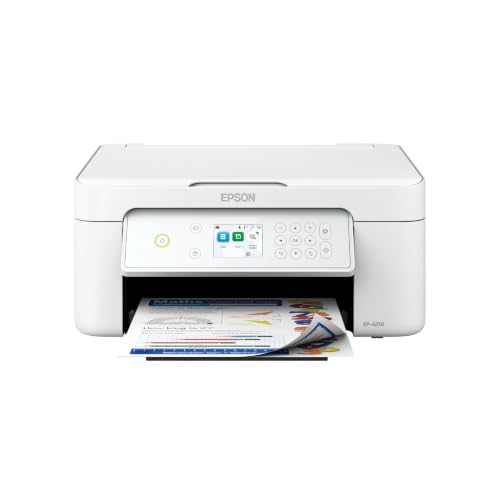
Epson’s XP-4250 makes its case on a pairing that families feel weekly: automatic 2-sided printing and borderless photos, in a wireless all-in-one with scan and copy and a 2.4-inch colour display. The listing’s phrasing is economical — printer with scan and copy, automatic two-sided printing, borderless photos — and that economy is the pitch. Nothing here is exotic; everything here is the feature set a family actually touches, assembled without the feeder or fax hardware that would push size and cost upward.
Automatic duplexing deserves its reputation as the most under-bought feature in home printing. Paper is the consumable nobody budgets for, and a machine that prints on both sides by itself halves consumption on the documents that dominate home volume: reading packets, revision notes, draft reports, recipes collected into binders. Children printing a thirty-page project draft stop being a paper-budget event. The XP-4250 states the feature plainly in its title, which is more than several rivals in this class manage.
Borderless photos are the other half of the proposition. A borderless print fills the sheet edge to edge, which is how shop-printed snapshots look; bordered output reads as a document that happens to contain a picture. For families printing birthday and holiday photos at home — the tier of photo printing that is about sharing, not exhibiting — borderless output is the difference between a print that goes on the fridge and one that stays in the tray. The 2.4-inch colour display, slightly smaller than the Canon TS7720’s touchscreen, still gives copy and photo settings a readable home on the machine itself.
The listing gives no speed figure, so none is claimed here. Epson positions this line for home use, and its everyday pace should be judged from the full listing if your household prints in bursts. What can be said from the title alone is that the XP-4250’s documented mix — duplex, borderless, scan, copy, colour screen — is the most paper-and-photo-conscious combination in this guide at the basic tier, and that is a deliberate, defensible specialism rather than an accident of specification.
- Functions stated in listing: print, scan, copy
- Automatic 2-sided printing: yes, per listing title
- Borderless photo printing: yes, per listing title
- Display: 2.4-inch colour display
- Stated speed: not stated in listing title
- Document feeder: not stated in listing title
Strengths
- Automatic two-sided printing directly attacks the household paper bill on long documents.
- Borderless photo output makes home snapshots look like shop prints rather than documents.
- A colour display keeps copying and photo settings manageable at the machine, without a phone in hand.
Trade-offs
- With no feeder named, scanning a long form remains a page-at-a-time job on the flatbed.
- The listing publishes no speed in its title, so burst-printing households should verify pace on the listing page.
- Its display is a colour panel rather than the larger touchscreen experience offered by the TS7720.
Best for: a paper-conscious family that prints long reading packets and a steady trickle of snapshots, and wants both habits to cost less paper and look better.
Not suited for: a volunteer treasurer or administrator scanning multi-page bundles weekly, who will feel the missing document feeder within the first month.
Epson Expression Premium XP-7100 — The photo-leaning upgrade
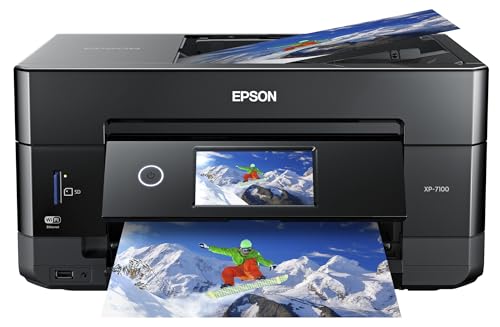
The XP-7100 is what “basic” looks like when a household admits its photos matter. Epson’s listing describes a wireless colour all-in-one with a 5-color print system, scan and copy, a stated up to 15.8 ppm, an auto document feeder and borderless photo printing, pitched at home and photo projects. That is the fullest feature sentence in this guide: the only pick here combining a feeder, a five-colour engine and a headline speed, and it earns the word “Premium” in its name more honestly than most.
The five-colour system is the heart of it. A basic four-colour printer mixes its photo tones from the standard set; adding a fifth colour widens what the machine can lay down, and the practical result is smoother gradations in skies, skin and shadow — the places snapshot prints usually fall apart. Households printing photos for albums, school displays and gifts will see the difference without needing to know the chemistry. Households printing text and the odd worksheet will not, which is why this pick sits fourth rather than first: its premium is specialised.
Unusually for a photo-leaning model, the office manners are present too. The document feeder handles the form stacks that the TR4720 specialises in, and the stated up to 15.8 ppm is the briskest headline figure in this guide. A family can therefore run one machine for the photo wall and the paperwork pile, rather than keeping a basic all-in-one and coveting a photo printer. The compromise is class-typical rather than model-specific: a five-colour cartridge system rewards households that print photos regularly and taxes those that mostly print text, because the extra colour is a running-cost passenger on plain documents.
Borderless photo printing completes the pitch, letting prints run to the edge of the sheet like the XP-4250’s, but from a deeper colour system. If your home’s printing splits roughly evenly between documents and photographs — and the photographs get looked at twice — the XP-7100 is the pick in this guide designed for exactly that split. Check price on Amazon, and weigh it against how many of last month’s prints were pictures worth keeping.
- Functions stated in listing: print, scan, copy
- Ink system: 5-color, per listing title
- Stated speed: up to 15.8 ppm
- Auto document feeder: yes, per listing title
- Borderless photo printing: yes, per listing title
- Positioning in title: home and photo projects
Strengths
- The 5-color system gives photos smoother tones than the four-colour engines elsewhere in this guide.
- An auto document feeder and a stated up to 15.8 ppm keep paperwork moving despite the photo brief.
- Borderless printing lets its photo output fill the sheet, suiting albums, gifts and display prints.
Trade-offs
- A five-colour cartridge set is a running-cost passenger for households whose output is mostly plain text.
- It stops at home photo sizes; wide-format ambitions belong to the 13-inch class in the photo printers guide.
- The premium positioning means text-only households pay for colour depth they will rarely use.
Best for: a family whose printer serves two masters — school and home paperwork on weekdays, photographs worth keeping on weekends — and refuses to own two machines.
Not suited for: a documents-only household, where the fifth colour adds cost to every cartridge cycle without ever improving a spreadsheet.

Canon PIXMA TS702a — The print-only purist
Let the limitation be stated as plainly as Canon states it: the TS702a is a wireless single-function printer. Print only. No scan, no copy — the listing says so in those words. That honesty earns it a place in this guide, because a real slice of households genuinely never scans: their documents arrive digitally, their signatures are electronic, their “copying” is reprinting a file. For those homes, an all-in-one’s scanner is a lid that collects dust, and a print-only machine is not a compromise but a correct specification.
What the TS702a does claim is mobile printing with AirPrint and Mopria, the two phone-printing standards that between them cover iPhones and Android devices. That pairing fits the print-only philosophy neatly: the modern single-function workflow starts on a phone — a ticket, a label, a document from cloud storage — and ends in the tray, with no PC involved. A household living that workflow gets a machine aimed precisely at it, in black, without paying for a scanner assembly it will never lift.
The risk is future tense. Print-only is a bet about your household’s next five years, and scanning needs have a habit of arriving unannounced: a school suddenly wants a uploaded birth certificate, an insurer wants a signed form returned, a grandparent’s letters deserve digitising. If any of those futures is plausible, the all-in-ones above are the safer buy at this tier. The TS702a is therefore recommended narrowly and confidently — narrowly, because its audience is specific; confidently, because for that audience it removes cost, size and complexity that serve no purpose.
Note what the listing does not claim: no speed figure, no duplex statement, no photo positioning appears in the title. This guide accordingly treats the TS702a as a straightforward wireless colour printer whose documented virtues are its single-function focus and its two mobile standards. Buyers who care about two-sided printing should confirm on the listing page itself, where the full specification lives, before treating this as their machine.
- Functions stated in listing: print only — no scan, no copy (stated explicitly in title)
- Mobile printing: AirPrint and Mopria, per listing title
- Stated speed: not stated in listing title
- Automatic duplex: not stated in listing title
- Colour: black
- Class: wireless single-function printer
Strengths
- Single-function design removes the scanner hardware that scan-free households would never use.
- AirPrint and Mopria together cover phone printing from both major mobile platforms.
- The listing’s explicit “No Scan/Copy” wording makes the limitation impossible to buy by mistake.
Trade-offs
- No scanning or copying at all — a signed form or ID document means borrowing someone else’s machine.
- The title states neither speed nor duplex, so performance expectations must be set from the full listing.
- It offers no photo positioning, leaving snapshot printing to the all-in-ones with photo briefs.
Best for: a digitally native household — students, remote workers, renters — whose paper flow is one-directional: files in, pages out, nothing ever scanned.
Not suited for: any home that handles school, medical or insurance paperwork on paper, because the first scan request turns this saving into a problem.

Canon PIXMA TR7820 — The quiet all-rounder
The TR7820 presents this guide with a documentation puzzle, and the honest response is to show the working. Its listing title, in full, calls it a “Wireless Home All-in-One Printer” — and stops there. No speed, no feeder claim, no duplex statement, no screen size. Rather than borrow numbers from Canon’s wider TR range, this guide credits the TR7820 with exactly what its listing asserts: wireless connectivity, all-in-one functionality for the home, and Canon’s PIXMA badge. Everything beyond that is for the listing page to confirm.
That restraint cuts both ways, and both ways deserve airtime. On one side, an all-in-one designation does carry meaning: in Canon’s naming, the TR line addresses home and small-office all-in-one duties, and a buyer choosing this machine is choosing print with scan and copy in a wireless home package. On the other side, a sparse title leaves the questions this guide usually answers — how fast, feeder or not, duplex or not — genuinely open, and a careful buyer should open the listing and read the specification table before ordering. This pick is included because the all-in-one home brief itself is sound and some households shop by brand and function class rather than by headline numbers.
Consider who that buyer is. A household replacing a deceased Canon all-in-one, already stocked with familiarity with the PIXMA way of doing things, may rationally choose the current TR all-in-one without interrogating every figure. A grandparent’s house, where the printer must simply print, scan and copy wirelessly and the finer numbers will never be compared, is another fair match. The TR7820 is the pick for buyers whose decision runs on trust and function class — provided they accept the homework of confirming details on the listing, which this guide flags rather than hides.
If, by contrast, you are comparison-shopping on stated evidence — and this guide has trained you to — the TS7720 above documents more of what it does in its own title. The TR7820’s place here is therefore deliberately last: a legitimate all-in-one option with a documentation caveat worn openly. Check price on Amazon, expand the full specifications, and let the complete listing, not this summary, close the sale.
- Functions stated in listing: all-in-one (print, scan, copy class)
- Connectivity stated: wireless
- Stated speed: not stated in listing title
- Document feeder: not stated in listing title
- Automatic duplex: not stated in listing title
- Display: not stated in listing title
Strengths
- An all-in-one brief covers the print, scan and copy trio every household eventually needs.
- Wireless connectivity is stated, matching phone-and-laptop home printing habits.
- The PIXMA line’s home focus suits buyers replacing a Canon they already know.
Trade-offs
- The listing title documents almost nothing beyond class, so every detail requires a listing-page check.
- With no stated speed, households printing in bursts cannot gauge pace from the title alone.
- Feature-by-feature, the TS7720’s documented specification is easier to buy with confidence.
Best for: a Canon-loyal household replacing an old all-in-one, happy to confirm the fine print on the listing and shopping on function class and brand familiarity.
Not suited for: a first-time buyer comparing specifications line by line, who will find the documented picks above easier to choose between.
Comparison Table
| Pick | Functions | Stated speed | Feeder / Fax | Screen |
|---|---|---|---|---|
| Canon PIXMA TS7720 | Print, copy, scan; auto duplex | 15/10 ppm | Neither stated | 2.7-inch touchscreen |
| Canon PIXMA TR4720 | All-in-one; mobile printing | Not stated in listing title | ADF and built-in fax | Not stated in listing title |
| Epson Expression Home XP-4250 | Print, scan, copy; auto 2-sided; borderless photos | Not stated in listing title | Neither stated | 2.4-inch colour display |
| Epson Expression Premium XP-7100 | Print, scan, copy; 5-color; borderless photos | Up to 15.8 ppm | ADF stated | Not stated in listing title |
| Canon PIXMA TS702a | Print only — no scan/copy | Not stated in listing title | Neither stated | Not stated in listing title |
| Canon PIXMA TR7820 | All-in-one, wireless | Not stated in listing title | Not stated in listing title | Not stated in listing title |
What Does “Basic” Actually Need to Cover in a Family Home?
Start from the jobs, not the brochure. A family printer’s year looks like this: a few hundred pages of school and work documents, a few dozen scans of forms and certificates, a stack of copies at enrolment and tax time, and a scatter of photos, tickets and labels in between. A basic machine covers that year if it prints colour decently, scans and copies without a computer science degree, connects to the phones and laptops already in the house, and feeds paper without drama. Everything beyond that list — feeders, fax, five-colour engines — is a specialism that specific households will prize and others will never touch.
Wireless is the one non-negotiable. Every pick in this guide is wireless, because the modern home’s print jobs originate on phones, tablets, Chromebooks and laptops scattered across rooms, and a printer tethered to one desk PC belongs to another era. Mobile printing standards matter at the margin: the TS702a names AirPrint and Mopria outright, while the all-in-ones state wireless or mobile printing in their own terms. If your household prints mostly from phones, weigh those stated mobile claims; if printing starts from laptops, plain wireless coverage does the work.
Paper handling separates the picks more than print quality does at this tier. Automatic duplexing — stated by the TS7720 and XP-4250 — changes your paper budget and your patience with long documents. A document feeder — stated by the TR4720 and XP-7100 — changes how scanning feels, from a supervised chore to a background task. Neither feature improves a single page; both transform a stack. Buy for your stacks, not your singles.
One last framing: basic does not mean disposable. The machines in this guide are built to a price, certainly, but their failure modes in family life are overwhelmingly about placement, paper and neglect rather than engineering. Choose the feature set that matches your household’s paperwork, give the machine a decent shelf and a regular small job, and the word “basic” becomes a compliment about priorities rather than an apology about quality.
How Do You Set Up a Basic Inkjet Without the Usual First-Day Drama?
Place the printer before you plug it in. It wants a flat surface with room to open the scanner lid fully, clearance for paper to feed and exit, and a spot within honest range of your router — wireless printers placed through two walls and a refrigerator spend their lives dropping off the network. Unpack all transit tape and packing pieces; the single most common “dead on arrival” story in home printing is a forgotten piece of orange tape holding a carriage still.
Install ink before the first power-on sequence asks for it, and let the initial priming cycle finish uninterrupted — the machine is filling lines and calibrating, and interrupting it invites a second, ink-hungrier attempt. Connect to Wi-Fi from the printer’s screen where one exists, as on the TS7720 and XP-4250, since typing a password once at the machine beats troubleshooting a phone app that cannot find the printer. Then print a test page from every device class in the house — one phone, one laptop, one tablet — while setup is fresh in your mind, not three weeks later when a boarding pass is due.
Finish with two quiet habits. Register the printer’s scan destination now — the folder or email your scans land in — so the first urgent form does not begin with a treasure hunt. And print something small every week or two even in quiet months; inkjets that sit idle for months are the ones that greet a deadline with clogged nozzles and a cleaning cycle. A basic printer asks little, but it asks that regularly. Treat that small ritual as part of the purchase price, and the machine will still be answering roll calls years after faster, fancier hardware has been replaced around it.
Which Running Habits Keep a Basic Inkjet Cheap to Live With?
Paper discipline comes first, because it is free. Use draft mode for internal documents — the text is lighter, the ink spend drops, and nobody’s homework suffered from slightly grey print. Reserve full quality for what leaves the house. Print two-sided wherever the machine allows it, automatically on the duplexing picks, manually elsewhere, and preview before printing web pages, whose final page so often contains nothing but a footer and an advertisement.
Ink discipline follows. A basic cartridge printer’s economics punish two behaviours: printing photographs at maximum quality on plain paper, which drinks colour ink for a result photo paper would have delivered better, and replacing a cartridge the moment a low warning appears rather than when output actually fades. Print photos on photo paper, in batches, and let cartridges finish their real life. Households whose volume grows past a few hundred pages a month should read the EcoTank guide instead — tank machines exist precisely for the point where cartridge economics stop making sense, and recognising that point is a saving in itself.
How Does Paper Choice Change What a Basic Inkjet Produces?
More than any setting in the driver. A basic inkjet lays water-based colour onto whatever surface it finds, and plain copier paper drinks that ink unevenly, which is why a worksheet graphic looks cheerful while a photograph on the same sheet looks like it was printed through fog. Matte photo paper holds the droplets at its coated surface, so colours stay where they landed; glossy paper sharpens them further and adds the sheen people associate with shop prints. The machines in this guide that advertise borderless photo printing — the XP-4250 and XP-7100 — assume photo paper in the tray; feeding them office stock and judging the result is the most common unfair test in home printing.
Weight matters at the mechanical level too. Paper that is too light curls as it absorbs ink on a colour-heavy page, emerging wavy; paper beyond a printer’s stated handling range risks jams at the turn inside the machine. For everyday documents, ordinary office paper in the middle of the weight range is the reliable citizen. For the two-sided printing the TS7720 and XP-4250 perform automatically, slightly sturdier stock prevents show-through when a dense document prints on both faces — a textbook page with a dark diagram on the reverse is the classic case where thin paper betrays you.
Envelopes, labels and card stock each deserve one experiment before they are needed in earnest. Feed a single envelope first and learn which way your machine wants the flap; print one label sheet and check alignment before committing a full sheet of return-address labels to a mis-registered run. These are five-minute lessons bought cheaply in advance, or expensively at midnight before a posting deadline. A basic printer handles specialty media willingly, but it teaches its preferences one test sheet at a time.
What Should You Check in the First Week With a New Home Printer?
Print one of everything your household actually produces, while returning the machine is still painless. A dense text document checks clarity and paper feed. A colour worksheet or presentation page checks that colours land where expected. A photo on proper photo paper checks the borderless promise if your pick makes one. A scan sent to your usual destination checks that the file arrives readable and sensibly sized, and a copy made entirely at the machine — no computer involved — checks that the screen workflow makes sense to the least technical person who will use it.
Then test the annoying cases deliberately. Print from a phone in another room, because that is where real jobs originate. Print a long document two-sided if your machine offers it, and confirm the page order survived. If you bought a feeder model, scan a ten-page stack and open the resulting file to verify every page arrived in sequence. These checks take twenty minutes across a week, and they convert the vague anxiety of a new purchase into a list of known quantities.
Finally, set the maintenance rhythm before the machine needs it. Note where the nozzle-check and cleaning functions live in the menu. Put a recurring nudge in the family calendar — a small print every couple of weeks — if your household’s printing comes in bursts separated by silence. Decide where spare paper lives so the tray is refilled before a deadline rather than during one. A basic printer’s reliability is mostly the residue of these small arrangements, made once, early, while the purchase still has your attention.
How Do You Decide Between the Canon and Epson Sides of This Shortlist?
Three of the six picks wear Canon badges and two wear Epson, with the brands dividing along lines a buyer can actually use. Canon’s entries here lean toward interface and paperwork: the TS7720’s 2.7-inch touchscreen is the largest screen story in the guide, the TR4720’s feeder-plus-fax pairing is the most administration-minded, and even the print-only TS702a speaks in mobile standards. Epson’s two Expression models lean toward the printed artefact itself — the XP-4250 pairing duplexing with borderless photos, the XP-7100 adding a fifth colour for photo depth. Neither tendency is a verdict; both are starting points for matching a machine to a household’s centre of gravity.
The practical way to choose is to inventory last month’s printing honestly. Count documents against photographs, stacks against singles, scans against prints. A documents-and-forms month points at the TR4720 or TS7720. A month with a birthday, a school display and a holiday in it points at the XP-7100, with the XP-4250 as the paper-thrifty middle path. Households replacing a previous printer often find the decision already made by habit — the menus and software of the brand they know are a genuine convenience, and at the basic tier that familiarity is worth more than a marginal specification difference.
One further consideration is where each brand’s range leads if your needs grow. Canon’s ladder from this tier climbs toward its MegaTank refillable models, Epson’s toward the EcoTank line reviewed in the companion guide, and both brands meet again at the professional photo tier. None of that obliges you to stay loyal — printers are not ecosystems the way phones are — but a household that expects to graduate to a tank machine within a couple of years may enjoy learning one brand’s habits now. Buy the machine for the pile of work in front of you; let the brand question settle itself from the inventory, not the logo.
Why Does the Printer’s Place in Your Home Network Matter as Much as Its Specification?
Because most “printer problems” in modern homes are network problems wearing a disguise. A wireless printer joins your Wi-Fi like any other device, and its happiness depends on signal quality at its shelf, not at your sofa. Kitchens with a microwave between printer and router, printers exiled to a far bedroom, routers tucked inside metal cabinets — these arrangements produce the classic symptom of a printer that appears and vanishes from device lists like a shy cat. Before blaming any machine in this guide, stand at its intended home with a phone and check the signal honestly; a weak reading there predicts a frustrating ownership, whatever the badge.
Band choice is the second quiet factor. Many home printers prefer the longer-range 2.4 GHz band, while households increasingly steer devices toward 5 GHz for speed. If your router merges both bands under one network name, most printers cope; if you have split them, connect the printer to the 2.4 GHz network and make sure the devices printing to it can reach that network too. Five minutes spent on this during setup prevents the intermittent “printer offline” messages that otherwise get attributed to the machine’s character.
Finally, give the printer a stable identity on the network. Routers that reassign addresses aggressively can leave laptops hunting for a printer that moved. Most routers let you reserve an address for a device once it has joined; doing so takes a minute in the router’s settings and ends the slow drift into unreliability that makes families replace printers which were never actually broken. Every pick in this guide is a wireless machine, and each will repay this small networking courtesy with years of simply being there — which, for a basic printer, is the entire job.
Storage discipline is the unglamorous third habit. Paper left loaded in an open tray gathers dust and absorbs room humidity, and the first sheet of a long-idle stack is the one that jams. Keep the working stack small, store the reserve pack flat in its wrapper, and treat any sheet that has already been through the machine and come out blank as suspect — its surface has been heated and handled, and refeeding it invites both jams and smearing. None of this costs money; all of it buys the reliability people mistakenly attribute to more expensive machines.
Common Mistakes
Buying a print-only machine by accident tops the list, and it happens because shoppers skim past the function line. The TS702a in this guide declares “Print Only, No Scan/Copy” in its title; not every listing is so courteous. Before ordering any basic printer, say your scanning needs out loud — school forms, ID documents, signed contracts — and match them against the stated functions, not the product photos, which happily show lids that look like scanners on machines that merely have lids.
Choosing on speed figures alone is the second mistake. A stated 15/10 ppm or up to 15.8 ppm describes a best-case engine pace, not the rhythm of real jobs with first-page-out time, processing pauses and paper handling in between. For basic home volume, the difference between the fastest and slowest pick here is measured in seconds per week. Features you touch — a feeder, duplexing, a screen you can read — return more value than a headline number you will never verify.
A third mistake is forgetting the machine after a painless setup. Ink dries, nozzles clog, firmware ages and paper left in a tray in a humid room curls into a jam waiting for its moment. A monthly page — anything, a crossword, a photo — plus paper stored flat and dry prevents most of the failures that give basic printers their unreliable reputation. The machines are rarely the problem; the six-month silence between print jobs is.
Final Recommendation
For most households, the Canon PIXMA TS7720 is the basic inkjet to buy: print, copy and scan, automatic duplexing, a stated 15/10 ppm and a touchscreen that keeps the whole family self-sufficient, with home photo ability as a bonus. It is the pick with the fewest caveats attached to the broadest brief. Households processing stacks of forms should step sideways to the TR4720 for its feeder and fax; paper-and-photo families should weigh the XP-4250’s duplex-plus-borderless mix; photo-leaning homes splitting duties evenly should take the XP-7100’s five-colour engine and feeder seriously. The TS702a serves the genuinely scan-free with a clear conscience, and the TR7820 suits Canon loyalists willing to confirm its details on the listing. Match the machine to the pile of jobs your house actually produces, and any of the six will feel basic in the best sense: unremarkable, dependable, there when needed. Buy it once, set it up properly on the first afternoon, print something small every fortnight, and the purchase will fade into the household furniture — which is exactly where a basic printer belongs.
Frequently Asked Questions
Do I really need scanning in a basic home printer?
Almost certainly, eventually. Schools, insurers, landlords and clinics all generate scan-and-send requests, and they arrive on their schedule, not yours. Unless your household handles every document digitally already, choose an all-in-one from this guide; the TS702a’s print-only design is a deliberate choice for the digitally settled, not a default.
What does an auto document feeder actually save me?
Supervision. Without a feeder, scanning a twelve-page form means twelve trips to the lid; with one, you load the stack and collect a single multi-page file. The TR4720 and XP-7100 state feeders in their listings. If your scanning is one page at a time — a certificate here, a receipt there — a flatbed-only machine like the TS7720 serves you just as well.
Is automatic two-sided printing worth prioritising?
For document-heavy homes, yes: it halves paper consumption on long prints and removes the manual flip-and-reinsert routine that scrambles page order. The TS7720 and XP-4250 state automatic duplexing or 2-sided printing in their titles. Photo-leaning households print mostly single-sided anyway and may rank borderless output higher.
Can a basic inkjet print good photos?
Good snapshots, yes; gallery prints, no — and the distinction is the household’s, not the machine’s. The TS7720 is positioned as a home photo printer, the XP-4250 and XP-7100 add borderless output, and the XP-7100’s 5-color system deepens photo tones further. For wide-format or exhibition ambitions, the dedicated photo printers guide covers 13-inch and 17-inch machines built for that standard.
Does a touchscreen on a printer actually matter?
For shared family machines, more than spec sheets suggest. The TS7720’s 2.7-inch touchscreen and the XP-4250’s 2.4-inch colour display let anyone copy, scan or reconnect Wi-Fi at the machine itself, without borrowing the phone of whoever set it up. In a single-person home office the difference shrinks; in a household where a grandparent or a ten-year-old must be able to copy a document unaided, a readable screen is the feature that decides whether the printer gets used or worked around.
How long should a basic inkjet last in a family home?
Several years of ordinary service is a fair expectation when the machine is used regularly and kept fed with decent paper; the failures that retire basic printers early are usually neglect failures — dried nozzles after months of idleness, jam damage from forced pulls, dust and crumbs in the feed path — rather than worn-out engines. A monthly page, gentle jam clearing and a covered resting place stretch the life of any pick in this guide considerably.
When should I skip basic inkjets and buy a tank printer instead?
When monthly volume climbs into the several hundreds of pages, or when cartridge replacements start feeling like a subscription you never agreed to. Tank machines trade a higher starting commitment for refill bottles and far lower per-page ink costs; the EcoTank guide compares Epson’s EcoTank line with Canon’s MegaTank and HP’s Smart Tank equivalents side by side.
Related Guides
Printing needs grow in predictable directions, and the guides below pick up where this one stops. If cartridge costs are your worry, our refill-tank printer comparison across Epson, Canon and HP shows what the tank class changes. When snapshots stop being enough, the wide-format art and photo printer guide covers 13-inch and 17-inch machines for serious prints. And if your printing is really about parcels, the 4×6 thermal shipping label printer roundup explains why sellers retire their inkjets for that job entirely.