What's inside
- Key Takeaways
- Quick Picks
- How These Picks Were Chosen
- Side-by-Side Comparison
- How to Choose: Syllabus First, Specification Second
- What Does Chrome OS Mean for Coursework Software, Concretely?
- Is a Stylus Worth Having for Schoolwork?
- How Long Will a Student Convertible Last?
- Should Parents Buy for This School Year or the Next Stage?
- Common Mistakes
- Final Recommendation
- Frequently Asked Questions
- Related Guides
As an Amazon Associate I earn from qualifying purchases. This post may contain affiliate links at no extra cost to you.
[SITE_DOMAIN] is reader-supported. When you buy through links on our site, we may earn an affiliate commission.
The six machines below each link to an Amazon listing, and one check matters more here than in any other guide in this series: confirm the operating system in the listing title before anything else. Five of these six convertibles run Chrome OS and one runs Windows, and that single line decides which coursework software the machine can use — so read it first, and let the rest of the specification argue afterwards, in its proper turn.
The best convertible laptops for students promise a particular kind of academic flexibility: a machine that types an essay at a desk, folds flat for annotating a reading on a train, props itself in tent mode for a video lecture in a kitchen, and lies back as a tablet for revision on a couch. The six picks here deliver that folding hardware in six different ways, but they divide sharply on the question this guide will not let a reader dodge. Five are Chromebooks, running Google’s Chrome OS; one, the Cleriver, is a Windows machine. Those are not two flavours of the same thing. They are two different computing lives, and a student who buys the wrong one will not be rescued by a good hinge.
So let the distinction be stated plainly at the outset, in the introduction rather than buried in a footnote. Chrome OS is a browser-centred operating system: coursework that lives in web applications — documents, slides, learning platforms, research databases, email, video lectures — runs natively and well, and many schools now run their entire digital curriculum inside it. What a Chromebook cannot do is install traditional Windows programs. If a course requires a specific downloadable application — a statistics package issued by a department, an engineering tool, a proctoring program, an exam browser with a Windows installer — a Chromebook does not run it, and no hinge, stylus, or specification elsewhere in the title changes that. The Cleriver, running Windows 11 Pro, carries the opposite profile: full traditional software compatibility, at the cost of the older, humbler hardware its title describes.
That framing turns the rest of the specification into secondary questions, but they are real ones. Storage here is mostly eMMC — the flash class from the Chromebook world, in capacities of 64GB and 128GB — because Chrome OS expects files to live substantially in the cloud. Memory runs from 4GB to 8GB across the Chromebooks, adequate for the browser-centred workload they are built for, and 16GB in the Windows machine. Screens are 12.2 to 15.6 inches, all touchscreens, several with pen or stylus stories. Each review below judges its machine inside its own operating system’s logic first, and against the student’s actual week second.
A final word of method before the picks: several of these titles are bundles or carry accessory stories — a stylus and a mouse with the Samsung, a docking-station storage figure in the same title — and the reviews read those titles the way this series always reads them, separating what is inside the machine from what arrives beside it, and crediting each for exactly what it is.
Key Takeaways
- Five of the six picks run Chrome OS and one runs Windows 11 Pro; that difference decides coursework software compatibility more than any other specification here.
- The Acer Chromebook Spin 314 is the strongest Chromebook specification: a Core i3-N305, 8GB of memory, a WUXGA Gorilla Glass touchscreen, and Wi-Fi 6E.
- The Cleriver is the Windows route — 16GB of memory, a 512GB SSD, and an included office suite — on an older Core m3 processor that suits documents, not demanding software.
- Chromebook storage here is mostly eMMC at 64GB or 128GB, sized for cloud-centred school life rather than large local libraries.
- The Samsung bundle pairs the smallest screen with a stylus, a wireless mouse, and storage split between 64GB internal and a 160GB docking-station set.
- Any course requiring a specific Windows program settles the decision before shopping begins — check the syllabus, not the specification sheet.
Quick Picks
| Pick | Badge | Why it is here |
|---|---|---|
| Acer Chromebook Spin 314 | Strongest Chromebook | A Core i3-N305, 8GB of memory, and a WUXGA Gorilla Glass touch display on Chrome OS. |
| ASUS Chromebook Flip CX1 | Classic Flip | A 14 inch Full HD 360-degree touchscreen Chromebook with 8GB of memory and 128GB of storage. |
| Samsung Chromebook Plus 12.2 | Pen Bundle | A compact 12.2 inch 2-in-1 with a stylus pen and wireless mouse included in the package. |
| HP Chromebook x360 14 | Simple and Light-hearted | An N100 Chromebook with a Full HD IPS touchscreen in Sky Blue, for browser-based schoolwork. |
| Lenovo Chromebook 2-in-1 14 | Sharp Screen | A WUXGA IPS touchscreen and 128GB of UFS storage with Google Gemini branding. |
| Cleriver 15.6 2-in-1 | The Windows One | A 15.6 inch Windows 11 Pro convertible with 16GB of memory and a 512GB SSD. |
How These Picks Were Chosen
Every machine here had to earn the word convertible in its title — a 360-degree hinge or an explicit 2-in-1 designation, with a touchscreen to make the folding worthwhile — and had to be positioned for students or education rather than adapted from a business line. Beyond that, selection deliberately assembled the real market a student meets: Chromebooks dominate this category in actual school deployments, so they dominate this guide, and the single Windows machine stands as the control case that lets a reader feel the difference rather than merely read about it.
Within the Chromebook majority, the picks were spread across the specification ladder a student will actually climb. At the top, the Acer pairs a proper Core i3 processor with 8GB of memory and the guide’s best display protection. In the middle, the ASUS and Lenovo offer 14 inch touchscreens with differing storage classes and resolutions. At the accessible end, the HP keeps the specification lean and the Samsung shrinks the screen while adding the pen and mouse a younger student will use daily. The spread lets a family match a machine to a school level — primary, secondary, university — rather than forcing one answer onto all three.
The editorial rule for this guide is stated in its introduction and enforced in every review: operating system first. Each Chromebook review names the coursework pattern it serves and the software pattern it cannot serve, and the Cleriver’s review performs the same service in reverse, crediting its compatibility while pricing its ageing processor. A guide that treated these six as interchangeable would be a disservice dressed as a shortlist.

Acer Chromebook Spin 314 — Strongest Chromebook
The Spin 314 is what a Chromebook looks like when its maker declines to treat Chrome OS as an excuse for a minimal specification. The title lists an Intel Core i3-N305 processor, a 14 inch WUXGA IPS touchscreen protected by Corning Gorilla Glass with a matte finish, 8GB of LPDDR5 memory, 128GB of eMMC storage, Wi-Fi 6E, and an FHD webcam, running Chrome OS. Every element of that is a step above the Chromebook baseline, and together they describe a machine for a student whose school life is genuinely digital — research, documents, video classes, and annotation, all day, on one device that folds for whichever of those the hour demands.
The processor and memory pairing is where the upgrade is felt. An i3-class chip with 8GB of memory keeps a browser carrying a class’s worth of tabs — the learning platform, the source texts, the document being written, the reference video — fluid in a way 4GB Chromebooks begin to resist by mid-morning. For a secondary-school or university student whose coursework is web-based, this is the specification that removes the low-grade friction of the platform, and it is the main reason this machine leads the guide. The WUXGA resolution, taller and sharper than the Full HD panels below it, shows more of a document at once and renders text with a crispness that long reading sessions reward.
The display’s other two details are quietly student-specific. Gorilla Glass is protection against the exact life a school laptop leads — bags, desks, shared tables, the occasional drop of a textbook onto a closed lid — and the matte finish fights the glare of classroom lighting and library windows that glossy panels surrender to. The FHD webcam serves the video classes and remote tutorials that are now ordinary parts of a school week, at a resolution that does not make the student the blurriest face in the call.
All of this operates inside Chrome OS’s boundary, and the review states it as plainly for the leader as for the rest: web-based coursework, superbly served; traditional Windows software, not available. A student whose school issues its curriculum through the browser — the common case, and the case Chromebooks are built for — gets the best machine in this guide for that life. A student whose department mandates a Windows program should pass to the Cleriver’s review with the guide’s blessing. If the browser is your campus, start at the Spin 314’s Amazon listing and compare downward only if its price argues with your budget.
Parents of younger students should note the durability story once more, because it is this pick’s hidden curriculum value. A school machine’s lifespan is usually ended by an accident rather than by obsolescence, and a protected, matte, glare-resistant screen is the component most exposed to school life. The Acer is the pick in this guide most clearly designed by people who have watched how students actually treat laptops, and that realism is worth as much as its processor advantage.
University students in web-platform faculties — humanities, social sciences, business schools teaching through browser tools — will find one more virtue here: the Spin 314’s specification leaves nothing in the daily workflow underpowered, so the machine can serve a whole degree rather than a school stage. The webcam serves seminars, the screen serves the library’s databases, the memory serves the dissertation year’s sprawl, and the hinge serves the reading that underpins all of it. Among Chromebooks, that completeness across a long enrolment is rare, and it is the deepest reason this machine leads a guide full of machines designed for shorter chapters.
- Display: 14 inch WUXGA IPS touch, Corning Gorilla Glass, matte
- Processor: Intel Core i3-N305
- Memory and storage: 8GB LPDDR5, 128GB eMMC
- Camera and wireless: FHD webcam, Wi-Fi 6E
- Operating system: Chrome OS
- Model: CP314-2HN-30V1
Strengths
- The strongest processor and memory pairing among the Chromebooks
- A protected, matte WUXGA screen suited to classrooms
- An FHD webcam for video classes and remote tutorials
Trade-offs
- Chrome OS cannot install traditional Windows programs
- 128GB of eMMC assumes a cloud-centred file life
- The flagship Chromebook position carries the group’s higher prices
Best for: web-based coursework at secondary school or university, with heavy browser multitasking and annotation.
Not suited for: a course mandating Windows-only software, or a large local media library.

ASUS Chromebook Flip CX1 — Classic Flip
The Chromebook Flip CX1 is the category’s classic recipe executed cleanly: a 14 inch Full HD NanoEdge touchscreen on a 360-degree hinge, an Intel Celeron N4500 processor, 128GB of eMMC storage, 8GB of memory, and Chrome OS, in a Transparent Silver finish. Nothing in that specification reaches for the Acer’s heights, and nothing in it falls into the traps of the leanest machines either. It is the balanced Chromebook — the one a school IT department would describe with a nod — and for a large share of students it is the correct amount of laptop.
The hinge and the screen are the experience. A 360-degree flip turns the CX1 from a typing machine into a reading slate, a tent for watching a lecture across a kitchen table, and a presentation stand for showing work to a classmate, and the NanoEdge framing keeps the 14 inch panel in a body that does not feel like it is carrying one. Full HD resolution at this size is the Chromebook sweet spot: sharp enough for documents and video, undemanding enough for the platform’s efficiency. Students whose days alternate between writing and reading — the most common academic rhythm there is — will use every position this hinge offers, weekly if not daily.
The Celeron N4500 sets the performance ceiling honestly. It is an efficiency-class processor for browser work: documents, learning platforms, research, and video run as they should, while a browser loaded with dozens of heavy tabs will eventually remind the owner which tier this is. The 8GB of memory — double the leanest picks here — pushes that reminder considerably later into the day, and is the specification that most separates this machine from the budget Chromebooks beneath it. Storage at 128GB of eMMC follows the platform’s cloud logic without apology.
Against the Acer, the Flip’s case is value and sufficiency: a student whose school life is browser-based but not browser-brutal gets the same operating system, the same folding versatility, and a perfectly serviceable screen for what is usually a gentler price. Against the HP and Lenovo below, its case is the memory and the established Flip line’s maturity. Work through the Chromebook Flip CX1’s listing to confirm the CX1400FKA-AS88FT configuration, and buy it as the guide intends — as the middle of the road, paved properly.
One more constituency fits this machine precisely: the student whose school has standardised on Chrome OS and issued a device list. A mainstream Flip from a major maker is the safest possible interpretation of such a list — compatible with the school’s management, familiar to its support staff, and specified at the level the curriculum assumes. Exotic choices create support conversations; this one creates none, and for many families that quiet compatibility is the entire purchase argument.
There is a hand-me-down logic in the Flip’s favour that families with several children will recognise. A balanced mainstream Chromebook, neither fragile flagship nor strained budget model, cascades gracefully: the older child’s Flip becomes the younger child’s first school machine, still managed by the same school platform, still specified at the level the earlier curriculum assumed. Purchases that cascade through siblings repay their price across more school years than any single student’s spreadsheet captures, and middle-of-the-road machines like this one cascade best precisely because nothing about them is specialised to one child’s stage.
- Display: 14 inch Full HD NanoEdge, 360-degree touchscreen
- Processor: Intel Celeron N4500
- Memory and storage: 8GB RAM, 128GB eMMC
- Operating system: Chrome OS
- Finish: Transparent Silver
- Model: CX1400FKA-AS88FT
Strengths
- A balanced specification with no weak line for schoolwork
- 8GB of memory, double the leanest Chromebooks here
- A mature 360-degree design for reading, tent, and typing modes
Trade-offs
- An efficiency-class Celeron sets a clear performance ceiling
- Chrome OS excludes traditional Windows coursework software
- eMMC storage follows the cloud-first assumption
Best for: a browser-based school day of writing, reading, and video lectures in equal measure.
Not suited for: demanding browser multitasking at the Acer’s level, or any Windows-program requirement.

Samsung Chromebook Plus 12.2 — Pen Bundle
Samsung’s entry is the bundle of the group, and it should be read the way this series reads all bundles — inside and beside the machine, separately. Inside: a 12.2 inch Full HD touchscreen 2-in-1 running Chrome OS, an Intel dual-core processor, 4GB of memory, and 64GB of eMMC storage. Beside it: a stylus pen, a wireless mouse, and a further 160GB of storage arriving as a docking-station set, which the title adds to the internal figure to reach 224GB. The internal 64GB is the machine’s own capacity and the number to plan around; the docking set is accessory storage, useful at a desk and absent in a school bag.
What this package is really selling is a younger student’s complete desk. The 12.2 inch size is the most portable in the guide and the least intimidating for smaller hands and smaller school bags. The stylus turns the touchscreen into a handwriting and drawing surface — for maths working, diagram labelling, and the annotation habits primary and early-secondary schooling actually rewards — and a real mouse teaches pointer skills that a trackpad-only childhood skips. For a family equipping a first proper school computer, the bundle’s completeness is the argument: one purchase, and the desk is done.
The specification’s limits are the familiar Chromebook floor, stated plainly. Four gigabytes of memory and a dual-core processor serve the browser-based primary curriculum — reading platforms, documents, educational video, light creative tools — and will feel their ceiling if an older student’s tab-heavy research habits move in. The 64GB of internal eMMC is the smallest internal figure among the Chromebooks here alongside the HP, and it leans hardest on the cloud assumption: school files in the school account, photographs elsewhere, nothing hoarded locally.
Age-fit is therefore the whole decision. For a younger student, this bundle is arguably the most thoughtfully assembled purchase in the guide, pen and all. For an older student approaching exam years and heavier research, the Acer or ASUS above will outlast this machine’s ceiling by years, and the pen bundle’s charm will not compensate. Check the Samsung’s listing to confirm exactly what the docking-station set includes, since bundle contents are the detail sellers revise most often, and buy it for the school stage it was designed for.
There is a handwriting argument worth making explicit for parents weighing a pen bundle against a plain laptop. Educational research and classroom practice both keep returning to the same observation: younger students retain and organise material better when some of their work is handwritten, and a stylus on a convertible is the digital era’s way of keeping that channel open inside a device the school already manages. The Samsung is the only pick here that builds its whole package around that channel, which gives its modest specification a purpose the numbers alone do not show.
Grandparents and gift-buyers feature in this Samsung’s story more than in any other pick’s, because a complete bundle solves the gift-buyer’s deepest problem: not knowing what else is needed. A bare laptop given to a young student creates a tail of follow-up purchases — the mouse, the pen, the storage — that the giver cannot foresee and the parents must assemble. This package arrives whole. The giver’s only remaining duty is the platform check this guide insists on: confirming the child’s school teaches through the browser, after which the bundle can be wrapped with a clear conscience.
- Display: 12.2 inch Full HD touchscreen, 2-in-1
- Processor: Intel dual-core; exact model Not stated in the listing title — verify with the manufacturer documentation
- Memory and storage: 4GB RAM, 64GB eMMC internal, plus 160GB docking-station set
- Operating system: Chrome OS
- Included accessories: stylus pen, wireless mouse
- Finish: Silver
Strengths
- A stylus for handwriting, maths working, and annotation
- The most compact and portable machine in this guide
- A complete desk in one purchase, mouse included
Trade-offs
- 4GB of memory and a dual-core processor set a low ceiling
- Only 64GB of internal storage; the rest is a desk accessory
- A younger student’s machine that older students will outgrow
Best for: primary and early-secondary schoolwork with handwriting, drawing, and a first complete desk setup.
Not suited for: exam-year research with heavy tab loads, or a large local file collection.

HP Chromebook x360 14 — Simple and Light-hearted
HP’s x360 is the lean Chromebook of the guide, and it wears that leanness with a certain charm — a 14 inch Full HD IPS touchscreen on the x360 hinge, an Intel N100 processor, 4GB of memory, 64GB of eMMC storage, Chrome OS, and a Sky Blue finish that declines to pretend this is a corporate instrument. The specification is the platform’s floor at a full 14 inch size, and the review’s task is to identify the student for whom the floor is genuinely sufficient — because that student exists in large numbers, and overspending on their machine helps no one.
That student is the browser-native scholar: the one whose school issues its work through web platforms, whose documents live in a school account, whose research is a dozen tabs rather than forty, and whose media is streamed. For that pattern, the N100 and 4GB combination performs its duties without drama, the Full HD IPS panel is a genuinely pleasant window — better than the resolution or panel type found on many machines at this level — and the x360 hinge delivers the full convertible repertoire of laptop, tent, and tablet modes for reading and revision. Sky Blue, in a sea of school-issue grey, is a small but real pleasure for the student who carries it daily.
The ceilings arrive where the specification says they will. Four gigabytes of memory is the binding constraint: a video call layered over research tabs and a document will test it, and the student’s habits will adapt — closing, reopening, keeping the sprawl tidy — in the way this guide’s ultraportable coverage described for 8GB Windows machines, one tier further down. Sixty-four gigabytes of eMMC is the second discipline, manageable precisely because Chrome OS assumes the cloud, and uncomfortable only for a student determined to keep a local archive the platform never intended.
The x360’s competition is the Lenovo directly below, which answers with a sharper screen and double the storage at the same memory figure, and the ASUS above, which doubles the memory. The HP’s reply is simplicity and price position: it is the straightforward school Chromebook, from a major maker, with a good screen and a cheerful finish. Open the HP Chromebook x360’s Amazon page to confirm the 14b-cd0130wm configuration, and choose it when the school’s platform is the browser and the student’s habits are tidy.
Second-machine duty also suits this HP well. A household with a shared family computer may need a dedicated school device more than it needs a powerful one — a machine that is unambiguously the student’s, managed by the school’s account, and priced so that its loss or breakage is a bad week rather than a financial event. The x360’s specification reads almost as if designed for that insurance logic, and families buying a school-only Chromebook will find its restraint easier to justify than a flagship’s surplus.
School IT staff, whose opinion students rarely solicit and always eventually need, tend to approve of machines like this HP for a reason worth passing on: a mainstream model from a major maker, running the platform the school manages, at a specification the curriculum assumes, is the machine least likely to generate a support mystery. When something does go wrong — an account problem, a managed-app hiccup — the x360’s very ordinariness means the fix is a known one. For a family without technical confidence at home, that institutional familiarity is a form of insurance no specification table prices.
- Display: 14 inch Full HD IPS touch, 2-in-1
- Processor: Intel Processor N100
- Memory and storage: 4GB RAM, 64GB eMMC
- Operating system: Chrome OS
- Finish: Sky Blue
- Model: 14b-cd0130wm
Strengths
- A Full HD IPS touchscreen at the lean end of the range
- The full x360 convertible repertoire for reading and revision
- A finish and price suited to a dedicated school device
Trade-offs
- 4GB of memory is the guide’s tightest working constraint
- 64GB of eMMC leans fully on cloud storage
- An efficiency processor for browser duties only
Best for: browser-based schoolwork with tidy tab habits, as a dedicated school-issued-style device.
Not suited for: video calls layered over heavy research sprawls, or local file hoarding.
Lenovo Chromebook 2-in-1 14 — Sharp Screen
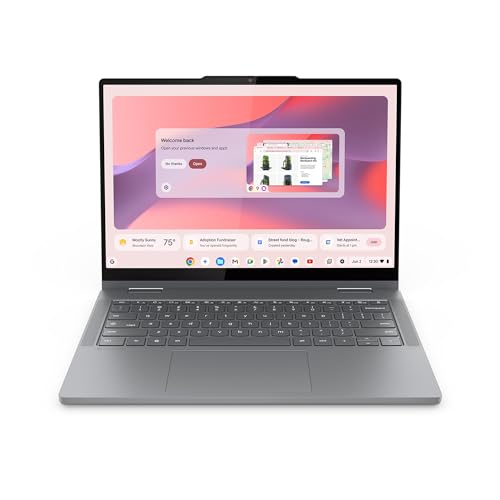
Lenovo’s Chromebook makes its argument through two specification lines the other lean machines cannot match: a 14 inch WUXGA IPS touchscreen — the taller, sharper resolution shared with the Acer at the top of this guide — and 128GB of storage in UFS form, double the HP’s eMMC capacity and in a faster class. Around those two pillars the rest of the title is contemporary Chromebook standard: an Intel N150 processor, 4GB of memory, integrated Intel graphics, Google Gemini branding, Chrome OS, and a Luna Grey finish. The result is a machine for the reading-heavy student, whose screen is the component their education actually happens on.
The display deserves the emphasis. WUXGA’s extra vertical pixels over Full HD are, for a student, not a luxury specification but a working one: more lines of a text visible without scrolling, a document and its source held in a split view with less compromise, and text rendered finely enough that long reading sessions tire the eyes more slowly. In a guide where several machines compete on processor generations a student will never perceive, the Lenovo competes on the thing a student perceives every minute. Its touchscreen and 2-in-1 hinge complete the reading machine’s brief — annotate in tablet mode, type in laptop mode, revise in tent mode.
Storage is the second genuine upgrade. One hundred and twenty-eight gigabytes of UFS gives a Chromebook unusual local freedom: offline reading packs, downloaded lectures for a commute, a photograph collection, all without the constant cloud negotiation the 64GB machines impose. The 4GB of memory remains the counterweight — the same ceiling as the HP’s, felt in heavy tab sessions — and the N150, while a current efficiency processor, is not the Acer’s i3. The Lenovo is a machine that spent its budget on the screen and the drive, and a student should buy it precisely if their own priorities rank those two first.
Gemini branding signals Google’s AI assistant woven into the platform pitch, and for students it translates to summarisation and drafting help inside the tools they already use — helpful for revision workflows, and no substitute for the reading the screen so ably serves. Compare the Lenovo’s listing against the HP’s before choosing between the guide’s two lean machines: screen and storage here, simplicity and finish there, memory equal and modest in both.
Commuters and train-readers within the student body will find this Lenovo the natural pick of the five Chromebooks for one more reason: its specification is the most download-friendly. Lectures, readings, and media can be carried locally in quantity, the screen renders them at the guide’s joint-best resolution, and the convertible hinge folds to the space a train seat actually offers. The connected campus is well served by every machine here; the disconnected journey is served best by this one.
Language students deserve a specific mention in this Lenovo’s review, because their working day is the one its screen was born for: parallel texts, dictionaries open beside documents, subtitled video for listening practice, and long reading in two scripts at once. WUXGA’s extra lines and the split-view room they create are not conveniences for that workflow but its substance, and the UFS storage holds the downloaded audio and video that language study accumulates. A machine in a value tier that serves one discipline this completely is a reminder that specification fit is personal long before it is numerical.
- Display: 14 inch WUXGA IPS touchscreen
- Processor: Intel N150 CPU
- Memory and storage: 4GB RAM, 128GB UFS
- Graphics: integrated Intel graphics, per the listing title
- Operating system and features: Chrome OS, Google Gemini
- Finish: Luna Grey
Strengths
- A WUXGA screen that shows more of every document
- 128GB of UFS — the roomiest lean Chromebook storage here
- Download-friendly for commuting and offline revision
Trade-offs
- 4GB of memory caps heavy multitasking
- An efficiency-class processor below the Acer’s i3
- Chrome OS software boundaries apply in full
Best for: reading-heavy coursework, offline revision packs, and commuting with downloaded lectures.
Not suited for: heavy simultaneous tab and call loads, or Windows-program coursework.

Cleriver 15.6 2-in-1 — The Windows One
The Cleriver is the guide’s necessary exception, and its review begins with the sentence the other five reviews could not write: this machine runs Windows. Specifically Windows 11 Pro, with an included office suite, on a 15.6 inch Full HD touchscreen with a 360-degree flip, powered by an Intel Core m3 8100Y processor running up to 3.40GHz, with 16GB of memory, a 512GB SSD, dual-band 2.4G and 5G wireless, and USB 3.0. For a student whose course requires traditional Windows software — the department-issued program, the downloadable tool, the exam environment that assumes a Windows installer — this is the only pick of the six that can enrol at all, and that fact outweighs every specification comparison that follows.
Now the hardware, priced honestly. The Core m3 8100Y is a low-power processor from an earlier generation, designed for fanless and light designs; its up-to-3.40GHz figure describes its burst ceiling rather than a sustained working pace. Documents, browsing, email, and the office suite will run as a student needs them to. Demanding software — the heavy engineering and media tools that sometimes motivate the Windows requirement in the first place — will run slowly, and a student whose Windows need is a powerful program should treat this machine as an answer to light Windows requirements only, and look beyond this guide for heavy ones. The guide’s honesty rule cuts in every direction: Windows compatibility is real, and so is the ceiling of the chip delivering it.
Against that ceiling stand two specifications that lead the entire guide. Sixteen gigabytes of memory is double the best Chromebook here, and it makes the Windows multitasking this machine will be asked for — the program, the browser, the document, the call — genuinely comfortable. The 512GB SSD is four times the largest Chromebook storage and a proper solid-state drive, ending the cloud dependence the other five machines assume. The 15.6 inch screen is the guide’s largest, suiting a desk-based student who folds the machine for reading and presentations rather than carrying it between every class.
The Cleriver is therefore the pick of a specific and sizeable minority: the student whose syllabus names Windows software of modest appetite, who works mostly at one desk, and who values memory and storage over processor youth. That student should verify the Cleriver’s listing carefully — the brand is a lesser-known name, and the office suite’s exact terms deserve a read — and should buy with the processor’s limits in plain view. Everyone else in this guide’s audience is better served by a Chromebook’s modern efficiency, and the Cleriver’s presence here exists to make that boundary unmistakable rather than to blur it.
One further buyer should pause here: the mature or returning student, whose coursework mixes an institution’s Windows-based systems with long documents and longer reading sessions at a home desk. That pattern — compatibility first, portability second, power third — is the Cleriver’s exact shape, and its big screen and deep storage serve evening study better than a smaller Chromebook’s campus manners would. Fit, in this guide, is always a pattern before it is a specification.
Home-office crossover is the Cleriver’s second life, and its title says so outright, positioning the machine for student, home office, and work use together. A household needing one computer to cover a student’s coursework, a parent’s evening administration, and a small business’s bookkeeping — all in traditional Windows programs, all at one desk — will read its 16GB of memory and half-terabyte drive as the household specification, and its processor’s modesty as the acceptable price of covering three roles with one purchase. Guides usually pretend machines have one owner and one job; this one is honest about the households where they do not.
- Display: 15.6 inch Full HD touchscreen, 360-degree flip
- Processor: Intel Core m3 8100Y, up to 3.40GHz as stated
- Memory and storage: 16GB RAM, 512GB SSD
- Operating system and software: Windows 11 Pro, office suite included
- Connectivity: 2.4G and 5G dual-band wireless, USB 3.0
- Positioning per title: student, home office, and work use
Strengths
- The only pick that runs traditional Windows coursework software
- 16GB of memory and a 512GB SSD lead the entire guide
- The largest screen here, with a full 360-degree flip
Trade-offs
- An older low-power processor caps demanding software
- A lesser-known brand; verify the listing and suite terms
- A 15.6 inch machine is desk-first rather than bag-first
Best for: coursework requiring Windows programs of modest appetite, studied mostly at one desk.
Not suited for: demanding engineering or media software, or daily carrying between classes.
Side-by-Side Comparison
| Machine | Operating system | Screen | Memory | Internal storage |
|---|---|---|---|---|
| Acer Chromebook Spin 314 | Chrome OS | 14 inch WUXGA touch | 8GB | 128GB eMMC |
| ASUS Chromebook Flip CX1 | Chrome OS | 14 inch FHD touch | 8GB | 128GB eMMC |
| Samsung Chromebook Plus 12.2 | Chrome OS | 12.2 inch FHD touch | 4GB | 64GB eMMC, plus 160GB dock set |
| HP Chromebook x360 14 | Chrome OS | 14 inch FHD IPS touch | 4GB | 64GB eMMC |
| Lenovo Chromebook 2-in-1 14 | Chrome OS | 14 inch WUXGA IPS touch | 4GB | 128GB UFS |
| Cleriver 15.6 2-in-1 | Windows 11 Pro | 15.6 inch FHD touch | 16GB | 512GB SSD |
How to Choose: Syllabus First, Specification Second
The choosing method for this category is a document review before it is a product comparison. Find the course or school requirements — the handbook, the syllabus, the IT page — and search them carefully, course by course and term by term, for software names. If a required program is issued as a Windows download, the decision is already made in one direction: the Cleriver within this guide, or a stronger Windows convertible beyond it if the program is demanding. If the requirements describe web platforms, school accounts, and browser tools — as the majority now do — the Chromebooks open up, and the choice becomes the ordinary pleasant one of screens, memory, and budget.
Within the Chromebooks, match the machine to the school stage. Primary and early secondary years reward the Samsung’s pen, compact size, and complete desk bundle. The broad middle of schooling is the ASUS’s territory, with the HP serving the tidy, browser-native student at a leaner specification. Heavy research years, video-class schedules, and university web platforms argue for the Acer’s processor and memory, while the reading-intensive student — law, humanities, languages — will feel the Lenovo’s WUXGA screen and download room as daily mercies. Stage first, then taste.
Budget the whole enrolment, not just the machine. A school laptop acquires a case, perhaps a pen, a replacement charger at some point, and in the Samsung’s case arrives with several of those already in the box — the honest comparison adds each machine’s likely extras to its price before ranking them. It also prices the cost of being wrong: a Chromebook that meets an unexpected Windows requirement mid-course is a far more expensive purchase than a Windows machine that turns out to have been more compatible than necessary. Where the syllabus is genuinely ambiguous, that asymmetry deserves weight, and the institution’s helpdesk deserves the question before the money moves.
Close the decision with the storage habit each machine assumes. Chromebooks are designed around school cloud accounts, and a student whose institution provides one will find even 64GB workable; a student without institutional cloud storage, or with offline-heavy days, should weight the 128GB machines and the Cleriver’s deep SSD accordingly. The machine and the account are a system; buy them as one.
What Does Chrome OS Mean for Coursework Software, Concretely?
It means the browser is the campus. Documents are written in web office tools, classes meet through web video, readings arrive as web pages and PDFs, and submissions go through web portals — a workflow that describes the daily reality of most schools and a growing share of universities, and one every Chromebook here performs natively. It also means a hard boundary at traditional installed software: a program distributed as a Windows installer has no home on Chrome OS, and workarounds discussed in forums are not a foundation to build a degree on. Android applications and Linux environments exist at the platform’s edges and serve some students’ extras, but a required course program should be treated as supported only when the institution itself says the Chromebook is an accepted device for that course. When in doubt, the institution’s IT helpdesk answers this question definitively, and asking it before purchase is the single most valuable step in this entire guide.
Is a Stylus Worth Having for Schoolwork?
For the stages and subjects where handwriting carries information — mathematics, sciences with diagrams, language study, annotated reading — yes, and the Samsung’s bundle is built on that answer. A stylus preserves the working-out that examinations still reward, lets a student mark a text the way teachers have always wanted texts marked, and turns the convertible’s tablet mode from a viewing posture into a working one. For a student whose coursework is entirely typed essays and multiple-choice platforms, the stylus is a pleasant extra rather than a tool, and the money it represents is better spent on the memory or screen upgrades elsewhere in this guide. The question is never whether pens are good; it is whether this student’s subjects still speak handwriting.
How Long Will a Student Convertible Last?
Plan around the school stage rather than the machine’s theoretical life. A Chromebook bought for primary years will be outgrown in capability and in size before it wears out, which is an argument for the Samsung’s completeness now rather than a flagship’s surplus. A machine bought for the examination years or for university should be bought at the Acer’s level or the Cleriver’s memory allocation, because its workload will grow every year it serves. Chrome OS devices also carry a support horizon set by their maker — the date until which the platform receives updates — and a buyer planning a long service life should check that date for the exact model in the manufacturer’s documentation, since a machine that stops updating mid-degree serves its owner poorly regardless of its hardware health.
Should Parents Buy for This School Year or the Next Stage?
Buy for the stage the student is entering, with one eye on the stage after it. A machine bought at the start of secondary school should be specified for the examination years at its end — which argues for the Acer’s or ASUS’s memory — because replacing a laptop mid-stage disrupts the accounts, files, and familiarity a student has built on it. A machine bought for the final two school years before university can be bought more cheaply, since the university decision will reopen the platform question entirely and may retire the school machine to family duty. The expensive error is the reverse pattern: a flagship bought for a stage that ends in eighteen months, or a bargain bought for a stage that runs for five years. Stages, not specifications, should set the budget.
Common Mistakes
Assuming a Chromebook is a cheaper Windows laptop. It is a different platform with a different software world, excellent inside its boundary and absent outside it. The families who return Chromebooks in disappointment almost always bought one for a Windows program; the families who love them bought one for a browser-based school. The syllabus decides which family you will be.
Counting bundle storage as internal storage. The Samsung’s 224GB headline resolves into 64GB inside the machine and 160GB in a desk accessory. Both are useful; only one travels to school. Read every bundle title in this category with that separation in mind.
Buying a 4GB machine for a 40-tab student. Memory ceilings in Chromebooks are felt exactly the way they are in Windows machines — in the afternoon sprawl of research. A student whose habits are already sprawling needs the 8GB machines today, not the hope of tidier habits tomorrow.
Ignoring the school’s own device rules. Many institutions publish accepted-device lists, management requirements, or minimum specifications, and a machine bought outside them can be refused enrolment in the school’s systems. The list takes five minutes to read and outranks every review, including this one.
Final Recommendation
For the majority of students — those whose schools teach through the browser — the Acer Chromebook Spin 314 is the guide’s recommendation: the strongest Chromebook specification here, in a protected, matte, sharp-screened design that treats school life realistically. The ASUS Flip CX1 is the value centre of the same world, and the Lenovo is its reading specialist; the HP serves the tidy browser-native student, and the Samsung equips the younger student’s first desk, pen and all. For the minority whose syllabus names Windows software, the Cleriver is the only door in this guide, and it opens onto a machine with guide-leading memory and storage behind an older processor — a fair trade for light Windows duties, and a signpost to stronger Windows convertibles if the required software is heavy. Decide the platform from the syllabus, and the rest of this guide becomes a pleasant argument about screens. One last encouragement for the family still hesitating at the fork: the students thriving on each of these platforms number in the millions, and the machines in this guide were each chosen because they serve their side of the boundary well. The only genuinely poor outcome available is the uninformed one — a fine laptop bought for the wrong software world — and a reader who has come this far, syllabus in hand, has already avoided it.
Frequently Asked Questions
Can a Chromebook run Microsoft Office?
It can run the web versions of Microsoft’s office applications through the browser, and for most schoolwork — essays, slides, spreadsheets of ordinary complexity — those versions cover the curriculum. What a Chromebook cannot run is the traditional installed Windows edition of the suite. The Cleriver in this guide includes an office suite on Windows, which is the route for a student whose course explicitly requires the installed programs.
What happens if my course introduces a Windows program mid-year?
That risk is the strongest argument for checking with the institution before buying, because schools generally know their software roadmap and will say whether a Chromebook remains an accepted device for the whole course. If a Windows requirement does arrive unexpectedly, institutions commonly provide lab machines, remote access, or loan devices for that component — another reason the helpdesk conversation belongs at the start of the purchase, not in the week of the deadline.
Is 64GB enough storage for a student?
On a Chromebook with a school cloud account, yes for most students: the operating system is light, documents live in the account, and the local drive holds downloads and offline material rather than an archive. It becomes tight for a student who downloads large media collections or works offline for long stretches, and those students should choose the 128GB machines or the Cleriver’s 512GB SSD instead.
Do these convertibles work for handwritten notes?
All six fold into tablet mode with touchscreens, which supports finger annotation and note applications. The Samsung goes furthest by including a stylus pen in its bundle, making it the natural choice where handwriting is a daily coursework channel — maths working, diagrams, marked-up readings. Buyers considering the other machines for heavy pen use should check the listing and the manufacturer’s documentation for pen support and availability for that model.
Are Chromebooks secure enough for school accounts?
Chrome OS was designed around managed, account-based use, which is precisely the school pattern: students sign in with their institution’s account, the institution administers the device through its own console, and personal and school data stay separated by design. For a family, the practical duties are the familiar ones — a strong account password, the school’s sign-in kept distinct from personal accounts, and the machine kept updated, which the platform largely handles itself. Security is one of the reasons schools standardised on this platform, and it is a legitimate point in the Chromebooks’ favour in this guide.
Which pick suits a university student best?
For a web-platform university course, the Acer Spin 314, whose processor, memory, webcam, and screen are specified for a full digital workload. For a course with any traditional software requirement, the answer changes platform entirely — the Cleriver for light Windows programs, or a stronger Windows convertible beyond this guide for demanding ones. The university’s own course pages are the authority, and they outrank this answer.
To compress the whole guide into the advice a family actually needs at the shop door: read the syllabus, choose the platform it dictates, then spend the remaining budget on memory for the sprawling student, screen for the reading student, and completeness for the youngest student — in that order, and with the listing title checked one final time, word by word against the school’s own requirements, before the order is placed and the term begins.
Related Guides
Convertibles for class sit between several neighbouring categories: best detachable laptops for machines whose keyboards come away entirely, best business convertible laptops for the grown-up 2-in-1s these student machines will one day be replaced by, and best tvs for small bedroom for the screen a student room deserves once the studying is done.