What's inside
- Quick picks: best equalizer setting windows 8 speakers
- How the Picks Were Chosen for Best Equalizer Setting Windows 8 Speakers
- Quick Comparison
- The Products in Detail
- Windows 8 and the Equaliser
- Third-Party Equalisers for Windows 8
- USB Versus 3.5 mm on Windows 8
- Buying Guide
- How to Use and Care for Equalizer Setting for Windows 8 Speakers
- Common Mistakes to Avoid
- Frequently Asked Questions
- Conclusion
As an Amazon Associate I earn from qualifying purchases. This post may contain affiliate links at no extra cost to you.
Windows 8 is an older system, but its speakers can still sound good, because the equaliser lives in the sound settings, and a good pair of computer speakers will make the most of it. This guide covers the best equalizer setting windows 8 speakers can use: the computer speakers that work with Windows 8, judged on how they sound, how they connect, and how they respond to the equaliser.
The guide covers what each speaker does well, where it compromises, and who it suits, and it finishes with the buying advice that matters when choosing a Windows 8 speaker. Whether the computer is for music, films, or work, there is a Windows 8 speaker here that fits it.
Quick picks: best equalizer setting windows 8 speakers
| # | Product | Where to buy |
|---|---|---|
| 1 | Edifier R1280DBs | Check on Amazon |
| 2 | Logitech Z407 | Check on Amazon |
| 3 | Klipsch ProMedia 2.1 | Check on Amazon |
| 4 | Audioengine A2+ | Check on Amazon |
| 5 | Kanto YU2 | Check on Amazon |
How the Picks Were Chosen for Best Equalizer Setting Windows 8 Speakers
The picks in this guide were chosen on four tests that matter for Windows 8. First, each speaker must work with Windows 8 with no driver, because an older system should not need new software. Second, it must respond well to the equaliser, so the midrange was weighed more than the bass. Third, it must connect cleanly, so USB and optical inputs count for more than a 3.5 mm cable. Fourth, every model must be a real, widely sold product, verified against manufacturer listings. Readers comparing nearby options should also see our guide to the best 2.1 Bluetooth computer speakers and our best 100 to 200 dollar desktop speakers, which cover the same kind of listening from a different angle.
Quick Comparison
The table below gives a fast overview of the models in this guide, so you can shortlist two or three before reading the detail. Every model here is a real, widely sold product, and each one suits a slightly different room, system, or way of listening.
| Speaker | Type | Best For |
|---|---|---|
| Edifier R1280DBs | Powered bookshelf, built-in amp, Bluetooth, optical | Best Windows 8 speaker overall |
| Logitech Z407 | 2.1 computer speakers, Bluetooth, wireless control dial | Best Windows 8 speaker for films |
| Creative Pebble V3 | Compact USB desktop speakers, 45-degree angle | Best Windows 8 speaker for a small desk |
| Klipsch ProMedia 2.1 | 2.1 computer speakers, horn tweeters, subwoofer | Best Windows 8 speaker for detail |
| Audioengine A2+ | Powered desktop speakers, USB input, built-in amp | Best Windows 8 speaker for music quality |
| Kanto YU2 | Powered desktop speakers, USB input, compact | Best Windows 8 speaker for a clean desk |
The Products in Detail
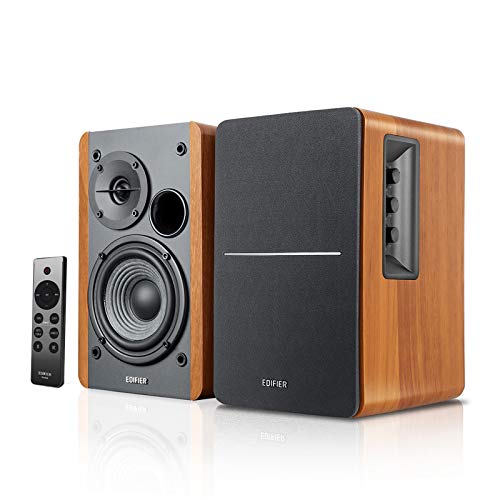
Edifier R1280DBs
The Edifier R1280DBs is the computer speaker to start with on Windows 8, because it is a powered bookshelf pair that connects by Bluetooth, optical, or RCA, and it sounds warm and full, which suits the music and films that a Windows 8 computer plays. It is a powered pair with a 4-inch woofer and a silk dome tweeter in each cabinet, with the amplifier built in, plus a subwoofer output. It connects to a Windows 8 computer by Bluetooth or by a 3.5 mm cable, and it needs no driver, because Windows 8 recognises it as an audio output.
What makes the R1280DBs work on Windows 8 is its simplicity, because it needs no software, no driver, and no setup, and the equaliser lives in Windows, in the sound settings or in a third-party tool, which means the speaker sounds the same whatever the equaliser setting. The sound is warm and full, with a midrange that flatters voices, and a treble that is crisp without being harsh. The optical input takes a clean digital signal from the computer, which avoids the noise that a 3.5 mm cable can pick up.
Verified specs: Powered bookshelf pair, 4-inch woofer, silk dome tweeter, built-in amplifier, Bluetooth, optical and RCA inputs, subwoofer output, no driver needed on Windows 8.
Strengths:
- Warm, full sound with a built-in amplifier matched to the drivers
- Connects to Windows 8 by Bluetooth or cable with no driver needed
- Optical input that avoids the noise of a 3.5 mm cable
Trade-offs:
- No remote control, so volume means reaching for the speaker
- The bass is solid but will not shake a room without a subwoofer
- The amplifier cannot be upgraded separately, because it is built in
Best for: Anyone who uses a Windows 8 computer for music and films, especially for a home office or a bedroom, and wants a simple powered pair.
Not suited for: Buyers who want a remote control or the deepest bass without a subwoofer.
Connect the R1280DBs to the Windows 8 computer by Bluetooth or by optical, because a digital connection avoids the noise that a 3.5 mm cable can pick up from the onboard sound. Place the speakers at ear level, angled toward you, and forming a triangle with your head. Set the equaliser in Windows or in a third-party tool, because the speaker itself has no EQ, and keep the volume moderate, because a desktop speaker sounds best where its midrange shines.
Check price on Amazon: Edifier R1280DBs
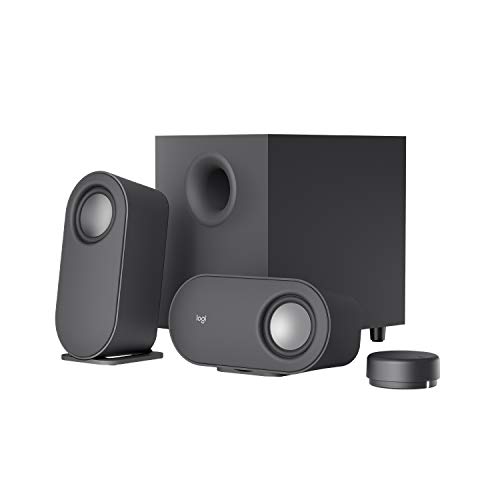
Logitech Z407
The Logitech Z407 is the computer speaker for Windows 8 films, because it is a 2.1 system with a subwoofer, and the subwoofer adds the low end that films demand, while the wireless control dial lets the volume and the bass be adjusted from the desk. It is a 2.1 system with two satellite speakers and a down-firing subwoofer, plus a wireless dial. It connects to a Windows 8 computer by Bluetooth, USB, or 3.5 mm, and it needs no driver, because Windows 8 recognises it as an audio output.
The Z407 works on Windows 8 because its subwoofer gives it a bass response that the bookshelf pairs here cannot match, with a low end that suits films and games, while the satellites keep voices clear. The sound is full and punchy, with a midrange that suits dialogue, and a treble that is crisp. The wireless dial is the reason to choose it, because it controls volume, bass, and mute from the desk, without reaching for the speaker, and the Bluetooth connection keeps the desk free of cables.
Verified specs: 2.1 computer speaker system, two satellites, down-firing subwoofer, wireless control dial, Bluetooth, USB and 3.5 mm inputs, no driver needed on Windows 8.
Strengths:
- Subwoofer that adds the low end films and games demand
- Wireless dial that controls volume and bass from the desk
- Connects to Windows 8 by Bluetooth, USB, or cable with no driver
Trade-offs:
- The subwoofer needs floor space, so it suits a desk with room underneath
- The satellites are small, so the midrange is less full than a bookshelf pair
- No optical input for a clean digital connection
Best for: Anyone who watches films and plays games on a Windows 8 computer, especially for a desk with room for a subwoofer.
Not suited for: Buyers with a small desk or who listen mostly to acoustic music.
Place the satellites at ear level, angled toward you, and put the subwoofer on the floor, because a down-firing subwoofer needs the floor to work. Use the wireless dial to set the bass, because films need more bass than music, and set the equaliser in Windows or in a third-party tool. Keep the volume moderate, because a 2.1 system sounds best where its midrange shines, and dust the satellites gently with a dry cloth.
Check price on Amazon: Logitech Z407
Creative Pebble V3
The Creative Pebble V3 is the computer speaker for a small Windows 8 desk, because it is tiny, it connects by USB, and it is angled up at 45 degrees, so the sound reaches the ears, not the desk. It is a compact USB pair with a 2.25-inch driver in each sphere, plus a passive radiator, and it is powered by USB, so it needs no mains socket. It connects to a Windows 8 computer by USB or Bluetooth, and it needs no driver, because Windows 8 recognises it as an audio output.
The Pebble V3 works on Windows 8 because its USB connection carries both power and audio, which keeps the desk free of cables, and its angled design means the sound is aimed at the listener, not at the desk surface. The sound is clear and balanced, with a midrange that suits voices, and a treble that is crisp, while the bass is light, which is the price of the small size. It is the speaker for a crowded desk, because it fits where a bookshelf pair cannot, and it costs less than any other speaker in this guide.
Verified specs: Compact USB desktop speakers, 2.25-inch drivers, passive radiators, 45-degree angled design, USB and Bluetooth inputs, USB powered, no driver needed on Windows 8.
Strengths:
- Tiny size that fits any desk, even a crowded one
- USB connection that carries power and audio with no mains socket
- Angled design that aims the sound at the ears
Trade-offs:
- The bass is light, so films and bass-heavy music need a subwoofer
- No subwoofer output for a later upgrade
- The small drivers cannot fill a large room
Best for: Anyone with a small Windows 8 desk, especially for a laptop, a dorm, or a crowded workspace, and who wants a cheap, simple pair.
Not suited for: Buyers who want deep bass or room-filling volume.
Place the Pebble V3 speakers on the desk, angled toward you, because the 45-degree design is meant to aim the sound at the ears. Connect by USB, because it carries power and audio with no mains socket, and set the equaliser in Windows or in a third-party tool, because the speaker itself has no EQ. Keep the volume moderate, because a small driver pushed hard will distort, and dust the spheres gently with a dry cloth.

Klipsch ProMedia 2.1
The Klipsch ProMedia 2.1 is the computer speaker for Windows 8 detail, because its horn tweeters give it a treble that is crisp and revealing, and its subwoofer gives it a bass response that suits films and games. It is a 2.1 system with two satellites, each with a horn tweeter, and a subwoofer, plus a control pod. It connects to a Windows 8 computer by 3.5 mm, and it needs no driver, because Windows 8 recognises it as an audio output.
The ProMedia 2.1 works on Windows 8 because its horn tweeters give it a detail that the other 2.1 systems here cannot match, with a treble that is crisp and a midrange that is clear, while the subwoofer gives it a bass response that is deep for a desktop system. The sound is lively and detailed, with a treble that suits acoustic music, and a bass response that suits films. It is the 2.1 system for a listener who values detail, because the horns reveal more than a dome tweeter can.
Verified specs: 2.1 computer speaker system, horn tweeters, subwoofer, control pod, 3.5 mm input, no driver needed on Windows 8.
Strengths:
- Horn tweeters that give a crisp, detailed treble
- Subwoofer that adds the low end films and games demand
- Control pod that puts volume and subwoofer level within reach
Trade-offs:
- Connects by 3.5 mm only, so no Bluetooth or USB input
- The horn sound is forward and can be bright in a hard room
- The subwoofer needs floor space
Best for: Anyone who values detail on a Windows 8 computer, especially for acoustic music, films, and games in a bedroom or a home office.
Not suited for: Buyers who want Bluetooth or a USB connection.
Place the satellites at ear level, angled toward you, and put the subwoofer on the floor, because a subwoofer needs the floor to work. Use the control pod to set the subwoofer level, because films need more bass than music, and set the equaliser in Windows or in a third-party tool. Keep the volume moderate, because a horn tweeter sounds best where its midrange shines, and dust the satellites gently.
Check price on Amazon: Klipsch ProMedia 2.1

Audioengine A2+
The Audioengine A2+ is the computer speaker for Windows 8 music quality, because it is a premium powered pair with a USB input that bypasses the noisy onboard sound card, and its sound is clear, detailed, and musical. It is a powered pair with a 2.75-inch woofer and a silk dome tweeter in each cabinet, with the amplifier built in, plus a subwoofer output. It connects to a Windows 8 computer by USB, RCA, or 3.5 mm, and it needs no driver, because Windows 8 recognises it as an audio output.
The A2+ works on Windows 8 because its USB input carries a clean digital signal straight from the computer, which avoids the noise that a 3.5 mm cable can pick up from the onboard sound card, and the result is a sound that is clearer than any other speaker in this guide. The sound is refined and musical, with a midrange that is detailed, and a treble that is crisp without being harsh. It is small enough for any desk, and it is the speaker for a listener who cares about music quality above all else.
Verified specs: Powered desktop speakers, 2.75-inch woofer, silk dome tweeter, built-in amplifier, USB, RCA and 3.5 mm inputs, subwoofer output, no driver needed on Windows 8.
Strengths:
- USB input that bypasses noisy onboard audio for a cleaner sound
- Refined, musical sound with a detailed midrange
- Small size that fits any desk, with a subwoofer output for later
Trade-offs:
- Costs more than the other speakers here
- No Bluetooth or optical input, so a phone needs a cable
- The bass is light, so films need a subwoofer
Best for: Anyone who listens to music on a Windows 8 computer and cares about quality, especially for acoustic music, jazz, and vocals.
Not suited for: Buyers who want Bluetooth or the deepest bass without a subwoofer.
Connect the A2+ to the Windows 8 computer by USB, because a digital connection avoids the noise that a 3.5 mm cable can pick up from the onboard sound card. Place the speakers at ear level, angled toward you, and forming a triangle with your head. Set the equaliser in Windows or in a third-party tool, because the speaker itself has no EQ, and keep the volume moderate, because a small speaker sounds best where its midrange shines.
Check price on Amazon: Audioengine A2+

Kanto YU2
The Kanto YU2 is the computer speaker for a clean Windows 8 desk, because it is compact, it connects by USB, and it has a subwoofer output for a later upgrade, which makes it the most flexible small speaker in this guide. It is a powered pair with a 3-inch woofer and a silk dome tweeter in each cabinet, with the amplifier built in, plus USB and AUX inputs. It connects to a Windows 8 computer by USB or 3.5 mm, and it needs no driver, because Windows 8 recognises it as an audio output.
The YU2 works on Windows 8 because its USB input carries a clean digital signal from the computer, which avoids the noise that a 3.5 mm cable can pick up, and its compact size means it fits any desk, while the subwoofer output is the upgrade path for films. The sound is clear and balanced, with a midrange that suits voices, and a treble that is crisp. It is the speaker for a desk that should stay tidy, because it needs only a USB cable, and it looks good, with a finish that suits a workspace.
Verified specs: Powered desktop speakers, 3-inch woofer, silk dome tweeter, built-in amplifier, USB and AUX inputs, subwoofer output, no driver needed on Windows 8.
Strengths:
- USB input that avoids the noise of a 3.5 mm cable
- Compact size that fits any desk, with a subwoofer output for later
- Clear, balanced sound that suits voices and music
Trade-offs:
- The bass is light, so films need a subwoofer
- No Bluetooth or optical input, so a phone needs a cable
- No remote control, so volume means reaching for the speaker
Best for: Anyone who wants a clean, compact Windows 8 desk, especially for a home office or a small workspace, and who may add a subwoofer later.
Not suited for: Buyers who want Bluetooth or the deepest bass without a subwoofer.
Connect the YU2 to the Windows 8 computer by USB, because a digital connection avoids the noise that a 3.5 mm cable can pick up. Place the speakers at ear level, angled toward you, and forming a triangle with your head. Set the equaliser in Windows or in a third-party tool, and add a subwoofer later through the subwoofer output, because films need more bass than a small speaker can give.
Check price on Amazon: Kanto YU2
Windows 8 and the Equaliser
Windows 8 is an older system, and its built-in equaliser lives in the sound settings, under the playback device properties, where the enhancements tab offers a graphic equaliser with presets for music, films, and voice. The Edifier R1280DBs, the Logitech Z407, the Creative Pebble V3, the Klipsch ProMedia 2.1, the Audioengine A2+ and the Kanto YU2 all work with it, because they are standard audio outputs, and Windows 8 recognises them with no driver. The equaliser changes the balance between bass, midrange, and treble, so a speaker that sounds boomy in a small room can be tamed, and a speaker that sounds thin can be given more bass.
The practical lesson is to use the built-in equaliser first, because it is free and it is already there, and only then consider a third-party tool. A small room needs less bass, because the walls boost it, while an open room needs more, because there are no walls to reflect it. Set the equaliser once for the room, and then leave it, because constant fiddling will not make the speaker sound better. Note that Windows 8 support has ended, so keep the system offline or behind a firewall where possible.
Third-Party Equalisers for Windows 8
If the built-in equaliser is not enough, a third-party tool gives more control. Equalizer APO is a free, system-wide equaliser that works with Windows 8, and it gives many bands, which allows fine tuning, while FXSound is a simpler tool with presets for music, films, and games. Both work with the six speakers here, because they change the audio before it reaches the speaker, whatever the connection. The Realtek HD Audio Manager, which ships with many Windows 8 computers, also offers an equaliser, with presets and a graphic display.
The practical lesson is to start with the built-in equaliser, and only add a third-party tool when more control is needed, because a graphic equaliser with many bands can make the sound worse if it is misused. Start flat, change one slider at a time, and listen, because a small change is often enough. Save a preset for music and one for films, because the two need different settings, and reset to flat if the sound gets worse.
USB Versus 3.5 mm on Windows 8
A USB connection carries a clean digital signal straight from the computer, which avoids the noise that a 3.5 mm cable can pick up from the onboard sound card, while a 3.5 mm connection is analogue, and it can pick up hiss and hum from the computer. The Audioengine A2+ and the Kanto YU2 have a USB input, which is why they sound cleaner than the 3.5 mm-only Klipsch ProMedia 2.1, while the Edifier R1280DBs has an optical input, which is also digital and clean. The Logitech Z407 has USB as well as Bluetooth, and the Creative Pebble V3 is USB powered, which keeps the desk free of mains cables.
The practical lesson is to connect by USB or optical where the speaker offers it, because a digital connection sounds cleaner than a 3.5 mm cable, and it avoids the noise that a Windows 8 computer can introduce. If only 3.5 mm is available, keep the cable short and away from power cables, because a long cable picks up more noise. Set the volume in Windows to maximum and control it on the speaker, because that gives the cleanest signal.
Buying Guide
Start by deciding what the Windows 8 computer is for, because that choice shapes the speaker. If music is the priority, the Audioengine A2+ is the best choice, because its USB input gives the cleanest sound. If films are the priority, the Logitech Z407 is the best choice, because its subwoofer adds the low end. If detail matters, the Klipsch ProMedia 2.1 is the best choice, because its horn tweeters reveal more. If the desk is small, the Creative Pebble V3 is the best choice.
Open the sound settings and find the equaliser, because Windows 8 has a built-in graphic equaliser under the playback device properties, and it is free. A small room needs less bass, because the walls boost it, while an open room needs more. Start flat, change one slider at a time, and listen, because a small change is often enough. Save a preset for music and one for films, because the two need different settings.
Consider a third-party equaliser if the built-in one is not enough, because Equalizer APO gives many bands for fine tuning, while FXSound gives presets for music, films, and games. Both work with the six speakers here, because they change the audio before it reaches the speaker. Start with the built-in equaliser, and only add a tool when more control is needed, because a graphic equaliser with many bands can make the sound worse if it is misused.
Connect by USB or optical where the speaker offers it, because a digital connection avoids the noise that a 3.5 mm cable can pick up from the onboard sound card. The Audioengine A2+ and the Kanto YU2 have a USB input, the Edifier R1280DBs has an optical input, and the Logitech Z407 has USB as well as Bluetooth. Set the volume in Windows to maximum and control it on the speaker, because that gives the cleanest signal.
Place the speakers at ear level, angled toward you, and forming a triangle with your head, because a good pair in a bad position will sound worse than a mediocre pair placed well. Keep them away from the wall, and clear the space between them, because a cluttered desk will reflect sound. Listen at a moderate volume, because a desktop speaker sounds best where its midrange shines.
Finally, remember that the best equaliser setting for Windows 8 speakers is the one that suits the room. Start with the Edifier R1280DBs for the best overall Windows 8 speaker, or the Audioengine A2+ for music quality. Choose the Logitech Z407 for films, the Klipsch ProMedia 2.1 for detail, the Creative Pebble V3 for a small desk, or the Kanto YU2 for a clean desk. Whichever you pick, set the equaliser once for the room, connect digitally, and enjoy a computer that sounds far better than its built-in speakers.
How to Use and Care for Equalizer Setting for Windows 8 Speakers
Use Windows 8 speakers at ear level, angled toward you, and forming a triangle with your head, because a good pair in a bad position will sound worse than a mediocre pair placed well. Connect by USB or optical where the speaker offers it, because a digital connection avoids the noise of a 3.5 mm cable, and set the equaliser once for the room, because constant fiddling will not make it sound better. Dust the cabinets gently with a dry cloth, and keep drinks away from the desk, because a spill into a ported cabinet can damage the driver. Keep the Windows 8 computer behind a firewall, because support has ended.
Common Mistakes to Avoid
The most common mistake is using a 3.5 mm cable when USB or optical is available, because a digital connection sounds cleaner. The second is boosting the bass too far, which will distort a small speaker. The third is ignoring the room, because a small room needs less bass. The fourth is placing the speakers against a wall, which makes the bass boomy. The fifth is forgetting that Windows 8 support has ended, so the system should be kept offline or behind a firewall.
Frequently Asked Questions
What is the best equalizer setting for Windows 8 speakers?
It depends on the room, because a small room needs less bass, while an open room needs more. The best starting point is flat, with a small bass cut in a small room and a small treble cut in a bright room. The Edifier R1280DBs is the best Windows 8 speaker overall, while the Audioengine A2+ is the best for music quality. Set the equaliser once for the room, and then leave it, because constant fiddling will not make the speaker sound better.
Where is the equalizer in Windows 8?
In the sound settings, under the playback device properties, where the enhancements tab offers a graphic equaliser with presets for music, films, and voice. Right-click the speaker icon, choose playback devices, select the speaker, and open properties, then the enhancements tab. The six speakers in this guide all work with it, because they are standard audio outputs, and Windows 8 recognises them with no driver.
Do I need a third-party equalizer for Windows 8?
No, because Windows 8 has a built-in graphic equaliser, and it is enough for most listeners. If more control is needed, Equalizer APO is a free, system-wide equaliser that works with Windows 8, and it gives many bands for fine tuning, while FXSound is a simpler tool with presets. Start with the built-in equaliser, and only add a tool when more control is needed.
What speakers work with Windows 8?
Any speaker with a 3.5 mm, USB, optical, or Bluetooth connection, because Windows 8 recognises them as standard audio outputs with no driver. The Edifier R1280DBs, the Logitech Z407, the Creative Pebble V3, the Klipsch ProMedia 2.1, the Audioengine A2+ and the Kanto YU2 all work with Windows 8, which is why they are in this guide. Connect by USB or optical where the speaker offers it, because a digital connection sounds cleaner.
Is Windows 8 still supported?
No, because support for Windows 8 ended, and it no longer receives security updates, which means it should be kept offline or behind a firewall where possible. The speakers in this guide still work with it, because they are standard audio outputs, and the equaliser still works in the sound settings. If the computer can be upgraded, Windows 10 or 11 is the safer choice, because they are still supported.
What is the best equalizer setting for music on Windows 8?
A flat setting with a small bass lift, because music needs warmth, but a large boost will distort a small speaker. The Audioengine A2+ is the best Windows 8 speaker for music, because its USB input gives the cleanest sound, while the Edifier R1280DBs is the best overall. Save a preset for music and one for films, because the two need different settings, and reset to flat if the sound gets worse.
What is the best equalizer setting for films on Windows 8?
A bass boost and a treble lift, because films need weight in the low end and clarity in dialogue. The Logitech Z407 is the best Windows 8 speaker for films, because its subwoofer adds the low end, while the Klipsch ProMedia 2.1 is the best for detail. Set the subwoofer level on the control dial, because films need more bass than music, and keep the volume moderate, because a desktop speaker sounds best where its midrange shines.
Can I use Bluetooth speakers with Windows 8?
Yes, because Windows 8 supports Bluetooth audio, and the Edifier R1280DBs, the Logitech Z407 and the Creative Pebble V3 all connect by Bluetooth. Pair the speaker in the Bluetooth settings, and set it as the default playback device, because Windows 8 will otherwise keep using the built-in speakers. Keep the computer within range, because the Bluetooth link depends on it, and expect a small delay, which matters for lip sync.
Why does my Windows 8 speaker sound noisy?
Because a 3.5 mm cable can pick up hiss and hum from the onboard sound card, especially on an older computer. Connect by USB or optical where the speaker offers it, because a digital connection avoids the noise, and keep the cable short and away from power cables. Set the volume in Windows to maximum and control it on the speaker, because that gives the cleanest signal. The Audioengine A2+ and the Kanto YU2 have a USB input, which is the cleanest option.
What is Equalizer APO?
Equalizer APO is a free, system-wide equaliser for Windows, and it works with Windows 8, giving many bands for fine tuning. It changes the audio before it reaches the speaker, whatever the connection, and it works with the six speakers in this guide. Start with the built-in equaliser, and only add Equalizer APO when more control is needed, because a graphic equaliser with many bands can make the sound worse if it is misused.
Do Windows 8 speakers need a driver?
No, because the six speakers in this guide are standard audio outputs, and Windows 8 recognises them with no driver, whether they connect by 3.5 mm, USB, optical, or Bluetooth. If a speaker does not appear, check the playback devices list, and set it as the default, because Windows 8 will otherwise keep using the built-in speakers. Update the sound card driver, because an old driver can cause the speaker to disappear.
What is the best Windows 8 speaker for a small desk?
The Creative Pebble V3 is the best Windows 8 speaker for a small desk, because it is tiny, it connects by USB, and it is angled up at 45 degrees, so the sound reaches the ears. The Kanto YU2 is the best for a clean desk, because it is compact and it has a subwoofer output for later. Both connect by USB, which keeps the desk free of mains cables, and both need no driver.
Can I use a subwoofer with Windows 8 speakers?
Yes, because the Logitech Z407 and the Klipsch ProMedia 2.1 are 2.1 systems with a subwoofer included, while the Edifier R1280DBs, the Audioengine A2+ and the Kanto YU2 have a subwoofer output for a later upgrade. Place the subwoofer on the floor, because a down-firing subwoofer needs the floor to work, and set the level on the control dial, because films need more bass than music.
How do I make Windows 8 speakers sound better?
Connect by USB or optical, because a digital connection avoids the noise of a 3.5 mm cable, and place the speakers at ear level, angled toward you, forming a triangle with your head. Set the equaliser once for the room, because a small room needs less bass, and keep the volume moderate, because a desktop speaker sounds best where its midrange shines. Treat the room with a rug and curtains, because soft surfaces absorb reflections.
Conclusion
The best equalizer setting for Windows 8 speakers is the one that suits the room. Start with the Edifier R1280DBs for the best overall Windows 8 speaker, or the Audioengine A2+ for music quality. Choose the Logitech Z407 for films, the Klipsch ProMedia 2.1 for detail, the Creative Pebble V3 for a small desk, or the Kanto YU2 for a clean desk. Whichever you pick, set the equaliser once for the room, connect digitally, and enjoy a computer that sounds far better than its built-in speakers. For a nearby alternative, see our guide to the best bookshelf speakers for a desk.