What's inside
- Key Takeaways
- Quick Picks
- How Did We Choose the Best Hard Drives for RAID 5 Storage?
- Why Does CMR Versus SMR Decide a RAID 5 Array’s Worst Day?
- The Six Drives, Examined One by One
- How Do the Six RAID 5 Drives Compare at a Glance?
- How Do You Plan a RAID 5 Set Before Spending Anything?
- What Happens During a Rebuild, Hour by Hour?
- Why Do NAS Drives Handle Errors Differently from Desktop Drives?
- When Should a Growing Array Move from RAID 5 to RAID 6?
- What Does a Monthly Maintenance Rhythm for an Array Look Like?
- How Does Power Loss Threaten an Array, and What Blunts It?
- IronWolf or Red Pro: Does the Brand Divide Matter Inside an Array?
- How Many Bays Should the Enclosure Have?
- What Should You Do the Week the Array Is Built?
- What Does the Array’s Second Year Ask of Its Owner?
- Which Mistakes Turn a Sound Array into a Sad Story?
- Final Recommendation
- Frequently Asked Questions
- Related Guides
As an Amazon Associate I earn from qualifying purchases. This post may contain affiliate links at no extra cost to you.
widgetverdict.com is reader-supported. When you buy through links on our site, we may earn an affiliate commission.
Where to buy: all six drives below are sold as NAS drives with CMR recording stated in their listings, and each links to its Amazon page under its full product name — check the model numbers carefully, because in this category one wrong letter can mean a very different drive.
RAID 5 is an act of faith in arithmetic. It spreads your data across a set of drives with parity information woven between them, so that when — not if — one disk fails, the array rebuilds what was lost from what remains. That promise stands or falls on one unglamorous property of the drives you choose: how they record. The best hard drives for RAID 5 storage are, without exception in this guide, CMR drives, because the alternative recording method, SMR, turns the array’s worst day — the long, full-tilt rebuild after a failure — into a slow-motion crisis that can stretch for days and stress every surviving disk the whole way. Every pick below states CMR in its listing, and that single fact matters more than any capacity figure on this page.
The six drives span the realistic RAID 5 landscape. Seagate’s IronWolf Pro models at sixteen and fourteen terabytes anchor the high-capacity end, with the standard IronWolf at four and ten terabytes serving smaller arrays that still deserve proper NAS engineering. Western Digital’s Red Pro line answers at eight and a flagship twenty terabytes, both spinning at 7200 RPM with CMR recording and the large caches that parity writing rewards. Between them they cover the three-bay starter NAS, the four-bay home server that has become a family’s digital attic, and the eight-bay small-business array whose failure would make the local news of one very bad Monday.
Key Takeaways
- Recording method is the whole ballgame for RAID 5: CMR drives rebuild predictably, while SMR drives can slow a rebuild to a crawl under sustained parity writes.
- Every pick in this guide states CMR in its listing — that is a deliberate filter, not a coincidence.
- Rebuild time grows with drive size, so the largest arrays need the most discipline about spares, monitoring and backups elsewhere.
- The IronWolf Pro 16TB and WD Red Pro 20TB are the capacity anchors; the IronWolf 4TB is the honest entry point for a first three-bay array.
- Match drives within an array by model and size — RAID 5 sizes every member down to the smallest disk in the set.
- RAID 5 is availability, not backup: it keeps you working through a disk failure and does nothing against deletion, ransomware or a dead enclosure.
Quick Picks
| Pick | Badge | Why it earns its place |
|---|---|---|
| Seagate IronWolf Pro 16TB Enterprise NAS HDD (ST16000NT001) | The big-array anchor | Sixteen CMR terabytes at 7200 RPM with a 256 MB cache, built for RAID network storage that cannot afford a fragile rebuild. |
| Western Digital 20TB WD Red Pro NAS HDD (WD202KFGX) | The capacity ceiling | Twenty terabytes, 7200 RPM, CMR and a 512 MB cache — the largest Red Pro here for arrays sized in tens of terabytes. |
| Seagate IronWolf 4TB NAS HDD (ST4000VNZ06/006) | The first-array drive | CMR recording and Rescue Services at the size where a three or four-bay starter array makes financial sense. |
| Seagate IronWolf Pro 14TB NAS HDD (ST14000NEZ008) | The proven Pro tier | Fourteen CMR terabytes with data recovery service, from the IronWolf Pro generation many arrays already run. |
| Western Digital 8TB WD Red Pro NAS HDD (WD8005FFBX) | The balanced Red | 7200 RPM, CMR and 256 MB of cache at the size where four-bay arrays land most often. |
| Seagate IronWolf 10TB NAS HDD (ST10000VNZ00) | The health-managed ten | Ten CMR terabytes, RAID-optimised firmware and IronWolf Health Management for arrays that report on themselves. |
How Did We Choose the Best Hard Drives for RAID 5 Storage?
One filter did most of the work: the listing had to state CMR. That sounds like a low bar until you discover how many NAS-positioned drives at retail either use SMR quietly or decline to say which method they use, leaving the buyer to decode model-number lore in forums. For a RAID 5 guide that ambiguity is disqualifying, because the rebuild scenario is exactly where the distinction stops being academic. The six survivors all declare conventional recording in plain language, and all six are NAS-class drives — engineered for multi-bay vibration, continuous duty and array firmware behaviour — rather than desktop disks pressed into service.
The second filter was architectural spread. A RAID 5 shortlist that only served eight-bay business arrays would fail the reader building a first three-bay box this weekend, and one that only served beginners would fail the studio whose array holds a decade of client work. So the capacities run from four to twenty terabytes, across both manufacturers’ NAS lines and both their standard and Pro tiers, with spindle speeds and caches noted where the listings state them. What the list refuses to do is mix classes: no surveillance drives moonlighting as array disks, no enterprise SATA drives whose NAS manners are unproven, however impressive their other credentials.
Why Does CMR Versus SMR Decide a RAID 5 Array’s Worst Day?
Conventional magnetic recording writes each track independently, like lines on a page: to change one line, the drive rewrites that line. Shingled magnetic recording overlaps its tracks like roof shingles to squeeze more capacity from the same platters, which works until the drive must rewrite something in the middle of the shingled band — at which point it has to read, shuffle and rewrite a whole neighbourhood of tracks to change one resident. In desktop service, where writes are bursty and the drive can tidy up during idle moments, that cost hides. In a RAID 5 rebuild, there are no idle moments. The array writes continuously, at full pressure, for hours or days, and an SMR drive’s need to keep rearranging its shingles turns the rebuild into a marathon run in deep sand.
The danger compounds, and this is the part the spec sheets never mention. A rebuild is also the moment of maximum peril for the surviving drives: they are read end to end, repeatedly, at full tilt, and if a second disk fails or throws an unrecoverable error during that window, a RAID 5 array has nothing left to rebuild from. Every extra hour an SMR drive adds to the rebuild is an extra hour inside that window of maximum exposure. This is why the CMR requirement in this guide is not a preference or a snobbery. It is the difference between a rebuild that finishes overnight and one that is still grinding on Thursday, with the array’s remaining disks ageing in dog years while it does.
A related trap catches buyers who check the headline model but not the variant. Drive families have shipped in both recording methods under closely related model numbers at various times, and a listing that says NAS on the banner may still be selling the shingled variant in the fine print. The defence is the same discipline this guide applied: the listing itself must state CMR, and the model number delivered must match the model number ordered. Check the label when the box arrives, before the array’s first initialisation, because discovering the truth after the data has moved in is a special kind of misery.
The Six Drives, Examined One by One

Seagate IronWolf Pro 16TB Enterprise NAS HDD (ST16000NT001) — The big-array anchor
Sixteen terabytes of CMR at 7200 RPM with a 256 MB cache: the IronWolf Pro ST16000NT001 is the drive this guide would build a serious array around. In a five-bay RAID 5 set it contributes the lion’s share of a usable pool measured in the mid-fifties of terabytes, and it does so with Pro-tier NAS engineering — the class of drive Seagate positions for arrays that work for a living. The rebuild conversation from the previous section applies with full force at this size: a sixteen-terabyte member takes many hours to rebuild even on honest CMR media, so this drive belongs in systems with monitored health, a matched spare within arm’s reach and an owner who has read their NAS’s alert emails at least once.
What recommends the Pro over the standard IronWolf at this capacity is not a single dramatic feature but the accumulation of duty assumptions. Pro drives are specified for larger arrays and heavier annual workloads than their standard siblings, and in a RAID 5 set those assumptions translate directly into how calmly the drive behaves in year three, at bay six, during the rebuild nobody scheduled. Buy it in matched sets, from the same listing, at the same time, and resist the temptation to save a little by mixing in a near-equivalent — parity arrays reward uniformity with a loyalty that borders on superstition, except that it is engineering.
- Capacity: 16TB
- Recording: CMR
- Spindle speed: 7,200 RPM
- Cache: 256 MB
- Interface: SATA 6 Gb/s
- Model: ST16000NT001
Strengths
- Pro-tier NAS specification at a genuinely array-scale capacity.
- CMR recording keeps rebuild behaviour predictable at sixteen terabytes.
- 7200 RPM and a 256 MB cache suit parity writing’s mixed workload.
Trade-offs
- Rebuilds at this size are long even in the best case; plan spares accordingly.
- Pro pricing across a full set of bays adds up quickly.
- Wasted in a two-bay enclosure, where its array assumptions never come into play.
Best for: four to eight-bay arrays holding business data, media libraries or virtualisation storage that must survive a disk failure in stride. Not suited for: casual two-bay home boxes, where the standard IronWolf tier covers the duty for less.

Western Digital 20TB WD Red Pro NAS HDD (WD202KFGX) — The capacity ceiling
The WD202KFGX is the largest drive in this guide, and it makes the RAID 5 capacity argument in its purest form: four of these in a parity set yield a usable pool that swallows media archives, backup histories and project libraries that would have needed two enclosures a generation ago. The specification supports the ambition — 7200 RPM, CMR recording and a 512 MB cache, the largest buffer here, which earns its keep during the mixed read-write churn of an array serving several users while parity is being calculated and written alongside the data.
Honesty about scale is this drive’s entry requirement. A twenty-terabyte member makes every array operation slower: initialisation measured in days of patience, scrubs that run across weekends, and rebuilds whose length must be planned around rather than merely endured. None of that disqualifies it — large arrays are a legitimate and often economical architecture — but it does mean the Red Pro 20TB belongs to owners who monitor their systems, keep a same-size spare, and hold a genuine backup of the array’s contents somewhere else. In that company it is a superb foundation. Outside it, the drive’s size becomes a way of concentrating risk while feeling modern, which is the one thing RAID 5 exists to prevent.
- Capacity: 20TB
- Recording: CMR
- Spindle speed: 7200 RPM
- Cache: 512 MB
- Interface: SATA 6 Gb/s
- Model: WD202KFGX
Strengths
- The largest single-drive capacity here, for pools measured in tens of terabytes.
- A 512 MB cache that flatters busy multi-user parity workloads.
- Red Pro specification: NAS-class, 7200 RPM, CMR throughout.
Trade-offs
- The longest rebuild and scrub windows in this guide.
- One failed member removes twenty terabytes from the set’s redundancy maths.
- Demands monitoring, a matched spare and a real backup to be a responsible choice.
Best for: large four to eight-bay arrays consolidating serious archives, run by owners who actively monitor them. Not suited for: set-and-forget home NAS ownership, where the smaller tiers forgive neglect far better.
Seagate IronWolf 4TB NAS HDD (ST4000VNZ06/006) — The first-array drive
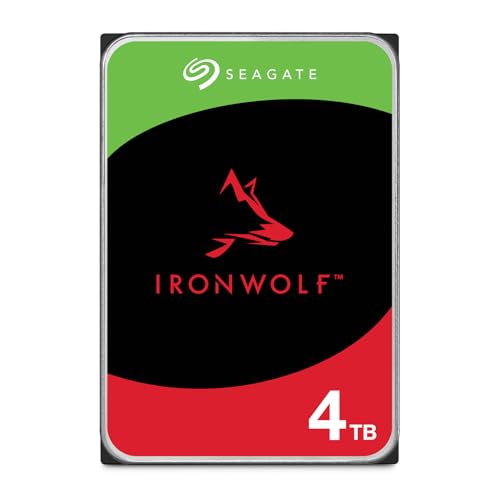
Every storage journey starts somewhere, and for RAID 5 it usually starts at four terabytes. The standard IronWolf ST4000VNZ06/006 pairs CMR recording with a 5400 RPM spindle and a 64 MB cache — a specification that reads as modest until you place it in its natural habitat: a three or four-bay NAS holding a household’s photos, documents and media, where the workload is a handful of users and the array’s real job is surviving the inevitable disk failure without a family summit. At this scale its gentler spindle is a feature, running cool and quiet in the living-room-adjacent places small NAS boxes actually live.
Seagate includes its Rescue Services with this drive, which suits the first-array buyer precisely: the data on a starter NAS is often the least backed-up data its owner has, because the NAS was bought as the backup. A recovery path behind the drives is not a strategy, but it is a comfort with real value at this tier. The honest ceiling to name is growth. Four-terabyte members make pools that media habits outgrow, and an array built here should be built with the enclosure’s empty bays or the next drive size in mind. As an education in how arrays behave — initialisation, scrubbing, a first rehearsed drive swap — it is the friendliest teacher in this guide.
- Capacity: 4TB
- Recording: CMR
- Spindle speed: 5400 RPM
- Cache: 64 MB
- Interface: SATA 6Gb/s
- Model: ST4000VNZ06/006
- Included support: Rescue Services
Strengths
- Proper CMR NAS engineering at the price tier first arrays are actually bought at.
- Cool, quiet 5400 RPM manners for home environments.
- Rescue Services included, behind data that is often a household’s only copy.
Trade-offs
- Pools built from 4TB members are outgrown by media collections quickly.
- The slowest spindle and smallest cache in this guide.
- Not the drive for multi-user business arrays with all-day workloads.
Best for: first three and four-bay home arrays, and small offices with light, bursty file workloads. Not suited for: growing media servers, where its capacity ceiling arrives within a year or two.
Seagate IronWolf Pro 14TB NAS HDD (ST14000NEZ008) — The proven Pro tier
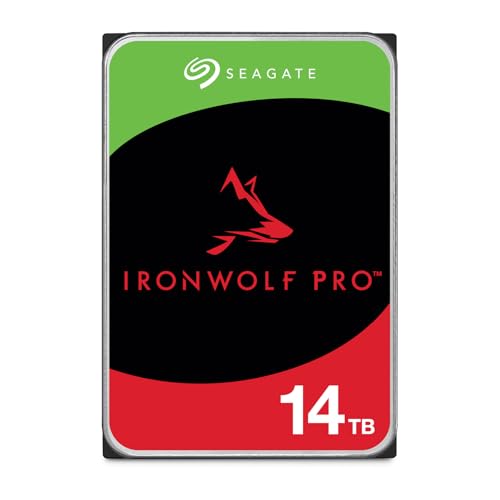
The fourteen-terabyte IronWolf Pro is the generation with the miles on it. ST14000NEZ008 pairs CMR recording with a 256 MB cache and Seagate’s data recovery service, in the Pro specification that a great many working arrays were built around when fourteen terabytes was the sensible ceiling. That history is its recommendation: its behaviour in multi-bay enclosures, its rebuild manners, its relationship with the major NAS platforms are all matters of long record rather than launch-day promise, and storage is a field where a long record is worth paying for.
Against the sixteen-terabyte Pro above it, this drive’s case is about fleet reality. Arrays are expanded and repaired with the drives they already contain, and a buyer whose set runs these fourteen-terabyte models should keep buying them rather than introducing a larger member whose extra capacity the array cannot use until every disk is replaced. It also suits the buyer who wants Pro duty at a slightly gentler rebuild window: two fewer terabytes per member is a few hours returned during the array’s worst week. In a field addicted to the newest number, the ST14000NEZ008 is a reminder that the best drive for an array is very often the one the array already trusts.
- Capacity: 14TB
- Recording: CMR
- Cache: 256 MB
- Interface: SATA 6Gb/s
- Model: ST14000NEZ008
- Included support: Data Recovery Service
Strengths
- A long-serving Pro model with an established record in working arrays.
- CMR recording and data recovery service as standard.
- The correct replacement and expansion drive for existing fourteen-terabyte sets.
Trade-offs
- Two terabytes per bay behind the current Pro flagship.
- Its fleet-matching logic means little to a buyer starting an empty enclosure.
- Still a large drive whose rebuild needs a spare and a plan.
Best for: owners expanding or maintaining arrays already built on this generation, and Pro-tier buyers who value the record. Not suited for: greenfield maximum-density builds, which should start at sixteen terabytes.

Western Digital 8TB WD Red Pro NAS HDD (WD8005FFBX) — The balanced Red
If the twenty-terabyte Red Pro is the line’s ambition, the eight-terabyte WD8005FFBX is its judgement. Eight terabytes per member is where a four-bay RAID 5 array lands for a remarkable share of real buyers — a usable pool in the mid-twenties of terabytes, rebuild windows that fit inside a day rather than a weekend, and per-drive costs that let a household or small studio buy the full set plus a spare without a finance meeting. The specification is the full Red Pro recipe at this size: 7200 RPM, CMR recording and a 256 MB cache, so nothing about the array’s behaviour is compromised for the smaller footprint.
This is also the drive that makes RAID 5’s economics easiest to defend to a sceptic. Parity costs one member’s capacity from the set; at eight terabytes that insurance premium buys a pool that survives a failure, keeps serving files during the rebuild and does it with drives whose replacement is a routine purchase rather than a capital event. For the home server that has become mission-critical by accretion — the photos, the media library, the small business that moved onto it during a busy year — a set of these is the grown-up answer, sized to the life actually being stored rather than to a benchmark’s vanity.
- Capacity: 8TB
- Recording: CMR
- Spindle speed: 7200 RPM
- Cache: 256 MB
- Interface: SATA 6 Gb/s
- Model: WD8005FFBX
Strengths
- The full Red Pro specification at the array size most buyers actually deploy.
- Rebuild windows that stay humane while capacity stays serious.
- A set plus a spare is a realistic single purchase at this tier.
Trade-offs
- Archives growing by terabytes a year will outgrow an eight-terabyte set.
- No bundled recovery service of the kind Seagate attaches to its rivals.
- Red Pro pricing is a clear step above standard NAS tiers.
Best for: four-bay home and small-business arrays that need Pro behaviour at a sustainable scale. Not suited for: bulk archive arrays, where the sixteen and twenty-terabyte tiers cut the bay count in half.

Seagate IronWolf 10TB NAS HDD (ST10000VNZ00) — The health-managed ten
The standard IronWolf’s ten-terabyte model is the thoughtful middle of Seagate’s range: CMR recording, a 7200 RPM spindle, firmware Seagate describes as RAID-optimised, and IronWolf Health Management, the system that lets compatible NAS platforms report on the drive’s condition in terms a human can act on. That last feature is this drive’s signature. RAID 5 arrays fail in slow motion before they fail outright — a member develops errors, the NAS logs complaints nobody reads — and health visibility is the difference between replacing a tired drive on a calm Tuesday and rebuilding around a dead one on a panicked Friday.
Ten terabytes is also a shrewd size for the array that must not be rebuilt often. It doubles the four-terabyte starter tier without entering the marathon-rebuild territory of the fourteen and sixteen-terabyte Pros, which suits owners who want a set they can install, verify and then mostly ignore for years. Pair it with the health reporting switched on and actually checked — the feature is only worth its place in this paragraph if a human or an alert rule is listening — and the ST10000VNZ00 becomes the array drive for people who prefer their storage drama in the form of early warnings.
- Capacity: 10TB
- Recording: CMR
- Spindle speed: 7200 RPM
- Interface: SATA 6 Gb/s
- Model: ST10000VNZ00
- Health: IronWolf Health Management, RAID-optimised firmware
Strengths
- Health management gives the array a voice before a member fails.
- Ten CMR terabytes at 7200 RPM, without entering marathon-rebuild territory.
- RAID-optimised firmware in Seagate’s standard, widely deployed NAS line.
Trade-offs
- Health features need a compatible NAS platform to deliver their value.
- Standard tier, so heavy multi-user arrays should look at the Pro models.
- Ten terabytes per bay is half the density of this guide’s largest options.
Best for: home and small-office arrays whose owners will actually use health monitoring to replace drives early. Not suited for: enclosures that cannot surface IronWolf health data, where its signature feature goes unread.
How Do the Six RAID 5 Drives Compare at a Glance?
| Drive | Capacity | Spindle | Cache | Recording |
|---|---|---|---|---|
| IronWolf Pro ST16000NT001 | 16TB | 7,200 RPM | 256 MB | CMR |
| WD Red Pro WD202KFGX | 20TB | 7200 RPM | 512 MB | CMR |
| IronWolf ST4000VNZ06/006 | 4TB | 5400 RPM | 64 MB | CMR |
| IronWolf Pro ST14000NEZ008 | 14TB | — | 256 MB | CMR |
| WD Red Pro WD8005FFBX | 8TB | 7200 RPM | 256 MB | CMR |
| IronWolf ST10000VNZ00 | 10TB | 7200 RPM | — | CMR |
The column that does not vary is the one that matters most. Capacities spread across a five-to-one range, spindles and caches scale with tier, but the recording method is CMR six times out of six, because that uniformity is the guide’s thesis: in RAID 5, the recording method is a threshold property, not a preference. Once the threshold is cleared, the choice becomes refreshingly ordinary — pick the capacity your pool maths demands, the tier your workload’s weight deserves, and the brand whose health and recovery ecosystem your NAS platform speaks to most fluently.
How Do You Plan a RAID 5 Set Before Spending Anything?
Begin with usable capacity, worked backwards. RAID 5 surrenders one member’s worth of space to parity, so a set of four eight-terabyte drives yields roughly twenty-four terabytes of pool, and a set of three sixteen-terabyte drives yields roughly thirty-two. Decide the pool your next three years of data honestly requires, then find the smallest set that provides it, because smaller members rebuild faster and cost less to spare. Resist the symmetrical temptation to buy the largest drives the enclosure accepts; an array is a machine for surviving failures, and every design choice should be graded by how the machine behaves on its worst day, not by how impressive the pool figure looks on the first.
Then write the failure plan while everyone is calm. Which drive is the spare, and is it on the shelf or in a shopping cart? Who receives the NAS’s alerts, and have those alerts ever been tested? What is backed up off the array entirely — because something must be — and when was that backup last restored in a rehearsal rather than merely observed to exist? These questions sound like they belong to an IT department, but they scale down to a household NAS without changing a word, and answering them is worth more terabytes of safety than any upgrade from one pick in this guide to another.
What Happens During a Rebuild, Hour by Hour?
The failure itself is usually anticlimactic: an alert, a red light, a pool reporting degraded but still serving files. That is RAID 5 keeping its promise, and the correct response is unhurried competence. Confirm the backup of anything irreplaceable is current, because the rebuild ahead is the array’s most dangerous shift. Fit the spare — this is why it was bought with the set — and let the NAS begin reconstructing the lost member from the parity and data distributed across the survivors. Then leave it alone. The rebuild will read every surviving drive end to end and write the replacement in full, and the kindest thing an owner can do is reduce the array’s other work, keep it cool and let the hours pass.
When the rebuild completes, the work is not quite done. Check the logs for errors the survivors reported under load, because a drive that complained during the rebuild has told you who is next. Run a scrub so the whole pool is verified while the memory of the incident is fresh. Replace the consumed spare immediately, while the lesson about why it exists is still vivid. And write down what happened — dates, model numbers, the order of events — in the same place you keep the array’s purchase records. Arrays that are documented survive their owners’ forgetfulness, and the second failure, whenever it comes, will be handled by someone grateful for the notes: quite possibly you, older and with no memory of the first.
Why Do NAS Drives Handle Errors Differently from Desktop Drives?
There is a quiet behaviour that separates every drive in this guide from the disk in a desktop PC, and it only becomes visible when something goes wrong. When a desktop drive hits a sector it cannot read, it retries — patiently, repeatedly, sometimes for the better part of a minute — because in a desktop, that sector may hold the only copy of the data and persistence is a virtue. In a RAID array the same persistence is a vice. The controller is waiting, the parity set holds another route to that data, and a drive that disappears into a long retry can be declared dead by the array while it is still thinking, dropping a healthy-ish disk from the set and starting a rebuild nobody needed.
NAS-class drives are therefore built to give up gracefully: they attempt recovery briefly, report the problem honestly, and let the array reconstruct the data from parity while flagging the sector for attention. It is a small firmware philosophy with enormous consequences, and it is the second reason — after CMR — that array builders buy drives labelled for NAS duty rather than saving money on desktop equivalents. The desktop drive is not worse; it is answering a different question, in a machine where it is the only witness. In an array, the witnesses are many, and the good citizen is the one that speaks up quickly and lets the group carry on.
When Should a Growing Array Move from RAID 5 to RAID 6?
RAID 5’s single-parity design carries an assumption that made sense at smaller scales: that during a rebuild, the surviving drives will all behave. As member sizes climb into the teens of terabytes, rebuilds lengthen, the survivors are read more completely, and the probability that one of them produces an error mid-rebuild stops being negligible. RAID 6 answers with a second parity block, letting the array survive two simultaneous member failures — or a failure plus errors — at the cost of another member’s capacity and some write performance. Nothing about that trade is automatic; it is a judgement about how much data, how large the drives and how long the rebuilds have become.
The drives in this guide serve both designs identically — CMR NAS disks are the correct citizens either way — so the question is architectural rather than a shopping problem. A working heuristic: three and four-bay sets at the four to ten-terabyte tiers sit comfortably in RAID 5 with a spare and a backup; sets of fourteen terabytes and above, or five-plus bays holding data that would genuinely hurt to lose, should price RAID 6’s extra member honestly before defaulting to habit. The worst outcome is not choosing either level; it is drifting into a scale where RAID 5’s assumptions have quietly expired while nobody was watching the capacities climb.
What Does a Monthly Maintenance Rhythm for an Array Look Like?
Arrays do not ask for much, but they ask regularly. Once a month, read the NAS’s own health summary the way you would a bank statement — not hunting for drama, just confirming that every member reports clean, temperatures are unremarkable and the pool’s free space is not quietly vanishing into snapshots nobody configured on purpose. Confirm the alert path still works by sending the test notification your platform offers; alerting systems fail silently more often than drives do. And glance at the backup that lives off the array, verifying its most recent job completed and, once in a while, that a file restored from it actually opens.
Once a quarter, let the array do its own deep housekeeping. A data scrub reads the entire pool, checks parity against data and repairs the small inconsistencies that accumulate invisibly over months of writes; schedule it for a quiet weekend and let it finish rather than cancelling it for slowness, because a scrub interrupted forever is a verification that never happened. Review the drive ages against your records, so replacements can be planned as purchases rather than emergencies. None of this takes an hour across a whole quarter. What it buys is the near-certainty that when a drive does fail — at sixteen terabytes, on a holiday weekend, during the rebuild this guide has described at length — it will be the first surprise the system has given you in years, rather than the fourth symptom of a neglect you can no longer reconstruct.
How Does Power Loss Threaten an Array, and What Blunts It?
A parity array’s most dangerous moment is not a drive dying; it is the power dying mid-write. RAID 5 writes data and parity as separate acts, and an outage that lands between them can leave the two disagreeing about what the pool contains — the classic write hole, a corruption that may not announce itself until the affected stripe is read during some future rebuild, at the worst possible time. The drives cannot solve this alone, which is why serious arrays sit behind an uninterruptible power supply sized to let the NAS shut down cleanly, and why the NAS’s own journaling and copy-on-write behaviour, where offered, deserves as much research as the drive list.
For the home and small-office reader, the practical translation is short. Put the enclosure on a modest UPS and configure the automatic shutdown the NAS platform almost certainly supports; the battery does not need to run the array through the outage, only to walk it safely to a stop. Disable any drive write-cache setting your platform flags as risky for parity work, accepting a small performance cost for a large integrity one. And after any unexpected power event, let the array verify itself before trusting it with new data. These habits cost almost nothing, and they address the failure mode that kills more small arrays than worn-out bearings ever will.
IronWolf or Red Pro: Does the Brand Divide Matter Inside an Array?
Readers who have absorbed the CMR lesson often ask whether the badge on the drive matters once the threshold is cleared, and the honest answer is: less than the forums claim, more than the spec sheets admit. Both families in this guide deliver the fundamentals identically — CMR recording, NAS error behaviour, multi-bay vibration tolerance, continuous duty. Where they diverge is in the wrapping. Seagate leans into services and visibility: Rescue cover on the standard IronWolf, data recovery on the Pros, and health management that compatible platforms surface in detail. Western Digital leans into the Red Pro line’s uniform 7200 RPM, big-cache specification and the simplicity of a range where the Pro badge means the same thing at every size.
The deciding factor is usually already sitting in your rack. NAS platforms differ in how fluently they speak each vendor’s health language, and an owner whose enclosure reports IronWolf health in plain sentences gets real value from that fluency; an owner whose platform treats all drives as anonymous SATA citizens should choose on capacity, tier and the set price without a backward glance. What no owner should do is mix the families inside one parity set to save a small sum. The drives will work together — SATA is SATA — but the set inherits two behaviours, two health dialects and two replacement supply chains, and on rebuild day the array’s owner becomes the translator. Uniformity is worth more than the saving, every time the question arises.
How Many Bays Should the Enclosure Have?
The enclosure question hides inside the drive question, because RAID 5’s character changes with bay count. Three bays is the honest minimum and feels it: one member for parity, two for data, and a pool that is always one expansion away from full. Four bays is the design’s home ground, where parity costs a quarter of the raw capacity and the set can grow by adding a member rather than replacing all of them. Five bays and beyond, the architecture starts asking the RAID 6 question from the earlier section, and the enclosure’s own qualities — its backplane, its cooling, its controller’s rebuild speed — begin to matter as much as the drives inside it.
Buyers chronically under-buy bays, because an empty bay looks like wasted money on the day of purchase. Reframe it: an empty bay is the cheapest expansion path in all of storage, the difference between growing the pool by sliding in one more matched drive and migrating an entire array to a new enclosure over a long weekend. If the budget forces a choice between larger drives in a full small enclosure and smaller drives in a larger enclosure with room to grow, the larger enclosure usually wins across a five-year life — provided the drives chosen are still CMR NAS models from this guide’s tiers, because an expansion path is only worth having if the drives that will travel it are the right ones.
What Should You Do the Week the Array Is Built?
The first week decides whether an array is an appliance or a liability, and it should be treated as commissioning, not unboxing. Initialise the pool and let the first synchronisation finish completely before moving real data onto it, however impatient the empty terabytes make you. Create the alert rules and test them. Run a full scrub so the baseline verification exists. Then perform the rehearsal almost nobody performs: pull one drive — after the backup is confirmed — and watch the array degrade, alert and accept its spare, so that every sound, light and log line of the real event is already familiar. Restore the pulled drive or rebuild onto the spare, verify the pool returns to clean, and write down what you saw.
Only then migrate the data, in stages, keeping the old copies alive until the array has carried the data through at least one scrub and one ordinary week of use. Label each drive tray with its model and install date, photograph the bay layout, and store the purchase records with the enclosure’s paperwork rather than in a downloads folder. This commissioning discipline sounds like enterprise ritual imported into a home office, and it is — borrowed deliberately, because the physics of parity, rebuilds and failing disks does not grade on a curve for smaller installations. The array built this way tends to disappear into the background of a household or a business for years, which is the highest achievement storage can manage.
What Does the Array’s Second Year Ask of Its Owner?
The first year of an array is mostly novelty and vigilance; the second is where ownership becomes a character trait. By then the pool has a real fill level, the drives have a shared history of scrubs and seasons, and the temptations change. The commonest is capacity complacency — watching free space shrink from half the pool to a fifth while postponing the expansion decision, until the array is both full and fragile and every option involves a deadline. Arrays, like their drives, prefer their growth planned: the empty bay filled while prices and nerves are calm, or the set replaced as a set during a chosen weekend rather than during a crisis with ninety percent showing on the capacity gauge.
The second-year discipline that pays best is the expansion rehearsal in reverse: deciding, in writing, what happens at each threshold. At seventy percent full, order the next matched drive or begin the migration plan. At the first drive’s first health warning, replace rather than monitor-and-hope, because a warning at year two is information, not noise. At the enclosure’s third birthday, review whether the architecture still matches the data — some arrays should become RAID 6 at their next rebuild, some should split into two pools, some should retire gracefully into backup duty behind a larger successor. Owners who hold that annual review own their storage; owners who skip it are merely present while it happens to them, and the difference shows up, as it always does in this subject, on one specific bad day.
Which Mistakes Turn a Sound Array into a Sad Story?
Mistake one is the SMR stowaway: a single shingled drive slipped into an otherwise CMR set, often by a listing that blurred the variant, quietly converting every rebuild into the marathon described earlier. Mistake two is the mixed set — capacities and models accumulated by bargain-hunting — which sizes the whole array down to its smallest member and multiplies the behaviours the owner must understand. Mistake three is treating the array as the backup, so the first ransomware run, accidental deletion or enclosure failure takes the only copy of everything. Mistake four is ignoring the alerts: a NAS that emails warnings to an abandoned inbox is a smoke alarm in an empty house. Mistake five is the unrehearsed owner, meeting their first degraded pool at midnight with the manual unopened. Every one of these is prevented by the planning habits in the previous sections, which is why this guide spends as many words on them as on the drives themselves.
Final Recommendation
Build from the recording method outward. Any of these six drives gives a RAID 5 array its essential foundation — CMR media in a NAS-class enclosure — so choose by the pool you need and the vigilance you can honestly sustain: the IronWolf 4TB for a first array, the Red Pro 8TB or IronWolf 10TB for the balanced middle, the Pro fourteens and sixteens for serious sets, and the Red Pro 20TB only with monitoring and spares worthy of its scale. Do that, keep a spare on the shelf and a backup somewhere else, and your array will repay you in the only currency storage really deals in — the failure that became a chore instead of a catastrophe, on an ordinary afternoon you have already forgotten.
Frequently Asked Questions
Why is SMR such a problem for RAID 5 specifically?
Because a rebuild is a sustained, full-device write with no idle gaps, and shingled drives must repeatedly rearrange overlapped tracks under exactly those conditions, in a workload that offers none of the pauses their design depends on to tidy itself, so the slowdown is not a brief stumble at the start but a condition that persists and can worsen across the whole of the array’s longest and most dangerous operation. The result is a rebuild that can stretch far beyond the CMR equivalent, keeping the array in its most exposed state — one more failure from data loss — for all of that extra time.
How many drives does RAID 5 need, and how many should I buy?
Three is the minimum for the parity maths to work, four or more is where the capacity efficiency becomes attractive — and whatever your set size, buy one additional identical drive as a shelf spare, ordered in the same basket as the set itself, so that its firmware, its production batch and its warranty dates all match the drives it may one day be asked to save, and so that the decision is made by the calm version of you rather than the one reading a degraded-pool alert. The spare is not an extravagance; it is the difference between starting a rebuild tonight and starting it after a delivery.
Can I mix these drives with models I already own?
You can, and the array will size every member down to the smallest drive, quietly wasting the surplus capacity of every larger disk until the entire set has been replaced at the new size, and it will behave only as predictably as its least predictable member behaves under the sustained pressure of a full rebuild. For an existing healthy set, matching what you already run is usually wiser than upgrading one bay; for a new set, buy identical drives together.
Does RAID 5 protect my files from deletion or ransomware?
No. Parity protects against a drive’s physical failure and nothing else — the array will faithfully maintain deleted, corrupted or encrypted files across every disk, with the same diligence it applies to your good data, because from the array’s point of view a deletion you regret and a deletion you intended are indistinguishable acts, both executed perfectly across all members within seconds of the command arriving. That is why every recommendation in this guide is paired with a backup that lives somewhere the array cannot reach.
What should I do with the drive I pull out?
Quarantine it, labelled, until the rebuilt array has run clean for at least a week — a pulled drive sometimes turns out to have been innocent, indicted by a loose cable or a tired backplane slot, and you will want it available for testing if the replacement behaves oddly too. Once the array’s health is beyond argument, decide the old drive’s fate by what is on it: a genuinely failed unit holding sensitive data should be destroyed rather than returned intact, while a healthy-but-retired drive can cascade to a backup enclosure or a test bench. What it should never do is drift back into the array as an unlabelled spare, because a spare whose history nobody remembers is a second incident waiting for its moment.
How long does a rebuild actually take at these sizes?
Hours at the four and eight-terabyte tiers, stretching toward a day and beyond at sixteen and twenty terabytes, depending on the enclosure, the array’s other work and the drives’ health. Treat the range, not a single figure, as your planning basis, and keep the array cool, quiet and lightly loaded while it works.
Does the order I buy the drives in matter?
More than most buyers expect. A set bought together, from one listing, in one order tends to arrive as consecutive production from the same batch — consistent firmware, consistent behaviour, one receipt and one warranty conversation if anything is wrong. A set assembled across months of individual bargains can span firmware revisions and subtle production changes that each test fine alone and behave as strangers together. It also forfeits the simplest commissioning advantage: identical drives of identical age make the array’s health reports readable at a glance, because any member that deviates from its siblings is announcing itself against a clean baseline. If budget forces staged buying, at least keep every stage to the same model from the same listing, and record the serial numbers in bay order as each drive lands.
Should a home user choose RAID 5 or a mirror?
A mirror is simpler and rebuilds faster, because copying one surviving drive is a far lighter operation than reconstructing a member from parity spread across a whole set, but it surrenders half the set’s capacity from the first day; RAID 5 surrenders one member regardless of set size, which wins as bays multiply and becomes the obvious arithmetic once an enclosure grows past the starter sizes and starts holding data whose volume makes halving the pool genuinely painful. For two bays, mirror without regret. From three bays upward with CMR drives and a backup elsewhere, RAID 5’s arithmetic earns its complexity.
Related Guides
RAID 5 in a NAS is one dialect of a language spoken across this whole corner of storage. The same drives and their enterprise cousins report for duty in the best hard drives for server RAID guide, where the arrays wear rack ears and the workloads run around the clock, while owners of one particular discontinued-but-beloved NAS family will find their replacement-drive questions answered in best hard drives for ReadyNAS. And when the array’s job is not uptime but sheer appetite — a lifetime of footage that must all stay online — the best NAS hard drives for film shortlist takes capacity per bay as its first principle.