Our Top Picks
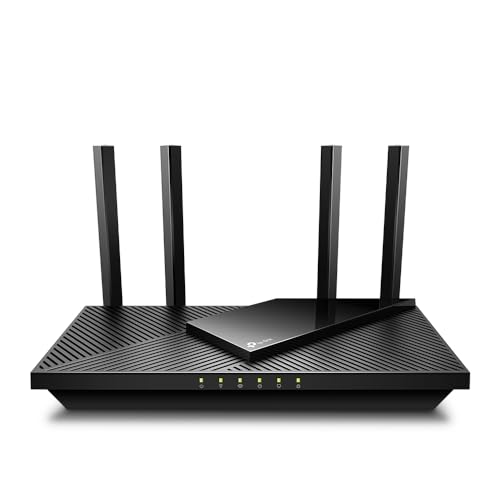
 TP-Link AC1900 Smart WiFi Router Dual Band RouterWi-Fi 5 AC19009.57 x 6.32 x 1.28 inches0.91 poundsCheck on Amazon
 NETGEAR Nighthawk DOCSIS 3.1 Modem Router Combo CAX30Pack of 111.93 x 5.39 x 9.92 inchesCheck on Amazon
 Roam 7 BE3600 Wi-Fi 7 Portable Travel RouterCompact Design4.96 x 3.68 x 1.5 inches0.55 poundsCheck on Amazon
What's inside
- Why a small room changes the router decision
- Understanding coverage when the room is already small
- The 2.4 GHz and 5 GHz bands in a compact space
- Wi-Fi 5, Wi-Fi 6, and what the standards really change
- Placement: the cheapest upgrade in a small room
- Channels, channel width, and living with neighbours
- Speed figures, internet plans, and honest expectations
- Ports, wired connections, and hybrid setups
- Security that protects without nagging
- Parental controls, guest access, and shared living
- When a small room still needs an extender or a mesh node
- Choosing by situation: students, renters, workers, and gamers
- Setup, step by step, for a room that works the first evening
- Troubleshooting the faults small rooms actually get
- Aerials, form factor, and the look of the thing
- Check prices on Amazon
- Keeping the network healthy over years, not weeks
As an Amazon Associate I earn from qualifying purchases. This post may contain affiliate links at no extra cost to you.
Reading a guide here should not cost you anything extra, and the way this site stays open is simple to explain. When a reader follows a link on this page and buys from a retailer, that retailer may pay this site a referral fee, and that fee helps fund the research and writing behind guides like this one. As an Amazon Associate we earn from qualifying purchases. The retailer, not this site, handles payment, delivery, and returns, and product details can change after a guide is published, so the listing page remains the place to confirm a specification before ordering.
Why a small room changes the router decision
A small room looks like the easiest possible setting for wireless networking, and in one sense it is. Distances are short, there is usually only one wall or none between the router and the devices that use it, and even a modest radio can fill the space with signal. Yet compact rooms create their own particular problems, and they are different from the problems of a large house. The router often sits very close to the person using it, sometimes on the same desk as a laptop, a phone, a games console, and a smart speaker. Neighbours are close as well, especially in apartment buildings, dormitories, and converted houses where several separate households share the same few metres of air. Their networks compete for the same channels, their microwave ovens leak energy into the same band, and their evening streaming habits peak at exactly the same hour as yours.
That closeness cuts both ways. A powerful router built to push signal through a large detached house can be a poor fit for a studio flat, because raw transmit strength is not the limiting factor when the farthest device is four metres away. What matters instead is how cleanly the router manages a crowded radio environment, how sensibly it chooses channels, how well it handles several devices asking for attention at once, and whether its physical design fits a room where every shelf and socket is already spoken for. A compact router that runs cool, stays quiet, and behaves predictably will serve a small room better than a large unit with tall external aerials that dominate a desk and invite knocks every time someone reaches for a book.
There is also a question of scale that many buyers miss. A router is not only a radio. It is the device that assigns addresses, translates between the home network and the wider internet, filters unwanted traffic, and now often carries features such as guest access, parental controls, and support for smart home gadgets. In a small room those jobs still matter, even though the area is tiny. A student in a single room may run a laptop, a tablet, a phone, a printer, a voice assistant, and a streaming stick, which is already a busy little network. Choosing well means looking past headline speed figures and thinking about the whole job the router has to do in that specific space.
Understanding coverage when the room is already small
Manufacturers describe coverage in square metres or square feet, and those figures are usually gathered in open conditions that no real room matches. For a small room, the coverage number itself is rarely the deciding figure, because nearly any current dual-band router can reach across a bedsit, a study, a spare bedroom, or a small office. The more useful question is how evenly the signal is spread and how much of it survives the obstacles that exist even in compact spaces. A wardrobe full of clothes, a metal filing cabinet, a mirrored door, an aquarium, or a stack of books can each absorb or reflect radio energy. Bathrooms and kitchens adjoining the room add tile, pipework, and appliances that are particularly unkind to higher frequency signals.
Signal strength is only half of the story. A device can show full bars and still perform poorly if the signal it receives is polluted by reflections and competing transmissions. In a small room, reflections arrive quickly and from many surfaces, so the router and the connected device must sort out which copy of a signal is the original. Modern wireless standards handle this with techniques that use those reflections rather than simply suffering from them, which is one reason a newer router often feels steadier in a flat than an older model with a nominally similar speed figure on its box. Steady throughput at a modest rate is worth more for video calls and study than a brief burst of very fast transfer followed by pauses.
Think about coverage in terms of the worst seat in the room rather than the best one. The desk may be beside the router, but the bed, the reading chair, or the corner where a video call happens might be behind a bookcase. If you map the room honestly, noting where devices actually live and where people actually sit, the right placement and the right class of router usually become obvious. For most single rooms, a well placed standalone router is enough, and the rest of this guide explains how to recognise that class of device and how to set it up so it delivers what its specifications promise.
The 2.4 GHz and 5 GHz bands in a compact space
Nearly every router worth considering for a small room offers two radio bands. The 2.4 GHz band travels farther and passes through walls and furniture more readily, but it offers fewer clean channels and is shared with Bluetooth gadgets, many smart home devices, wireless mice, and microwave ovens. The 5 GHz band offers far more room, wider channels, and higher possible speeds, but its signal fades faster with distance and is blocked more easily by dense material. In a small room, the weakness of 5 GHz matters much less, because the router and its devices are close. That makes the higher band unusually attractive here: you can enjoy its cleaner air and wider channels without paying the usual penalty in range.
A sensible pattern for a compact room is to let capable devices use 5 GHz whenever they can. Laptops, phones, tablets, televisions, and consoles all benefit from the extra headroom, particularly during video calls and large downloads. The 2.4 GHz band then becomes the home for devices that need reach or simplicity more than speed: smart plugs, bulbs, older printers, and gadgets that only ship with a 2.4 GHz radio. Separating the two groups in this way reduces contention on the slower band and keeps a chatty smart bulb from sharing airtime rules with a laptop in the middle of an examination or a work presentation.
Some routers present both bands under one network name and steer devices between them automatically. That convenience suits many small rooms, because there is little need to manage the choice manually when the router can see signal conditions directly. Others let you name the bands separately, which gives you control when a particular device behaves badly, clings to the wrong band, or needs to be pinned to 2.4 GHz during setup, as many smart home products do. Neither approach is automatically better. If you own several smart gadgets with fussy setup routines, separate names can save an evening of frustration. If your household simply wants to connect and forget, a single name with sensible steering is usually the calmer choice. Readers weighing a dedicated access point layout against a single router can compare the trade-offs in best access point routers, where the emphasis is on wired backhaul and managed coverage rather than one box doing everything.
A newer 6 GHz band exists on some models, offering still cleaner spectrum and very wide channels. For a single small room it is a pleasant extra rather than a necessity, and it only helps devices that also carry a 6 GHz radio. If the choice is between a polished Wi-Fi 6 router and a rough first attempt at a tri-band design, the polished dual-band unit will usually give a better everyday experience in a compact space. Spend first on stability, sensible firmware, and good channel management, and treat the extra band as a bonus when the rest of the package is already sound.
Wi-Fi 5, Wi-Fi 6, and what the standards really change
Wi-Fi 5, known in engineering documents as 802.11ac, brought wide 5 GHz channels and multi-user techniques in a limited form. Wi-Fi 6, or 802.11ax, works on both main bands and adds a set of tools designed for crowded air rather than for empty test rooms. The most important of these is a method of dividing a channel into smaller resource units so that several devices can be served within the same moment instead of waiting in a strict queue. In a small room full of phones, laptops, and smart gadgets all murmuring at once, that efficiency matters more than a peak speed figure measured with one device alone in a laboratory.
Wi-Fi 6 also introduced a feature that lets a router colour its own transmissions so that devices can tell the difference between their own network and a neighbour network using the same channel. In dense housing that distinction reduces needless waiting, because a device can ignore a weak transmission that belongs to someone else instead of politely pausing for it. Another addition allows compatible devices to agree on wake times, which saves battery in phones and sensors and trims the background chatter that fills a channel. None of these improvements will transform a bad internet connection, but together they make a busy small network feel calmer and more responsive under load.
Wi-Fi 6E extends the same ideas into the 6 GHz band, and Wi-Fi 7 adds still wider channels and the ability to use more than one band for a single connection. For a small room, the practical advice is straightforward. Wi-Fi 6 is the sensible baseline for a new purchase today, because it is mature, widely supported by current phones and laptops, and available in compact hardware that does not strain a budget or a desk. Wi-Fi 5 remains usable if the router is otherwise well made and the internet connection feeding it is modest, but it gives up the crowded-air tools that suit flats and shared houses best. Newer standards are worth having when they arrive in hardware you already like, not as a reason to accept poor firmware or a noisy, hot enclosure.
Remember that the standard is a shared language between router and device. A Wi-Fi 6 router cannot give Wi-Fi 6 behaviour to a laptop that only speaks Wi-Fi 5, although the older device will still connect and will still benefit from a cleaner, better managed network. Over the life of a router, which often runs to several years, devices are replaced one by one, so buying the current standard is a way of being ready for the phone or laptop that arrives next year. That forward view is sensible in a small room, where the router is likely to stay in place while everything around it changes.
Placement: the cheapest upgrade in a small room
Where the router sits has more influence on a small room network than almost any specification on the box. Radio spreads outward from the aerials in a pattern that is roughly doughnut shaped, stronger to the sides than directly above or below, and it is weakened by whatever it must pass through first. A router pushed into a corner, hidden behind a television, or shut inside a cupboard with the door closed starts with a handicap that no amount of headline speed can fully overcome. The signal must escape the corner, cross the furniture, and only then begin its short journey to your devices, arriving weakened and heavily reflected.
The classic advice to place a router centrally and up high translates well to a single room. A shelf at roughly chest or head height, away from the corner, with some clear air around the unit, will usually outperform a floor position beside the socket where the line enters. Height helps because the signal then passes over beds, desks, and storage boxes rather than through them, and because people themselves absorb radio energy, especially at 5 GHz. If the router must live on a desk, keep it toward the back edge in the open, not wedged between a monitor and a wall, and not underneath a stack of papers that also traps heat.
Distance from other electronics matters too. Keep the router away from microwave ovens, which radiate in the 2.4 GHz region when running, and give it some space from large metal objects such as radiators, fridges, and filing cabinets that can shadow one side of the room. Cordless phone bases, baby monitors, and wireless video senders can also compete in the same spectrum. In a small room perfect separation is rarely possible, so aim for the practical version: not touching, not enclosed, not directly behind a big metal panel, and not sitting on top of another warm device such as a games console or an amplifier.
Heat deserves its own mention because compact rooms and compact routers both run warm. A router is a small computer that works all day, and its processor slows or misbehaves when it cannot shed heat. Choose a spot with ordinary room air moving past the vents, avoid direct sun from a window, and resist the tidy instinct to stack other gadgets on top of it. If a router feels very hot to the touch in normal use, moving it a short distance into freer air often improves stability more than any settings change. Placement is free, reversible, and worth an hour of patient experiment before money is spent on extra hardware.
Channels, channel width, and living with neighbours
Every network shares its band with others, and the sharing is organised into channels. On 2.4 GHz the channel layout is cramped: in most regions only three channels are far enough apart to avoid overlapping one another, commonly channels 1, 6, and 11. When a neighbour network sits halfway between, on a channel that partly overlaps yours, the result is worse than sharing a channel cleanly, because overlapping networks cannot coordinate and instead corrupt each other transmissions. On 5 GHz there are many more channels, including a set that requires the router to watch for radar and move aside if radar appears. Those radar aware channels are often empty precisely because some buyers avoid them, which can make them the quietest seat in a crowded building.
Channel width is the other half of the puzzle. A wider channel can carry more data, but it also occupies more of the band and collects more interference from neighbours. In a large detached house, an 80 MHz wide channel on 5 GHz is often a free gift. In a flat surrounded by other networks, that same width may include a busy neighbour channel at its edge, and the router may spend so much time working around interference that a narrower 40 MHz channel delivers steadier real results. On 2.4 GHz, a 20 MHz width is almost always the wise setting in shared housing, because wider operation there overlaps nearly everything around it.
Most routers offer an automatic channel setting, and for many small rooms that is the right place to start. The router surveys its surroundings, usually when it starts, and picks what looks like the quietest option. The weakness of automatic selection is timing: a survey done at midday may not reflect the building at nine in the evening when every neighbour is streaming. If evenings are consistently poor, try fixing the channel yourself. Free analyser applications for phones and laptops can show which networks are nearby, which channels they use, and roughly how strong they are in your room. Choose the least crowded of the non-overlapping options, live with it for a few days, and judge by how the network feels during your busiest hour rather than by a single speed measurement taken in a quiet moment.
Changing channels is also the first response when a new neighbour, a new router next door, or a change in your own building alters the radio landscape. Nothing about a small room network is permanent, because the air belongs to everyone in range. A router that makes channel and width easy to adjust, and that holds its settings through updates without resetting them, is genuinely more useful in a flat than one with a slightly higher laboratory speed and a confusing settings page. When interference is the main problem and moving the router cannot solve it, the question of adding hardware arises, and the options in best ac1200 range extenders illustrate the simplest form of help, a plug-in unit that repeats an existing network into a dead corner.
Speed figures, internet plans, and honest expectations
Router boxes carry large numbers formed by adding the theoretical maximum rates of every band and stream together. No single device will ever see that combined figure, and no real room reproduces the laboratory conditions behind it. Treat the class number as a rough guide to the hardware generation and radio count, not as a promise. The practical ceiling for a small room is set by three things in turn: the speed of the internet connection entering the room, the capability of the device you are using, and the condition of the air between that device and the router. The slowest of the three governs what you experience.
For many small rooms the internet connection is the true bottleneck. If the line into the flat delivers a modest rate, a mid-range router already has more local capacity than the line can feed, and money spent beyond that point buys features, stability, and future readiness rather than faster downloads today. Local traffic is the exception. Moving files between a laptop and a network drive, streaming from a home media library, or backing up a phone to a computer on the same network all use the router local speed directly, and there a stronger router does show its worth even on a slow internet plan.
Latency, the delay before data starts moving, shapes how responsive a network feels more than raw throughput does for calls, games, and remote work. A router under strain, juggling a large upload, a cloud backup, and a video call at once, can let delay balloon even while average speed looks fine. Features that manage queues intelligently, often labelled as quality of service or smart queue management, address exactly this. In a small room shared by one or two people, a simple setting that gives priority to calls and games, or that fairly shares the line when it is saturated, can be the difference between a call that holds together and one that breaks up whenever a photo library decides to synchronise.
Set expectations by testing in the places and at the times that matter. Run a measurement from the desk at midday and from the bed at nine in the evening, then compare. If both are close to the rate your provider promises and calls stay clear, the network is doing its job, whatever the box number said. If the wired connection at the router is fast but wireless in the far corner collapses in the evening, you are looking at a radio or channel problem, not a provider problem, and the remedies in this guide apply in order: placement first, channel second, settings third, and new hardware last.
Ports, wired connections, and hybrid setups
Wireless may be the headline, but the humble network port remains the most reliable connection in any room. A wired link does not compete for airtime, does not care about neighbours, and delivers its rate with very low delay in both directions. In a small room the distances are so short that wiring the fixed devices is often easy and cheap: a television, a desktop computer, a games console, and a printer can all sit within a short cable run of the router. Every device moved onto a cable is one less device contending for the wireless bands, so the laptop and phone that truly need wireless get a quieter network as a side benefit.
Most compact routers offer a handful of gigabit ports, typically one for the incoming connection and three or four for local devices. Check the port speed when comparing models, because a router with fast wireless but slower wired ports can strangle a fast fibre line or a local file transfer. If you run out of ports, a small unmanaged switch adds more for very little money and needs no configuration. For a study or a room used as an office, that combination of a modest router and a small switch is often the most dependable arrangement of all, and it keeps the wireless side free for portable devices.
Cable quality rarely limits a small room, since runs are short, but use a cable rated for gigabit service and replace any that are kinked, crushed under furniture, or missing their retaining clip, because a loose plug that drops the link to a slower rate is a surprisingly common cause of mysterious slowness. Powerline adapters, which send networking over mains wiring, can help in the odd room where a cable cannot be run, though their speed depends heavily on the wiring of the building and they are best treated as a fallback rather than a first choice in a space where a plain cable would reach.
Think of the wired and wireless sides as one system. Put the router where both can be served: near enough to the line entry and the fixed devices for tidy cables, yet open and high enough for good radio. In many small rooms that compromise points to a shelf or desk position near the television or computer, which is also where the ports are wanted. Planning the two together avoids the common outcome where the router is hidden behind the television for the sake of short cables and the wireless suffers all day for that small convenience.
Security that protects without nagging
A router is the front door of a small network, and its security settings deserve the same attention as its speed. Start with the wireless password itself. Use the WPA3 mode when your devices support it, or the mixed WPA2 and WPA3 mode that most routers offer for compatibility with older gadgets. WPA3 improves protection against repeated password guessing and gives each connection stronger encryption, while the mixed mode keeps an older printer or camera working. Avoid the oldest modes entirely; if a router still offers them prominently, that tells you something about the age of its firmware and the care behind it.
The administrator password for the router settings is separate from the wireless password, and it should be different, long, and stored somewhere safe. Many intrusions into home networks begin with a default administrator password that was never changed, printed on a label for anyone who has seen the underside of the unit to read. Change it during setup, turn off remote administration from the internet unless you genuinely need it, and disable convenient but risky features such as WPS push-button pairing once your own devices are connected. Each of these steps takes a minute and closes a door that is otherwise left ajar all day and all night.
Firmware updates are the quiet half of router security. Manufacturers patch flaws, improve stability, and occasionally add features through updates, and a router that receives them automatically, or at least announces them clearly, will age far better than one that must be checked by hand and is therefore never checked at all. When comparing models, look for a clear update policy and a settings page that shows the current version plainly. In a small room the router is often forgotten in a corner for years, so the safest router is the one that looks after itself with minimal attention from its owner.
A guest network completes the picture. It gives visitors internet access without handing them the run of your own devices, and it is equally useful for isolating cheap smart gadgets whose security standards you cannot verify. Put the smart bulbs, plugs, and cameras on the guest or dedicated internet-of-things network if the router supports one, keep your laptop and phone on the main network, and let the router keep the two apart. Households with children may also want the scheduling and filtering tools discussed next, and families comparing models built around those controls will find the dedicated options gathered in best child safe internet routers a useful contrast to the general purpose routers covered here.
Parental controls, guest access, and shared living
Small rooms are often shared rooms, or rooms inside a shared home, and the router features that manage people matter as much as the radio features that manage signals. Parental controls in current routers range from simple schedules that pause access for a device at bedtime to category filters that attempt to block adult or harmful content. No filter is perfect, and none replaces conversation, but a schedule is genuinely useful in a family flat where a child bedroom doubles as a study and a games room. Look for controls that work per device or per person, because a single household switch that turns the whole network off helps nobody who works an evening shift.
Guest access has already been mentioned for security, but its social value in a small space is just as real. A friend staying on a sofa bed, a classmate visiting for a project, or a grandparent calling in for the weekend can be given a network name and password that you can change afterwards without reconnecting every device you own. Some routers display the guest password as a code that a visitor phone can scan, which is a small kindness that saves reading out a long string of characters across a room. If the guest network can be set to switch itself off after a chosen period, so much the better.
In student housing and house shares, the politics of the router matter. One person saturating the line with a huge download during everyone else evening call is a social problem with a technical remedy: fair queueing or per-device limits that keep any single device from taking the whole connection. Agreeing the settings openly, and choosing a router that supports them, prevents the quiet resentment that builds when the network feels fine for one roommate and unusable for another. Where the building provides internet through a shared socket in each room, a small router also creates a private network of your own behind that socket, so your printer and storage are not visible to the whole building.
Privacy features deserve a brief, honest word. Some routers advertise built-in security subscriptions or traffic inspection. These can add a layer of protection, but they may also involve sending information about your browsing to a service, and they sometimes continue only while a subscription is paid. Read what a feature actually does before enabling it, prefer routers whose core protections work without a subscription, and treat any bundled trial as an optional extra rather than part of the value of the hardware itself.
When a small room still needs an extender or a mesh node
It sounds odd to discuss extending coverage in a guide about small rooms, yet there are compact homes where one router genuinely cannot do the whole job. A studio with a bathroom and kitchen built as a tiled box in the middle can have a dead corner only metres from the router. A single room in a house share may need to cover that room plus a hallway desk, through two doors that stay closed. An old building with thick stone or foil backed insulation can swallow signal at a rate that surprises anyone used to modern stud walls. In these cases the answer is not a more powerful router shouting louder from the same spot, but a second source of signal placed where the first one fades.
A plug-in extender is the simplest form of that second source. It listens to the main network and repeats it, and because it uses the same air to listen and to speak, it gives up some speed in the process. Placed halfway between the router and the dead corner, where it still receives a strong clean signal itself, it can rescue a bed or a desk that otherwise drops out. Placed in the dead corner, it has nothing good to repeat and disappoints. Range extenders built around the common AC1200 class are the usual starting point for this job, and the models surveyed in best netgear wifi range extenders show the plug-in format at its most developed, with the aerial and pass-through socket details that matter in a room where sockets are scarce.
A mesh system takes the same idea further, with nodes designed to work together, a shared settings page, and traffic passed between nodes on a planned basis rather than as an afterthought. For a single small room, a full mesh kit is usually more than the space requires, but a two node kit can make sense where the room is one part of a larger flat, or where the internet enters at an awkward point such as a hallway cupboard and the living space is around a corner. If you expect to move to a larger home within the life of the router, buying into a system that can grow by adding a node later is a reasonable way to protect the purchase.
Whichever route you take, keep the network name consistent where the hardware allows it, so devices can move between sources without manual help, and remember that a phone will sometimes cling to a fading signal instead of switching. A brief toggle of the phone wireless, or a router feature that encourages devices to move, usually settles that behaviour. The goal is not maximum bars in every corner at any cost. The goal is a connection that stays usable for calls, study, and streaming in the places where you actually sit, and in a small room that goal is normally within reach of one good router, sensibly placed, with extra hardware reserved for the genuinely awkward building.
Choosing by situation: students, renters, workers, and gamers
A student in halls or a house share needs reliability on a tight allowance, tolerance of very crowded air, and a private network behind a shared building socket. A compact Wi-Fi 6 router with good queue management, separate band names for fussy smart gadgets, and a simple settings application covers that life well. Portability matters too, because the router will move rooms each year, so a small power supply and a setup that can be repeated from a phone in minutes are worth more than exotic features that take an afternoon to configure.
A renter in a studio flat faces a different balance. The line may be fixed, the socket in the wrong corner, and drilling or long visible cables unwelcome. Here a router with strong 5 GHz behaviour, flexible placement thanks to a reasonably long power lead, and good automatic channel selection earns its keep. If the flat is in a dense block, spend attention on channel width controls and neighbour handling rather than on the highest class number. A renter also benefits from a router that is easy to reset and take along when moving, leaving the flat network behind without a trace.
Someone working from a small room or a corner office needs the call to survive. Prioritise queue management, a wired port for the work computer or a docking station, WPA3 security for company policy, and firmware that updates itself. If the employer provides a separate work device, a guest style secondary network can keep it apart from home gadgets. For this reader, stability statistics and a reputation for long update support outweigh headline wireless speed, because the cost of a dropped meeting is higher than the pleasure of a faster download.
A gamer in a small room cares about delay and its variation more than about bulk speed. Wire the console or computer if there is any way to do it, since a short cable in a small room removes wireless delay entirely. If wireless is unavoidable, use 5 GHz, keep the router in the same room with a clear path, and enable the queue feature that protects games and calls when the line is busy. A router that shows per-device activity helps diagnose the evening when a housemate backup job, rather than the game service, is the true cause of a lag spike.
Finally, a household fitting out a small spare room as a media den should think about the television first. Televisions often have modest wireless hardware tucked behind a large metal backed screen, which is a poor starting point. A cable, or a router placed in the open on the same side of the room, solves more than any booster. Add a guest network for visitors phones, keep the streaming device on 5 GHz or wired, and the room will handle film nights without drama.
Setup, step by step, for a room that works the first evening
Begin before the new router is plugged in. Note the details of your internet service, including any username or connection type the provider requires, and keep the old router running until you are ready to swap, so the room is not without access while you read instructions. Photograph the existing cable arrangement if it is tangled, and decide the placement using the guidance above rather than defaulting to wherever the old unit happened to sit. A new router is the best opportunity a network ever gets for a better position, and the opportunity is wasted if the unit is simply dropped into the same shadowed corner.
Connect the incoming line or modem to the correct port, which is usually coloured differently and labelled for the internet connection, then power the router and give it several unhurried minutes to start and, in many cases, to fetch its first update. Join the temporary network name printed on the label, open the setup route the manufacturer provides, and work through it slowly. Change the administrator password, set your network name and a strong wireless password, choose WPA3 or the mixed mode, and let the router apply its update before you begin moving every device across. One careful setup is faster than three hurried ones.
Choose network names with a little foresight. A single name for both bands is simplest for most rooms, but if you choose separate names, make them clearly related and note which is which for the day a smart plug refuses to join. Avoid including your full address or flat number in the name, since the name is broadcast to everyone in range. It is also polite, in dense housing, to keep the name short and unremarkable. Your neighbours will see it every time they connect their own devices, and a name chosen as a joke about them tends to start the channel wars rather than end them.
After the basics, walk the room with a phone and check the places that matter: the desk, the bed, the chair used for calls, and any corner with a fixed device. Note where the signal indicator drops and, more importantly, where real tasks falter. Try a call, a video, and a large download in the worst spot. If the result is weak, move the router a short distance, raise it, or turn it slightly before touching any advanced setting. Physical changes give the largest gains and are the easiest to reverse. Only when placement is as good as the room allows should you fix channels manually or adjust widths, changing one thing at a time and keeping a note of what you changed.
Finish by connecting the fixed devices with cables where you planned to, joining the smart gadgets to the band or guest network you chose for them, and saving a copy of your settings if the router offers an export. Record the administrator password and network password in your password manager, not on a note stuck to the router. Restart everything once, in order, modem first and router second, and confirm that the whole room comes back on its own. That final restart proves the setup will survive a power cut while you are out, which is exactly when you cannot coax it back by hand.
Troubleshooting the faults small rooms actually get
Fast beside the router, slow across the room
This pattern points to obstruction or reflection rather than to the internet service. Confirm it by measuring beside the router and then in the slow spot at the same time of day. Look for what lies between: a metal cabinet, a mirror, a dense bookcase, a tiled bathroom. Move the router sideways or upward so the path crosses less of the obstruction, or move the device out of the shadow of a large screen or cabinet. On 5 GHz the effect is stronger, so a device that struggles across the room may be happier on 2.4 GHz, where the signal bends and penetrates more forgivingly, even though its top speed is lower.
Fine all day, poor every evening
Evening collapse is the signature of neighbour contention or of a household device that wakes up at night. Survey the channels during the bad hour, not in the morning, and move to the quietest clean channel you can find, narrowing the width if the band is crowded. Check also for your own culprits: cloud backups, game downloads, and security cameras uploading footage can all be scheduled by default for the evening. A queue management feature, or simply rescheduling the backup for the small hours, often restores the evening without any new hardware.
Calls break up while downloads look fast
Speed and call quality measure different things. A call needs a steady, low delay stream, and it suffers when delay spikes, even briefly. Upload saturation is the usual cause in a small home, because the outgoing path is narrower on many services and a single large upload can fill it. Enable smart queue management if the router offers it, wire the computer used for calls if possible, and pause synchronisation during important meetings. If the problem persists on a wired connection at the router itself, the fault lies with the service or the line, and the provider should be given the times and examples you have gathered.
Smart gadgets keep dropping off
Smart plugs, bulbs, and sensors often carry the simplest radios in the home and the least tolerance for clever settings. They may dislike a combined band name, a very wide channel, or a security mode they do not understand. Give them a stable home: a 2.4 GHz network name they can join during setup, WPA2 compatibility within a mixed mode, and a channel in the clean 1, 6, or 11 set. Keep the router within sensible range of the farthest gadget, remembering that a plug behind a fridge is in a radio shadow even in a small flat. Once joined and working, leave their arrangements alone; these devices reward a boring, unchanging network.
The router needs frequent restarting
A router that must be restarted weekly is telling you something. Heat is the first suspect in a small room, so free its vents and move it out of sun and away from other warm equipment. Old firmware is the second suspect, so update and then watch whether the interval lengthens. A failing power supply can also cause random restarts under load. If a cool position and current firmware do not cure it, the hardware is reaching the end of its useful life, and replacement with a current Wi-Fi 6 model is a better use of money than repeated frustration, especially when the unit also lacks current security modes.
Aerials, form factor, and the look of the thing
External aerials can be adjusted, and in a small room that adjustability has a modest, real use. Standing the aerials upright suits a single floor room, because the signal spreads mainly outward at desk and bed height. Angling one aerial can help a device on a mezzanine or a raised sleeping platform in a studio, where some traffic travels upward. Internal aerial designs, hidden inside a smooth enclosure, cannot be aimed, but modern internal layouts are carefully arranged and lose little in a compact space.
Size and finish matter because the router will be visible every day. A unit that fits the shelf and shows only a few calm lights will be placed well and left alone. Lights that can be dimmed help in a room that is also a bedroom: a router people are happy to keep in the open stays in the open, where its signal belongs.
Check prices on Amazon
Live listings for the shortlist in this guide are pulled from Amazon below, so prices and availability are always current at the moment you look.


Keeping the network healthy over years, not weeks
A small room network asks for very little maintenance, but the little it asks for matters. Check for firmware updates a few times a year if they are not automatic, and read the short notes that accompany them. Glance at the list of connected devices occasionally, and investigate anything you do not recognise; in a small home you know every gadget you own, so an unknown entry stands out. Change the wireless password if it has been shared widely, for example after a house share changes membership, and set up the guest network for visitors so the main password can stay private in the first place.
Dust and heat accumulate quietly. A router in a corner of a small room gathers dust in its vents, and a brief, gentle clean when you clean the shelf keeps air moving. Keep the area around it reasonably clear as the room evolves, because small rooms fill up: a new storage box, a plant, or a stack of board games placed against the router can slowly recreate the obstruction problems you solved on the first evening. When you rearrange the room, treat the router position as part of the plan rather than as an afterthought, and recheck the worst seat afterwards.
Plan for replacement on your own schedule instead of the router schedule. A service life of several years is normal, and the signs of age are clear: security modes left behind, updates ended by the manufacturer, restarts creeping in, and new devices that cannot use their best features. When those signs gather, replace the unit calmly, reuse the network name and password if you wish so that every device rejoins without fuss, and keep the old unit, reset to its defaults, only as an emergency spare. For a small room, continuity matters more than novelty, and a network that simply works, evening after evening, while the room around it studies, rests, works, and plays, is the true measure of having chosen the router well, so let the quiet reliability of an ordinary Tuesday night, with a call holding clear in the farthest chair and no one thinking about the network at all, be the standard by which this purchase is judged.