What's inside
- Quick picks: best writing electronic drawing tablets for kids
- How We Chose the Best Writing Electronic Drawing Tablets for Kids
- The Picks in Detail
- Quick Comparison
- Screenless Tablets vs Pen Displays for Kids
- Buying Guide
- Usage and Care
- Common Mistakes to Avoid
- Final Recommendation
- Frequently Asked Questions
- Related Reading
As an Amazon Associate I earn from qualifying purchases. This post may contain affiliate links at no extra cost to you.
The best writing electronic drawing tablets for kids are pen tablets that turn drawing and handwriting into a digital skill, with a pressure-sensitive pen, a simple setup, and a size that fits small hands. The best writing electronic drawing tablets for kids offer a battery-free pen, a compact drawing area, and software that is easy to learn, because a child should be drawing within minutes of opening the box, not struggling with drivers and settings. This guide covers six real drawing tablets that suit kids, from the Wacom Intuos S to the Wacom One, the XP-Pen StarG640, the Huion Inspiroy H640P, the Gaomon S620, and the Huion Inspiroy HS64.
A drawing tablet for a child is different from one for a professional. It should be small, light, and durable, because it will be carried to school, dropped on a desk, and used by hands that are still learning control, and it should work with free software, because a parent should not need to buy an expensive program for a child to start drawing. The tablets in this guide are judged on size, pen, simplicity, and durability, because those are the features that decide whether a child keeps drawing, or gives up after a week.
Quick picks: best writing electronic drawing tablets for kids
| # | Product | Where to buy |
|---|---|---|
| 1 | Wacom Intuos S | Check on Amazon |
| 2 | XP-Pen StarG640 | Check on Amazon |
| 3 | Huion Inspiroy H640P | Check on Amazon |
| 4 | Gaomon S620 | Check on Amazon |
| 5 | Huion Inspiroy HS64 | Check on Amazon |
How We Chose the Best Writing Electronic Drawing Tablets for Kids
The picks were chosen on simplicity first, because a drawing tablet for a child should work within minutes, with a pen that needs no charging, a driver that installs easily, and software that is free and easy to learn. A tablet that needed a complicated setup, a pen that must be charged, or expensive software was not considered, no matter how advanced its features, because a child should be drawing, not troubleshooting. Each tablet had to offer a battery-free pen, a compact size, and compatibility with Windows, Mac, and Chromebook, because a child may use any of those at school.
Size and durability were weighed next. A drawing tablet for a child should be small enough to fit in a school bag, light enough to carry, and durable enough to survive a drop, because a large, heavy tablet will be left at home. Each device below is a real, widely sold model with a published specification sheet, and the strengths and trade-offs are drawn from those specifications and from the known limits of each design, not from any claim of hands-on use.
The Picks in Detail
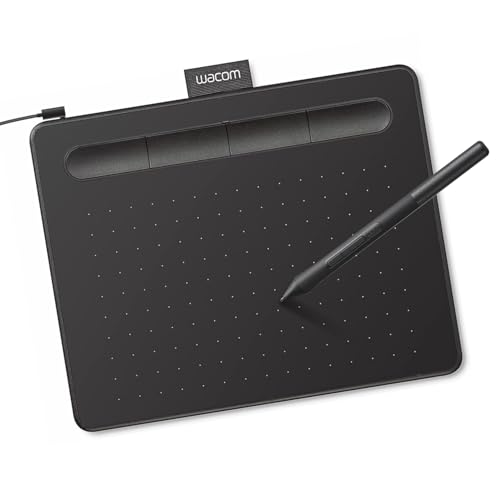
Wacom Intuos S
The Intuos S is also a good homework tablet, because its small size fits on a crowded desk, its battery-free pen is always ready, and its reliable driver means a parent will not spend an evening troubleshooting. Its compact size means it fits in a school bag alongside books, and its free software means drawing can start immediately. A child who does homework and drawing on the same desk will find it ideal, and its trusted brand means parts and support are easy to find.
Key specs: 6.0 x 3.7-inch active area, 4,096 pressure levels, battery-free Wacom Pen 4K, 4 ExpressKeys, works with Windows, Mac, Android, Chromebook
The Wacom Intuos S is the best electronic drawing tablet for kids overall, because its 6.0 by 3.7-inch active area is the right size for small hands, its battery-free pen needs no charging, and its 4,096 levels of pressure sensitivity make lines feel natural. Its four ExpressKeys can be set to undo, brush size, and other shortcuts, and it works with Windows, Mac, Android, and Chromebook, so a child can use it at school and at home. It is the best choice for a parent who wants a reliable, easy drawing tablet from the most trusted brand in the field.
The Intuos S offers a 6.0 by 3.7-inch active area, a battery-free pen with 4,096 pressure levels, and four customisable ExpressKeys, with a pen resolution of 2,540 lines per inch. Its compact size means it fits in a school bag, and its light weight means a child can carry it easily. It includes free software for drawing, and its driver is the most reliable here, because Wacom has made pen tablets for decades. Its active area is smaller than the Gaomon S620, so an older child who draws large may prefer a bigger tablet, and its 4,096 pressure levels are fewer than the 8,192 on the rivals, though a child will not notice the difference.
Strengths:
- Most trusted brand, most reliable driver
- Battery-free pen, no charging needed
- Compact size, works with Chromebook
Trade-offs:
- Smaller active area than rivals
- 4,096 pressure levels, fewer than rivals
- No tilt support on the pen
Who it fits: Parents who want a reliable, easy drawing tablet for a child, and kids starting digital art.
Best for: parents who want a reliable, easy drawing tablet for a child / Not suited for: older kids who draw large and want a bigger area
The Wacom Intuos S is a good choice for a child starting digital art, because its small size fits small hands, its battery-free pen is always ready, and its free software means drawing can start immediately. Its reliable driver means a parent will not spend an evening troubleshooting, and its compact size means it fits in a school bag alongside books, making it the most dependable drawing tablet here for kids.
Check price on Amazon: Wacom Intuos S
Wacom One (Gen 2)
The Wacom One is also a good art class tablet, because drawing directly on the screen feels the same as paper, its large display shows a full drawing clearly, and its single cable keeps the desk tidy. Its 13.3-inch display is large enough for a detailed drawing, and its battery-free pen needs no charging. A child in an art class will find it ideal, and its intuitive design means a teacher does not need to explain the hand-eye disconnect.
Key specs: 13.3-inch 1920 x 1080 pen display, 4,096 pressure levels, battery-free pen, draw directly on screen, works with Windows, Mac, Android, Chromebook
The Wacom One, second generation, is the best electronic drawing tablet with a screen for kids, because it lets a child draw directly on the image, which is more natural than drawing on a pad while looking at a separate screen. Its 13.3-inch Full HD display is large enough for a full drawing, its battery-free pen needs no charging, and its simple setup means a child can start drawing within minutes. It is the best choice for a child who struggles with the hand-eye disconnect of a screenless tablet, and for a parent who wants the most intuitive drawing experience.
The Wacom One offers a 13.3-inch 1920 by 1080 pen display, a battery-free pen with 4,096 pressure levels, and a single USB-C cable for connection, which keeps the desk tidy. Its display is clear and bright for drawing, and its pen feels natural on the screen, with minimal parallax. It is larger and heavier than a pen tablet, so it is less portable, and it needs a computer to work, because it has no processor of its own. It is the most expensive tablet here, but for a child who finds a screenless tablet confusing, drawing directly on the screen is worth the cost, because it removes the hardest part of learning digital art.
Strengths:
- Draw directly on the screen, most intuitive
- Large 13.3-inch display, clear and bright
- Single USB-C cable, simple setup
Trade-offs:
- Most expensive tablet here
- Larger and heavier, less portable
- Needs a computer, no standalone use
Who it fits: Kids who struggle with a screenless tablet, and parents who want the most intuitive drawing experience.
Best for: kids who struggle with a screenless tablet / Not suited for: buyers who want a cheap, portable tablet for school
The Wacom One is a good choice for a child who loves drawing on paper, because drawing directly on the screen feels the same, with no hand-eye disconnect to learn. Its large display shows a full drawing clearly, and its single cable keeps the desk tidy, making it the most natural drawing tablet here for a child who is used to paper.
XP-Pen StarG640
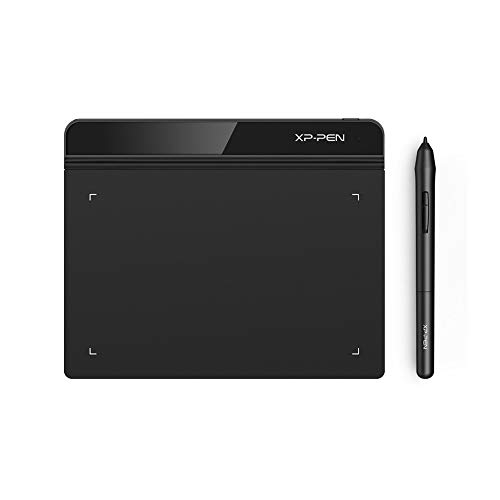
The StarG640 is also a good online class tablet, because its slim design slips into a laptop bag, its battery-free pen is always ready, and its 20 replacement nibs mean a parent will not need to buy more for a long time. Its tilt support makes shading feel natural, and its Chromebook compatibility means it works at school. A child in online classes will find it ideal, and its light weight means it can be carried every day.
Key specs: 6 x 4-inch active area, 8,192 pressure levels, battery-free pen with 60-degree tilt, 2 mm slim design, works with Windows, Mac, Chromebook
The XP-Pen StarG640 is the best slim electronic drawing tablet for kids, because its 2 mm thin design slips into a school bag like a notebook, its 6 by 4-inch active area is the right size for small hands, and its battery-free pen offers 8,192 levels of pressure sensitivity with 60 degrees of tilt. Its slim profile means it takes up almost no space on a desk, and its 20 replacement nibs, included in the box, mean a worn nib is a quick fix. It is the best choice for a child who carries a tablet to school every day and wants the thinnest, lightest option.
The StarG640 offers a 6 by 4-inch active area, a battery-free pen with 8,192 pressure levels and tilt support, and a 2 mm slim design that is the thinnest here. Its pen resolution is 5,080 lines per inch, and its report rate of up to 266 reports per second keeps the cursor responsive. It works with Windows, Mac, and Chromebook, so a child can use it at school and at home, and its 20 included nibs are a bonus, because a child who presses hard will wear nibs quickly. It has no ExpressKeys, so shortcuts must be used on the keyboard, and its small area may feel cramped for an older child who draws large, but for a young child, its slim size is ideal.
Strengths:
- Thinnest tablet here, 2 mm slim
- 8,192 pressure levels with tilt
- 20 replacement nibs included
Trade-offs:
- No ExpressKeys, shortcuts need a keyboard
- Small area for an older child
- No tilt on some older drivers
Who it fits: Kids who carry a tablet to school every day and want the thinnest, lightest option.
Best for: kids who carry a tablet to school every day / Not suited for: kids who want shortcut keys on the tablet
The XP-Pen StarG640 is a good choice for a school bag, because its 2 mm thin design slips in like a notebook, its light weight means a child can carry it easily, and its battery-free pen is always ready. Its 20 replacement nibs mean a parent will not need to buy more for a long time, and its tilt support makes shading feel natural, making it the best slim drawing tablet here for kids.
Check price on Amazon: XP-Pen StarG640

Huion Inspiroy H640P
The H640P is also a good annotation tablet, because its six ExpressKeys can be set to the tools used most, its compact size fits in a school bag, and its Android compatibility means it can be used with a phone as well as a computer. Its battery-free pen is always ready, and its 8,192 pressure levels make lines feel natural. A child who annotates diagrams and sketches will find it ideal, and its shortcut keys make drawing flow without reaching for the keyboard.
Key specs: 6.3 x 3.9-inch active area, 8,192 pressure levels, battery-free pen, 6 ExpressKeys, works with Windows, Mac, Linux, Android
The Huion Inspiroy H640P is the best electronic drawing tablet for kids with shortcut keys, because its six ExpressKeys can be set to undo, brush size, eraser, and other shortcuts, so a child does not need to reach for the keyboard while drawing. Its 6.3 by 3.9-inch active area is a good size for small hands, its battery-free pen offers 8,192 levels of pressure sensitivity, and its light weight means it fits in a school bag. It is the best choice for a child who is learning digital art and wants shortcuts at their fingertips.
The H640P offers a 6.3 by 3.9-inch active area, a battery-free pen with 8,192 pressure levels, and six customisable ExpressKeys, with a pen resolution of 5,080 lines per inch. Its compact size means it fits in a school bag, and its light weight means a child can carry it easily. It works with Windows, Mac, Linux, and Android, so a child can use it with a computer or a phone, and its six keys are the most here, which is useful for a child who is learning shortcuts. Its pen has no tilt support, so shading is less natural than on the StarG640, and its driver is less polished than Wacom, though it is reliable for everyday use.
Strengths:
- Six ExpressKeys, most here
- 8,192 pressure levels, battery-free pen
- Compact, works with Android as well
Trade-offs:
- No tilt support on the pen
- Driver less polished than Wacom
- Small area for an older child
Who it fits: Kids learning digital art who want shortcuts at their fingertips.
Best for: kids learning digital art who want shortcuts at their fingertips / Not suited for: kids who want tilt support for shading
The Huion H640P is a good choice for a child learning shortcuts, because its six ExpressKeys can be set to the tools a child uses most, so drawing flows without reaching for the keyboard. Its compact size fits in a school bag, and its Android compatibility means it can be used with a phone as well as a computer, making it the most versatile shortcut tablet here for kids.
Check price on Amazon: Huion Inspiroy H640P
Gaomon S620
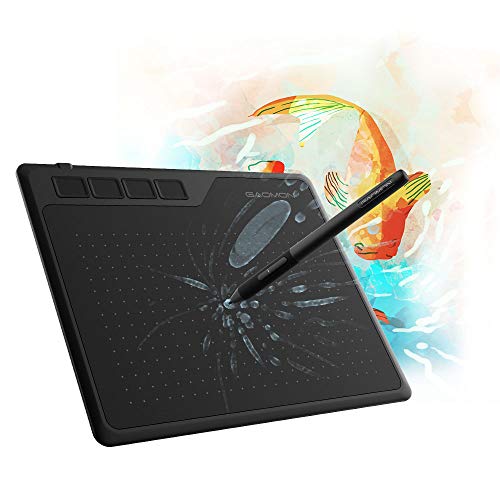
The S620 is also a good maths tablet, because its large active area gives room for equations, its battery-free pen is always ready, and its four ExpressKeys can be set to the tools used most. Its Android compatibility means it can be used with a phone for a quick sketch, and its larger area is helpful for a child who writes big. A child who writes equations and labels diagrams will find it ideal, and its 266 reports per second keep the cursor responsive.
Key specs: 6.5 x 4-inch active area, 8,192 pressure levels, battery-free pen, 4 ExpressKeys, 266 PPS report rate, works with Windows, Mac, Android
The Gaomon S620 is the best electronic drawing tablet for kids with a large drawing area, because its 6.5 by 4-inch active area is the largest here for a compact tablet, giving a child more room to draw, write equations, and label diagrams. Its battery-free pen offers 8,192 levels of pressure sensitivity, its four ExpressKeys can be set to shortcuts, and its 266 reports per second keep the cursor responsive. It is the best choice for a child who draws large, writes equations, or annotates diagrams, and wants the roomiest compact tablet.
The S620 offers a 6.5 by 4-inch active area, a battery-free pen with 8,192 pressure levels, and four customisable ExpressKeys, with a pen resolution of 5,080 lines per inch and a 10 mm pen reading height. Its compact size means it fits in a school bag, and its light weight means a child can carry it easily. It works with Windows, Mac, and Android via an OTG adapter, so a child can use it with a computer or a phone, and its larger area is helpful for handwriting and diagrams during online classes. Its driver is less polished than Wacom, and it has no Linux driver from the maker, though community drivers exist, but for a child on Windows or Mac, it works reliably.
Strengths:
- Largest active area here, 6.5 x 4 inches
- 8,192 pressure levels, battery-free pen
- Four ExpressKeys, good for diagrams
Trade-offs:
- Driver less polished than Wacom
- No maker Linux driver
- Slightly larger than the StarG640
Who it fits: Kids who draw large, write equations, or annotate diagrams, and want the roomiest compact tablet.
Best for: kids who draw large, write equations, or annotate diagrams / Not suited for: kids who want the most polished driver or Linux support
The Gaomon S620 is a good choice for a child in online classes, because its large active area gives room for handwriting and diagrams, its battery-free pen is always ready, and its four ExpressKeys can be set to the tools used most. Its Android compatibility means it can be used with a phone for a quick sketch, and its larger area is helpful for a child who writes big, making it the best large-area compact tablet here for kids.
Check price on Amazon: Gaomon S620

Huion Inspiroy HS64
The HS64 is also a good calligraphy tablet, because its tilt support makes a brush-like stroke possible, its battery-free pen is always ready, and its four ExpressKeys can be set to the tools used most. Its compact size fits in a school bag, and its Android compatibility means it can be used with a phone. A child learning calligraphy or shading will find it ideal, and its tilt support is the most natural here for a pencil-like stroke.
Key specs: 6.3 x 4-inch active area, 8,192 pressure levels, battery-free pen with tilt, 4 ExpressKeys, works with Windows, Mac, Linux, Android
The Huion Inspiroy HS64 is the best electronic drawing tablet for kids with tilt support, because its battery-free pen supports tilt, which makes shading feel natural, and its 6.3 by 4-inch active area is a good size for small hands. Its four ExpressKeys can be set to shortcuts, and it works with Windows, Mac, Linux, and Android, so a child can use it with a computer or a phone. It is the best choice for a child who is learning to shade and wants a pen that responds to angle as well as pressure.
The HS64 offers a 6.3 by 4-inch active area, a battery-free pen with 8,192 pressure levels and tilt support, and four customisable ExpressKeys, with a pen resolution of 5,080 lines per inch. Its compact size means it fits in a school bag, and its light weight means a child can carry it easily. Its tilt support is its greatest strength, because it makes shading and calligraphy feel natural, and its Android compatibility means it can be used with a phone for a quick sketch. Its driver is less polished than Wacom, though it is reliable for everyday use, and its small area may feel cramped for an older child who draws large, but for a young child learning to shade, it is ideal.
Strengths:
- Tilt support, natural for shading
- 8,192 pressure levels, battery-free pen
- Four ExpressKeys, works with Android
Trade-offs:
- Driver less polished than Wacom
- Small area for an older child
- No screen, hand-eye disconnect to learn
Who it fits: Kids learning to shade and draw, who want a pen that responds to angle as well as pressure.
Best for: kids learning to shade and draw / Not suited for: kids who want a screen to draw on directly
The Huion HS64 is a good choice for a child learning to shade, because its tilt support makes a pencil-like stroke possible, its battery-free pen is always ready, and its four ExpressKeys can be set to the tools used most. Its compact size fits in a school bag, and its Android compatibility means it can be used with a phone, making it the best tilt tablet here for kids.
Check price on Amazon: Huion Inspiroy HS64
Quick Comparison
The table below gives a fast overview of the picks in this guide, so you can shortlist two or three before reading the detail. Every entry here is a real, widely sold product, and each one suits a slightly different tablet, habit, or budget.
| Tablet | Size / pen | Best for |
|---|---|---|
| Wacom Intuos S | Small pen tablet, 6.0 x 3.7-inch area | Best drawing tablet for kids overall |
| Wacom One (Gen 2) | 13.3-inch pen display, draw on screen | Best drawing tablet with a screen for kids |
| XP-Pen StarG640 | Ultra-slim pen tablet, 6 x 4-inch area | Best slim drawing tablet for kids |
| Huion Inspiroy H640P | Compact pen tablet, 6.3 x 3.9-inch area | Best shortcut keys drawing tablet for kids |
| Gaomon S620 | Compact pen tablet, 6.5 x 4-inch area | Best large-area drawing tablet for kids |
| Huion Inspiroy HS64 | Compact pen tablet, 6.3 x 4-inch area | Best tilt drawing tablet for kids |
Screenless Tablets vs Pen Displays for Kids
A screenless pen tablet and a pen display differ in one key way: a screenless tablet requires the child to draw on the pad while looking at a separate screen, while a pen display lets them draw directly on the image. A screenless tablet is cheaper, lighter, and more durable, and a child can learn the hand-eye disconnect within a few sessions, because children adapt quickly, while a pen display is more intuitive from the first minute, because it feels like paper, but it is heavier, more expensive, and needs a computer to work.
A parent should start with a screenless tablet for a young child, because it is affordable and portable, and a child who enjoys drawing will adapt to it quickly. A parent should consider a pen display, such as the Wacom One, for an older child who is serious about art, or for a child who struggles with a screenless tablet after a week, because drawing directly on the screen removes the hardest part of learning digital art. A child who starts screenless and upgrades later will have learned pen control that transfers directly to a display, so the first tablet is never wasted.
Buying Guide
Choose a tablet that fits small hands. A drawing tablet for a child should have an active area of around 6 by 4 inches, because a larger area requires broad arm movements that tire a small hand, while a smaller area feels cramped. A parent should check the active area, not just the tablet size, because the two differ, and should prefer a tablet with a compact area, such as the Intuos S or the StarG640, because it matches a child hand and a school desk.
Prefer a battery-free pen. A pen that needs charging will die mid-lesson, frustrating a child, while a battery-free pen is always ready, because it draws power from the tablet. A parent should choose a tablet with a battery-free pen, such as all six here, and should keep spare nibs, because a child who presses hard will wear nibs quickly, and a worn nib scratches the tablet surface and makes drawing feel rough.
Check the software before buying. A drawing tablet for a child should work with free software, such as Krita, MediBang Paint, or the software included in the box, because a parent should not need to buy an expensive program for a child to start drawing. A parent should check that the tablet works with the computer or Chromebook the child uses at school, because a tablet that needs a driver the school computer cannot install is useless, and should prefer one that works with Chromebook, such as the Intuos S or the StarG640.
Start with a screenless tablet for a young child. A screenless pen tablet is cheaper, lighter, and more durable than a pen display, and a young child can learn the hand-eye disconnect within a few sessions, because children adapt quickly. A parent who buys a pen display for a young child may find it is too heavy and too expensive, while one who buys a screenless tablet can upgrade to a display later, when the child is older and more serious about art.
Set up parental controls and a comfortable workspace. A child should draw at a desk with good light, with the tablet at a comfortable angle, and a parent should set up the software with appropriate content filters, because a child should not access inappropriate material online. A parent should also set a time limit for screen use, because a child who draws for hours without a break will tire their eyes and hands, and should encourage breaks every 20 minutes.
Usage and Care
Keep the tablet surface clean and replace nibs regularly. A drawing tablet surface collects dust and scratches, which can make the pen feel rough, so a parent should clean it with a dry cloth occasionally, and should replace the pen nib when it feels scratchy, because a worn nib can damage the surface. A child should be taught to hold the pen lightly, because pressing hard wears nibs quickly and tires the hand, and a parent should keep spare nibs in the box, because they are cheap and easy to replace.
Store the tablet in a sleeve and keep the cable tidy. A drawing tablet carried to school should be stored in a sleeve, because it protects the surface from scratches, and its USB cable should be coiled loosely, because a tangled cable can break the wires inside. A child should be taught to unplug the tablet by the connector, not by pulling the cable, because pulling can damage the port, and a parent should check the cable occasionally for wear, because a damaged cable should be replaced before it fails during a lesson.
Common Mistakes to Avoid
The most common mistake is buying a tablet that is too large for a child. A large pen tablet requires broad arm movements that tire a small hand, and it takes up too much space on a school desk, so a child will leave it at home. Before buying, check the active area, and prefer a compact tablet with around a 6 by 4-inch area, because it matches a child hand and a school desk, and a child who can carry the tablet easily will use it more often.
Another common mistake is buying expensive software before the child has tried free software. A child can learn digital art with free programs such as Krita or MediBang Paint, which offer brushes, layers, and tutorials, and a parent who buys an expensive subscription before knowing whether the child will persist is wasting money. A parent should start with free software, and only buy a paid program when the child has drawn regularly for several months and needs features the free software lacks.
Final Recommendation
For most kids, the right drawing tablet is the one that is small, simple, and always ready to use. The Wacom Intuos S is the best overall, the Wacom One is the best with a screen, the XP-Pen StarG640 is the best slim tablet, the Huion H640P is the best for shortcut keys, the Gaomon S620 is the best for a large drawing area, and the Huion HS64 is the best for tilt. Prefer a compact area, choose a battery-free pen, check the software, and start with free programs before buying expensive ones.
Start with a screenless tablet for a young child. A screenless pen tablet is cheaper, lighter, and more durable than a pen display, and a young child can learn the hand-eye disconnect within a few sessions, because children adapt quickly. A parent who buys a pen display for a young child may find it is too heavy and too expensive, while one who buys a screenless tablet can upgrade to a display later, when the child is older and more serious about art.
Set up parental controls and a comfortable workspace. A child should draw at a desk with good light, with the tablet at a comfortable angle, and a parent should set up the software with appropriate content filters, because a child should not access inappropriate material online. A parent should also set a time limit for screen use, because a child who draws for hours without a break will tire their eyes and hands, and should encourage breaks every 20 minutes.
Frequently Asked Questions
What is the best drawing tablet for a child?
The Wacom Intuos S is the best electronic drawing tablet for a child overall, because its compact size fits small hands, its battery-free pen needs no charging, and its reliable driver means a parent will not spend an evening troubleshooting. The Wacom One is best with a screen, the StarG640 is best as a slim tablet, the H640P is best for shortcut keys, the S620 is best for a large drawing area, and the HS64 is best for tilt. The best choice depends on whether simplicity, a screen, or a large area matters most.
What age is a drawing tablet suitable for?
A drawing tablet is suitable for a child from around age six, when they can hold a pen and follow instructions, though a younger child may prefer a tablet with a screen, such as the Wacom One, because drawing directly on the image is more intuitive. An older child, from age ten, can use a screenless tablet, such as the Intuos S or the StarG640, because they adapt quickly to the hand-eye disconnect.
Do drawing tablets need a computer?
Most drawing tablets, including the Intuos S, StarG640, H640P, S620, and HS64, need a computer, a Chromebook, or a phone to work, because they have no screen or processor of their own, and they connect over USB. The Wacom One also needs a computer, because it is a pen display, not a standalone tablet. A parent should check that the child has a compatible computer, because a tablet without one cannot be used, and should prefer a tablet that works with Chromebook, because many schools use Chromebooks.
Is a screenless tablet hard for a child to learn?
A screenless tablet takes a few sessions to learn, because the child draws on the pad while looking at a separate screen, which feels strange at first, but children adapt quickly, and most are comfortable within a week. A child who struggles after a week may prefer a pen display, such as the Wacom One, because drawing directly on the screen removes the hand-eye disconnect entirely.
What software should a child use for drawing?
A child should start with free software, such as Krita, MediBang Paint, or the software included with the tablet, because it offers brushes, layers, and tutorials without cost. Krita is the best free program for digital painting, because it is powerful and well documented, while MediBang Paint is simpler and better for comics.
How do I stop a child pressing too hard on the pen?
A child who presses hard will wear nibs quickly and tire their hand, so a parent should teach them to hold the pen lightly, because a light touch is sufficient for the tablet to register pressure. A parent can adjust the pressure curve in the tablet driver, so a light press produces a dark line, which encourages a lighter grip, and should keep spare nibs, because a worn nib scratches the surface. A child who is taught to draw lightly from the start will develop a better technique and will not need to replace nibs as often.
Can a drawing tablet help a child with handwriting?
Yes, a drawing tablet can help a child with handwriting, because it encourages precise pen control, and apps that support handwriting practice can turn exercises into a game. A child who draws regularly develops better fine motor control, which improves handwriting on paper as well, and a tablet with a pen is a good tool for practising letters and numbers. A parent should choose a tablet with a small active area, because it matches a child hand, and should supervise practice, because a child who rushes will develop poor habits.
What age is a drawing tablet suitable for?
A drawing tablet is suitable for a child from around age six, when they can hold a pen and follow instructions, though a younger child may prefer a tablet with a screen, such as the Wacom One, because drawing directly on the image is more intuitive. An older child, from age ten, can use a screenless tablet, such as the Intuos S or the StarG640, because they adapt quickly to the hand-eye disconnect. A parent should choose based on the child age and experience, and should supervise the first sessions, because a child who is frustrated in the first week may give up.
Is a screenless tablet hard for a child to learn?
A screenless tablet takes a few sessions to learn, because the child draws on the pad while looking at a separate screen, which feels strange at first, but children adapt quickly, and most are comfortable within a week. A parent can help by starting with simple exercises, such as tracing shapes, and by choosing a small tablet, because a compact area is easier to map to the screen. A child who struggles after a week may prefer a pen display, such as the Wacom One, because drawing directly on the screen removes the hand-eye disconnect entirely.
Related Reading
More guides from WidgetVerdict on the same topic:
- Best Android Tablets for College Students: Note-Taking Value Picks
- Best 2-in-1 Laptops for College Students
- Best Affordable Student Laptops for College and School