What's inside
- Key Takeaways
- Quick Picks
- How We Chose These Picks
- Why Did the 10-Inch Windows Tablet Nearly Disappear?
- What Can a 10-Inch Windows Tablet Actually Do Well?
- Which of These Six Machines Deserves Your Money?
- Which Processor Tier Should You Insist On?
- Windows 11 Pro or Home: Does the Edition Matter at This Size?
- What Does the Full Go Setup Actually Cost to Own?
- How Do You Work All Day on a 10.5-Inch Screen?
- How Do the Six Machines Compare Side by Side?
- How Should You Set Up a Small Windows Tablet for Field Work?
- How Should You Buy a Small Windows Tablet Second-Hand?
- Does the Pen Actually Matter on a Machine This Small?
- What Mistakes Do Buyers of Small Windows Tablets Keep Making?
- What About Connectivity When Wi-Fi Is Not There?
- Final Recommendation
- Frequently Asked Questions
- Related Guides
As an Amazon Associate I earn from qualifying purchases. This post may contain affiliate links at no extra cost to you.
widgetverdict.com is reader-supported. When you buy through links on our site, we may earn an affiliate commission.
Where to buy: only two of the six machines below carry checked Amazon listings — the Surface Go 3 and the Surface Go 4. The other four are covered in prose because their listings are discontinued, imported or, in one case, simply a bigger computer wearing this category’s clothes.
Let us be blunt before anything else: the best 10 inch windows tablets form one of the thinnest shelves in all of computing. At its healthiest, this size class had Dell, Lenovo, HP and Microsoft all shipping small Windows slates; today the entire category effectively rests on one product line, Microsoft’s Surface Go, and on the kindness of import brands. Anyone who tells you there are twenty serious options here is padding a list. There are two current machines worth buying new, a couple of older ones worth understanding, and one larger computer that people keep cross-shopping against them.
Why does the class survive at all? Because nothing else does what a 10-inch Windows tablet does. It runs the actual desktop applications — the full Excel with macros, the legacy accounting package, the exam software that refuses to work on anything but Windows, the printer driver written in 2014 — inside a device that slips into a jacket-adjacent tote and weighs about as much as a hardback novel. An iPad cannot run that software. A Chromebook cannot run that software. A 13-inch laptop can, but it will not fit on an airline tray next to a coffee, and it will not be held in one hand during a stock check. The niche is narrow, but for the people inside it, it is not optional.
This guide therefore does something unusual: it ranks a short shelf honestly instead of inflating it. Two picks are current and linked. Four are prose-only context — the previous Go generation, the 13-inch Surface Pro that buyers keep stepping up to, a discontinued Dell that defined the class a decade ago, and a Chinese import that undercuts everyone while asking you to accept real warranty risk. Read the honesty notes as carefully as the recommendations; in a category this thin, knowing what not to buy is most of the value.
Key Takeaways
- The 10-inch Windows tablet class is effectively a one-brand shelf in 2026: Microsoft’s Surface Go line is the only name still shipping current hardware at this size.
- The Surface Go 4 is the business-trim machine — Windows 11 Pro and 8GB of memory as standard — while the Go 3 in its Core i3 configuration remains the cheaper way into the same shape.
- Every Go is sold as a device only in these listings; the keyboard cover is a separate purchase and the single most common budget surprise in this category.
- The Surface Pro is the honest step up, not a member of this class: its screen measures 13 inches and it should be compared against laptops, not against the Go.
- Older small Windows tablets such as the Dell Venue 10 Pro belong to the Atom era; their processors make modern Windows feel like wading, whatever the listing price says.
- Imported slates like the Chuwi Hi10 can look like bargains, but support, returns and warranty handling run through the seller, not a domestic service network.
Quick Picks
| Pick | Badge | Why it earns its place |
|---|---|---|
| Microsoft Surface Go 4 | Best current 10-inch Windows tablet | The newest Go, with Windows 11 Pro and 8GB of memory standard, in the same 10.5-inch travel shape. |
| Microsoft Surface Go 3 (Core i3) | Best value in the class | The i3 configuration fixes the sluggishness that plagued cheaper Go models, usually for less money than a Go 4. |
| Microsoft Surface Go 2 | The used-market option — prose only | Still serviceable for light duties, but discontinued; buy only with eyes open about age and battery wear. |
| Microsoft Surface Pro (13-inch) | The step up — prose only | Not a 10-inch tablet at all; included because most Go shoppers eventually cross-shop it, and many should buy it instead. |
| Dell Venue 10 Pro | The history lesson — prose only | A well-made Atom-era slate that explains where this class came from — and why its remaining listings should be left alone. |
| Chuwi Hi10 series | The import gamble — prose only | Desktop Windows at an aggressive price from an import brand, with warranty and support risk priced in if you read the fine print. |
How We Chose These Picks
A category this small does not need a long shortlist meeting; it needs a clear-eyed audit. We started by asking which 10-inch-class Windows tablets a buyer can actually purchase new, from a listing we could verify, with specifications taken from the listing title itself rather than from a manufacturer’s archived page. That filter is brutal. Lenovo’s small Windows slates are gone. HP’s are gone. Dell’s are gone. What remains standing is the Surface Go line, which is why two of the six picks are generations of the same machine — not laziness, but an accurate map of the shelf.
For the prose-only places, we asked a different question: which machines will a shopper researching this category inevitably encounter, and what do they need to hear about each? Search results for small Windows tablets are full of the Go 2, the Venue 10 Pro and Chuwi’s rotating cast of Hi10 models, usually presented without their age or provenance attached. A guide that ignored them would leave readers to meet those listings unaccompanied. We also insisted on including the 13-inch Surface Pro, clearly labelled as a step up, because the most common real-world outcome of shopping for a 10-inch Windows tablet is realising — correctly — that the bigger machine is the better buy. Pretending otherwise would serve the category label at the expense of the reader.
Two ground rules governed everything. First, specifications in this guide come only from the verified listing titles for linked products, and from well-established public knowledge stated qualitatively for the prose machines; where a detail is not certain, we say so or leave it out. Second, no pick here is a refurbished unit dressed as new, and no discontinued machine is recommended as a new purchase at any price that competes with a current Go.
Why Did the 10-Inch Windows Tablet Nearly Disappear?
The economics were always awkward. A small Windows tablet needs the same licence, similar components and the same engineering effort as a larger one, but it must sell for less because buyers anchor its price against iPads and cheap Android slates. Meanwhile its natural audience — field workers, students, point-of-sale counters, travelling professionals — kept being told, sometimes correctly, that a slightly larger device would serve them better. One by one the big brands walked away, Dell after its Venue line, Lenovo after its Miix experiments, HP after half-hearted attempts that never found a channel.
Microsoft stayed for a strategic reason: the Go is the doorway into the Surface ecosystem and into Windows itself for schools and small businesses. It also helps that the Go’s design has barely needed to change — a 10.5-inch touchscreen in a magnesium shell with a kickstand is a solved problem, and each generation has been an exercise in quietly fixing the previous one’s weakest component. That is why the Go 3 and Go 4 look like twins and behave like cousins: the shape persisted while the silicon and the software edition moved.
The practical consequence for buyers is a strange kind of simplicity. There is no paralysis of choice here. Your decision is really three questions: Go 3 or Go 4, how much do you value the Pro edition of Windows, and should you abandon the size class entirely for the Surface Pro? The rest of this guide is built around answering those three questions properly.
What Can a 10-Inch Windows Tablet Actually Do Well?
Set expectations by workload, not by hope. These machines excel at the document layer of working life: email with real attachments, Word and Excel files in their native formats, PDF contracts that need annotating, browser-based admin consoles, remote-desktop sessions into a more powerful machine back at the office, and point-of-sale or inventory software written for Windows and nothing else. The Go’s kickstand turns a café table, a warehouse bench or an economy tray into a plausible desk, and the touchscreen handles the tapping-and-signing interactions that small Windows devices are so often bought for.
They are also, quietly, excellent second computers. A Go that lives in a kitchen drawer or a go-bag handles the school portal that only works in a desktop browser, the tax software that demands Windows, the photo card that needs proper file management. Because it runs the same operating system as the main machine, there is no translation layer in your head: same shortcuts, same file system, same peripherals through USB-C.
Where the class struggles is equally predictable. Anything that compiles, renders, encodes or simulates will expose the modest processors these machines carry. Large spreadsheets recalculate slowly. Video calls plus screen sharing plus a heavy browser session can push an 8GB machine into visible effort. And gaming beyond the casual tier is a non-starter. None of this is a defect; it is the physics of a fanless-or-nearly small chassis. The mistake is buying the shape for a workload it was never sized for — a theme the Common Mistakes section returns to.
Which of These Six Machines Deserves Your Money?
The detailed sections below take the picks in order of how we would actually spend money in this category: the current Go first, its predecessor as the value play, then the context machines. Note the pattern in the badges — only two of the six are recommendations to buy new, and that ratio is the honest state of the shelf.

Microsoft Surface Go 4 — Best current 10-inch Windows tablet
The Go 4 is what happens when a manufacturer stops pretending its small tablet is a consumer toy and trims it for work. The verified listing describes a 10.5-inch tablet with 8GB of memory, 128GB of storage and Windows 11 Pro, in Platinum — and that last detail, the Pro edition, tells you where Microsoft aimed this generation. Pro brings domain join, BitLocker management and remote-desktop hosting, the unglamorous features that make an IT department say yes. For a small business buying five machines for site visits, that edition matters more than any benchmark.
In daily use, the Surface Go 4 feels like the Go concept with its roughest edges sanded. Eight gigabytes of memory is the floor at which Windows 11 stops apologising: Outlook, a dozen browser tabs, a Teams call and a PDF stay open together without the operating system quietly closing things behind your back. The 128GB of storage is the genuine constraint — Windows, Office and a year of accumulated files will claim a large share of it, so treat a microSD card or disciplined cloud storage as part of the purchase, not an accessory you might add later.
The hardware around those numbers remains the familiar Go formula, and it remains good. The 10.5-inch touchscreen is bright enough for a site cabin and small enough for one-handed holding during a walkthrough, the kickstand still does its party trick on uneven surfaces, and the whole thing travels like a paperback with delusions of grandeur. Battery life is a working day of light duties rather than a marathon; the honest mental model is “charge it nightly, top it up at lunch if the day involves video calls.”
Who should skip it? Anyone whose work is anchored to a desk, where the same money buys a far faster laptop, and anyone tempted by the storage ceiling for media-heavy work. But as the current, supported, warrantied answer to “I need real Windows in the smallest serious package,” the Go 4 stands alone — literally, in this category.
- Display: 10.5-inch touchscreen (per listing title)
- Memory: 8GB
- Storage: 128GB
- Operating system: Windows 11 Pro
- Colour: Platinum
- Sold as: tablet only — budget for the keyboard cover on top
Strengths
- Windows 11 Pro as standard suits managed, business deployments.
- 8GB of memory keeps everyday multitasking smooth.
- The 10.5-inch form remains the most portable serious Windows shape.
Trade-offs
- 128GB of storage fills quickly once Windows and Office move in.
- The essential keyboard cover costs extra on top of the tablet.
- Performance is tuned for documents, not for creative or technical heavy lifting.
Best for: the Surface Go 4 suits field staff, inspectors and travelling professionals whose software only exists on Windows.
Not suited for: buyers who need local storage for large media libraries or offline project archives.
Microsoft Surface Go 3 (Core i3) — Best value in the class
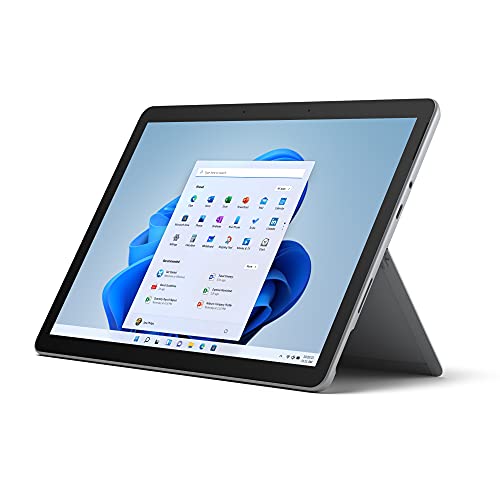
The Go 3 had a split personality at launch: the cheaper Pentium configurations were slow enough to damage the line’s reputation, while the Core i3 version was the machine reviewers quietly recommended. The verified listing here is the right one — a 10.5-inch touchscreen with an Intel Core i3, 8GB of memory and a 128GB SSD, device only, in Platinum. That combination is the Go 3 as it should always have been sold, and at the prices the older generation now commands, it is the value centre of this entire category.
Measured against the Go 4, what do you give up? The newer machine’s processor generation and its Windows 11 Pro edition are the headline differences; the chassis, screen size and general experience are near-identical, because Microsoft barely touched the design between generations. For a home user, a student, or a small operator who does not need Pro’s management features, the Go 3 in i3 trim delivers perhaps ninety percent of the Go 4’s daily experience. The remaining ten percent shows up in heavier multitasking and in how long each machine will stay sprightly under future Windows updates — the Go 4 will age more gracefully.
One warning belongs in bold type in every Go 3 discussion: check the processor on any listing you consider. The Pentium Gold variants share the name, the shell and the screen, and they are dramatically slower machines that turn simple tasks into waits. The i3 badge is not a nicety here; it is the difference between a tool and a frustration. Our linked listing is the i3 configuration — if you shop elsewhere, verify those three characters before anything else.
As a second computer or a child’s first real Windows machine — one that runs the actual desktop applications a school might demand — the Go 3 i3 remains easy to defend. It is also the smarter buy for a pilot project: equip a team cheaply, learn whether the 10-inch shape fits the work, and step up to Go 4s once the concept is proven.
- Display: 10.5-inch touchscreen (per listing title)
- Processor: Intel Core i3 (per listing title)
- Memory: 8GB
- Storage: 128GB SSD
- Colour: Platinum
- Sold as: device only; keyboard cover separate
Strengths
- The Core i3 configuration avoids the sluggishness of cheaper Go 3 variants.
- Same travel-friendly shell and kickstand as the newer Go 4.
- Older-generation pricing makes it the cheapest credible way into the class.
Trade-offs
- Ships with the consumer edition of Windows rather than Pro.
- An older processor generation will age out of smooth service sooner.
- Listings vary wildly by configuration, so spec-checking is on you.
Best for: the Go 3 (Core i3) fits students, home users and pilot deployments that need genuine Windows on a budget.
Not suited for: IT departments that require Windows 11 Pro management features out of the box.
Microsoft Surface Go 2 — The used-market option
The Go 2 is the machine that made the line credible: a slightly larger, sharper screen than the original Go, slimmer bezels, and a Core m3 configuration that handled office work without complaint. It also offered an LTE variant, which is why so many of them spent their lives in service vans and site offices. All of that is past tense. The Go 2 is discontinued, which is why it appears here in prose with no buying link — the listings still circulating are old stock and second-hand units of uncertain history.
Should you ever buy one? On the used market, knowingly, at a price that reflects its age — perhaps, for a light-duty role like a kitchen computer, a reception-desk terminal or a child’s homework machine. The hazards are the usual used-tablet hazards compounded by age: battery wear you cannot see in a listing photo, a storage tier that may be the slow eMMC of the base model rather than an SSD, and the base Pentium configuration, which was leisurely when new. A used Go 2 with the m3 processor and a healthy battery is a tool; a used base-model Go 2 is a project.
What the Go 2 is genuinely useful for in 2026 is calibration. When a Go 3 or Go 4 listing tempts you, the Go 2’s going rate on the used market tells you what these machines are worth after a few years — a reminder that small Windows tablets depreciate like the specialised tools they are. Buy the generation whose remaining support life matches how long you actually plan to keep it.
- Display: 10.5-inch touchscreen class
- Era: previous-previous generation; discontinued
- Configurations varied widely, from Pentium/eMMC base models to Core m3/SSD
- Some variants offered built-in LTE
- Availability: used and old-stock listings only
Strengths
- Proved the Go formula and still handles light office work in higher trims.
- LTE variants remain handy for connected field roles.
- Used prices can be very low for a genuine Windows machine.
Trade-offs
- Discontinued; battery age is the hidden cost in every used unit.
- Base configurations pair a slow processor with slow storage.
- No manufacturer warranty path on typical second-hand purchases.
Best for: a knowingly cheap used buy for light, supervised duties.
Not suited for: anyone who needs a warrantied machine for daily business-critical work.
Microsoft Surface Pro (13-inch) — The step up, stated plainly
This pick is in the guide under false pretences, and we will not pretend otherwise: the current Surface Pro is a 13-inch machine. It is not a 10-inch tablet, it does not compete with the Go on size or price, and if your requirement is genuinely “must fit this small bag, must be held one-handed,” it fails your brief. It earns its place because the single most common journey in this category starts with Go research and ends, rightly, with a Pro purchase.
The logic is simple arithmetic. Add the Go’s keyboard cover, then look at the total. Now look at what that total almost buys in Pro territory: a far faster processor, a larger and sharper 13-inch screen that makes split-screen work genuinely comfortable, and a machine that can serve as someone’s only computer rather than their travelling companion. The Go wins on portability and on ticket price. The Pro wins on everything that happens after you sit down and start working. Buyers whose “tablet use” is actually ninety percent desk use with occasional couch duty are Pro buyers in denial, and this guide would rather convert them than sell them a Go they will resent.
We cover the Pro properly, with verified linked listings, in our 2-in-1 guide — that is where its configurations belong. Here it stands as a signpost: if, reading the Go sections, you kept thinking “but I need more screen / more speed / my only machine,” follow the signpost. Stepping up a class is not a failure of the brief; it is the brief working.
- Display: 13-inch class — outside this guide’s size brief, stated openly
- Role: full-performance 2-in-1; a laptop replacement rather than a companion
- Keyboard: detachable cover, sold separately on most listings
- Coverage: linked listings live in our 2-in-1 tablets guide
Strengths
- Performance headroom the Go cannot approach.
- A 13-inch screen makes two-app workflows comfortable.
- Can serve as an only computer, not just a travel companion.
Trade-offs
- Too large and heavy for genuine one-handed tablet use.
- Total cost with keyboard is in quality-laptop territory.
- It is simply not the 10-inch machine this category promises.
Best for: Go shoppers whose honest workload is full-time computing.
Not suited for: buyers with a hard size or weight ceiling for field work.
Dell Venue 10 Pro — The history lesson
A decade ago, the Venue 10 Pro was the thinking buyer’s small Windows tablet: solidly built, sensibly priced, available with a proper keyboard dock, and sold through Dell’s business channels with business support behind it. It deserves its paragraph in this guide because listings for it still surface when people search this category, usually photographed well and priced to look like a bargain next to a new Surface Go.
Do not be fooled. The Venue 10 Pro belongs to the Intel Atom era, and Atom-era processors running a modern, fully updated Windows installation deliver an experience best described as geological. Updates take an age, browsers strain, and the storage and memory ceilings of the period close in fast. The machine was honest in its day; its day was a long time ago, and no listing discount changes the arithmetic of a processor generation that old.
Why include it at all? Because it marks how far the floor has risen. The cheapest credible small Windows tablet of its era is now outclassed by the Go 3’s little finger, and any “bargain” legacy slate — Dell, Lenovo or HP — from the Atom years should be read the same way. If you are offered one free, it can run a single kiosk-style task. If money is changing hands, the money belongs in a Go.
- Display: 10-inch class, Atom-era generation
- Status: long discontinued
- Period strength: business build and an available keyboard dock
- Modern verdict: outclassed for general Windows use
Strengths
- Sturdy business-grade hardware for its era.
- Keyboard dock made it a genuine mini-laptop in its day.
- Explains the category’s history better than any spec sheet.
Trade-offs
- Atom-era performance is inadequate for modern Windows workloads.
- Ageing batteries and no support channel remain.
- Any price near a used Go 3 is money misdirected.
Best for: a single-purpose kiosk task, or a collector of the category’s history.
Not suited for: general-purpose computing in 2026, at any listing price.
Chuwi Hi10 series — The import gamble
Chuwi has spent years doing what the big brands would not: shipping small Windows tablets at prices that make you look twice. The Hi10 name has covered a rotating series of models — different processors, screens and bundled keyboards under one familiar badge — sold through marketplace listings and import channels. On paper, the proposition is the Go’s proposition for markedly less money, sometimes with a keyboard in the box that Microsoft would sell you separately.
The catch is not usually the hardware’s first week. It is everything after: warranty claims routed through a seller rather than a domestic service network, replacement parts and pen or keyboard accessories that may not exist in your market, driver and firmware support that depends on the maker’s goodwill, and model churn that makes “the Hi10” a moving target — two listings with the same name may be different machines. None of that makes a Chuwi fraudulent; it makes it a gamble whose odds you should price in rather than discover.
Our stance: a technically confident buyer who treats the purchase as effectively warranty-lite, verifies the exact processor and storage in the specific listing, and pays a price that stays attractive even under those assumptions can come out ahead. Everyone else — anyone buying for a business, a parent, or a role where a dead tablet means a dead day — should read the Hi10’s price gap against the Go 3 as the cost of support, and pay it gladly. We list it here in prose, without a link, because its listings rotate too quickly and vary too much by seller to verify responsibly.
- Display: roughly 10-inch class, varying by model year
- Sales channel: marketplace and import listings
- Model name covers multiple distinct hardware generations
- Support: seller-dependent; no domestic service network assumed
Strengths
- Aggressive pricing for genuine desktop Windows.
- Some bundles include a keyboard that rivals charge extra for.
- Keeps a size class alive that big brands abandoned.
Trade-offs
- Warranty and returns depend entirely on the seller.
- The same model name hides different hardware across listings.
- Accessory and parts availability in your market is uncertain.
Best for: confident tinkerers buying cheap enough that support risk is priced in.
Not suited for: business deployments or anyone who cannot absorb a support dead-end.
Which Processor Tier Should You Insist On?
More than in any other tablet class, the processor badge decides whether a small Windows machine is a tool or a trap. The history of the Go line is the cleanest illustration: the same shell has housed Pentium Gold chips that made Windows feel underwater and Core i3 chips that made it feel like a small laptop. Nothing else about those machines differed — same screen, same keyboard, same battery — yet owners’ verdicts split entirely along the processor line. When you shop this category, the processor is not one spec among many; it is the review.
The practical rule is to treat the entry silicon as a different product. A Pentium-tier Go, an Atom-era Dell, a bargain import with a bottom-shelf Celeron — these machines can each run Windows, in the sense that a bicycle can enter a motorway. They open applications slowly, multitask reluctantly and age in dog years as Windows updates accumulate. The Core i3 tier and its modern equivalents are the floor for a machine you intend to keep, and the business-trim processors in current models are better again, not because their peak speed transforms the experience, but because they sustain ordinary work without the little pauses that train users to reach for their phone instead.
Memory interacts with the processor more than buyers expect. Eight gigabytes is the working minimum for Windows 11 with a browser habit; machines from earlier generations with 4GB exist in this category’s used listings, and they should be read as single-task devices whatever the processor says. Storage speed matters in the same quiet way: the base storage in some older small tablets was eMMC, dramatically slower than a proper SSD, and it is the hidden reason some used bargains feel broken. SSD in the listing title — as both of our linked Go listings specify or imply by configuration — is worth more than a slightly larger number attached to slow storage.
Windows 11 Pro or Home: Does the Edition Matter at This Size?
For a machine that lives at home, honestly, very little. Home runs the same applications, the same browser, the same Office. The differences appear the moment a machine joins an organisation: Pro adds the management hooks — domain and Azure directory join, group policy, BitLocker drive encryption under central control, the ability to host a remote-desktop session — that let an IT department deploy, secure and recover a fleet. A one-person business that later hires an IT provider will find those hooks are the difference between “we can manage your Go 4s” and “we need to reimage or replace them.”
That is why the two linked picks split the way they do. The Go 4’s listing specifies Windows 11 Pro, reflecting Microsoft’s positioning of that generation at business buyers; the Go 3’s listing is the consumer trim. Neither is a mistake. A student paying for Pro features they will never invoke is wasting money that could buy the keyboard cover, and a firm buying Home machines to save a little per seat is storing up an awkward conversation with whoever manages their systems. Match the edition to the owner, not to a hierarchy in your head where Pro simply means better.
One more edition note belongs to the used market: older small tablets may run Windows 10, whose mainstream support has ended. A used Go 2 that cannot cleanly run a supported Windows version is not a bargain at any price for a machine that will hold real accounts and real files. Check the operating system story of any second-hand small tablet as carefully as its battery.
What Does the Full Go Setup Actually Cost to Own?
The tablet’s ticket price is the down payment, not the purchase. Start with the keyboard cover, which nearly every owner buys and which transforms both the typing experience and the comparison against laptops. Add a pen if your work involves signing, annotating drawings or marking up documents — the pen is the reason some buyers chose a Windows slate over a cheaper laptop in the first place. Then the small stuff that is not small in aggregate: a case or sleeve for transport, a USB-C hub or dock for desk work, possibly a second charger so one can live in the bag.
None of this is an argument against the Go; it is an argument for honest arithmetic before the purchase, while the decision can still change. Total the Go setup you would actually use, then total the Surface Pro setup and a comparable slim laptop, and compare the three totals against the three experiences. The Go frequently still wins for genuinely mobile roles — that is why the line exists. But buyers who skip the arithmetic sometimes discover they paid laptop money for a companion device, and their disappointment attaches to a machine that never misrepresented itself.
Running costs deserve one line too. These are sealed devices; a battery that wears out in year four is a service event, not a user swap, and out-of-warranty repairs on any premium tablet can approach the machine’s remaining value. Buying the current generation, with its full support runway ahead of it, is partly a decision about how far away that arithmetic sits.
How Do You Work All Day on a 10.5-Inch Screen?
Small-screen productivity is a skill, and the Go rewards people who learn it. The core move is sequencing instead of splitting: at 10.5 inches, one application given the whole display beats two applications given halves, so work in deliberate single-app passes — clear the inbox, then the spreadsheet, then the document — and use Windows’ virtual desktops to keep those passes one swipe apart rather than stacked in a pile. Snap layouts still earn their keep for the classic reference-and-write pairing, a PDF on one side and notes on the other, where the reference only needs a narrow column.
Text size is the second lever, and pride is the obstacle. Display scaling that makes text genuinely comfortable looks, to some eyes, like an admission; in practice it is the difference between a screen you can use for six hours and one you squint at for two. Set it once, generously, and stop thinking about it. The third lever is the external monitor: the same tablet that feels small on a train drives a full desk display through USB-C at the office, and roles that mix travel days with desk days get both experiences from one machine — the pattern the Go was designed around.
Finally, manage the battery like a schedule rather than a surprise. Video calls are the big draw, documents the small one; a day planned as calls-in-the-morning at a desk with power, documents in the afternoon away from it, ends with charge to spare, while the reverse order ends with a hunt for a socket. A compact USB-C power bank in the bag is the standard professional answer and weighs less than the anxiety it replaces.
How Do the Six Machines Compare Side by Side?
| Machine | Size class | Status | Buy it if… |
|---|---|---|---|
| Surface Go 4 | 10.5-inch | Current, linked | You want the newest Go with Windows 11 Pro. |
| Surface Go 3 (i3) | 10.5-inch | Previous generation, linked | You want the Go experience for less, without Pro. |
| Surface Go 2 | 10.5-inch | Discontinued, prose | A used unit in a high trim is priced like the old machine it is. |
| Surface Pro | 13-inch | Current, covered in our 2-in-1 guide | Your “tablet” is really your main computer. |
| Dell Venue 10 Pro | 10-inch | Long discontinued, prose | Essentially never, beyond kiosk curiosities. |
| Chuwi Hi10 series | ~10-inch | Import, prose | You accept seller-level support as part of the deal. |
How Should You Set Up a Small Windows Tablet for Field Work?
Buy the keyboard cover with the machine, not after the first trip — the Go without its keyboard is half a tool, and the cover also protects the screen in a bag. Add a rugged case if the tablet will live on sites or in vehicles; the Go’s magnesium shell is tougher than it looks, but corners and concrete are undefeated. Sort the storage plan on day one: point OneDrive or your firm’s equivalent at the big folders, keep the local drive for applications and the current job, and the 128GB ceiling stops being a weekly negotiation.
Then do the unglamorous configuration that makes small Windows pleasant. Scale the display so targets are finger-sized, pin the three applications the role actually uses to the taskbar, set the power plan to favour battery on the road, and test the whole kit — tablet, cover, charger, any USB-C dock — with the real software before the first real job. A Go’s USB-C port driving a hotel television or a desk monitor is the trick that turns a travel slate into a plausible only-machine for light roles; rehearse it at home, not in front of a client.
How Should You Buy a Small Windows Tablet Second-Hand?
Because this category’s back catalogue is deep and its current shelf is short, many readers will end up shopping used — and used small Windows tablets reward a methodical buyer. Begin with the configuration, not the cosmetics: establish the exact processor, memory and storage type of the specific unit, because the same product name covers machines of wildly different usefulness. A listing that will not state those three facts is telling you something. Then ask about the battery in plain terms — how long the unit runs unplugged in ordinary use — and treat evasive answers as a no; a worn battery is the most common reason these machines are sold, and it is the one flaw a photograph cannot reveal.
Check the screen for the two ailments of ageing touch tablets: unresponsive patches and pressure marks, both testable in thirty seconds with a drawing app or a drag across a full-screen window. Inspect the USB-C port with the actual cable you will use; a loose port on a device that charges and docks through that single socket is a serious defect. Confirm the keyboard cover, if included, pairs and types on every row — covers fail by individual keys and by the connector strip, and a dead cover converts your bargain back into a bare tablet at full effective price.
Finally, factory-reset in the seller’s presence or immediately on receipt, confirm the machine activates its Windows licence cleanly and is not enrolled in some organisation’s management system, and run every pending update before you put a single real account on it. A device still tied to a previous employer’s management can be wiped by that employer remotely, or locked to them in ways that surface months later. Ten minutes of diligence at purchase is the entire difference between the used market’s genuine bargains and its expensive lessons.
Does the Pen Actually Matter on a Machine This Small?
For most Go owners, the pen is a specialist tool rather than a daily driver — and that is fine. Its killer applications are narrow and real: signing documents without printing them, annotating site photographs and drawings at the point of capture, marking up PDFs in meetings, and sketching the whiteboard diagram that a keyboard would strangle. In those moments the pen is not an accessory but the reason the tablet is in the room, and a laptop, however fast, cannot substitute.
Outside those moments, the touchscreen and keyboard cover carry the day, and a pen bought “just in case” tends to live in a drawer. Our advice is to buy the pen when you can already name the recurring task it serves, and to skip it when the justification is a vague sense of completeness. The same discipline applies to the rest of the accessory shelf around this class — docks, hubs, rugged cases — each earns its money against a named job or it is ballast in the bag.
What Mistakes Do Buyers of Small Windows Tablets Keep Making?
The classic error is buying the cheap configuration of the right machine. In this class, base models cut exactly the components that decide usability — processor, memory, storage speed — so a bargain Go with a Pentium badge or a tiny drive teaches its owner to hate a product line that, properly specified, they would have liked. The second error is forgetting the keyboard cover in the budget and then comparing a bare Go’s price against laptops that include their keyboards; compare totals, not headlines.
Third comes the size-class denial we built the Surface Pro section around: buying a 10-inch machine for a 13-inch workload, then blaming the machine for small text and cramped split-screen. Fourth is storage denial — 128GB is workable, but only with a cloud or card plan made before the drive fills, not after. And the fifth is treating discontinued listings as current products: any small Windows tablet whose reviews cluster several years ago is a used-car purchase and should be inspected like one.
What About Connectivity When Wi-Fi Is Not There?
Earlier Go generations, including some Go 2 and Go 3 variants, offered built-in cellular in certain configurations, and buyers in field roles still ask after it. The current linked listings here are Wi-Fi machines, so the honest answer for a new Go buyer is that connectivity away from Wi-Fi is a solved problem one step removed: tether to the phone in your pocket. Modern phone hotspots are fast, included in most business plans, and kinder to the tablet’s battery budget than an always-on internal modem negotiating with a weak signal. The costs are real but modest — phone battery drain on long sessions, and one more device to manage — which is why built-in cellular survives mainly in dedicated 5G tablets, a different shelf we cover in the guide linked below.
Where tethering genuinely fails is the unattended use case: a tablet mounted in a vehicle, kiosk or site cabin that must be reachable on its own, on a managed data plan, without a human’s phone nearby. If that is your role, say so early in the buying process, because it redirects you away from these Wi-Fi listings toward cellular variants and carrier-channel machines entirely — and it is a legitimate reason to look at the business Surface Pro line, where cellular configurations have historically lived. Naming the connectivity requirement before choosing the machine, rather than discovering it in a car park with no signal, is the whole lesson.
There is also a quieter connectivity point that matters in shared and public spaces: a small tablet is simply less conspicuous and easier to secure than a laptop. It slips into a drawer, a locker or a bag’s flat pocket, it can be cable-locked at a counter through its accessories, and in kiosk-style roles its touchscreen invites exactly the single-purpose use the role intends. Several of the field deployments this class serves chose the Go partly for that discretion — a machine that looks like a clipboard attracts less attention than one that looks like a computer, and in some environments that difference is operational, not cosmetic.
Ports deserve their sentence too. A single USB-C socket is the Go’s entire wired world: charging, docks, drives and displays all queue for it. A small hub is therefore standard kit rather than an upgrade, and buyers whose roles involve simultaneous charging plus peripherals should test their hub with their software before trusting it in the field, because cheap hubs and docks vary in ways that only appear under load.
Final Recommendation
Start from the shelf as it is, not as you wish it were. If you need a new 10-inch Windows tablet with a warranty and business manners, the Surface Go 4 is the category — buy it, add its keyboard cover, and put the saved research hours into something more interesting. If the budget pushes back, the Go 3 in its Core i3 configuration is the one previous-generation machine we would spend our own money on, provided the listing in front of you really is the i3. And if, somewhere in this guide, the workload you described to yourself kept sounding bigger than 10.5 inches, believe that instinct and go and read about the Pro instead — the best 10-inch tablet decision some readers will make is not buying one.
Frequently Asked Questions
Is the Surface Go 4 powerful enough to be my only computer?
For document-centred work — Office, browser tools, email, light admin — yes, especially with a USB-C dock and monitor at your desk. For photo editing at volume, large datasets, development or gaming, it will feel like a compromise every day; that workload belongs to the 13-inch Pro class or a laptop.
What is the real difference between the Go 3 and Go 4?
Less than the names suggest. The Go 4 is the newer processor generation and ships with Windows 11 Pro in this listing; the Go 3 listing here runs the consumer edition. The shell, screen size and keyboard ecosystem are effectively shared, so the choice is about software edition, longevity and price.
Do these tablets come with a keyboard?
No. Both linked listings are device-only, and the detachable keyboard cover is a separate purchase. Budget for it from the start — most owners consider it essential rather than optional.
Can a 10-inch Windows tablet run my old Windows programs?
Generally yes — that is the entire point of the class. Full desktop Windows runs legacy desktop applications that iPads and Chromebooks cannot. The caveats are performance on the smallest processors and the very oldest software’s quirks under a modern Windows, which affect every current machine equally.
Should I buy a used Go 2 instead of a new Go 3?
Only if the price gap is large and the used unit is a higher configuration with a healthy battery you can verify. A base-model Go 2 with worn battery can cost less to buy and more to live with than a new Go 3 costs outright.
Why are there no Dell or Lenovo tablets in the linked picks?
Because neither brand currently sells a 10-inch Windows tablet we could verify. Their small Windows slates are discontinued; the Dell entry in this guide exists to warn you about the old listings, not to recommend them.
Can I expand the Go’s 128GB of storage?
Yes, within limits. Surface Go models include a microSD slot under the kickstand, which suits documents, photos and media libraries well, and cloud storage handles the rest. Applications themselves belong on the internal SSD, so treat the card as a filing cabinet rather than a second hard drive, and the arrangement works smoothly.
Is a 10-inch Windows tablet good for students?
For students whose schools use Windows-specific software or desktop-browser exam systems, it is often the cheapest machine that ticks every box, and its size suits crowded lecture seating. Students who mainly read, annotate and watch lectures may be served as well by a larger-screened budget laptop; the deciding question is always whether the small size is a feature for their day or a compromise they are paying for.
Related Guides
Stepping up in size or flexibility? Read Best 2-in-1 Tablets That Genuinely Replace a Laptop for the Surface Pro’s home turf, Best 5G Tablets for Working Away From Wi-Fi if untethered connectivity matters more than the operating system, and Best 64GB Tablets That Make the Base Storage Tier Work for what living on a small drive really involves.