What's inside
- Key Takeaways
- Quick Picks
- How We Chose These Picks
- Comparison Table
- What Actually Makes a Laptop Good at AutoCAD?
- How Do You Set Up a Workstation Laptop for CAD Work?
- Integrated or Discrete Graphics: Which Does Your Drawing Week Need?
- How Should a CAD Laptop Be Docked and Driven at the Desk?
- Common Mistakes When Buying a CAD Laptop
- Final Recommendation
- Frequently Asked Questions
- Related Guides
As an Amazon Associate I earn from qualifying purchases. This post may contain affiliate links at no extra cost to you.
widgetverdict.com is reader-supported. When you buy through links on our site, we may earn an affiliate commission.
Shopping for the best affordable laptops for AutoCAD means accepting a specific compromise and then managing it well. AutoCAD itself is not the heaviest program in a design office — 2D drafting, annotation and sheet work run happily on ordinary hardware — yet the moment a drawing grows into a large 3D model with orbiting, shading and xref-heavy assemblies, a consumer laptop with a thin cooling system starts to feel its limits. The machines gathered here answer that problem from the workstation shelf rather than the gaming shelf: every pick is a mobile workstation from Lenovo’s ThinkPad P series or HP’s ZBook line, each carrying 32GB of DDR5 memory and a 1TB solid-state drive, and each running Windows 11 Pro. “Affordable” in this company means the entry tier of the workstation world, the floor below which CAD buyers usually regret the savings.
Two of the six listings name a discrete NVIDIA RTX 500 Ada graphics processor, and those two carry the strongest claim for sustained 3D work. The remaining four rely on integrated graphics — Iris Xe in the smaller ZBook Firefly, Intel Arc in the larger one, and integrated graphics the two ThinkPad P16s Gen 4 listings leave unnamed in their titles. That split shapes the whole guide. A drafter whose week is floor plans, sections and details can buy any machine here with confidence. A modeller pushing big assemblies should start with the RTX-equipped pair and treat the others as capable but more patient companions.
Screen size divides the field just as cleanly. Five picks stretch to 16 inches, which suits CAD work because tool palettes, properties panels and the drawing itself compete for the same pixels. The lone 14-inch machine trades that room for portability, a trade some site engineers and travelling consultants will gladly make. Read the reviews with your own drawing habits in mind: file size, model complexity and how often the laptop leaves the desk matter more here than any single processor name.
One framing decision before the reviews: this guide treats “affordable workstation” as a real category rather than a contradiction. Professional buyers have always purchased in tiers, and the entry tier of the ThinkPad P and ZBook lines exists to put workstation memory, storage, build and support within reach of small practices, sole practitioners and junior seats in larger offices. The six listings below are that tier, current or one generation back, and they should be judged against the work they will actually do — not against flagship workstations costing several times more, and not against consumer laptops that merely share a processor name.
Key Takeaways
- All six picks are mobile workstations with 32GB of DDR5 memory, 1TB of storage and Windows 11 Pro.
- The ThinkPad P16s Gen 3 and the HP ZBook 8 G1i name an NVIDIA RTX 500 Ada GPU; the other four listings rely on integrated graphics.
- One P16s Gen 4 listing pairs an AMD Ryzen AI 7 PRO 350 with an OLED 4K touchscreen rated at 100% DCI-P3 in its title.
- The ZBook Firefly 14 G10 is the only 14-inch option, built around an Intel Core i7-1370P and Iris Xe graphics.
- Thunderbolt 4 appears across the range, and the ZBook 8 G1i lists two Thunderbolt 4 ports plus a three-year warranty.
- Ethernet survives on the Intel-based P16s Gen 4 listing, a small detail that matters on office networks and site cabins.
Quick Picks
| Pick | Badge | Why it earns a place |
|---|---|---|
| Lenovo ThinkPad P16s Gen 4 (Intel) | Wired-office all-rounder | Core Ultra 7 255H, Ethernet, Thunderbolt 4 and a numeric keypad on a 16-inch FHD+ panel. |
| Lenovo ThinkPad P16s Gen 4 (OLED) | Presentation-grade screen | Ryzen AI 7 PRO 350 with an OLED 4K Dolby Vision touchscreen covering 100% DCI-P3 per its listing. |
| Lenovo ThinkPad P16s Gen 3 | Discrete-GPU value | NVIDIA RTX 500 Ada graphics beside a Core Ultra 7 155H and a 16-inch WUXGA display. |
| HP ZBook Firefly 14 G10 | Travel-size workstation | A 14-inch WUXGA IPS panel and i7-1370P processor in the most portable chassis here. |
| HP ZBook Firefly G11 16 | Managed-fleet choice | Core Ultra 7 165H with vPro technology, 32GB of memory and a 16-inch WUXGA screen. |
| HP ZBook 8 G1i AI | Strongest 3D claim | RTX 500 Ada graphics, a 16-inch FHD+ touchscreen, twin Thunderbolt 4 ports and three-year cover. |
How We Chose These Picks
Selection started from a hard floor: a CAD laptop at this level needs memory headroom and storage headroom before it needs anything glamorous, so every listing here carries 32GB of DDR5 and a 1TB drive. Drawings accumulate xrefs, blocks, plot files and revision folders faster than most buyers expect, and a machine that begins life nearly full spends its third year being pruned instead of used. The 32GB figure also reflects how AutoCAD actually behaves alongside the rest of a working day — a browser full of supplier pages, a PDF viewer holding the specification, and a spreadsheet tracking revisions all compete for the same memory pool.
Graphics honesty came next. Listing titles were read literally: where a discrete GPU is named, the review says so; where the title names Iris Xe or Intel Arc, the review grades the machine as an integrated-graphics workstation; where the title stays silent, the review leaves the graphics line open rather than guessing. That discipline matters because CAD buyers are routinely sold integrated machines on vague promises, then discover the gap only when a shaded model stutters. Two picks here clear the discrete bar, and the guide points 3D-heavy readers at them first.
Chassis and connectivity finished the sort. Workstations earn their keep through ports, keyboards and serviceability as much as through chips: numeric keypads speed up coordinate and dimension entry, Ethernet still anchors many office and site networks, fingerprint readers shorten the unlock ritual dozens of times a day, and Thunderbolt 4 opens the door to docks and fast external storage. Each review weighs those working details alongside the headline silicon, because a CAD laptop is a tool used eight hours a day, not a benchmark with a lid.
Operating system and warranty closed the selection. Windows 11 Pro appears in every listing here, and that uniformity is itself a finding: the entry workstation tier does not ask buyers to accept a home edition, with the domain joining, remote desktop hosting and management features that professional offices rely on. Warranty terms, by contrast, vary in a way buyers should notice — most listings leave cover unstated in their titles, while the ZBook 8 G1i states three years outright. Where a title is silent, the sensible move is to check the exact warranty terms on the product page before ordering, because cover length is part of a workstation’s real cost and a cheap machine with thin cover can be the expensive one by year two.

Lenovo ThinkPad P16s Gen 4 (Intel) — Wired-office all-rounder
Lenovo builds this P16s Gen 4 around Intel’s Core Ultra 7 255H, a 16-inch FHD+ display, 32GB of DDR5 memory and a 1TB drive, then adds the working details that separate a workstation from a similarly priced consumer machine. Ethernet is present, which still matters in offices where the CAD seat is hard-wired to a plotter and a file server. A numeric keypad sits beside the main keyboard for fast dimension entry. Thunderbolt 4 handles docking and external drives, Wi-Fi 7 covers the wireless side, and a fingerprint reader plus backlit keys round out a specification aimed squarely at desk-based drafting.
For AutoCAD, the shape of the work matters more than the badge on the lid. Floor plans, elevations and detail sheets in 2D place modest demands on graphics and lean instead on processor responsiveness, memory and screen room — three areas where this configuration is comfortably specified. The 16-inch panel at FHD+ gives palettes and the properties inspector space to coexist with the drawing, and 32GB of memory lets large xref sets stay open beside a browser and a PDF of the project specification without the machine swapping itself into sluggishness.
Honesty requires one caveat: the listing title does not name a discrete graphics processor, so buyers whose weeks involve orbiting large shaded 3D assemblies should look at the RTX 500 Ada picks further down before settling here. Within its lane, though, this ThinkPad is the most complete office citizen of the six — the one that plugs into everything an established practice already owns, from wired networks to docks to the plotter in the corner.
Daily life with this ThinkPad has a rhythm CAD users will recognise. It wakes to a fingerprint, opens the drawing set from the server over its wired connection, and spends the day switching between the model, the sheet set and the plot queue without any single task exposing a weakness. The backlit keyboard matters during the late finishes that project deadlines impose, and the full-size layout means the hand travels less between the command line, the numeric keypad and the function keys. Lenovo’s P-series machines also carry a reputation for surviving the knocks of a working office — the spilt coffee, the site visit in a padded bag, the years of being opened and closed a dozen times a day — and that durability is part of what the workstation premium buys over a consumer chassis with similar headline chips.
Consider, too, how this machine fits a growing practice. A junior drafter can start on it with 2D work, and the same seat remains credible as their skills widen into 3D modelling of modest assemblies, because the processor and memory were never the bottleneck. The upgrade conversation, when it comes, will be about graphics ambition rather than basic competence, and that is a much better conversation for a practice manager to have in year three than a wholesale replacement.
- Processor: Intel Core Ultra 7 255H
- Display: 16-inch FHD+
- Memory and storage: 32GB DDR5, 1TB SSD
- Graphics: not stated in listing title
- Ports named in listing: Thunderbolt 4, Ethernet
- Extras named in listing: numeric keypad, fingerprint reader, backlit keyboard, Wi-Fi 7
- Operating system: Windows 11 Pro
Strengths
- Ethernet and Thunderbolt 4 together cover wired desks and modern docks.
- The numeric keypad speeds coordinate, offset and dimension entry.
- 32GB of memory with a 1TB drive gives drawing archives room to grow.
Trade-offs
- No discrete GPU is named, limiting heavy shaded-3D headroom.
- FHD+ resolution is serviceable rather than generous for dense drawings.
- The 16-inch chassis is a desk machine first, a travel machine second.
Best for: desk-based drafters on wired office networks who live in 2D plans and moderate 3D.
Not suited for: modellers orbiting large shaded assemblies daily, or frequent flyers counting every gram.

Lenovo ThinkPad P16s Gen 4 (OLED) — Presentation-grade screen
The second P16s Gen 4 listing swaps Intel for AMD and the plain panel for something far more theatrical: a Ryzen AI 7 PRO 350 processor driving an OLED 4K touchscreen with Dolby Vision and 100% DCI-P3 coverage stated in the title, backed by 32GB of DDR5 memory and a 1TB performance SSD. Wi-Fi 7 and Windows 11 Pro carry over, and Lenovo markets the machine as a Copilot+ PC. Where its Intel sibling is the office plumber, this one is the showroom model — the workstation you open in front of a client when the render, the walkthrough or the material palette needs to look its best.
CAD work splits into production and presentation, and this machine tilts toward the second without abandoning the first. The 4K OLED panel resolves fine linework crisply and gives coloured layers, hatch patterns and presentation boards a depth that FHD+ panels flatten. Touch input suits markup sessions: pinch through a drawing set, annotate a detail, hand the machine across a meeting table. The Ryzen AI 7 PRO 350 is a current-generation processor with business management features in its PRO branding, and the memory and storage figures match the rest of this guide’s floor.
Two cautions belong in the record. The title names no discrete GPU, so the same 3D ceiling applies as with the Intel version — integrated graphics will draft anything and orbit modest models, but sustained heavy assembly work belongs to the RTX picks. And a 4K OLED touchscreen asks more of the battery than an FHD+ panel does, so the charger will travel with this machine more often than its specification sheet implies.
There is a subtler CAD argument for this screen beyond client theatre. Colour-coded layers, coloured dimension styles and model faces shaded by material all carry information, and a panel with the colour coverage this listing claims keeps those distinctions legible instead of letting similar hues collapse into each other. Detail work benefits as well: at 4K on a 16-inch panel, fine geometry renders with a smoothness that reduces the constant zoom-in, zoom-out checking that FHD+ drafting imposes, and across a long day that reduction in visual friction is a genuine productivity feature rather than a luxury.
The touchscreen deserves its own honest paragraph. Nobody drafts production drawings with a fingertip, and this review does not suggest otherwise; the value appears in review meetings, in redlining a detail with the machine passed around a table, and in the quick pinch-and-swipe navigation of a drawing set while standing at a plotter. Buyers who never leave a docked desk will pay for a feature they rarely touch, which is why this pick ranks as a specialist’s choice rather than the guide’s default — but for the designer whose laptop doubles as the presentation screen, the specialism is exactly the point.
- Processor: AMD Ryzen AI 7 PRO 350
- Display: OLED 4K touchscreen, Dolby Vision, 100% DCI-P3 per listing
- Memory and storage: 32GB DDR5, 1TB performance SSD
- Graphics: not stated in listing title
- Wireless named in listing: Wi-Fi 7
- Platform named in listing: Copilot+ PC
- Operating system: Windows 11 Pro
Strengths
- The OLED 4K panel is the finest screen in this roundup for presentation work.
- Touch input suits markup, review and client walkthrough sessions.
- PRO-series AMD silicon targets managed business deployments.
Trade-offs
- Integrated graphics cap heavy 3D assembly performance.
- A 4K OLED touchscreen draws more power than the FHD+ alternatives.
- No Ethernet port is named in this listing’s title.
Best for: designers who present from the same machine they draft on, and value colour-rich 4K review.
Not suited for: discrete-GPU 3D pipelines, or buyers who work far from a power socket all day.

Lenovo ThinkPad P16s Gen 3 — Discrete-GPU value
One generation older and, for many CAD buyers, one step smarter: the P16s Gen 3 pairs an Intel Core Ultra 7 155H with an NVIDIA RTX 500 Ada graphics processor actually named in its listing, a combination none of the Gen 4 listings here can match on paper. The supporting cast stays at this guide’s floor — 32GB of DDR5 memory, a 1TB SSD, a 16-inch WUXGA display, backlit keyboard, fingerprint reader and Windows 11 Pro. Previous-generation workstations are where the workstation market hides its value, because professional buyers refresh on cycles and last year’s certified chassis still drafts this year’s buildings.
The RTX 500 Ada is an entry professional GPU, and the review should grade it as exactly that. It will not turn this laptop into a rendering node, but it changes the feel of 3D AutoCAD work in ways integrated graphics cannot: shaded orbits stay composed, large models pan without tearing into a slideshow, and the driver lineage is the professional branch rather than the consumer one. For a small practice that models in 3D a few days a week and drafts in 2D the rest, that is precisely the balance the budget should buy.
Choosing the Gen 3 means accepting its generation’s edges. The processor is a step behind the 255H machines here, the display is WUXGA rather than 4K, and the listing names neither Ethernet nor Wi-Fi 7. None of those gaps touches the core CAD experience. What the buyer gets instead is the one configuration in this guide whose graphics are a professional discrete part at an entry workstation price — check price on Amazon, because previous-generation listings move around more than current ones.
Think about who should be most tempted here. A sole practitioner or a two-person studio, buying one machine that must do everything, gets the professional GPU their 3D work needs without paying current-generation money for processor improvements they will barely feel in drafting. The money saved against the newest listings can fund the second monitor, the dock or the backup drive that a small practice also needs — the unglamorous purchases that protect real work. Judged as a bundle of trade-offs rather than a spec-sheet contest, the Gen 3 is arguably the most rational buy in this entire guide.
Its WUXGA screen, at 1920 x 1200 in spirit if not in the listing’s words, gives a little more vertical room than plain full HD, and vertical room is what tool palettes and command history consume. Combined with the ThinkPad keyboard — still the reference against which laptop keyboards for long text-and-command days are judged — the Gen 3 makes a coherent case as a drafter’s daily tool that happens to carry a professional GPU, rather than a GPU showcase that happens to draft.
- Processor: Intel Core Ultra 7 155H
- Graphics: NVIDIA RTX 500 Ada
- Display: 16-inch WUXGA
- Memory and storage: 32GB DDR5 RAM, 1TB SSD
- Security named in listing: fingerprint reader
- Keyboard named in listing: backlit
- Operating system: Windows 11 Pro
Strengths
- A named RTX 500 Ada GPU gives real headroom for shaded 3D work.
- The full 32GB and 1TB specification survives the generation drop.
- ThinkPad P-series build and keyboard suit long drafting days.
Trade-offs
- The Core Ultra 7 155H trails the newer 255H processors here.
- WUXGA resolution is a step below the OLED model’s 4K panel.
- Ethernet and Wi-Fi 7 do not appear in this listing’s title.
Best for: small practices mixing 2D drafting with regular 3D modelling on a controlled budget.
Not suited for: rendering-farm workloads, or buyers who need the newest platform features.
HP ZBook Firefly 14 G10 — Travel-size workstation
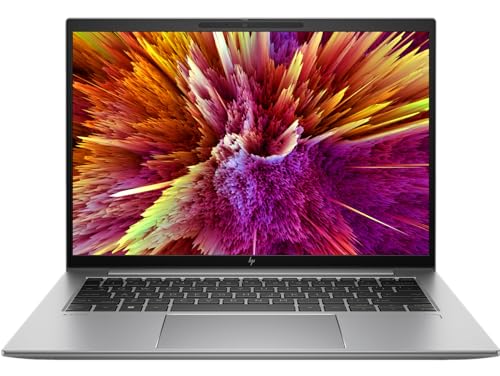
Five of the six machines here ask for a 16-inch bag; the ZBook Firefly 14 G10 asks only for a normal one. Its listing specifies a 14-inch WUXGA IPS display, an Intel Core i7-1370P described as 14-core, 32GB of DDR5 memory, a 1TB SSD, Iris Xe graphics, Thunderbolt 4, Wi-Fi 6E, a backlit keyboard and a fingerprint reader under Windows 11 Pro. That is a complete workstation specification folded into the only chassis here that a site engineer can carry between the office, the site cabin and the train without resenting it.
Grading this machine fairly means grading its graphics honestly. Iris Xe is integrated graphics, capable and efficient for 2D drafting, document work and light 3D, but it is not a discrete professional GPU, and this review grades it strictly on that basis. The Firefly’s real argument is different: much professional CAD work is review, markup, measurement and moderate editing rather than heavy modelling, and for that work a light machine with a sharp 14-inch WUXGA screen and a full-size memory allocation beats a heavier machine left behind at the office.
The 14-inch screen is the obvious compromise — palettes crowd sooner, and side-by-side drawing comparison gets tight — yet WUXGA resolution at this size keeps linework fine and text crisp, and Thunderbolt 4 means a dock and a large monitor can take over at the desk. Buy the Firefly as a mobile workstation with a desktop alter ego, and its specification makes complete sense.
The working pattern this machine suits is worth picturing concretely. Morning in the office: docked, driving a large monitor, checking the day’s drawing issues. Midday on site: undocked, measuring, photographing, marking up the same drawings in a cabin or a corridor. Evening on a train: reviewing tomorrow’s set with the machine on a tray table where a 16-inch workstation simply would not fit. At each stop the Firefly’s specification — full memory, full storage, workstation operating system — means the work itself never has to be downgraded to match the venue, and that continuity is what mobile professionals actually pay for.
Its processor choice supports that pattern. The i7-1370P belongs to Intel’s efficiency-minded P series, trading some sustained multi-core muscle for cooler, quieter running in a slim chassis — the right exchange for review-and-edit work, and one more reason this machine should be graded as a traveller rather than as a shrunken modelling seat.
- Processor: Intel Core i7-1370P, 14-core per listing
- Display: 14-inch WUXGA IPS
- Graphics: Intel Iris Xe
- Memory and storage: 32GB DDR5, 1TB SSD
- Ports named in listing: Thunderbolt 4
- Wireless named in listing: Wi-Fi 6E
- Operating system: Windows 11 Pro
Strengths
- The only genuinely portable chassis among the six picks.
- WUXGA resolution keeps a small panel sharp for linework.
- Thunderbolt 4 supports a full dock-and-monitor desk setup.
Trade-offs
- Iris Xe integrated graphics limit demanding 3D sessions.
- Fourteen inches crowds palettes on complex drawings.
- Wi-Fi 6E sits a generation behind the Wi-Fi 7 listings here.
Best for: site engineers, consultants and surveyors who draft and review while travelling.
Not suited for: primary 3D modelling seats, or drafters who keep many palettes open at once.

HP ZBook Firefly G11 16 — Managed-fleet choice
HP’s ZBook Firefly G11 in 16-inch form is the fleet manager’s pick of this guide: a Core Ultra 7 165H processor with vPro technology named in the listing, 32GB of memory, a 1TB SSD, a WUXGA screen at 1920 x 1200 and Windows 11 Pro, sold as a Smart Buy configuration. vPro is the tell — it signals remote management, fleet provisioning and the kind of standardised deployment an IT department rolls out across a design office without touching every desk. Individual buyers benefit from the same standardisation in the form of a clean, business-grade specification with no odd corners.
Graphics on this listing are Intel Arc, integrated rather than discrete, and the review grades the machine accordingly: a strong 2D drafting and review workstation with light-to-moderate 3D ability, not a modelling specialist. Within that grading it is generously specified. The 16-inch WUXGA panel gives drawings room, the 165H is a full-power mobile processor rather than a thin-and-light compromise, and the memory and storage sit exactly at the floor this guide set for serious CAD seats.
Where the Firefly G11 gives ground is in the extras its rivals name: the listing does not mention a numeric keypad, a fingerprint reader or Thunderbolt in its title, and buyers for whom those are daily tools should confirm the exact configuration before ordering. What it offers instead is the quiet virtue of a standard corporate build — predictable, manageable and specified for years of drawing-office service rather than a season of novelty.
There is also a support argument that solo buyers rarely consider until they need it. Standard corporate configurations accumulate a deep trail of documentation, driver packages and IT knowledge; when something misbehaves in year two, the answer is usually findable because thousands of identical machines are in service. A design office buying several seats amplifies that advantage — one image, one set of drivers, one spare charger type — and the Firefly G11 is the pick here most plainly designed to be bought in multiples.
For the individual drafter, the same standardisation reads as restraint: no touchscreen to pay for, no OLED premium, no gaming flourishes, just a 16-inch WUXGA workstation with a full-power processor and the memory and storage this guide demands. Restraint has its own value in a tool bought to disappear into the working day.
- Processor: Intel Core Ultra 7 165H with vPro technology
- Display: 16-inch WUXGA, 1920 x 1200
- Graphics: Intel Arc
- Memory and storage: 32GB, 1TB SSD
- Configuration named in listing: Smart Buy
- Keyboard layout named in listing: English keyboard
- Operating system: Windows 11 Pro
Strengths
- vPro management suits offices deploying several CAD seats.
- A full-power 165H processor anchors the 16-inch chassis.
- The standardised Smart Buy build keeps specification predictable.
Trade-offs
- Integrated Arc graphics sit below the RTX-equipped picks for 3D.
- The title names no numeric keypad for dimension-heavy entry.
- Thunderbolt is not mentioned in this listing’s title.
Best for: design offices standardising a fleet of drafting seats under central IT management.
Not suited for: solo buyers chasing discrete graphics, or keypad-dependent data entry habits.

HP ZBook 8 G1i AI — Strongest 3D claim
The ZBook 8 G1i is where this guide’s two threads — workstation discipline and genuine 3D ability — finally meet in one listing. HP specifies an Intel Ultra 7 255H, an NVIDIA RTX 500 Ada graphics processor, a 16-inch FHD+ touchscreen, 32GB of DDR5 memory and a 1TB SSD, then adds two Thunderbolt 4 ports, Wi-Fi 7, Windows 11 Pro and a three-year warranty, marketing the machine explicitly for engineers and designers. On paper drawn strictly from listing titles, this is the most completely specified CAD laptop of the six.
The RTX 500 Ada earns the same measured praise given to the ThinkPad Gen 3: an entry professional GPU that transforms shaded orbiting and large-model navigation compared with integrated graphics, while remaining a drafting tool rather than a rendering engine. Pairing it with the current 255H processor removes the generation compromise the Lenovo asks for, and the touchscreen adds a markup-and-review dimension the Gen 3 lacks — pinch into a detail, annotate, present — on a full-size 16-inch canvas.
Ownership details close the case. A three-year warranty is a serious statement on a workstation, covering the realistic span of a project cycle rather than a first year of careful use, and twin Thunderbolt 4 ports let a dock, fast storage and a display chain coexist without negotiation. Buyers whose AutoCAD work is genuinely 3D, and who can stretch to the top of this guide’s affordable tier, should start their shortlist here and justify anything cheaper against it.
It is worth being precise about what the RTX 500 Ada changes during an ordinary week, because the benefit is cumulative rather than theatrical. A housing scheme’s 3D model orbits without the pause-and-catch-up that breaks a designer’s train of thought. A plant-room layout with hundreds of components pans smoothly enough to inspect rather than endure. Shaded views with materials applied stay stable while a client watches over a shoulder. None of these moments makes a brochure, yet together they are the difference between 3D as a tool and 3D as a chore, and they explain why the GPU line is the first line this guide checks in any CAD listing.
The rest of the specification refuses to undermine that centre. The 255H matches the newest processor in the Intel P16s, the memory and storage match the guide’s floor, and the FHD+ touchscreen — while lower in resolution than the OLED alternative — is arguably the pragmatic presentation panel: bright, touchable and less demanding of the battery during a long site day.
- Processor: Intel Core Ultra 7 255H
- Graphics: NVIDIA RTX 500 Ada
- Display: 16-inch FHD+ touchscreen
- Memory and storage: 32GB DDR5, 1TB SSD
- Ports named in listing: 2x Thunderbolt 4
- Warranty named in listing: 3-year
- Operating system: Windows 11 Pro
Strengths
- RTX 500 Ada graphics on the current 255H platform.
- Three-year warranty cover outlasts every rival here.
- Touchscreen plus twin Thunderbolt 4 ports broaden desk and review work.
Trade-offs
- FHD+ resolution trails the OLED model’s 4K panel for presentation.
- It sits at the highest price point in the affordable workstation tier.
- Touch input adds little for keyboard-and-mouse drafting purists.
Best for: engineers and designers whose AutoCAD work leans 3D and who keep machines for years.
Not suited for: pure 2D drafting seats where the GPU premium buys nothing felt.
Stepping back from the individual reviews, the pattern of the six is a matrix of two decisions. The first is graphics: discrete RTX 500 Ada in two listings, integrated graphics in four, with the workload test described earlier as the honest way to choose. The second is emphasis: screen spectacle in the OLED ThinkPad, wired completeness in the Intel ThinkPad, portability in the little Firefly, fleet discipline in the big Firefly, and the fullest combined specification in the ZBook 8 G1i. Everything else — memory, storage, operating system — is held constant across the table below, deliberately, because those are the foundations a CAD buyer should refuse to negotiate.
Comparison Table
| Pick | Processor | Graphics | Display | Memory / Storage |
|---|---|---|---|---|
| ThinkPad P16s Gen 4 (Intel) | Core Ultra 7 255H | Not stated in listing title | 16-inch FHD+ | 32GB DDR5 / 1TB |
| ThinkPad P16s Gen 4 (OLED) | Ryzen AI 7 PRO 350 | Not stated in listing title | OLED 4K touchscreen | 32GB DDR5 / 1TB |
| ThinkPad P16s Gen 3 | Core Ultra 7 155H | NVIDIA RTX 500 Ada | 16-inch WUXGA | 32GB DDR5 / 1TB |
| ZBook Firefly 14 G10 | Intel i7-1370P | Intel Iris Xe | 14-inch WUXGA IPS | 32GB DDR5 / 1TB |
| ZBook Firefly G11 16 | Core Ultra 7 165H vPro | Intel Arc | 16-inch WUXGA | 32GB / 1TB |
| ZBook 8 G1i AI | Intel Ultra 7 255H | NVIDIA RTX 500 Ada | 16-inch FHD+ touchscreen | 32GB DDR5 / 1TB |
What Actually Makes a Laptop Good at AutoCAD?
AutoCAD rewards balance rather than a single heroic component. The processor drives command responsiveness and regeneration; memory decides how many drawings, xrefs and companion applications coexist before the machine starts paging to disk; storage speed governs how fast big files open and save across a network of revisions; and the graphics processor decides whether shaded 3D work feels like drafting or like wading. A machine strong in three and weak in one will announce its weakness daily, which is why this guide set a floor of 32GB of memory and 1TB of storage before it looked at anything else.
Single-threaded behaviour deserves a mention because so much of classic drafting — command execution, hatch regeneration, annotation — leans on one fast core more than on a crowd of slower ones. Modern Core Ultra and Ryzen AI processors handle that work well across this guide, and the practical difference between them at a drafting desk is smaller than the difference made by memory pressure or a struggling graphics path. Buyers torn between two processors should usually spend the decision on the screen, the GPU tier or the warranty instead.
Thermal behaviour is the quiet fifth factor. Drafting loads are bursty — a regeneration here, a plot there — but 3D sessions and large file operations can hold a machine at full effort for an hour, and a chassis that throttles its processor to protect itself will feel slower than its specification promises. Workstation lines are engineered with that sustained load in mind, one more reason the entry tier of a professional range often outworks a consumer machine with similar chips. Buyers cannot read cooling design from a listing title, but they can favour the product lines built for the duty, which is what this selection does.
Displays carry more CAD weight than spec sheets suggest.
A drawing is a visual argument, and a panel that resolves fine linework cleanly at 16 inches reduces zooming, squinting and misread dimensions across thousands of hours. Resolution, size and panel quality all feed that result, which is why the OLED model’s 4K screen and the WUXGA panels here earn genuine credit rather than being treated as decoration.
How Do You Set Up a Workstation Laptop for CAD Work?
Begin with the desk, not the software. Dock the laptop through Thunderbolt where the listing provides it, drive the largest monitor the desk allows, and keep the laptop’s own screen for palettes, email or the project specification. Set the drawing environment up deliberately: workspace layout, autosave interval short enough to protect real work, and a backup routine that copies active projects off the machine entirely, because a workstation full of the only copy of a drawing set is a risk no specification can offset.
Inside AutoCAD, match the machine to the work. Hardware acceleration should be on and its status checked after any driver update; graphicsconfig is the first stop when orbiting feels wrong. Keep xref paths disciplined, purge and audit large files on a schedule, and resist the habit of leaving twenty drawings open as a filing system — even 32GB of memory is a budget, and every open file spends it. Templates with the office’s layers, styles and plot settings baked in save more time across a year than any processor upgrade.
Storage housekeeping deserves a place in the setup ritual too. Point the working folders at a structure the whole practice shares — project, discipline, revision — and let the 1TB drive hold the active set while archives live on the server or a backed-up external drive. AutoCAD’s own file habits reward this: drawings that reference xrefs by stable paths open cleanly on any seat, and a laptop that can be replaced without losing the archive is a laptop whose loss is an inconvenience rather than a crisis.
Finally, plan the machine’s second and third years at purchase time.
Workstations in this guide carry their value through longevity: keep vents clear, let the manufacturer’s driver and firmware tools run their updates, and note which picks carry longer warranty cover, because a three-year warranty aligns neatly with the realistic service life of a CAD seat before its next refresh decision.
Integrated or Discrete Graphics: Which Does Your Drawing Week Need?
Answer with your calendar rather than your ambitions. Count last month’s working days: how many involved opening a 3D model, and of those, how many involved sustained orbiting, shading or sectioning rather than a quick look? If 3D days were rare and brief, integrated graphics — Iris Xe in the Firefly 14, Arc in the Firefly G11, the unnamed integrated parts in the Gen 4 ThinkPads — will serve honestly, and the money belongs in screen, warranty or peripherals. If 3D days were frequent, or if a single flagship project will dominate the coming year, the discrete listings stop being a premium and become the correct tool.
File behaviour sharpens the answer further. Models assembled from hundreds of xref’d components, point-cloud references and dense hatch work punish a graphics path long before they trouble a modern processor. Practices working in that territory should also weigh the professional driver branch that RTX workstation cards use, which is developed and tested against CAD applications as a first-class workload rather than an afterthought to gaming releases.
Hybrid weeks are the genuinely hard case, and they are most weeks. The pragmatic reading of this guide for a hybrid buyer is the P16s Gen 3 or the ZBook 8 G1i: both keep the full 32GB and 1TB foundation, both add the discrete GPU, and they differ mainly in generation, touch and warranty. A hybrid buyer who chooses an integrated pick to save money should do so knowingly, accepting slower heavy-model days as the price of the saving — a legitimate bargain when struck with open eyes.
How Should a CAD Laptop Be Docked and Driven at the Desk?
A workstation laptop earns a second life at the desk, and the picks here are specified for it. Thunderbolt 4 — named on the Intel P16s Gen 4, the Firefly 14 G10 and twice over on the ZBook 8 G1i — carries a dock connection that can drive external monitors, wired peripherals and charging through one cable, turning the morning arrival into a single plug. Offices standardising on docks should confirm the exact port list of the listing they choose, because the Firefly G11’s title does not name Thunderbolt and the AMD P16s title is similarly quiet on ports; silence in a title is not proof of absence, but it is a reason to verify before a fleet order.
External screens deserve the same deliberation as the laptop panel. A large, high-resolution monitor is where drawings are truly read, and a workstation that spends its days docked can justify a modest laptop display more easily than a machine that works standalone. That logic flatters the FHD+ picks here: docked beside a good monitor, their panels serve palettes and travel duty, and the budget saved against 4K can fund the monitor itself. The exception is the presenter, whose laptop screen is the display clients see — for that buyer the OLED P16s earns its premium every time it opens in a meeting room.
Peripherals complete the station. A full-size keyboard with a numeric keypad matters less when the laptop’s own board already carries one, as the Intel P16s Gen 4’s does; a precision mouse matters always, because CAD is a pointing discipline and the trackpad is a backup device, not a drafting tool. Budget for both when the laptop is bought, rather than discovering in the first week that a fine workstation is being driven through its least precise input.
Common Mistakes When Buying a CAD Laptop
Chasing a gaming specification for drafting work. Gaming laptops advertise graphics muscle, yet their drivers, screens and build priorities aim at frame rates rather than long drafting days, and their memory and storage allocations often sit below the floor this guide set. A workstation badge is not magic, but the configurations gathered around it — memory, storage, ports, warranty — match CAD life more closely.
Treating integrated graphics as a rounding error. Integrated graphics draft beautifully and model modestly; the mistake is buying them for a workload that is mostly shaded 3D and discovering the gap after the return conversation has closed. Read the listing literally, as this guide does: if a discrete GPU matters to your week, buy one of the listings that names one.
Skimping on storage to save a small sum. Drawing archives, point clouds, photo references and revision histories grow in one direction only. A 1TB drive is the floor here for a reason; a machine bought nearly full becomes a machine managed instead of used, and the hours spent pruning folders across three years dwarf the original saving.
Ignoring the keyboard and ports. Dimension entry on a machine without a numeric keypad is a daily tax, and a desk that needs adapters for the plotter, the dock and the network is a desk that fails in small ways every morning. The specification lines that look boring in a listing are the ones a drafter touches most.
Reading a listing’s silence as a promise. Titles in this market name what sellers want noticed. A listing that does not name a discrete GPU, a port or a keypad may still include it — or may not — and the cost of guessing wrong is a machine that misses the buyer’s actual requirement. This guide grades only what titles state, and buyers with a non-negotiable feature should confirm that exact line before ordering.
Assuming affordable means disposable. The entry tier of the workstation market exists precisely because professional buyers demand service life at controlled cost. Warranty length, build lineage and standard configurations are the mechanisms of that value — weigh them, rather than treating the cheapest sticker as the whole story.
Final Recommendation
Match the machine to the drawing, and this guide resolves quickly. Predominantly 2D drafting on a wired office desk points to the Intel P16s Gen 4, whose Ethernet, keypad and current processor cover the classic CAD seat completely. Presentation-heavy design work points to the OLED P16s Gen 4, whose 4K touchscreen turns client review into the machine’s home ground. Regular 3D modelling splits by generation preference: the P16s Gen 3 delivers the RTX 500 Ada at previous-generation value, while the ZBook 8 G1i pairs the same GPU class with the current platform, a touchscreen and three-year cover for buyers keeping the machine longest. The Firefly 14 G10 serves the travelling reviewer, and the Firefly G11 serves the managed fleet. None of the six asks a drafter to compromise on memory or storage, and that shared floor is what makes the affordable end of the workstation market worth buying at all.
A closing word on value, since “affordable” is the word that brought most readers here. The saving these machines offer against flagship workstations is real, but it is not where their worth sits. Their worth sits in the absence of the classic cheap-laptop regrets: no memory ceiling discovered in year two, no drive full of drawings with nowhere for the next project, no home-edition operating system blocking the office’s login script, no warranty that expired before the first major deadline. Buy any of the six with the workload honestly matched, and the machine should simply get on with the drawing — which, for a tool bought to produce buildings, is the highest praise available.
Frequently Asked Questions
Can these laptops run AutoCAD in 3D, or only 2D?
All six will draft in 2D without strain and will open and edit 3D models. The difference lies in sustained shaded work: the two listings naming an NVIDIA RTX 500 Ada GPU — the ThinkPad P16s Gen 3 and the ZBook 8 G1i — hold up better when large assemblies are orbited and shaded continuously, while the integrated-graphics picks are happiest with modest models and review-style 3D.
Why does every pick carry 32GB of memory?
Because CAD work rarely happens alone. A designer might open the model, the sheet set, a manufacturer’s catalogue in the browser, a PDF of the building regulations and a spreadsheet of the revision schedule before the first command is typed, and each of those claims its share of memory before AutoCAD’s own appetite is counted. A large drawing with xrefs, a browser, a PDF specification and office applications together consume memory steadily, and 32GB keeps that combination fluid for years. It is the single specification most likely to decide whether a machine still feels adequate in its third year.
Is a workstation better for AutoCAD than a gaming laptop?
For most drafting seats, yes — not because of the badge, but because workstation configurations cluster around the things CAD life needs: generous memory and storage, professional graphics options, docking ports, numeric keypads and longer warranty cover. Gaming machines optimise for a different workload and often skimp on exactly those desk details.
Do these machines handle large drawing files with many xrefs?
Yes, that workload is exactly what the shared specification targets. Memory is what xref-heavy sets consume, and 32GB gives a large drawing plus its references room to stay resident alongside the rest of a working desktop. Storage speed from the 1TB SSDs keeps open and save times sane, and the processors across this guide are current or one generation back — none is a low-power compromise chip.
Does the touchscreen on some picks help with CAD?
It helps around the edges of CAD rather than inside the drafting itself. Touch suits markup, review, client walkthroughs and flipping through drawing sets in a meeting. Precision drafting remains mouse work, so treat touch as a presentation and review bonus — valuable on the OLED P16s and the ZBook 8 G1i, unnecessary for a fixed desk seat.
Which pick suits a laptop that mostly stays on one desk?
The Intel-based ThinkPad P16s Gen 4 is the natural desk anchor, with Ethernet for the wired network, Thunderbolt 4 for a dock and a numeric keypad for entry work. The ZBook Firefly G11 is the alternative where an IT department manages the fleet, thanks to its vPro processor.
Should a small practice buy one generation back to save money?
Often, yes — the P16s Gen 3 in this guide is the proof, trading a newer processor for the discrete GPU that CAD work feels more, at a previous-generation position in the market. The discipline is to give up generation-dependent extras knowingly — the newest Wi-Fi, the latest platform features — while refusing to give up the foundations: memory, storage, build line and warranty still need to be workstation-grade.
How long should an entry workstation like these last?
Planned well, three to five years of drafting service is a reasonable expectation for this class of machine, helped by the 32GB memory allocation and 1TB storage that leave headroom for growing files. The ZBook 8 G1i’s three-year warranty aligns its cover with the heart of that lifespan. Longevity also depends on habits: keeping the machine’s vents unobstructed, letting the manufacturer’s update tools maintain drivers and firmware, and treating the battery kindly on desk-bound machines all extend the useful years of any pick here.
Related Guides
RAM and storage questions carry straight into analytics work, so the companion roundup of affordable laptops for data analysis, specced memory-first is a natural next read. Buyers weighing how a screen shapes editing should also see the guide to affordable laptops for photography and the screens worth editing on. And if touch input caught your eye on two of these workstations, the wider survey of affordable touchscreen laptops, from touch clamshells to convertibles sorts the whole category by form factor.