What's inside
- Key Takeaways
- Quick Picks
- How We Chose These Picks
- What Actually Makes an SSD Fast for Games?
- Which Gaming Sticks Deserve a Place in Your Rig or Console?
- How Do the Six Gaming Drives Compare in the Bay and in the Case?
- How Do You Fit a Drive Into a PlayStation 5 Correctly?
- What Mistakes Do Gaming Buyers Make With M.2 Drives?
- How Much Capacity Does a Modern Games Library Really Need?
- How Does DirectStorage Change the PC Side of This Guide?
- What About Handheld Gaming PCs and Their Smaller Slots?
- How Should PC Builders Cool a Gaming Drive Properly?
- Why Do Installs and Patches Punish Weak Drives More Than Gameplay Does?
- How Does a Second Drive Change a Gaming PC’s Storage Strategy?
- What Should Streamers and Capture-Heavy Players Look For?
- How Long Will a Gaming Drive Stay Relevant?
- How Do You Move an Existing Library Onto a New Gaming Drive?
- What Separates a Gaming-Badged Drive From a Regular Fast SSD?
- How Should You Test a New Gaming Drive in Its First Week?
- Final Recommendation
- Frequently Asked Questions
- Related Guides
As an Amazon Associate I earn from qualifying purchases. This post may contain affiliate links at no extra cost to you.
widgetverdict.com is reader-supported. When you buy through links on our site, we may earn an affiliate commission.
Where to buy: each drive below links to a checked Amazon listing, including the heatsink editions that console owners need and the bare sticks that belong under a motherboard’s own armour.
The best gaming m 2 ssds are bought for two machines that share a soul: the gaming PC, where installs and patches write in hundred-gigabyte storms, and the PlayStation 5, whose expansion bay turned an M.2 stick into a console accessory with strict physical rules. Both reward the same traits — fast random reads for streaming game assets, sustained writing that survives a launch-day download, and cooling that keeps pace through the fourth hour of a session. This guide ranks six drives against those traits, and it begins with a honesty note the whole category needs: beyond a competent Gen4 drive, load-screen differences shrink to seconds, so the real purchases here are capacity, consistency and fit.
Three of the six arrive wearing heatsinks from the factory, because the PS5 demands one and small PC cases appreciate them. Two are WD’s SN850X in its bare and heatsink forms — the same gaming-tuned drive answering two different machines — while Samsung’s heatsink 990 PRO, Lexar’s heatsink NM790, Samsung’s Gen5 9100 PRO and SanDisk’s Optimus GX PRO 850X complete a field that spans the sensible price of admission to the platform-builder’s splurge. If your slot is Gen3, read the generation section before anything else; if it is a console, the fit checklist is your first stop.
Key Takeaways
- The WD Black SN850X anchors this category in both bare and heatsink forms for PC and PS5 respectively.
- A PlayStation 5 requires a Gen4 stick with a heatsink that fits its bay — three picks here qualify out of the box.
- Samsung’s 990 PRO with heatsink is the console-ready flagship alternative with the strongest software support.
- Lexar’s NM790 with heatsink delivers flagship-class reads via host memory rather than onboard DRAM, at a friendlier tier.
- The 9100 PRO’s PCIe 5.0 speed serves new PC platforms and DirectStorage ambitions, not the current console generation.
- SanDisk’s Optimus GX PRO 850X brings a heatsink-equipped 2TB option under refreshed branding.
- Capacity is the specification that cannot be patched later — forecast the library before choosing the size.
- Cooling is part of the product: match the heatsink plan to the bay or case before the drive arrives.
Quick Picks
| Pick | Badge | Why it earns its place |
|---|---|---|
| WD Black SN850X 2TB | The PC gaming standard | Up to 7,300 MB/s reads with Game Mode tuning and two terabytes for a modern library. |
| WD Black SN850X 2TB with Heatsink | The console-ready twin | The same drive wearing the factory heatsink a PlayStation 5 bay requires. |
| Samsung 990 PRO with Heatsink 1TB | The flagship alternative | Up to 7,450 MB/s with Samsung’s controller, cache and software behind a console-shaped heatsink. |
| Lexar NM790 1TB with Heatsink | The value console pick | 7,400/6,500 MB/s headline pace and a factory heatsink, using host memory efficiently. |
| Samsung 9100 PRO 1TB | The Gen5 statement | Up to 14,700 MB/s for new-platform PCs chasing the next era of game loading. |
| SANDISK Optimus GX PRO 850X 2TB | The fresh-badge contender | Up to 7,300 MB/s reads and 6,600 MB/s writes with a heatsink across two terabytes. |
How We Chose These Picks
Gaming duty was defined by behaviour rather than branding: sustained writes during installs, random-read response during play, thermal conduct inside consoles and warm cases, and the presence of a heatsink edition where the target machine requires one. Every candidate needed a PCIe 4.0 interface or better, TLC flash, and a maker whose firmware support a console or PC owner can actually reach. RGB lighting earned no points; a drive inside a closed console or under a GPU has no audience.
The six that survived deliberately include two forms of one excellent drive, because PC builders and console owners face genuinely different fit questions and pretending otherwise produces worse advice.
One more screen deserves naming, because players ask about it in every generation: no drive was excluded for lacking decoration. Lighting, elaborate shrouds and aggressive styling were treated as weight, not merit, since the two homes these drives live in — a sealed console bay and the shadow beneath a graphics card — are the least visible real estate in gaming. A buyer who wants visible flair should spend on the case; a buyer who wants the library to behave should spend here, on the unglamorous stack of controller, cache, capacity and cooling that this guide ranked.
Capacity choices follow the modern library’s reality — two terabytes where the budget allows, one terabyte as the honest floor — and quoted speeds are treated as ceilings measured in ideal conditions, with the sections below concentrating on the behaviour that survives contact with a real games library.
What Actually Makes an SSD Fast for Games?
Games load through thousands of small, scattered reads as textures, geometry and audio stream in, punctuated by enormous sequential writes when titles install or patch. A gaming drive therefore needs two personalities: nimble random access for play, and stubborn sustained throughput for maintenance. The first personality is why flagship controllers feel different from budget sticks in open-world games that stream assets continuously; the second is why a drive that benchmarks beautifully can still crawl through a hundred-gigabyte install once its cache is spent.
DirectStorage, the PC API that lets games feed data to the graphics card more directly, raises the value of a strong NVMe drive without rewriting the rankings: it rewards exactly the random-read strength and controller quality this guide already prioritises. Console gaming is more prescriptive — Sony specifies a Gen4 interface, recommends reads around five and a half gigabytes per second or better, and requires a heatsink within the bay’s tight dimensions — so console buyers shop from a narrower, clearer list, and three picks here were chosen to be on it.
There is a generational comfort in where the category has landed. A decade ago, storage was the component that made powerful machines feel broken; the drives in this guide represent the era after that problem was solved, when the remaining arguments are about capacity, cooling and composure rather than basic competence. Players shopping here are choosing among excellences, and a guide’s job in such a market is not to manufacture a winner but to match each excellence to the machine and library it suits.
The perspective worth keeping is that storage stopped being the main load-time bottleneck once NVMe arrived. These drives compete on the margins players feel as smoothness — fewer texture pop-ins, faster fast-travel, patches that finish before the kettle — and on the unglamorous capacity question of how many installed titles the library can hold before the deleting begins.
Which Gaming Sticks Deserve a Place in Your Rig or Console?

WD Black SN850X 2TB — The PC gaming standard
WD’s Black line exists for this exact guide, and the SN850X at two terabytes is its fullest expression for PC players. Reads are quoted up to 7,300 MB/s and writes up to 6,300 MB/s, the onboard DRAM keeps the mapping table instantly responsive under the mixed chaos of a launcher verifying one game while another installs, and the optional Game Mode in WD’s dashboard prioritises the low-latency behaviour titles reward. In a desktop with a motherboard heatsink — the configuration this bare stick assumes — it is the drive against which gaming SSDs are still measured.
Two terabytes is the capacity where a modern library stops being a negotiation. A dozen large titles, a couple of live-service residents that patch weekly, and the operating system coexist without the Sunday-night deletion ritual, and the larger NAND array sustains install speeds better than the 1TB edition when a launch-day download lands. Thermals under a proper motherboard plate are well behaved; without any heatsink in a sealed case the drive will protect itself by throttling during marathon writes, which is a case problem rather than a drive flaw.
Ownership polish trails Samsung’s slightly — the dashboard covers health, firmware and Game Mode without aspiring to be a suite — yet everything a player needs is present and stable. For a PC-first build, this bare 2TB SN850X is the guide’s default recommendation: gaming-tuned where tuning matters, capacious where capacity matters, and free of the console compromises its twin below carries for a different master.
- Interface: PCIe 4.0 x4, NVMe, M.2 2280
- Quoted ceilings: up to 7,300 MB/s read, 6,300 MB/s write
- Cache: onboard DRAM
- Extras: Game Mode via WD dashboard
- Capacity reviewed: 2TB, heatsink fitted by the builder
Strengths
- Tuning and cache flatter real gaming workloads, not just benchmarks.
- Two terabytes ends the install-delete cycle for most libraries.
- Sustained installs hold up through launch-day patch storms.
Trade-offs
- Bare stick needs the motherboard’s heatsink or an aftermarket one.
- Dashboard software is narrower than Samsung’s offering.
- Gen5 platforms cannot use more than its Gen4 ceiling.
Best for: gaming desktops that install, patch and play in equal measure. Not suited for: a PlayStation 5, which needs the heatsink edition below.
Building the PC first? The SN850X heading link leads to the bare 2TB listing — pair it with your board’s heatsink plate and you are done.

WD Black SN850X 2TB with Heatsink — The console-ready twin
Same silicon, different mission. This edition of the SN850X arrives wearing a low-profile factory heatsink dimensioned for the PlayStation 5’s expansion bay, which is the entire reason it exists as a separate product — Sony’s requirements combine a Gen4 interface and brisk reads with a cooling structure that fits a shallow, defined envelope, and a bare stick plus optimism satisfies none of the physical half. Fitted here, the drive installs into the console in minutes and then behaves exactly like its PC sibling: up to 7,300 MB/s reads, DRAM-backed responsiveness, and two terabytes that multiply the console’s usable library several times over.
Console ownership changes the workload in one important way: the drive becomes a patch machine. Modern titles update in tens of gigabytes, games shuttle between internal and expanded storage as players rotate, and the SN850X’s sustained manners keep those chores in the background where they belong. Its heatsink is equally at home in a compact PC case whose motherboard lacks a plate over the relevant slot, making this edition the flexible purchase for households that have not decided which machine gets the drive permanently.
Nothing is lost versus the bare version except the freedom to choose your own cooling, and in a desktop with an excellent motherboard heatsink the bare stick is the tidier buy. Everywhere else — consoles first, small cases second — this is the SN850X to order, and the guide lists the twins separately precisely so that no reader buys the right drive in the wrong clothes.
- Interface: PCIe 4.0 x4, NVMe, M.2 2280
- Quoted ceilings: up to 7,300 MB/s read, 6,300 MB/s write
- Cooling: factory low-profile heatsink, PS5 bay compatible
- Cache: onboard DRAM
- Capacity reviewed: 2TB
Strengths
- Installs into a PlayStation 5 correctly, out of the box.
- Identical gaming behaviour to the PC-standard twin.
- Two terabytes transforms the console’s library maths.
Trade-offs
- Heatsink is redundant under a good motherboard plate.
- Carries a premium over the bare edition for the cooler.
- Still a Gen4 ceiling for future PC platforms.
Best for: PlayStation 5 expansion and compact PCs without slot cooling. Not suited for: desktops whose boards already dress the slot in armour.
Expanding the console? Follow this edition’s heading link — the factory heatsink is the whole point, so resist swapping it at checkout.
Samsung 990 PRO with Heatsink 1TB — The flagship alternative
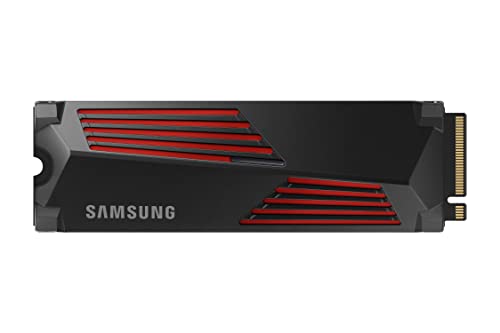
Samsung’s answer to the console question takes its flagship — in-house controller, V-NAND, DRAM cache, reads quoted up to 7,450 MB/s — and dresses it in a heatsink shaped for the PlayStation 5’s bay, packaging that even carries a subtle light accent for the PC cases where it will also live. The result is the most complete drive in this guide by pedigree: the random-read composure that makes open-world streaming feel seamless, the firmware and software ecosystem that leads the industry, and a cooling solution that satisfies Sony’s envelope without aftermarket improvisation.
One terabyte is this listing’s honest limitation, and in a console it fills faster than newcomers expect — a handful of flagship titles and the library management begins. Players whose rotation is tight, or whose PC is the drive’s real home with the console as a secondary stage, will find the capacity workable and the behaviour flawless. Library hoarders should look at the 2TB WD editions above or accept the deleting discipline. Samsung’s power efficiency adds a quiet virtue in the console’s enclosed bay, where every degree the drive does not generate is a degree the small cooling path does not have to move.
As a PC drive under its own heatsink, it suits small builds and second slots where the motherboard offers no plate. The premium over rivals buys the ecosystem and the polish rather than a different class of speed, and this guide prices that honestly: players loyal to Samsung’s tools, or burned once by a lesser brand’s firmware, will consider it money correctly spent.
- Interface: PCIe 4.0 x4, NVMe, M.2 2280
- Quoted read ceiling: up to 7,450 MB/s
- Cooling: factory heatsink, PS5 oriented
- Cache: onboard DRAM
- Capacity reviewed: 1TB
Strengths
- Flagship random performance with console-ready cooling.
- Best-in-class software and firmware support behind it.
- Efficient running suits the console’s enclosed bay.
Trade-offs
- One terabyte is the tightest library here.
- Premium pricing for polish rather than raw pace.
- Heatsink lighting is wasted inside a closed console.
Best for: players who want the flagship ecosystem in a console-correct package. Not suited for: hoarders whose libraries start at two terabytes.
Prefer Samsung’s polish for your console or compact rig? The 990 PRO heatsink listing sits behind its heading — just budget the capacity honestly.

Lexar NM790 1TB with Heatsink — The value console pick
The NM790 built its reputation as the thinking player’s bargain: headline pace of 7,400 MB/s reading and 6,500 MB/s writing from a DRAM-less design that borrows system memory through HMB, paired with a generous dynamic SLC cache. This edition adds the factory heatsink that opens the PlayStation 5’s door, making it the most affordable correct answer to the console question in this guide — and a genuinely quick PC drive for the money when the console already has storage sorted.
Honesty about the architecture belongs in this section, not a footnote. Without onboard DRAM, the drive leans on the host’s memory for its mapping table; in a PS5 or a normal gaming PC that arrangement performs far better than its budget reputation, because hosts have memory to spare and gaming reads are the workload it was tuned for. Sustained writes during enormous installs settle once the cache is spent, a step behind the cached flagships, and that is the real trade being made for the price — a trade most players, whose drives read for a living and write on patch day, will never feel.
Lexar’s support and firmware operation have matured alongside the model’s popularity, and the heatsink edition’s fit has been validated by a large console audience. One terabyte carries the same library caveat as the Samsung above. Judged as a complete console upgrade — correct interface, correct cooling, near-flagship reads, sane price — the NM790 with heatsink is the value pick this category keeps recommending because owners keep reporting that it simply works.
- Interface: PCIe 4.0 x4, NVMe, M.2 2280
- Quoted ceilings: 7,400 MB/s read, 6,500 MB/s write
- Cooling: factory heatsink for console fitting
- Architecture: DRAM-less with host memory buffer
- Capacity reviewed: 1TB
Strengths
- Near-flagship reads at a distinctly friendlier tier.
- Factory heatsink makes console installation correct.
- Efficient design runs cool in enclosed bays.
Trade-offs
- No onboard DRAM for the heaviest mixed workloads.
- Sustained installs trail the cached flagships.
- One terabyte fills quickly with flagship titles.
Best for: console expansion and value gaming PCs that mostly read. Not suited for: workstation-style writing wearing a gaming costume.
Want the console upgrade without the flagship toll? Open the NM790 heatsink listing from its heading and check the bay dimensions match.

Samsung 9100 PRO 1TB — The Gen5 statement
Every category needs one product that exists to show where the road goes, and in gaming storage that product is the 9100 PRO: a PCIe 5.0 drive quoting reads up to 14,700 MB/s, with Samsung’s own controller, flash and DRAM cache, aimed at new-platform PCs whose owners think in platform generations rather than upgrade cycles. In a Gen5 slot with proper cooling, its sequential muscle doubles the Gen4 field — the kind of figure that makes game installs and library migrations feel less like chores and more like copies between folders.
The gaming case for it today is narrower than the number suggests, and this guide will make it plainly. Current titles, even DirectStorage ones, rarely saturate a good Gen4 drive, so load-time differences between this and the 990 PRO are measured in small seconds on present software. The purchase logic is forward-looking: a flagship PC being built now, on a Gen5 board, with a drive expected to serve through the next several years of increasingly ambitious streaming demands. Bought on that logic, the 9100 PRO is a reasonable flagship; bought to speed up an existing Gen4 machine or a console, it is money spent on a ceiling the hardware cannot reach — the console cannot use it at all beyond Gen4 behaviour, and its bay was not designed for Gen5 heat.
Cooling is a build requirement, not an accessory debate: pair it with the motherboard’s Gen5 heatsink or a substantial aftermarket solution and real airflow. Samsung’s software support carries the flagship standard, and the drive’s manners at ordinary work are impeccable. Treat it as the platform statement it is, and it will not disappoint; treat it as a universal gaming upgrade, and it will educate you expensively.
- Interface: PCIe 5.0 x4, NVMe, M.2 2280
- Quoted read ceiling: up to 14,700 MB/s
- Cache: onboard DRAM
- Cooling: substantial heatsink required, sold for Gen5 boards
- Capacity reviewed: 1TB
Strengths
- Sequential pace doubles the Gen4 field on a matching board.
- Flagship cache and controller keep random response elite.
- Future-facing purchase for long platform cycles.
Trade-offs
- Current games rarely exploit its ceiling over Gen4.
- Demands a Gen5 slot and serious cooling to justify itself.
- Not a console solution in any practical sense.
Best for: new flagship PC builds planning years ahead. Not suited for: Gen4 machines, consoles, or load-time impatience today.
Speccing a Gen5 platform from scratch? The 9100 PRO listing behind its heading is your storage statement — confirm the board’s heatsink while you shop.

SANDISK Optimus GX PRO 850X 2TB — The fresh-badge contender
SanDisk’s gaming line arrives under the Optimus GX banner, and the PRO 850X is its heavyweight: a Gen4 drive with a factory heatsink, two terabytes of capacity, and quoted speeds up to 7,300 MB/s reading and 6,600 MB/s writing. Students of the industry will recognise the silhouette of the brief — those figures and that positioning echo the SN850X formula closely, which is no insult; it is one of the most successful recipes in gaming storage, now served under SanDisk’s refreshed retail branding with its own firmware stewardship.
For buyers, the practical meaning is choice at the top of the console-and-PC shelf. The heatsink qualifies the drive for the PlayStation 5’s bay, the capacity ends library anxiety, and the write ceiling — unusually close to the read figure — flatters the install-and-patch rhythm that dominates a gaming drive’s working life. SanDisk’s flash pedigree is foundational to the entire industry, and its support infrastructure is the opposite of a startup experiment, even if the Optimus name itself is still earning recognition on shelves.
The honest caveat is differentiation: against the WD twin it resembles, the argument comes down to availability, warranty handling in your region and which badge your existing drives wear. That is a legitimate basis for a purchase — ecosystems and spares standardise happily — and it makes the GX PRO 850X the natural pick for a SanDisk household expanding a console or finishing a build without mixing storage families.
- Interface: PCIe 4.0, NVMe, M.2 2280
- Quoted ceilings: up to 7,300 MB/s read, 6,600 MB/s write
- Cooling: factory heatsink fitted
- Capacity reviewed: 2TB
- Positioning: gaming line flagship
Strengths
- Heatsink and 2TB capacity answer console and PC briefs together.
- Write ceiling sits impressively near the read figure.
- Backed by a foundational flash manufacturer’s support.
Trade-offs
- New branding may confuse cross-shoppers of older lines.
- Differentiation from its closest rival is mostly ecosystem.
- Gen4 ceiling, like every console-compatible pick here.
Best for: SanDisk households expanding a console or finishing a gaming build. Not suited for: buyers chasing Gen5 futures on a new platform.
Keeping the storage family under one badge? The GX PRO 850X listing waits behind its heading — verify the heatsink edition before ordering.
How Do the Six Gaming Drives Compare in the Bay and in the Case?
| Drive | Capacity | Headline read | Heatsink | Primary stage |
|---|---|---|---|---|
| WD Black SN850X | 2TB | Up to 7,300 MB/s | No, builder supplies | Gaming PC |
| WD Black SN850X HS | 2TB | Up to 7,300 MB/s | Yes, factory | PlayStation 5 |
| Samsung 990 PRO HS | 1TB | Up to 7,450 MB/s | Yes, factory | PS5 and compact PC |
| Lexar NM790 HS | 1TB | 7,400 MB/s | Yes, factory | PS5 on a budget |
| Samsung 9100 PRO | 1TB | Up to 14,700 MB/s | Board heatsink needed | Gen5 gaming PC |
| SANDISK GX PRO 850X | 2TB | Up to 7,300 MB/s | Yes, factory | PS5 and PC |
How Do You Fit a Drive Into a PlayStation 5 Correctly?
Sony’s process is refreshingly mechanical. The console powers fully down and unplugs, the cover slides off, and the expansion bay waits under its own metal lid with a screw and spacer set for the 2280 position. The drive seats at the same shallow angle as in a PC, the spacer and screw secure it, and the bay lid and cover return in reverse order. On boot, the console formats the drive itself — do not pre-format it in a computer — and afterwards games can be installed to it, moved to it, and played from it as first-class storage.
Two fit facts decide success before the cover comes off. The heatsink must live within the bay’s stated height and width envelope, which is why factory console editions exist and why thick aftermarket coolers are a gamble; and the drive must be Gen4, because the console’s interface speaks that generation and gains nothing from a Gen5 stick it cannot feed. Every heatsink pick in this guide was chosen inside those rules. Owners transferring a drive from a PC should back up anything precious first, since the console’s formatting is thorough and unbothered by your filing system.
What Mistakes Do Gaming Buyers Make With M.2 Drives?
Buying a bare flagship for a console tops the list — an easy error, since listings lead with speed and mention cooling in the small print, and it strands the buyer with a drive the bay cannot properly house. Its PC cousin is fitting a heatsink edition under a motherboard that already wears armour over the slot, then forcing a choice between two coolers that were each sufficient alone. Decide which heatsink the build will use before ordering, and the whole family of errors evaporates.
Capacity optimism is the second classic. A terabyte sounds large until three flagship titles and a live-service resident move in, and the deleting ritual that follows is the tax on under-buying — especially in a console, where swapping drives is a cover-off event rather than a settings change. The third mistake is chasing the Gen5 headline for a Gen4 machine, paying the flagship premium for a ceiling the slot cannot express. Match generation to platform, cooling to enclosure, and capacity to the library’s honest size, and a gaming drive becomes the most boringly successful upgrade in the hobby.
How Much Capacity Does a Modern Games Library Really Need?
Do the arithmetic from your own shelf before shopping. Flagship titles now routinely occupy well over a hundred gigabytes each, live-service games grow with every season, and the operating system — PC or console — takes its share before the first install. A one-terabyte drive therefore holds perhaps six to eight large titles comfortably, which suits a focused rotation and punishes a collector. Two terabytes doubles the breathing room and, just as importantly, keeps free space high enough that the drive’s install performance stays in its happiest band.
Playing habits refine the forecast. Players who finish and delete need less than players who keep a standing library of favourites ready for friends’ game nights. PC players with a second, slower drive can archive the back catalogue cheaply; console players have only the internal storage and the expansion bay, which pushes the console decision toward the largest sensible capacity at purchase time. In both worlds, capacity is the specification that cannot be patched later, and it is where this guide advises spending first.
How Does DirectStorage Change the PC Side of This Guide?
DirectStorage rewires how a Windows game moves data: instead of the processor unpacking every asset through a narrow path, the drive streams compressed data toward the graphics card, which decompresses it with its own abundant parallel hardware. The practical effect is that a strong NVMe drive’s random-read quality and controller composure matter more, while raw sequential ceilings matter slightly less — the API’s wins show up as levels that assemble without hitching and textures that arrive at full resolution on time rather than a frame late.
For buyers, the API changes little about which drive to choose, because the traits it rewards are the traits this guide already ranked: the cached flagships handle its mixed streams most gracefully, and the value picks remain entirely respectable since their read behaviour is their strength. What DirectStorage does change is the penalty for the category’s true budget tier — old SATA drives and elderly Gen3 sticks become the visible bottleneck in supporting titles — which makes any pick on this page a legitimate step into the API’s era.
Adoption remains title-by-title, so treat the API as a direction of travel rather than a deadline. A drive bought for today’s library with tomorrow’s streaming model in mind is simply a drive with headroom, and headroom is the one specification that has never embarrassed an owner two years later.
What About Handheld Gaming PCs and Their Smaller Slots?
An honesty detour this guide owes its readers: the popular handheld PCs mostly use the shorter 2230 format, which none of these 2280 sticks can physically enter. Owners of those devices need the dedicated short-stick market, where the Crucial P310 family discussed in our PCIe guide plays a leading role. Do not let a listing’s gaming language blur the dimension line — a 2280 drive in a 2230 handheld is not a tight fit, it is a non-fit, and the returns process is the only thing that will stretch.
The exception proves the rule usefully: some larger handhelds and most gaming laptops accept full 2280 drives, and for those machines this page applies directly, with the heatsink editions usually excluded by the chassis’s thinness in favour of a graphite label and the device’s own thermal pad. Check the service manual’s storage page for the length code before ordering — 2230, 2242 and 2280 are all M.2, all gaming-adjacent, and entirely un interchangeable.
Why include the warning in a guide whose picks cannot serve those machines? Because handheld owners are among the most enthusiastic storage upgraders alive, and a guide that lets them buy wrongly by silence has failed at its only job.
How Should PC Builders Cool a Gaming Drive Properly?
Start with what the motherboard already provides. Most gaming boards dress the primary M.2 slot in a heatsink plate sized exactly for it, and that plate, with its thermal pad making honest contact, handles any Gen4 drive in this guide through install storms and summer gaming alike. The mistakes are procedural: leaving the pad’s protective film in place, stacking a factory heatsink edition under the board’s plate so neither makes proper contact, or mounting the drive in a lower slot that bathes in the graphics card’s exhaust because it looked tidier.
Gen5 changes the brief. The 9100 PRO’s controller generates heat at a rate that treats cooling as a system design input — the board’s Gen5-rated heatsink, often a taller finned structure, plus case airflow that actually crosses it. Small-form-factor builders should treat that requirement as a genuine constraint on whether the Gen5 pick belongs in their chassis at all, rather than as a challenge to improvise around.
Monitoring closes the loop. Drive temperatures are reported in every maker’s dashboard and most hardware monitors; a gaming drive that idles warm in a closed case is telling you about airflow, not about itself. One repositioned fan curve is usually the whole cure, and it is cheaper than any component on this page.
Why Do Installs and Patches Punish Weak Drives More Than Gameplay Does?
Playing a game reads; maintaining a library writes, and modern maintenance writes enormously. A flagship release can arrive as a download approaching the size of the game itself, a season patch can rewrite a third of an installation, and launchers verify by reading and repairing across the whole directory. Those operations run long enough to exhaust burst caches, heat the controller and expose every compromise a drive’s design made — which is why two drives that load the same level within a second of each other can finish the same patch twenty minutes apart.
The cached flagships in this guide earn their premiums precisely here. Their mapping memory and sustained-write floors keep a patch storm from colonising an evening, and their thermal manners under a proper heatsink let the pace persist. The NM790’s large cache carries it impressively deep into such work before its architecture shows, which is why it survives as the value pick; the truly cheap drives of the wider market are the ones that turn patch day into a screensaver.
Schedule-aware players can soften even a modest drive’s life — let the launcher work overnight, keep free space generous — but a library that updates itself while you play something else is the quality-of-life feature the top of this page is really selling.
How Does a Second Drive Change a Gaming PC’s Storage Strategy?
Two slots invite a division of labour that one drive, however flagship, cannot replicate. The pattern experienced builders converge on puts the operating system and the current rotation — the games in weekly play, the launchers, the capture software — on the fastest stick, while a capacious second drive absorbs the back catalogue, recorded footage and the downloads folder’s chaos. Either role can be filled from this page: a former main drive retires gracefully into the second slot, and the value picks make a deliberate second-drive purchase painless.
The benefits compound quietly. Patch storms on the library drive stop competing with the game being played from the system drive; recordings write to a device whose free space is managed for exactly that; and a Windows reinstall stops being a library funeral, because the games survive untouched on their own volume and most launchers can adopt them in place. Console owners cannot play this trick — the bay is singular — which loops back to why the console capacity decision carries more weight than the PC one.
One caution travels with the strategy: check the motherboard’s lane-sharing table before assuming both slots run at full width, since populating a second slot can narrow the first or disable a SATA port on many boards. Known in advance, the trade is painless; discovered through a benchmark, it feels like a betrayal by hardware that was only ever following its manual.
What Should Streamers and Capture-Heavy Players Look For?
Recording gameplay writes continuously at rates that surprise people — high-resolution capture accumulates gigabytes per hour — and that workload quietly reorders this guide’s priorities. Sustained-write stamina and capacity outrank load-screen nuance, the cached flagships justify themselves on a second front, and the case for a dedicated capture drive strengthens with every hour of footage a creator keeps. A drive that throttles mid-session does not merely slow down; it can cost the recording the session existed for.
The pragmatic arrangements are two. Creators with one slot should favour the 2TB cached picks and keep free space generous, since capture plus patches is the heaviest combined load a gaming drive meets. Creators with two slots should write capture to the second drive as a matter of doctrine, keeping the system drive’s behaviour devoted to the game. Either way, the NM790’s honest limitation belongs in the open: it is a fine gaming drive and a mediocre capture workhorse, and creators are the audience least served by pretending otherwise.
How Long Will a Gaming Drive Stay Relevant?
Longer than almost any other component in the rig. Graphics cards age against rising game demands visibly; a Gen4 flagship’s storage behaviour ages against interface generations that arrive slowly and software that must support the installed base for years. A 2TB pick from this page, bought today, will plausibly outlast two graphics cards and a processor platform while never once being the reason a game feels old — the strongest argument for buying capacity and cache generously at the outset.
The care that extends that relevance is minimal: keep firmware current through the maker’s tool, leave breathing room instead of filling to the final gigabyte, and let the drive’s health page have a glance whenever the case is open for other work. Flash wear from gaming loads is modest — installs write in bursts, play mostly reads — so the realistic retirement cause is capacity, not exhaustion. Buy the size that postpones that day, and a gaming drive becomes the component you stop thinking about entirely, which in a hobby of temperatures and frame rates is a small miracle.
How Do You Move an Existing Library Onto a New Gaming Drive?
PC players have the gentler road. Fit the new drive as a secondary, clone or reinstall onto it according to taste, then point each launcher at the existing game folders on whichever drive keeps them — the major launchers can adopt a library in place once told where it lives, sparing a weekend of redownloads. Set the new drive as the default install location only after it has survived a few days of ordinary play, and keep the old drive’s copy of anything precious until the arrangement has proven itself through at least one patch cycle.
Console players face Sony’s cleaner, stricter version: the new drive is formatted by the console on first boot, empty by definition, and the library arrives by download or by transfer from internal storage through the settings menu. Moving favourites across in bulk overnight is the civilised approach, and the internal storage should be emptied deliberately rather than left as a duplicate archive that confuses future updates. In both ecosystems the principle is identical — the migration is a data project with a verification step, not a hardware swap with fingers crossed — and the afternoon invested returns itself the first time a patch lands without drama.
What Separates a Gaming-Badged Drive From a Regular Fast SSD?
Less than the packaging suggests, and more than cynics admit. The hardware families overlap heavily with the general flagship market — the SN850X and 990 PRO anchor both this guide and the broader PCIe roundup — because the traits games reward are simply good storage traits under a spotlight. Gaming badging earns its keep in the specifics around the silicon: firmware tuned for latency-sensitive bursts, heatsink editions engineered for a console’s exact envelope, dashboard features aimed at players, and warranty and support desks that expect the drive to live in a rig rather than an office tower.
The buyer’s defence is to shop the specifics and ignore the livery. A gaming badge on a drive with an unnamed controller and no heatsink plan is paint; a plain-looking flagship with a cache, a console-shaped cooler and a firmware team is the real article in a grey suit. Every pick in this guide was chosen by the second standard, including the two whose boxes shout the least — and that standard, applied to any shelf, will keep a player’s money pointed at behaviour rather than branding.
How Should You Test a New Gaming Drive in Its First Week?
Skip the synthetic victory lap and test the life the drive will actually live. Install the largest title in your library and watch the clock honestly; then play the most streaming-heavy game you own — the open-world title that used to stutter at district boundaries — and pay attention to texture arrival rather than the load screen. Copy the library’s second-largest game between drives if you have two, because that single operation exercises the sustained behaviour benchmarks flatter. Finish by checking temperatures after an hour of combined play and patching, while the case is in its real position with its real dust.
What you are listening for is absence: no hitching that was not there before, no patch that outstays its welcome, no thermal surprises in the monitoring page. A gaming drive that generates no stories in its first week has passed the only review that matters, and it frees the old drive for retirement, resale or second-slot duty with a clear conscience. Keep the packaging until that week closes, because the rare defective unit announces itself early or not at all — and after that, settle in and let storage become the part of the hobby you no longer shop for.
Final Recommendation
PC players should default to the bare SN850X 2TB under their board’s heatsink, console players to its heatsink twin or the Optimus GX PRO 850X at the same capacity, and value hunters on either platform to the NM790 with heatsink, whose compromises hide exactly where gaming never looks. The 990 PRO with heatsink is the connoisseur’s console pick at one terabyte, and the 9100 PRO belongs only to Gen5 platforms being built for the long term. Buy the capacity your library measured, cool the drive the way its home demands, and the load screens will take care of themselves. One last encouragement for the undecided: every drive on this page is dramatically faster than the storage most players are upgrading from, so the cost of choosing the second-best fit is measured in small frustrations rather than real regret — pick the one whose capacity, cooling and platform match your machine as it stands today, and spend the saved deliberation on the games the drive was bought to hold.
Frequently Asked Questions
Will any of these drives work in a PlayStation 5 without a heatsink?
Sony requires a cooling structure in the expansion bay, and running a bare drive there invites throttling under the console’s own workloads. The three factory heatsink picks in this guide exist to satisfy the requirement properly; a bare stick belongs in a PC under a motherboard plate instead.
Do faster SSDs make games load noticeably quicker than a mid-range Gen4 drive?
Rarely by much on current titles, because loading also depends on the processor decompressing assets and the game’s own engine. The flagship differences appear as smoother asset streaming, faster installs and patches, and headroom for DirectStorage-era techniques — real benefits, honestly sized.
Can I move a drive between my PS5 and my PC?
Physically yes, practically with friction: the console formats the drive for itself, and moving it to a PC means reformatting again, erasing the library each time. Households are better served dedicating a drive to each machine, which is another argument for the value pick in one of the two roles.
What is Game Mode on the WD drives?
It is a dashboard setting that adjusts the SN850X’s behaviour toward low-latency gaming loads, prioritising the responsiveness profile games generate. It costs nothing to enable on a gaming rig and is best left off for a drive reassigned to general workstation duty.
How do I know whether my motherboard’s slot is Gen4 or Gen5?
The board’s specification page states the generation of each M.2 slot individually, and they are not always equal — many boards give the primary slot the newest interface while secondary slots run a generation behind, sometimes sharing lanes with the graphics slot as the lane-sharing section described. Match the drive to the slot it will actually occupy: a Gen5 statement drive in a secondary Gen4 slot is a Gen4 drive with an expensive biography, while the same board’s primary slot would have let it run as intended.
Is the NM790’s lack of DRAM a problem for gaming?
For gaming specifically, very little: the workload is read-dominant, hosts supply memory for its map, and its large cache keeps installs brisk. The architecture shows its limits in sustained mixed writing — video capture archives, workstation multitasking — which is why this guide places it as a gaming value pick rather than a universal one.
What happens if I install a heatsink edition and my motherboard also has a plate?
Choose one cooling solution and commit to it. Stacking a factory heatsink beneath a motherboard plate usually prevents proper contact for both, traps the drive’s screw geometry at the wrong height, and can bow the stick under pressure it was never designed to bear. If the board’s plate is the better cooler — taller, finned, in real airflow — buy the bare edition of the drive; if the slot is naked or the destination is a console, the factory heatsink edition is the correct object. The mistake is not owning two heatsinks, it is trying to wear both at once.
Do I need to update a gaming drive’s firmware out of the box?
Check once, through the maker’s dashboard, after the drive is installed and before the library moves in. Early firmware revisions occasionally carry fixes for sleep behaviour, thermal reporting or console compatibility that are painless to apply to an empty drive and merely tedious later. After that first check, a gaming drive needs no babysitting — glance at firmware when a major game or system update misbehaves, and otherwise let the drive do its silent work.
Should PC builders wait for cheaper Gen5 drives?
Only if a platform purchase is already imminent. A strong Gen4 drive bought today will feel fast for years, because games are built to the installed base’s storage, and the Gen5 premium buys future headroom rather than present load screens. Build the machine you will enjoy this year.
Does an external SSD work well for PS5 games?
External USB drives can store current-generation games and play previous-generation ones, but titles built for the console’s internal-speed architecture must run from internal storage or the M.2 expansion — which is why the bay exists. Use an external drive as the library’s overflow and archive, and an internal pick from this guide as the stage where current games actually perform.
Why does my console report less usable space than the drive’s capacity?
The same decimal-versus-binary counting that affects PCs applies, compounded by the console reserving space for its own operation. A two-terabyte drive will present meaningfully less than two terabytes of usable room, which is normal, expected, and one more reason the capacity forecast in this guide builds in headroom rather than buying to the exact gigabyte.
Can a gaming drive improve frame rates?
No — frame rates belong to the graphics card and processor, and any product implying otherwise is marketing beyond the evidence. What fast storage improves is everything around the frames: loading, streaming smoothness, texture arrival, fast travel and the patch-and-install economy of a modern library. Buy it for those, and it will never disappoint you; buy it for frames, and physics will file the complaint.
Related Guides
Gaming is one lens on the M.2 world; the neighbouring guides look through the others — the full PCIe field for general builds, the cache-first flagships for punishing mixed workloads, and the portable drives that carry a library between machines. Readers speccing a whole new rig will find the three guides together cover the storage decision completely: the PCIe roundup for the system drive shortlist, the DRAM roundup for the workloads that punish a drive hardest, and this page for the console bay and the library maths that decide capacities. Read them in any order; just read the fit sections before the parcel arrives, because every return in this category was preventable at the manual stage.
Best Portable SSDs With Strong Encryption
Related guides
- Best 3.0 Qualcomm Quick Chargers: QC 3.0 Adapters That Still Earn Their Outlet
- Best 3D Mechanical Engineering Laptops: Certified Workstations for CAD and Simulation
- Best Tattoo Printers: Thermal Stencil Machines for Clean, Lasting Transfers
- Best Battery NiMH Chargers: Six Units That Understand the Chemistry