What's inside
- Key Takeaways
- Quick Picks
- What should a secondary drive actually be good at?
- How do the six pairing drives compare side by side?
- How do you divide a library between the SSD and the platter?
- 5400 or 7200 RPM — how much does the spindle really matter?
- What mistakes do builders make when adding a secondary drive?
- How do you install and set up the pairing drive properly?
- How do you keep a two-drive desktop quiet and cool?
- When is the honest answer a bigger SSD instead?
- What changes in a small or prebuilt case?
- How long does a good pairing stay a good pairing?
- Final Recommendation
- Frequently Asked Questions
- Related Guides
As an Amazon Associate I earn from qualifying purchases. This post may contain affiliate links at no extra cost to you.
widgetverdict.com is reader-supported. When you buy through links on our site, we may earn an affiliate commission.
Where to buy: the six internal drives below link to the Amazon listings checked for this guide; before ordering, confirm your case has a free 3.5-inch bay and a spare SATA power connector, because the best drive in this list is useless the week it arrives if it has nowhere to live.
The modern desktop has a division of labour, and it works beautifully when each half respects it. The solid-state drive boots the machine, launches applications and holds the handful of games where loading speed genuinely changes the experience. Everything else — the rest of the game library, the video projects, the photo archive, the downloads folder that became a geological formation — needs somewhere capacious and patient to live. Choosing the best hard drives to pair with ssd storage is about choosing that second citizen well: a 3.5-inch internal drive, spinning quietly in a spare bay, asking for no attention while it absorbs the terabytes an SSD would charge you dearly to hold.
The economics explain the arrangement’s popularity. Solid-state capacity remains the expensive kind, and most libraries are mostly cold: of the thirty games a typical owner has installed over the years, perhaps five are in this month’s rotation. Paying solid-state prices to keep the other twenty-five instantly launchable is a luxury; keeping them on a large hard drive, one copy-move away from the SSD when their turn returns, is a system. The same logic covers media work, where project archives and raw footage are sequential data that a hard drive serves perfectly happily.
Six drives, three temperaments. Seagate’s BarraCuda line is the mainstream desktop choice, represented here at four and eight terabytes. Western Digital splits its answer: the Black line chases performance at 7200 RPM for players who will actually run games from the secondary drive, while the Blue line stretches to a remarkable twelve terabytes for owners whose problem is pure volume. Then come two specialists borrowed from other duties — Seagate’s IronWolf, a NAS drive, and its SkyHawk, a surveillance drive — each included for specific reasons this guide will state openly rather than smuggle past you.
The honest trade-off sits at the centre of the article and deserves its early place: spindle speed. The 5400 RPM drives run cooler and quieter and sip power; the 7200 RPM drives answer a little faster when a game or a large file is actually being read from them. Neither makes the hard drive into an SSD, and the pairing only disappoints owners who secretly expected it to. Set up correctly — SSD for the system and the current favourites, hard drive for the library — the combination feels like a much more expensive machine than it is.
Key Takeaways
- Let the SSD keep the operating system, applications and current favourites; the hard drive’s job is the library behind them.
- 5400 RPM drives are the quiet, cool, economical wing; 7200 RPM drives answer faster when games run directly from the platter.
- BarraCuda is the mainstream desktop default here, at four and eight terabytes.
- WD Black is the pairing for players who intend to launch games from the secondary drive itself.
- WD Blue 12TB is the volume answer for archives that dwarf everything else in the build.
- The IronWolf and SkyHawk are borrowed specialists — NAS and surveillance designs — included for stated reasons, with their caveats attached.
Quick Picks
| Pick | Badge | Why it earns its place |
|---|---|---|
| Seagate BarraCuda 4TB Internal Hard Drive | The mainstream library drive | The default desktop pairing at the size most SSD sidekicks need. |
| WD Black 4TB Gaming Internal Hard Drive | The playable secondary | A 7200 RPM gaming drive for libraries that launch from the platter. |
| WD Blue 12TB Internal Hard Drive | The volume vault | Twelve terabytes at 7200 RPM for media archives beside a fast boot drive. |
| Seagate BarraCuda 8TB Internal Hard Drive | The big mainstream shelf | Double the smaller BarraCuda, with Rescue services named in its title. |
| Seagate IronWolf 4TB NAS Hard Drive | The always-on alternative | A CMR NAS drive for PCs that double as home servers and never sleep. |
| Seagate SkyHawk 4TB Video Hard Drive | The surveillance specialist, with caveats | Built for round-the-clock video writing; considered here for media hoards, eyes open. |
What should a secondary drive actually be good at?
Judging a pairing drive by boot-drive standards produces nonsense, so this guide judged by the secondary job description instead. First, capacity per bay: a desktop may have only one free 3.5-inch bay, so the drive that goes in it should postpone the next storage crisis by years. Second, manners: a drive that lives in a machine on a desk, often in a room where people also sleep or take calls, should be quiet at idle and civilised under load, which is where the slower spindles earn their keep. Third, sequential generosity: library work is large files moving in streams — game installs, footage, disk images — and every pick here is built for exactly that traffic.
Listing titles were read strictly. Where a title states spindle speed and cache, the spec boxes below repeat those figures; where it does not — the eight-terabyte BarraCuda’s title is silent on both — the box says so instead of borrowing numbers from a sibling model. Brand lines were treated as intentions: Black means Western Digital aims the drive at gaming duty, Blue at mainstream capacity, BarraCuda at everyday desktop service, and the two Seagate specialists keep their original job titles in their names, because a buyer deserves to know when a drive was designed for a different trade.
Finally, the guide weighed failure honesty. A secondary drive holding the only copy of a media library is a backup problem wearing a pairing costume, so the sections after the picks address where the second copy lives. Two titles in this list name manufacturer rescue services; that influenced their placement but never substituted for the copy discipline the how-to section describes.

Seagate BarraCuda 4TB Internal Hard Drive — The mainstream library drive
If the pairing concept has a default setting, this is it: four terabytes of mainstream desktop storage, spinning at 5400 RPM with a large cache by the standards of its class, ready to absorb everything the SSD should not be paying rent on. Game libraries are its home turf. The twenty titles outside this month’s rotation live here intact, patches and all, and the ones that were designed in the hard-drive era — which is most of a mature library — play from it without complaint, because it is the class of hardware they were built for.
The slower spindle is a feature in this role rather than an apology. A secondary drive spends most of its life either idle or streaming large files in order, neither of which rewards raw rotational speed, while the whole machine benefits from the quieter, cooler temperament in the bay. In a small case under a desk, in a bedroom build, in any PC whose fans you can already hear thinking, the BarraCuda’s manners are the reason it anchors so many real-world pairings.
Four terabytes is also the honest size for the job as most people actually have it. Measure before you buy — the how-to section walks through it — but a library that fits in two terabytes today belongs on a four-terabyte drive, because libraries only move in one direction and the second bay you are counting on may not exist. Buy this size with headroom and the pairing disappears into the machine’s life, which is the highest compliment a secondary drive can earn.
It also ages gracefully as a citizen of the build. When a future upgrade eventually promotes a larger drive into its bay, this BarraCuda’s second career is obvious — the household’s external backup in a simple enclosure, or the library drive of a second machine — because mainstream desktop drives are the most reusable components in computing. Owners who plan that relay in advance label the drive with its installation date on day one, a ten-second habit that turns every later decision about trust and retirement into arithmetic rather than guesswork.
- Capacity: 4TB
- Spindle speed stated in the title: 5400 RPM
- Cache stated in the title: 256MB
- Interface and form: SATA 6 Gb/s, 3.5-inch desktop
Strengths
- The balanced default: mainstream tuning, generous cache, sensible capacity.
- Quiet, cool running suits desk-side and bedroom builds.
- Older and mid-size games play from it exactly as they were designed to.
Trade-offs
- Current, load-sensitive games still belong on the SSD; this drive will not spoil you.
- Four terabytes fills faster than expected once video projects join the library.
- Its title names no rescue service, so the library’s second copy is your own arrangement.
Best for: the typical SSD owner adding a first library drive for games and media overflow. Not suited for: a builder whose free bay must hold a five-year media archive in one step — the eight and twelve-terabyte picks exist for that arithmetic. Confirm your spare SATA power connector, then check the listing.

WD Black 4TB Gaming Internal Hard Drive — The playable secondary
Some owners do not want a library drive; they want a second playing field. The WD Black is built for them, and its title says so in plain words: a gaming internal hard drive, spinning at 7200 RPM with a 256MB cache. The faster spindle shortens the waits that hard-drive gaming still involves — level loads, texture streaming in busy scenes, the long first launch of a patched title — and while it never turns platters into flash, it narrows the gap enough that running a large portion of the library directly from the secondary drive becomes a reasonable lifestyle rather than a compromise endured.
That positioning clarifies the division of labour in a Black-equipped build. The SSD keeps the operating system and the two or three competitive or load-critical titles where every second is argued over. The Black takes everything else playable — which, for most libraries, is most of the fun — and the machine stops performing the weekly eviction ceremony that small-SSD ownership otherwise demands. Players with sprawling role-playing and simulation catalogues, genres that accumulate enormous installs and long campaigns, feel this relief most.
The costs are temperament and thirst: a 7200 RPM drive is the more audible, warmer citizen of the case, and in a silent-focused build it will be the component you hear during quiet desktop hours. Owners who prize silence over playable platters should look back at the BarraCuda; owners who prize a library that launches where it lives should accept the murmur as the sound of the bargain working.
One scheduling tip suits this drive particularly well: let the launchers do their maintenance on your timetable. Large patches and shader compilations arriving mid-session make any hard drive feel slower than it is, because the machine is reading and writing under pressure simultaneously. Set the big updates to land overnight, and the Black greets you each evening as pure playing field — its library current, its platters rested, its one job for the night being the game you actually chose.
- Capacity: 4TB
- Spindle speed stated in the title: 7200 RPM
- Cache stated in the title: 256 MB
- Positioning in the title: gaming internal hard drive, SATA 6 Gb/s, 3.5-inch
Strengths
- The fastest spindle here for games that run from the secondary drive.
- Gaming positioning matches the playable-library use case exactly.
- Keeps the SSD free for the system and the truly load-critical titles.
Trade-offs
- More audible and warmer than the 5400 RPM picks in a quiet build.
- Still a hard drive: the SSD keeps its crown for launch-critical games.
- Four terabytes is the whole estate; huge media archives should size up elsewhere.
Best for: players who intend to launch most of their library straight from the pairing drive. Not suited for: silence-obsessed small-form builds, where the BarraCuda’s manners beat the Black’s pace. If playable volume is your goal, verify the listing and give the spindle its bay.
WD Blue 12TB Internal Hard Drive — The volume vault
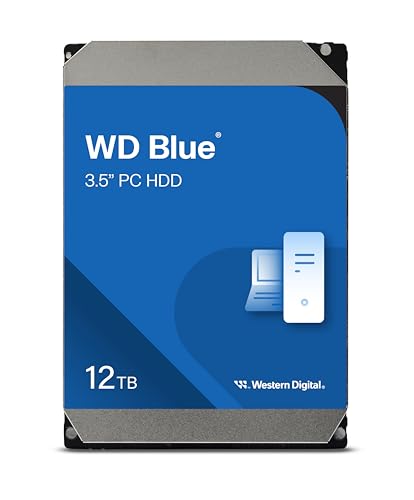
Twelve terabytes changes the conversation from organising to warehousing. The WD Blue at this size, spinning at 7200 RPM with a 512MB cache per its title, is the pick for the machine that anchors a household’s media: the video editor whose project archive grows by the month, the photographer whose raw library long ago escaped the SSD, the film collector whose rips and recordings constitute a small institution. Beside a fast boot drive, this Blue becomes the deep room everything else is stored in, and its capacity postpones the next storage decision by years rather than seasons.
The Blue line’s mainstream tuning suits that archival temperament. This is not positioned as a gaming drive, and the guide will not dress it as one; its work is volume with respectable manners — large sequential writes during ingest, long quiet idles, patient reads when an old project is reopened. The generous cache and faster spindle keep big transfers composed, and a single bay swallowing twelve terabytes preserves the case’s other bays for the future instead of spending them today.
Volume concentrates risk, and the honest paragraph belongs here: twelve terabytes of library on one drive must have its second copy planned before the drive is half full, not after. The how-to section’s copy discipline matters most to this pick’s owner. Buy the vault, by all means — but budget the backup habit alongside it, because a vault is only a vault if something survives its failure.
Organisation inside twelve terabytes deserves a sentence of its own, because a vault without a map becomes a swamp. Keep the top level ruthlessly shallow — one folder per kind of thing, one per year inside it — and resist the temptation to file by mood. The drive’s size means a misplaced project can hide for years in a way a four-terabyte drive would never permit, and the editors who thrive with this pick are the ones whose folder discipline grew with their capacity rather than being outrun by it.
- Capacity: 12TB, the largest in this guide
- Spindle speed stated in the title: 7200 RPM
- Cache stated in the title: 512 MB
- Interface and form: SATA 6 Gb/s, 3.5-inch
Strengths
- Capacity that ends storage planning for years in a single bay.
- Mainstream Blue tuning suits ingest-heavy media archives.
- Faster spindle and large cache keep bulk transfers composed.
Trade-offs
- Not a gaming-positioned drive, whatever its spindle speed suggests.
- Concentrates a huge library in one failure domain; backup discipline is mandatory.
- Overkill for a games-only overflow that the four-terabyte picks cover easily.
Best for: media-heavy desktops where the SSD boots and the archive is the point. Not suited for: a modest game library, where this capacity sits empty while smaller, quieter drives would serve better. Measure your archive’s growth honestly, then check the current listing.

Seagate BarraCuda 8TB Internal Hard Drive — The big mainstream shelf
Between the four-terabyte default and the twelve-terabyte vault sits the size most growing libraries actually land on, and Seagate’s larger BarraCuda fills it with two quiet advantages. Its title promises everyday PC storage for gaming and computing — the pairing job described in the manufacturer’s own words — and it closes with a detail the smaller BarraCuda’s title lacks: a two-year warranty paired with two years of Rescue services. For a drive destined to hold the family’s only organised copy of years of media, that named recovery path is a genuine point in its favour, filed under the same rule as always: a safety net, never a substitute for a second copy.
Notice what the title does not say, because this guide’s spec discipline requires the observation: it states neither spindle speed nor cache for this model. The box below therefore leaves those fields to the manufacturer’s documentation rather than borrowing figures from the four-terabyte sibling, whose hardware may differ. Buyers for whom spindle temperament is the deciding factor should verify those two numbers on the current listing before ordering; buyers choosing on capacity, brand line and the Rescue naming already have what they need.
In service, expect the mainstream BarraCuda character at double scale: the game library and the media archive finally sharing one drive without negotiating, ingest sessions that do not glance at the free-space meter, and a machine whose SSD stays a sprinter because its sidekick became a warehouse. For many desktops this is the last internal drive they will buy for a long while, and it is sized like it knows that.
Its arrival also tends to reorganise the household’s other storage in a healthy cascade. The portable drives that were pressed into service as emergency overflow return to being travel drives; the elderly external that held the photo library gets retired into being the second copy of the new internal shelf. A single well-sized internal purchase can thus raise the reliability of every other drive the family owns, without any of them being replaced — one of the quieter arguments for buying the eight when the arithmetic even half supports it.
- Capacity: 8TB
- Interface stated in the title: SATA 6 Gb/s
- Named in the title: 2-year warranty and 2-year Rescue services
- Spindle speed and cache: not stated in the listing title — confirm them in the manufacturer documentation before you rely on either figure
Strengths
- The capacity most expanding libraries genuinely need, in one bay.
- Rescue services named in the title, rare in mainstream desktop drives here.
- Everyday gaming-and-computing positioning matches the pairing role plainly.
Trade-offs
- Key performance figures are absent from the title and must be verified elsewhere.
- A single eight-terabyte library still needs its external second copy planned.
- Quieter-running rivals may suit bedroom builds if its temperament proves lively.
Best for: owners whose library has outgrown four terabytes and who value the named Rescue cover. Not suited for: buyers deciding purely on spindle speed, who should either verify this model’s figures from Seagate’s documentation or choose the Black, whose title states its pace outright. Read the listing with those two numbers in mind.
Seagate IronWolf 4TB NAS Hard Drive — The always-on alternative
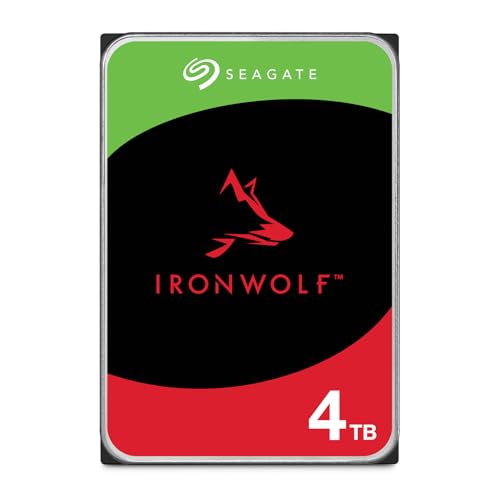
A NAS drive in a desktop guide requires an explanation, and here it is: some desktops are not really desktops. The machine that serves media to the whole house, hosts the family’s shared folders, runs downloads overnight and never truly sleeps is doing network-attached work from inside a PC case, and it deserves a drive designed for that shift pattern. The IronWolf’s title describes exactly such a design — CMR recording, NAS tuning, rotational-vibration awareness through its line’s AgileArray heritage, and Rescue Services named outright.
Its 5400 RPM spindle and modest 64MB cache, both stated in the title, mark it as the endurance candidate rather than the pace candidate. In a pairing whose SSD handles everything urgent, that is no hardship: the IronWolf’s library work is streaming media to the house at hours when nobody is timing it, and its NAS firmware manners — built to stay awake, stay consistent and report its health to a watchful host — suit a machine that other people depend on while its owner is asleep.
The caveat is purpose. In an ordinary gaming desktop that sleeps nightly and serves one person, the IronWolf’s specialisations buy little that the BarraCuda does not already provide, and its talents are priced for a different job. Choose it when the PC’s second life as a home server is real — shared folders, media serving, always-on duties — and it stops being a borrowed specialist and becomes the correct native.
Homes that run such a machine discover a secondary benefit worth naming: predictability under other people’s usage. When a partner streams a film, a child opens the shared photo folder and a backup job runs in the same hour, a drive tuned for multi-user network duty keeps its composure in a way desktop firmware sometimes does not. The IronWolf will never be the fastest drive in this guide at any single task; it aims instead to be the least surprised by the household’s evenings, and for the machine that serves everyone, that is the virtue that gets thanked.
- Capacity: 4TB
- Recording stated in the title: CMR
- Spindle and cache stated in the title: 5400 RPM, 64MB cache
- Named in the title: Rescue Services; designed for RAID and network attached storage
Strengths
- Designed for round-the-clock duty in machines that double as home servers.
- CMR recording keeps behaviour predictable under sustained writes.
- Rescue Services are named in the title, backing the always-on role.
Trade-offs
- Its talents are wasted on a single-user PC that sleeps every night.
- The small cache and slower spindle make it the pace trailer of this list.
- NAS positioning means desktop buyers pay for firmware manners they may never use.
Best for: desktops that moonlight as the household’s always-on media and file server. Not suited for: a pure gaming pairing, where the WD Black spends the same bay on playable pace instead. If your PC never sleeps, check this listing before the mainstream picks.

Seagate SkyHawk 4TB Video Hard Drive — The surveillance specialist, with caveats
Full disclosure, in the pick itself: the SkyHawk is a surveillance drive. Its title aims it at DVR and NVR security camera systems, its firmware is tuned for the endless sequential writing of camera streams, and it carries Drive Health Management plus in-house Rescue services. It appears in a desktop pairing guide for one defensible reason: a certain kind of PC library behaves like surveillance footage. The media server that records, streams and archives video all day — the home theatre PC ingesting recordings, the creator’s machine warehousing footage — imposes sustained, write-heavy, round-the-clock duty that this drive was literally designed to survive.
That is the case for it, and here is the case for caution, stated just as plainly. Firmware tuned for camera streams prioritises never dropping a frame of video over the mixed read patterns of a general library, so a SkyHawk asked to be a games drive is a specialist working outside its trade; the BarraCuda and the Black exist for that job and do it natively. Buy the SkyHawk for the pairing only when your secondary drive’s real workload is video — recording, serving and archiving it in volume — and its health-management and Rescue naming become relevant virtues rather than trivia.
Judged within that fence, it is a serious drive: four terabytes of video-native storage with a health system designed for machines that cannot be babysat. Judged outside the fence, it is the wrong tool wearing an interesting résumé. This guide includes it so the video-heavy minority can find their native pick with eyes open, and so everyone else can enjoy the clarity of ruling it out.
There is a budget logic that occasionally reinforces the case: surveillance drives are sold into a cost-conscious trade, and a video-heavy builder who finds this model priced keenly against the mainstream picks is not making a mistake by taking the trade’s economics — provided the workload truly is the one the firmware was tuned for. The error is never the drive; the error is the mismatch. Match the SkyHawk to cameras, recordings and streams, and its résumé reads as experience. Match it to a game library, and the same résumé reads as a warning you were given in advance.
- Capacity: 4TB
- Designed for, per the title: DVR and NVR security camera systems
- Cache stated in the title: 64MB
- Named in the title: Drive Health Management and in-house Rescue services
Strengths
- Firmware and design intent match sustained video recording and serving.
- Health management suits always-on media machines nobody monitors.
- Rescue services are named in the title, as with its IronWolf cousin.
Trade-offs
- Surveillance tuning is not game-library tuning; look elsewhere to play from the platter.
- Its advantages only materialise under video-heavy, round-the-clock workloads.
- Mainstream buyers pay for specialisation their desktops will never exercise.
Best for: home theatre and media-server PCs whose secondary drive lives on video duty. Not suited for: a games-first pairing, where its firmware priorities point the wrong way and the WD Black is the honest answer. Read the listing as a video drive first, because that is what it is.
How do the six pairing drives compare side by side?
| Drive | Capacity | Spindle in title | Intended temperament |
|---|---|---|---|
| Seagate BarraCuda 4TB | 4TB | 5400 RPM | Quiet mainstream library |
| WD Black 4TB | 4TB | 7200 RPM | Playable gaming secondary |
| WD Blue 12TB | 12TB | 7200 RPM | Media volume vault |
| Seagate BarraCuda 8TB | 8TB | Not stated in title | Big mainstream shelf, Rescue named |
| Seagate IronWolf 4TB | 4TB | 5400 RPM | Always-on NAS manners |
| Seagate SkyHawk 4TB | 4TB | Not stated in title | Surveillance video specialist |
How do you divide a library between the SSD and the platter?
Start with an audit, not a purchase. Add up the machine’s current contents by appetite: the operating system and applications, the games in active rotation, the games owned but dormant, and the media folders. Most owners discover the same shape — a modest hot layer, a large cold one — and the pairing sizes itself from those two numbers. The SSD needs the hot layer plus generous free room, because systems and games both patch themselves into free space. The hard drive needs the cold layer multiplied by your growth: if the library gained a terabyte last year, a drive that only just fits it today is already too small.
Then set the moving rule and keep it boring. A game graduates to the SSD when it enters the month’s rotation and returns to the platter when it leaves; platform launchers make that move a built-in command rather than a manual file operation, and using their tools keeps libraries verified as they travel. Media follows the same law in the other direction: current projects live near the editor, finished projects retire to the big drive in complete folders. The system works because the rule is calendar-based rather than mood-based, and because both drives are large enough that the rule never has to be bent under pressure.
Protect the arrangement’s weak point: the pairing drive is now the only home of the cold library. Give that library a second copy on an external drive or a network location, refreshed whenever a project retires or a season of purchases lands. The rescue services named in two of these titles are a comfort, not a plan; the plan is the copy, and it is the difference between a pairing that organises your data and a pairing that merely concentrates it.
5400 or 7200 RPM — how much does the spindle really matter?
For the library duties that dominate a pairing drive’s life, less than the arguments suggest. Large sequential reads — streaming a film, loading a level’s assets in order, copying an install — are served well by either spindle, and the slower drives repay their small deficit with quieter seeks, cooler operation and gentler power draw inside a case that may sit two feet from your ears. Where the faster spindle genuinely shows is in scattered work: many small reads, game engines that fetch assets unpredictably, and the general responsiveness of a drive asked to behave like a primary. That is precisely the WD Black’s playable-secondary proposition, and it is a real one — for that use.
The mistake is buying spindle speed as insurance for a job that never calls on it, then living with the noise as a daily tax on a benefit never collected. Decide by workload: if games will launch from the platter weekly, the 7200 RPM picks earn their manners; if the drive is a library and an archive, the 5400 RPM picks are not the slow option, they are the appropriate one. Cache sizes, stated in several titles here, smooth bursts in both camps but do not change that underlying verdict.
What mistakes do builders make when adding a secondary drive?
The classic error is the orphaned bay: ordering a 3.5-inch drive for a case whose only free sled is 2.5-inch, or discovering the power supply has no SATA connector left after the graphics card took the last cable run. Ten minutes with the case open before ordering prevents the entire genre. Second comes the silent disappointment — installing the drive, moving the newest, most load-hungry game onto it, and concluding the pairing concept is a fraud when the loading screens return. The newest game was the SSD’s job; the library was the platter’s, and swapping their assignments inverts the whole design.
Third, the unformatted mystery: a new internal drive does not appear in the file explorer until it is initialised and given a volume in the operating system’s disk tools, a step that panics first-time builders into believing the drive is dead. It is not dead; it is blank, and the disk management console is its introduction ceremony. Finally, the forgotten copy: months of library quietly accumulating on the new drive with no second home anywhere. Every other mistake in this section costs an afternoon. That one can cost the archive, which is why this guide keeps returning to it.
How do you install and set up the pairing drive properly?
Power the machine fully down and unplug it; internal drives are installed in a case that cannot argue back. Slide the drive into a 3.5-inch bay or sled, secure it with screws or the case’s tool-less rails — firmly, because a drive that can shift will eventually make its opinion heard as vibration — then connect the SATA data cable to a free motherboard port and a SATA power connector from the supply. Route both cables clear of fan blades and the graphics card’s exhaust, close the case, and boot. Five unhurried minutes of cable care at this stage is the entire difference between a silent installation and a mysterious buzz that haunts the build for years.
At the desktop, open the disk management console and initialise the drive when prompted, choosing the modern partition style the tool suggests for a large data drive. Create one simple volume spanning the whole disk, format it with the file system the tool defaults to for internal storage, and give it a name that describes its job — Library is a better label than a letter and a shrug, because future you, staring at four volumes during some future upgrade, will be grateful for the honesty. Then set the library locations before moving anything: point the game launchers’ library folders and the media applications at the new volume first, so the software itself performs the migration with its own verification, rather than dragging terabytes by hand and hoping the launchers forgive the improvisation.
Move in one direction at a time and verify as you go. Shift the dormant games first and launch two of them from the platter to confirm the library paths are real. Retire one finished media project in full and reopen it from its new home. Only when those rehearsals pass should the great migration proceed, and even then it deserves an evening of unattended copying rather than a week of half-finished drags between sessions. A pairing set up this way is boring from its first day, which — as with archives — is the condition every storage system should aspire to.
How do you keep a two-drive desktop quiet and cool?
Noise in a pairing build rarely comes from the drive’s motor; it comes from the case amplifying it. Mount the drive on whatever isolation the case offers — rubber grommets, a sled with damping, at minimum all its screws properly seated — because a hard-mounted drive can turn a thin side panel into a loudspeaker for its seeks. Keep the drive out of the build’s hottest neighbourhood where the layout allows it, low in the case and in the intake airflow’s path rather than trapped above the power supply’s exhaust, and its temperature will take care of itself in any sensibly ventilated tower.
Software manners help too. A library drive does not need to spin at every hour of the day: the operating system’s power settings can let an idle secondary drive rest, accepting a few seconds of spin-up when the library is next visited in exchange for silence the rest of the time. Owners of the always-on IronWolf pattern will skip that setting deliberately, and owners of bedroom builds will consider it the most valuable paragraph in this section. Either way the choice should be conscious — a drive’s sleep policy is part of the pairing’s design, not an accident of defaults nobody inspected.
Finally, listen once a month, the way you would listen to a house you own. New clicking, a seek pattern that has turned percussive, a spin-up that retries — these are the drive’s early sentences in a language worth understanding, and catching them during a calm monthly glance is how a library gets migrated in an evening instead of mourned in a weekend. The pairing concept survives a drive’s retirement gracefully precisely because the SSD keeps the machine alive while the library moves house.
When is the honest answer a bigger SSD instead?
Sometimes the library is not cold at all. The player whose entire catalogue is current, load-sensitive titles in weekly rotation gains nothing from a platter except waiting; the video editor whose every project is active simultaneously needs flash-speed access to all of it, not a deep room for finished work. In those builds the pairing inverts — a large SSD is the library, and the hard drive, if one appears at all, becomes the backup and archive leg rather than the working shelf. This guide’s picks serve that inverted build too, particularly the twelve-terabyte Blue as the archive vault behind an all-flash working life.
The deciding question is embarrassingly simple: of everything you store, how much did you touch this month? If the honest answer is nearly all of it, buy flash and let the platter be the safety copy. If the answer is the usual small fraction — the pattern this whole article is built on — the pairing as described is the most capacity a desktop can buy for its money while feeling faster than it has any right to. Most owners who ask themselves the question out loud discover their libraries are colder than their pride suggested, and that discovery is worth several terabytes.
What changes in a small or prebuilt case?
Compact cases and office prebuilts test the pairing idea in specific ways. The bay may exist but sit directly in the graphics card’s shadow, the power supply’s SATA connectors may be counted in single digits, and the airflow plan may assume the bay stays empty forever. None of this forbids the pairing; all of it rewards choosing the citizen that runs coolest in close quarters, which in this list means the 5400 RPM picks. A BarraCuda or an IronWolf in a small case asks little of the ventilation and gives the library a home, while a faster spindle in the same shoebox should be chosen only when its playable pace is genuinely the point of the build.
Prebuilt owners should also check the warranty and the BIOS temperament before the screwdriver comes out. Most manufacturers tolerate a storage addition gracefully, and many prebuilts ship with the spare bay and cable already waiting, but a five-minute read of the manual — or a photograph of the interior taken during the last dust cleaning — settles questions that forums argue about for pages. If the machine turns out to have no bay at all, the pairing concept survives in external form, at some cost in tidiness; the internal version is simply the neatest expression of an idea that tolerates translation.
Cable length is the small-case detail nobody believes in until they meet it. A bay tucked at the front of a compact chassis can sit farther from the motherboard’s SATA ports than a short bundled cable reaches, and discovering that on installation night converts a twenty-minute job into a second order and a week of an open case. Measure the run while you are counting bays and connectors; it is the cheapest possible reconnaissance.
How long does a good pairing stay a good pairing?
Years, if the growth assumption was honest. The pairing’s enemies are not technological — no new interface is about to make a SATA library drive unreadable — but arithmetic: libraries grow, games swell, and the drive bought with no headroom becomes the next bottleneck on a schedule set by your own habits. Owners who sized with the growth multiplier in the how-to section typically get a full machine-generation out of the arrangement, retiring the drive with the PC itself and migrating the library forward as one verified move.
The SSD half of the pairing will likely be upgraded first, and that is fine; the library drive is deliberately the stable half, the one whose contents and drive letter survive while boot drives come and go. Protect that stability during SSD upgrades by keeping the library’s folder structure and letter identical on the new system drive, and the launchers will find their games as if nothing happened. A pairing maintained that way stops being a purchase and becomes the machine’s constitution — amended occasionally, replaced almost never, and quietly responsible for the feeling that the computer has room for your life in it.
Final Recommendation
For most desktops the BarraCuda 4TB is the pairing to buy first — quiet, mainstream and honestly sized — with the eight-terabyte BarraCuda as the step up when the library’s growth is already visible and its named Rescue cover appeals. Players who will genuinely launch games from the platter should choose the WD Black and enjoy its pace, media warehouses belong on the WD Blue 12TB, and the two Seagate specialists serve their stated niches: the IronWolf for the PC that never sleeps, the SkyHawk for the one that lives on video. A good pairing is invisible in daily use — the machine simply feels roomy, calm and finished — and that invisibility, bought with the right drive in the spare bay, is the whole point of the exercise.
Buy it once, install it carefully, file by the simple rule of hot and cold, and keep the library’s second copy somewhere outside the case. Do those four unglamorous things and the drive you chose from this page will still be quietly holding your collection when the rest of the machine has been upgraded around it twice — which is, in the end, the only verdict a library drive has ever needed to earn.
One closing piece of arithmetic for the undecided: compare the cost of the pairing drive against the cost of the same capacity bought as additional solid-state storage, then look at your own audit of what you actually touched this month. For the overwhelming majority of desktops the audit settles it — the cold library is real, it is large, and it deserves a home priced for cold storage. The hot layer keeps the flash it needs, the platter takes the rest, and the machine stops being a negotiation every time a large download arrives.
Frequently Asked Questions
Will games run from the hard drive, or must everything playable sit on the SSD?
Games run from the hard drive, and most of a mature library — titles designed in the hard-drive era or with modest loading demands — runs exactly as intended. Keep only the newest, most load-sensitive titles on the SSD, where their streaming and loading design expects flash, and let the platter carry the rest of the playable catalogue.
How large should the pairing drive be compared with my SSD?
Several times larger is the usual shape, because the drive exists to hold everything the SSD should not. Add your dormant games and media together, multiply by your last year or two of growth, and buy the size that swallows that figure with room to spare — four terabytes for typical libraries, eight or twelve for media-heavy ones.
Why does my new internal drive not appear in the file explorer?
Because it has not been introduced to the operating system yet. Open the disk management tools, initialise the drive, create a simple volume and assign it a letter; the drive will then appear like any other. Nothing about this means the hardware is faulty — every blank internal drive arrives in the same unannounced state.
Is a NAS or surveillance drive harmful in an ordinary desktop?
Not harmful, just specialised. The IronWolf’s always-on manners waste little in a normal PC, while the SkyHawk’s video-first firmware is genuinely pointed away from game-library work. Both belong in this guide for the workloads their titles describe; outside those workloads the mainstream picks serve better for the same bay.
Does the pairing drive need its own backup if it only holds games?
Games can be downloaded again, so a games-only library risks time rather than data. The moment the drive also holds media, projects or recordings that exist nowhere else, it needs a second copy like any other archive — and most pairing drives quietly become that archive within a year of installation.
Can I add one of these drives to a laptop instead?
No. Every pick here is a 3.5-inch desktop drive needing a desktop bay and desktop power. Laptops with a free 2.5-inch bay use a different class of drive entirely, and most current laptops have no bay at all — their pairing equivalent is an external drive, which is a different guide’s subject.
Does a pairing drive slow down the SSD it sits beside?
No. The two drives work independently, and the SSD’s speed is unaffected by having a slower neighbour; what changes is only where you choose to put things. A game on the platter loads at platter pace because of where it lives, not because the pairing damaged anything, and moving it to the SSD restores flash pace in full. That independence is the concept’s foundation: each drive does its own job at its own speed, and the owner’s filing decisions — not the hardware — decide which pace any given folder experiences.
Should the pairing drive be one big volume or split into partitions?
One volume serves almost everyone better. Partitioning a library drive made sense when operating systems and data shared a disk and needed fences between them; a dedicated secondary drive is already the fence. A single volume lets games and media share the same free pool, so a season of heavy game purchases borrows space from a quiet year for video without any boundary arguing about it. Keep order with folders, which can be rearranged freely, rather than partitions, which cannot.
What should I do with the pairing drive when I build a new PC?
Move it, proudly — that is the design. Note its drive letter and folder structure before the old machine is retired, install the drive in the new build, restore the same letter, and point the launchers at the familiar paths. Verify a few games and one media project from the new machine before the old one is wiped, and the library will have crossed generations of hardware without ever being re-downloaded or reorganised. Few components reward their owners so directly for having chosen them well years earlier.


