What's inside
- Key Takeaways
- Quick Picks
- How We Chose These Picks
- Comparison Table: Kali Priorities Across the Six
- Should a Kali Laptop Be Chosen by Its Wireless Chipset First?
- Live USB, Virtual Machine or Native Install — Which Route Fits Your Course?
- How Much Memory Does a Kali Virtual Machine Actually Need?
- What Should You Set Up in the First Hour With a New Kali Laptop?
- What Do the Screen and Keyboard Owe a Kali User?
- How Should Storage Be Divided Between a Host, a Guest and a Native Install?
- Does Processor Generation Change Anything for Kali, or Is Memory the Whole Story?
- Mistakes That Turn a Capable Laptop Into a Bad Kali Machine
- Final Recommendation
- Frequently Asked Questions
- Related Guides
As an Amazon Associate I earn from qualifying purchases. This post may contain affiliate links at no extra cost to you.
widgetverdict.com is reader-supported. When you buy through links on our site, we may earn an affiliate commission.
Four of the six laptops below carry Amazon links, and each of those listings can be opened to check price on Amazon and to read the full configuration in the listing title. The remaining two machines are sold by their makers directly, so they appear here as named recommendations without links.
Searches for the best 15 linux kali laptops tend to land on enormous roundups that treat Kali Linux like a trim level, as if a laptop either comes “with Kali” or does not. That framing misleads from the first paragraph. Kali is a Debian-based distribution built for security coursework, lab practice and professional testing environments, and it installs on ordinary x86 hardware the same way Ubuntu or Fedora does. No mainstream laptop ships with Kali in the box, and none needs to. What separates a good Kali laptop from a frustrating one is a short list of hardware traits: a wireless chipset the Linux kernel supports without a fight, enough memory to run a virtual machine comfortably, storage fast enough that a live session feels responsive, and firmware that lets you boot from USB without a wrestling match. This guide is built around those traits rather than around raw speed, because raw speed is the one thing Kali coursework almost never asks a laptop to provide.
There are three honest ways to run Kali, and each one asks something different of the machine. A live USB session with persistence keeps your Windows installation untouched and turns any capable laptop into a temporary lab. A virtual machine under VirtualBox, VMware or KVM keeps Kali one window away from your main system and is how most students actually learn. A native install gives the distribution direct control of the hardware, which matters for wireless work and for long sessions, at the cost of handing the whole drive to a specialist system. The six machines below were picked because they handle at least two of those three modes gracefully, and the strongest of them handle all three.
One boundary deserves stating before any product names appear. This is a hardware-buying guide for people studying or practising security in their own labs, on their own networks, or in authorised training environments. It discusses which chipsets and configurations behave well under Kali. It does not teach testing techniques, and the buying advice would read exactly the same if your plan were to run Kali purely to learn Linux administration from a distribution that assumes you know what a terminal is.
Key Takeaways
- Four linked picks are Lenovo ThinkPads whose listings state their configurations outright; the Framework Laptop 13 and System76 machines are direct-sale only and appear without links.
- Memory decides your Kali experience more than processor branding does: 32GB lets a Kali virtual machine breathe beside a host system, while 16GB is workable when the host stays lean.
- Every linked pick here ships with Windows 11 Pro in its listing, which matters because a Pro host gives you more virtualisation options for the VM route.
- Wireless behaviour under Kali is a chipset question, not a laptop-brand question; mature in-kernel drivers are the trait actually worth paying for here.
- The ThinkPad T14 Gen 5 AMD pairs 32GB of memory with a fast 512GB NVMe drive, the most balanced starting point of the four linked machines for live, VM and native use alike, without exception.
Quick Picks
| Pick | Badge | Why it is here |
|---|---|---|
| Lenovo ThinkPad T14 Gen 5 AMD | Top Choice | 32GB of memory and a Ryzen 7 PRO chip give a Kali VM real headroom on a 14-inch chassis. |
| Lenovo ThinkPad T14 Gen 6 | Newest Generation | The freshest T14 in the pool, again with 32GB fitted, and the longest support runway of the set. |
| Lenovo ThinkPad T14 Gen 5 Ultra 7 | Intel Route | An Intel-based T14 with dual Thunderbolt 4 for anyone whose lab leans on docks and external drives. |
| Lenovo ThinkPad X1 Carbon Gen 12 | Lightest Linked Pick | A 1TB drive and 32GB of memory in the carbon-fibre flagship, for a lab that travels. |
| Framework Laptop 13 | Modular Pick | Swappable ports and a maker that documents Linux support; sold direct, so no link. |
| System76 | Direct-from-Maker Pick | Laptops designed around Linux from a company that sells only through its own store; no link. |
How We Chose These Picks
Kali places unusual weight on three components that ordinary laptop reviews treat as footnotes, so the selection started there. Wireless came first: a Kali laptop earns its keep when the internal adapter is driven by mature in-kernel code, because out-of-tree driver builds break exactly when a kernel update lands mid-course. Memory came second, since the VM route — the way most readers will actually run Kali day to day — splits the machine between host and guest. Storage speed came third, because a persistent live session reads and writes constantly, and a slow drive makes the whole distribution feel broken when it is merely starved.
Against those filters, business laptops outperformed gaming machines again and again. A gaming laptop spends its budget on a graphics card Kali barely touches, while a business machine spends it on memory, a matte screen you can read under lab lighting, and firmware menus written for administrators. Every linked pick below is a 14-inch business laptop for that reason. The two prose-only picks earned their places differently: one for modularity that suits a machine you intend to reconfigure for years, and one because its maker builds for Linux first and treats other systems as the afterthought.
Claims in this guide stay inside what the listings themselves state. Where a listing title names the processor, memory, storage, screen and ports, those are the figures used. Where a detail is not stated, the guide talks about the trait in general terms instead of guessing a number, and that discipline matters most for wireless: no listing title names a chipset, so the wireless discussion below is about how to evaluate chipsets, not about invented specifics for these models.
One more filter quietly shaped the list: vendor behaviour after the sale. Business laptops receive firmware updates on a published cadence, their service manuals are public, and their components — batteries, keyboards, fans — remain orderable for years. A Kali machine is a machine you will boot from external media, repartition, and occasionally recover from your own experiments; that lifestyle punishes laptops whose makers treat the firmware as a sealed mystery. The picks below were chosen partly because their manufacturers document them like equipment rather than appliances.

Lenovo ThinkPad T14 Gen 5 AMD — Top Choice
The AMD version of the T14 Gen 5 is the machine this guide would hand to a student starting a security course in September. Its listing states a Ryzen 7 PRO 8840U processor, 32GB of DDR5 memory and a 512GB NVMe solid-state drive, and that memory figure is the one that shapes your Kali life. Give a Kali virtual machine 12GB and keep 20GB for the host, and both sides stay responsive while a lab environment runs. Drop to a 16GB machine and the same exercise becomes an negotiation every time you open a browser next to the VM.
The integrated Radeon 780M graphics suit Kali’s actual workload, which is terminals, browsers, documentation and the occasional graphical tool — not rendering. The 14-inch WUXGA touch display gives you a 1920×1200 canvas, tall enough that a terminal and a set of lab notes share the screen without either becoming useless. Touch is incidental for Kali itself, but it costs nothing and helps when the machine doubles as your Windows laptop for coursework documents.
- Processor named in the listing: AMD Ryzen 7 PRO 8840U
- Memory fitted: 32GB DDR5
- Storage: 512GB NVMe SSD
- Display: 14-inch WUXGA touch panel
- Wireless stated in the listing: Wi-Fi 6E
- Operating system in the listing: Windows 11 Pro
Strengths
- 32GB of memory removes the host-versus-guest squeeze that defines Kali work on lesser machines.
- The PRO-series Ryzen chip is built for managed fleets, and its driver support in current kernels is mature.
- A 512GB NVMe drive leaves room for a Windows host, a Kali VM image and a native partition if you later commit to one.
Trade-offs
- Integrated graphics cap any side interest in GPU-heavy coursework tools; this is a CPU-and-memory machine.
- The touchscreen adds weight and gloss that a pure terminal machine does not need.
- 512GB fills faster than expected once VM snapshots accumulate, so snapshot discipline becomes part of the routine.
Best for: a student or junior analyst whose Kali work happens mainly in a virtual machine, with native installs as a later step.
Not suited for: coursework built around heavy local password-auditing rigs, where a desktop with a discrete GPU is the honest tool.
Daily life with this machine splits into two rhythms. On Windows days it is an unremarkable, competent coursework laptop: documents, slides, a browser full of references. On Kali days the same hardware disappears into the background, which is the highest compliment a lab machine can earn. The Ryzen processor’s efficiency shows up as a full day of VM work away from the charger more often than not, and the fan behaviour under a compiling kernel stays civilised enough for a library carrel. Students underestimate that civility when buying; a laptop that sounds like a hairdryer during every lab exercise trains its owner to avoid the lab exercises.
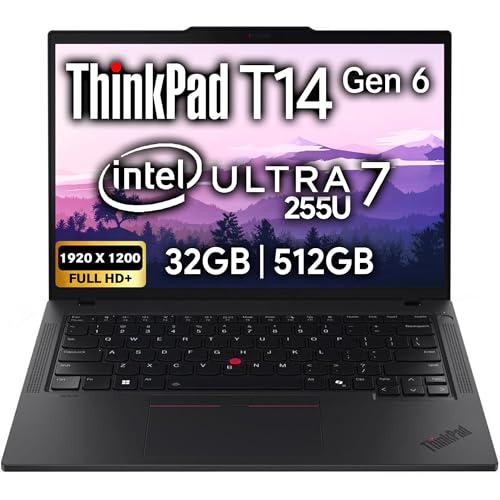
Lenovo ThinkPad T14 Gen 6 — Newest Generation
Choosing the Gen 6 over its Gen 5 siblings is a decision about calendars rather than benchmarks. Its listing shows an Intel Ultra 7 255U processor, 32GB of DDR5 memory and a 512GB SSD, a configuration that mirrors the AMD machine above while sitting one generation newer — which translates into a longer window of firmware updates, a longer tail of kernel refinements for its exact platform, and parts availability that stretches further into the machine’s working life. For a laptop you plan to carry through a multi-year certification path, that runway is worth real money.
The listed details read like a checklist for lab practicality: a 14-inch FHD+ IPS screen, a 5MP webcam for remote proctored exams and video check-ins, a fingerprint reader, a backlit keyboard for dim rooms, Wi-Fi 6E and two Thunderbolt 4 ports. Those Thunderbolt ports matter more than they appear to. A Kali workflow often involves external drives — one holding VM images, another holding a bootable live environment — and fast, standardised ports mean the desk setup you build in week one still works in year three.
- Processor named in the listing: Intel Ultra 7 255U
- Memory fitted: 32GB DDR5
- Storage: 512GB SSD
- Display: 14-inch FHD+ IPS panel
- Ports highlighted in the listing: two Thunderbolt 4
- Camera and sign-in: 5MP webcam, fingerprint reader, backlit keyboard
Strengths
- Newest platform in this guide, with the longest expected span of firmware and kernel attention.
- 32GB of memory matches the AMD pick, so the VM-first workflow loses nothing.
- Dual Thunderbolt 4 makes a tidy one-cable desk dock realistic for a home lab corner.
Trade-offs
- The newest generation usually carries the least discounted listings, so patience with pricing is part of the deal.
- Its integrated graphics share the same ceiling as the AMD pick for GPU-side coursework.
- A 512GB drive is adequate rather than generous for someone keeping several large lab VMs.
Best for: candidates starting a long certification path, with one machine staying current across all of it.
Not suited for: a bargain hunter, because last-generation T14 listings are where the aggressive discounts live.
There is also a support-horizon argument specific to this pick. A current-generation ThinkPad sits near the front of Lenovo’s firmware queue, and the Linux kernel’s platform support for a new Intel generation improves rapidly across the first year of its life as quirks are found and fixed upstream. Buying the Gen 6 at the start of a degree means riding that improvement curve in the right direction: the machine’s Linux behaviour in your final year will likely be better than in your first, which is the opposite of how most technology ages. For a Kali user, whose distribution rebuilds on Debian’s moving foundation, that tailwind compounds quietly in your favour.

Lenovo ThinkPad T14 Gen 5 Ultra 7 — Intel Route
Some labs standardise on Intel, some course materials assume it, and some buyers simply trust the platform they already know. This Gen 5 variant answers that preference directly: the listing names an Intel Core Ultra 7 155U, 16GB of DDR5 memory and a 512GB SSD, wrapped in the same T14 formula of a 14-inch IPS FHD+ screen, backlit keyboard and fingerprint reader. The honest difference from the two picks above is memory. Sixteen gigabytes runs Kali natively without any strain at all, and runs a Kali VM perfectly well provided the host system is kept tidy — a browser with forty tabs open beside the VM will make both sides sluggish.
Two Thunderbolt 4 ports headline its connectivity in the listing, alongside a 5MP webcam. For the live-USB route this machine is arguably the most convenient of the four linked picks: ThinkPad firmware has a long-standing reputation for straightforward boot menus, and a student who boots Kali from a stick three times a week will feel that convenience weekly. The DKZ hub bundled in this particular listing also softens the port maths at a desk, though the machine stands on its own without it.
- Processor named in the listing: Intel Core Ultra 7 155U
- Memory fitted: 16GB DDR5
- Storage: 512GB SSD
- Display: 14.0-inch IPS FHD+
- Ports highlighted in the listing: two Thunderbolt 4
- Extras in the listing: 5MP webcam, fingerprint reader, backlit keyboard, bundled hub
Strengths
- Intel platform with dual Thunderbolt 4 suits dock-based home labs and course setups that assume Intel.
- Native Kali installs run comfortably within 16GB, with memory to spare for graphical tools.
- The T14’s keyboard remains the reference point for long terminal sessions in this class.
Trade-offs
- 16GB is the ceiling for comfortable VM work here; heavy multi-VM labs will outgrow it.
- No memory advantage over cheaper listings means you are paying for platform and ports, not headroom.
- Like the other T14s, graphics are integrated, so GPU-dependent coursework belongs elsewhere.
Best for: a learner whose course or employer lab is standardised on Intel and who boots Kali live or natively more than in a VM.
Not suited for: a student planning to run two or three lab VMs at once, where the 32GB picks above are the safer spend.
One practical note belongs to this configuration alone: because the memory is 16GB, your Kali arrangement should be chosen deliberately rather than by default. Run Kali natively and it has the whole machine; run it live and memory barely matters; run it in a VM and you should treat the guest allocation as a budget you set once — enough for the guest’s tools, no more — and then hold the host to a lean set of open applications during lab hours. Students who adopt that discipline report the machine feels larger than its specification. Students who do not will blame the laptop for what is actually a scheduling problem between two operating systems.

Lenovo ThinkPad X1 Carbon Gen 12 — Lightest Linked Pick
The X1 Carbon answers a different Kali question: what if the lab moves with you? Its listing specifies an Intel Ultra 7 165U vPro processor, 32GB of RAM running at 6400MHz, and a 1TB Gen4 Performance SSD — double the storage of the T14s — inside the carbon-fibre chassis that has made this line the default executive travel laptop for a decade. A terabyte changes the Kali maths completely. A native Kali partition, a Windows host, two VM images and a snapshot history coexist without the weekly purge that 512GB owners learn to perform.
The 14-inch WUXGA touchscreen is rated at 100% sRGB in the listing, and the camera is an FHD+ unit with infrared for face sign-in under Windows. None of that is Kali-specific, and that is precisely the point of this pick: it is the machine for someone whose day job travels — conferences, client sites, training venues — and whose Kali environment must live inside the laptop they were already carrying. The vPro processor also hints at its fleet origins; machines built for corporate deployment tend to receive careful firmware maintenance, which pays off in boring, reliable boot behaviour.
- Processor named in the listing: Intel Ultra 7 165U vPro
- Memory fitted: 32GB at 6400MHz
- Storage: 1TB Gen4 Performance SSD
- Display: 14-inch WUXGA touchscreen, 100% sRGB per the listing
- Camera: FHD+ with infrared
- Operating system in the listing: Windows 11 Pro
Strengths
- 1TB of storage ends the partition anxiety that shadows the 512GB picks.
- 32GB of fast memory keeps a Kali VM and a Windows host equally fluid on the road.
- The lightest chassis among the linked picks, built for people who genuinely carry their lab.
Trade-offs
- Flagship pricing buys portability and storage, not extra Kali capability over the T14 Gen 5 AMD.
- A slim chassis has less thermal headroom for sustained all-core loads than the thicker T14 body.
- The glossy touch panel is less forgiving under harsh venue lighting than a matte screen.
Best for: a travelling consultant or trainer whose Kali environment rides inside their everyday ultraportable.
Not suited for: a desk-bound student, who would be paying a premium for lightness they will never lift.
Consider the training-room scenario this pick serves. A course runs in a rented space with wired drops at each seat, a projector feed to drive, and a stack of boot media to work through. The Carbon takes all of it in stride: its storage swallows the course’s VM library whole, its memory runs the host and guest without triage, and at the end of the day it slides into a bag that your shoulder forgets by the hotel door. No other linked pick combines those three traits, and the premium is easier to justify when the laptop is also your presentation machine, your note-taker and your entertainment on the flight home.
Framework Laptop 13 — Modular Pick
Framework sells its laptops directly through its own store, which is why this pick carries no Amazon link: the company’s machines are configured and ordered on its site, and the Amazon results for the name are accessories rather than the laptop itself. What earns the Framework 13 a place in a Kali guide is its expansion-card system. The ports are swappable modules, so the side of your laptop can become whatever the term’s work demands — extra USB-A for boot media and adapters, full-size wired networking where a course provides it, or additional storage presented as a card. A Kali machine benefits from that flexibility more than most, because lab work involves a rotating cast of USB devices.
The second Framework trait that matters here is documented openness about Linux. The company publishes setup guidance for major distributions and sells a do-it-yourself edition that arrives ready for you to install an operating system of your choosing, which removes the ritual of evicting a preinstalled Windows before Kali can move in. Mainboards, memory and storage are user-replaceable by design, so a machine bought for an introductory course can grow more memory when your VM habits grow with it.
- Form factor: 13-inch class laptop with swappable expansion-card ports
- Sales channel: Framework’s own store only
- Editions: prebuilt or do-it-yourself, the latter ready for a self-installed OS
- Upgrades: mainboard, memory and storage designed to be replaced by the owner
- Linux posture: distribution setup guides published by the maker
Strengths
- Port modularity matches the adapter-heavy reality of lab coursework better than any fixed port selection.
- Memory and storage upgrades postpone replacement by years, which suits a long study path.
- The DIY edition sidesteps the preinstalled-Windows eviction step entirely.
Trade-offs
- Ordering, support and returns run through one company’s store rather than a marketplace’s logistics.
- Configuration choices are yours to make, including the mistakes; there is no single canonical build to copy.
- Per-unit pricing rarely undercuts a discounted ThinkPad of similar headline specification.
Best for: a hands-on learner who enjoys configuring hardware and wants the laptop to evolve alongside the syllabus.
Not suited for: shoppers expecting next-day marketplace delivery and a fixed, IT-department-approved configuration.
The repair story deserves emphasis because coursework machines live hard lives. A cracked keycap or a tired battery in week nine of a twelve-week course is a crisis on a sealed ultraportable and a weekend errand on the Framework: parts are listed in the maker’s own marketplace, guides are written for owners rather than service centres, and the tools required are ordinary. For a student whose laptop is also their only computer, that difference between a repair and a replacement is the difference between an inconvenience and a disaster, and it never appears on a specification sheet.
System76 — Direct-from-Maker Pick
System76 appears in a Kali guide for a structural reason: it is a computer maker whose entire catalogue is engineered around Linux, sold exclusively through its own storefront, and that is why no Amazon link exists for this pick — searches for the brand on Amazon surface third-party accessories, not the company’s laptops. A buyer choosing System76 is choosing a vendor whose support staff treat a Linux installation as the product rather than as an unsupported deviation, and whose firmware work is done in the open.
For Kali specifically, the appeal is indirect but real. Kali itself is a guest you install; what System76 guarantees is a machine whose every component was selected to behave under a Linux kernel, because the company’s own distribution has to run flawlessly on it first. Wireless, suspend, function keys and power management are validated before sale rather than discovered by the buyer afterwards. Someone burned by a consumer laptop whose Wi-Fi vanished under Linux will understand exactly what that guarantee is worth, even though Kali will still be an installation you perform yourself.
- Form factor: a range of Linux-first laptops sold under one brand
- Sales channel: the maker’s own store only
- Operating system focus: the company’s own Linux distribution, with other distributions welcomed
- Firmware: developed openly, with Linux behaviour as the design target
- Support posture: Linux questions are the support team’s home ground
Strengths
- Every component is chosen for Linux behaviour before sale, removing the chipset lottery entirely.
- Support conversations start from Linux, so Kali-adjacent questions meet informed answers.
- Open firmware work means boot behaviour is documented rather than mysterious.
Trade-offs
- No marketplace purchasing, so no marketplace discounts, delivery speed or returns machinery.
- The catalogue is smaller than a major brand’s, so size and configuration choices are narrower.
- Kali still arrives as your own installation; the maker optimises for its own distribution first.
Best for: a Linux-committed buyer who values a vendor that validates every component under a kernel before shipping.
Not suited for: comparison shoppers determined to weigh ten configurations across sellers and check out in one basket.
There is a temperament match worth naming, too. System76’s buyers tend to be people who file good bug reports, read changelogs and enjoy understanding their tools — which is a precise description of the students who thrive with Kali rather than merely completing it. The hardware guarantee removes one category of friction, and the community around the brand removes another: questions about Linux behaviour on these exact machines have usually been asked and answered in public already. None of that makes the laptop faster. It makes the ownership quieter, and quiet ownership is what a demanding course actually requires from its hardware.
Comparison Table: Kali Priorities Across the Six
| Pick | Processor (as listed) | Memory | Storage | Screen | Defining trait for Kali use |
|---|---|---|---|---|---|
| ThinkPad T14 Gen 5 AMD | Ryzen 7 PRO 8840U | 32GB DDR5 | 512GB NVMe | 14-inch WUXGA touch | Balanced VM headroom at the guide’s centre |
| ThinkPad T14 Gen 6 | Intel Ultra 7 255U | 32GB DDR5 | 512GB SSD | 14-inch FHD+ IPS | Longest firmware and kernel runway |
| ThinkPad T14 Gen 5 Ultra 7 | Intel Core Ultra 7 155U | 16GB DDR5 | 512GB SSD | 14-inch IPS FHD+ | Intel platform with dual Thunderbolt 4 |
| ThinkPad X1 Carbon Gen 12 | Intel Ultra 7 165U vPro | 32GB | 1TB Gen4 SSD | 14-inch WUXGA touch | Storage and lightness for a travelling lab |
| Framework Laptop 13 | Chosen from the maker’s mainboard options | Owner-configured, replaceable | Owner-configured, replaceable | 13-inch class | Swappable ports for adapter-heavy coursework |
| System76 | Selected per model in the maker’s range | Selected per model | Selected per model | Several sizes in the range | Components validated under Linux before sale |
Should a Kali Laptop Be Chosen by Its Wireless Chipset First?
Wireless is the one component where Kali’s demands genuinely diverge from ordinary Linux use, so it deserves direct treatment. A distribution used for general computing needs an adapter that connects reliably. Kali coursework additionally involves the adapter behaving predictably under the distribution’s own tools, which, in concrete terms, means preferring chipsets whose drivers live inside the Linux kernel itself. In-kernel drivers are maintained by the kernel community, arrive with the distribution, and survive updates. Drivers maintained outside the kernel tree can lag behind a new kernel release by days or weeks, and a course deadline does not care.
None of the listings in this guide name a wireless chipset — the ThinkPad listings state Wi-Fi 6E, which describes a standard, not a chip — so the practical advice is procedural. Before buying any laptop for Kali, identify the exact adapter fitted to the configuration you are ordering, then check that adapter against the kernel’s own documentation and Kali’s published hardware notes. Business laptops make this easier than consumer machines because their configurations are documented at a component level for fleet buyers. If wireless coursework is central to your plans, many students also keep a well-supported external USB adapter as a dedicated lab peripheral; the laptop’s internal card then only needs to be excellent at ordinary networking, which every pick here is.
There is a second, quieter wireless consideration: stability under sustained use. Lab sessions run long, virtual machines bridge through the host’s connection, and large course downloads happen over the same radio. An adapter that is merely compatible but drops under load will teach you troubleshooting you never enrolled for. Reviews and owner reports for business machines are unusually informative here, because fleet users notice and document exactly these behaviours.
Ethernet deserves a footnote in the wireless discussion, because wired connections quietly solve several lab problems at once: a shaky venue network during a timed exercise, a large image download that would take an hour over a congested radio, a router on a desk that needs configuring from a machine it does not yet trust. Modern thin laptops increasingly omit the port, which pushes the answer toward adapters and docks — another reason the Thunderbolt 4 ports named in two of these listings matter, and another point in the Framework’s favour, since one of its swappable cards can simply be an Ethernet port on days when the work demands one. None of this changes which laptop to buy; it changes what lands in the same order, and a ten-minute thought about cables now prevents a frustrating first lab session later.
Live USB, Virtual Machine or Native Install — Which Route Fits Your Course?
Start with the live route if your course allows it, because it asks the least of the laptop and nothing of its internal drive. Kali boots from a USB stick, optionally with a persistence area that saves your work between sessions, and the host system remains untouched. The hardware demands are a reliable boot menu, USB ports that deliver stable power, and enough memory that the session never feels like it is swapping to a slow stick. All four linked ThinkPads qualify without drama, and the Framework’s swappable ports make dedicating one side of the machine to boot media almost elegant.
Choose the virtual machine route when Kali is one subject among several. The VM keeps your notes, browser and coursework documents on the host while Kali runs in a window, snapshots let you rewind a broken lab exercise in seconds, and closing the lid ends the session cleanly. This route is why memory dominates the pick descriptions above: the host and guest divide the machine between them, and 32GB divides gracefully where 16GB divides grudgingly. Storage speed matters too, because a VM image on an NVMe drive starts in seconds and snapshots without a coffee break.
Reserve the native install for when coursework needs the hardware directly — sustained wireless exercises, for example, or a training programme that expects Kali as the machine’s only system. Native installs reward boring hardware: standard storage controllers, firmware that offers a plain boot-order menu, and components with in-kernel support. They also demand a decision about the existing Windows installation, which is why several readers will sensibly run live or virtualised for a full term before committing a drive.
A word about the number in the search phrase itself: lists promising fifteen or twenty Kali laptops are usually padding one buying decision into a catalogue. Six machines cover the real decision space — a balanced AMD all-rounder, a newest-generation Intel, an Intel value route, a travel flagship, a modular wildcard and a Linux-native maker — and a seventh or eighth name would mostly repeat one of those shapes with a different badge. Depth about the decision beats breadth about the catalogue, which is why each pick below gets a full working analysis instead of a paragraph.
How Much Memory Does a Kali Virtual Machine Actually Need?
A Kali guest is comfortable with a modest allocation for terminal-based exercises and grows hungry as graphical tools and browsers join the session. The practical planning figure used throughout this guide is that a 32GB host can give Kali a generous share while keeping the host’s own browser, documents and chat tools fluid, whereas a 16GB host asks you to close things before the VM opens. Neither is a failure state; they are different study rhythms. The 16GB T14 Gen 5 Ultra 7 remains a rational buy for a student whose Kali work is mostly live or native, and a frustrating one for a student running two lab VMs side by side.
Storage interacts with memory through snapshots. Each snapshot you keep is disk space held hostage, and VM-heavy students accumulate them the way photographers accumulate memory cards. The X1 Carbon’s terabyte is therefore not a luxury in disguise; it is the difference between keeping a clean snapshot history for every lab module and deleting last month’s safety net to make room for this month’s.
Portability cuts both ways and deserves a paragraph of its own. A Kali laptop is often carried into shared spaces — classrooms, labs, meetups — where it connects to networks its owner does not control and sits on desks among strangers. The fingerprint readers named in the Gen 6 and Intel Gen 5 listings, and the infrared camera in the X1 Carbon’s listing, are convenience features at home and genuine safeguards in those rooms, because a machine that unlocks with a touch is a machine its owner actually keeps locked. Drive encryption on both the Windows host and any native Kali install completes the picture; it costs an evening to set up and removes the worst consequence of a laptop left behind in a training venue. None of this is exotic tradecraft. It is the ordinary hygiene of carrying a specialist system in public, and the picks above support it without extra hardware.
What Should You Set Up in the First Hour With a New Kali Laptop?
Update the machine’s firmware under its shipped Windows installation before Kali enters the picture, because firmware updaters are overwhelmingly delivered as Windows tools or bootable images prepared under Windows. Then create recovery media for the factory state, so any experiment can be undone to a known-good laptop. Only after those two housekeeping steps should the Kali image be written to a USB stick — using a reputable imaging tool, with the image’s integrity verified against the checksum Kali publishes, a habit that takes two minutes and eliminates an entire category of mysterious failures.
Boot the live session next and audit the hardware before installing anything: wireless association, suspend and resume, function keys, audio, and an external monitor if your desk uses one. Write the results down. That one page of notes becomes your compatibility record, and it tells you whether the native route will be smooth or whether the VM route deserves to be your permanent arrangement. Finally, if you do install, keep the Windows recovery path intact and document your partition layout in the same notebook; future-you, mid-course, will be grateful for both.
What Do the Screen and Keyboard Owe a Kali User?
Kali work is reading work. Terminals, logs, documentation and packet summaries are all text, rendered small, studied for hours. That makes the display requirements different from a media laptop’s: resolution in the 1920×1200 class — the WUXGA and FHD+ panels named across these listings — buys vertical lines of text, and vertical lines are what logs consume. A taller 16:10 canvas shows more of a terminal’s history without scrolling, which sounds trivial until you are comparing two outputs that refuse to fit on a shorter screen at once. Matte or low-gloss finishes help under fluorescent lab lighting; the X1 Carbon’s touchscreen is the one glossy concession in the linked set, traded knowingly for its other virtues.
The keyboard matters for the same reason. Security coursework is typed, at length, with a heavy diet of symbols that live on awkward key combinations. The ThinkPad keyboard fitted across the four linked picks is the industry benchmark for exactly this punishment: deep, sculpted keys, a layout that keeps navigation keys findable by touch, and backlighting named in the Gen 6 and Intel Gen 5 listings for the dim rooms where evening labs happen. A buyer comparing two machines with equal memory should let the keyboard break the tie, because the keyboard is the component your hands will grade every single day.
Battery behaviour completes the trio. Live sessions and VMs both prevent the deep idle states that stretch a light laptop’s day, so realistic planning assumes a Kali workload drains a battery noticeably faster than document work on the same machine. The efficient U-series processors named in every linked listing are the right starting point — they sip where performance-class chips gulp — but a seat near a power outlet remains the seasoned student’s first act in any training room.
None of these ergonomic points appears in a search filter, which is why Kali laptop advice so often disappoints: the specification that decides whether you enjoy the machine is the one you cannot sort a catalogue by. If you can handle a display unit before ordering, spend your minutes typing a paragraph and reading a dense page of text rather than admiring the chassis. Your hands and eyes are the reviewers whose verdicts you will live with.
How Should Storage Be Divided Between a Host, a Guest and a Native Install?
Think of the internal drive as three tenants competing for one building. The Windows host wants room for itself, its applications and its update cache, which grows without asking. The Kali VM wants its virtual disk plus a snapshot history, and snapshots are the rent that creeps: each one is small, and a term’s worth of them is not. A native Kali partition, if you add one, wants a fixed allocation that the other two tenants must then plan around. On a 512GB drive — three of the four linked picks — the honest layout is a host with discipline, one VM with a capped snapshot habit, and a native install only if you retire something else. On the X1 Carbon’s terabyte, all three tenants fit with room for the course’s download library besides.
External storage relieves the pressure elegantly, and this is where the Thunderbolt 4 ports on the Gen 6 and Intel Gen 5 listings earn their mention. A fast external SSD holding the VM library turns the internal drive back into a two-tenant building, and it lets the same Kali environment move between a laptop and a desk machine. The trade is a cable and a peripheral to carry; the gain is that the laptop’s storage stops being the constraint your study routine is designed around.
Whichever layout you choose, write it down and back up the host before the first partition tool runs. Storage rearrangement is the one operation in this entire guide that can destroy data when performed carelessly, and it is performed most carelessly in the first excited hour of ownership. The machines are patient. Let the layout wait until the second day.
Does Processor Generation Change Anything for Kali, or Is Memory the Whole Story?
Memory dominates this guide’s advice because it gates the VM route, but processor generation is not irrelevant — it simply matters in slower, less visible ways. A newer platform brings a newer kernel-support story: the integrated graphics, power management and sleep states of a fresh Intel or AMD generation are refined across successive kernel releases, so a Gen 6 machine’s rough edges polish away with updates while a much older machine’s quirks are simply permanent. For a distribution like Kali, which rebuilds regularly on a current foundation, riding a platform that upstream developers actively use is a genuine, if unglamorous, advantage.
Raw speed, by contrast, matters least of the three. Compiling a kernel or a large tool from source is the one Kali-adjacent task that pins every core, and it is an occasional event rather than a daily one; the U-series processors named in these listings handle it patiently, trading minutes for the battery life and quiet fans you benefit from daily. A buyer choosing between a faster chip with 16GB and a calmer chip with 32GB should take the memory every time for this workload, and the Quick Picks table is ordered by exactly that logic.
The exception proves the rule: if your programme includes sustained local computation — large-scale auditing exercises in a closed lab, for instance, run on hardware you own — the honest answer is that a laptop stops being the right shape of tool, and a desktop with a discrete graphics card becomes the machine to budget for alongside any of these picks. Recognising that boundary before purchase is cheaper than discovering it mid-term.
Mistakes That Turn a Capable Laptop Into a Bad Kali Machine
Buying for the graphics card is the most expensive error in this category. Kali’s daily tools are terminal programs, browsers and documentation; a discrete GPU adds cost, heat and driver complexity while contributing nothing to the coursework, and the budget it consumes would have bought the memory that actually shapes the experience. The second error is treating wireless as an afterthought — discovering, after purchase, that an adapter needs an out-of-tree driver is discovering it at the worst possible moment. Research the chipset first, while the decision is still reversible.
A third error is installing natively on day one, before the live audit described above, and then blaming the distribution for hardware quirks that a VM would have hidden entirely. The routes exist in a sensible order: live first, virtualised for daily study, native when the work demands it. The fourth error is subtler — buying the minimum storage and then letting VM snapshots consume it silently until the host system starts failing in unrelated-looking ways. Snapshot hygiene is part of laptop ownership in this category, and a larger drive is the forgiving version of that lesson.
Finally, avoid the collector’s error: installing Kali and then spending the term customising it instead of studying with it. The distribution is a toolchest, not a hobby desktop, and the laptop that serves you best is the one whose setup you finished in the first week and then ignored.
Final Recommendation
For most readers, the ThinkPad T14 Gen 5 AMD is the answer: 32GB of memory, a fast NVMe drive and a platform with mature kernel support, at the centre of the guide’s price gravity. Choose the Gen 6 if your study path runs for years and you want the newest platform under you, the Intel Gen 5 if your lab standardises on Intel and your Kali use leans live or native, and the X1 Carbon if the lab travels. The Framework 13 rewards tinkerers with ports and parts that evolve, and System76 removes the compatibility lottery for buyers content to order direct. Pick the route you will actually use — live, virtual or native — and let that decision, not a spec sheet, choose between them. A Kali laptop is ultimately a quiet place to practise, and the best machine here is the one that disappears beneath the coursework by the second week of term.
Two closing cautions belong with that recommendation. First, buy the configuration in the listing title, not the model name in a headline: T14s are sold in many memory and storage combinations, and the difference between a 16GB unit and a 32GB unit is the difference between two of the picks above. Read the title, confirm the numbers, then order. Second, treat the first week as setup week — firmware, recovery media, the live audit, a snapshot routine — and resist the urge to begin coursework on an unproven machine. The students who do that housekeeping once rarely think about their laptop again, and not thinking about the laptop is the entire point.
Frequently Asked Questions
Does any laptop come with Kali Linux already installed?
No mainstream maker ships Kali preinstalled, and that is by design: Kali is a specialist distribution its own developers aim at experienced users who install it themselves. The machines in this guide either run Kali well once installed or, in System76’s case, ship with a different Linux distribution from a maker that validates hardware under Linux. Expect to perform the installation whichever pick you choose.
Can I run Kali in a virtual machine on these laptops instead of installing it?
Yes, and for most students that is the recommended arrangement. A Kali VM under a Windows 11 Pro host — the operating system named in the linked listings — keeps coursework sandboxed, snapshot-able and easy to delete. The requirement is memory: 32GB configurations divide between host and guest gracefully, while the 16GB configuration works when the host’s own load stays modest.
Why does this guide favour business laptops over gaming laptops for Kali?
Because the budgets land in different places. A gaming laptop spends on a discrete graphics card that Kali’s coursework rarely touches, while a business laptop spends on memory, documented components, administrator-friendly firmware and screens meant for text. Those traits map directly onto live, VM and native Kali use, which is why every linked pick here is a business machine.
Is the wireless adapter really that important for a Kali laptop?
It is the component most likely to cause trouble, because Kali work asks more of an adapter than ordinary browsing does, and because support quality depends on whether the chipset’s driver lives in the kernel. Listings rarely name the chip, so verify the exact adapter fitted to your configuration against kernel documentation and Kali’s hardware notes before ordering.
Should a beginner buy a laptop specifically for Kali?
Usually not a dedicated one. Any of the linked picks works as an everyday Windows laptop for documents and coursework while carrying Kali live or in a VM, which means the purchase stays useful even if your studies change direction. A dedicated machine makes sense later, when a native install and a specific lab setup become your daily environment.
What is the advantage of the Framework Laptop 13 for security coursework?
Its ports are swappable modules, so the laptop’s sides can be rearranged around the peripherals a lab requires, and its memory, storage and mainboard can be replaced as your needs grow. It is sold only through Framework’s own store, so it appears here without a link, and its do-it-yourself edition arrives ready for an operating system you install yourself. Students who expect their peripherals to change from module to module — a wired port this term, extra storage the next — feel the benefit most, because the laptop’s edges adapt instead of accumulating dongles in a drawer.
Related Guides
Three neighbouring guides extend the thinking in this one, each approaching Linux laptops from a different doorway: the development-focused guide, where kernels, containers and long compile days set the criteria, our machine-learning laptop guide, which weighs graphics memory and CUDA behaviour under Linux, and the dual-boot guide, for readers planning to share one drive between Windows and Linux without drama.


