What's inside
- Key Takeaways
- Quick Picks
- How We Chose These Picks
- Four Terabyte-Class Machines, Compared on the Details That Divide Them
- How Much of a Terabyte Will You Actually Use in Three Years?
- Why Can’t You Simply Upgrade the Drive Later?
- What Should You Check on Any 1TB Listing Before Paying?
- How Should You Organise a Terabyte So It Stays Useful?
- Which Buyers Should Choose 512GB and Spend the Difference Elsewhere?
- What Does a Terabyte Change About Daily Life With the Machine?
- How Do the Makers’ Own Configuration Ladders Try to Trip You?
- Common Mistakes When Buying a High-Capacity Laptop
- Final Recommendation
- Frequently Asked Questions
- Related Guides
As an Amazon Associate I earn from qualifying purchases. This post may contain affiliate links at no extra cost to you.
widgetverdict.com is reader-supported. When you buy through links on our site, we may earn an affiliate commission.
Where to buy: each linked laptop below leads to its Amazon listing, where you can check price on Amazon and confirm the exact configuration in the listing title before you order — a step that matters more with this category than with almost any other, for reasons this guide will keep returning to.
The best 1 tb laptops used to be a workstation niche, the preserve of video editors and engineers who ordered storage the way other people order legroom. That era is over. A modern photo library, a few years of phone video, two or three large games, and a local copy of everything the cloud was supposed to hold will quietly consume half a terabyte, and the 512GB machine that felt generous at purchase starts sending eviction notices by its second year. A terabyte of internal storage is now the size that lets a laptop simply be a laptop — no external drive dangling from a port, no weekly purge ritual, no choosing which beloved project gets exiled to an archive disk.
There is a catch, and it shapes this entire guide: 1TB is a configuration, not a model. Nearly every laptop line is sold in several storage sizes under one name, and listings, reviews, and even manufacturers’ pages blur them together. The four linked picks below were verified against listings whose titles state 1TB outright, and this guide claims a terabyte only for those machines. The two prose picks are excellent laptops whose storage varies by configuration, so they are described without a capacity claim — when you shop them, the listing title is the document that counts.
There is also a timing truth worth stating plainly: storage is cheapest at the moment of configuration and most expensive as a regret. The step from a mid-size drive to a terabyte, taken at purchase, is a modest line item beside the machine’s total; the same capacity, wished for in year three, costs a whole new laptop. Every pick in this guide should be read with that asymmetry in mind, because it is the economic engine underneath the entire category.
Beyond the storage question, these six were chosen as laptops first. A terabyte in a machine with a dim screen, a mushy keyboard, or a battery that quits at lunch is a warehouse with no doors. Each pick below earns its place on the whole of its design, with the big drive as the qualifying event rather than the only event.
Key Takeaways
- All four linked picks carry a verified 1TB drive in their listing titles: the MacBook Air 13 M5, Dell XPS 13 9350, ASUS Zenbook 14 OLED, and Lenovo Yoga 7i.
- Buy the terabyte at purchase time — in this class of thin laptops the storage is soldered, and no upgrade path exists later.
- The Zenbook 14 OLED pairs its 1TB drive with 32GB of memory, the most headroom of any machine in this guide.
- The Yoga 7i is the only convertible here, folding into a tablet while still carrying a full terabyte.
- For the two prose picks, storage depends on configuration, so the listing title — not the model name, the photograph, or a review of a different unit — is what you must verify.
Quick Picks
| Pick | Badge | Why it is here |
|---|---|---|
| Apple MacBook Air 13 M5 1TB | Top Choice | Apple’s silent, fanless Air with a full terabyte and the ecosystem’s best battery manners. |
| Dell XPS 13 9350 1TB | Windows Flagship | A 13.4 inch aluminium flagship whose verified configuration pairs 1TB with Intel Core Ultra power. |
| ASUS Zenbook 14 OLED 1TB | Most Headroom | 32GB of memory, a 1TB drive, and a WUXGA OLED panel in a slim 14 inch frame. |
| Lenovo Yoga 7i 1TB | Convertible Choice | A 2-in-1 with an OLED touchscreen, a bundled pen, and a verified terabyte inside. |
| HP Spectre x360 14 | Prose Pick | A premium convertible whose storage depends on configuration — verify the listing title carefully. |
| Lenovo ThinkPad X1 Carbon | Prose Pick | The business benchmark, sold across many configurations; choose its storage deliberately at order time. |
How We Chose These Picks
Verification came first, and it eliminated more famous names than any performance test could have. A pick could only be linked if its listing title stated the 1TB capacity in plain text, because experience shows that configuration tables, dropdown selectors, and review units conspire to blur exactly the detail this guide exists to clarify. Four machines cleared that bar with room to spare. Two further laptops — machines we would happily recommend as laptops — are covered in prose because their listings present storage as a choice rather than a fact, and this guide refuses to print a capacity it cannot point to.
With the storage gate passed, the judging turned to the laptop around the drive. Display quality led, because a screen is the one component you use every second the machine is open. Memory followed: a terabyte of storage invites large libraries and large projects, and 16GB is the sensible floor for that life, with the Zenbook’s 32GB standing out as genuine headroom. Battery behaviour, keyboard feel, port selection, and the maker’s support record completed the ledger, in that order, for every pick.
We also weighed how each maker treats the buyer after the sale, because a high-capacity machine is a long-term relationship. Apple’s and Dell’s service networks need no introduction; Lenovo’s business-grade support spills over to its consumer flagships in many regions; ASUS has invested visibly in its premium-line support. None of the six names here leaves an owner stranded, which is more than can be said for the anonymous high-specification bargains that crowd this category’s lower shelves — machines whose terabyte is real and whose warranty is theoretical.
One deliberate exclusion deserves a note. Gaming laptops with a terabyte are plentiful and often excellent, but they answer a different question — their storage serves game libraries measured in hundreds of gigabytes per title, and their weight and battery profiles belong in a gaming guide. This ranking serves the buyer who wants a terabyte inside a machine they can carry all day.
Apple MacBook Air 13 M5 1TB — Top Choice
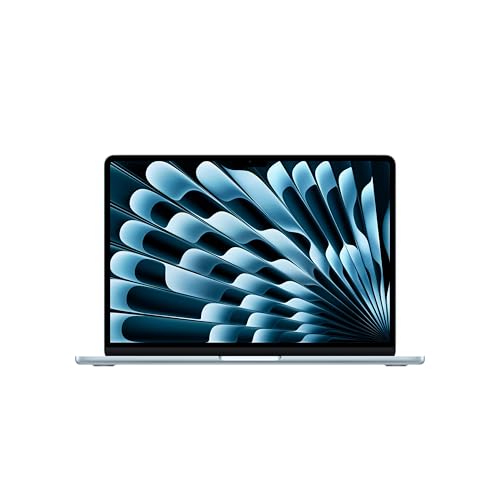
The MacBook Air’s trick has never been raw novelty; it is the absence of friction, and the 1TB configuration removes the last friction the base model still had. Apple’s M5 chip drives a 13.6 inch Liquid Retina display inside a fanless aluminium shell, which means the machine is silent under every workload a sane person gives a thin laptop, and its storage — a full 1TB SSD, stated plainly in the listing — finally matches the rest of the design’s ambition. Photo libraries stay local. The video project stays local. The machine stops being a careful negotiation with its own drive.
Sixteen gigabytes of unified memory is the configuration’s specification, and for the Air’s audience it is the right size: the M5’s efficiency makes 16GB feel roomier than the same figure in a less integrated design, and only buyers juggling enormous timelines or many virtual machines will find its ceiling. The supporting cast is thoroughly modern — a 12MP Center Stage camera that frames video calls properly, Touch ID in the power button, and Wi-Fi 7 for networks that support it. The Sky Blue finish of the verified listing is the gentlest of Apple’s recent colours, professional without being funereal.
Battery behaviour remains the Air’s signature advantage. This is the laptop that treats a full working day away from a socket as a normal expectation rather than a stretch goal, and the 1TB model changes nothing about that discipline. For writers, students, consultants, and anyone whose office is wherever the laptop opens, that combination — silence, stamina, and a terabyte that ends storage anxiety — is the most complete answer in this guide.
The boundaries are Apple’s usual ones. Ports are few, the display — lovely as it is — is not the OLED panel two rivals below will offer you, and macOS is a commitment as much as a feature. Buyers embedded in Windows-only software should read on. Buyers free to choose will find the Air the easiest machine here to recommend without a single asterisk about its storage.
Consider who feels this configuration most: the photographer returning from a trip with a card full of raw files, who can now copy everything onto the machine on the train home and start culling immediately, rather than triaging through an external drive balanced on a seat-back tray. Or the parent whose phone has been promising to back up “when connected to the computer” for a year. The terabyte does not change what the Air is; it changes how often the Air’s owner has to think about the Air, which for this class of machine is the highest praise available.
- Storage: 1TB SSD, stated in the listing title
- Chip and memory: Apple M5 with 16GB unified memory
- Display: 13.6 inch Liquid Retina
- Camera and security: 12MP Center Stage camera, Touch ID
- Wireless: Wi-Fi 7; fanless, silent chassis in Sky Blue
Strengths
- Fanless silence with flagship-grade everyday performance
- Battery stamina that outlasts a full working day comfortably
- A verified terabyte ends storage management entirely
Trade-offs
- 16GB of memory is fixed, with no later upgrade path
- Port selection is minimal without a hub
- The display is excellent LCD rather than OLED
Best for: writers, students, and mobile professionals whose days demand silence, stamina, and storage in one machine.
Not suited for: Windows-dependent workflows, or desks crowded with legacy ports and no hub in sight.

Dell XPS 13 9350 1TB — Windows Flagship
Dell’s XPS 13 has spent a decade as the Windows answer to the MacBook Air, and the 9350’s verified configuration is its most complete statement yet: an Intel Core Ultra 7-256V processor, 16GB of memory, and a 1TB NVMe SSD inside a machined aluminium body wrapped around a 13.4 inch FHD+ display. The near-borderless screen design that made the XPS line famous is fully present — the machine reads as all display and keyboard deck, smaller in the bag than its screen size suggests.
The Core Ultra silicon brings Intel Arc graphics and a neural engine for the Copilot+ era’s local tasks, and it does so while keeping the XPS’s travel manners intact: this remains a laptop measured for carry-on life, with Thunderbolt 4 ports handling charging, displays, and docks through a single cable standard. Wi-Fi 7 and Bluetooth are both aboard, the keyboard is backlit, and the webcam covers the video-call baseline that modern work demands.
What distinguishes the XPS in this particular guide is the honesty of its configuration. Dell sells the 9350 across a ladder of storage sizes, and the linked listing is the rung where the title itself promises the terabyte — no configurator archaeology required. For a Windows loyalist who wants the flagship experience and the big drive in one unambiguous purchase, that clarity is worth as much as any benchmark.
The XPS philosophy has edges. The port count is Thunderbolt-only minimalism, the keyboard deck’s clean design divides opinion, and FHD+ resolution trades the OLED drama of the Zenbook below for battery-friendliness and a matte, office-ready character. Judge it as what it is: the establishment Windows flagship, fully specified, with its storage stated in writing.
The XPS also deserves credit for its desk life. Through a single Thunderbolt dock it becomes the engine of a full workstation — external monitors, wired network, backup drives — and the internal terabyte means the dock’s attached storage is an archive, not a necessity. Executives who hot-desk between offices will appreciate that the machine carries its whole world internally: undock, close, fly, reopen, and nothing about the working set has changed.
- Storage: 1TB NVMe SSD, named in the listing title
- Processor: Intel Core Ultra 7-256V with Intel Arc graphics
- Memory: 16GB DDR5
- Display: 13.4 inch FHD+ in a near-borderless frame
- Connections: Thunderbolt 4, Wi-Fi 7, Bluetooth, backlit keyboard
Strengths
- Flagship Windows build in a genuinely compact footprint
- Verified 1TB configuration with no configurator guesswork
- Thunderbolt 4 docking makes it a one-cable desk machine
Trade-offs
- Ports are Thunderbolt-only; legacy devices need adapters
- FHD+ LCD lacks the contrast of the OLED rivals here
- Keyboard deck styling will not please traditionalists
Best for: Windows professionals set on the flagship XPS experience, with storage settled at a terabyte.
Not suited for: buyers who plug in USB-A peripherals daily and refuse to carry a hub.

ASUS Zenbook 14 OLED 1TB — Most Headroom
Read this listing’s specification slowly, because it is the most generous in the guide: an AMD Ryzen AI 7 445 processor, 32GB of LPDDR5X memory, a 1TB SSD, and a 14 inch WUXGA OLED display, all inside the slim Zenbook frame. The memory figure is the headline for longevity. Sixteen gigabytes is today’s comfort; thirty-two is the figure that still feels comfortable when your photo library doubles and your browser habits worsen, and ASUS pairs it with the terabyte rather than treating one upgrade as a substitute for the other.
The OLED panel is the second argument. Deep blacks, rich colour, and the WUXGA resolution across 14 inches make documents, photographs, and films all look like the premium versions of themselves. The chassis keeps the Zenbook line’s party tricks — a hinge that lays flat to 180 degrees for sharing a screen across a table, a backlit keyboard, and a Copilot+ PC badge signalling the Ryzen AI silicon’s local intelligence features. Windows 11 Pro, rather than Home, is the installed edition in this configuration, a quiet bonus for buyers who need its management and security tools.
ASUS also bundles unusually practical extras in this listing, including a mouse and a multi-port hub, which softens the thin-laptop port problem on day one. Wi-Fi 6E rather than 7 is the one specification that trails the Dell and Apple above — a difference that matters only on the newest networks and will be invisible to most owners for years.
As a total package, the Zenbook is the pick for buyers who spec a laptop the way engineers spec a bridge: for the load it will carry in year five, not the load it carries home from the store. The terabyte and the 32GB together make it the machine in this guide least likely to feel small before its time.
A note on the OLED’s working character, since buyers sometimes fear the technology for office use: text rendering on this WUXGA panel is crisp, the resolution is high enough that spreadsheets and code sit comfortably at small sizes, and ASUS’s software includes the panel-care features that shift pixels and manage static elements quietly in the background. Treat it as a normal screen with better contrast, follow the built-in care prompts, and it will simply be the prettiest window in your working day.
- Storage: 1TB SSD, confirmed in the listing title
- Memory: 32GB LPDDR5X — double the rest of this guide
- Processor: AMD Ryzen AI 7 445, Copilot+ PC
- Display: 14 inch WUXGA OLED, 180 degree lay-flat hinge
- Edition: Windows 11 Pro; mouse and hub included in the listing
Strengths
- 32GB of memory gives it the longest useful horizon here
- OLED display outclasses every LCD in this ranking
- Windows 11 Pro and bundled accessories add quiet value
Trade-offs
- Wi-Fi 6E trails the Wi-Fi 7 of the Apple and Dell picks
- OLED panels ask for basic care habits against static elements
- ASUS support experiences vary more by region than Dell’s
Best for: photographers, developers, and heavy multitaskers planning to keep one laptop for many years.
Not suited for: buyers whose priority is the smallest possible 13 inch footprint for daily travel.

Lenovo Yoga 7i 1TB — Convertible Choice
Every other machine in this guide opens like a laptop and closes like a laptop. The Yoga 7i folds all the way around, and its verified configuration — Intel Core Ultra 5 226V, 16GB of memory, and a 1TB SSD stated in the listing — means the flexibility costs you nothing in storage. Tent it for a film, flatten it for a sketch, prop it on a kitchen counter for a recipe: the 14 inch WUXGA OLED touchscreen is the stage for all of it, with full DCI-P3 colour and HDR brightness that make the tablet modes more than a novelty.
The bundled Yoga Pen turns the fold into a tool. Annotating documents, signing contracts, sketching diagrams in a meeting — pen work is where convertibles justify their hinges, and Lenovo including the pen in this configuration removes the accessory hunt that usually follows a 2-in-1 purchase. A fingerprint reader handles sign-in, Wi-Fi 7 handles the network, and Windows 11 Home handles the rest.
The Core Ultra 5 sits a rung below the Dell’s Ultra 7, and in daily service the difference is subtle: office work, browsing, media, and light creative tasks all run with the same ease, while sustained heavy computation is where the flagship chip earns its keep. Buyers whose work is bursty rather than sustained will never meet the gap. Buyers who render for hours should look at the Zenbook’s specification again.
Convertible compromises are the familiar ones: a 2-in-1 carries a little more weight than a pure clamshell of the same size, and the keyboard deck faces outward in tablet mode, protected by design but always a consideration. Against that, the Yoga offers the only screen in this guide you can draw on — with a terabyte behind it for everything you draw, photograph, and file.
Teachers and trainers quietly form one of this machine’s happiest audiences: the screen tents toward a small group, flattens for a student’s diagram to be marked up in ink, and carries a terabyte of lesson media, recorded sessions, and years of accumulated resources without a portable drive in sight. The same versatility serves estate agents, clinicians taking notes, and anyone whose “office” is a sequence of other people’s rooms.
- Storage: 1TB SSD, printed in the listing title
- Form: 14 inch 2-in-1 with a WUXGA OLED touchscreen
- Processor and memory: Intel Core Ultra 5 226V, 16GB RAM
- Pen: Yoga Pen included in this configuration
- Details: fingerprint reader, Wi-Fi 7, Windows 11 Home
Strengths
- The only convertible here, with a pen in the box
- OLED touchscreen with full DCI-P3 colour
- Verified terabyte removes the usual 2-in-1 storage compromise
Trade-offs
- Ultra 5 silicon trails the flagship chips under sustained loads
- Heavier than a pure clamshell of similar size
- Keyboard faces outward in tablet mode
Best for: note-takers, presenters, and annotators covering desk, couch, and meeting room with one device.
Not suited for: marathon renderers who need sustained top-tier processor performance.
HP Spectre x360 14 — Prose Pick
The Spectre x360 is HP’s design flagship, a convertible cut from aluminium with gem-cut edges and one of the finest keyboards in the Windows world, and in most company it would headline a guide like this one. It appears in prose for one reason only: HP sells it across a spread of storage configurations, and its listings present capacity as a selector rather than a statement. This guide claims a terabyte only where a listing title states it, and the Spectre’s titles, as verified for this batch, do not — so the honest treatment is to praise the laptop and instruct the buyer.
The instruction is simple. If you shop the Spectre, choose the configuration deliberately, read the exact listing title of the unit you are buying, and treat any review’s storage figure as belonging to that review’s unit, not yours. Do that, and you get a superb convertible: a vivid display, a refined chassis, and the polished details — camera quality, speaker tuning, hinge feel — that HP’s flagship line sweats over. Skip the verification step and you may receive a beautiful machine with half the storage this guide is about.
Consider the Spectre the connoisseur’s route into this category: the best choice for a buyer who enjoys specifying a machine carefully and values design craft at the highest level. Buyers who want the terabyte settled by the listing itself should take one of the four linked picks above, where the capacity is printed rather than selected.
There is a second, quieter reason the Spectre belongs in a storage guide even in prose: its owners tend to keep their machines. A laptop bought for its design and kept for six years accumulates six years of files, and the configuration decision made in an afternoon governs all of them. If you take the Spectre route, take the largest storage your budget tolerates at order time — future you, migrating nothing and purging nothing, sends thanks.
- Form: premium 14 inch convertible with an aluminium chassis
- Storage: varies by configuration — verify the exact listing title
- Character: design-led, with a standout keyboard and hinge feel
- Buying method: choose the configuration deliberately at order time
- Position: flagship polish for careful specifiers
Strengths
- Among the most beautifully finished Windows laptops made
- Convertible versatility with flagship attention to detail
- Keyboard and trackpad set a class benchmark
Trade-offs
- Storage is a configuration choice, not a stated certainty
- Flagship positioning across the range
- Careless ordering can land you a smaller drive than intended
Best for: design-conscious buyers who enjoy specifying their machine precisely.
Not suited for: shoppers expecting capacity to be guaranteed by a listing they never read closely.
Lenovo ThinkPad X1 Carbon — Prose Pick
The X1 Carbon is the laptop that corporate IT departments buy by the thousand, and its virtues are the institutional ones: a carbon-fibre and magnesium chassis that survives travel abuse, a keyboard that remains the industry’s reference, security features layered for managed fleets, and a support network that treats a dead laptop as an emergency rather than a ticket. For an individual buyer, it offers something rarer — a machine designed to be serviced, warranted, and kept.
Its presence in prose follows the same rule as the Spectre’s. ThinkPads are configured to order across an enormous matrix, storage emphatically included, and the X1 Carbon’s listings reflect that matrix rather than a single fixed specification. Nothing about that is a flaw — it is how business machines are sold — but it means this guide will not print a capacity beside its name. Specify the drive when you order, confirm it in the order summary, and the machine underneath will reward you for a decade.
Who should take this route? The buyer whose laptop is a livelihood: consultants billing by the day, field staff far from a service centre, anyone whose employer’s IT speaks ThinkPad fluently. The X1 Carbon will never win a beauty contest against the Spectre or a silence contest against the Air, yet when a hinge, a key, or a battery needs attention in year four, its owner will be back at work while sleeker machines are still in a shipping box.
Fleet logic can serve individuals in one more way: because X1 Carbons are bought in volume and supported for years, parts, docks, and knowledgeable repair options remain available long after consumer models have become orphaned. A buyer who values a long, repairable life — and who specifies the storage generously at the start, since a decade of files is the plan — will find this the most sustainable route through the entire guide.
- Build: carbon fibre and magnesium, engineered for travel abuse
- Storage: configuration-dependent — specify it in the order summary
- Keyboard: the reference standard for business laptops
- Support: enterprise-grade warranty and service network
- Audience: professionals whose laptop downtime is lost income
Strengths
- Durability and serviceability no consumer line matches
- Best-in-class keyboard for all-day typing
- Security and management features for business use
Trade-offs
- Capacity must be chosen carefully from a large configuration matrix
- Design is sober to the point of invisibility
- Consumer buyers may pay for fleet features they never use
Best for: consultants and business travellers who measure a laptop by uptime.
Not suited for: buyers seeking the most vivid display or the quietest chassis in this guide.
Four Terabyte-Class Machines, Compared on the Details That Divide Them
| Laptop | Storage status | Memory | Display character | Defining trait |
|---|---|---|---|---|
| MacBook Air 13 M5 1TB | 1TB in listing title | 16GB unified | 13.6 inch Liquid Retina LCD | Fanless silence, longest stamina |
| Dell XPS 13 9350 1TB | 1TB in listing title | 16GB DDR5 | 13.4 inch FHD+ LCD | Compact Windows flagship |
| ASUS Zenbook 14 OLED 1TB | 1TB in listing title | 32GB LPDDR5X | 14 inch WUXGA OLED | Most headroom of the group |
| Lenovo Yoga 7i 1TB | 1TB in listing title | 16GB | 14 inch OLED touchscreen | Convertible with pen included |
| HP Spectre x360 14 | Configuration-dependent | Varies | Premium convertible panel | Design flagship |
| ThinkPad X1 Carbon | Configuration-dependent | Varies | Business matte displays | Serviceability and support |
The storage status column is this guide in miniature. Four machines make the promise in writing; two ask you to make the promise yourself at the configurator. Neither approach is dishonest — but they suit different shoppers, and confusing one for the other is how buyers end up with half the drive they thought they had bought.
How Much of a Terabyte Will You Actually Use in Three Years?
Run the audit honestly. A smartphone photo library with a few years of 4K video clips commonly occupies two to three hundred gigabytes once it is stored locally. A working documents-and-projects folder for a professional adds tens of gigabytes; for a photographer, a developer with local datasets, or a video hobbyist, it adds hundreds. Two modern games can claim a quarter of a terabyte between them. The operating system, applications, and their caches take a share that grows quietly every year, and every laptop runs slower and updates worse when its drive is nearly full — free space is a performance feature, not a luxury.
Families deserve a line in this audit, because the family laptop is where storage goes to be surprised. One machine accumulates two adults’ documents, three children’s school projects, the household photo archive, a decade of scanned paperwork, and the games installed by whoever had the machine last. Shared machines fill at roughly the sum of their users’ appetites, and they are the strongest argument in this entire guide for defaulting to the terabyte without debate.
Against that arithmetic, 512GB is the size that works until it suddenly does not, usually in the middle of a project with a deadline attached. A terabyte moves the wall far enough away that most owners never meet it within the machine’s service life. That is the entire case for this category, and it is a strong one: storage is the one specification you feel daily for years, in the negative, only when you bought too little of it.
The exception proves the rule. A buyer whose life genuinely lives in the cloud — documents, photos, media, all streamed — and whose local work is text can thrive on a smaller drive and spend the difference elsewhere. Know which buyer you are before the checkout, because the laptops in this guide cannot change their minds afterward: in thin machines, the storage is soldered to the board.
Why Can’t You Simply Upgrade the Drive Later?
Because the industry traded the upgrade slot for thinness. In the class of laptops this guide covers, storage chips are soldered directly to the main board, a design that saves millimetres and grams while permanently fixing the capacity you chose at purchase. There is no hatch, no spare bay, no Saturday-afternoon upgrade. What you order is what the machine dies with.
External drives soften the blow without removing it. A fast USB-C SSD is an excellent archive and a fine home for a media library, yet it dangles, it occupies a port, it gets left in the other bag, and it cannot host your applications or your working files with the same invisibility as internal storage. Cloud storage has the same shape of compromise, plus a subscription and a dependence on the network being there when the deadline is. Both are good servants and poor substitutes.
The practical consequence deserves emphasis at the moment of purchase: when you are choosing between two configurations of the same laptop, the storage decision is the one you cannot revisit. Screens, keyboards, and docks can all be supplemented later. The drive cannot. That asymmetry is why this guide treats the terabyte not as an indulgence but as the configuration to default to when the budget allows any upgrade at all.
What Should You Check on Any 1TB Listing Before Paying?
First, the title. If the capacity is not printed in the listing’s own title or in the manufacturer’s specification block, treat it as unconfirmed — selector dropdowns and “style name” fields are where configuration mistakes breed. Second, the model number: makers reuse names across years and regions, and a full model or SKU number pins the machine to a specification sheet you can cross-check. Third, the seller: a configuration this specific should come from the maker or an authorised channel, where the title and the box are obliged to agree.
Screenshots deserve a mention as the buyer’s friend: capture the listing page and the order confirmation showing the configuration, and keep both until the machine has passed its first week. If a warehouse error ever ships you the wrong rung of the ladder, those two images end the argument in a single message. It is a thirty-second habit that has rescued more storage purchases than any review ever written.
When the laptop arrives, verify before you migrate. Open the system information on first boot and read the drive’s reported capacity, remembering that a “1TB” drive reports somewhat less in the operating system’s binary arithmetic — that gap is normal and universal, not a shortchange. Check it against the order confirmation while the returns window is wide open, and only then begin moving your life onto the machine. Ten minutes of verification protects the entire premise of the purchase.
How Should You Organise a Terabyte So It Stays Useful?
Capacity without structure becomes a junk drawer with a progress bar. The owners who love their big drives share a few habits. They keep one shallow folder system — work, personal, media, archive — and resist the urge to design a taxonomy worthy of a library science degree, because a system simple enough to use beats a perfect system abandoned by March. They name files with dates and plain words at the moment of saving, since a terabyte’s search results are only as good as the names inside them. And they treat the drive’s final fifth as a reserve, not a resource: the moment free space drops under twenty percent, archiving begins, calmly and by choice, rather than in a deadline panic.
Migration day is the moment to build that structure. Move the documents, photographs, and projects you recognise; leave the mystery folders on the old machine or an external drive until you can identify them, because most are caches and duplicates wearing trench coats. A terabyte filled deliberately, folder by folder, stays navigable for years. A terabyte filled by a single drag-and-drop inherits every bad habit the old drive ever taught you, at twice the scale.
Search is the unsung partner of organisation at this scale. Both major operating systems index a terabyte happily, and a well-named file is findable in seconds from anywhere in the system — which quietly changes behaviour: you stop creating elaborate folder fortresses because retrieval no longer depends on remembering where things live. Let the index do the finding, keep the folders shallow, and the terabyte becomes a library with a good catalogue rather than a warehouse with a long corridor.
Backup closes the system. One copy is none, as the old saying goes: the terabyte should be mirrored to an external drive or a cloud service on an automatic schedule, and the truly irreplaceable material — family photographs, business records — deserves both. The bigger the drive, the more of your life it concentrates, and concentration is precisely what backup exists to undo.
Which Buyers Should Choose 512GB and Spend the Difference Elsewhere?
Honesty requires naming them. The fully cloud-native worker, whose documents, mail, photographs, and media all live server-side and whose laptop is a window rather than a warehouse, gains little from a terabyte and may gain more from a better screen or a lighter chassis. The buyer on a two-year replacement rhythm, who treats laptops as appliances and migrates lightly, similarly rents storage rather than accumulating it. And the second-machine buyer — purchasing a travel companion to a desktop that holds the real library — can let the desktop be the terabyte and keep the laptop lean.
Everyone else should read those exceptions narrowly. The pattern of the last decade is unambiguous: local data grows, applications swell, media files fatten, and the machine bought “just big enough” becomes the machine cursed monthly by year three. If your situation does not match an exception word for word, the terabyte is not the upgrade — it is the baseline that keeps every other part of the laptop pleasant to live with.
What Does a Terabyte Change About Daily Life With the Machine?
The change is mostly an absence, which is why it undersells itself in reviews. Downloads stop being decisions. The operating system’s update never waits for you to free space at midnight. A colleague’s enormous project folder can simply be copied, whole, without a triage meeting. You stop knowing, to the gigabyte, how full your drive is — and that ignorance, for a tool you use ten hours a day, is a form of luxury as real as a brighter screen.
Creative work changes texture as well. Video editors keep entire projects local instead of shuttling media on and off an external drive between sessions. Photographers import a whole shoot and cull at leisure. Developers hold multiple local datasets and virtual environments simultaneously. In each case the terabyte removes a small, recurring friction that used to interrupt concentration several times a week; multiplied across a machine’s life, those recovered moments are the true return on the configuration.
There is a subtler benefit for the machine’s next owner. Laptops with a terabyte age into second lives — a child’s school machine, a family media hub, a backup workstation — far more gracefully than storage-starved models, because the second life always arrives carrying its own new files. Buying the big drive is, in that sense, buying two laptops: the one you use now and the one someone will thank you for later.
How Do the Makers’ Own Configuration Ladders Try to Trip You?
Every manufacturer in this guide sells its laptops as a ladder, and the rungs are arranged to make the middle look sensible and the top look extravagant. Storage doubles at each step while the machine’s name, photographs, and headline reviews stay identical — which is precisely how a buyer ends up reading a terabyte review and purchasing a quarter of it. The ladder also bundles: sometimes the terabyte only arrives alongside more memory or a better screen, which can be a bargain or a trap depending on whether you wanted the bundle. The Zenbook in this guide bundles storage with 32GB of memory, a pairing most buyers will bless; other ladders pair storage with cosmetic upgrades of no lasting value.
The defence is boring and total: shop by full configuration, never by model name. Write down the four numbers that define your machine — processor class, memory, storage, display — and let no listing, review, or salesperson substitute a neighbouring configuration mid-conversation. When a price looks surprisingly gentle for the machine you researched, a rung has been swapped; when it looks surprisingly steep, the same thing has happened in the other direction. The four linked picks in this guide were chosen partly to spare you that vigilance, since their titles fix the storage rung in print.
Common Mistakes When Buying a High-Capacity Laptop
The defining mistake of this category is assuming the model name includes the storage. It never does. A review of a 1TB unit, a friend’s 1TB unit, and a listing’s hero photograph of a 1TB unit can all sit beside a checkout button that ships 512GB, and the only defence is reading the exact title of the exact configuration you are paying for. The second mistake is the mirror image: paying for a terabyte while starving memory, then discovering that 8GB of RAM bottlenecks the creative work the big drive was bought to hold. Storage and memory are a pair; this guide’s linked picks all carry at least 16GB for a reason.
A fifth mistake is quieter: ordering the terabyte and then throttling it with a bargain-bin migration. Moving years of files over a failing cable or an ancient external drive can take a weekend and corrupt the odd archive along the way; use the maker’s migration tools, a fast cable, and verify the important folders’ sizes on arrival. Sixth, some buyers enable every cloud sync service at once on the new machine, and three services dutifully download three copies of the same library — choose one home for cloud files and let the terabyte serve as the local master of the rest.
Third, buyers forget that a terabyte of local data is a terabyte of responsibility. A big drive concentrates years of photographs and documents into one object that can be lost, stolen, or dropped — back it up, to an external drive or a cloud service or both, on a schedule that does not depend on your memory. Fourth, people fill the new drive with the old drive’s chaos instead of using the migration as the one great tidy-up their files will ever get. A terabyte organised at migration stays organised; a terabyte dumped stays dumped.
Final Recommendation
Most buyers should take the MacBook Air 13 M5 in its 1TB configuration and stop thinking: it is silent, it lasts all day, and its listing makes the storage promise in plain language. Windows loyalists who want the flagship form should take the XPS 13 9350’s verified terabyte configuration, while anyone planning to keep a laptop the longest — or to feed it the largest libraries — should take the Zenbook 14 OLED, whose 32GB of memory and OLED panel give it the widest horizon here. If your work involves a pen, the Yoga 7i is the only door in this guide that opens that way, and it does so without surrendering the terabyte.
If forced to compress this guide into a single shopping trip, it would look like this: decide your operating system first, because it narrows the field honestly; then choose between the Air’s silence, the XPS’s compact flagship polish, the Zenbook’s headroom, and the Yoga’s fold; then — only then — look at the price of the configuration whose title you have read twice. Buyers who shop in that order almost never return a laptop. Buyers who shop by discount first return them at a rate the industry politely declines to publish.
The Spectre and the X1 Carbon remain superb machines for buyers who enjoy the configurator and will verify their storage choice line by line. Whichever route you take, let the rule of this guide be your rule at checkout: a terabyte you have read in the title is a terabyte you own, and everything else is a hope with a tracking number. Buy the capacity in writing, organise it once with care, back it up without being asked twice, and the machine underneath those habits will repay you with the rarest experience in modern computing: a laptop you simply stop thinking about, because it never gives you a storage-shaped reason to.
Frequently Asked Questions
Does the operating system change how much of the terabyte I can use?
Slightly. Windows and macOS reserve different amounts for the system, recovery partitions, and preinstalled software, and both report capacity in a way that makes any drive look a little smaller than its box number. The differences between systems are tens of gigabytes at most — noticeable to accountants, irrelevant to the buying decision. What matters is that both systems grow grumpy when free space nearly vanishes, which the terabyte postpones for years.
Is 1TB overkill for a student or office worker?
Rarely, over the life of the machine. The question is usually asked in the machine’s first month, when the drive is empty and any size looks infinite; it answers itself in year three, when the smaller configuration’s owner is deleting downloads with one hand and holding a deadline with the other, wishing the purchase decision had been made by the person they have since become. A student’s drive accumulates lecture recordings, project files, photographs, and the odd game across three or four academic years, and an office worker’s local copies grow with every project archive. The terabyte is bought once and felt as absence-of-worry for years; the smaller drive is saved on once and felt as a chore repeatedly.
Why do the prose picks not state a storage size?
Because their makers sell them across many configurations and their listings present capacity as a choice. This guide claims 1TB only where a listing title states it outright — the standard applied to the four linked picks. For the Spectre and the X1 Carbon, select the capacity deliberately at order time and confirm it in the order summary.
Does a bigger SSD make a laptop faster?
Capacity itself is not speed, but larger drives in this class often sustain heavy writing better, and every drive performs worse when nearly full. The practical speed benefit of the terabyte is that it keeps the machine in its comfortable zone — with free space for caches, updates, and temporary files — for the whole of its service life.
Is a terabyte enough for a small game library alongside work?
For a modest library, yes. A handful of large titles can live beside a full working set of documents and media with room to breathe, provided you uninstall the games you have finished rather than curating a museum. Players building a permanent collection of dozens of major titles belong in the gaming-laptop category, where storage and cooling are both specified for that life.
Can I use an external SSD instead of paying for 1TB?
You can archive to one happily, and many owners pair a smaller internal drive with a fast external for media. What an external cannot do is disappear into the machine: it occupies a port, travels separately, and cannot host your system and applications. For a primary laptop bought to be carried daily, internal capacity remains the cleaner answer.
How do I confirm my delivered laptop really has 1TB?
Check the storage readout in the operating system’s settings on first boot and compare it with the order confirmation. Expect the reported figure to read somewhat below the headline number because systems count capacity differently from marketing; that standard gap is normal. A drive reporting roughly half the expected size, by contrast, means the wrong configuration shipped.
Will a 1TB laptop hold its value better?
Generally yes, for the same reason it serves its second owner better: storage headroom is the quality used buyers screen for first, because it cannot be added later. A machine with a terabyte and a healthy battery remains genuinely useful — and therefore genuinely sellable — years after a storage-starved equivalent has become a parts donor. The premium paid at configuration tends to return a meaningful share of itself at resale.
How long does it take to fill 1TB with photos and video?
Longer than most people expect, which is the point. A heavy phone photographer shooting daily might add tens of gigabytes a year; a family archiving 4K video of children and travel adds more, yet still measures the terabyte in years rather than months. Only working video editors and committed game collectors fill a drive on a schedule short enough to plan around, and they already know who they are.
Should I prioritise 1TB of storage or 32GB of memory?
For most people, the terabyte first: storage exhaustion arrives sooner and cannot be worked around gracefully, while 16GB of memory serves everyday and most creative work well. The exception is the buyer running virtual machines or very large projects, for whom memory is the binding constraint — and for that buyer the Zenbook in this guide, offering both, exists precisely to end the dilemma.
Related Guides
Storage is one axis of the laptop decision; these guides cover the neighbouring ones: best 10-11 inch laptops for the smallest machines that still work like laptops, best 10 laptops for a broader shortlist across sizes, and best $1000 laptops for the strongest machines around a four-figure budget.