What's inside
- Key Takeaways
- Quick Picks
- How We Chose These Picks
- What Changes Between a Touch Panel, an IPS Panel and a Plain HD Screen?
- How Much Memory and Storage Do Everyday Tasks Actually Use?
- How Do You Set Up a Non-Gaming Laptop for Work and Study?
- Which Ports and Extras Separate a Good Desk Setup From a Frustrating One?
- How Long Should a Laptop in This Class Realistically Last?
- What Should You Check in the First Week of Ownership?
- How Do Battery Life and Weight Really Compare Across These Six?
- Which Buying Mistakes Catch People Out at 15.6 Inches?
- Final Recommendation
- Frequently Asked Questions
- Related Guides
As an Amazon Associate I earn from qualifying purchases. This post may contain affiliate links at no extra cost to you.
widgetverdict.com is reader-supported. When you buy through links on our site, we may earn an affiliate commission.
Finding the best 15.6 inch non gaming laptops sounds simple until you notice how much of the 15.6-inch shelf is now built around gaming hardware you may never use. A dedicated graphics card adds weight, fan noise, heat and cost, and it shortens battery life on the train or in a lecture hall. If your days are documents, spreadsheets, browser tabs, video calls and streaming, integrated graphics handle all of it comfortably. This guide gathers six 15.6-inch machines that spend their budget on the screen, the keyboard, memory and storage instead of a GPU, and it explains plainly where each one cuts a corner to reach its price.
Five of the six machines below carry a verified Amazon listing, so the name in the heading links straight to that listing and you can check price on Amazon before deciding. The sixth is a configuration we could not match to a listing we trust, so it appears without a link and is judged on its specification alone. Screen quality varies more inside this group than the shared 15.6-inch size suggests: four models use full HD panels, one settles for an HD panel, and touch input appears on three of them. Read the per-pick notes before assuming two laptops with the same screen size feel the same in daily use.
The 15.6-inch size itself deserves a word of defence, because smaller laptops attract most of the attention now. A 15.6-inch screen shows a document and a reference page side by side without squinting, fits a full number pad that data entry quietly depends on, and gives the chassis room for a battery and cooling that do not fight each other. For a machine that lives on desks, kitchen tables and laps rather than in a jacket pocket, that extra width is a feature, and it is why this size remains the default recommendation for households and students alike.
Nothing here pretends to be a gaming rig in disguise. Integrated graphics will run older or lightweight games at modest settings, and several picks can drive an external monitor for a desk setup, yet none of them is the right answer for someone whose main hobby is modern 3D gaming. That honesty is the point of a non-gaming shortlist: you trade peak frame rates for a thinner chassis, a quieter fan curve and money left over for the things everyday computing actually touches, such as a second monitor, a decent mouse or a larger backup drive.
Key Takeaways
- Integrated graphics are enough for office work, study, browsing and streaming, and dropping the gaming GPU is what keeps these six machines slim and quiet.
- Memory matters more than processor branding at this level: the 16GB configurations multitask far more gracefully than the 8GB ones once browser tabs pile up.
- Panel quality splits the group. Full HD IPS screens look markedly sharper than the single HD panel here, which only makes sense if touch input matters more to you than clarity.
- Storage fills faster than buyers expect; the 1TB Dell suits photo-heavy users, while 256GB on the Vivobook demands cloud storage or an external drive from day one.
- None of these laptops is upgrade-friendly in every respect, so buy the memory configuration you need now rather than planning to add more later.
Quick Picks
| Laptop | Badge | Why it earns its place |
|---|---|---|
| Lenovo IdeaPad Slim 3 15.6 (Ryzen 7) | Strongest all-rounder | Eight-core Ryzen 7, 16GB of memory and a full HD touchscreen make it the easiest recommendation for mixed home and study work. |
| HP 15.6 Laptop (Ryzen 5 7520U) | Touch on a tight budget | It trades screen resolution for a low entry cost and a touchscreen, suiting buyers who value pen-free tapping over pixel density. |
| Dell Inspiron 15 3530 | Roomiest storage | A Core i7, 16GB of memory and a 1TB SSD give it the longest useful life of the six for people who keep everything locally. |
| ASUS Vivobook 15 | Slim starter machine | A current Intel Core 3 and a full HD display cover coursework and office basics in a tidy, portable shell. |
| Acer Aspire 5 15 | Polished IPS display | Its IPS panel, fast Gen 4 SSD and 16GB of LPDDR5 memory make it the most refined-feeling option for desk-based work. |
| HP Pavilion 15 | Mainstream alternative | A familiar all-rounder sold in many configurations; worth considering in person, though we could not verify a listing to link here. |
How We Chose These Picks
Selection started with the screen size and the absence of a discrete graphics card, because that combination defines the category. Any 15.6-inch laptop whose listing centred on a gaming GPU was excluded, even when the rest of the specification looked attractive, since a buyer following this guide has already decided that a graphics card is not where their money should go. What remained was scored on the parts of a laptop you interact with constantly: panel resolution and type, keyboard class, memory capacity, storage size and the processor’s core count for multitasking headroom.
Memory received unusual weight in our judgement. Everyday slowdowns on modern laptops rarely come from the processor; they arrive when 8GB of memory meets thirty browser tabs, a video call and a spreadsheet at once. Configurations with 16GB therefore rank ahead of cheaper 8GB twins unless the price gap is the whole point of the model, as it is with the HP and the Vivobook. We also favoured full HD panels, because at 15.6 inches the step down to 1366 × 768 is visible in every document, and we treated touch input as a genuine bonus rather than a substitute for resolution.
Port selection and build were the final filters. A 15.6-inch laptop usually anchors a desk at least part of the week, so HDMI output, a sensible spread of USB ports and a keyboard with a number pad all counted in a model’s favour, while a flimsy hinge or a screen that wobbles at typing speed counted against it. We also looked at how each maker supports its mainstream lines over time, because a laptop bought for five years needs drivers and spare chargers to remain findable in year four.
Listings were checked against the site pool before any name earned a link. Five models matched a verified listing exactly, processor and memory included, and those five carry Amazon links in the headings and the table above. The Pavilion 15 is sold in so many shifting configurations that no single listing could be matched with confidence to the specification discussed, so it stays prose-only. That is a deliberate policy across this guide: an unlinked pick is an honest pick, while a link to the wrong configuration would be worse than no link at all.
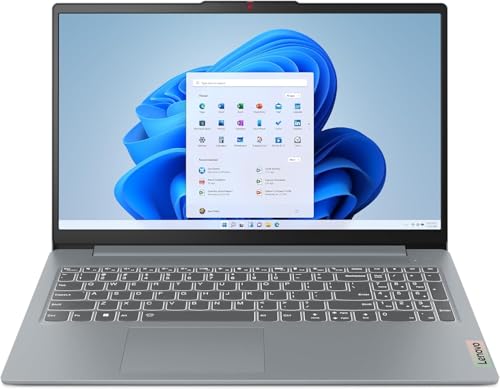
Lenovo IdeaPad Slim 3 15.6 (Ryzen 7 5825U) — Strongest all-rounder
Lenovo’s IdeaPad Slim 3 in this configuration pairs an eight-core Ryzen 7 5825U with 16GB of memory, and that combination gives it the most multitasking headroom of any machine in this guide relative to its class. Eight physical cores mean a video call, a browser full of research tabs and a couple of Office documents can run together without the fan spinning up or the interface hitching. The 15.6-inch full HD touchscreen adds a second way to work: scrolling long documents by thumb and tapping through presentation slides feels natural after a day, even if you still reach for the trackpad for precise selections.
Daily life with the Slim 3 is defined by how little it asks of you. The chassis is slim enough for a tote bag, the keyboard has the firm, quiet action Lenovo is known for at this price, and the 512GB SSD leaves sensible room for a photo library alongside work files. Integrated Radeon graphics handle photo editing in the browser, light Lightroom work and casual older games without complaint. Where it shows its price is in the details: the speakers are serviceable rather than rich, the webcam is adequate for calls rather than flattering, and the plastic shell flexes slightly when lifted by one corner.
Students and home workers who keep one laptop for five years will get the most from this pick. The processor will not feel old quickly, the memory is already at the level we recommend, and the touchscreen keeps it flexible for the odd form, sketch or signature. If your workload is mostly email and documents, the cheaper Vivobook below covers it for less; if you regularly juggle heavy spreadsheets, research and calls at once, this is the configuration that will not make you wait.
Ownership details reinforce the case. The 5825U is a mature, well-understood chip, so driver quirks and overheating surprises are unlikely, and Lenovo’s support pages for the Slim line are easy to navigate when you need a BIOS update or a replacement charger years from now. The keyboard deck stays comfortable through long writing sessions, the hinge opens with one hand without the base lifting, and the webcam privacy shutter is a small feature you will use more than expected in a shared house. None of that photographs well in a listing, yet it is exactly the material that decides whether a laptop still pleases its owner in year three.
- Screen: 15.6-inch display at 1920 × 1080 with touch input
- Processor: AMD Ryzen 7 5825U, eight cores
- Graphics: integrated AMD Radeon, shared memory
- Memory: 16GB DDR4 fitted as standard
- Storage: 512GB NVMe solid-state drive
- System: Windows 11 Home preinstalled
Strengths
- Eight-core processor shrugs off heavy tab loads and simultaneous apps.
- 16GB of memory as standard removes the most common upgrade worry.
- Touchscreen full HD panel suits reading, forms and casual sketching.
Trade-offs
- Speakers sound thin for films watched without headphones.
- Shell plastics feel less rigid than the Acer in this guide.
- Memory is not a simple user upgrade on this slim chassis.
Best for: students and home workers wanting one balanced machine for study, office apps and media.
Not suited for: players of modern 3D games, or anyone who needs a colour-accurate panel for paid design work.

HP 15.6 Laptop (Ryzen 5 7520U) — Touch on a tight budget
HP’s entry here makes one clear bargain: it gives you a touchscreen and a 512GB SSD at the lowest commitment in the group, and in exchange the display runs at HD resolution rather than full HD. On a 15.6-inch panel that difference is not subtle. Text in documents looks softer, spreadsheets show fewer rows before you scroll, and side-by-side windows feel cramped sooner. Buyers who mostly read email, browse and stream video in full-screen will notice it least; buyers who write or work with data all day will notice it every hour.
The Ryzen 5 7520U is a four-core chip aimed at efficiency, and paired with 8GB of memory it keeps ordinary tasks feeling brisk as long as you do not overload it. Twenty tabs, a call and a large spreadsheet together will push it into hesitation, so this laptop rewards tidy habits. Battery-friendly behaviour is the flip side of that modest hardware: the processor sips power, the machine runs cool on a lap, and fan noise rarely intrudes in a quiet room. The Natural Silver finish and full-size keyboard with a number pad suit home desks and shared family use.
Consider this HP the deliberate budget choice rather than a cut-price version of the Lenovo. Families buying a first laptop for homework, video calls with relatives and streaming will find it genuinely sufficient, and the touchscreen is a real convenience for younger users. Anyone whose job lives in documents should stretch to a full HD model instead, because the screen is the one component you cannot upgrade later, and it is the component this laptop economises on most visibly.
One more consideration belongs to shared households: this HP is the machine in the guide we would hand to a younger student or a grandparent without a briefing. The touchscreen forgives imprecise tapping, the desktop stays uncluttered in its default setup, and nothing about the hardware invites expensive accidents. Replacement chargers are cheap and everywhere, the hinge design is a known quantity, and if the laptop is dropped, lost or outgrown in two years, the financial sting is the smallest here. Judged as a low-risk household appliance rather than a productivity instrument, its compromises look far more reasonable.
- Panel: 15.6-inch HD touchscreen, 1366 × 768
- Chip: AMD Ryzen 5 7520U, four cores
- Graphics: integrated AMD Radeon 610M
- RAM: 8GB fitted, aimed at light multitasking
- Drive: 512GB solid-state storage
- System: Windows 11 Home in S mode listings vary — check the listing before ordering
Strengths
- Touch input at the lowest commitment in this line-up.
- Generous 512GB SSD where rivals at this level often fit half that.
- Cool, quiet running suits shared rooms and laps.
Trade-offs
- HD resolution looks soft for text-heavy work at this size.
- 8GB of memory limits heavy multitasking sooner than rivals.
- Four-core chip is the slowest processor in the guide.
Best for: families and casual users who browse, stream and video-call more than they type.
Not suited for: writers, analysts and students reading dense text for hours each day.

Dell Inspiron 15 3530 — Roomiest storage
Storage is the headline on the Inspiron 15 3530: its 1TB SSD doubles what most of this group offers, and that changes how you use the machine. A 1TB drive swallows a decade of phone photos, a large music collection and chunky work archives without the monthly tidy-up smaller drives demand. Behind the screen, a Core i7-1355U and 16GB of memory give it pace to match the Lenovo at the top of this guide, with Intel’s Iris Xe integrated graphics handling everyday visual work and light photo editing.
Dell’s business-leaning Inspiron line shows in the port selection and the full-size keyboard, both of which suit a permanent desk with a monitor attached. The 15.6-inch full HD touchscreen is bright enough for a home office and the touch layer earns its keep with PDFs and web forms. The trade for the specification is bulk: this is among the heavier-feeling machines here, and its battery endurance is respectable rather than remarkable, so it suits a laptop that travels between rooms and occasional offices more than one that lives in a backpack all day.
Buyers who keep everything locally — photographers with growing archives, small-business owners with years of records, students who dislike cloud subscriptions — will feel the 1TB drive working for them every week. If most of your files already live in cloud storage, the same money buys the lighter, sharper-feeling Acer below, and the Dell’s extra capacity becomes a luxury rather than a necessity.
The Inspiron also suits the buyer who treats a laptop as a small office rather than a portable. Attach a monitor, and the internal screen becomes a second display for calls or reference documents while the big SSD quietly holds the working archive. Dell’s business support infrastructure is a quiet advantage too: drivers, manuals and spare parts for the Inspiron 3000 series are easy to source long after purchase, which matters for a machine bought to serve half a decade. If your instinct is to keep a computer until it genuinely cannot continue, this is the pick aligned with that instinct.
- Display: 15.6-inch full HD touchscreen, 1920 × 1080
- Processor: Intel Core i7-1355U, ten cores in a hybrid layout
- Graphics: Intel Iris Xe integrated graphics
- Memory: 16GB DDR4 across two slots in typical listings
- Storage: 1TB NVMe SSD, the largest fitted here
- System: Windows 11 Home preinstalled
Strengths
- 1TB SSD removes storage anxiety for photo and archive keepers.
- Core i7 pace with 16GB of memory handles demanding office loads.
- Practical ports and keyboard suit a semi-permanent desk setup.
Trade-offs
- Feels bulkier in a bag than the slimmer picks.
- Battery life is ordinary next to the efficiency-focused models.
- Touch layer adds gloss reflections in bright rooms.
Best for: local-storage keepers, small-business records and anyone who hates deleting files.
Not suited for: daily commuters who carry their laptop for hours on foot or by bike.

ASUS Vivobook 15 — Slim starter machine
ASUS builds the Vivobook 15 around Intel’s Core 3 100U, a recent efficiency processor that covers coursework, office documents and browsing without drama. The full HD display is the quiet strength of this configuration: unlike the HP above, text stays crisp, web pages show their proper layout, and two documents side by side remain readable. For a first laptop or a dedicated study machine, that panel quality matters more than raw processor speed, and the Vivobook gets the priority right.
Limits arrive with the 8GB of memory and the 256GB SSD. Eight gigabytes is workable for a disciplined user — a document suite, a browser with a dozen tabs, a call — but it leaves little slack, and 256GB fills quickly once photos and a few large applications land. Plan on cloud storage or an external drive from the start, and treat this as a machine for someone whose files mostly live online already. The Cool Silver chassis is slim and tidy, the keyboard is comfortable for essays, and the whole package travels easily between home, library and classroom.
As a starter machine the Vivobook makes honest sense. It avoids the one flaw that cannot be fixed later — a low-resolution screen — while economising on the two things cloud habits can work around. Students writing essays, jobseekers living in browser-based tools and households needing a second laptop for admin will all be well served. Heavy multitaskers should step up to a 16GB model instead of hoping this one stretches.
There is also a confidence argument for the Vivobook as a gift or a first purchase for someone else. Its strengths are the visible ones — a sharp screen, a tidy design, a keyboard that feels familiar within minutes — and its weaknesses only appear for users with heavy local storage or multitasking habits, which a new student typically has not developed yet. ASUS includes a sensible port selection for projectors and USB drives in classrooms, and the machine’s modest power draw means its charger is small enough to live permanently in a school bag. It asks little and delivers the essentials without embarrassment.
- Screen: 15.6-inch full HD panel, 1920 × 1080, non-touch
- Processor: Intel Core 3 100U, six cores in a hybrid layout
- Graphics: integrated Intel graphics, shared memory
- Memory: 8GB fitted as standard
- Storage: 256GB NVMe SSD, the smallest in this guide
- System: Windows 11 Home preinstalled
Strengths
- Full HD clarity where the cheapest rival settles for HD.
- Current-generation Intel chip keeps basics feeling responsive.
- Slim, neat chassis travels well between home and campus.
Trade-offs
- 256GB SSD demands cloud or external storage quickly.
- 8GB of memory caps comfortable multitasking.
- No touchscreen, unlike three rivals in this guide.
Best for: students and first-laptop buyers whose files already live in the cloud.
Not suited for: local photo archivists or anyone running many heavy apps at once.

Acer Aspire 5 15 — Polished IPS display
Acer’s Aspire 5 15 is the pick that feels a class above its brief. The IPS panel gives it wide viewing angles and steadier colour than the TN-style screens still found on cheap 15.6-inch laptops, so a film watched from the sofa or a spreadsheet shared across a table stays legible. A Core i7-1355U, 16GB of fast LPDDR5 memory and a Gen 4 SSD complete a specification that boots quickly, wakes instantly and keeps a heavy browser session feeling fluid.
Refinement is the theme rather than any single headline feature. The keyboard backlight helps in dim rooms, the chassis resists the creaks of cheaper rivals, and the fan stays composed under ordinary loads. There is no touchscreen, which some buyers will miss after using the Lenovo or Dell, and the speakers, while clear for calls, do not fill a room with music. Acer also tends to preload more bundled software than we would like, so budget ten minutes on setup day to remove what you will never open.
Desk-based workers who read their screen eight hours a day will appreciate this machine most, because panel quality and memory speed are exactly what long sessions reward. It is the natural choice for someone who has been disappointed by a bargain laptop’s washed-out screen before. If touch input is a genuine requirement for your workflow, choose the IdeaPad instead and accept its slightly less polished feel.
Writers, editors and anyone whose work is reading will feel the Aspire’s advantage within the first hour. IPS panels hold contrast when you shift in your chair, so your eyes stop making the tiny corrections that cheaper screens demand unconsciously, and the end of a long day arrives with noticeably less strain. Acer pairs that panel with a hinge that holds its angle on a train table and a trackpad sized generously for gesture work. It is not a luxury machine — the speakers and webcam remain ordinary — but it spends its money precisely where a knowledge worker’s comfort is decided.
- Panel: 15.6-inch full HD IPS, 1920 × 1080
- Processor: Intel Core i7-1355U with Iris Xe graphics
- Memory: 16GB LPDDR5, fast low-power type
- Storage: 512GB PCIe Gen 4 NVMe SSD
- Keyboard: backlit, full size with number pad
- System: Windows 11 Home preinstalled
Strengths
- IPS panel offers the most comfortable long-session viewing here.
- Fast memory and Gen 4 storage keep the system feeling snappy.
- Backlit keyboard and solid shell suit evening desk work.
Trade-offs
- No touchscreen for forms, sketches or casual tapping.
- Bundled trial software needs a tidy-up on day one.
- Speakers are clear but not room-filling.
Best for: full-time desk workers and readers who prize screen comfort above touch.
Not suited for: touchscreen-first users or buyers wanting the largest local storage.
HP Pavilion 15 — Mainstream alternative
The Pavilion 15 is the laptop many buyers meet first in a store, and its formula explains why: a 15.6-inch full HD screen in most configurations, a choice of Intel or AMD processors, and a design that offends nobody. We include it because a shortlist of mainstream 15.6-inch laptops that ignored the Pavilion would feel incomplete, and because in-person buyers can often try its keyboard before committing, which none of the online-only reasoning above can replace.
Caution is needed with configurations, because the Pavilion name covers everything from 8GB models with modest processors to 16GB versions that rival the Dell in this guide. The specification to insist on mirrors our selection rules: full HD rather than HD, 16GB of memory if the budget stretches, and at least a 512GB SSD. A Pavilion specced that way is a perfectly sensible machine. A Pavilion specced below that line repeats the HP budget model’s compromises without its low commitment.
We could not match one stable listing to the configuration we would recommend, so this pick carries no link and no image marker beyond the prose-only note. Treat it as a showroom option: if you find the 16GB, full HD version locally at a fair figure, it competes honestly with the linked picks above; if the only version available is an 8GB HD model, the linked HP or Vivobook serves you better.
The practical way to shop the Pavilion is backwards: decide the specification first, using the rules in this guide, then find the Pavilion version that matches it, and ignore every version that does not. Retailers discount different configurations at different times, so patience is often rewarded with the 16GB full HD model at the price of the lesser one. Just verify the exact model number at the till or in the order confirmation, because Pavilion boxes and listings have historically made the memory and panel differences easy to miss at a glance.
- Screen: 15.6-inch, full HD in the configurations worth buying
- Processor: Intel Core i5 or AMD Ryzen 5 in mainstream versions
- Graphics: integrated graphics only, consistent with this guide
- Memory: 8GB or 16GB depending on configuration — choose 16GB
- Storage: 256GB to 512GB SSD across the range
- System: Windows 11 Home preinstalled
Strengths
- Widely stocked, so hands-on keyboard trials are often possible.
- Higher configurations match the linked picks on core specification.
- Conservative styling suits shared family and office use.
Trade-offs
- Configuration sprawl makes like-for-like comparison difficult.
- Base versions repeat the low-memory, low-resolution compromises.
- Unlinked in this guide, so the research falls on the buyer.
Best for: in-person shoppers who can confirm the exact configuration before paying.
Not suited for: anyone ordering quickly who needs the specification guaranteed in advance.
What Changes Between a Touch Panel, an IPS Panel and a Plain HD Screen?
| Laptop | Panel | Memory / Storage | Suits you if… |
|---|---|---|---|
| IdeaPad Slim 3 | Full HD touch | 16GB / 512GB | You want one balanced machine for everything at home. |
| HP 15.6 (7520U) | HD touch | 8GB / 512GB | Budget and touch matter more than sharp text. |
| Inspiron 15 3530 | Full HD touch | 16GB / 1TB | Your files live on the laptop, not in the cloud. |
| Vivobook 15 | Full HD | 8GB / 256GB | You study and write, with files stored online. |
| Aspire 5 15 | Full HD IPS | 16GB / 512GB | You read a screen all day and value comfort. |
| Pavilion 15 | Full HD (check config) | Varies / varies | You can inspect the exact version in a store. |
Notice what the table does not reward: raw processor generation. The two Core i7 machines and the Ryzen 7 machine cluster at the top on multitasking comfort because they pair their chips with 16GB of memory, not because their badges outrank the others. The Core 3 in the Vivobook is a newer design than some chips here, yet its 8GB of memory decides its ceiling. That ordering — panel, memory, storage, then processor — is the single most transferable lesson in this guide, and it applies to every laptop listing you will read after this one.
Three display decisions hide inside this line-up. Resolution decides sharpness: full HD shows roughly twice the detail of the HD panel, and at 15.6 inches that gap is obvious in text. Panel type decides viewing comfort: the Acer’s IPS screen holds its colour and brightness when you lean back or share the view, while lesser panels wash out at an angle. Touch decides how you interact: the Lenovo, HP and Dell accept taps and swipes, which helps with forms and casual browsing but adds reflections and a little weight. Rank those three qualities in the order your day demands and the right pick usually selects itself.
How Much Memory and Storage Do Everyday Tasks Actually Use?
Open a realistic working session and count honestly. A browser with fifteen tabs, a word processor, a spreadsheet, a mail app and a video call will sit comfortably inside 8GB on a quiet morning, then start swapping to disk the moment a second project opens or a call shares a screen. That swapping is the hesitation you feel when switching windows. Sixteen gigabytes removes it for the entire class of work this guide covers, which is why three of the six picks ship with 16GB and why we rank them ahead for anyone keeping a laptop beyond three years.
Storage follows a similar pattern. Windows, applications and updates claim a large first slice of any drive; a 256GB SSD can feel half full within a year once photos sync locally. The 512GB models give a household breathing room, and the Dell’s 1TB suits anyone whose photo or video archive lives on the machine. If you choose a smaller drive, pair it from the start with an external backup drive and a routine, because a full SSD also slows a laptop down and leaves no space for the updates that keep it secure.
There is a budgeting consequence hidden in those numbers. Money moved from a processor upgrade into memory or storage produces a machine that feels faster every day, while money spent the other way produces benchmark bragging rights and a laptop that still hesitates when the tabs multiply. Retailers configure their headline models the wrong way round for exactly this reason — a fast chip photographs well in an advert — so read listings bottom-up: storage first, memory second, processor last, screen throughout.
Processor choice matters least of the three for this category, which surprises many buyers. Every chip here runs office software well; the differences appear in how many things run at once and how long the machine stays responsive as software grows heavier. The eight-core Ryzen 7 and the two Core i7 models offer the most headroom, the Core 3 and Ryzen 5 7520U the least, yet memory capacity will shape your daily experience more than that ranking suggests.
How Do You Set Up a Non-Gaming Laptop for Work and Study?
Begin with the updates you will otherwise postpone: run Windows Update until it reports nothing left, update the manufacturer’s own utility next, and only then install your applications. Remove bundled trials you will never use, since several of these machines ship with them, and set your browser as the default before importing bookmarks so links behave from the first click. Create a second user account for children or guests if the laptop is shared; it keeps work files out of casual reach.
Next, arrange the desk the laptop will serve. A 15.6-inch screen at arm’s length benefits from a stand that lifts it toward eye level, with an external keyboard if you type for hours. Enable the battery charge limit in the maker’s utility if the machine lives plugged in, because holding a battery at full charge permanently ages it faster. Turn on automatic backups to an external drive or cloud service before the first important file exists, not after the first scare.
Security setup belongs in the same first session. Turn on device encryption if it is not already active, confirm that Windows Hello sign-in works with a PIN you will actually remember, and store the recovery key somewhere separate from the laptop. Add the machine to your password manager’s device list, enable Find My Device, and check that your important folders — not just the desktop — are inside the backup or sync selection. These are dull tasks that take fifteen minutes now and save a genuinely bad week later.
Finally, learn the two keyboard habits that save the most time: snapping windows side by side with the Windows key and arrow keys, and searching with the Start key instead of hunting through menus. A non-gaming laptop earns its keep through hundreds of small, fast interactions, and ten minutes spent on these basics pays back every single day you use the machine.
Which Ports and Extras Separate a Good Desk Setup From a Frustrating One?
A laptop in this class usually anchors a small ecosystem, and the ports decide how gracefully it does so. Every model here carries USB-C and full-size USB-A, which covers mice, drives and printers without adapters, plus HDMI for a monitor or television. Where they differ is in the details: card readers appear on some and not others, and that matters if you move photos from a camera weekly; wired Ethernet has largely vanished from slim 15.6-inch designs, so a home office with a router within reach of the desk may want a small USB hub with an Ethernet socket rather than relying on Wi-Fi through two walls.
Charging deserves a thought as well. Several of these machines can accept power over USB-C even when they ship with a barrel charger, which lets one travel charger serve the laptop, a phone and a tablet. Confirm that behaviour on the specific listing before relying on it, because manufacturers enable it inconsistently across regions and revisions. A second charger bought for the desk or the sofa also removes the daily ritual of unplugging and coiling, and it is among the cheapest quality-of-life upgrades a laptop owner can make.
Docking is the step beyond ports, and it suits anyone who plugs and unplugs daily. A USB-C hub or dock gathers the monitor, charger, mouse receiver and external drive into one cable, so the laptop leaves the desk in seconds and returns just as quickly. Not every model here supports a full single-cable dock with power delivery, so treat that as a question to verify against the exact listing if it matters to you; where it works, it is the difference between a desk that assembles itself and a daily five-minute cable ritual.
Extras inside the box are thin across the whole category: expect the laptop, a charger and paperwork, nothing more. Budget separately for the three accessories that transform daily use — a wireless mouse for desk work, a sleeve or padded bag for transport, and an external drive for backup. None of the six picks changes that arithmetic, and a buyer who plans for it on day one avoids the drip of small, annoyed purchases through the first month of ownership.
How Long Should a Laptop in This Class Realistically Last?
Four to six years is the honest expectation for a 15.6-inch non-gaming laptop used daily, and the specification you buy decides which end of that range you land on. Memory is the ageing factor: software grows heavier each year, so a 16GB machine bought today will still feel composed when an 8GB machine has begun to swap and stutter under the same updated software. Storage fills on a similar curve. Processors, by contrast, age slowly for office work; even the modest chips here will open documents quickly in year five.
Physical wear sets the other limit. Hinges loosen, batteries lose capacity, and keyboards shine where fingers land. The models with the sturdiest shells and the most standard parts — the Dell and the Acer in this group — tend to survive that wear best, and their batteries are the most straightforward for a repair shop to replace when capacity fades. Treating any of these machines to a battery replacement around year three or four is usually better economics than replacing the whole laptop, provided the memory and storage were bought generously at the start.
The greenest machine in this whole category is the one you already own, and the second-best outcome is a laptop bought generously enough to serve two owners. A 16GB, full HD machine handed down to a younger student or a parent after three years of your use will still serve them well, which is another quiet argument against the false economy of the bare-minimum configuration. The 8GB HD models rarely earn a second life; the well-specified ones routinely do.
Software support completes the picture. All six ship with Windows 11 and will receive its updates for years, and none carries the kind of exotic hardware that makes driver support a gamble. Buy the configuration with headroom, keep the vents dust-free, replace the battery once if needed, and a laptop from this guide should still be earning its desk space long after its warranty paperwork has been recycled.
What Should You Check in the First Week of Ownership?
Run a deliberate shakedown while returns are still painless. Check every key on the keyboard, including the function row and number pad, and test each port with a real device rather than assuming it works. Look at the screen against a plain white page and a plain black one: uneven backlight patches and stuck bright pixels are far easier to exchange in week one than to argue about in month seven. Play a video call with a friend and ask how you sound, because microphone problems hide until the first important meeting.
Then measure the machine against your own routine rather than a reviewer’s. Open the exact set of applications your heaviest day involves and work for an hour; if memory pressure appears already, it will only grow, and an exchange for a 16GB model is the right response. Copy your photo library or document archive across and watch how much storage remains — if the drive is already past two-thirds full, adopt the external-drive habit immediately instead of discovering the limit during a deadline.
While you are testing, listen to the machine as well as watching it. A fan that rattles, a hinge that creaks loudly or a coil whine audible across a quiet room are all legitimate reasons to exchange a unit, and all are far easier to act on now. Check the battery report Windows generates, too: a brand-new battery should report close to its design capacity, and a large shortfall on a new machine is a defect, not a characteristic to accept.
Finish the week by setting the safety nets: confirm backups actually ran, save the serial number and receipt somewhere other than the laptop itself, and register the warranty if the maker requires it. A laptop checked this thoroughly in its first seven days rarely surprises its owner afterwards, and any unit that fails the shakedown can still become someone else’s refurbished bargain instead of your long-term regret.
How Do Battery Life and Weight Really Compare Across These Six?
Manufacturer battery claims in this class are best treated as weather forecasts: directionally interesting, rarely what your Tuesday delivers. The efficiency-oriented chips in the HP and the Vivobook genuinely sip power during light work, and both can carry a student through a day of lectures and notes with charge to spare. The touchscreen models spend a little more on their panels, and the Core i7 machines spend more again when all their performance cores wake for a heavy spreadsheet recalculation or a large photo export. For mixed office work, expect the group to land in a broadly similar band, with the efficient models ahead by an hour or two rather than by a transformation.
Your own habits move the figure more than the model badge does. Screen brightness is the largest single drain, followed by video calls, which keep the camera, microphone, speakers and network busy simultaneously. A day of back-to-back calls can halve the endurance the same laptop shows on a writing day, whichever of these six you choose. Keeping brightness at the level the room actually needs, rather than the maximum the panel offers, is the simplest battery habit there is, and it costs nothing in comfort once your eyes adjust.
Weight tells a cleaner story. All six sit in the familiar 15.6-inch band where the laptop plus its charger is noticeable in a shoulder bag but unremarkable in a backpack. The Dell feels the most substantial of the group, the Vivobook and IdeaPad the easiest to forget you are carrying. If the laptop travels daily on foot, that difference accumulates across a year of commutes; if it travels between two rooms, ignore weight entirely and spend the decision on screen and memory instead.
Chargers add their own quiet bulk, and here the efficient models win twice: smaller power bricks, cooler running, and in several cases the option of USB-C charging from a shared travel adapter. Whichever model you choose, weigh the whole travelling kit — laptop, charger, mouse, sleeve — rather than the headline figure for the bare machine, because that is the load your shoulder will actually meet on the platform each morning.
Travel behaviour differs from desk behaviour in one more way: these machines will spend journeys asleep in bags, and modern standby behaviour varies enough between models that a laptop occasionally wakes warmer than expected. Shut the machine down fully before a long flight or a hot car journey rather than trusting sleep, whichever pick you own, and the battery will be where you left it when you arrive.
The balanced conclusion is that battery and weight should break ties in this guide, not make the decision. Choose first by screen, memory and storage, since those shape every hour of use; then, between two otherwise equal picks, take the lighter, more efficient one and enjoy the smaller daily dividend it pays.
Which Buying Mistakes Catch People Out at 15.6 Inches?
Judging by processor name alone. A Core i7 badge on an 8GB machine delivers a worse daily experience than a Ryzen 5 with 16GB once real multitasking begins. Read the memory line before the processor line, every time.
Accepting an HD screen to save a little. The saving is small and the compromise is permanent; you will look at that soft text for the life of the laptop. Full HD is the floor at this size, and the one HD pick here earns its place only through touch and budget.
Assuming gaming is possible later. Integrated graphics cannot be upgraded. If there is a real chance the laptop becomes a gaming machine within a year, this is the wrong category entirely and a gaming model should be bought instead.
Ignoring storage until it is full. A 256GB drive plus a growing photo library equals monthly deletion sessions. Either buy capacity now or commit to cloud or external storage with a backup routine from day one.
Skipping the keyboard test on shared machines. Six people can share a screen happily; a keyboard that one typist hates will annoy them daily. Where possible, favour the models whose keyboards reviewers and your own hands agree on.
Final Recommendation
For most readers the IdeaPad Slim 3 is the answer: eight cores, 16GB of memory, a full HD touchscreen and sensible storage in a slim shell, with no gaming hardware inflating the cost. The Aspire 5 15 is the connoisseur’s alternative for long reading days, and the Inspiron 15 3530 is the one to buy when your archive lives locally and 1TB matters more than portability. The Vivobook 15 serves students with cloud habits honestly, the HP serves tight budgets with open eyes about its screen, and the Pavilion rewards only those who can verify its configuration in person.
Choose by the compromise you can live with, because each of these six trades something different away. Pick the Lenovo if you refuse to choose at all.
One last reassurance for buyers torn between two of these: the gap between the best and the rest in this guide is measured in small daily frictions, not in capability cliffs. Every linked pick runs the everyday workload properly, and any of them will feel like a relief next to an ageing machine. Decide, order, run the first-week checks described above, and get on with the work the laptop was bought to do. That is, after all, the entire point of choosing carefully in the first place.
Frequently Asked Questions
Can a non-gaming laptop still play any games at all?
Yes, within limits. Integrated graphics run older titles, indie games and browser games comfortably, and popular lightweight competitive games remain playable at reduced settings. Recent large 3D releases are beyond these machines, and no setting changes that; the absence of a discrete GPU is a hardware fact, not a software one.
Is 8GB of memory enough in 2026 for a student laptop?
It is enough for a disciplined single-project workflow: documents, a browser, a call. It becomes tight when research, writing and media run together, and it will feel tighter each year. Students expecting four years from one machine should choose 16GB, as the IdeaPad, Dell and Acer here provide.
Does a touchscreen drain the battery much faster?
The touch layer itself uses little power; the larger cost is the brighter, higher-resolution panels touch models often carry. Expect a modest difference rather than a dramatic one, and judge each model by its overall efficiency design instead of the touch feature alone.
Why do none of these laptops list a graphics card?
That is the definition of the category. Removing the discrete GPU cuts cost, weight, heat and fan noise, and it lengthens battery life. Buyers who edit video professionally or play modern games should shop the gaming and creator categories instead, where that hardware earns its place.
Which of these six is best for video calls all day?
Any of the 16GB models handles calls easily; the deciding factors become webcam quality and microphone clarity, which are ordinary across this class. Pair whichever you choose with a decent headset for back-to-back calls, and prefer the Acer or Lenovo for their comfortable keyboards during note-taking.
Should I buy now or wait for a newer processor generation?
Everyday performance has plateaued for this workload, so a current machine will not feel obsolete when the next chips arrive. Buy when you need the laptop, choose memory and screen quality over processor novelty, and the purchase will age gracefully.
Related Guides
Laptop storage and drive capacity shape each other more than most buyers expect, so these companion guides continue naturally from this one:
- the best 3TB hard disk drives still worth buying
- our guide to the best 4 TB HDD hard drives
- the best 5TB external hard drives for backup and travel



[…] out the desk with our guides to everyday 15.6-inch laptops chosen for work rather than play, to 3TB hard drives for media archives that outgrow internal storage, and to 4TB hard drives for […]