What's inside
- Key Takeaways
- Quick Picks
- How We Chose These Picks
- Comparison: Ports, Platforms, and Personalities
- What Is the Difference Between Thunderbolt 4, Thunderbolt 5, and Plain USB-C?
- How Do You Build a One-Cable Desk Around One of These Machines?
- How Does Security Work When One Cable Carries Everything?
- What Is the Two-Minute Port Audit Every Buyer Should Perform?
- How Do You Future-Proof a Desk When the Standard Keeps Moving?
- What Maintenance Does a Thunderbolt Setup Actually Need?
- How Should a Home User With No Dock Still Think About Thunderbolt?
- What Does a Photographer’s or Video Editor’s Thunderbolt Desk Look Like?
- How Do You Choose a Dock Without a Degree in Cables?
- Why Did One Port Shape Win, and What Does That Mean for Buyers Now?
- What Should You Test in a Dock During the Return Window?
- How Does Thunderbolt Behave in Meeting Rooms, Hotels, and Other People’s Offices?
- What Can You Actually Plug Into a Thunderbolt Port? A Working Inventory
- How Do External SSDs Change the Storage Conversation?
- Common Mistakes When Buying a Laptop for Its Ports
- Final Recommendation
- Frequently Asked Questions
- Related Guides
As an Amazon Associate I earn from qualifying purchases. This post may contain affiliate links at no extra cost to you.
widgetverdict.com is reader-supported. When you buy through links on our site, we may earn an affiliate commission.
Choosing the best 14 PC laptops with Thunderbolt ports sounds like a port-counting exercise until the day a single cable runs your monitor, your storage, your network, and your charger at once — and every other laptop on the desk suddenly looks under-equipped. Thunderbolt is the difference between a laptop that visits a desk and a laptop that commands one. This guide gathers six 14-inch machines whose Thunderbolt credentials are confirmed by their verified listings or by the established specification of their model lines, and it explains, carefully, how Thunderbolt 4 and Thunderbolt 5 differ from the plain USB-C ports they are so often confused with.
Amazon hosts the four verified listings, reachable from the Quick Picks table and from each detailed section — check price on Amazon at those points. Two more — Dell’s XPS 14 and HP’s Spectre x360 14 — are covered in prose because their sales run mainly through their makers’ configured stores, yet no honest Thunderbolt guide could omit them: both lines build their port strategies around Thunderbolt, and both are described here with their channel situations stated openly. Throughout the guide, a port is only called Thunderbolt where a listing title or the model line’s specification confirms it; everything else is labelled USB-C, because that distinction is the entire subject.
Key Takeaways
- At the top of the bandwidth table sits Apple’s M5 Pro MacBook Pro 14, pairing Pro-class silicon with the fastest Thunderbolt generation Apple ships.
- Lenovo’s ThinkPad X1 Carbon Gen 13 states its credentials in the listing itself: two Thunderbolt 4 ports beside a 2.8K OLED screen and 32GB of memory.
- LG’s gram 14 names Thunderbolt 4 in its verified title while weighing 2.47 pounds, proving the port is no longer a heavyweight feature.
- ASUS’s Zenbook S14 brings an Ultra 9 processor and a 3K 120Hz touchscreen to the Thunderbolt table through its Intel platform.
- Dell’s XPS 14 and HP’s Spectre x360 14 are covered without links, as Thunderbolt-centred flagships sold through configured channels.
- A Thunderbolt port guarantees minimum bandwidth, display, and charging capabilities that a plain USB-C port merely may offer.
Quick Picks
| Pick | Badge | Why it is here |
|---|---|---|
| Apple MacBook Pro 14 M5 Pro | Bandwidth flagship | Pro-class silicon and Apple’s fastest Thunderbolt implementation in a 14.2-inch creator machine. |
| ASUS Zenbook S14 | Specification flagship | Ultra 9 power and a 3K touch panel on an Intel Thunderbolt platform. |
| Lenovo ThinkPad X1 Carbon Gen 13 | Docking professional | Two Thunderbolt 4 ports stated in the listing, with a 2.8K OLED and Wi-Fi 7. |
| LG gram 14 Ultra 7 | Featherweight with Thunderbolt | Thunderbolt 4 and 32GB of memory at 2.47 pounds. |
| Dell XPS 14 | Prose-only minimalist | An all-Thunderbolt port strategy inside Dell’s design flagship. |
| HP Spectre x360 14 | Prose-only convertible | Thunderbolt connectivity in HP’s folding flagship line. |
How We Chose These Picks
The selection rule for this guide was verification before enthusiasm. A machine earned a linked seat only when its checked listing title, or the unambiguous specification of its exact model, confirmed Thunderbolt — not merely USB-C with a similar-looking hole. That rule sounds pedantic until you have watched a buyer purchase a dock for a laptop whose ports could not drive it; the entire value of Thunderbolt is that its capabilities are guaranteed rather than hoped for, and a guide on the subject has to practise the rigour it preaches. Where a listing stated the standard outright, as Lenovo’s and LG’s do, we quote it. Where the platform defines it, as with Apple’s Pro machines and the Intel Evo-class Zenbook, we say which ground the claim stands on.
Beyond the ports, the usual flagship filters applied: displays worthy of the monitors these machines will drive, memory configurations that will not embarrass a docked workstation, and builders whose support networks honour multi-year ownership. The prose seats went to the two Thunderbolt flagships whose configured sales channels make static listings unreliable, with the reasons stated in their sections rather than hidden. The result is a shortlist that doubles as a map of how the whole premium industry now treats one small, lightning-bolt-marked socket.
We also weighted port placement and count, details spec sheets whisper. Two Thunderbolt ports on opposite sides, as the X1 Carbon offers, change docking ergonomics completely against two ports crowded on one edge. A machine that can charge from either flank survives more desks, more meeting rooms, and more borrowed chargers. Those judgements run through the sections below, because Thunderbolt buying is ultimately about the desk you are building, not the laptop alone.

Apple MacBook Pro 14 M5 Pro — Bandwidth flagship
Start with the silicon, because on this machine the ports and the processor are the same story. The checked listing pairs Apple’s M5 Pro — fifteen CPU cores, sixteen GPU cores — with a terabyte of internal storage, 24GB of unified memory, Wi-Fi 7, and the 14.2-inch Liquid Retina XDR screen. Its Thunderbolt story is the strongest in this guide: Apple’s Pro-class MacBook Pro line equips its USB-C ports with the fastest Thunderbolt generation the company ships, and in a Thunderbolt guide that lineage matters because bandwidth is destiny. Eighty-gigabit-class connections move a day’s footage in the time lesser ports take to introduce themselves, drive high-resolution high-refresh displays without negotiation, and let a single dock feed a genuinely ambitious desk — multiple monitors, fast external storage, wired networking, and full charging through one plug.
The MacBook’s relationship with Thunderbolt is also philosophical. Apple helped create the standard’s ecosystem, and the Pro machines treat the ports as primary infrastructure rather than as holes that happen to fit a cable: external SSDs sustain their rated speeds, displays wake instantly, and the machine sustains its performance through a dock as happily as on its own. Creative professionals feel this in the unglamorous moments — ingesting a card while a backup runs while a client monitor displays the timeline — where bandwidth stops being a specification and becomes the difference between a workflow and a queue.
Buyers should note the ecosystem frame honestly. The MacBook’s Thunderbolt ports speak to the same docks and drives as any other machine’s here, because the standard is genuinely cross-platform at the hardware level; the divide is the operating system, not the socket. Windows-dependent professionals should read on to the Lenovo and ASUS sections with confidence that the docking experience rhymes. Readers inside Apple’s world, meanwhile, are looking at the bandwidth flagship of the 14-inch class, full stop — the machine whose ports will still feel generous when the displays of 2029 arrive asking for more.
- Ports first: Thunderbolt-class USB-C, the fastest generation Apple fits to its Pro line
- Screen: Liquid Retina XDR measuring 14.2 inches
- Inside: M5 Pro silicon, 24GB of unified memory, a 1TB drive
- Wireless: Wi-Fi 7 for the days the cable stays home
Strengths
- Highest bandwidth ceiling in this guide.
- Docked performance matches standalone performance.
- XDR display rewards the external-monitor lifestyle.
Trade-offs
- macOS excludes Windows-only professional tools.
- Configuration is fixed at purchase, permanently.
- Premium pricing extends to its docks and drives.
Best for: creative professionals building a serious single-cable desk.
Not suited for: buyers whose software lives exclusively on Windows.

ASUS Zenbook S14 — Specification flagship
Nothing about the Zenbook S14 was specced timidly: the listing leads with Intel’s Ultra 9-386H, doubles the mainstream memory figure to 32GB of LPDDR5X, fits a terabyte of PCIe storage, and wraps it in a Scandinavian White shell behind a 3K touch panel refreshing at 120Hz. Its Intel platform is what brings Thunderbolt to the centre of the connectivity story, as Intel’s premium mobile platforms do. That combination makes the S14 the Windows machine in this guide for anyone set on the docking life without surrendering anything elsewhere: the strongest Intel silicon here, memory and storage at flagship figures, and a touch panel that turns the laptop into its own second screen when the dock is elsewhere.
Docked, the Zenbook behaves like a workstation that happens to fold shut. One Thunderbolt cable to a capable dock delivers charging, an external display, and the desk’s peripherals, while the internal 3K panel stays live as a reference screen — a layout that designers and analysts adopt instantly and then refuse to surrender. The Ultra 9’s muscle means the docked machine does not merely display heavy work but performs it, and 32GB of memory keeps a monitor’s worth of applications resident without swapping. Undocked, the white Ceraluminum shell and the touch display make it the most visually distinctive machine in this guide, a flagship that looks like one from across the room.
The standing notes apply: Windows 11 Home rather than Pro will route strict business buyers to the ThinkPad below, and top-tier silicon in a slim body warms under sustained rendering. Neither touches the Thunderbolt proposition. For a Windows buyer assembling a one-cable desk around a machine with no specification apologies, the Zenbook S14 is the fullest answer this guide offers.
- Connectivity headline: Thunderbolt courtesy of the Intel premium platform
- Display: 3K touch at 2880 x 1800, refreshing at 120Hz
- Muscle: Ultra 9-386H beside 32GB of LPDDR5X memory
- Room: a 1TB PCIe drive under Windows 11 Home
Strengths
- Flagship specification with no rationed component.
- Touch panel doubles as a dockside reference screen.
- Distinctive white finish among black flagships.
Trade-offs
- Home edition lacks Pro management features.
- Slim chassis warms under sustained heavy loads.
- Touch glass demands regular cleaning.
Best for: Windows power users building a one-cable workstation.
Not suited for: IT fleets standardising on Pro images.
Lenovo ThinkPad X1 Carbon Gen 13 — Docking professional
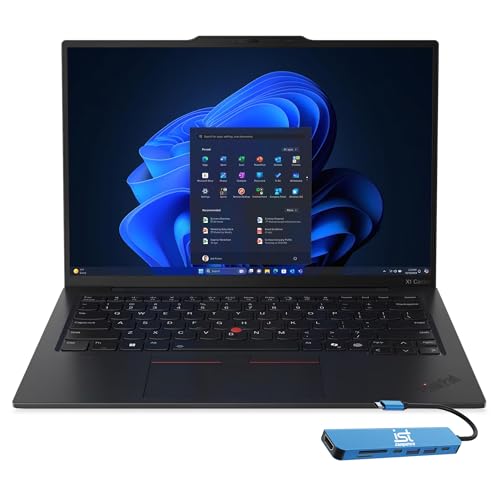
Lenovo’s listing for the X1 Carbon Gen 13 Aura Edition does something refreshingly rare: it prints the port specification in the title, where a buyer can actually find it. Between the Intel Core Ultra 7 258V processor, 32GB of memory, a 1TB solid-state drive, a 2.8K OLED screen, Intel Arc 140V graphics, a fingerprint reader, a 1080p infrared webcam, Wi-Fi 7, and Windows 11 Pro, the title states the machine carries two Thunderbolt 4 ports. Two, on a business flagship, is the correct number — one for the dock, one for the drive, the phone, or the meeting-room display — and Lenovo’s audience of travelling professionals has standardised entire offices on exactly this arrangement.
The rest of the machine is the Carbon formula at its most complete. The 2.8K OLED panel brings the line’s famously practical design into the OLED era without surrendering text sharpness, the keyboard remains the travel-typing benchmark, and the Aura Edition’s Copilot+ credentials — a 47-TOPS NPU is named in the listing — mark it as a current-generation professional tool rather than a legacy fleet refresh. Windows 11 Pro, the infrared camera, and the fingerprint reader complete a security and sign-in stack that corporate life demands daily and consumer machines treat as garnish.
For the Thunderbolt buyer specifically, the Carbon’s appeal is institutional confidence. These are the ports that hotel desks, client offices, and corporate hot-desking floors are wired for; the machine that arrives with two of them, plus Pro Windows and a global service network, is the machine least likely to strand its owner anywhere on earth. Buyers choosing between this Gen 13 and the newer Gen 14 elsewhere in our guides should note the explicit port confirmation here — in a Thunderbolt guide, the machine that states its ports wins its seat on evidence.
- Ports: two Thunderbolt 4 ports, stated in the listing
- Panel: 14-inch 2.8K OLED screen
- Processor and memory: Intel Core Ultra 7 258V, 32GB RAM, 47-TOPS NPU
- Storage and system: 1TB SSD, Windows 11 Pro, Wi-Fi 7
Strengths
- Port specification is confirmed in the listing itself.
- Two ports allow dock plus peripheral simultaneously.
- Pro security stack suits corporate deployment.
Trade-offs
- Thunderbolt 4 rather than the newest generation.
- Conservative styling prioritises boardrooms over studios.
- OLED care applies for static dashboard work.
Best for: professionals whose offices and clients run on docks.
Not suited for: buyers chasing the absolute fastest port generation.

LG gram 14 Ultra 7 — Featherweight with Thunderbolt
A decade ago, a 2.47-pound laptop with Thunderbolt would have sounded like a trade-show concept. LG prints the whole improbable recipe in one listing: Thunderbolt 4 named outright, an Ultra 7 355 doing the thinking, memory at 32GB, half a terabyte of storage, Copilot+ PC status, and playback endurance quoted as high as 36.5 hours — inside an Obsidian Black shell measuring 0.67 inches thin. The port matters here for a specific reason: ultralight machines historically survived their weight budgets by deleting connectivity, and the gram’s refusal to delete the one port that runs a whole desk is what turns it from a travel toy into a professional’s only computer.
The ownership pattern this enables is the lightest version of the docking life. The gram travels all day as the featherweight its owners evangelise about, then lands on a desk and becomes, through one Thunderbolt cable, a dual-screen workstation with wired peripherals and full charging. No other machine in this guide spans that range of personalities so completely. The 32GB memory figure supports the docked half of the story — a featherweight with modest memory would bottleneck its own desk — and LG clearly specced the machine with the dock in mind rather than as an afterthought.
Its trade-offs are the gram family’s familiar ones: speakers and keyboard feel tuned for travel rather than for a concert hall or a novelist’s marathon, and the panel prioritises efficiency over HDR drama. Against those, the port placement and the sheer improbability of the package carry the argument. If your working life alternates between a bag and a desk — and whose does not, now — the gram 14 is the Thunderbolt machine that refuses to make you choose which half of that life to equip properly.
- Socket: Thunderbolt 4, printed in the listing for anyone to check
- Silicon and memory: Ultra 7 355 working beside 32GB
- Drive and system: 512GB of storage, Windows 11 Home, Copilot+ PC
- Carry figures: 2.47 lbs in a 0.67-inch Obsidian Black frame
Strengths
- Full docking capability at the guide’s lowest weight.
- 32GB memory supports serious docked multitasking.
- Quoted endurance leads the linked Windows picks.
Trade-offs
- Keyboard and speakers are travel-tuned, not class-leading.
- 512GB storage may need external help at the desk.
- The panel favours efficiency over spectacle.
Best for: hybrid workers splitting life between bag and desk.
Not suited for: stationary buyers who never carry the machine.
Dell XPS 14 — Prose-only minimalist
Dell’s XPS 14 approaches ports the way a minimalist approaches furniture: very few pieces, each one load-bearing. Recent XPS generations commit almost entirely to Thunderbolt-class USB-C, trusting the standard to carry displays, storage, charging, and docks, and deleting legacy ports with a confidence that divides buyers into admirers and adapter-carriers. It is covered in prose because Dell’s own configurator dominates its sales and its port and processor combinations are chosen at order time; what can be stated structurally is that Thunderbolt is not a feature of the XPS 14 but its entire connectivity philosophy.
For the right desk, that philosophy is beautiful. One cable, one dock, a workspace with no visible compromise, and a machine whose aluminium shell looks like it was designed by the same hand as the desk it sits on — because in spirit it was. For the wrong desk, the one with a beloved wired printer, a legacy monitor, and a drawer of USB-A peripherals, the XPS demands a dock or adapter investment on day one, which should be priced into the purchase honestly rather than discovered during it. Dell’s premium support tiers soften ownership considerably, and the XPS’s displays have long been among the Windows world’s finest, so the machine rewards buyers whose environments are as modern as its ports.
Within this guide, the XPS is the aesthetic pole: the Zenbook offers more specification, the ThinkPad more institutional reassurance, the gram less weight, but the Dell offers the purest expression of the Thunderbolt idea — a laptop reduced to screen, keyboard, and a few perfect sockets. Buyers who share that taste will not be talked out of it by port counts, and this guide does not try. It merely insists the dock be bought in the same transaction, while the enthusiasm is fresh.
- Form: 14-inch aluminium design flagship from Dell
- Port philosophy: Thunderbolt-class USB-C as the core strategy
- Sales route: configured through Dell’s own store
- Coverage here: prose-only — Dell’s configurator, not a listing, is where this machine is specified
Strengths
- The purest one-cable desk aesthetic in the guide.
- Displays and build are consistently flagship grade.
- Premium support options strengthen ownership.
Trade-offs
- Legacy peripherals require a dock or adapters.
- Minimalist controls are a matter of taste.
- Configuration choices demand care at order time.
Best for: design-led professionals with modern desks.
Not suited for: offices full of legacy wired peripherals.
HP Spectre x360 14 — Prose-only convertible
The Spectre x360 14 earns the final seat by adding a dimension no other machine here offers: it folds. HP’s flagship convertible line has built Thunderbolt connectivity into its premium design for generations, pairing the ports with OLED panel options, strong audio, and a machined body that works as a tablet, a tent, and a laptop in rotation. It appears without a link for the same reason given in our convertible coverage — no stable verified listing was available in our pool — and its configurations through HP’s store vary enough that this section describes the line’s established character rather than inventing a specification.
The Thunderbolt angle on a convertible is more interesting than it first appears. Docked in laptop mode, the Spectre behaves like any flagship in this guide, driving a desk through one cable. Undocked, it becomes the presentation and annotation surface that clamshells cannot — and because its files, its dock, and its desk all live on the same Thunderbolt ecosystem, the transition between those personalities is a single unplugging rather than a workflow change. Presenters, designers who mark up work with clients, and teachers moving between desk and classroom feel that continuity as the machine’s defining luxury.
Judged against the linked picks, the Spectre asks its buyers to do their own configuration homework at HP’s store: choose the OLED panel if media and pen work dominate, confirm the exact Thunderbolt generation on the specific configuration, and price the pen if handwriting is planned. Do that homework and the Spectre is the Thunderbolt machine for people whose work changes shape during the day — the guide’s most versatile seat, offered honestly in prose.
- Form: 14-inch flagship convertible from HP’s Spectre line
- Connectivity: Thunderbolt built into the line’s premium design
- Sales route: configured through HP’s own store
- Coverage here: prose-only — HP’s store carries the configurations, our pool carried no stable listing
Strengths
- Convertible versatility no clamshell here can match.
- Flagship display, audio, and finishing.
- Thunderbolt docking anchors its desk personality.
Trade-offs
- Configuration homework falls on the buyer.
- Premium pricing through official channels.
- Exact port generation must be confirmed per configuration.
Best for: presenters and annotators wanting a folding Thunderbolt flagship.
Not suited for: buyers wanting a verified one-click specification.
Comparison: Ports, Platforms, and Personalities
| Model | Thunderbolt status | Display | Memory / Storage | Desk personality |
|---|---|---|---|---|
| MacBook Pro 14 | Fastest generation Apple ships, Pro line | 14.2-inch Liquid Retina XDR | 24GB / 1TB | Creative workstation hub |
| ASUS Zenbook S14 | Thunderbolt via Intel platform | 14-inch 3K touch 120Hz | 32GB / 1TB | Specification-rich dock anchor |
| ThinkPad X1 Carbon Gen 13 | Two Thunderbolt 4, stated in listing | 14-inch 2.8K OLED | 32GB / 1TB | Corporate hot-desk standard |
| LG gram 14 | Thunderbolt 4, named in listing | 14-inch lightweight panel | 32GB / 512GB | Travel-first, dock-capable |
| Dell XPS 14 | Thunderbolt-centred by design | Premium panel options | Configured to order | Minimalist one-cable desk |
| HP Spectre x360 14 | Thunderbolt in the flagship line | Premium touch panel options | Configured to order | Folding presenter and annotator |
The table’s first column is deliberately worded with different evidence levels, because that is the truth of this market: some makers print the standard in the title, some define it by platform, and some sell it through configurators where the buyer must confirm the exact generation. Learning to read those evidence levels is worth more than memorising any single row — it is the skill that survives next year’s models, and it is the skill this guide most wants to leave with you.
What Is the Difference Between Thunderbolt 4, Thunderbolt 5, and Plain USB-C?
All three standards share the same oval USB-C connector, which is where the confusion begins and where careful buying must start. Plain USB-C is only a shape: a port wearing it may carry modest data speeds, may or may not drive a display, and may or may not charge the laptop, with the answers buried in fine print or nowhere at all. Thunderbolt 4 replaces that uncertainty with guarantees — a minimum of 40 gigabits per second of data bandwidth, support for driving high-resolution external displays, and laptop charging through the same cable, certified rather than implied. When a listing in this guide says Thunderbolt 4, as the Lenovo and LG titles do, those guarantees are what the words purchase.
Thunderbolt 5 raises the ceiling dramatically, doubling baseline bandwidth to 80 gigabits per second with higher boost modes for display-heavy work, and targeting the multi-monitor, high-refresh, fast-storage desks that creative professionals are now building. Apple’s Pro-class machines in this guide represent that tier’s arrival at 14 inches. The practical question is who benefits: a single 4K monitor, a fast SSD, and a desk of peripherals live comfortably inside Thunderbolt 4’s guarantees, while multiple high-refresh displays, enormous media transfers, and future-proofing ambitions argue for the newer standard. Neither answer is wrong, and buyers should be suspicious of anyone who claims the older standard is obsolete — most desks on earth have yet to saturate it.
Cables complete the education, because a Thunderbolt system performs at the level of its weakest component. Certified Thunderbolt cables are rated for the standard’s full bandwidth and charging, and they are mercifully interchangeable across generations for most uses; bargain USB-C cables of unknown rating can silently halve a dock’s performance and generate a month of confusing troubleshooting. Buy certified cables, keep them short, and label the one that came with the dock. The port is a promise, and the cable is how the promise is kept.
How Do You Build a One-Cable Desk Around One of These Machines?
Start with the dock, chosen against a written inventory of everything it must serve: the monitor’s resolution and refresh rate, the storage’s speed, the wired network, the audio, and the laptop’s charging appetite. A dock rated comfortably above that inventory will serve for years and across laptop upgrades, because Thunderbolt docks are platform citizens — the same dock that anchors the ThinkPad today will greet the Zenbook’s successor politely. Place the dock where its single cable reaches the laptop’s natural resting position with slack to spare, and route the desk’s permanent wiring behind and beneath, so the visible surface holds only the laptop, the screens, and the work.
Then rehearse the transitions. Arrive, plug one cable, watch the displays wake and the storage mount; leave, eject the drives, unplug once. A setup that performs this ritual flawlessly for a week has earned trust; one that flickers, drops a display, or forgets a peripheral gets its cable swapped and its firmware updated during the return window, not endured for a year. The machines in this guide all support the ritual at a high level — the remaining variable is the dock and cable quality you pair with them, which is why this guide keeps returning budget attention to those unglamorous components.
How Does Security Work When One Cable Carries Everything?
A port that can carry data, displays, and network traffic deserves a security paragraph, and the standard’s custodians wrote one into its design. Thunderbolt’s direct memory access power is governed by operating-system security levels that control which devices may do what, and modern systems prompt, restrict, or sandbox unfamiliar peripherals according to policies the owner or the IT department sets. The practical habits are simple: keep the operating system updated so those protections stay current, be wary of unknown docks and cables in untrusted places in the same way you would be wary of an unknown charger with a data habit, and let your machine’s security settings remain at their defaults unless you understand a change completely.
For most owners this paragraph will never become relevant, and that is the correct outcome — the protections are designed to be invisible when everything is behaving. Its purpose here is completeness: a guide that celebrates a port’s power while concealing its attack surface would be marketing, not guidance. Bought from reputable channels and run on updated software, the machines in this guide implement the standard’s security model properly, and the one-cable desk remains what it should be — a convenience, not a compromise. Business buyers should add one line to their audit: confirm the machine’s firmware-level port controls satisfy their organisation’s device policy, because fleets occasionally restrict direct memory access by rule, and discovering that restriction after deployment is an avoidable embarrassment for everyone involved in the purchase. Home users can treat that sentence as optional reading; fleet buyers should treat it as the cheapest line of diligence in this entire article, because it costs one email and prevents a hundred help-desk tickets, each of which would have begun with the words “the dock worked at home” and ended, hours later, at the same firmware setting the email would have surfaced in a morning. Diligence is rarely dramatic; mostly it is the art of having boring conversations early, while they are still cheap, instead of interesting ones later, in a corridor, with a presentation starting in four minutes and a screen that will not wake.
What Is the Two-Minute Port Audit Every Buyer Should Perform?
Before paying for any laptop bought for its connectivity, perform this audit on the exact configuration in front of you. One: find the word Thunderbolt in the maker’s specification for that configuration — not the line’s brochure, the configuration’s page — and note the generation. Two: count the ports and note their sides, picturing your desk’s cable arriving. Three: confirm the machine charges through those ports at the wattage its own adapter delivers, so a dock can genuinely replace the adapter. Four: name the first three things you will plug in, and confirm each speaks a standard the port guarantees. A configuration that passes all four is a docking computer; one that fails the first is a laptop with holes in it, whatever the photographs imply.
Every machine in this guide passes the audit on the evidence cited in its section — the Lenovo and LG by their printed titles, the Apple and ASUS by their platforms and lines, the Dell and HP by their established designs, with the prose pair asking you to repeat the audit inside their configurators. That is the honest structure of this market, and a guide that pretended all six evidences were identical would be smoother, shorter, and wrong. The audit takes two minutes. The dock it protects will be used ten thousand times.
How Do You Future-Proof a Desk When the Standard Keeps Moving?
Buy the desk in layers with different expected lifespans, and the standard’s progress stops being a threat. The monitor and the dock are the long layers — a good display outlives two laptops, and a dock bought with headroom serves across generations because Thunderbolt maintains backward compatibility as a matter of doctrine. The cables are the short layer, cheap and replaceable, and the laptop itself is the middle layer, refreshed on your own schedule. A buyer who thinks in layers never faces the false choice between buying for today and buying for tomorrow; each layer is simply bought at the ambition appropriate to its lifespan.
Compatibility discipline completes the picture. When a new peripheral joins the desk, introduce it alone, test it through a sleep-wake cycle and a heavy hour, and only then let it become furniture. Desks assembled one verified layer at a time stay trustworthy for years; desks assembled in a single excited afternoon develop mysteries that no forum can solve. The machines in this guide all reward that patience, because their port implementations are mature — the remaining variable, as ever, is the care taken by the person plugging things into them.
What Maintenance Does a Thunderbolt Setup Actually Need?
Very little, and all of it is cheap. Keep the ports free of pocket lint — a wooden toothpick and patience, never metal — because a fibre wad at the back of a socket is the classic cause of a cable that charges but will not display. Update the laptop’s firmware and the dock’s when their makers offer updates, since port behaviour is software-governed and early quirks are routinely cured quietly. Inspect cables annually for fraying at the connectors, where they flex, and replace a suspect cable before it becomes an intermittent fault with a talent for appearing during presentations.
Heat is the final quiet variable. Docks doing heavy simultaneous duty — charging, displays, storage — run warm by design and deserve air around them rather than a home inside a closed drawer or beneath a pile of papers. Given air, updates, and clean sockets, a Thunderbolt setup’s expected behaviour is years of invisibility, and invisibility, for infrastructure, is the highest available praise. The setup you forget exists is the setup that was bought correctly.
How Should a Home User With No Dock Still Think About Thunderbolt?
Plenty of buyers will never own a dock, and for them the standard’s value hides in smaller moments: the portable monitor that turns a kitchen table into a two-screen office through one cable, the friend’s fast drive that copies a photo archive in minutes instead of an afternoon, the single charger that feeds every device in the travel bag, the meeting room that simply works. Thunderbolt on a home laptop is best understood as compatibility with the world’s growing stock of good peripherals — a guarantee that the monitor, drive, or desk accessory you buy next will meet a port that speaks its language fluently.
That framing also sets the spending correctly. A home user should not pay a premium for the newest generation’s ceiling, because their peripherals will not request it; the Thunderbolt 4 machines in this guide will serve a decade of home accessories without strain. What the home user should insist on is the name itself — the certified standard rather than a bare USB-C shape — because that insistence is what keeps every future accessory conversation simple. One honest port, bought once, quietly retires an entire category of household tech frustration.
What Does a Photographer’s or Video Editor’s Thunderbolt Desk Look Like?
Creative desks are where the standard stops being convenience and becomes throughput. A photographer’s morning runs: card reader ingesting a shoot at full speed, the editing application reading from a fast external SSD, a calibrated monitor displaying the work honestly, a second drive mirroring the first, and the laptop charging — all of it through the dock, none of it waiting on anything except the photographer’s judgement. The MacBook Pro in this guide was practically designed around that paragraph, and the Zenbook’s terabyte and memory let a Windows desk rhyme with it closely.
Video raises the stakes by an order of magnitude, because footage is the heaviest common cargo in computing and timelines scrubbed from slow storage teach editors a special vocabulary of frustration. Thunderbolt 5’s arrival at this size class, represented here by Apple’s Pro line, is aimed precisely at that frustration: multiple streams, huge files, and high-refresh reference displays moving through one cable without the editor ever thinking about the cable. Buyers whose work is words and spreadsheets should read this section as a postcard from a more demanding country — interesting, impressive, and not a reason to overspend on bandwidth their own desk will never request.
How Do You Choose a Dock Without a Degree in Cables?
Reduce the dock decision to four numbers and one reputation. The numbers: power delivery sufficient for your laptop’s appetite, display support matching your monitors’ resolution and refresh ambitions, enough USB ports for your permanent peripherals plus one spare, and a network connection if your desk offers wired ethernet. The reputation: buy from a maker who publishes firmware updates and answers support questions, because a dock is a small computer and ages like one. Docks that meet those tests exist at several prices; docks that fail them are expensive at any price, because their failures arrive disguised as laptop problems and consume weekends in misdiagnosis.
Match the dock’s generation to your realistic horizon rather than your laptop’s maximum. A Thunderbolt 4 dock behind a Thunderbolt 5 laptop is a perfectly rational purchase for a single-monitor desk, and the savings fund the monitor arm that improves every hour at that desk. Conversely, a creative professional planning a second high-refresh display should buy the newer dock once and be done. The laptop’s ports set the ceiling; the desk’s contents set the requirement; the dock should be bought against the requirement with one eye on the ceiling — the same allocation logic this guide applies to the laptops themselves.
Why Did One Port Shape Win, and What Does That Mean for Buyers Now?
Computing history is littered with connector wars, and their casualties were always buyers, left with drawers of orphaned adapters. Thunderbolt’s merger with the USB-C shape ended the war by absorbing it: one reversible plug for charging, data, and displays, from phones to flagship workstations. For buyers, the peace treaty has a practical meaning — accessories purchased today have an unusually long expected life, because the dock, drive, and monitor bought for the machines in this guide will serve their successors regardless of brand. That longevity should change how you budget: peripherals bought into a settled standard are investments with a decade’s horizon, and skimping on the dock while splurging on the laptop inverts the actual lifespans of the two purchases.
The peace has one remaining border, and this guide has patrolled it throughout: the shape is universal, the capabilities are not. USB-C describes the plug; Thunderbolt describes the promise. Every buying skill in this article — reading the standard’s name in a listing, checking a configurator’s exact generation, buying certified cables — exists to navigate that single distinction. Master it once and it serves every laptop, phone, and peripheral you will buy for years, which makes it possibly the highest-value paragraph of technical literacy in modern consumer electronics.
What Should You Test in a Dock During the Return Window?
The dock and the laptop audition together, and the audition has specific scenes. Sleep and wake the machine through the dock a dozen times across the first week, because wake behaviour — displays returning in the right arrangement, drives remounting, network reconnecting — is where marginal docks confess. Run the heaviest simultaneous load your desk knows: a large file transfer to the external SSD during a video call with both displays lit, and listen for fan behaviour while watching for dropped frames or a flickering panel. Charge from empty through the dock and note whether the machine gains charge at a sensible rate under load, which separates docks whose power delivery matches their promises from those whose promises were marketing.
Update the dock’s firmware if its maker provides updates, and the laptop’s Thunderbolt drivers with it, before judging any flakiness — early firmware on both sides of the cable is the most common and most curable cause of docking weirdness. Keep a log of any anomaly with dates, because a dock that misbehaves twice in the window is telling you its year-long character in miniature. The machines in this guide have mature port implementations; give them a dock of equal maturity and the combination should disappear into the furniture, which is precisely what infrastructure is supposed to do.
How Does Thunderbolt Behave in Meeting Rooms, Hotels, and Other People’s Offices?
Away from your own desk, the standard becomes a social technology. Modern meeting rooms increasingly present a single USB-C or Thunderbolt cable on the table that carries the room’s display, camera, and speakers; a laptop with proper Thunderbolt sits down, plugs in, and presents, while a machine with a lesser port negotiates, adapts, or gives up. Hot-desking offices wire their shared desks with Thunderbolt docks for exactly this reason — any employee’s laptop becomes a workstation in one gesture — and the X1 Carbon’s entire professional existence is organised around that ritual. Carrying one certified spare cable and a compact multi-port adapter remains wise, because older rooms still speak HDMI and hope, but the direction of travel is unmistakable.
Hotels and trains test the charging half of the standard. A single high-wattage USB-C charger now serves the laptop, the phone, and the tablet in one bag, and Thunderbolt machines accept that charge through the same ports they dock with, which is why the gram’s owners travel with a bag that seems to contain no electronics at all. The caution is wattage honesty, repeated from our FAQ because it strands more travellers than any other port fact: a small phone charger will hold a sleeping laptop and slowly feed an idle one, but it will not run a working machine at full brightness through a presentation day. Pack the charger the laptop deserves, and the standard’s convenience survives contact with the road.
What Can You Actually Plug Into a Thunderbolt Port? A Working Inventory
The port’s versatility becomes concrete when you inventory a real desk. Through one Thunderbolt connection and a dock, the machines in this guide can simultaneously run: one or two external monitors, a wired gigabit network connection that never drops during a call, a mechanical keyboard and a precision mouse, a fast external SSD holding the project library, a card reader ingesting a morning’s photography, an audio interface feeding proper headphones or speakers, and a phone charging from the same hub — while the laptop itself charges. Remove the dock and the same port speaks directly to a portable monitor for a client meeting, an external drive for a backup, or a colleague’s display in a hot-desking office. No other socket in computing covers that range with one shape of plug.
External graphics enclosures deserve an honest historical note. Thunderbolt made them possible, and they served a generation of thin laptops well, but the industry has drifted toward integrated graphics strong enough for most work and discrete graphics built into gaming machines, so enclosure support varies and should be verified model by model rather than assumed. The durable Thunderbolt story is not any single peripheral category; it is the guarantee that the next peripheral category, whatever it turns out to be, will almost certainly arrive speaking this standard, because the installed base of docks, drives, and displays now speaks it by default.
How Do External SSDs Change the Storage Conversation?
Thunderbolt’s bandwidth quietly rewrites the storage maths applied elsewhere in our guides. A laptop with 512GB inside — the gram’s configuration — stops being a compromise when a Thunderbolt SSD on the desk holds the archive at speeds that feel internal, because the port’s guaranteed bandwidth lets external storage behave like a second built-in drive for media libraries, project archives, and backup duties. Video editors keep active projects internal and finished work external; photographers reverse the arrangement by capacity; both stop paying the configurator’s steepest upgrade prices for capacity they touch monthly rather than daily.
The discipline is labelling and backup. An external drive that holds the only copy of anything is a risk wearing a speed costume, so the Thunderbolt desk should pair its fast external storage with the same backup ritual recommended throughout our guides — automatic, versioned, and tested by restoring a file before it is trusted. Do that, and the port has not merely added a socket to your laptop. It has changed what the laptop’s internal specification needs to be, which is the deepest compliment a connectivity standard can earn.
Common Mistakes When Buying a Laptop for Its Ports
Assuming every USB-C port is a Thunderbolt port is the founding error of this category, and it is made by intelligent people weekly, because the holes look identical and the marketing rarely hurries to clarify. Verify the standard by name, in the listing or the maker’s specification, before the dock is ordered. The second error is buying the laptop first and the dock by bargain afterwards; a cheap dock can make a flagship feel broken, and the troubleshooting will blame the wrong machine for months. The third error is ignoring port sides: two ports on one flank can turn a tidy desk into a cable negotiation, a detail invisible in photographs and obvious within a day of ownership.
Finally, buyers overbuy bandwidth and underbuy ergonomics. A Thunderbolt 5 ceiling is glorious and, for a single-monitor desk, entirely unexercised, while the monitor arm and the keyboard bought with the savings are exercised every hour. Ports are infrastructure, and infrastructure should be sized to the building — your actual desk, your actual displays, your actual drives — with headroom for one generation of growth, not for a showroom fantasy.
Final Recommendation
Creative work with a serious desk attached points to one answer: the MacBook Pro 14, whose bandwidth ceiling and XDR panel form the strongest Thunderbolt package at this size. Choose the X1 Carbon Gen 13 if you want the port specification stated in black and white and a professional ecosystem behind it, the Zenbook S14 if you want maximum Windows specification on an Intel Thunderbolt platform, or the gram 14 if the docked desk must coexist with the lightest possible bag. The XPS 14 rewards minimalists willing to configure through Dell, and the Spectre x360 remains the folding option for presenters. Buy the dock and the certified cables in the same week as the laptop, and the one-cable life this guide describes stops being a promise and becomes your Tuesday.
Frequently Asked Questions
Can I use the same dock with the Windows and Apple machines here?
Generally, yes. Thunderbolt docks are cross-platform at the hardware level, and a quality dock will drive displays, storage, and charging for both the MacBook Pro and the Windows picks. Check the dock maker’s notes for multi-display behaviour, which can differ between operating systems.
Is Thunderbolt 4 already outdated?
No. Thunderbolt 4’s guaranteed 40-gigabit bandwidth, display support, and charging cover the overwhelming majority of real desks, including fast external storage and high-resolution monitors. Thunderbolt 5 serves multi-display, high-refresh, and heavy media setups with headroom to spare.
How can I tell whether a port is Thunderbolt or plain USB-C?
Look for the lightning-bolt symbol beside the port and the standard named explicitly in the specification. If a listing says only USB-C, assume the minimum: the port’s display, speed, and charging abilities are whatever the fine print grants, which may be very little.
Do I need special cables for Thunderbolt?
Use certified Thunderbolt cables, which are rated for the standard’s full bandwidth and power delivery. They are interchangeable across most Thunderbolt generations and lengths are best kept short. Uncertified bargain cables are the most common cause of docks underperforming.
Can Thunderbolt charge these laptops as fast as their own adapters?
A dock or charger delivering the wattage the machine expects will charge it properly through the Thunderbolt port. Undersized chargers may maintain charge during use without adding any, so match the dock’s power delivery figure to the laptop’s requirement when you buy.
Does port placement really matter?
More than photographs suggest. Ports on both flanks, as on the X1 Carbon class of business machines, let a dock cable arrive from whichever side the desk dictates and let you charge from the convenient side in a meeting room. Two ports crowded on one edge work perfectly at a fixed desk and negotiate everywhere else.
Can I daisy-chain Thunderbolt devices?
Thunderbolt supports chaining compatible devices — a monitor or drive with two ports can pass the connection onward — within the standard’s device limits. In practice, most desks are better served by a dock acting as the single hub, which keeps the chain short, powered, and easy to troubleshoot.
Why are the Dell and HP flagships not linked?
Both are sold mainly through their makers’ configured-to-order stores, where port and processor combinations are chosen at purchase and static listings cannot represent them reliably. Their sections describe each line’s Thunderbolt approach and what to confirm when configuring.
Related Guides
Explore the gaming side with our best 1440p gaming laptops roundup, compare high-refresh machines in the best 144Hz gaming laptops guide, or step up in size with the best 15.6-inch i7 laptops.