What's inside
- Where to Buy These Drives
- Key Takeaways
- Quick Picks
- How Did We Choose These Picks?
- Which Desktop SATA Drives Are Worth Your Money?
- Why Does Spindle Speed Matter Less Than You Think, and More Than You Think?
- How Do You Install an Internal Drive Without Drama?
- How Should You Divide Space Between an SSD and a Hard Drive?
- What Is the Recording Technology Debate About, in Plain Terms?
- How Can You Watch a Desktop Drive’s Health Over the Years?
- What Does a Sensible Upgrade Path Look Like for an Older Desktop?
- How Should Gamers Organise a Library Across Two Drives?
- What Should You Know About Warranties and Buying Internal Drives?
- How Do You Retire an Old Desktop Drive Responsibly?
- Which Drive Should You Buy First If the Budget Only Stretches to One?
- How Do the Six Picks Compare Side by Side?
- What Mistakes Do Buyers Keep Making?
- Final Recommendation
- Frequently Asked Questions
- Related Guides
As an Amazon Associate I earn from qualifying purchases. This post may contain affiliate links at no extra cost to you.
widgetverdict.com is reader-supported. When you buy through links on our site, we may earn an affiliate commission.
Where to Buy These Drives
All six internal drives below are sold through Amazon, and the links in the Quick Picks table and in each review heading lead to the precise model discussed, which matters because BarraCuda capacities share near-identical names. Read the model code in the listing against the code in our specs list before you pay, and keep the packaging until the drive is fitted and recognised by your machine.
An internal SATA hard drive is the least glamorous upgrade a desktop can receive and often the most useful. Games libraries, video projects, photo archives, and years of accumulated documents all compete for space, and a large mechanical drive still absorbs them more cheaply than any other technology. This guide to the best desktop sata hard drives compares six 3.5-inch SATA models for everyday PCs, home servers, and honest bulk storage.
Every pick connects over SATA 6 Gb/s and fits a standard 3.5-inch bay, but the similarities end there. Speeds range from the efficiency-minded 5400 RPM class drives to full 7200 RPM performers, caches run from 64 MB to 256 MB, and capacities stretch from a modest 1TB boot-companion drive to 8TB models that can hold an entire media life. Matching the drive to the job, rather than buying the biggest number on the page, is the theme running through the reviews below.
One boundary deserves stating at the outset. These are bulk-storage drives for desktops that also have, or should have, a solid-state drive handling the operating system and programs. A mechanical drive as a modern PC’s only storage feels slow in daily use no matter which model you choose, and nothing in this guide pretends otherwise. As the second drive in a system, though, every pick here earns its bay.
Key Takeaways
- Pair any of these drives with an SSD for the system and programs; mechanical drives shine as the bulk second drive.
- 7200 RPM models feel livelier for game libraries and active projects; 5400-class drives run quieter for archives.
- Cache size helps bursty desktop work, with 256 MB models holding an edge in mixed everyday use.
- Capacity is the cheapest thing to buy once; running out of bays later is the expensive mistake.
- Check your case has a free 3.5-inch bay, a spare SATA data cable, and a spare power connector before ordering.
- Back up anything irreplaceable elsewhere; a bigger drive simply holds more of what you cannot afford to lose in one place.
Quick Picks
| Pick | Badge | Why it earns a place |
|---|---|---|
| Seagate BarraCuda 2TB Internal Hard Drive HDD | Best all-round desktop drive | 7200 RPM and a 256 MB cache make the 2TB BarraCuda the liveliest mainstream pick for mixed everyday use. |
| Seagate 8TB BarraCuda Internal Hard Drive | Best for very large libraries | Eight terabytes of BarraCuda storage turns a desktop into a media vault for games, film, and photo archives. |
| Seagate BarraCuda 4TB Internal Hard Drive HDD | Best quiet mid-size option | The 5400 RPM 4TB BarraCuda trades a little pace for calmer running, suiting deskside PCs and media machines. |
| Seagate BarraCuda 1TB Internal Hard Drive HDD | Best for reviving older PCs | The 1TB BarraCuda at 7200 RPM is the inexpensive way to give an ageing desktop a fresh, roomy system or storage drive. |
| Western Digital 8TB WD Blue PC Internal Hard Drive HDD | Best calm-running 8TB | The WD Blue 8TB spins at 5640 RPM with a 256 MB cache, prioritising quiet, efficient bulk storage in home PCs. |
| WL 3TB 7200RPM SATA III Internal Desktop Hard Drive | Best for tinkerers and multi-drive boxes | The WL drive targets RAID, NAS, DVR, and desktop use with a one-year warranty, suiting experimental and spare builds. |
How Did We Choose These Picks?
We chose these six to map the real decisions a desktop owner faces rather than to crown a single winner. Seagate’s BarraCuda range dominates the category and takes four places because it spans the meaningful variations: a fast 2TB all-rounder, a huge 8TB, a quieter 4TB, and a small 1TB for tight budgets and older machines. Western Digital’s Blue line answers with an 8TB of its own, built around a 5640 RPM design that prioritises calm, efficient running.
The WL 3TB is the outsider pick, included because its listing explicitly addresses RAID, NAS, DVR, and desktop use with a one-year warranty, which makes it interesting for tinkerers building home servers and multi-drive boxes from parts. It will not suit everyone, and its review says so plainly, but a guide that only lists the two big brands would miss how many desktops quietly run on drives like it.
Specification honesty guided the order. We weighed spindle speed, cache, and intended workload over headline capacity, and we have written each review around the job that drive does best: game libraries, media archives, quiet office machines, revival projects for older PCs, and bulk storage in home servers. If your job is not in a drive’s review, that drive is not your pick, whatever the table says.
We excluded enterprise and NAS-specific flagships deliberately. They are excellent drives with prices and acoustic profiles aimed at racks and enclosures, and a desktop guide that recommended them for a family PC would be doing its readers a disservice. Everything here is priced and tuned for a machine that sits in a home or a small office, under a desk, near people.
Which Desktop SATA Drives Are Worth Your Money?

Seagate BarraCuda 2TB Internal Hard Drive HDD — Best all-round desktop drive
The 2TB BarraCuda is the drive this guide would hand to the widest range of desktop owners. Its 7200 RPM spindle and unusually generous 256 MB cache give it the snappiest manners in the mainstream desktop class, which matters for the jobs a second drive actually does all day: loading game levels from a library, scrubbing through video projects, and opening large photo folders without the little pauses that teach people to hate mechanical storage.
Two terabytes is a well-judged capacity for that role. It swallows a serious games library with room for the recordings, downloads, and work files that accumulate around one, and it does so without the price step of the 4TB and 8TB models. For a single-drive upgrade to a PC that currently begs for space every month, this is the size that restores calm for a couple of years rather than a couple of seasons.
Living with it is undemanding. It mounts in any 3.5-inch bay, connects with standard SATA data and power leads, and behaves like the mature product it is, because this BarraCuda generation has been a default recommendation in budget and mid-range builds for years. Forums, build guides, and troubleshooting threads are full of it, which quietly helps when anything in a system needs diagnosing.
The trade-offs are the honest ones for its class. It will never feel like an SSD, and owners moving a system drive onto it will be disappointed no matter what the cache promises. It also asks slightly more power and makes slightly more noise than the 5400-class drives below, which matters in a small, quiet case on a desk rather than a tower under it.
Buy it as the default second drive for a gaming or general-purpose desktop, as a capacious partner to a modest SSD, or as the drive that finally lets an older PC stop rationing space. It is the pick against which the rest of this list justifies its specialisations.
- Capacity: 2TB
- Model: ST2000DM008 / ST2000DMZ08
- Interface: SATA 6 Gb/s
- Speed: 7200 RPM
- Cache: 256 MB
- Form factor: 3.5 inch
Strengths
- 7200 RPM and 256 MB cache lead the mainstream class
- 2TB suits game libraries and mixed everyday storage
- Mature, widely documented model with no surprises
Trade-offs
- Still mechanical pace beside any SSD
- Slightly thirstier and louder than 5400-class drives
- Heavy archivists will outgrow 2TB
Best for: a gaming or family desktop needing a lively, capacious second drive for libraries, projects, and everyday overflow.
Not suited for: a silent-office build or a pure archive machine, where the slower-spinning picks below run calmer for the same job.

Seagate 8TB BarraCuda Internal Hard Drive — Best for very large libraries
The 8TB BarraCuda answers a specific modern problem: content has become enormous. Games routinely occupy space that entire hard drives held a decade ago, phone video arrives in high resolution by default, and a household’s photo archive now spans several phones and cameras. Eight terabytes in a single bay absorbs all of it with years of headroom, and for many desktops it ends the storage conversation outright.
Seagate positions this model for everyday PC storage, gaming, and computing, and that breadth is its character. It is not a specialised archive drive or a server unit; it is a very large generalist, meant to sit in a tower and be forgotten while the library grows around it. Owners consolidating several smaller, ageing drives onto one modern unit will find this the cleanest way to do it, provided the contents are copied and verified before the old drives retire.
Large drives deserve one extra habit: structure. An 8TB volume without folders, dates, and some naming discipline becomes a digital attic within a year, so set the organisation on day one while the drive is empty and the work takes minutes. The drive gives you the room; only your habits decide whether the room stays usable.
There is also a concentration question to face squarely. Eight terabytes in one mechanism is a lot of eggs, and the bigger the drive, the more important the backup elsewhere becomes. This pick makes an excellent primary library and a poor only copy. Pair it with an external drive or a cloud arrangement for the material you cannot replace, and its size becomes pure convenience instead of quiet risk.
Choose it when the library is already large, when several old drives need consolidating, or when you are building a desktop meant to serve a household’s storage for years. Smaller, faster-feeling needs are better served by the 2TB model above.
- Capacity: 8TB
- Model: ST8000DM004
- Interface: SATA 6 Gb/s
- Positioning: everyday PC storage, gaming, and computing, per listing
- Form factor: 3.5 inch
Strengths
- 8TB in one bay ends capacity worries for years
- General-purpose BarraCuda tuning suits mixed home use
- Ideal for consolidating several ageing smaller drives
Trade-offs
- Concentrates a huge library in a single mechanism
- Generalist tuning is not the quietest option here
- Backing up 8TB requires a deliberate plan
Best for: a media-heavy household or creator whose games, video, and photo libraries have outgrown every smaller drive.
Not suited for: a modest desktop with light storage needs, where most of the capacity would sit empty for the life of the machine.

Seagate BarraCuda 4TB Internal Hard Drive HDD — Best quiet mid-size option
The 4TB BarraCuda occupies the thoughtful middle of this guide. Its 5400 RPM design concedes the sprint to the 7200 RPM models in exchange for the qualities that matter in a machine you sit beside: quieter operation, gentler power draw, and less vibration through the case. For a media PC in a living space or a workstation in a home office, those qualities are felt every day, while the speed difference appears only in tasks most owners rarely time.
The 256 MB cache deserves its mention, because it softens the slower spindle in exactly the bursty, mixed workloads desktops generate. Opening folders, loading thumbnails, and serving files around a home network all feel composed rather than reluctant. Sustained transfers settle to mechanical-drive pace, as they do across this entire guide, but the drive never feels like the budget option its price might suggest.
Four terabytes is also the size at which a media library becomes respectable. A household’s films, music, photos, and a sensible games collection coexist here without the monthly eviction notices of smaller drives. In a small home server or a network-attached enclosure pressed into desktop duty, this capacity and character combination is a long-standing favourite for good reason.
Gamers building a pure library drive should weigh the 2TB 7200 RPM model if loading times dominate their thinking, and archivists should look at the 8TB pair. This drive’s constituency is everyone between those poles who values a calm machine and a roomy library over a small speed edge they will seldom notice.
Pick it for a deskside tower, a media centre, or a small server that lives among people. It is the BarraCuda for owners who have stopped chasing benchmark numbers and started optimising for the machine they actually enjoy using.
- Capacity: 4TB
- Model: ST4000DM004 family listing
- Interface: SATA 6 Gb/s
- Speed: 5400 RPM
- Cache: 256 MB
- Form factor: 3.5 inch
Strengths
- 5400 RPM running is quieter and gentler in deskside cases
- 256 MB cache keeps mixed workloads feeling composed
- 4TB holds a serious media library comfortably
Trade-offs
- Sustained pace trails the 7200 RPM picks
- Game loading is fine rather than lively
- Not the cheapest way to buy 4TB if noise is irrelevant
Best for: a home-office or media desktop where calm running matters as much as capacity and the library is measured in terabytes.
Not suited for: a performance-focused gaming build that wants the liveliest mechanical library drive and sits in a case under the desk.

Seagate BarraCuda 1TB Internal Hard Drive HDD — Best for reviving older PCs
The 1TB BarraCuda is the elder statesman of this guide, a 7200 RPM drive whose role has shifted with time. A decade ago it was a system drive; today its best work is revival. Older desktops with failing or tiny drives, second machines for children or guests, workshop and garage PCs, and budget builds that need honest storage all find their answer here at the lowest commitment in the list.
Its specification is straightforward: 7200 RPM pace, a 64 MB cache, and a terabyte of space. In an older machine replacing a drive of half the size and twice the age, the improvement feels dramatic even though the technology is familiar, because ageing drives slow down long before they fail and a fresh mechanism restores the machine’s original manners.
There is a diagnostic virtue to this pick too. When an old PC misbehaves and the drive is suspect, swapping in an inexpensive, known-good BarraCuda is a rational test that leaves you with a useful spare even if the fault lies elsewhere. Technicians and family IT departments have kept drives like this on the shelf for exactly that reason for years.
New, capacious builds should look elsewhere in this guide; 1TB disappears quickly under modern games and media, and the cost per terabyte of the larger models is kinder. This drive’s value is precision, not scale: the right size for the machine, the job, and the remaining life of the system it serves.
Buy it to revive, to test, or to equip a secondary machine without overspending. It is the pick that respects the fact that not every desktop deserves an 8TB future, and that some of the most satisfying upgrades are the small ones that make an old computer useful again.
- Capacity: 1TB
- Model: ST1000DM010
- Interface: SATA 6 Gb/s
- Speed: 7200 RPM
- Cache: 64 MB
- Form factor: 3.5 inch
Strengths
- Inexpensive 7200 RPM drive for revivals and spares
- Perfect size for older and secondary machines
- Widely compatible and simple to fit anywhere
Trade-offs
- 1TB fills fast under modern games and media
- 64 MB cache is the smallest here
- Poor value per terabyte beside the larger models
Best for: an ageing desktop, a secondary household machine, or a technician’s shelf needing a dependable test and spare drive.
Not suited for: a new main PC, where 1TB of mechanical storage will feel cramped within the first year of use.

Western Digital 8TB WD Blue PC Internal Hard Drive HDD — Best calm-running 8TB
Western Digital’s Blue line has always been the mainstream desktop answer from the other great storage house, and this 8TB model is its modern bulk-storage statement. The 5640 RPM spindle speed is an interesting compromise, chosen for efficient, quiet running, and the 256 MB cache keeps everyday responsiveness respectable. In a home PC that lives in a shared space, this drive’s calm character is its headline feature, with the capacity arriving almost as a bonus.
Eight terabytes from the Blue line suits the same consolidation projects as the big BarraCuda: whole media libraries, years of photographs, virtual machine images, and the general sediment of digital life, gathered onto one modern drive with a long service life ahead of it. Owners who have standardised on WD drives in previous builds will also appreciate staying within a familiar family and its utilities.
The comparison with the Seagate 8TB is the closest call in this guide. Both are large generalists; the Blue leans toward quiet efficiency, the BarraCuda toward the broader everyday positioning in its listing. Case placement should decide for many buyers: a tower on the desk rewards the Blue’s manners, while a tower under it makes the distinction mostly academic.
As with every large drive here, the backup sermon applies at full strength. Eight terabytes of family history on one mechanism demands a second copy somewhere, and the money saved by choosing a mechanical drive over solid-state storage at this size is exactly the money that should fund the external backup.
Choose the Blue 8TB for a quiet, capacious home PC, for a WD-loyal build, or for a media machine that shares a room with people who will hear it. It is the introvert of the guide, and many desktops are better for having one.
- Capacity: 8TB
- Model: WD80EAAZ
- Interface: SATA 6 Gb/s
- Speed: 5640 RPM
- Cache: 256 MB
- Form factor: 3.5 inch
- Line: WD Blue
Strengths
- 5640 RPM design prioritises quiet, efficient running
- 256 MB cache supports everyday responsiveness
- 8TB from the long-established Blue line
Trade-offs
- Pace trails 7200 RPM models in active use
- Large single volume still needs an external backup plan
- Blue line is mainstream-tuned, not server-focused
Best for: a home or media PC in a lived-in room that needs very large storage without drawing attention to itself.
Not suited for: a builder chasing the liveliest mechanical performance for game libraries, who should take the 7200 RPM BarraCuda instead.
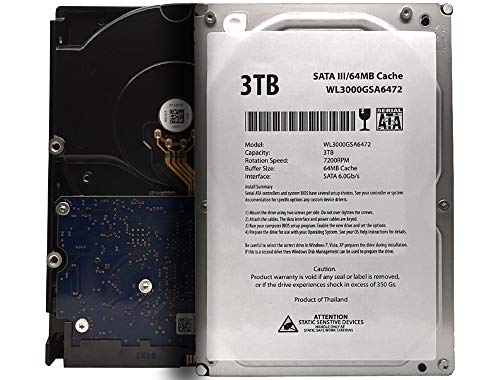
WL 3TB 7200RPM SATA III Internal Desktop Hard Drive — Best for tinkerers and multi-drive boxes
The WL 3TB is the wildcard of this guide, a white-label style drive whose listing speaks directly to the tinkerers: it names RAID, NAS, DVR, and desktop PC use, spins at 7200 RPM, and carries a 64 MB cache with a one-year warranty. For builders assembling home servers, experimental arrays, and spare-part machines, that positioning is precisely the appeal, and drives like this quietly power a great deal of the home-lab world.
Three terabytes is a useful unit size for multi-drive thinking. Several of these in an array build serious capacity with redundancy options, and a single one serves a secondary desktop or a test bench without the commitment of the big-brand flagships. The 7200 RPM speed keeps it feeling willing in any of those roles, and the standard SATA III connection drops it into anything with a bay.
Honesty about the trade-offs matters more here than anywhere in the guide. The one-year warranty stated in the listing is shorter than buyers may expect from the big brands, the support ecosystem is thinner, and long-term behaviour is less documented across the internet. None of that disqualifies it for the roles described, but it does mean this drive should hold data that is backed up, mirrored, or easily replaced, which, to be fair, is how its intended audience treats every drive.
That audience is the point. A home-lab builder running redundancy by design gets value from a drive like this that a cautious family-PC owner does not. Judge it as a component in a system with a data-protection plan, and its listing’s promises line up with its purpose.
Buy it for arrays, experiments, spares, and secondary machines where its flexibility and price make sense and its data is never the only copy. Keep the irreplaceable family archive on the mainstream picks above, with this drive as the capable supporting act.
- Capacity: 3TB
- Interface: SATA III 6.0 Gb/s
- Speed: 7200 RPM
- Cache: 64 MB
- Form factor: 3.5 inch
- Stated uses: RAID, NAS, DVR, desktop PC, per listing
- Warranty: 1 year, per listing
Strengths
- Listing explicitly covers RAID, NAS, DVR, and desktop roles
- 7200 RPM pace with standard SATA III fitting
- Handy 3TB unit size for arrays and spare builds
Trade-offs
- One-year warranty per listing is comparatively short
- Thinner documentation and support than the big brands
- Best used where data is mirrored or backed up
Best for: a home-lab builder or tinkerer assembling arrays, servers, and spare machines with a proper backup or redundancy plan.
Not suited for: a cautious buyer wanting the longest warranty and deepest support for the only drive holding irreplaceable files.
Why Does Spindle Speed Matter Less Than You Think, and More Than You Think?
Spindle speed is the specification desktop buyers argue about most, so it deserves a balanced hearing. A 7200 RPM drive delivers data with lower latency and higher sustained throughput than a 5400-class drive, and in a desktop doing active work, loading games, unpacking archives, serving files, that difference is genuinely perceptible. It is why the 2TB BarraCuda feels livelier than its slower siblings in mixed use.
Yet the same difference shrinks to near-irrelevance for the jobs that fill most drives: storing media, holding backups, and keeping libraries that are read occasionally. A film plays back identically from any drive in this guide, and a photo archive opens at nearly the same pace. Buyers who pay for speed their workload never uses are subsidising a number, while buyers who save money on a drive their games load from daily feel the saving as a daily tax.
The mature approach is to assign speed by folder. Active projects and game libraries belong on the fastest storage you own, ideally the SSD, then the 7200 RPM drive. Cold archives belong wherever capacity is cheapest and quietest. Most desktops end up with exactly the arrangement this guide assumes: quick storage for the present, capacious mechanical storage for everything else.
How Do You Install an Internal Drive Without Drama?
Begin with the machine off, unplugged, and opened on a table with room to work. Check the three requirements before the new drive leaves its bag: a free 3.5-inch bay or adapter, a spare SATA data cable, and a spare SATA power connector from the supply. Discovering a missing data cable with the case open is the classic installation delay, and it is entirely avoidable with a two-minute inventory first.
Mount the drive firmly with screws on both sides where the case allows, because a loosely mounted drive vibrates, and vibration is both noise and wear. Route cables so they do not foul fans, connect data to any free motherboard SATA port, and close up. On boot, the drive will not appear as a lettered volume until it is initialised and formatted in your operating system’s disk management tools, which is normal behaviour, not a fault, and the step that panics more first-time installers than any other.
Finish by giving the drive a clear name, setting up its folder structure while it is empty, and adding it to your backup routine from the other direction as well: decide what on this new, large drive needs protecting elsewhere. An installation is not complete when the drive appears; it is complete when the drive has a job, a structure, and a place in the system’s safety arrangements.
How Should You Divide Space Between an SSD and a Hard Drive?
The division that serves most desktops well is simple to state. The SSD holds the operating system, programs, and the handful of games or projects in current rotation. The hard drive holds everything else: the wider library, media, documents, downloads, and yesterday’s projects. Set your applications’ library locations to the hard drive once, deliberately, rather than letting each program scatter files by default.
Keep the SSD comfortably below full, because solid-state drives slow down as they approach capacity, and keep the hard drive’s organisation boring: top-level folders by kind, dates where chronology matters, and no folder named miscellaneous, which is where files go to be forgotten. A quarterly ten-minute tidy, moving finished work from the SSD to the archive, keeps both drives in their best roles indefinitely.
When the hard drive eventually fills, the honest options are a larger replacement, a second drive if a bay remains, or an external archive for the coldest material. What never works is deleting at random under pressure, which is how the one irreplaceable folder vanishes. Plan the succession while space remains, as with every storage decision in this guide.
What Is the Recording Technology Debate About, in Plain Terms?
Buyers researching desktop drives eventually meet two acronyms, CMR and SMR, describing how the drive writes data to its platters. Conventional recording keeps tracks separate, so rewriting one area never disturbs another. Shingled recording overlaps tracks like roof shingles, gaining capacity from the same surface at the cost of more complicated rewriting, because changing one overlapping track can require refreshing its neighbours. That is the whole debate, stripped of folklore.
In desktop practice the difference appears in one scenario: very long, sustained writes, such as copying hundreds of gigabytes in a single session or rebuilding a heavily used volume. There, some shingled designs slow noticeably once their caches and staging areas fill. For the everyday desktop pattern in this guide, mixed reading, moderate copying, media playback, game loading, the same drives behave unremarkably, which is why they sell in enormous numbers as mainstream models.
The sensible buyer’s response is proportionate. If your desktop regularly ingests huge transfers, a editing workstation swallowing card dumps and project files daily, favour the models with the strongest sustained-write reputations and the largest caches, and structure transfers in batches. If your drive will mostly hold a library that grows gradually, either technology serves, and capacity, noise, and warranty deserve more of your attention than the acronym.
Above all, do not let the debate smuggle in the idea that any desktop drive is a backup. Recording technology affects how a drive writes; it says nothing about whether your only copy of a decade of photographs should live on one mechanism. That question has the same answer in every section of this guide, and it is the one that will matter on the day something fails.
How Can You Watch a Desktop Drive’s Health Over the Years?
Every modern hard drive reports on itself through a self-monitoring system built into the hardware, and free utilities on any operating system can read the report. The values worth a glance a few times a year include the count of reallocated sectors, which should ideally stay at zero, the number of pending sectors awaiting judgement, and the drive’s power-on hours, which tell you honestly how old the mechanism is in working terms rather than calendar terms.
A single reallocated sector is information, not catastrophe; drives are built with spare capacity precisely so small imperfections can be retired gracefully. A count that climbs between checks is a different message entirely, and it should trigger the calm sequence this guide has recommended elsewhere: confirm backups are current, copy anything precious that is not yet protected, and plan the replacement while the drive still works well enough to retire gracefully.
Sounds carry information too. A healthy desktop drive hums and occasionally chatters softly as its heads move. New rhythmic clicking, repeated spin-up and spin-down cycles, or a drive that vanishes from the system and reappears are all behaviours to act on promptly rather than monitor hopefully. Mechanical drives announce most of their endings in advance to owners who are listening.
Heat is the slow variable owners control completely. A drive mounted with an inch of air around it, in a case whose fans actually run, will outlive the same drive sandwiched against another hot mechanism in a sealed box. When you install any pick from this guide, spend the extra two minutes on mounting position and cable routing that keeps air moving across it. It is the cheapest lifespan extension in computing.
What Does a Sensible Upgrade Path Look Like for an Older Desktop?
Older desktops usually arrive at this guide with three complaints at once: the machine is slow, the drive is full, and something occasionally makes a worrying noise. The upgrade sequence that fixes all three without waste starts with diagnosis, not shopping. Note which drive is installed, read its health report, and decide whether it is a candidate for retirement, demotion to secondary duty, or continued service.
If the budget allows one solid-state drive and one pick from this guide, the transformation is complete: the SSD takes the system and programs, the new mechanical drive takes the library, and the old drive, if healthy, becomes an internal backup volume or retires to a drawer as a cold copy. Machines five to eight years old routinely gain several more useful years from exactly this pairing, at a total cost far below replacement.
Memory and dust deserve their dishonourable mentions in any revival. A machine opened for a drive swap should have its fans and heatsinks cleaned while the panels are off, because heat throttles old processors into the slowness owners blame on storage. And if the system still runs on very little memory, a modest upgrade there multiplies the benefit of the new drives more than any further storage spending would.
Finish the revival by reinstalling or refreshing the operating system only if it genuinely needs it; a healthy system can be cloned or simply left in place while the library moves. The goal is a machine that feels cared for rather than rebuilt, with storage that has stopped being the limiting factor in everything its owner asks of it.
How Should Gamers Organise a Library Across Two Drives?
The two-drive desktop has become the standard gaming arrangement for a reason: a modest SSD for the games in current rotation and a large mechanical drive for the collection. Modern game platforms make this painless, allowing multiple library folders and, in most cases, moving an installed game between drives without downloading it again. That single feature changes the economics of a games library, because the cost of keeping a finished game installed drops to the price of mechanical storage, which is to say almost nothing.
The rotation habit is simple. The current handful of titles live on the SSD where loading feels best. When a game falls out of rotation, move it to the BarraCuda rather than deleting it, and when nostalgia or a sequel announcement revives it, move it back in minutes rather than re-downloading for hours on a slow connection. Players on capped or rural internet feel this benefit most, but everyone appreciates a library that behaves like a shelf instead of a revolving door.
Recordings, screenshots, and mods belong in the same plan. Capture folders swell silently, and a game library drive with a clear top-level structure, games, captures, mods, and backups of save files, stays navigable for years. Save files deserve special mention: they are tiny, irreplaceable, and the first thing to copy elsewhere, because no drive in this guide can return a hundred hours of progress once it is gone.
What Should You Know About Warranties and Buying Internal Drives?
Internal drives are sold in two broad flavours of packaging, retail boxes and bare OEM-style drives in antistatic bags, and both are legitimate when bought from reputable sellers. What matters is that the drive arrives new, sealed, and with its warranty intact and verifiable. When any pick from this guide arrives, check the model code on the label against the listing, register the drive with the manufacturer if offered, and run a health check before filling it, because a drive reporting problems out of the bag should go straight back, not into service on probation.
Keep the receipt and the packaging until the drive has a few weeks of uneventful work behind it. Warranty claims for storage are handled by serial number, and the manufacturers’ online checkers will tell you the cover remaining on any drive in this guide in seconds. Note the result with the install date in whatever document you keep for the machine, and the administrative side of ownership is finished for years.
Finally, buy the drive from a listing that names the model precisely. The BarraCuda family alone spans generations and recording technologies under similar names, and the model codes used throughout this guide, ST2000DM008, ST1000DM010, WD80EAAZ and the rest, are the ground truth. A listing that will not state its model code is asking you to buy a surprise, and storage is the one component where surprises are never charming.
How Do You Retire an Old Desktop Drive Responsibly?
Every upgrade in this guide creates a retired drive, and what happens to it is part of the purchase whether owners plan it or not. A healthy old drive has honest second careers: an internal backup volume in the same machine, a drive in a inexpensive USB enclosure for occasional archives, or the household spare that saves a weekend when another machine fails. Demoting a drive you know and trust beats buying an unknown spare, and the enclosure route costs very little.
Data hygiene comes before any change of role. If the drive held the only copies of anything, copy and verify them onto the new arrangement first. If the drive is leaving your household entirely, to a relative, a recycler, or a buyer, wipe it with a proper overwrite utility rather than a quick format, which merely hides data from casual view. A desktop drive accumulates a biography over its life: documents, photographs, saved passwords in browser profiles, and financial records among them.
Drives that have died deserve the same respect in reverse. A failed drive still contains its platters and everything written on them, readable by anyone with recovery equipment and motivation. For drives that held sensitive material, reputable destruction or a drill through the platters, performed safely once the drive is confirmed dead and out of warranty, closes the story properly. It feels excessive right up until you consider what a decade of desktop storage actually contains.
Keep a note of which drive went where, with serial numbers if you are being thorough. It takes a minute, it settles questions years later about where an old archive might be living, and it completes the lifecycle that began with checking the model code when the drive first arrived. Storage ownership done well is mostly this: a series of small, deliberate acts that never make the highlights and prevent every disaster.
Which Drive Should You Buy First If the Budget Only Stretches to One?
Sequence matters when money is tight, and the order this guide recommends surprises people who expected the biggest drive to come first. If the desktop still runs its system from a mechanical drive, the solid-state drive comes first, always, because it transforms every minute of using the machine rather than merely enlarging it. The large SATA drive follows at the next opportunity, and the system that results feels modern in a way no single purchase achieves.
If an SSD is already fitted and the complaint is purely space, the choice narrows to temperament and library. Gamers and active-project households should take the 2TB BarraCuda for its manners, media households the 4TB or an 8TB for the vault, and anyone replacing a failing drive in an old machine should match the purchase to the machine’s remaining life rather than its owner’s ambitions. Money spent on capacity a dying PC will never use is money the replacement machine will miss.
Whichever order you follow, resist the false economy of the almost-right drive. Storage purchases are infrequent and long-lived, and the difference between the size you need and the size that merely fits the budget tends to be repaid, with interest, in a second purchase a year later. Buy once, buy the size the arithmetic supports, and let the drive disappear into the background of a machine that simply works.
And when the new drive is in, the files are moved, and the machine closes up, take the five minutes to update your backup routine so the big new volume is included from the start. Upgrades create a dangerous fortnight in which the newest, fullest drive is also the least protected, simply because the backup schedule still describes the old system. Closing that gap on installation day is the final step of the upgrade itself, and the one that turns a bigger desktop into a safer one as well.
Keep the old drive untouched for the first week after the migration, whatever the temptation to wipe and reuse it immediately. Migration errors are almost always discovered within days, when a program looks for a file that did not make the journey, and the untouched old drive turns each of those discoveries into a thirty-second copy instead of a permanent loss. After a week of uneventful use, demote it to its new role with confidence, and record the change in the note you keep for the machine.
That small probationary week is also the right time to listen to the new drive deliberately: put the machine through one large copy, one game installation, and one ordinary evening of use, and notice whether anything sounds or behaves unexpectedly. Drives that are wrong usually announce it early, while returns are painless and the old drive still holds everything. A week of attention at the start buys years of not thinking about storage at all, which is the entire ambition of a good desktop drive.
Note the date it passed that first week on the same label as its install date, and the record is complete.
How Do the Six Picks Compare Side by Side?
| Pick | Capacity | Interface | Standout trait |
|---|---|---|---|
| Seagate BarraCuda 2TB Internal Hard Drive HDD | 2TB | SATA 6 Gb/s | 7200 RPM, 256 MB cache all-rounder |
| Seagate 8TB BarraCuda Internal Hard Drive | 8TB | SATA 6 Gb/s | Very large generalist library drive |
| Seagate BarraCuda 4TB Internal Hard Drive HDD | 4TB | SATA 6 Gb/s | Quiet 5400 RPM mid-size |
| Seagate BarraCuda 1TB Internal Hard Drive HDD | 1TB | SATA 6 Gb/s | 7200 RPM revival and spare |
| Western Digital 8TB WD Blue PC Internal Hard Drive HDD | 8TB | SATA 6 Gb/s | Calm 5640 RPM WD Blue |
| WL 3TB 7200RPM SATA III Internal Desktop Hard Drive | 3TB | SATA III 6.0 Gb/s | 7200 RPM multi-role tinkerer pick |
What Mistakes Do Buyers Keep Making?
Installing a mechanical drive as the only storage in a new desktop is the mistake this guide most wants to prevent. The machine will feel slow from the first day, and the owner will blame the drive rather than the architecture. Every pick here is a bulk-storage specialist; let an SSD handle the system, and these drives become bargains instead of disappointments.
Forgetting the cables and bay check strands more installations than any compatibility issue. A free SATA port, a data cable, a power connector, and a physical 3.5-inch bay are all required, and at least one is missing in a surprising number of slim prebuilt machines. Ten minutes with the case open before ordering beats a week of returns and reorders.
Treating a huge new drive as its own backup is the third classic error. Moving everything onto one 8TB mechanism and deleting the scattered older copies feels tidy and is, in fact, the moment the data becomes most fragile. Copy, verify, and keep a second home for the irreplaceable material before retiring any old drive.
Finally, buyers chase the wrong specification. Cache and spindle speed matter at the margins of desktop feel, but capacity regret arrives with certainty. When torn between two sizes, the larger one is usually the purchase you will still be pleased with in three years, provided the machine has the bay and the budget genuinely allows it.
Final Recommendation
For most desktops the 2TB BarraCuda is the right first answer: lively, proven, and big enough to calm a crowded system. The 4TB BarraCuda and the 8TB WD Blue serve owners who prize quiet running, the two 8TB models serve libraries that have outgrown everything else, the 1TB BarraCuda revives older machines gracefully, and the WL drive equips tinkerers who build with redundancy in mind.
Storage is the part of a computer that holds your life rather than merely running it, so choose the drive whose size you will not outgrow and whose manners suit the room the machine lives in, fit it carefully, and then enjoy the particular peace of a desktop that has stopped asking you to delete things.
Frequently Asked Questions
Can I use one of these drives as my only drive?
You can, and older or very basic machines do, but a modern desktop with only mechanical storage feels slow in booting, launching programs, and everyday responsiveness. The intended arrangement in this guide is an SSD for the system and one of these drives for bulk storage, which gives you speed where you feel it and capacity where you need it.
What is the difference between 5400 and 7200 RPM in practice?
The faster spindle loads programs, games, and large files somewhat quicker and feels livelier in active use, while the slower class runs quieter, cooler, and with less power draw. For media storage and archives the difference barely registers; for a game library you use daily, the 7200 RPM models earn their place.
Will any of these drives fit my prebuilt desktop?
If it has a free 3.5-inch bay, a spare SATA power connector, and a free motherboard SATA port, yes. Slim prebuilt machines sometimes lack one of those, so open the case and check before ordering. Adapters exist for 2.5-inch bays, but a tower with a proper bay is the natural home for these drives.
How do I move my files from the old drive to the new one?
Fit the new drive alongside the old one, initialise and format it, then copy your folders across in batches and verify the copies open before removing or wiping anything. For a failing old drive, copy the most irreplaceable material first, because a dying drive should spend its remaining life surrendering what matters most.
Are these drives suitable for a home server or NAS?
The mainstream BarraCuda and Blue models are desktop drives and will work in a light-duty home server, though dedicated NAS drives exist for heavy multi-bay use. The WL pick in this guide explicitly lists NAS and RAID among its intended uses, which is why it is included for tinkerer builds with proper redundancy.
How long should a desktop hard drive last?
Plan on a service life measured in years and replace on a cycle rather than on failure, especially once a drive passes the age where its warranty has expired. Any drive can fail early, which is why backups matter more than lifespan statistics, and why the largest drive in your system should never be the only home of anything precious.
Related Guides
Keep researching with Best Drop-Proof Hard Drives for Rough Travel and Field Work Best External Hard Drives Under 50 Dollars for Simple Extra Storage Best Fastest External Hard Drives You Can Buy as Spinning Drives.
Related guides
- Best Gaming Keyboard: Six Boards From Rapid-Trigger Esports Picks to Macro Flagships
- Best Time Machine Compatible Hard Drives: Mac-Ready and Reformatted Picks
- Best 3.0 Qualcomm Quick Chargers: QC 3.0 Adapters That Still Earn Their Outlet
- Best 3D Mechanical Engineering Laptops: Certified Workstations for CAD and Simulation

[…] researching with Best Desktop SATA Hard Drives for Everyday PCs and Upgrades Best Drop-Proof Hard Drives for Rough Travel and Field Work Best External Hard Drives Under 50 […]