What's inside
- Key Takeaways
- Quick Picks
- How We Chose These Picks
- How Do the Six Creative Machines Divide Panel, Power and Posture?
- How Can You Verify a Creative Panel’s Colour Before Trusting It?
- Discrete RTX Graphics or Strong Integrated Silicon: Which Creative Class Are You?
- Detachable, Folding, Flipping or Clamshell: Which Posture Draws Best?
- How Much Storage Does a Creative Library Actually Need?
- What Does a 120Hz Panel Change for Creative Work?
- How Should a Creator Set Up Colour Management in the First Week?
- Which Pick Serves a Photography-Only Practice Best?
- How Do You Protect Creative Work Against the Single-Laptop Risk?
- Common Mistakes When Buying a Creative Laptop
- Why Does This Guide Refuse to Quote Delta E Figures?
- What Is the Difference Between OLED and AMOLED in These Picks?
- How Should a Creator Back Up a 2TB Library Without Misery?
- Why Do the Two RTX Machines Carry the Same GPU but Different Appeals?
- What Should You Do the First Time You Open a Client File on a New Panel?
- How Does an Active Pen Change a Convertible’s Value?
- When Is a 13-Inch Creative Screen the Right Choice?
- What Does Copilot+ Status Add to a Creative Machine?
- How Should You Clean an OLED Touchscreen That Doubles as a Canvas?
- Why Is Matte Gray More Than a Colour Choice on the Vivobook?
- What Is the Sensible Second Screen for a 13-Inch Creator Laptop?
- Final Recommendation
- Frequently Asked Questions
- Related Guides
As an Amazon Associate I earn from qualifying purchases. This post may contain affiliate links at no extra cost to you.
widgetverdict.com is reader-supported. When you buy through links on our site, we may earn an affiliate commission.
Every pick in this search for the best affordable creative laptops shares one component, and it is not a processor: an OLED screen. Six machines — two ASUS ProArt convertibles, a Lenovo Yoga Pro, a Dell XPS 16, an HP OmniBook Flip and an ASUS Vivobook S16 — all place an OLED or AMOLED panel at the centre of their design, because creative work is judged on a screen before it is judged anywhere else. What separates them is everything around the panel: discrete graphics or integrated, 13 inches or 16, detachable, convertible or clamshell, 512GB of storage or two terabytes.
The guide’s colour discipline needs stating before any pick is praised. A screen you can trust is a screen with a stated colour specification, and most of these listing titles — unusually for the creative category — do not print a gamut percentage or a colour-accuracy figure. So this guide does two things honestly: it reports exactly what each title does state (OLED technology, resolution, in one case a 120Hz refresh rate), and it teaches you, in the buying sections, how to verify a panel’s colour behaviour yourself before committing money. OLED’s inherent contrast is a property of the technology; a specific machine’s colour accuracy is a claim to be checked, not assumed.
Performance splits the six into two creative classes. The Yoga Pro 9i and the XPS 16 carry NVIDIA GeForce RTX 5060 discrete graphics beside Intel Ultra 9 processors and 32GB of memory — the video-editing, 3D and effects class. The other four run integrated graphics on modern AI-PC silicon — Ryzen AI Max+, Snapdragon X Plus, Intel Ultra 7, Ryzen AI 9 — a class aimed at photography, illustration, design and writing-adjacent creative work, where the panel and the pen matter more than the render queue.
Form is the third axis. The ProArt PX13 folds, the ProArt PZ13 detaches its screen entirely, the OmniBook flips and includes an active pen in its title, while the Yoga, XPS and Vivobook are clamshells of increasing size. A creative laptop is a drawing surface, a reference monitor and a presentation screen in rotation, and the right form is the one your particular rotation uses. Read the six as a matrix of panel, power and posture, and your own work will point at its cell.
Key Takeaways
- All six picks use OLED or AMOLED panels — the category’s entry ticket — at resolutions from WUXGA to 4K, in sizes from 13.3 to 16.3 inches.
- Two picks carry discrete RTX 5060 graphics, the Yoga Pro 9i and the XPS 16, and they are the video and 3D class of this guide.
- The HP OmniBook Ultra Flip holds the largest drive here, 2TB, with 32GB of memory and an active pen named in its title.
- The ProArt PZ13 is the only detachable: a 13.3-inch 2.8K AMOLED tablet body with Snapdragon X Plus and a terabyte of storage.
- Most titles here state no gamut or colour-accuracy figure — verify colour behaviour yourself using the checks in the buying sections before trusting any panel for client work.
- The Vivobook S16 is the big-screen value of the set: 16-inch OLED, Ryzen AI 9, 32GB and a terabyte inside the mainstream Vivobook line.
Quick Picks
| Pick | Badge | Why it is here |
|---|---|---|
| ASUS ProArt PX13 (Ryzen AI Max+ 388, OLED 2.8K) | Pen-Led Creator Convertible | A 13.3-inch 2.8K OLED touchscreen that folds, on Ryzen AI Max+ silicon with 32GB of LPDDR5X memory. |
| ASUS ProArt PZ13 (Snapdragon X Plus, Detachable) | Detachable AMOLED Canvas | The tablet-first ProArt: a detachable 13.3-inch 2.8K AMOLED screen, Snapdragon X Plus, 16GB and a full terabyte. |
| Lenovo Yoga Pro 9i Aura (RTX 5060, OLED 3.2K) | Discrete-GPU Creator Clamshell | A 16-inch 3.2K OLED touchscreen with an RTX 5060, Ultra 9 power, 32GB of memory and a terabyte drive. |
| Dell XPS 16 (RTX 5060, 4K OLED 120Hz) | Flagship Creative Screen | The flagship specification: 16.3-inch 4K OLED at 120Hz, RTX 5060, Ultra 9, three Thunderbolt 4 ports and Windows 11 Pro. |
| HP OmniBook Ultra Flip 14 (2TB, Active Pen) | Storage-Rich Pen Convertible | A flipping 14-inch 2.8K OLED with the guide’s largest drive — 2TB — plus 32GB, an active pen and Windows 11 Pro. |
| ASUS Vivobook S16 OLED (Ryzen AI 9, 32GB, 1TB) | Big-Screen OLED Value | The mainstream route to a big OLED: 16-inch WUXGA OLED in 16:10, Ryzen AI 9, 32GB, a terabyte and Copilot+ status. |
How We Chose These Picks
The selection was organised as a matrix rather than a ranking, because creative work is not one job. Each pick had to clear the panel bar — OLED or AMOLED, stated in the title — and then occupy a distinct cell of power and posture: discrete-GPU clamshells for video and 3D at two sizes, a folding ProArt for pen-led work, a detachable for the tablet-first illustrator, a flipping HP with the guide’s largest storage, and a big-screen value model for photographers who want OLED area without flagship pricing logic.
Colour claims were audited pick by pick. Where a title quantifies the panel — the XPS 16’s 4K resolution and 120Hz refresh — the guide uses the numbers. Where it does not, the spec lists say the panel’s stated facts and nothing more, and the analysis leans on properties that OLED technology itself guarantees, such as per-pixel contrast, rather than borrowing a gamut figure from a sibling model or a review sample. Creative buyers are the audience most harmed by invented colour claims, so this guide would rather teach verification than perform certainty.
Storage and memory were screened against creative reality: photo libraries, video projects and layered design files. Five of the six picks carry 32GB of memory, and four carry a terabyte or more — the ProArt PX13’s title lists a range of drive capacities, which its section handles explicitly. A creative machine that fills its drive or pages its memory mid-project fails at the exact moment its owner can least afford, so those two numbers were treated as creative specifications, not administrative ones.

ASUS ProArt PX13 (Ryzen AI Max+ 388, OLED 2.8K) — Pen-Led Creator Convertible
The ProArt line is ASUS’s creator division, and the PX13 is its compact instrument: a 13.3-inch OLED touchscreen at 2.8K resolution in a 2-in-1 body that folds from laptop to tablet postures for drawing, annotating and presenting. The processor is AMD’s Ryzen AI Max+ 388, a high-integration chip whose Radeon graphics are substantially stronger than ordinary integrated graphics — the class of silicon aimed at creators who edit photos, cut moderate video and work in 3D without a discrete card. Memory is 32GB of LPDDR5X, the figure serious multitasking in creative applications expects.
One line in its title demands a buyer’s full attention: storage is listed as a range — 512GB, 1TB or 2TB — because this listing family spans configurations. The exact capacity of the unit you order is a checkout decision, not a detail, and the difference between the smallest and largest option is the difference between a scratch disk and an archive. Confirm the selected capacity in the listing before paying, and screenshot the configuration you chose. This guide makes no capacity claim for the PX13 beyond naming the range its title states.
Windows 11 Pro, Wi-Fi 7 and Bluetooth 5.4 complete a specification with a professional posture, and the backlit keyboard keeps it usable in the dim studios where OLED panels look their best. As a creative pick, the PX13 suits the illustrator, photographer and designer whose work is pen-shaped and portable — a machine carried to the subject, folded over the subject, and trusted for colour judgements in the field, subject to the verification routine this guide sets out for every panel here. It is the most purpose-built creative tool in the set, and its size is its only real limit.
- Display: 13.3-inch OLED 2.8K touchscreen, 2-in-1
- Processor: AMD Ryzen AI Max+ 388
- Graphics: AMD Radeon (integrated)
- Memory: 32GB LPDDR5X RAM
- Storage: listed as 512GB / 1TB / 2TB options — confirm the selected capacity on the listing
- Extras in title: Windows 11 Pro, Wi-Fi 7, Bluetooth 5.4, backlit keyboard, webcam
Strengths
- 2.8K OLED touch panel in a folding creator body
- Ryzen AI Max+ graphics outmuscle ordinary integrated chips
- 32GB LPDDR5X suits layered creative files
Trade-offs
- Storage capacity must be confirmed — the title lists a range
- 13.3 inches is tight for timeline-heavy video editing
- Colour coverage is not stated in the listing title
Best for: illustrators, photographers and designers drawing, annotating and editing on the move
Not suited for: video editors whose timelines demand a large screen and discrete graphics

ASUS ProArt PZ13 (Snapdragon X Plus, Detachable) — Detachable AMOLED Canvas
The PZ13 asks a question the other five do not: what if the screen is the computer, and the keyboard is the accessory? This ProArt detaches — its 13.3-inch 2.8K AMOLED touchscreen works as a standalone tablet for drawing, reading and presenting, then docks to its backlit keyboard for writing and file work. For illustrators, the posture is the point: a canvas unencumbered by a keyboard deck, held or propped at drawing angles no hinge can reach, with the full Windows application stack inside rather than a mobile app’s approximation of it.
Qualcomm’s Snapdragon X Plus (X1P-42) powers it, with a 45-TOPS neural processor stated in the title, 16GB of memory and — notable at this size — a full terabyte of storage. The platform’s virtues are silence, cool running and endurance-shaped efficiency, which suit a tablet’s life; its caveat is the standing ARM one, that specialised legacy Windows tools deserve a compatibility check before purchase. Mainstream creative applications increasingly support the platform, but your single most unusual plug-in is the one to verify, in writing, from its maker.
A bundled DKZ USB hub rides in the title, expanding the detachable’s minimal ports when it sits at a desk. Windows 11 Home, rather than the PX13’s Pro, marks its edition. Choose the PZ13 when your creative centre of gravity is the drawn line and the carried screen; choose its folding sibling when the keyboard half of life — writing, coding, long edits — carries equal weight. Between them, ASUS has built the same ProArt panel philosophy into the two postures a portable creator actually alternates between.
- Display: 13.3-inch 2.8K AMOLED touch, detachable
- Processor: Qualcomm Snapdragon X Plus X1P-42, 45 TOPS NPU
- Memory: 16GB RAM
- Storage: 1TB
- Operating system: Windows 11 Home
- Extras in title: backlit keyboard, Wi-Fi 7, Bluetooth 5.4, bundled DKZ USB hub
Strengths
- Detachable canvas for true tablet drawing postures
- Terabyte of storage in a tablet-class body
- Efficient, quiet Snapdragon platform for mobile work
Trade-offs
- ARM platform requires a plug-in compatibility check
- 16GB of memory is half the PX13’s figure
- Home edition Windows beside the PX13’s Pro
Best for: illustrators and presenters whose work centres on the screen itself, carried everywhere
Not suited for: creators dependent on specialised x86-only software or heavy multitasking

Lenovo Yoga Pro 9i Aura (RTX 5060, OLED 3.2K) — Discrete-GPU Creator Clamshell
The Yoga Pro 9i Aura Edition is the guide’s first discrete-graphics machine, and its specification reads as a video editor’s checklist: a 16-inch OLED touchscreen at 3.2K resolution — the sharpest panel here alongside the XPS — an Intel Core Ultra 9-285H, 32GB of LPDDR5X memory, a terabyte drive, and an NVIDIA GeForce RTX 5060 to accelerate timeline effects, exports and 3D work. Lenovo badges it a Creator Laptop in the title itself, and for once the badge is backed by every line beneath it. A DKZ USB port expander is bundled for desk duty.
The RTX 5060 changes which creative jobs this laptop can honestly accept. GPU-accelerated effects stop being a negotiation, multicam timelines hold together, 3D viewports stay fluid, and export queues shrink from errands into minutes. Paired with the Ultra 9’s core count and 32GB of memory, the configuration has no obvious weak column for the independent video professional or the design studio’s second seat. The touchscreen at 16 inches serves review and annotation more than drawing — this is a clamshell, and its screen stays attached to its keyboard, where timelines live.
Windows 11 Home is the specification that sits oddly beside the rest, where business buyers may want Pro; home-studio creators will never notice. The honest limits are the class’s usual ones: discrete graphics shorten unplugged endurance, and the title states no gamut figure, so colour-critical buyers should run the verification routine from this guide’s buying sections before grading client work on it. As a combination of panel, GPU and memory in one mainstream-brand machine, though, the Yoga Pro is the value centre of the discrete class — the pick against which the XPS must justify its premium.
- Display: 16-inch OLED 3.2K touchscreen
- Graphics: NVIDIA GeForce RTX 5060
- Processor: Intel Core Ultra 9-285H
- Memory: 32GB LPDDR5X RAM
- Storage: 1TB SSD
- Extras in title: Windows 11 Home, backlit keyboard, bundled DKZ USB port expander
Strengths
- RTX 5060 unlocks serious video and 3D acceleration
- 3.2K OLED is among the sharpest panels here
- 32GB and a terabyte complete the creator brief
Trade-offs
- Home edition Windows in a professional specification
- Discrete GPU limits battery endurance under load
- Colour coverage is not stated in the listing title
Best for: video editors and 3D artists taking discrete graphics behind a large OLED
Not suited for: pen-first illustration requiring a folding or detaching screen

Dell XPS 16 (RTX 5060, 4K OLED 120Hz) — Flagship Creative Screen
The XPS 16 — model DA16250 — is what the creative brief looks like with the flagship budget applied to every line simultaneously. Its 16.3-inch OLED touchscreen is the only panel here specified at 4K resolution with a 120Hz refresh rate, a combination that serves both halves of creative work: pixel-level detail for image and layout judgement, and motion smoothness for timeline scrubbing and interface work. Behind it sit the same headline silicon as the Yoga — an Intel Ultra 9 285H and an RTX 5060 — with 32GB of memory and a terabyte of storage, so the premium is not buying more power; it is buying the screen, the platform and the ports around identical power.
Those ports deserve their sentence: three Thunderbolt 4 connections, the most generous docking provision in this guide, turn the XPS into a studio hub — drives, a reference monitor, audio interfaces and power through a small number of fast cables. A 1080p IR webcam with fingerprint sign-in covers the client-call and security brief, Wi-Fi 7 covers the network’s future, and Windows 11 Pro returns, aligning the machine with studio and business deployment in a way its Yoga rival’s Home edition does not. Dell frames it in the title as a Business AI PC, and the specification supports the framing.
The decision against the Yoga is therefore precise rather than vague. If your studio life is docked, client-facing and colour-serious — with the panel verification routine run and passed — the XPS’s screen and platform justify their tier. If your life is the edit itself, carried between rooms, the Yoga delivers the same GPU and memory with its own excellent panel and leaves budget for the external drive and monitor your work also needs. Flagship money should always be able to name what it bought; here it can: 4K at 120Hz, three Thunderbolt ports, Pro software and the IR camera, itemised.
- Display: 16.3-inch OLED 4K touchscreen, 120Hz
- Graphics: NVIDIA GeForce RTX 5060
- Processor: Intel Core Ultra 9 285H
- Memory: 32GB RAM
- Storage: 1TB
- Extras in title: 3x Thunderbolt 4, 1080p IR webcam, fingerprint reader, Wi-Fi 7, Windows 11 Pro, model DA16250
Strengths
- Only 4K OLED at 120Hz in this guide
- Three Thunderbolt 4 ports make it a studio hub
- Pro software and IR webcam suit client-facing studios
Trade-offs
- Flagship tier pricing logic over identical core silicon
- Large chassis is a studio anchor, not a traveller
- Gamut figure is not stated in the listing title
Best for: studio professionals docking, presenting to clients and grading on the laptop’s own screen
Not suited for: budgets better spent on a monitor and drives than on the flagship difference

HP OmniBook Ultra Flip 14 (2TB, Active Pen) — Storage-Rich Pen Convertible
HP’s OmniBook Ultra Flip makes its creative case in the two places portfolios actually fail: storage and input. Its drive is 2TB, double the capacity of any rival here, which in creative terms is a photo library, a video archive and a design history living on the machine instead of in a negotiation with external drives. And its title names an Active Pen among the included features — the stylus that turns a 2-in-1’s touchscreen from a tapping surface into a drawing instrument ships as part of the bargain, not as an accessory to research later. For the pen-led creator, that single line may be the most valuable in this guide.
The rest of the configuration holds the flagship-convertible line: a 14-inch OLED touchscreen at 2.8K, an Intel Core Ultra 7-258V, 32GB of LPDDR5X memory, a fingerprint reader, a backlit keyboard, Windows 11 Pro and a bundled Dockztorm hub for desk expansion. The Ultra 7’s integrated graphics place it in the guide’s second creative class — photography, illustration, design, light video — rather than the RTX pair’s render class, and buyers should sort it accordingly: its excellence is capacity and input, not GPU throughput.
Fourteen inches in a flip format is the travel-creator’s geometry: big enough for a canvas and a toolbar, small enough for a tray table and a camera bag’s laptop sleeve. Against the ProArt PX13, its closest rival in spirit, the OmniBook counters with double the maximum storage certainty — its 2TB is a single stated figure, not a range to confirm — the included pen, and HP’s take on the convertible hinge. An illustrator-photographer hybrid who archives heavily could rationally choose it ahead of the rest of the set, discrete graphics notwithstanding.
- Display: 14-inch OLED 2.8K touchscreen, 2-in-1 flip
- Processor: Intel Core Ultra 7-258V
- Memory: 32GB LPDDR5X RAM
- Storage: 2TB PCIe SSD
- Operating system: Windows 11 Pro
- Extras in title: active pen included, fingerprint reader, backlit keyboard, bundled Dockztorm hub
Strengths
- 2TB drive is double the rest of the guide
- Active pen included for drawing from day one
- 32GB and Pro software complete the professional brief
Trade-offs
- Integrated graphics, not the RTX class
- 14-inch canvas limits timeline-heavy editing
- Colour coverage is not stated in the listing title
Best for: illustrators and photographers with heavy archives and daily pen work
Not suited for: video and 3D creators whose work needs discrete GPU acceleration
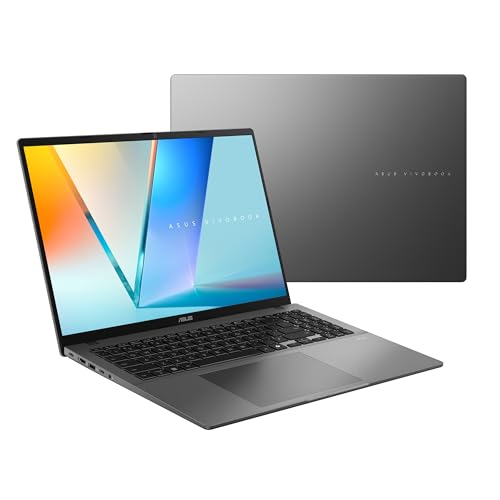
ASUS Vivobook S16 OLED (Ryzen AI 9, 32GB, 1TB) — Big-Screen OLED Value
The Vivobook S16 — model M3607GA-ES99, a 2026 design in Matte Gray — exists to answer a fair question: how much of the creative brief survives translation into ASUS’s mainstream line? More than sceptics expect. The panel is a 16-inch OLED in the taller 16:10 format at WUXGA resolution, the processor is AMD’s Ryzen AI 9 465 with the Copilot+ PC designation the title carries, memory is 32GB and storage a terabyte. For photography, design, illustration at moderate complexity and writing-with-images work, that is not a cut-down specification; it is the specification, wearing a Vivobook badge instead of a ProArt or flagship one.
What the translation surrenders is identifiable: integrated Radeon graphics rather than an RTX card, so video timelines and 3D viewports lean on the processor; Wi-Fi 6 rather than 7; Windows 11 Home rather than Pro; and a WUXGA resolution below the Yoga’s 3.2K and the XPS’s 4K. None of those surrenders touches the photographer’s core loop — cull, edit, export, archive — and the 16:10 OLED’s extra vertical room genuinely serves it, showing more of a portrait image and more layers of a design at once.
This is the pick for the creator whose budget discipline is real and whose work is image-shaped rather than render-shaped. It also serves as the guide’s control sample: proof that in 2026 the OLED panel, once a flagship signature, has reached the mainstream line with its virtues intact. Verify its colour behaviour with the routine in the buying sections, as with every panel here, and a photographer can spend the savings on the lens, the drive or the calibration tool that the work will feel more than a badge.
- Display: 16-inch WUXGA OLED, 16:10
- Processor: AMD Ryzen AI 9 465
- Graphics: AMD Radeon Graphics (integrated)
- Memory: 32GB RAM
- Storage: 1TB SSD
- Extras in title: Copilot+ PC, Wi-Fi 6, Windows 11 Home, model M3607GA-ES99, 2026
Strengths
- Big 16:10 OLED in the mainstream price class
- 32GB and a terabyte match pricier picks
- Copilot+ designation on current Ryzen AI silicon
Trade-offs
- Integrated graphics cap video and 3D ambition
- WUXGA resolution below the 3.2K and 4K rivals
- Home edition Windows and Wi-Fi 6 mark the tier
Best for: photographers and designers taking a large OLED canvas without flagship pricing logic
Not suited for: render-led work requiring an RTX card and a sharper panel
How Do the Six Creative Machines Divide Panel, Power and Posture?
The table exposes the guide’s matrix at a glance. Graphics split the six into two classes — RTX 5060 discrete in the two big clamshells, integrated everywhere else — while storage runs from a configurable range on the PX13 to the OmniBook’s emphatic 2TB. Every row is OLED, which is precisely why the buying sections below spend their length on verification: when a whole category shares a panel technology, the differences that matter move to resolution, form, colour behaviour you check yourself, and the silicon behind the screen.
| Pick | Display | Graphics | Memory | Storage |
|---|---|---|---|---|
| ASUS ProArt PX13 (Ryzen AI Max+ 388, OLED 2.8K) | 13.3-inch OLED 2.8K touch | Radeon integrated | 32GB LPDDR5X | 512GB–2TB options in title |
| ASUS ProArt PZ13 (Snapdragon X Plus, Detachable) | 13.3-inch AMOLED 2.8K touch | Integrated (Snapdragon) | 16GB | 1TB |
| Lenovo Yoga Pro 9i Aura (RTX 5060, OLED 3.2K) | 16-inch OLED 3.2K touch | RTX 5060 | 32GB LPDDR5X | 1TB SSD |
| Dell XPS 16 (RTX 5060, 4K OLED 120Hz) | 16.3-inch OLED 4K 120Hz touch | RTX 5060 | 32GB | 1TB |
| HP OmniBook Ultra Flip 14 (2TB, Active Pen) | 14-inch OLED 2.8K touch | Integrated (Ultra 7) | 32GB LPDDR5X | 2TB SSD |
| ASUS Vivobook S16 OLED (Ryzen AI 9, 32GB, 1TB) | 16-inch WUXGA OLED 16:10 | Radeon integrated | 32GB | 1TB SSD |
How Can You Verify a Creative Panel’s Colour Before Trusting It?
Since most titles in this category state no gamut figure, verification becomes the buyer’s craft, and it is learnable in an afternoon. Start with the maker’s full specification page for the exact model — not the listing summary — and look for stated coverage of the sRGB and DCI-P3 spaces and any factory-calibration claim; write down what is actually printed. Then, on the delivered machine, display known test images: a greyscale ramp should show smooth steps without colour tinting in the shadows, and saturated red, green and blue patches should look distinct rather than clipped to the same brightness.
For client work, the decisive step is a hardware calibrator, which measures the panel and builds a correcting profile; it costs less than most accessories in a creative bag and converts trust from an opinion into a measurement. Calibrate in the lighting you actually edit in, re-check monthly, and soft-proof deliverables in the destination colour space before export. A panel that passes this routine has earned trust regardless of what its title printed; a panel that fails it has told you something no specification sheet would. Every pick in this guide deserves the routine; none is exempted by its badge.
Discrete RTX Graphics or Strong Integrated Silicon: Which Creative Class Are You?
Sort by the heaviest hour of your week. Video timelines with effects, 3D modelling and rendering, and GPU-accelerated exports belong to the discrete class — here, the Yoga Pro and XPS 16 with their RTX 5060 cards — because those workloads scale directly with GPU power and will spend a weaker chip’s whole afternoon on one export. Photography, illustration, vector design, layout and light video belong comfortably to the integrated class, where the modern silicon in the ProArts, OmniBook and Vivobook is genuinely capable, and the money saved funds storage, pens and calibration.
The trap is buying for the heaviest hour of your year. A photographer who renders one video each December should not carry discrete-GPU costs — price, heat, endurance — through the other eleven months; renting power or tolerating one slow export is cheaper. The reverse trap is worse: a video editor who talks themselves into integrated graphics to afford a bigger screen will pay the difference weekly, in export queues. Be honest about the recurring hour, and the class chooses itself with unusual clarity.
Detachable, Folding, Flipping or Clamshell: Which Posture Draws Best?
Each form optimises a different moment in the drawing life. The PZ13’s detachable screen is the pure canvas — nothing between the hand and the work, the tablet held at sketchbook angles. The PX13’s fold keeps the keyboard attached for the hybrid day of drawing and writing, at the cost of a thicker tablet posture. The OmniBook’s flip adds the largest storage and an included pen to the same folding idea. The big clamshells — Yoga, XPS, Vivobook — keep the screen upright and the GPU fed, serving the desk-bound arts of editing and layout where drawing is occasional and timelines are permanent.
Test your own rotation before choosing: count, over one honest week, the hours spent drawing, typing, editing timelines and presenting. The winning form is the one your hours already use, not the one a demonstration makes delightful. Artists routinely discover their drawing happens at a desk with the laptop flat — a posture every convertible here serves — while the detachable’s freedom matters most to those who genuinely draw standing, travelling or in the field. Posture is a workflow specification; measure the workflow, then buy the hinge.
How Much Storage Does a Creative Library Actually Need?
Price it from your archive’s growth rate, not its current size. Photographers should count a year of shoots at their real file sizes — RAW libraries grow by hundreds of gigabytes in busy years — and video creators should count a single project’s footage, intermediates and exports, which can consume a quarter-terabyte before the client sees a frame. Against those numbers, the OmniBook’s 2TB is a working archive, the terabyte machines are a current-projects drive with an external archive habit, and the PX13’s smallest listed option is a scratch disk that presumes disciplined external storage from day one.
The companion discipline is separation: internal storage for live work, an external drive for completed projects, a backup that is neither. Creative files are unrepeatable in a way documents are not — a reshoot is not a retype — so the storage conversation and the backup conversation are the same conversation held twice. Whichever pick you choose, its drive size should be the start of that plan, never a substitute for it.
What Does a 120Hz Panel Change for Creative Work?
Less than for gaming, more than sceptics allow. The XPS 16’s 120Hz refresh smooths the motions creative work is full of: timeline playheads and scrubbing, canvas panning and zooming, brush strokes tracking the pen. None of these become more accurate at 120Hz, but they become more legible — the eye follows a smooth playhead with less effort across a long edit, and a brush that appears where the hand expects it, without perceptible lag, keeps the drawing loop tight. It is an ergonomics feature wearing a gaming specification’s clothes.
The cost is power: high refresh draws more energy, and most systems let you drop to a lower rate for battery-critical days. Treat 120Hz as the desk-and-plugged mode of a flagship panel, and judge the XPS’s premium partly on whether your work’s motion content — video above all — justifies it. For the still-image arts, the same money in the Yoga’s or Vivobook’s column buys storage and accessories instead; for the moving-image arts, the XPS’s panel is the one specification in this guide aimed precisely at you.
How Should a Creator Set Up Colour Management in the First Week?
Establish one working space per output and make the software obey it: edit photographs in a wide space, soft-proof into sRGB for web delivery or the printer’s profile for print, and never let an application guess. Turn off every ‘vivid’ or enhancement mode in the display settings — those modes are designed to flatter games and films by distorting exactly the relationships you are paid to judge — and set the panel to its most neutral preset as the calibration starting point. Then run the verification routine from this guide’s earlier section and, if the work is client-facing, the calibrator.
Document the setup in the project folder template: working space, proofing target, calibration date. Colour management fails socially more often than technically — a file that leaves your calibrated machine for a client’s uncalibrated one will be judged there, so deliverables should be checked in the destination space and, for critical work, accompanied by a note about viewing conditions. The laptops in this guide give you OLED canvases of real quality; the management routine is what converts a good canvas into a trustworthy one.
Which Pick Serves a Photography-Only Practice Best?
Photography’s demands are specific: panel quality and size for judgement, memory for layered files and big catalogues, storage for an ever-growing library, and enough processor for exports — with discrete graphics a genuine but secondary accelerator. On that brief, two picks lead. The OmniBook Flip pairs a 2.8K OLED with 2TB of storage and 32GB of memory, swallowing a library whole. The Vivobook S16 counters with the biggest canvas here at a mainstream tier, the same memory and a terabyte, leaving budget for the calibrator and backup drive the practice also needs.
The ProArt PX13 enters when the practice travels to the subject — location portraiture, travel editorial, event work culled on site — where its folding 13.3-inch form and ProArt brief earn their keep. What photography rarely needs is the RTX pair’s render power, unless the practice has quietly become a video practice too, which is a common enough evolution that the honest photographer should ask the question out loud before buying. Cameras evolve; so do the laptops behind them.
How Do You Protect Creative Work Against the Single-Laptop Risk?
A creative laptop concentrates a livelihood in one fragile object, so the setup around it matters as much as its specification. Back up on a schedule that runs without willpower, keep one copy physically elsewhere, and treat the cloud sync of finished deliverables as part of the export step rather than an afterthought. Insure or warranty according to how the machine travels — a PZ13 that lives in the field and a docked XPS face different risks — and photograph serial labels and receipts into the same archive as the work itself.
There is also a continuity question worth answering before it is asked: if this machine died tonight, what would tomorrow’s client receive, and from what? The picks in this guide, with their generous storage, tempt owners to keep everything in one place — which makes the backup discipline more important, not less. The professional’s laptop is a studio; studios have fire plans. Build yours while it still feels like pedantry, because the week it stops feeling pedantic is the week it is needed.
Common Mistakes When Buying a Creative Laptop
**Trusting the word OLED as a colour guarantee.** OLED certifies a technology — per-pixel light, true blacks, high contrast — not a specific panel’s colour accuracy. With most titles here stating no gamut figure, the verification routine is not optional homework for professionals; it is the moment trust is actually established.
**Buying a storage range without noticing.** The ProArt PX13’s title lists 512GB, 1TB and 2TB options under one listing family. A buyer who orders the listing’s default without confirming the selected capacity may receive a third of the drive they imagined. Check the capacity at checkout and keep the screenshot.
**Paying for discrete graphics to edit photographs.** The RTX pair earns its premium in video, 3D and effects. A stills-only practice gains far more from the OmniBook’s storage or the Vivobook’s screen size. Match the GPU to the heaviest recurring hour, not the most impressive specification.
**Choosing a detachable for a keyboard-shaped life.** The PZ13 is a superb canvas and a compromised typewriter. Writers, coders and heavy editors who fall for the detachable idea in a demonstration often spend years propping a tablet where a laptop should be. Count your typing hours before your drawing hours if both are real.
**Leaving the panel in its showroom picture mode.** Vivid and enhanced presets distort colour relationships for entertainment effect. The first act of a creative owner is to find the neutral preset, disable enhancements, and calibrate — otherwise the most expensive component in the machine is actively misleading its owner.
**Keeping the whole portfolio on the internal drive only.** Two terabytes of unrepeatable work in one object is not an archive; it is a single point of failure with a large capacity. The bigger the drive a pick offers, the more disciplined its backup arrangement must be.
Why Does This Guide Refuse to Quote Delta E Figures?
Because no title in this set states one, and a colour-error figure quoted from a review sample would describe that sample, that day, that meter — not the unit in your basket. Delta E is a measurement, and measurements belong to specific panels under specific conditions. The honest alternative is the one this guide takes: teach the buyer to measure or verify their own delivered panel, where the number will actually govern their work. A guide that invents precision teaches false confidence; a guide that teaches measurement teaches a career skill.
What Is the Difference Between OLED and AMOLED in These Picks?
In laptop practice, very little that should steer a purchase. AMOLED is Samsung’s branding for its active-matrix OLED panels, and the PZ13’s detachable screen carries that name; the other five say OLED. Both describe self-emissive pixels with per-pixel control, true blacks and high contrast. Judge the PZ13 against its siblings on resolution, form and platform — the axes where real differences live — rather than on the extra letters, which are a manufacturer’s signature rather than a technology tier.
How Should a Creator Back Up a 2TB Library Without Misery?
In tiers, automatically. Live projects stay on the internal drive; a nightly incremental backup mirrors the library to an external drive; finished work additionally archives to a second location, ideally off-site or cloud. The OmniBook’s 2TB internal drive makes the first tier roomy, which increases, not decreases, the importance of the other two — a large library lost is a large loss. Set the schedule during setup week, verify one restore of a real file, and then let the system be boring. Boring backups are the kind that exist when needed.
Why Do the Two RTX Machines Carry the Same GPU but Different Appeals?
Because a creative laptop is a system, and the GPU is one organ in it. The Yoga Pro spends its design effort on the creator brief itself — big OLED, bundled port expansion, value within its class. The XPS spends additionally on the studio platform: 4K at 120Hz, three Thunderbolt ports, an IR webcam, Pro software, flagship construction. Editors who live in the timeline may never touch the difference; studio owners who dock, present and deploy will touch it daily. Identical silicon, different lives — which is why this guide compares configurations and contexts, never components alone.
What Should You Do the First Time You Open a Client File on a New Panel?
Open a file whose correct appearance you already know — a past deliverable you have seen in print or on a trusted screen — and compare your memory of it against the new panel before opening anything unfamiliar. Skin tones, brand colours and shadow detail are the witnesses to call. If the known file looks right after your calibration routine, unfamiliar files can be judged with confidence; if it looks wrong, the problem is located in the setup, not the work. This small ritual converts a new laptop from a suspect into an instrument in about ten minutes.
How Does an Active Pen Change a Convertible’s Value?
It completes the product. A touchscreen without a pen is a tapping surface; with a pressure-sensitive pen it becomes a drawing instrument, and the difference decides whether the convertible’s premium was spent on a feature or a gesture. The OmniBook’s title includes the pen, which removes a research-and-purchase step and guarantees compatibility. Buyers of the ProArt convertibles should confirm the pen situation for their exact listing with the same care as any specification — in pen-led work, the stylus is not an accessory but half the interface.
When Is a 13-Inch Creative Screen the Right Choice?
When the work travels to its subject: location photography culled in the field, illustration drawn in transit, design reviewed in clients’ rooms. The PX13 and PZ13 accept a smaller canvas in exchange for being present at those moments, and their 2.8K resolutions keep detail dense despite the size. The error is buying small for a desk life, where the same money buys the Vivobook’s 16 inches and the canvas never has to apologise. Portability is a specification like any other — priceless when used, waste when carried unused.
What Does Copilot+ Status Add to a Creative Machine?
It certifies that the neural processor clears Microsoft’s threshold for on-device AI features in Windows — local assistance, effects and increasingly the AI tools inside creative applications, running on the machine rather than a server. The Vivobook S16 carries the designation in its title; the PZ13 states its 45-TOPS figure explicitly. For creators, the practical value grows as applications route more features through the NPU, and it costs no battery-hungry GPU time when it works. Treat it as future-facing platform value, weighed below panel, memory and storage in today’s decision.
How Should You Clean an OLED Touchscreen That Doubles as a Canvas?
With restraint: power down, use a clean microfibre cloth barely dampened with water, wipe in straight lines, and never spray liquid directly onto the panel or use household glass cleaners, whose chemicals are formulated for windows, not coated displays. Pen-led machines accumulate oils exactly where the drawing happens, and a weekly gentle clean keeps both the image and the pen’s glide honest. The screen is the most expensive surface you own; treat its cleaning like lens care, not like countertop care, and it will repay the gentleness for years.
Why Is Matte Gray More Than a Colour Choice on the Vivobook?
Because finish is a working condition. A matte, neutral chassis reflects less of the room into the user’s peripheral vision, shows fewer fingerprints during client handling, and keeps attention on the panel — the component the creator is actually judging. It is a small, telling detail in a mainstream machine aimed at creative buyers: the design assumes the screen’s image matters more than the laptop’s own appearance. Studios are full of such decisions, and a laptop that makes them quietly is usually a laptop designed by people who have worked in one.
What Is the Sensible Second Screen for a 13-Inch Creator Laptop?
A colour-decent external monitor at the home desk, used as the judgement screen while the laptop’s own panel holds tools and references — or the reverse, by preference, provided one screen is designated the trusted one and calibrated. Portable USB-C monitors extend the same idea to travel. The two-screen arrangement resolves the small-laptop dilemma elegantly: carry 13 inches, work on 27. Both ProArt picks dock happily into such a setup, the PZ13 through its bundled hub, which is part of why their small panels are a strategy rather than a compromise.
Final Recommendation
The creative six divide cleanly once your heaviest hour is named. Video and 3D creators should choose between the Yoga Pro 9i — RTX 5060 power behind a 3.2K OLED at the discrete class’s value centre — and the XPS 16, whose 4K 120Hz panel, triple Thunderbolt ports and Pro platform justify the flagship tier for docked, client-facing studios. Pen-led creators should choose between the ProArt PX13’s folding ProArt brief, the PZ13’s detachable canvas, and the OmniBook Flip’s pen-included, 2TB convertible — three postures for three kinds of drawing life.
Photographers and designers on a disciplined budget should look hard at the Vivobook S16, whose big 16:10 OLED, 32GB and terabyte prove how far the mainstream line has come. Across all six, run the colour verification routine before client work, confirm the PX13’s storage option at checkout if that is your pick, and keep the backup discipline equal to the library’s value. An affordable creative laptop is not a lesser studio; chosen this way, it is a studio whose money went to the panel, the storage and the silicon the work actually touches.
Frequently Asked Questions
Can I trust these OLED panels for client colour work?
Trust is earned by verification, not granted by a badge — and that applies to every panel in this guide, because most of their titles state no gamut or accuracy figure. Run the checks in this guide: read the maker’s full specification for the exact model, inspect test images for tint and clipping, and use a hardware calibrator for a measured profile if clients will judge colour from your files. A panel that passes is trustworthy in the only sense that matters; the routine takes an afternoon and protects every deliverable that follows.
Is the RTX 5060 necessary for photo editing?
No. Modern integrated graphics — the Ryzen AI Max+ in the PX13, the Ultra 7 in the OmniBook — handle catalogues, layered edits and exports comfortably, with the processor and memory doing most of the work. The RTX earns its place when the practice adds video timelines with effects, 3D work or heavy GPU-accelerated filters at volume. Photographers are usually better served spending the difference on the OmniBook’s 2TB of storage or a calibrator and backup drive.
Which ProArt should an illustrator choose, PX13 or PZ13?
Follow the keyboard. If your days divide between drawing and writing, editing or coding, the PX13’s attached folding keyboard keeps both halves of life in one object, with more memory and Pro software. If drawing dominates and the screen is regularly used away from any desk — held, propped, carried as a canvas — the PZ13’s detachable AMOLED is the purer instrument, with a terabyte aboard. Both share the ProArt panel philosophy; the difference is which half of the machine you can imagine leaving behind.
How do I know which storage option the PX13 listing will ship?
The listing family spans 512GB, 1TB and 2TB configurations, so the capacity is a selection, not a given. Choose the capacity explicitly on the listing page, confirm it in the order summary before paying, and keep a screenshot of the selected configuration. On delivery, check the drive’s reported size in Windows settings against your order. This is the single easiest mistake in the whole guide to prevent, and the most annoying to live with if missed.
Does the Snapdragon PZ13 run professional creative software?
Mainstream creative applications increasingly support the Windows on ARM platform, many natively, and the PZ13’s 45-TOPS neural processor is built for current AI-assisted features. The exposure lies in specialised plug-ins, older peripherals and niche tools. List the three least mainstream items in your toolkit, confirm each maker’s ARM position, and test them in the first days of ownership. For a browser-and-mainstream-application workflow, the platform’s silence and efficiency are genuine creative comforts.
Is 16:10 or 16:9 better for creative work?
For most creative tasks, 16:10 — the Vivobook S16’s format — because the extra vertical space shows more of a portrait image, more layers of a design and more of a document without scrolling. Video editors working to 16:9 delivery lose a little canvas to letterboxing on a 16:10 panel, a minor cost. The taller format is one reason mainstream machines have adopted it for productivity lines; on a creative laptop it returns working area on every single task, which compounds across a year of days.
What accessories should a creative buyer budget for first?
A hardware calibrator if clients judge your colour, an external drive sized for your archive if they do not — and ideally both before anything decorative. Pen-led buyers should confirm whether their pick includes the pen, as the OmniBook’s title does, or budget for the maker’s stylus where it does not. A matte screen protector can help drawing feel and panel safety on the convertibles. Accessories that protect accuracy and work come before accessories that protect appearances.
Related Guides
Creative screens are one way to spend an affordable budget; the neighbouring guides cover the child-first brief and the duplex printing cluster that takes care of the household’s paper output.
the best affordable laptops for children, chosen safety-first our roundup of the best automatic duplex printers the best duplex laser printers for two-sided office output

[…] our guide to the best affordable creative laptops and their OLED panels the best affordable ASUS laptops, including the TUF family’s home range the best affordable Dell laptops, from Inspiron to XPS […]