What's inside
- Key Takeaways
- Quick Picks
- How We Chose These Picks
- Why Does CMR Matter More in an Array Than in a Desktop?
- Which RAID Level Should These Drives Serve?
- How Do the Six Array Drives Stack Up Against Each Other?
- How Should You Buy and Install Drives for an Array?
- What Mistakes Shorten an Array’s Life?
- What Do Workload Ratings and Vibration Sensors Actually Tell You?
- How Should You Plan Capacity Before Buying a Set?
- What Happens, Step by Step, When a Drive in the Array Fails?
- How Do Scrubs, SMART Tests and Alerts Keep an Array Honest?
- How Do Noise, Heat and Power Shape a Home Array?
- Which Drive Fits Which Array? Four Common Scenarios
- How Do You Migrate From USB Drives and an Old NAS Without Losing a Weekend?
- What Should You Check in the First Ninety Days of a New Array?
- Final Recommendation
- Frequently Asked Questions
- Related Guides
As an Amazon Associate I earn from qualifying purchases. This post may contain affiliate links at no extra cost to you.
widgetverdict.com is reader-supported. When you buy through links on our site, we may earn an affiliate commission.
Where to buy: every drive in this shortlist links to its Amazon listing under the model code quoted in its review, so check that code against your NAS maker’s compatibility list before ordering a full set.
Choosing the best hard drives for raid storage is less about raw speed than about behaviour under stress. A RAID array asks its members to spin together for years, vibrate against each other in a shared chassis, and survive the one event that defines the whole technology: a rebuild, when a surviving drive must read every sector it owns while the array limps along degraded. Desktop drives are not built for that life. NAS drives are, and the six below are the CMR models from Western Digital’s Red line and Seagate’s IronWolf line that we would put into home and small-business arrays today.
The spread is deliberate. Capacities run from a modest 4TB IronWolf for two-bay starter boxes up to a 20TB Red Pro for dense multi-bay builds, and every pick records with CMR rather than SMR, because shingled recording and RAID rebuilds are a notoriously unhappy marriage. Rotational vibration sensors, workload ratings sized for multi-bay duty, and rescue services on the Seagate side separate these drives from the desktop models that share their shelf space and sometimes their price tags.
Key Takeaways
- CMR recording is the non-negotiable trait for array duty; SMR drives can stall painfully during rebuilds.
- Buy drives rated for the bay count you actually own, because vibration behaviour changes as bays multiply.
- The 12TB Red Plus and 8TB IronWolf cover most home and small-office arrays between them.
- Rebuild time grows with capacity, which is an argument for RAID 6 once individual drives pass roughly 12TB.
- Seagate’s IronWolf listings bundle Rescue data recovery services; WD counters with the Red Pro tier for heavier workloads.
- Stagger purchases across batches when you can, so one manufacturing run never holds your whole array’s fate.
Quick Picks
| Pick | Badge | Why it earns its place |
|---|---|---|
| WD Red Plus 12TB NAS HDD | The home-array anchor | 7200 RPM CMR storage with a 512MB cache, sized for the four-to-eight-bay boxes most households graduate to. |
| Seagate IronWolf 8TB NAS HDD | The balanced Seagate | AgileArray firmware, RV sensors and bundled Rescue services at the capacity where price per terabyte turns friendly. |
| Seagate IronWolf 4TB NAS HDD | The starter-array pick | A 5400 RPM CMR drive that lets a two-bay NAS begin life cheaply and quietly. |
| WD Red Plus 10TB NAS HDD | The step-down saver | Nearly the 12TB drive’s manners at a smaller capacity for arrays that will not fill the bigger model. |
| WD Red Pro 20TB NAS HDD | The density play | Twenty terabytes per bay for media archives and backup targets that measure growth in years. |
| Seagate IronWolf Pro 16TB | The Pro-tier Seagate | Sixteen CMR terabytes with 256MB of cache for arrays that work office hours and beyond. |
How We Chose These Picks
Three filters did most of the work. First, recording technology: every drive here is CMR, confirmed in its listing, because an SMR drive inside a resilvering array can slow the rebuild so severely that a second failure becomes a realistic fear rather than a remote one. Second, intended habitat: these are NAS lines, engineered for always-on multi-bay enclosures, with firmware that limits error-recovery time so a struggling sector does not get the drive ejected from the array by a controller that has lost patience. Desktop drives, by contrast, will happily spend minutes retrying a bad read, which is virtuous alone and catastrophic in a group.
We also excluded two tempting categories outright. Surveillance drives are tuned for endless sequential writing from cameras and behave differently under an array’s mixed read-write diet, while ordinary desktop drives, however discounted, lack both the vibration engineering and the error-recovery manners described above. A RAID guide that smuggles either in for the sake of a longer list would be trading its readers’ rebuild weekends for clicks.
Third, we weighed the support wrapped around the hardware. Seagate prints a workload figure of 180TB per year on the 8TB IronWolf and bundles Rescue recovery services into its NAS listings; Western Digital splits its range so Red Plus serves mainstream enclosures while Red Pro steps up for larger, harder-working systems. Neither maker’s surveillance or desktop lines appear here, however tempting their prices, because the array is precisely the place where saving a little per drive costs the most later.
Why Does CMR Matter More in an Array Than in a Desktop?
Conventional magnetic recording writes each track independently, so a drive can rewrite any block without disturbing its neighbours. Shingled recording overlaps tracks like roof tiles to squeeze out extra capacity, and the cost arrives on rewrites: changing one band can force the drive to rewrite the bands beneath it. A lone desktop user rarely notices. A RAID rebuild notices constantly, because the surviving drives are read end to end while the replacement is written end to end, and an SMR member can turn a rebuild measured in hours into one measured in days, all while the array runs without redundancy.
There is a second, quieter issue. RAID controllers and NAS operating systems expect a drive to answer within a bounded time. NAS firmware enforces that expectation with error-recovery limits; when a sector resists, the drive reports trouble quickly and lets the array reconstruct the data from parity instead. That division of labour only works when every member plays by the same rules, which is why mixing one desktop or SMR drive into an otherwise NAS-grade array undermines the whole design rather than merely slowing one quarter of it.
Which RAID Level Should These Drives Serve?
RAID 1 mirroring suits the 4TB IronWolf’s two-bay world: simple, fast to rebuild, and honest about its fifty-percent capacity tax. RAID 5 remains reasonable across three to five mid-size drives, though its single-parity protection feels thinner as capacities climb. Once individual drives reach the 12TB to 20TB class found further down this list, RAID 6 earns its second parity drive, because the probability of meeting an unreadable sector during a very long rebuild is no longer theoretical. RAID 10, mirroring striped pairs, is the performance answer for small offices running databases or virtual machines from the array, at the cost of half the raw capacity.
Hybrid schemes deserve a footnote for readers meeting them in NAS marketing. Some platforms layer mirroring and parity across the same pool, expanding volumes as unlike drives are added, which genuinely helps owners grow a motley collection of disks. The flexibility is real, and for households it can be the pragmatic choice. The trade is legibility: when something fails at midnight, a classic RAID level tells you exactly what protection remains, while a hybrid pool asks you to consult the console and do arithmetic. Buyers of matched drive sets, which is everyone this guide addresses, give up little by choosing the classic levels and gain an array whose behaviour they can hold in their head.
Whatever level you choose, repeat the category’s oldest sentence until it bores you: RAID is availability, not backup. It keeps data online through a drive failure. It does nothing against deletion, ransomware, fire, or a NAS stolen from a shelf, so the array still needs a separate copy of anything irreplaceable, ideally in another building.

WD Red Plus 12TB NAS HDD — The home-array anchor
Western Digital’s Red Plus line is where most home arrays should start looking, and the 12TB member, model WD120EFGX, states its credentials plainly: 7200 RPM, SATA 6 Gb/s, CMR recording and a 512MB cache in a 3.5-inch frame. Twelve terabytes per bay lands at a sweet point in 2026 planning. Four of them in RAID 6 yield roughly 24TB of protected space, enough for a family’s photo history, a serious media library and workstation backups, without pushing rebuild windows into the multi-day territory that makes administrators nervous.
The Red Plus tier also carries the firmware behaviour arrays depend on, including bounded error recovery, and it is rated for round-the-clock operation in multi-bay enclosures rather than the eight-hour desktop day. In practice this drive disappears, which is the highest praise storage earns: the NAS hums in a cupboard, scrubs complete overnight, and the capacity graph climbs at a pace the household can plan around. Buyers stepping up from 4TB or 6TB drives will feel the difference mostly in how rarely they think about space at all.
- Capacity: 12TB
- Spindle speed: 7200 RPM
- Recording: CMR
- Cache: 512MB
- Model code in listing: WD120EFGX
Strengths
- Mainstream NAS tuning with the cache and spindle speed to keep scrubs brisk.
- Capacity per bay suits four-to-eight-bay arrays without extreme rebuild times.
- Shares firmware manners with the rest of the Red family, simplifying mixed-age arrays.
Trade-offs
- Red Plus stops short of the Pro tier’s heavier workload positioning for very large enclosures.
- Four drives still represent a real outlay before the NAS itself is counted.
- Like every 7200 RPM drive, it asks for decent enclosure airflow.
One ownership detail deserves emphasis: because this drive sits in the middle of WD’s NAS range, replacements and expansion members are easy to source years later, and its behaviour in mixed arrays alongside older Red generations is well understood by every major NAS platform. Owners planning a six-bay build in stages often start with three of these, knowing the fourth and fifth purchases will behave identically when the budget arrives. That predictability, more than any single figure in the listing, is what a mainstream array drive is actually selling.
Verdict: this is the default member for a new home or small-office array; look elsewhere only if your enclosure count or capacity math points at the Pro tier, or your budget insists on starting at 4TB.

Seagate IronWolf 8TB NAS HDD — The balanced Seagate
Seagate’s IronWolf answers WD’s mainstream tier with its own vocabulary: AgileArray firmware for array behaviour, rotational vibration sensors for multi-bay life, all-CMR recording, and a stated workload of 180TB per year. This 8TB model, ST8000VNZ04 in the listing, also bundles two services WD does not match in quite the same way: a three-year warranty paired with three years of Rescue data recovery coverage. That pairing matters because it acknowledges the array owner’s real fear, which is not a drive dying but data becoming unreachable.
Eight terabytes is also the capacity where many four-bay owners find their equilibrium. In RAID 5 it produces a volume in the low twenties of usable terabytes; in RAID 6 it still leaves a comfortable working set while tolerating two failures. The RV sensors earn their keep here, since four or five spinning drives in a compact enclosure generate exactly the vibration environment that quietly shortens the life of drives designed for solitary desktop duty.
- Capacity: 8TB
- Interface: SATA 6 Gb/s
- Recording: all-CMR per listing
- Workload stated in listing: 180TB per year
- Model code in listing: ST8000VNZ04
- Services in listing: 3-year warranty plus 3-year Rescue
Strengths
- Rescue recovery coverage adds a genuine safety net beneath the array.
- RV sensors suit the compact multi-bay enclosures this capacity usually fills.
- AgileArray firmware is tuned for RAID error handling rather than desktop persistence.
Trade-offs
- Buyers chasing maximum terabytes per bay will outgrow 8TB sooner than the 12TB class.
- Its cache and spindle details are less prominently stated than WD’s rival listing.
- Rescue helps after a failure; it does not replace an off-site copy.
Studios should note how this drive treats mixed duty. A photography business that ingests shoots by day and runs client galleries by night asks an array for bursts and endurance in the same twenty-four hours, and the IronWolf’s firmware was tuned for exactly that NAS rhythm rather than for a surveillance recorder’s endless sequential write or a desktop’s idle-heavy day. The bundled Rescue term also aligns with studio economics: the cost of the coverage is invisible in the purchase, while a single recovered drive during wedding season would repay the entire array.
Verdict: pick the IronWolf 8TB when the array is a four-or-five-bay home or studio box and the recovery safety net appeals; the capacity is the sensible middle of the NAS market.
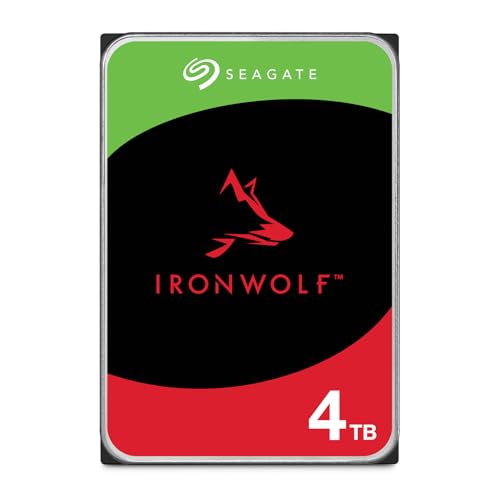
Seagate IronWolf 4TB NAS HDD — The starter-array pick
Not every array begins at twelve terabytes a bay. The 4TB IronWolf, model ST4000VNZ06/006, spins at 5400 RPM with a 64MB cache and full CMR recording, and it exists for the two-bay NAS on a hallway shelf, the small office that needs shared folders and workstation images more than it needs a media empire. Mirrored, a pair gives 4TB of protected space with rebuilds that finish in hours rather than days, which keeps the whole RAID experiment feeling safe while a household learns it.
The slower spindle is a feature in this habitat. It runs cool and quiet in fan-light enclosures, sips power, and its performance ceiling is rarely the bottleneck for document shares, photo libraries and backup targets. Rescue services ride along in this listing too, an unusual generosity at the entry tier. What the drive asks in return is honesty about growth: 4TB fills faster than new NAS owners expect, especially once phone videos start arriving in the archive.
- Capacity: 4TB
- Spindle speed: 5400 RPM
- Recording: CMR
- Cache: 64MB
- Model code in listing: ST4000VNZ06/006
- Services in listing: Rescue Services named
Strengths
- Cool, quiet manners suit small enclosures in living spaces.
- Full NAS firmware and CMR recording at the friendliest capacity in this guide.
- Short rebuilds keep mirrored pairs forgiving for beginners.
Trade-offs
- Four terabytes is a starting point, not a destination, for video-heavy homes.
- The 5400 RPM spindle trails the 7200 RPM picks in scrub and rebuild pace.
- Cost per terabyte is weaker than at 8TB and above.
There is a teaching virtue in starting here, too. A first array is where owners learn scrubs, alerts, shares and permissions, and a small mirrored pair makes every one of those lessons cheap to learn and quick to verify. Rebuilds finish before impatience sets in, experiments with RAID levels cost an evening rather than a week, and when the household eventually graduates to a four-bay enclosure, these two drives retire gracefully into service as the off-site copy’s home. Few components in a storage system get a second career; this one reliably does.
Verdict: the right first drive for a two-bay mirror or a modest shared folder box; buyers who already know they archive video should start one tier up instead.

WD Red Plus 10TB NAS HDD — The step-down saver
The 10TB Red Plus, WD100EFGX, is mechanically the same proposition as its 12TB sibling: 7200 RPM, SATA 6 Gb/s, CMR recording, a 512MB cache and Red Plus firmware tuned for always-on enclosures. It exists in this guide because array budgets are real. Dropping two terabytes per bay across a five-drive purchase trims the total noticeably, and plenty of households, once they audit what they truly store, discover that a RAID 6 set of 10TB drives covers a decade of photographs and documents with room to spare.
There is also a rebuild argument for the smaller drive. Every terabyte in an array is a terabyte that must be read during a resilver, so a 10TB member finishes its worst day a little sooner than a 12TB one. The difference is modest, not decisive, but administrators who have watched a progress bar crawl through a weekend learn to respect modest differences. Otherwise the ownership experience mirrors the bigger drive: quiet competence, NAS-aware error handling, and compatibility with the Red family’s mixed generations when an old member needs replacing.
- Size: 10TB
- Rotation rate: 7200 RPM
- Write method: CMR
- Buffer memory: 512MB
- Listing model code: WD100EFGX
Strengths
- Same Red Plus manners as the 12TB pick at a gentler per-drive outlay.
- Slightly shorter rebuild exposure than the largest mainstream capacities.
- Drops into existing Red Plus arrays as a replacement without firmware surprises.
Trade-offs
- Two fewer terabytes per bay compound across a big enclosure.
- Price per terabyte usually trails the 12TB model’s efficiency.
- Still a 7200 RPM drive that wants airflow and a stable shelf.
Second arrays are this drive’s other natural market. Households that keep a backup NAS at a relative’s house, or offices maintaining a replica at a second site, rarely need the replica to match the primary’s speed tier for tier — they need it to hold everything, behave identically under the same scrub schedule, and stay within a secondary budget. The 10TB Red Plus slots into that role without asking the owner to learn a second drive family’s quirks, and its shared spares pool with a 12TB primary is a small operational luxury that mixed-brand shelves cannot offer.
Verdict: choose the 10TB when the arithmetic of your actual archive says the 12TB’s headroom would sit empty for years; the savings across four or five bays are genuine money.

WD Red Pro 20TB NAS HDD — The density play
Twenty terabytes on a single spindle changes array geometry. The Red Pro 20TB, model WD202KFGX, spins at 7200 RPM with CMR recording and a 512MB cache, and it belongs to WD’s tier for larger, harder-working enclosures. A four-bay box that once topped out near 30 usable terabytes now reaches far beyond it, which is why this drive serves media archives, video production shares and backup targets whose growth is measured in terabytes per quarter rather than per year.
Density carries obligations. A 20TB rebuild is a long, full-surface read of every surviving member, so RAID 6 stops being optional prudence and becomes the plain default at this size, and scrubs should be scheduled rather than left to chance. The Pro positioning also assumes the enclosure around the drive is serious: adequate cooling, a UPS to survive power flickers mid-write, and an owner who monitors SMART reports. Given that habitat, the drive’s appeal is simple arithmetic — fewer bays spent per terabyte means the NAS you own keeps serving long after a smaller-drive build would demand a second chassis.
- Size: 20TB
- Rotation rate: 7200 RPM
- Write method: CMR
- Buffer memory: 512MB
- Tier: Red Pro, for larger multi-bay systems
- Model code in listing: WD202KFGX
Strengths
- Exceptional terabytes per bay extend the life of existing enclosures.
- Pro-tier positioning targets bigger arrays and heavier shared workloads.
- CMR recording keeps rebuild behaviour predictable at a size where it matters most.
Trade-offs
- Rebuild windows at 20TB demand RAID 6 and patient maintenance habits.
- The per-drive outlay concentrates risk in fewer, costlier members.
- Overkill, plainly, for document shares and modest photo libraries.
Consider also what twenty terabytes does to snapshot policy. Generous per-bay capacity lets a NAS keep weeks of file versions instead of days, which quietly converts the array from a failure shield into a time machine for the accidents that actually happen weekly — the overwritten contract, the deleted folder, the edit that cannot be undone. Owners who have restored a single file from a snapshot tend to protect that headroom fiercely afterwards, and drives of this class are how they afford to. The Pro’s price buys the space that makes good retention policy possible.
Verdict: the drive for owners whose capacity graph bends upward and whose enclosure has bays worth more than drives; everyone else is better served by two mid-size members and change.

Seagate IronWolf Pro 16TB — The Pro-tier Seagate
Seagate’s Pro tier answers the Red Pro directly. The IronWolf Pro at 16TB, model ST16000NT001, is an enterprise-leaning NAS drive: CMR recording, 7200 RPM, SATA 6 Gb/s and a 256MB cache, aimed at RAID arrays in small businesses where the NAS is infrastructure rather than hobby. Sixteen terabytes splits the difference between the mainstream 12TB class and the 20TB density play, and for a six-or-eight-bay office array that middle can be exactly where the five-year plan lands.
What the Pro badge buys is headroom in the places arrays actually strain: sustained multi-user writes, long scrub cycles, and enclosures at the larger end of the desktop NAS market. Seagate pairs that positioning with its Rescue tradition in the IronWolf family, and the drive’s firmware assumes neighbours — vibration compensation and RAID-aware error behaviour are the price of admission at this tier, not options. Offices migrating from a patchwork of USB drives to one honest array will feel the upgrade less in benchmarks than in the absence of storage drama.
- Capacity: 16TB
- Spindle speed: 7200 RPM
- Recording: CMR
- Cache: 256MB
- Interface: SATA 6 Gb/s
- Model code in listing: ST16000NT001
Strengths
- Pro-tier tuning for business arrays that serve many users at once.
- Sixteen terabytes per bay without stepping to the longest rebuild class.
- Enterprise NAS positioning suits rack-adjacent and large desktop enclosures.
Trade-offs
- Home users pay for workload headroom they may never touch.
- Cache is half the WD Pro’s stated figure, though real-world impact is workload-dependent.
- Demands the same RAID 6 discipline as any very large drive.
Small IT teams will appreciate the boring virtues most. The IronWolf Pro’s model code is stable across procurement cycles, its behaviour in the major NAS vendors’ compatibility matrices is established, and a spare ordered in a hurry two years from now will match the set already spinning. In business storage, excitement is a defect; what a purchasing manager wants is a drive whose entire biography can be predicted from its listing, and whose failure, when it eventually comes, arrives as a scheduled replacement rather than a story told in the office for months.
Verdict: the Seagate to choose when the array earns its keep in an office and the drive count runs past five; households will find the mainstream IronWolf covers their needs.
How Do the Six Array Drives Stack Up Against Each Other?
| Drive | Capacity | Speed | Cache | Best habitat |
|---|---|---|---|---|
| WD Red Plus 12TB | 12TB | 7200 RPM | 512MB | Four-to-eight-bay home arrays |
| Seagate IronWolf 8TB | 8TB | NAS class | Not headlined | Four-bay boxes wanting Rescue cover |
| Seagate IronWolf 4TB | 4TB | 5400 RPM | 64MB | Two-bay mirrors and quiet shelves |
| WD Red Plus 10TB | 10TB | 7200 RPM | 512MB | Budget-aware Red Plus arrays |
| WD Red Pro 20TB | 20TB | 7200 RPM | 512MB | Dense archives in serious enclosures |
| Seagate IronWolf Pro 16TB | 16TB | 7200 RPM | 256MB | Business arrays past five bays |
How Should You Buy and Install Drives for an Array?
Start with the compatibility list your NAS maker publishes, and treat it as law; enclosure firmware is tested against specific models, and the model codes quoted in each review above are what you match. Buy the full set at once if the budget allows, but from different production batches where a retailer makes that possible, because identical twins sometimes share identical lifespans. Keep one cold spare on the shelf for arrays you cannot afford to leave degraded: the cheapest day to own a spare is before the failure.
Ordering deserves one more caution specific to this category: buy array drives from sellers who ship them as the fragile instruments they are, in individual suspension packaging rather than loose in a shared box. A drive that survives manufacturing can still be wounded by a courier’s van, and the injury may not declare itself until the first long test — which is one more reason those early SMART baselines matter. When a full set arrives, record every serial number before the caddies close. Warranty claims, batch tracking and theft records all become trivially easier with that five-minute list, and impossibly harder without it.
Installation is mostly patience. Seat each drive, let the NAS initialise the array, and resist loading it with data until the first full sync completes. Then schedule the maintenance that keeps arrays honest: monthly SMART checks, regular scrubs that read every sector while redundancy still exists to repair surprises, and email alerts you have actually tested. Finally, label each drive with its bay and purchase date on the caddy. The person who thanks you for that label, during a midnight failure two years from now, is you.
What Mistakes Shorten an Array’s Life?
The classic error is populating a NAS with desktop drives because they were on sale, then discovering during the first rebuild that error-recovery behaviour is a real specification with real consequences. Close behind comes mixing an SMR drive into a CMR array, running RAID 5 across very large drives because it worked at 4TB, and treating the array as a backup until the day a deleted folder replicates faithfully across every member. Heat deserves its own sentence: a sealed cupboard in summer undoes good drives faster than workload does, so ventilation is a storage feature, not a comfort.
A subtler mistake is buying on capacity alone and discovering the enclosure’s own ceiling afterwards: older NAS models cap volume size or per-drive capacity in ways their spec sheets mention quietly, and a 20TB member in a chassis that cannot address it is an expensive paperweight. The compatibility list check in the buying section exists precisely to catch that mismatch before the boxes arrive, along with its cousin, the drive whose height or connector placement the caddies were never designed around.
Owners also sabotage themselves administratively. Ignoring the NAS’s email warnings, postponing a degrading drive’s replacement because the array still works, and skipping scrubs all convert a recoverable event into an emergency. An array’s redundancy is a budget of time; every ignored warning spends it.
What Do Workload Ratings and Vibration Sensors Actually Tell You?
A workload rating describes how much data a drive is engineered to read and write across a year without its reliability assumptions expiring. Seagate prints 180TB per year on the mainstream IronWolf in this guide; enterprise drives elsewhere in the storage market carry far higher figures, and desktop drives are built around a fraction of either. The number matters in an array because shared workloads concentrate quietly. Four family members streaming, two workstations backing up nightly, a media server indexing, and a monthly scrub that reads every platter end to end can push a home array past a desktop drive’s design centre without anyone doing anything exotic.
Rotational vibration is the other invisible specification. A single drive in a desktop case vibrates only with its own spinning. Six drives in a NAS chassis excite each other, and the resulting micro-movements force heads to work harder to stay on track, which shows up as slower writes and, over years, wear. RV sensors detect that vibration and let the drive compensate in real time. It is unglamorous engineering, and it is one of the clearest dividing lines between a drive that tolerates array life and one that merely survives it for a while. When a listing names RV sensors, as the IronWolf’s does, it is telling you the enclosure it expects to live in.
Neither figure appears on a benchmark chart, which is why array buyers learn to read listings differently from gamers. Sequential transfer speed, the number every product page celebrates, is the least interesting fact about a drive that will spend its life in parity RAID, where the controller, the network and the workload all cap performance long before the platter does. Endurance under neighbours, honesty under error, and patience under rebuild are the specifications that decide whether an array is still boring in year four.
How Should You Plan Capacity Before Buying a Set?
Begin with an audit, not a guess. Add up what you store today, then multiply by the growth you can document: phone video is usually the honest driver, followed by workstation images and media libraries that only ever expand. Most households that audit carefully discover their data doubles every three to four years, and an array should be bought for the second half of its life, not the first. That arithmetic is why the 12TB class anchors this guide. A four-bay RAID 6 set built on it swallows roughly 24TB of protected data, which carries a typical media-keeping household from purchase day to the point where the drives themselves are due for retirement.
Parity overhead belongs in the same calculation. RAID 5 across four drives surrenders one drive’s worth of space; RAID 6 surrenders two; mirroring surrenders half of everything. Readers regularly price a set by raw terabytes and then feel cheated by the formatted volume, so do the subtraction on paper first and choose the level with open eyes. Also reserve headroom deliberately: arrays dislike running nearly full, file systems fragment, snapshots need somewhere to live, and a volume at ninety percent turns every large copy into a negotiation. Twenty percent empty is not waste; it is the array’s working room.
Finally, plan the second purchase while making the first. Drives age out on a schedule you can roughly foresee, and the model you buy today may be superseded when a member fails in year three. That is normal, and NAS platforms handle mixed generations gracefully, but it argues for buying into living product lines — another quiet reason this guide stays with the two makers’ current NAS families rather than chasing orphaned bargains.
What Happens, Step by Step, When a Drive in the Array Fails?
The event itself is usually anticlimactic. The NAS emails a warning, marks the array degraded, and keeps serving files, because that is the entire point of the technology. Your job begins with restraint: read the alert carefully, identify the failed bay from the console rather than from memory, and check the SMART history of the survivors before touching anything. A rebuild is the most demanding read of a drive’s life, and discovering a second sick member mid-rebuild is the scenario every precaution in this guide exists to prevent.
If the survivors look healthy, the replacement goes in — ideally the cold spare you already own, in the labelled caddy — and the array begins reconstructing. During those hours, treat the system gently. Postpone the giant media import, skip the optional scrub, and let the rebuild own the drives. Performance will dip; that is expected and temporary. What you should not do is power the enclosure down mid-rebuild out of impatience, or pull another drive to check its label, two classic ways owners convert a handled failure into a catastrophe.
When the rebuild completes, the work is not quite done. Run a full scrub to verify every block against parity, review the failed drive’s warranty status while its paperwork is still findable, and write down what happened in whatever passes for the household’s IT notebook. Arrays reward owners with short memories for procedures and long records of events; the log you keep is what turns the next failure, years later, into a routine afternoon instead of an archaeology expedition.
How Do Scrubs, SMART Tests and Alerts Keep an Array Honest?
Redundancy only protects data that parity still describes accurately, and bits rot quietly. A scrub reads every sector of every member and checks it against the array’s parity, repairing mismatches while a second copy of the truth still exists. Without scrubs, the first full-surface read your drives ever perform may be the rebuild itself, which is the worst possible moment to discover a second unreadable patch. Monthly scrubs on a home array, scheduled for a quiet overnight window, convert that discovery into an ordinary maintenance event with redundancy intact.
SMART testing works the same seam from the drive’s side. Short tests catch electronics and surface errors quickly; the long test, which reads the entire platter, deserves a regular slot on any array holding data that matters, even though it takes hours on the largest drives here. Watch the attributes that trend rather than merely exist: a reallocated sector count that climbs week over week is a drive writing its resignation letter, and replacing it on your schedule beats meeting its failure on its own.
None of this machinery helps if the alerts go nowhere. Configure the NAS to email or message an address you actually read, send a test alert, and confirm it arrives. More home arrays lose data to ignored warnings than to exotic double failures, because the technology usually announces its intentions weeks in advance. The drives in this guide are built to be monitored; the monitoring only counts if a human is on the other end of it.
How Do Noise, Heat and Power Shape a Home Array?
Specifications end at the listing; ownership happens in a room. A four-bay enclosure of 7200 RPM drives makes its presence known in a quiet study, not loudly, but with a layered hum and the occasional seek chatter during scrubs that carries through a desk. That is why the 5400 RPM IronWolf 4TB keeps its place in this guide despite its modest capacity: in a two-bay box beside a television or in a bedroom-adjacent cupboard, its manners are the feature. Buyers sensitive to noise should also look at where the NAS will live before choosing drives, because a hallway closet forgives what an open-plan living room does not, and no enclosure fully silences a set of Pro-tier drives working a rebuild.
Heat is the slower adversary. Spinning drives convert nearly all their power draw into warmth inside a small chassis, and sustained high temperatures are consistently associated with shortened drive life across the industry’s field data. The practical responses are unglamorous: leave clearance around the enclosure’s vents, keep it out of sealed cupboards in summer, prefer rooms that stay moderate year-round, and let the NAS report its drive temperatures to the same alert channel as its SMART warnings. A drive running warm for a weekend is an anecdote; a drive running warm for three summers is a lifespan decision you made without noticing.
Power draw matters in two currencies. The first is the electricity bill, where a set of large 7200 RPM drives spinning around the clock adds a visible, if modest, line item across a year, and where spin-down policies tempt owners into trading start-stop wear for savings — a trade most array administrators decline, since the drives here are engineered for continuous rotation. The second currency is backup power. A UPS sized to let the NAS shut down cleanly protects the array from its most dangerous electrical moment, a write interrupted mid-parity-update, and at the capacities in this guide the cost of that protection is small next to the value of the set it guards.
Which Drive Fits Which Array? Four Common Scenarios
Consider the family archivist first: two adults, two teenagers, a decade of phone video, scanned photographs going back two generations, and a NAS that also serves as the household’s media library. Four bays, RAID 6, and the Red Plus 12TB build a volume that absorbs that history with years of headroom, while the IronWolf 8TB set is the honest alternative for the same family on a tighter budget, accepting an earlier expansion day in exchange for Seagate’s recovery coverage in the meantime. Either set succeeds because the sizing started from an audit of the actual archive rather than a guess at a round number.
The home-office professional presents a different shape: fewer terabytes, more consequence. Client files, tax records and project archives for a small practice might total only 3TB, yet downtime costs money by the hour. Here a mirrored pair of IronWolf 4TB drives in a quiet two-bay box is not a compromise but the correct engineering — fast rebuilds, simple geometry, and a cold spare on the shelf. Capacity theatre would add nothing; what this owner is buying is the shortest possible path from failure alert to healthy array.
The video creator inverts the problem again. Footage arrives in hundred-gigabyte afternoons, projects stay live for months, and the array doubles as working storage rather than a vault. This is the Red Pro 20TB’s natural home, or the IronWolf Pro 16TB’s, in a six-or-eight-bay enclosure with RAID 6, fast networking, and a separate backup target absorbing finished projects. For this scenario the mainstream tiers are the false economy: filling a smaller array mid-project forces exactly the rushed migration that storage planning exists to avoid.
Finally, the backup target itself deserves a scenario, because many readers meet RAID first as the destination for everything else they own. A backup array values capacity and reliability over responsiveness, tolerates scheduled spin-up windows, and lives or dies by its scrub discipline. The Red Plus 10TB earns its keep here as the value member of a large, patient set, while the household’s primary NAS takes the faster tier. Matching each array to its actual job, rather than buying one specification for every job, is the habit that separates storage systems from storage purchases.
How Do You Migrate From USB Drives and an Old NAS Without Losing a Weekend?
Most arrays are born as rescues. The typical starting point is a drawer of USB drives, one ageing NAS, and a cloud folder or two, with the family’s data smeared across all of them and nobody entirely sure which copy of the photo library is canonical. Migration succeeds when it is treated as an inventory project first and a copying project second. Before the new drives even arrive, list what exists, where it lives, and which copy wins each argument. Duplicates are not a nuisance to be copied faithfully; they are the problem the array exists to end, so resolve them on the small, readable sources rather than importing the confusion into the new volume at full price.
Build the array empty and let its initial sync finish before a single file moves. Then migrate in waves ordered by consequence: irreplaceable originals first, while you are fresh and the process is being watched; working documents next; and re-downloadable media last, since a film library can re-rip or re-fetch if a copy job misbehaves at 2 a.m. Verify each wave before deleting anything from its source — checksums where the NAS offers them, sample opens everywhere else — and keep the old drives untouched for a month after the migration appears complete. That quarantine month is when the one forgotten folder, the scan left in a downloads directory, always surfaces.
Retire the old hardware deliberately at the end. A previous NAS makes an excellent backup target for the new array once it is wiped and reconfigured, which converts migration debris into the off-site or second-copy layer this guide keeps insisting on. USB drives graduate to transport duty and cold storage of finished projects. What should not survive the migration is the ambiguity: one array, one canonical copy of everything, one backup of that copy, and a household that can finally answer the question of where a file lives without opening three enclosures to check.
What Should You Check in the First Ninety Days of a New Array?
The first month is a shakedown cruise, and it deserves a checklist. Confirm that the alert email actually fires by triggering a test. Watch drive temperatures through a warm afternoon and a scrub, and note the numbers while they are healthy, because baselines are what make later anomalies legible. Run the first long SMART test on every member and file the results; a drive that begins life reallocating sectors should go back under warranty immediately, while the set is young and the retailer’s process is painless. Infant mortality is a real pattern in spinning drives, and the first ninety days are when it announces itself.
By day ninety, the array should have completed several scrubs, at least one tested restore of a real file from backup, and one honest review of the capacity graph against the audit that sized the purchase. If growth is outrunning the plan, that review is when expansion is still cheap and calm. Owners who keep this small appointment with their storage tend to describe their arrays the way pilots describe well-maintained aircraft: with affection, specifics, and no surprises in the log.
Final Recommendation
For most readers the WD Red Plus 12TB is the array drive to build around: mainstream price class, full CMR behaviour, and capacity that keeps a four-bay box useful for years. Seagate loyalists and anyone who values recovery coverage should take the IronWolf 8TB as the equivalent answer, while small two-bay beginnings belong to the 4TB IronWolf. Step to the Red Pro 20TB or IronWolf Pro 16TB when the enclosure count and the growth curve justify Pro-tier money, and let RAID 6 guard any set built from drives of 12TB or more. An array assembled from matched, NAS-rated CMR drives and then left boringly alone will outlast three generations of the computers feeding it.
Frequently Asked Questions
Can I mix drive sizes inside one array?
Most NAS platforms allow it, but classic RAID sizes every member to the smallest drive, so a lone 4TB among 12TB drives wastes the difference. Mixing generations of the same NAS line is safer than mixing sizes, and replacing members one at a time with larger drives is the standard growth path once each rebuild completes.
How long does a rebuild actually take?
Plan on many hours for mid-size drives and well past a day for the 16TB and 20TB class under load, because the array keeps serving files while it reconstructs. That exposure window is exactly why this guide insists on CMR drives and, at large capacities, on RAID 6’s second parity.
Do NAS drives work in a regular desktop PC?
Yes, they behave as ordinary SATA drives, though their firmware’s quick error reporting is designed for arrays and you pay for vibration tolerance a single-drive case never uses. The reverse swap, desktop drives in a NAS, is the direction that causes trouble.
Should all the drives in an array be identical?
Identical models simplify compatibility and spares, and NAS makers test for them. The refinement experienced owners add is buying those identical drives from different batches, so a single manufacturing flaw cannot retire the whole set in the same season.
How many drives should a home array have?
Four is the practical sweet spot: it supports RAID 6, spreads cost sensibly, and fits the enclosures most homes can house. Two-bay mirrors suit small, quiet archives; beyond eight bays you are shopping in the Pro tier’s neighbourhood and should budget accordingly.
Is a hot spare worth dedicating a bay to?
In enclosures with bays to spare, yes: a hot spare begins rebuilding the moment a member fails, which shrinks the degraded window to the length of the rebuild itself rather than the length of your delivery wait. Owners of full enclosures get most of the same benefit from a cold spare on the shelf, provided the failure alert reaches a human quickly. What never pays is leaving the decision until the failure, when the array is degraded, the exact model is out of stock locally, and every hour of delay is an hour spent one failure from loss.
When should an array drive be retired even if it still works?
Age alone is a weak reason; evidence is a strong one. Retire a drive when its reallocated or pending sector counts trend upward across consecutive tests, when it begins failing long SMART tests it once passed, when its temperatures climb at the same workload, or when it passes the warranty horizon in an array whose data has become genuinely irreplaceable. Planned retirement, one member at a time with full rebuilds between swaps, is also the graceful way to grow an array: each replacement with a larger drive raises the ceiling, and the volume expands once every member has been upgraded, turning end-of-life maintenance into the upgrade path itself.
Related Guides
Arrays sit at the centre of a storage shelf, and the neighbouring decisions deserve their own reading: step up a class with best enterprise grade hard drives, cover the portable side of the desk with best usb c hard drives, and see how bulk spinning storage serves a lab in best hard drives for virtual machines.
Related guides
- Best 3D Mechanical Engineering Laptops: Certified Workstations for CAD and Simulation
- Best Tattoo Printers: Thermal Stencil Machines for Clean, Lasting Transfers
- Best Battery NiMH Chargers: Six Units That Understand the Chemistry
- Best 15 Laptops Under $1000: Six 15-Inch Machines That Spend the Budget Honestly