What's inside
- Key Takeaways
- Quick Picks
- How We Chose These Picks
- Comparison
- Why does screen resolution matter more at 17 inches than at 14?
- How much memory does an inexpensive laptop actually need?
- How do you set up a big budget laptop as a home workstation?
- What does living with a 17-inch laptop change day to day?
- Which ports and extras are worth checking before you order?
- Should you buy the extended warranty on a cheap big laptop?
- How long should an inexpensive 17-inch laptop realistically last?
- What about sound, webcams and the small things?
- How do you keep a budget laptop feeling quick in year three?
- Is a cheap 17-inch laptop a good second computer for a household that already owns a smaller one?
- Common Mistakes
- Final Recommendation
- Frequently Asked Questions
- Related Guides
As an Amazon Associate I earn from qualifying purchases. This post may contain affiliate links at no extra cost to you.
widgetverdict.com is reader-supported. When you buy through links on our site, we may earn an affiliate commission.
Cheap usually means small, which is exactly why shoppers hunting the best 17-inch inexpensive laptops end up frustrated: the budget shelves are stacked with 14-inch and 15.6-inch machines, while the big-screen corner holds a handful of models that rarely get discounted and rarely get reviewed. This guide works that neglected corner properly. Six laptops are compared here, four of them tied to verified listings whose titles state their screens, processors, memory and storage outright, and two described without links because their configurations drift too much between sellers to pin down honestly.
Set expectations before the names. A low-cost 17.3-inch laptop spends its budget on panel area first and everything else second, so the machines below trade in modest processors, 8GB of memory in several cases, and plastic shells. What they give back is a workspace that changes how ordinary computing feels: spreadsheets stop demanding constant zooming, two documents sit side by side without either becoming a postage stamp, and video calls leave room for notes underneath. For a home office desk, a kitchen counter, or a student room where this laptop is also the television, that trade is often the right one.
One warning applies to every pick that follows. Large budget laptops are sold in waves, and a model name can cover three different processors across two model years. The listing title is the contract. Where a pick below is an older design, the text says so in plain language, because an honest older machine bought knowingly beats a current one bought under a misunderstanding.
Key Takeaways
- Panel size is the whole point of this category, so judge these machines as desktop replacements that occasionally travel, not as commuters.
- The ASUS Vivobook 17 with a Core 3 processor is the cleanest low-cost entry: a current design, a Full HD panel and a 512GB solid-state drive.
- Memory separates the field more than processors do — the HP 17 configuration with 16GB will age noticeably better than the 8GB machines.
- The Lenovo IdeaPad 3 listed here is an older design with an HD+ screen and Windows 10 Home; buy it only with that knowledge in hand.
- A numeric keypad comes free with this screen size on most models, which quietly makes these laptops excellent for budgets, bookkeeping and data entry.
- None of these machines is a gaming laptop or a colour-critical workstation, and pretending otherwise leads to returns.
Quick Picks
| Pick | Badge | Why it is here |
|---|---|---|
| ASUS Vivobook 17 (Core 3 100U) | Cleanest budget starting point | A current Vivobook design pairing a 17.3-inch Full HD display with a 512GB SSD at the sharp end of this category’s pricing. |
| HP OmniBook 3 17.3 (Ryzen 3) | Newest nameplate in the group | HP’s OmniBook 3 brings a Full HD 17.3-inch panel and Radeon 610M graphics to a machine aimed squarely at home users. |
| HP 17 (Ryzen 5, 16GB) | Most memory for the money | A 2026-edition HP 17 whose listing doubles the memory of its rivals here, with a numeric keypad and Windows 11. |
| Lenovo IdeaPad 3 17.3 (Ryzen 5 5500U) | Older design, honest value | An earlier IdeaPad generation with a six-core Ryzen chip but an HD+ screen and Windows 10 Home — value with eyes open. |
| Acer Aspire 3 17.3 | Prose-only alternative | Acer’s big-screen Aspire line appears regularly in this price band, though configurations vary enough that no single listing is pinned here. |
| Dell Inspiron 17 (previous generations) | Prose-only alternative | Discontinued Inspiron 17 models circulate through clearance channels; condition and specification need checking unit by unit. |
How We Chose These Picks
Selection started with a hard filter: the screen had to measure 17 inches or 17.3 inches, because a guide about big inexpensive laptops that quietly includes 15.6-inch machines helps nobody. Listings were then read title-first. A pick earned a link only when its listing title stated the display size and resolution, the processor, the memory and the storage in one place, which is why four machines here carry links and two are discussed without them.
Processor class came next. This price band contains everything from genuinely capable six-core chips to processors that struggle with a crowded browser, so each linked pick was sorted by what its silicon can actually sustain: office suites, video calls, streaming, light photo sorting and the occasional spreadsheet with real weight behind it. Machines whose titles hid the processor behind vague wording were left out entirely.
Memory and storage were weighed as a pair. Eight gigabytes of memory with a 512GB solid-state drive is a workable floor for a home machine in this class; anything below that floor on either measure was treated as a reason to exclude, not a detail to excuse. The single 16GB configuration in the group is highlighted wherever it appears, because memory is the specification that decides whether a budget laptop still feels adequate in its fourth year.
Finally, honesty about age. One linked pick is an older design still sold new, and the guide labels it as such rather than letting a familiar processor name imply a current machine. Budget shoppers deserve to know which compromises are temporary — a slower chip can be worked around — and which are permanent, like a lower-resolution panel that will be in front of their eyes every single day.

ASUS Vivobook 17 (Core 3 100U) — Cleanest budget starting point
ASUS builds more inexpensive big-screen laptops than anyone else bothers to, and the Vivobook 17 shows the benefit of that practice. The listing describes a 17.3-inch Full HD display, an Intel Core 3 100U processor, 8GB of memory, a 512GB solid-state drive and Windows 11 Home, finished in Quiet Blue. Nothing in that specification reaches for excitement, yet every line of it is the correct, current answer to a budget question — which is rarer in this category than it should be.
Consider what the Core 3 chip means in daily terms. It is an efficiency-minded processor, built for the work these laptops actually do: documents, browsers with a dozen tabs, streamed video, video calls, email and light photo organisation. It will not edit 4K footage happily and it will not game beyond casual titles, but it sips power while doing ordinary work, which keeps the fan quiet and the chassis cool during the long, undemanding sessions that fill most home computing days.
The Full HD panel deserves emphasis because several rivals in this price band quietly ship lower resolutions on the same 17.3-inch canvas. At this size, 1920×1080 keeps text edges clean at normal desk distances and lets two windows share the screen without either shrinking into uselessness. A family budget spreadsheet and a bank statement can genuinely sit side by side here, which is the entire reason to buy a screen this large.
Storage and memory land exactly at the sensible floor. The 512GB drive holds a realistic photo library plus years of documents, and 8GB of memory handles office work comfortably while punishing only determined multitaskers. Buyers who keep forty tabs open as a filing system will feel the ceiling; buyers with tidier habits may never touch it.
- Display: 17.3-inch Full HD
- Processor: Intel Core 3 100U
- Memory: 8GB RAM
- Storage: 512GB SSD
- Operating system: Windows 11 Home
- Colour and model: Quiet Blue, F1704VA-AS34
Strengths
- Current-generation design rather than cleared old stock
- Full HD resolution where some rivals cut corners
- Balanced specification with no single glaring weakness
Trade-offs
- 8GB of memory will feel tight for heavy multitasking
- Core 3 performance excludes demanding creative work
- Plastic construction aimed at desks, not daily commuting
Best for: home users who want the largest sensible screen for documents, browsing and streaming without paying for power they will never use.
Not suited for: video editors, gamers, or anyone whose workload already strains a mid-range laptop.
Think about who actually sits in front of a machine like this for a year. A parent running the household from the kitchen table gets a screen large enough for the family calendar, the grocery list and a video call with grandparents to coexist without window-shuffling. A student in a small flat gets a laptop that doubles as the television, and the Full HD panel makes that second job respectable rather than barely adequate. A retired accountant doing seasonal tax help gets the numeric keypad and the column width that tax software quietly assumes. None of these people needs a faster processor; all of them benefit daily from the inches.
The Vivobook also makes a sensible first laptop for a teenager, for a reason parents rarely articulate: its limitations are legible. It does homework, browsing and streaming well, and it declines heavy gaming by specification rather than by parental negotiation. When the machine eventually feels slow, it will be because the workload grew, not because a hidden flaw surfaced — and by then its owner will know exactly what to buy next, which is the most useful thing a first computer can teach.
HP OmniBook 3 17.3 (Ryzen 3) — Newest nameplate in the group
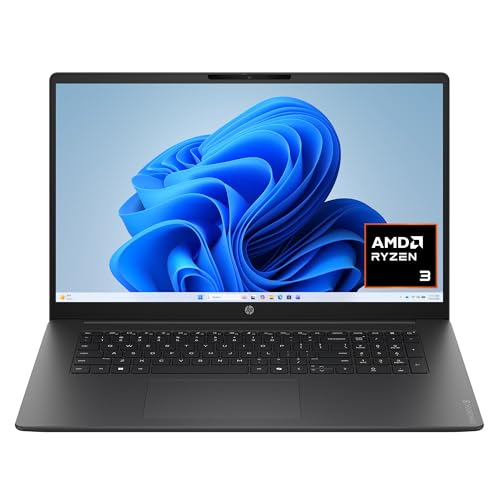
HP retired its old budget naming and folded machines like this into the OmniBook family, and the OmniBook 3 17.3 is the result: a 17.3-inch Full HD laptop built around an AMD Ryzen 3 processor with Radeon 610M graphics, 8GB of memory and a 512GB solid-state drive, running Windows 11 Home in Mica Silver. The listing’s processor wording is abbreviated, so this guide describes the chip by its family rather than inventing a precise model number the title does not fully state.
That restraint matters, because the honest summary of this machine is “modern platform, modest speed.” A current Ryzen 3 handles the home workload — office applications, school platforms, streaming, calls — with the smoothness that comes from a recent architecture, and the integrated Radeon graphics are a step beyond the bare minimum for driving the big panel and handling light casual games or photo filters.
Where the OmniBook 3 earns attention is coherence. HP designs its consumer 17-inch chassis around the numeric keypad and a wide, quiet keyboard deck, and the OmniBook generation tidied the styling so the machine looks at home on a kitchen table rather than apologising for existing. For a laptop that will sit visible in a living space for years, that cosmetic competence is a real, if unglamorous, virtue.
Memory is again the ceiling: 8GB, shared with the graphics. Keep expectations aligned and the machine rewards them. Ask it to become a family photo-editing station with three other programs open and it will push back. The 512GB drive is the right size for the class, and Windows 11 Home arrives current rather than as an upgrade chore waiting on first boot.
- Display: 17.3-inch FHD
- Processor: AMD Ryzen 3 (family as stated in listing)
- Graphics: AMD Radeon 610M
- Memory: 8GB RAM
- Storage: 512GB SSD
- Operating system: Windows 11 Home
- Colour and model: Mica Silver, 17-dp0199nr
Strengths
- Current OmniBook platform with tidy, modern styling
- Full HD panel matched to the screen size
- Radeon integrated graphics a cut above the minimum
Trade-offs
- Listing abbreviates the exact processor model
- 8GB memory ceiling shared with the graphics
- Single configuration — no roomier variant in this listing
Best for: households wanting a current-design big screen for everyday work, school and entertainment.
Not suited for: buyers who need a precisely specified processor for software requirements, or heavy multitaskers.
HP’s repositioning of its consumer range gives this machine a subtle advantage in support terms. A current nameplate on a current platform means drivers, firmware and documentation stay easy to find, and accessories — cases, chargers, docks — are marketed against the OmniBook badge rather than a discontinued one. Budget buyers rarely think about the support tail when they purchase, then think about nothing else in year three when a update misbehaves. Buying the living product line instead of the dying one is insurance that costs nothing extra here.
There is also a household-politics argument for the OmniBook. Machines at this level often get bought for one person and adopted by everyone. The tidy silver chassis and the unremarkable, competent specification make it a neutral family appliance: nobody’s gaming rig, nobody’s status object, just the big computer by the sofa that handles homework, forms and films without ceremony. Shared machines need exactly that neutrality, and they need a screen big enough that two people can look at a photo or a map together without crowding a phone between them.

HP 17 (Ryzen 5, 16GB) — Most memory for the money
Read the linked listings in this guide in order and one number jumps off the page here: 16GB. This 2026-edition HP 17 pairs an AMD Ryzen 5 processor with double the memory of its stablemates, a 512GB solid-state drive, a 17.3-inch Full HD display and a numeric keypad, running Windows 11 with Office 365 for the web included. In a category where 8GB is the grudging norm, that memory figure is the strongest case any of these machines can make for still feeling adequate in year four.
Memory decides how a budget laptop ages. Processors date politely — a Ryzen 5 that feels fine today feels fine in three years for the same tasks. Memory dates rudely: browsers grow heavier, office suites grow heavier, and the 8GB machine that coped at purchase starts swapping to disk during an ordinary Tuesday. Sixteen gigabytes postpones that reckoning by years, which is why this HP, on paper the plainest machine here, may be the smartest purchase in the guide.
The Ryzen 5 brings more cores than the Core 3 and Ryzen 3 picks, and the difference shows in the moments budget laptops usually stumble: a video call running while a large spreadsheet recalculates, a photo library importing while music streams, a dozen research tabs feeding one document. None of this is workstation work, but it is real work, and this configuration absorbs it without the pauses that teach users to hate their computers.
HP also leans into the desk-bound nature of the format. The listing calls out the numeric keypad and long battery life, and both fit the machine’s likely life: accounts, coursework, family administration and entertainment, mostly at one address, occasionally carried to another room. Buyers should still check price on Amazon and read the exact listing configuration before ordering, as HP 17 model names cover many builds.
- Display: 17.3-inch FHD
- Processor: AMD Ryzen 5 (latest generation per listing)
- Memory: 16GB RAM
- Storage: 512GB SSD
- Keyboard: numeric keypad
- Operating system: Windows 11, with Office 365 for the web
- Edition: 2026
Strengths
- 16GB of memory — double most of this category
- Ryzen 5 multi-core headroom for busy desktops
- Numeric keypad suits budgets and bookkeeping
Trade-offs
- Listing describes the processor generically, not by exact model
- Still a plastic, desk-first chassis
- Storage stays at 512GB despite the memory upgrade
Best for: buyers who keep many applications open and want a budget big-screen machine that will not feel starved in three years.
Not suited for: travellers needing a light bag, or users whose work demands a dedicated graphics card.
Run a thought experiment about this HP’s fifth year. The processor will still open documents instantly, because documents do not get heavier at the rate processors age. The screen will still be the screen. The battery will have faded somewhat, as all batteries do, and the machine will spend more of its life plugged in — which, for a desk-bound 17-inch laptop, barely counts as a loss. The specification most likely to be causing daily irritation by then is memory, and this is the one configuration in the guide that pre-empted the problem. Longevity in budget computing is mostly the art of identifying which specification becomes the complaint, and buying the version that postponed it.
The included Office 365 for the web deserves a clear-eyed note. It is the browser-based suite, useful and legitimate, and it covers documents and spreadsheets for most home users. It is not the installed desktop suite with its full offline depth, and buyers whose work depends on advanced desktop features should not let the bundle line in a listing title blur that distinction. Read it as a helpful extra for light work, not as a substitute for a software budget.
Lenovo IdeaPad 3 17.3 (Ryzen 5 5500U) — Older design, honest value
Honesty section, clearly labelled: this IdeaPad 3 is an older design. Its listing specifies a 17.3-inch HD+ display, an AMD Ryzen 5 5500U processor, 8GB of memory, 512GB of storage, Radeon 7 graphics and Windows 10 Home in a finish Lenovo calls Abyss Blue. Two of those lines — the HD+ resolution and Windows 10 — date the machine immediately, and this guide will not dress either up as a feature.
Start with the screen, because it is the compromise that matters. HD+ spreads fewer pixels across the same 17.3 inches its rivals fill with Full HD, so text renders softer and two side-by-side windows carry less information. At a relaxed viewing distance, for video and casual documents, many owners never object. For small print, detailed spreadsheets or long reading sessions, the difference is visible every minute, and no other specification on this list can compensate for it.
Now the counterweight: the Ryzen 5 5500U is a genuinely good processor, a six-core chip that powered a generation of well-liked laptops and still out-muscles the newer but smaller chips in two picks above. For CPU-bound chores — large file handling, busy office work, background updates churning while you type — this older machine can feel quicker than its fresher rivals. Age in laptops is not one thing; the chip aged well even as the panel and operating system aged plainly.
Windows 10 Home needs a plan. Buyers should check the machine’s upgrade path and support position before purchase rather than discovering them after, and should factor setup time into the bargain. Judged as what it is — an older, well-processored big laptop sold at old-stock money — the IdeaPad 3 makes sense for a specific buyer: someone whose work is processor-led, whose eyes tolerate the panel, and who would rather have six cores than sharpness. Everyone else should buy one of the Full HD picks.
- Display: 17.3-inch HD+
- Processor: AMD Ryzen 5 5500U
- Graphics: AMD Radeon 7
- Memory: 8GB RAM
- Storage: 512GB
- Operating system: Windows 10 Home
- Colour: Abyss Blue
- Generation note: older IdeaPad 3 design, sold as listed
Strengths
- Six-core Ryzen 5 5500U still performs strongly
- Generous 512GB storage for the class
- Old-stock pricing can undercut current designs sharply
Trade-offs
- HD+ panel is visibly softer than Full HD rivals
- Windows 10 Home dates the software side
- Older platform with an older port and design language
Best for: processor-led home workloads bought at old-stock prices, with the panel compromise understood and accepted.
Not suited for: readers of small text, spreadsheet analysts needing crisp columns, or anyone wanting a machine that is current in every respect.
There is a respectable tradition behind buying last generation’s hardware deliberately. Manufacturers price new designs for novelty; the previous design, mechanically sorted and widely reviewed, sells for what it is worth rather than what it is near. The IdeaPad 3’s processor generation was reviewed exhaustively in its day, its behaviour is a known quantity, and its drivers are mature. A buyer who values predictability over freshness — and whose eyes accept the HD+ panel — is not settling. They are arbitraging the market’s preference for newness, which is a legitimate strategy when the compromises are printed on the box, as they are here.
Practical checks sharpen the bargain further. Confirm the storage type in the listing before ordering, since storage wording in older listings can be loose, and confirm the return window in case the panel disappoints in person — screens are the one specification that photographs and numbers describe imperfectly. If the machine arrives and the panel suits you, the six-core chip will quietly outwork newer rivals for years. If it does not suit you, the return window, checked in advance, is what turns a gamble into a trial.
Acer Aspire 3 17.3 — Prose-only alternative
Acer’s Aspire line has carried a 17.3-inch variant through several generations, and it surfaces in this price band often enough that a guide would be incomplete without it. It is discussed without a link for a straightforward reason: Aspire 3 configurations vary widely between sellers and seasons — different processors, different memory, sometimes different panels under near-identical names — so pinning one listing would risk sending readers to a specification this text never described.
What can be said at the line level is consistent. The Aspire 3 formula is a large, simple chassis, a keyboard with room to breathe, and internals chosen for price first. As a family computer, a coursework machine or a big-screen browser for the kitchen, the formula works. As anything more ambitious, it does not pretend to.
Shopping advice for this one is procedural. Read the full listing title, confirm the panel resolution in writing, confirm memory and storage figures, and be suspicious of any listing that leads with screen size and hides the rest. If a given unit states Full HD, a recent processor and 512GB of storage, it competes directly with the linked picks above; if it does not state them, assume the least generous interpretation.
- Display: 17.3-inch class (confirm resolution per listing)
- Processor: varies by configuration
- Memory: varies by configuration
- Storage: varies by configuration
- Listing status: discussed without a link due to configuration drift
Strengths
- Frequently appears at aggressive prices
- Simple, spacious chassis suits home desks
- Widely sold, so accessories and support are easy to find
Trade-offs
- Specification varies enough to demand careful reading
- Entry configurations can dip below sensible floors
- No single verified configuration to recommend outright
Best for: patient shoppers willing to verify a specific unit’s full specification before buying.
Not suited for: anyone who wants a known configuration in one click.
Acer’s position in this market deserves one more observation: the Aspire line is often the first to appear when a retailer needs a big-screen headline price for a sale event, which means its pricing swings more than its rivals’. A patient buyer watching the line across a few weeks learns its rhythm — the same configuration drifting down during promotions and back up between them. That volatility is an argument for the prose-only treatment here, and also an argument that a verified Aspire configuration, caught at the bottom of its swing, can be the cheapest legitimate route to a 17.3-inch screen from a major brand.
Dell Inspiron 17 (previous generations) — Prose-only alternative
Dell no longer pushes a mainstream 17-inch Inspiron the way it once did, but previous generations remain in circulation through clearance and refurbished channels, and they tempt buyers with a familiar name at low prices. They are covered here without a link because condition is the specification that matters most with discontinued stock, and condition cannot be verified from a model name.
A well-kept Inspiron 17 from a good year is a pleasant machine: a large panel, a deep keyboard deck and the solid feel Dell’s line was known for. A tired one is a battery that lasts an hour, a fan that never rests and a hinge with play in it. The gap between those two outcomes is wider than the gap between most new models in this guide, which is precisely why the advice is to shop the individual unit, not the badge.
Ask about battery health in writing, confirm whether storage is a solid-state drive or an older mechanical disk — some generations shipped with the latter, and it transforms performance for the worse — and check the panel resolution, which varied across the line’s life. A solid-state, Full HD example at a fair price is a rational buy. Anything else should be priced as a project.
- Display: 17-inch class (varies by generation)
- Processor: varies by generation
- Memory: varies by unit
- Storage: confirm solid-state before buying
- Where it surfaces: discounters clearing old stock, plus refurbishers
Strengths
- Familiar, sturdy design from a mainstream line
- Clearance pricing can be very low
- Large keyboard deck and screen suit desk work
Trade-offs
- Condition varies unit by unit
- Battery wear is the usual hidden cost
- Some generations shipped with slow mechanical storage
Best for: bargain hunters comfortable inspecting specifications and battery condition before committing.
Not suited for: gift purchases or anyone needing a guaranteed, uniform result.
One more consideration separates good discontinued purchases from bad ones: parts and knowledge. The Inspiron 17’s generations sold in large numbers, which means replacement batteries, chargers and keyboards remain easy to source, and every common fault has been documented by owners before you. An obscure new model can be harder to keep alive than a famous old one. Buyers comfortable with that ecosystem logic — and willing to verify the individual unit’s battery and storage before paying — will find the logic sound. Buyers who want the box to settle every question should stay with the new, linked picks above.
Comparison
| Pick | Display | Processor | Memory | Storage | Defining trait |
|---|---|---|---|---|---|
| ASUS Vivobook 17 | 17.3-inch FHD | Intel Core 3 100U | 8GB | 512GB SSD | Current design, balanced spec |
| HP OmniBook 3 17.3 | 17.3-inch FHD | AMD Ryzen 3 | 8GB | 512GB SSD | Newest HP nameplate |
| HP 17 (16GB) | 17.3-inch FHD | AMD Ryzen 5 | 16GB | 512GB SSD | Double memory, numeric keypad |
| Lenovo IdeaPad 3 | 17.3-inch HD+ | Ryzen 5 5500U | 8GB | 512GB | Older design, strong chip |
| Acer Aspire 3 17.3 | 17.3-inch, resolution per unit | Per configuration | Per configuration | Per configuration | Frequent low-price listings |
| Dell Inspiron 17 (older) | 17-inch, varies by generation | Per generation | Per unit | Confirm SSD per unit | Clearance-channel value |
Why does screen resolution matter more at 17 inches than at 14?
Pixel density is the quiet maths underneath this whole category. A Full HD image stretched across 17.3 inches shows each pixel larger than the same image on a 14-inch screen, so any shortfall in resolution becomes easier to see, not harder. That is why the HD+ panel on the older IdeaPad is a real compromise while the same resolution on a small budget laptop passes almost unnoticed. At this size, Full HD should be treated as the baseline specification, and anything below it needs a price low enough to justify the softness.
Viewing distance softens the verdict slightly. A 17-inch laptop used as a living-room media screen, watched from a sofa, hides its pixel structure in a way a desk machine cannot. Buyers whose big screen is mostly for video can rationally accept less resolution; buyers whose big screen is for reading, columns and code cannot. Decide which machine you are actually buying before deciding how much the panel matters.
How much memory does an inexpensive laptop actually need?
For a single-purpose machine — one person, office applications, a browser kept under control — 8GB still completes the working day. The trouble is that inexpensive laptops rarely stay single-purpose. They become the family computer, the school computer, the video-call computer and the photo archive simultaneously, and each role adds resident applications that never quite close. That is the practical case for the 16GB configuration in this guide: not speed today, but headroom against the accumulation of roles tomorrow.
Storage follows a similar logic at a lower stakes level. A 512GB solid-state drive, fitted to every linked pick here, is enough for documents and a healthy photo library. It fills when video archives or game installs arrive, and buyers expecting either should plan external storage from the start rather than discovering the limit mid-project.
How do you set up a big budget laptop as a home workstation?
Placement comes first. A 17-inch laptop on a stand, with its screen raised toward eye level, stops being a hunching machine and starts being a desktop. Add an inexpensive external keyboard and mouse only if the built-in deck cramps you — on most of these machines the deck is a genuine strength, numeric keypad included, and duplicating it wastes money this budget does not have.
Then tame the software. Remove trial applications, set the browser to suspend inactive tabs, and move the photo library’s heaviest folders to an external drive if the internal disk passes three-quarters full. Budget processors feel slow mostly when they are busy doing things nobody asked for; a quiet startup list is the cheapest performance upgrade in this entire guide, and it costs nothing at all.
What does living with a 17-inch laptop change day to day?
More than the specification sheet suggests. A screen this size rearranges habits: recipes get read from across the kitchen instead of from a phone propped against the kettle; grandchildren on a video call appear at something like conversational scale; a household budget review stops being an exercise in squinting and scrolling. Owners of large laptops consistently describe the change in domestic terms rather than technical ones, and they are right to. The machine becomes a piece of household furniture with a keyboard, present in shared spaces, used by several people, and judged by whether everyone can see it.
That furniture quality cuts both ways. A 17-inch laptop claims a table; it does not perch on an armrest or balance on a train tray. Buyers should walk the machine’s likely rooms before purchase and check the surfaces it will occupy, the bag it must fit for occasional journeys, and the shelf or drawer where it will sleep. None of these checks appears in a specification list, and all of them decide satisfaction more reliably than a benchmark does.
Posture deserves a sentence of its own. Large screens tempt owners to use the laptop exactly where it lands, hunched over a low table for hours. A cheap stand and the discipline to use it turn the big panel into an ergonomic advantage — the top of the screen near eye level, the wide keyboard deck at a natural height. Budget buyers, of all people, should protect their backs with the same care they protect their wallets.
Which ports and extras are worth checking before you order?
Listings for inexpensive laptops describe processors lovingly and ports grudgingly, yet ports decide how the machine joins a household. Confirm an HDMI output if the laptop will ever feed a television — at this size, it will. Confirm enough USB ports for a mouse, a printer and a backup drive to coexist, because a family machine accumulates peripherals the way a kitchen accumulates gadgets. A memory-card reader, where present, quietly delights anyone who still uses a camera.
Backup deserves emphasis precisely because these machines become archives. When the family photos live on one budget laptop, an external drive and a weekly copying habit are not paranoia; they are the difference between an inconvenience and a bereavement when a drive eventually fails. Every pick in this guide has enough storage to become the household archive by default. Plan for that role from the first week, not after the first scare.
Finally, check the charger. Budget lines sometimes ship compact adapters that charge slowly, and a replacement or second adapter for another room is a small, sanity-preserving purchase. None of these details should veto a good machine — but each one, checked in advance, prevents the low-grade friction that makes owners resent a laptop they otherwise like.
Should you buy the extended warranty on a cheap big laptop?
Retailers love attaching protection plans to inexpensive laptops, and the maths deserves a cold look. A plan costing a large fraction of a budget machine’s price insures a device whose replacement cost is itself modest, and whose most likely failures — battery wear, a tired fan, a cracked hinge from a drop — are either excluded, wear-related, or the owner’s own doing. For most buyers in this category, the disciplined alternative wins: put the plan’s price aside as a repair fund, treat the machine gently, and the fund usually outlives the laptop.
Exceptions exist. A laptop bought for a young student who will carry it daily through a school year lives a riskier life than a kitchen-table machine, and accidental-damage cover can be rational there. A household that genuinely cannot absorb a sudden replacement cost may also value the certainty. The decision should follow the machine’s actual risk profile, not the salesperson’s script — and it should be made knowing that the big screen, not the electronics, is usually the expensive part to break, so a rigid sleeve and a no-drinks rule protect more value than most policies do.
How long should an inexpensive 17-inch laptop realistically last?
Four to six years of useful home service is a fair expectation for the linked picks here, with the memory-rich HP holding its composure longest and the older IdeaPad’s software position needing attention earliest. Longevity in this class is rarely ended by a dramatic failure. It ends by accumulation: the browser grows heavier, the battery fades to tethered use, a hinge loosens, and one day a replacement simply looks easier than another workaround. Owners can postpone that day with boring kindnesses — keep vents unobstructed, avoid running the battery to empty daily, install updates promptly, and resist loading the machine with every free utility that asks.
One environmental point deserves stating plainly. A laptop used for six years instead of three halves its footprint per year of service, whatever it cost. The cheapest machine is not the one with the lowest price; it is the one whose price divides by the most years. That arithmetic is the deepest argument for the 16GB configuration in this guide and against the very bottom of the market, where specifications are cut so fine that the machine becomes disposable. Buy once, buy honestly, and let the big screen earn its keep for a long time.
What about sound, webcams and the small things?
Budget laptops are reviewed by their processors and bought for their screens, but they are lived with through their speakers, webcams and microphones. At this level, expect adequacy rather than delight: speakers loud enough for a call and a film at a table, a webcam that flatters nobody and serves everybody, microphones that handle a quiet room well and a noisy kitchen poorly. None of the linked picks claims premium audio or camera hardware in its listing, and this guide will not invent such claims on their behalf.
The remedies are cheap and shared across the whole category. A pair of headphones transforms film night more than any speaker upgrade could. Positioning the laptop so a window lights your face, rather than silhouetting it, improves a video call more than a better camera would. A standalone microphone, if your work is call-heavy, costs little and outlives the laptop. Buyers who accept the built-in kit for what it is — and budget a small accessory allowance around it — end up happier than buyers who expected a budget big-screen machine to moonlight as a broadcast studio.
How do you keep a budget laptop feeling quick in year three?
Most of the slowness owners blame on age is actually accumulation. Startup lists swell with updaters, helpers and launchers installed as passengers by other software; browser extensions multiply; the desktop becomes a filing system of hundreds of icons; and the solid-state drive fills past the point where it can maintain its own performance comfortably. A yearly hour of housekeeping reverses most of it: prune the startup list, remove extensions you cannot name, archive old downloads, and keep a healthy slice of the drive empty. The processors in this guide have enough headroom for their intended work for years — what they cannot survive is neglect.
Heat is the other quiet thief. A laptop that lives on a bed or a sofa cushion slowly cooks itself, its fan working against fabric instead of air. These big chassis dissipate heat well on hard, flat surfaces and badly everywhere else, so the single most valuable habit an owner can form costs nothing: give the machine a table. Pair that with an occasional blast of air through the vents and the cooling system that shipped in the box will still be doing its job long after the warranty has become a memory.
Software choices matter too. One competent security suite, one browser kept current, and office applications matched to the work — rather than three suites, two browsers and a registry cleaner of dubious ancestry — keep a modest processor feeling willing. Budget hardware rewards tidy owners disproportionately, because there is less surplus power to waste on disorder. Treat the machine like a small kitchen: everything in its place, nothing left running overnight without a reason, and it will feed a household for years.
Is a cheap 17-inch laptop a good second computer for a household that already owns a smaller one?
Often, yes — and this may be the category’s most underrated role. Many homes already contain a capable small laptop that travels to work or school, plus a crowd of phones and tablets competing for the shared tasks: the family calendar, the holiday research, the video call with relatives, the film in the kitchen. A large inexpensive machine stationed at home absorbs all of that shared work onto a screen everyone can gather around, while the smaller, more valuable laptop stops being borrowed, moved and fought over. The division of labour suits both machines.
In that role, the priorities in this guide reorder themselves slightly. Raw speed matters even less; the panel, the keyboard and the speakers matter more; and the machine’s ability to wake quickly and behave predictably for several different users matters most of all. Set up separate accounts for each regular user, keep the shared folders genuinely shared, and the big budget laptop becomes the household’s front desk — unglamorous, constantly used, and missed immediately on the rare day it is away for repair.
It also makes a forgiving machine for guests and grandparents, whose computing needs are real but light, and who benefit from large text, a full keyboard and a screen that does not demand precision pointing. A household that thinks of this purchase as shared infrastructure, rather than as one person’s compromised laptop, usually judges it a success — which may be the truest verdict available on the whole category.
Common Mistakes
Assuming every 17-inch laptop has a Full HD screen is the costliest error in this category. Size and resolution are separate specifications, listings lead with size, and the disappointment arrives on the first evening of reading small text. Check the resolution figure in the title before anything else.
Buying on processor brand alone misleads in both directions. A newer Core 3 or Ryzen 3 can feel smoother in daily use than an older, nominally higher-tier chip burdened by a mechanical hard drive and a tired battery — while that same older chip, in the IdeaPad here, genuinely out-powers its fresher rivals for processor-heavy work. Judge the whole configuration, never the badge.
Forgetting the bag is a small mistake with daily consequences. Many laptop bags and sleeves rated generously for 15.6-inch machines will not close around a 17.3-inch chassis. Measure before ordering accessories, and expect this class of laptop to live at home far more than it travels.
Finally, skipping the returns check on old-stock machines. An older design bought new is a fine bargain right up until a problem appears and the support path turns out to be thin. Confirm the seller, the warranty terms and the return window in writing before the discount seduces you.
Gift buyers form a special case worth addressing directly. A large-screen budget laptop is a genuinely kind gift for a parent or relative whose computing is domestic — the big text, full keyboard and simple setup spare them the squinting that smaller machines impose. Prepare the machine before wrapping it: create their account, install updates, move their bookmarks, set text scaling generously, and write the password down somewhere sensible. The hour of preparation is worth more than any specification upgrade you could have bought instead, and it turns a good gift into an effortless one.
Students deserve a specific mention, because a 17-inch machine in a small rented room is both desk and entertainment centre, and the calculus differs from a family home. The screen earns its size every evening; the chassis earns its bulk every time it must cross campus. If lectures demand daily carrying, be honest about that cost. If the laptop will live in the room and travel only between terms, the big panel is the best value in student computing — one device doing the work of a laptop and a television, at a price that leaves money for the things students actually remember.
Final Recommendation
For most households, the ASUS Vivobook 17 is the sensible default: current design, Full HD panel, adequate memory and storage, no hidden age problem. Buyers who multitask heavily or keep a machine for many years should step directly to the HP 17 with 16GB, because its memory advantage is the kind that compounds. The OmniBook 3 suits anyone who values a fresh platform and tidy design, and the IdeaPad 3 remains a rational buy only for the processor-led buyer who has read its compromises above and accepts them at an old-stock price. The two prose-only names reward careful, unit-by-unit shopping rather than quick clicks. Whichever route you take, a large screen bought honestly will serve a home desk better than a small screen bought hopefully — size, in this category, really is the feature.
One last piece of guidance for the undecided: visit your shortlist in the order this guide ranks them, and stop at the first machine whose compromises you can state out loud without wincing. If the panel compromise of the older Lenovo makes you wince, it will make you wince daily. If the 8GB ceiling of the ASUS and the OmniBook leaves you unmoved, it will likely stay unmoved. A big inexpensive laptop is a long, visible, daily relationship — choose the one whose faults you have already forgiven.
Frequently Asked Questions
Are inexpensive 17-inch laptops too heavy to move around the house?
They are heavier than ultraportables but perfectly manageable room to room. The honest framing is that this class travels between desks, tables and sofas rather than between cities. If your laptop leaves home daily, buy smaller; if it leaves the house monthly, the big screen repays its weight every other day of the month.
Can these laptops handle school and office work?
Yes — that workload is exactly what they are built around. Documents, learning platforms, video calls, research and presentations sit comfortably within every linked pick here. The limits appear with engineering software, heavy video editing and modern games, none of which any honest budget guide should promise at this level.
Is 8GB of memory enough in a new laptop?
Enough depends on the number of simultaneous roles. A disciplined single user will manage well; a shared family machine will feel the ceiling sooner. Buyers planning a long ownership run should treat the 16GB configuration in this guide as the safer spend, since memory pressure grows every year while the tasks themselves stay similar.
Why does one pick still ship with Windows 10?
Because it is an older design sold from remaining stock, and its listing states Windows 10 Home openly. That transparency is the point: the machine can still be good value, but buyers should confirm upgrade eligibility and support timelines before purchase rather than assuming a current operating system arrives in the box.
What should I check first when the laptop arrives?
Verify the machine against its listing title: screen resolution in display settings, memory and storage figures in system information, and the processor name. Mismatches in this category are usually configuration confusion rather than malice, but the return window is the time to catch them, not the following spring.
Should I wait for a sale, or buy the big screen now?
Large budget laptops follow the retail calendar loosely: the deepest discounts cluster around the major sale seasons, and between them the same machines drift at steadier prices. Waiting makes sense when your current computer still works and the purchase is an upgrade; it makes less sense when the old machine has died and every week without a computer costs more in friction than the likely saving. A practical rule is to buy during a sale if one is near, buy at the ordinary price if the need is now, and refuse to chase the absolute lowest figure ever recorded — that way lies a month of tabs, alerts and regret, spent to save less than the value of the evenings consumed. The picks above were chosen to make sense at their everyday positioning, so a sale price on any of them is a bonus, not a requirement for the recommendation to hold.
Related Guides
Continue with our guide to best 17-inch laptops for work, compare cooler-running options in best 17-inch laptops that don’t overheat, and set a firmer ceiling with best 17-inch laptops under 1000.
[…] guides cover the neighbouring shelves: best 3 2 display laptops for tall-screen machines, best 17 inch inexpensive laptops for large affordable laptops, and best 17 inch laptops for work for big-screen work […]