What's inside
- Key Takeaways
- Quick Picks
- How We Chose These Picks
- Comparison
- Is a 4K Screen Worth It on a 16-Inch Laptop?
- How Much Battery Life Does 4K Actually Cost?
- How Do You Set Up Scaling So 4K Text Stays Readable?
- What Should You Check About Colour Before Trusting a 4K Panel?
- How Does a 4K Laptop Fit a Desk With External Monitors?
- How Long Will a 4K Laptop Stay Useful?
- What Should You Verify in the Final Hour Before Ordering?
- How Do You Travel With a 16-Inch 4K Machine?
- Which Professions Actually Use All of a 4K Panel?
- What Happens to Resale Value on a 4K Laptop?
- How Should You Set Up a New 4K Laptop on Day One?
- Common Mistakes
- Final Recommendation
- Frequently Asked Questions
- Related Guides
As an Amazon Associate I earn from qualifying purchases. This post may contain affiliate links at no extra cost to you.
widgetverdict.com is reader-supported. When you buy through links on our site, we may earn an affiliate commission.
Four machines below carry Amazon links: use them to check price on Amazon, and read the exact configuration in the listing title before you order. The two remaining picks are discussed without links because no verified listing for them sits in our pool, and their names appear here so the shortlist reflects the whole class rather than only the part of it we can link.
Shopping for the best 4k laptops in 2026 means accepting a strange market fact first: genuine 3840×2160 panels have quietly become a premium-workstation feature rather than a mainstream one. Most consumer lines retreated to 2.8K and 3K OLED screens, which look superb and sip less power, while true 4K survived where buyers pay for pixels on purpose — mobile workstations, flagship creator machines, and a handful of halo models. That retreat is not a conspiracy against you. It is manufacturers voting with their panel orders, and it means a shortlist of real 4K machines is short enough to write honestly.
Why insist on the full 3840×2160 at all? Three jobs justify it. Video editors working with 4K footage get a one-to-one view of their material at a quarter-scale preview that still resolves fine detail, and they can judge sharpening and noise without zooming. Photographers retouching high-resolution files see texture that a 2.8K panel smooths away. Anyone who spends the day reading — code, contracts, spreadsheets with narrow columns — gets text rendered with enough pixels that letterforms stop being approximations. If none of those describes your week, the honest advice in this guide is that a good 3K OLED will please you and cost less, which is why one such machine appears below, clearly labelled as below 4K.
Every resolution claim in this guide is tied to a listing title we verified. Where a panel falls short of 3840×2160, the text says so in plain words. Where a specification is quoted — memory, storage, graphics, ports — it comes from that same verified title, and anything the title does not state is discussed as a property of the machine’s class rather than as a fact about the individual unit.
Key Takeaways
- Only three linked picks here carry a genuine 3840×2160-class panel: the Dell XPS 16, the Lenovo ThinkPad P16s Gen 4, and the Dell Precision 7680 with its 4K UHD+ OLED.
- The Samsung Galaxy Book5 Pro 360 is included as a beautiful-screen alternative, and its 3K AMOLED sits below 4K — it is not a 4K laptop and is never described as one in this guide.
- Graphics separate the shortlist more than processors do: the XPS 16 brings an RTX 5060, the Precision 7680 an RTX 1000 Ada, and the P16s Gen 4 relies on integrated Radeon 860M graphics.
- All three true-4K linked picks pair the panel with 32GB of memory and a 1TB drive in their verified configurations.
- Expect 4K to tax battery life on any machine; the panel, not the processor, is usually the largest single power draw at office brightness.
Quick Picks
| Pick | Badge | Why it is here |
|---|---|---|
| Dell XPS 16 Premium 4K | Best overall 4K laptop | A 16.3-inch 4K OLED touchscreen at 120Hz plus RTX 5060 graphics in the most polished chassis on this list. |
| Lenovo ThinkPad P16s Gen 4 4K OLED | Best 4K workstation keyboard | True 4K OLED touch, 32GB of memory and the ThinkPad keyboard, aimed at people who type and travel. |
| Dell Precision 7680 4K OLED | Best for certified professional graphics | A 4K UHD+ OLED touchscreen with RTX 1000 Ada professional graphics and a 32GB/1TB configuration. |
| Samsung Galaxy Book5 Pro 360 16 | Best screen below 4K | A 3K AMOLED touchscreen in a convertible body — below 4K, and included because its display outclasses many nominal rivals. |
| ASUS ProArt P16 | Creator alternative (prose-only) | A 4K OLED creator laptop with a colour-focused design brief; discussed without a link because no verified listing is in our pool. |
| HP ZBook Studio 16 | Workstation alternative (prose-only) | A slim professional workstation line offered with high-resolution OLED options; verify the exact panel on any listing you consider. |
How We Chose These Picks
The filter came first and it was purely about pixels: a machine had to offer a panel at 3840×2160, or the closely related UHD+ variant Dell fits to the Precision line, to be counted as a 4K pick at all. That single rule removed most of the laptops a casual search would surface, including several excellent machines wearing “4K” in retailer headlines while shipping 3200×2000 or 2880×1800 panels. One deliberate exception was admitted — Samsung’s 3K convertible — because readers comparing screens deserve to see the strongest below-4K option priced and specced beside the real thing, labelled honestly.
Survivors were then sorted by the work a 4K buyer typically does. A discrete graphics processor mattered for editing and 3D; professional RTX graphics mattered for CAD and certified applications; integrated graphics were acceptable only where the machine’s purpose was documents, code and media at a desk or in a carry-on. Memory and storage were read straight from the verified configurations: 32GB and 1TB recur through this list not because we demanded them, but because that is how manufacturers actually build machines around 4K panels.
Finally, each pick had to justify its panel with the rest of the laptop. A 4K screen on a machine with a poor keyboard, a dim backlight or a two-hour battery is a spec-sheet trick. The six below are complete computers first, with the resolution as the qualifying talent rather than the only one.

Dell XPS 16 Premium 4K — Best overall 4K laptop
Dell’s flagship is the machine most 4K shoppers picture before they start comparing: a 16.3-inch OLED touchscreen running at the full 4K resolution with a 120Hz refresh rate, driven by an NVIDIA GeForce RTX 5060 and an Intel Core Ultra 9 285H. The verified configuration carries 32GB of memory and a 1TB solid-state drive, three Thunderbolt 4 ports, Wi-Fi 7, a 1080p infrared webcam and Windows 11 Pro. Read as a whole, the listing describes a creator laptop that happens to wear a business suit, and that dual identity is precisely its appeal.
The panel deserves the lead because it solves the two complaints usually levelled at 4K laptops. The 120Hz refresh makes scrolling documents and scrubbing timelines feel fluid rather than merely sharp, and OLED’s per-pixel lighting means the contrast that makes 4K footage look expensive is present in a dim room as well as a bright office. Touch input on a 16-inch productivity machine sounds like garnish until you are marking up a PDF with a client beside you; then it becomes the fastest tool on the desk.
Performance expectations should be set by the RTX 5060’s station in life. It is a genuine discrete GPU that accelerates timeline effects, AI denoise and light 3D work, and it will play modern games at reduced settings — but this XPS is tuned for quiet competence, not benchmark theatre. The Ultra 9 285H handles the bursty loads of compiling, exporting and batch photo work with ease, and 32GB of memory is the right amount for a machine expected to hold a browser, an editor and a chat client open simultaneously for years.
- Panel: 16.3-inch OLED touchscreen, 4K resolution, 120Hz refresh
- Graphics: NVIDIA GeForce RTX 5060
- Processor: Intel Core Ultra 9 285H
- Memory and storage: 32GB, 1TB SSD
- Ports and wireless: 3× Thunderbolt 4, Wi-Fi 7
- Extras: 1080p IR webcam, fingerprint reader, backlit keyboard, Windows 11 Pro
Strengths
- The 4K OLED at 120Hz is the most complete display package on this shortlist.
- RTX 5060 graphics give it real editing and acceleration headroom beyond office work.
- Three Thunderbolt 4 ports make a one-cable desk setup straightforward.
Trade-offs
- Driving eight million pixels costs battery life on long unplugged days.
- The RTX 5060 is a midrange GPU; heavy 3D artists should look at the Precision instead.
- Premium pricing follows the XPS badge — check price on Amazon against the workstation picks.
Ownership details reinforce the flagship brief. The 1080p infrared webcam matters more than its specification suggests, because a 4K laptop is bought by people who present their work, and a soft camera image undermines a sharp everything else on a client call. Windows 11 Pro adds the BitLocker encryption and remote-management features that employers increasingly require before a personal machine may touch company files. And the fingerprint reader, paired with the infrared camera, gives two biometric sign-in paths, so a failed read in bad light never becomes a typed password on a train. None of these features sells the laptop alone; together they explain why the XPS asks flagship money without apologising for the figure.
Best for: creators and executives who want one flagship machine that edits, presents and travels without apology.
Not suited for: render-farm workloads or anyone whose priority is maximum graphics power per pound carried.
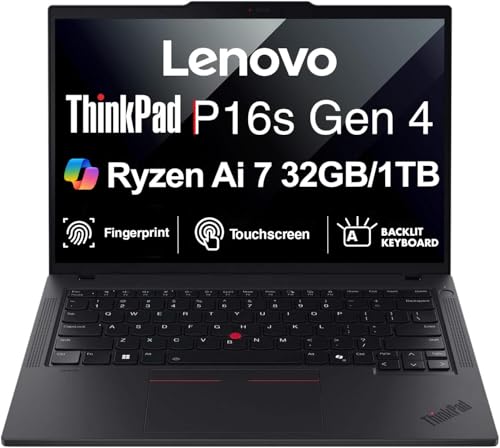
Lenovo ThinkPad P16s Gen 4 4K OLED — Best 4K workstation keyboard
Lenovo builds the P16s Gen 4 for a different temperament: the professional who wants a certified-class mobile workstation that still behaves like a travel laptop. The verified configuration pairs a 16-inch 4K OLED touch display with an AMD Ryzen AI 7 processor, 32GB of memory and 1TB of storage. Graphics come from the integrated AMD Radeon 860M, connectivity includes two Thunderbolt 4 ports and Wi-Fi 7, and the whole package runs Windows 11 Pro under the Copilot+ PC banner.
That integrated GPU is the decision to interrogate. Radeon 860M graphics are entirely adequate for 4K office work, multiple external displays, photo editing and the acceleration features sprinkled through modern productivity software. They are not a substitute for a discrete card when timelines stack effects or models grow teeth. Lenovo knows this, and the P16s is priced and positioned accordingly — it is the 4K machine for people whose bottleneck is typing, reviewing and presenting, not rendering.
The keyboard is the reason many buyers will choose it anyway. ThinkPad keyboards remain the reference against which laptop typing is judged, and pairing that keyboard with a true 4K OLED panel answers the two most common regrets of mobile professionals in a single product: text that tires the eyes and keys that tire the fingers. The fingerprint reader, backlit keys and workstation-grade build complete a package aimed at consultants, engineers who review rather than simulate, and writers who produce documents at industrial volume.
- Panel: 16-inch 4K OLED touch display
- Processor: AMD Ryzen AI 7 (Copilot+ PC)
- Graphics: AMD Radeon 860M integrated
- Memory and storage: 32GB, 1TB SSD
- Ports and wireless: 2× Thunderbolt 4, Wi-Fi 7 and Bluetooth
- Extras: fingerprint reader, backlit keyboard, Windows 11 Pro
Strengths
- A genuine 4K OLED panel in a workstation that still travels well.
- The keyboard and build quality suit all-day document production.
- 32GB of memory in the verified configuration leaves real multitasking headroom.
Trade-offs
- Integrated graphics cap its usefulness for heavy editing and 3D work.
- Two Thunderbolt ports is workable, but dock users may want the XPS’s third.
- The design is deliberately sober; nobody will mistake it for a creator flagship.
There is also a fleet argument that individual buyers can borrow. ThinkPads are bought by IT departments in volume because parts, docks and warranties behave predictably across generations, and a single P16s purchased retail inherits that ecosystem: the same docks your employer already owns will very likely drive it, and service documentation exists at a depth consumer lines never match. For a freelancer who bills by the day, that boring infrastructure is worth real money the first time something needs fixing on a deadline.
Best for: consultants, technical writers and engineers whose 4K need is text, drawings and review work on the move.
Not suited for: video editors stacking effects or 3D artists, both of whom need discrete graphics.

Dell Precision 7680 4K OLED — Best for certified professional graphics
The Precision 7680 is the entry here with no interest in being liked by everyone. Its verified configuration combines a 16-inch OLED 4K UHD+ touchscreen with NVIDIA RTX 1000 Ada professional graphics carrying 6GB of dedicated memory, an Intel Core i5-13600HX processor, 32GB of DDR5 memory, a 1TB SSD and Windows 11 Pro. Dell markets the line to engineers and creators, and the specification reads like a workstation checklist rather than a lifestyle pitch.
Professional RTX graphics are the heart of it. The RTX 1000 Ada belongs to the range built and driver-certified for engineering and content-creation applications, which matters when a CAD vendor’s support line asks what card you are running before it asks anything else. The 6GB of dedicated graphics memory also changes what the machine can hold in a scene or a timeline compared with the integrated graphics in the P16s above. Buyers whose software carries an ISV certification list should start their search here and work outward.
The processor choice looks odd on a spec sheet — a Core i5 badge on a premium workstation — until the HX suffix registers. This is a high-wattage desktop-class chip family, and the listing itself notes it outruns an Ultra 7 155H; sustained multi-core work such as compiling, simulation pre-processing and batch exports is what it is for. Around it, the Precision offers the expansion-minded design of a traditional workstation, a category where serviceability and docking are engineered rather than improvised.
- Panel: 16-inch OLED 4K UHD+ touchscreen
- Graphics: NVIDIA RTX 1000 Ada, 6GB
- Processor: Intel Core i5-13600HX
- Memory and storage: 32GB DDR5, 1TB SSD
- Operating system: Windows 11 Pro
- Positioning: mobile workstation for engineers and creators
Strengths
- Certified professional graphics distinguish it from every consumer pick here.
- The 4K UHD+ OLED touchscreen suits both CAD review and colour work.
- HX-class processing favours long, sustained workloads over short bursts.
Trade-offs
- Workstation weight and power draw make it the least casual traveller in the guide.
- RTX 1000 Ada is an entry professional card; heavy GPU rendering wants a higher tier.
- The utilitarian design gives nothing to buyers shopping for style.
Buyers should also understand what the Precision name buys beyond the hardware. Dell supports this line with workstation warranties, driver branches validated for professional applications, and a service model built around next-business-day expectations rather than mail-in patience. When the machine is the tool a salary depends on, that support structure is not overhead — it is half the product. The 7680’s verified configuration, with its DDR5 memory and terabyte drive, is specified like a machine expected to be kept, upgraded and supported rather than replaced at the first slowdown.
Best for: engineers and technical creators whose applications expect professional RTX graphics and certified drivers.
Not suited for: commuters counting grams, or gamers, for whom the RTX 1000 Ada’s drivers are the wrong tool.

Samsung Galaxy Book5 Pro 360 16 — Best screen below 4K
Honesty section: this Samsung is not a 4K laptop. Its verified listing specifies a 3K AMOLED touchscreen, which at 2880×1800 carries roughly three-fifths the pixels of a 3840×2160 panel. It earns a place in a 4K guide for one reason — a reader comparing displays side by side will find this AMOLED so good that the missing pixels stop being the headline. If your requirement is literally 4K, perhaps because you review 4K footage at full resolution, stop reading here and take the XPS 16. If your requirement is a gorgeous screen on a flexible machine, continue.
The Book5 Pro 360 is a convertible, folding through 360 degrees into presentation and tablet modes, with an Intel Core Ultra 7 256V, 16GB of memory and a 512GB drive in the verified configuration. The AMOLED panel refreshes at 120Hz, and Samsung’s display craft — the same lineage as its phones and televisions — shows in colour volume and black levels that embarrass most laptop LCDs. As a machine for presenting, sketching through ideas and watching mastered content, it is superb.
Its compromises are the convertible’s usual ones. Sixteen gigabytes of memory and a half-terabyte drive are the configuration’s ceiling in this listing, integrated graphics set the performance envelope, and a hinge built to fold flat is not the tool for sustained heavy rendering. None of that diminishes what it is: the strongest argument that resolution is one ingredient of a great screen rather than the whole recipe.
- Panel: 16-inch 3K AMOLED touchscreen, 120Hz — below 4K, stated plainly
- Processor: Intel Core Ultra 7 256V
- Memory and storage: 16GB, 512GB SSD
- Form factor: 360-degree convertible
- Operating system: Windows 11 Pro
- Positioning: AI business laptop with Copilot features
Strengths
- AMOLED colour and contrast rival the true-4K OLEDs in this guide.
- The convertible hinge adds presentation and annotation modes the others lack.
- 120Hz refresh keeps pen and scroll work feeling immediate.
Trade-offs
- It is a 3K screen; buyers who need pixel-for-pixel 4K review must look elsewhere.
- 16GB of memory and 512GB of storage are modest beside the 32GB/1TB picks above.
- Convertible hinges trade some rigidity for their flexibility.
The convertible format changes how the machine gets used in ways spec sheets never capture. Folded into tent mode on a kitchen counter it becomes a recipe and video screen that shrugs off splashes better than an open laptop; folded flat in a meeting it is a shared document two people can annotate from opposite sides of a table. Those small theatrics are why buyers choose this format at all, and Samsung’s execution — a slim body, a bright AMOLED, a hinge that holds its angles — is among the most convincing available at 16 inches.
Best for: presenters and annotators who value AMOLED quality and a folding screen over a literal 4K pixel count.
Not suited for: anyone whose workflow audits 4K footage at full resolution — that job belongs to the Dell and Lenovo picks.
ASUS ProArt P16 — Creator alternative (prose-only)
ASUS aims the ProArt line squarely at working creators, and the P16 builds that brief around a 4K OLED touchscreen with colour accuracy treated as the headline feature rather than a footnote. The line is known for factory colour calibration, a physical control dial beside the touchpad for scrubbing timelines and brushing in photo editors, and creator-focused software that bundles colour management into the machine’s own utilities. We discuss it without a purchase link because no verified listing for it sits in our current pool; treat this as a model to research, with the panel and configuration confirmed on whatever listing you eventually consider.
The ProArt’s natural constituency is the photographer and videographer who found the XPS 16 appealing but wants a machine whose entire personality is colour work. Where Dell splits its attention between the boardroom and the edit suite, ASUS spends everything on the suite. The trade is corporate polish: the ProArt looks and feels like studio equipment, which is either exactly right or entirely wrong depending on where you open your laptop.
Shopping guidance matters more for prose-only picks, so here it is plainly: ProArt models are sold in several configurations under near-identical names, and panels differ between them. Before paying, confirm on the listing itself that the unit carries the 4K OLED panel rather than a lower-resolution sibling, and that memory and storage match your editing ambitions, since creator machines punish undersized drives quickly.
- Panel: 4K OLED touchscreen in the creator configuration this line is known for — confirm on the listing
- Design focus: factory colour calibration and creator controls
- Distinctive feature: a physical dial for timeline and brush adjustments
- Graphics: discrete GPU configurations exist across the line; verify the exact unit
- Link status: no verified listing in our pool, hence no purchase link
Strengths
- Colour work is the product’s reason to exist, not a marketing garnish.
- The control dial genuinely speeds repetitive editing gestures.
- A 4K OLED touchscreen suits both grading and pen-based retouching.
Trade-offs
- Configuration sprawl makes careless ordering easy; the listing title is your contract.
- Studio styling travels less discreetly into conservative client offices.
- Without a verified listing here, pricing comparison is left to your own legwork.
One more consideration separates the ProArt from the XPS in daily use: ASUS builds its creator software layer into the ownership experience, with colour-calibration utilities and a control scheme designed so the dial, touchpad gestures and function keys serve editing applications directly. Owners who invest an afternoon learning that layer report the machine feeling less like a general laptop borrowed for editing and more like a workstation that happens to fold shut. Buyers who never customise anything will simply have a very good 4K OLED laptop — the ceiling is higher here, but the floor is the same.
Best for: photographers and videographers who grade colour daily and want a machine designed around that single obsession.
Not suited for: the buyer who needs the verified-configuration certainty of the linked picks above.
HP ZBook Studio 16 — Workstation alternative (prose-only)
HP’s ZBook Studio line occupies the narrow shelf between creator laptop and certified workstation: slim enough to carry like the former, engineered and supported like the latter, with high-resolution OLED panels offered among its configurations. It is the natural cross-shop for a buyer torn between the XPS 16’s polish and the Precision 7680’s professional graphics, and it appears here without a link because our pool holds no verified listing for the 4K configuration we would want to recommend.
The Studio’s appeal is balance. ZBook machines carry HP’s workstation support structure and ISV-certified graphics options, yet the Studio trims the bulk that makes a Precision feel like equipment rather than a laptop. For a consultant who renders client visuals in the morning and presents them in a boardroom after lunch, that blend is not a compromise but the entire point.
As with the ProArt, the warning is configuration discipline. ZBook Studio models ship with several panel options, and the difference between the OLED flagship screen and a lesser panel is the difference between this recommendation and a different laptop entirely. Read the listing title the way you would read a contract, because on a configure-to-order workstation, it is one.
- Line positioning: slim mobile workstation with creator leanings
- Panel options: high-resolution OLED offered in the line — confirm the exact unit before buying
- Graphics: professional RTX options across the range; verify per listing
- Support: workstation-class warranty and ISV certification structure
- Link status: discussed from the model’s public profile; no verified pool listing
Strengths
- Bridges creator portability and workstation certification more gracefully than most.
- OLED configurations compete with the best screens in this guide.
- HP’s workstation support suits buyers whose laptop is a business dependency.
Trade-offs
- Panel and graphics vary widely by configuration; a careless order gets a lesser machine.
- Workstation pricing applies even to the slim model.
- No verified listing in our pool means no shortcut around your own due diligence.
HP also plays a longer game with the ZBook line than most consumer brands attempt: firmware support, security tooling and spare-parts availability are planned around corporate ownership cycles, which quietly benefits the individual buyer through better resale values and a used market full of documented machines. A Studio bought new today is likely to remain a sensible, supportable computer for the small business that buys it from you in four years — an exit value the fashion flagships rarely preserve as well.
Best for: consultants who need certified graphics in a chassis that still belongs in a client meeting.
Not suited for: shoppers who want to order in two clicks without reading configuration details.
Comparison
| Pick | Display | Graphics | Memory / Storage | Character |
|---|---|---|---|---|
| Dell XPS 16 Premium 4K | 16.3″ OLED touch, 4K, 120Hz | RTX 5060 | 32GB / 1TB | Flagship all-rounder |
| Lenovo ThinkPad P16s Gen 4 | 16″ 4K OLED touch | Radeon 860M integrated | 32GB / 1TB | Keyboard-first workstation |
| Dell Precision 7680 | 16″ OLED 4K UHD+ touch | RTX 1000 Ada 6GB | 32GB DDR5 / 1TB | Certified professional tool |
| Samsung Galaxy Book5 Pro 360 | 16″ 3K AMOLED touch, 120Hz — below 4K | Integrated (Ultra 7 256V) | 16GB / 512GB | Convertible showpiece |
| ASUS ProArt P16 | 4K OLED touch (confirm per listing) | Discrete options across the line | Confirm per listing | Colour-obsessed creator |
| HP ZBook Studio 16 | High-resolution OLED options (confirm per listing) | Professional RTX options | Confirm per listing | Slim certified workstation |
Is a 4K Screen Worth It on a 16-Inch Laptop?
At typical desk distance, a 16-inch 4K panel renders text at a density where individual pixels vanish entirely, and the practical gains show up in specific places: the hairline rules of a spreadsheet stay crisp at small zoom levels, a retouched photograph reveals sharpening halos you would otherwise discover only after export, and interface elements in professional software — much of which is dense by design — remain legible without scaling tricks. Scale the interface to a comfortable size and you keep the sharpness while gaining workspace equivalent to a much larger monitor.
The counterargument is arithmetic. A 2.8K OLED at the same size already exceeds what most eyes resolve at arm’s length, costs less, and draws less power. Buyers whose work is email, documents and streaming will struggle to name what the extra pixels bought them. The honest dividing line is whether your work contains detail you are paid to judge. If it does, 4K is a tool. If it does not, 4K is a luxury — pleasant, defensible, but a luxury.
How Much Battery Life Does 4K Actually Cost?
Panel power draw scales with pixel count and brightness together, and a 4K OLED lit to office brightness is typically the hungriest component in the machine during light work — hungrier than the processor idling through documents. Owners of 4K laptops learn three habits: brightness discipline indoors, where 60 percent is usually ample; refresh-rate awareness, since a 120Hz setting costs power even when the content is static; and a charger in the bag for days built around conference rooms rather than a single desk.
OLED softens the penalty compared with older 4K LCDs because dark pixels draw little power, so dark-mode interfaces and video content are cheaper to display than bright spreadsheets. Still, plan around the panel: a machine rated for a long day at 2.8K will give you a noticeably shorter one at 4K, and no processor efficiency headline changes that physics.
How Do You Set Up Scaling So 4K Text Stays Readable?
Windows scaling is where 4K laptops are won or lost in their first hour. Set display scaling to 150 or 175 percent on a 16-inch 4K screen and text arrives at a comfortable physical size while retaining the panel’s full rendering density — the sharpness is the point of the exercise, so resist the temptation to lower the resolution itself, which blurs everything the panel was bought for. Check per-application behaviour afterwards: most modern software follows the system setting, but older engineering and finance tools occasionally need their own high-DPI override before they stop rendering like postcards.
External monitors complicate the picture because a 4K laptop driving a 1080p side screen forces the operating system to reconcile two densities at once. Windows handles mixed scaling far better than it once did, yet the cleanest desks pair the laptop with a 4K external display and let both run at matching density. If a dock is in your future, the Thunderbolt ports on the XPS 16 and P16s Gen 4 are the feature to lean on.
What Should You Check About Colour Before Trusting a 4K Panel?
Resolution tells you how many pixels a panel has; it says nothing about what those pixels show. Two 4K screens can sit side by side, both technically perfect in count, while one renders a photographer’s reds as brick and the other as blood. The properties that separate them are colour gamut — how wide a range of colours the panel can produce — colour accuracy, meaning how closely each produced colour matches the one requested, and brightness uniformity across the surface. Professional buyers talk about coverage of the DCI-P3 colour space because film and much modern content is mastered in it, and a panel that covers most of P3 will show that content as its creators intended rather than as a muted approximation.
None of the verified listing titles in this guide publish gamut figures, which is itself a useful lesson: panel quality claims beyond resolution live in manufacturer specification sheets and independent reviews, not in marketplace titles. The practical routine is to shortlist by verified configuration here, then confirm the specific model’s panel specifications on the manufacturer’s own page before ordering. OLED technology, which every linked 4K pick here uses, gives a head start — its per-pixel light control delivers the deep blacks and saturated colour that make wide-gamut content convincing — but panel binning and calibration still vary between models wearing the same resolution badge.
HDR adds a second layer to the same question. A panel can accept an HDR signal without the brightness or local dimming to display it meaningfully, and OLED again holds an advantage because its pixels switch off entirely for black. If HDR footage review is part of your work, treat the panel’s peak brightness and HDR certification as buying criteria equal to resolution, and expect to verify them outside the listing title.
How Does a 4K Laptop Fit a Desk With External Monitors?
Most 4K laptops spend their weekdays as the engine of a desk setup and their evenings as standalone machines, and the transition between those lives is a port question. Thunderbolt 4, fitted three times over on the XPS 16 and twice on the P16s Gen 4, carries display output, data and power over one cable, so a compatible dock turns arrival at the desk into a single connection. That convenience is not a luxury for a machine driving this many pixels: a dock that cannot sustain full resolution at a smooth refresh rate will quietly downscale your external 4K monitor, and the blur will be blamed on the laptop.
Resolution matching deserves a thought before the dock is ordered. A 4K internal panel beside a 4K external monitor gives Windows one scaling world to manage, and windows dragged between screens keep their size and sharpness. Pair the laptop with an older 1080p monitor instead and every dragged window resizes and re-renders at the border. Neither setup is wrong, but the mixed one spends your attention daily, and attention is what the 4K purchase was supposed to buy.
Cable quality is the unglamorous third factor. Long, cheap USB-C cables are a classic cause of flickering external displays at 4K, because the bandwidth is real and the cable is part of the circuit. When a new desk setup misbehaves, suspect the cable and the dock before the laptop; both the Dell and Lenovo picks here have port specifications comfortably beyond a single 4K external display’s needs.
How Long Will a 4K Laptop Stay Useful?
A laptop’s working life is usually ended by one of three shortages: memory that cannot hold the day’s applications, storage that cannot hold the year’s files, or a battery that cannot hold a charge through a meeting. The 4K panel itself ages gracefully — pixels do not go out of fashion, and 3840×2160 will still match the content libraries and external monitors of five years from now. That is why the verified configurations in this guide matter as much as their screens: 32GB of memory and a 1TB drive are the specifications that keep a 4K machine from becoming a beautiful screen attached to a cramped computer.
OLED longevity deserves its own honest paragraph. Static interface elements — taskbars, menu bars, the fixed chrome of professional software — are displayed for thousands of hours across a laptop’s life, and OLED pixels age with use, which can eventually leave faint ghosts of those elements. Manufacturers mitigate with pixel shifting, brightness limiters and panel refresh routines built into the machines. Owners help by letting screen savers and sleep timers do their work and by not running a static desktop at maximum brightness for entire days. Treated normally, a modern OLED panel should serve the same lifespan as the laptop around it; treated as a billboard, it will complain first.
Battery ageing is the one certainty. Every lithium battery in this guide will hold noticeably less charge in year four than in year one, and a 4K panel draws from that shrinking reserve more greedily than a lesser screen. Buyers planning a five-year ownership run should value the machines whose makers publish battery replacement paths — a category where the workstation lines, Precision and ThinkPad, traditionally behave better than sealed fashion flagships.
What Should You Verify in the Final Hour Before Ordering?
Configuration drift is the defining hazard of laptop shopping, and 4K machines suffer it worst because a single model name spans panels from ordinary to exceptional. The last check before paying is a slow read of the exact listing: panel resolution stated outright, not implied by the model name; memory and storage figures present as numbers; the graphics processor named. The linked picks in this guide were verified exactly this way, and the habit protects you equally when you shop the prose-only models or any variant a seller substitutes into a search result.
Then read the return terms with the same care. A panel is the one component you cannot fully judge from specifications — uniformity, backlight behaviour on LCDs, and your own eyes’ response to OLED are personal. A seller with a sane returns window converts that uncertainty from a gamble into an inspection period. Check the machine in your own room, at your own brightness, with your own footage and documents, during the first days rather than the first month.
Finally, register the warranty and photograph the specification page of the unit that arrives. Workstations like the Precision and ThinkPad carry support structures that reward owners who can state their exact configuration, and the photograph settles any later dispute about what was shipped. Ten minutes of administration at unboxing is the dullest advice in this guide and the kind most often wished for retroactively.
How Do You Travel With a 16-Inch 4K Machine?
Sixteen inches is the largest size that still fits the bags, trays and desks of ordinary travel, and 4K versions add one wrinkle: their panels reward brightness, and brightness on a plane is a negotiation with the battery. Download before departure, because streaming over cabin Wi-Fi at full brightness is the fastest legal way to empty a workstation battery. A compact high-wattage USB-C charger earns its place in the bag too — the Thunderbolt ports on these machines accept power from modern GaN chargers, letting one small brick serve laptop, phone and tablet alike.
Screen protection deserves thirty seconds of thought. OLED panels are durable in normal service, but a 16-inch lid flexes more than a 14-inch one, and a keyboard pressed against the display in an overstuffed bag can leave marks over time. A thin microfibre sheet between keys and screen on travel days is the traditional ThinkPad owner’s trick, and it transfers to every machine in this guide without modification.
Which Professions Actually Use All of a 4K Panel?
Radiologists and medical-imaging specialists are the extreme case: diagnostic work is legally and clinically bound to pixel fidelity, and while dedicated medical displays handle the formal reading, a 4K laptop is the machine that travels to conferences, satellite clinics and home offices with studies in tow. Architects form the second clear constituency. A building information model at 4K shows stair details, annotation collisions and material junctions that vanish at lower resolutions, and client presentations on the laptop’s own screen — still the commonest way small practices show work — gain the polish that wins approvals.
Financial modelling is the constituency nobody expects. A dense workbook at 4K with sensible scaling shows more columns at legible size than any lesser panel, and traders and analysts who live in grids of small numbers feel the difference in their eyes by mid-afternoon. Software developers make the same discovery through code: more lines visible, sharper letterforms, and room for an editor, a terminal and documentation in a single glance. None of these professions needs 4K the way the radiologist does, but each converts pixels directly into either accuracy or hours, which is the only conversion that justifies the panel’s price and power appetite.
Contrast that with the professions where 4K is decoration. Writers working in plain text editors, sales staff living in CRM dashboards, and students taking notes in lecture halls gain sharpness they will enjoy and nothing they will use. For them the Samsung’s 3K AMOLED or any good 2.8K OLED delivers the visible pleasure at a kinder price and a longer battery — a point this guide makes deliberately, because a 4K shortlist that cannot name who should not buy 4K is advertising, not advice.
What Happens to Resale Value on a 4K Laptop?
High-resolution flagships hold their value unevenly, and the pattern is instructive. Machines whose panels were genuinely rare — true 4K OLED models from recognised lines like XPS, ThinkPad and Precision — keep a floor under their used prices because the second-hand market for them is professionals buying a known tool. The workstation picks add a second support: corporate off-lease demand. When fleets retire Precision and ThinkPad units, refurbishers and small businesses absorb them steadily, and that institutional appetite props up prices for well-kept individual machines too.
Condition dominates everything else, and for OLED machines condition means the panel. A used 4K laptop with uneven pixel wear from years of static taskbars will be discounted far more harshly than one with a scuffed lid, because the screen is the product. Owners who use sleep timers, vary their wallpapers and avoid parking static windows at full brightness for years are, whether they know it or not, protecting the single largest component of their machine’s resale value.
Timing the sale matters as well. A 4K laptop sold while its configuration still reads as current — 32GB of memory and a terabyte drive will read as current for years — catches buyers upgrading from lesser machines. The same laptop sold after its memory class has become the budget tier is priced as nostalgia. The verified configurations in this guide were, among other things, chosen to age on the right side of that line.
How Should You Set Up a New 4K Laptop on Day One?
Begin with the display, because every later judgement is made through it. Set scaling deliberately rather than accepting whatever the first boot chose, then open the documents you actually work in and judge size with your own eyes at your own desk distance. Turn on the panel’s refresh-rate setting you intend to live with — 120Hz on the XPS 16 transforms scrolling feel — and decide about HDR at the operating-system level now, not mid-project, because enabling it changes how colour-managed applications present their work.
Next, tame the battery variables while the machine is still a novelty and the habits are cheap to form. Create a power profile for travel days that trims brightness and refresh rate, and leave the desk profile unrestricted. Update the graphics drivers from the manufacturer’s own channel — Dell, Lenovo and the workstation lines all maintain validated driver branches — rather than chasing the newest generic release, since on professional machines the validated branch is a feature, not a delay.
Then move your real workload across in one honest test before the return window closes: the heaviest project file, the largest photo library folder, the full stack of applications you keep open simultaneously. A 4K laptop that stumbles here will not improve with familiarity, and this is the moment when an exchange costs nothing but an afternoon. Machines pass or fail as individuals as well as models, and the first week is your inspection bay.
Finish with recovery groundwork that has nothing to do with resolution and everything to do with keeping the machine: enable drive encryption, make the recovery key somebody else’s problem too by storing it safely, and create the restore image while the installation is clean. A 4K flagship is a multi-year commitment; the hour spent making it recoverable is repaid the first time an update misbehaves the night before a deadline.
Common Mistakes
Headline resolution is the trap that starts most bad purchases: a listing shouting “4K” over a 3200×2000 panel, or a buyer assuming a famous model name guarantees the flagship screen when that name spans four different panels. The defence is boring and total — read the exact panel line in the exact listing, the way this guide’s picks were verified.
Undersizing memory and storage follows close behind. A 4K machine is bought for heavy visual work, and heavy visual work eats both. The verified configurations here cluster at 32GB and 1TB for a reason; a cheaper 16GB/512GB variant of a similar name is a different, shorter-lived computer.
Graphics mismatches waste money in both directions. Integrated graphics paired with grading ambitions disappoints within a month, while a professional RTX card bought for spreadsheets is an expensive ornament. Match the GPU to the software you actually open, not the software you admire.
Finally, buyers forget the ecosystem: a 4K laptop feeding an ancient 1080p monitor and a bargain dock spends its life downscaled and cable-bound. Budget for the dock and, eventually, the display the machine deserves.
Final Recommendation
Most readers should take the Dell XPS 16 Premium 4K: it is the only pick here combining the full 4K OLED at 120Hz, discrete RTX graphics, 32GB of memory and a chassis that flatters both an edit suite and a boardroom. Choose the ThinkPad P16s Gen 4 instead when your days are documents, drawings and travel, and its keyboard will repay you hourly. Step to the Precision 7680 when your software demands certified professional graphics, and consider the Samsung only with eyes open — a magnificent 3K screen that does not pretend to be what it is not. The ProArt P16 and ZBook Studio reward the extra research their prose-only status demands. Whichever route you take, buy the panel on verified pixels rather than on a headline, and the machine underneath it on memory and storage that will still feel adequate when the screen is on its third year of service.
Frequently Asked Questions
Is 4K the same as UHD on a laptop?
On laptop listings the terms are used interchangeably for 3840×2160, and Dell’s “4K UHD+” on the Precision 7680 denotes its touch OLED variant of that class. What matters is the pixel count itself: 3840×2160 is the genuine article, while 3200×2000, 2880×1800 and 2560×1600 are all below it regardless of the marketing wrapped around them.
Can these laptops drive a 4K external monitor as well?
Yes — the Thunderbolt 4 ports on the XPS 16 and P16s Gen 4 are built for exactly that, and a single cable can carry the display signal, data and charging through a suitable dock. Driving the internal 4K panel plus one or two external 4K screens is routine work for the graphics in the linked picks.
Does a 4K screen make text too small to read?
Only if scaling is left at 100 percent, which nobody should do. At 150–175 percent scaling, text on a 16-inch 4K panel is the same physical size as on a lesser screen, drawn with several times the pixels. The sharpness survives; the squinting does not occur.
Should I choose OLED or LCD for a 4K laptop?
Every verified 4K pick in this guide is OLED, which reflects where the market’s best 4K panels now live: perfect blacks, instant response and strong colour. LCD 4K survives mainly in older workstation configurations. OLED’s considerations are burn-in hygiene for static interfaces and the power cost of bright full-screen content — manageable, but worth knowing.
Is 32GB of memory necessary with a 4K laptop?
Not for the screen’s sake — for the workload’s. The buyers who choose 4K panels edit large images, run dense professional software and multitask heavily, and 32GB is the configuration the verified picks converge on. A documents-only user can live with 16GB, as the Samsung’s configuration shows, but will feel the ceiling sooner.
Why do so many laptops advertise near-4K resolutions instead?
Because panel manufacturing follows volume, and the industry’s volume settled on 2.8K and 3K OLED panels that balance sharpness, yield and power draw for the mainstream premium market. Those panels are genuinely excellent — the Samsung in this guide proves it — but they are not 4K, and the difference matters exactly when your work involves judging 4K material itself. Buy the near-4K screen for pleasure and the true 4K screen for inspection, and you will rarely regret either.
Related Guides
Keep exploring high-resolution machines with our guide to the best 4K gaming laptops, compare panels in depth in the best 4K OLED laptops roundup, and see what the budget end really offers in best 4K laptops under 1000.

[…] that pair with this one: Best 4K Laptops Best 4K Gaming Laptops Best 4K OLED […]