What's inside
- Key Takeaways
- Quick Picks
- How We Chose These Picks
- Comparison Table: One Drive, Two Systems
- How Much Space Does Each Operating System Honestly Need?
- What Does Secure Boot Change About Installing Linux Beside Windows?
- Why Do Dual-Booted Clocks Disagree, and Other Small Betrayals?
- How Should the Installation Be Sequenced to Keep Windows Calm?
- Should the Two Systems Share One Drive, or Should Linux Get Its Own?
- What Does a Sensible Backup Routine Look Like for Two Systems?
- Ways People Break a Working Dual-Boot Setup
- When Is Dual Booting the Wrong Answer Altogether?
- Final Recommendation
- Frequently Asked Questions
- Related Guides
As an Amazon Associate I earn from qualifying purchases. This post may contain affiliate links at no extra cost to you.
widgetverdict.com is reader-supported. When you buy through links on our site, we may earn an affiliate commission.
How purchasing works in this guide to the best laptops for dual booting windows linux: five of the six machines carry Amazon links, and each listing can be opened to check price on Amazon and to verify the drive size printed in its title — the figure this entire topic turns on, because the same model names are also sold with smaller drives that would change the advice. The sixth machine is configured and sold by its maker directly, through that maker’s own store, so it is discussed by name without a link.
The search for the best laptops for dual booting windows linux is really a search for a machine that can hold two lives without either one resenting the arrangement. One life is Windows: the employer’s software, the family’s photo library, the game that only runs there. The other is Linux: the development environment, the study platform, the system you are gradually moving your real work into. Dual booting remains the honest way to keep both at full strength — each system native, each with the whole GPU, the whole battery budget and the whole machine — and its demands on hardware are specific and underappreciated. Storage stops being a single number and becomes a negotiation. Firmware stops being invisible and becomes a roommate. The laptops below were chosen by someone who has mediated that negotiation many times, on many machines, for many households, over many years of updates on both sides.
Two facts shape the whole list. The first is that every linked machine here ships with Windows in its listing, which is the correct starting point: dual booting is vastly calmer when Windows is installed first and Linux moves in beside it, rather than the reverse. The second is that drive size divides the picks into two honest classes. The 512GB machines can host a genuine dual-boot life with disciplined partitioning. The 1TB machines — the X1 Carbon and the XPS 13 — remove the discipline requirement, and for many buyers that removal is worth more than any processor difference on this page.
What follows is organised the way the decision actually unfolds for a first-time dual-booter standing in front of a new, unpartitioned machine with a weekend available. The picks come first, with their drive sizes treated as the headline specification they are in this category. Then the guide works through the partition maths, the firmware settings that decide whether the installation is calm or combative, the small betrayals — clocks, updates, boot menus — that dual-boot owners learn to manage, and the sequence that keeps Windows unbothered by its new neighbour.
Key Takeaways
- Drive size is the headline specification for dual booting, ahead of processor or screen: the two 1TB picks end the partition negotiation entirely, while the three 512GB ThinkPads require a deliberate, written-down split.
- All five linked listings ship with Windows installed, which is the order that makes dual booting calm — Windows first, Linux second.
- Memory of 32GB in the AMD T14, the X1 Carbon and the Gen 6 T14 keeps either system comfortable as the main daily environment, with room left over for the browser habits both systems encourage.
- The Framework Laptop 13 is the prose-only pick, interesting here because its storage is owner-replaceable and its ports are swappable.
- Secure Boot, drive encryption and Windows Update are the three forces that occasionally disturb dual-boot setups; every pick here lives with all three manageably, provided the recovery key is recorded before the first installation begins.
Quick Picks
| Pick | Badge | Why it is here |
|---|---|---|
| Lenovo ThinkPad T14 Gen 5 AMD | The Balanced Split | 32GB of memory and a 512GB NVMe drive in the guide’s most even-tempered dual-boot host. |
| Lenovo ThinkPad T14 Gen 5 Ultra 7 | The Intel Household | An Intel T14 with dual Thunderbolt 4 for a home where the desk peripherals are shared between systems. |
| Lenovo ThinkPad X1 Carbon Gen 12 | The Terabyte Answer | 1TB of storage that lets Windows and Linux each have a real home, in a travel-weight chassis. |
| Dell XPS 13 9350 | The Small Machine With the Big Drive | A terabyte inside a 13.4-inch laptop, for a dual-boot life that moves between desks. |
| Lenovo ThinkPad T14 Gen 6 | The Long-Haul Platform | The newest T14, for a dual-boot arrangement intended to survive years of updates on both sides. |
| Framework Laptop 13 | The Owner-Serviceable Option | Replaceable storage and swappable ports from a maker that sells direct; no link. |
How We Chose These Picks
Dual booting reorders the usual laptop priorities, so the selection began with storage and firmware rather than with processors. Storage first, because two operating systems, two sets of applications and one shared pool of personal files must all fit, and because a partition layout chosen in week one is painful to revise in year two. Firmware second, because the machine’s boot behaviour — how it lists its boot entries, how it handles Secure Boot, how gracefully it accepts a second system’s bootloader — decides whether dual booting feels like a feature or a feud. Only after those two filters did the conventional questions of memory, screen and keyboard get their say.
Business laptops passed those filters with a consistency that will surprise nobody who has administered them. Their firmware is written for people who manage fleets and occasionally install unusual things; their documentation is public; their Linux behaviour is recorded by an enormous owner base that includes a substantial dual-booting minority whose notes cover exactly the questions this guide addresses. The XPS 13 earns its place as the consumer exception, on the strength of a terabyte in a small chassis and a product line with a long public Linux history.
Specification claims stay inside the listing titles throughout. Drive sizes, memory figures and processors are quoted from the listings; the number of internal drive bays is not stated in any of these titles, so the guide makes no claim about second-bay upgrades and instead treats the fitted drive as the whole estate — the conservative assumption a dual-boot plan should be built on anyway.
A note on the reader this guide quietly assumes: someone whose two systems have different jobs rather than different loyalties. The Windows-versus-Linux argument is a spectator sport; dual booting is what people build when they have work on both sides and no interest in the argument. Every judgement below — the reverence for storage, the suspicion of drama, the insistence on backups — follows from that practical stance. If your interest in a second system is exploratory, the live-USB rehearsal described later may satisfy it without any partition being harmed; if it is occupational, proceed, and proceed in the order given.

Lenovo ThinkPad T14 Gen 5 AMD — The Balanced Split
Begin the dual-boot conversation with the machine that makes the fewest demands on it. This T14’s listing describes a Ryzen 7 PRO 8840U, 32GB of DDR5 memory, a 512GB NVMe SSD, a 14-inch WUXGA touch display, Radeon 780M graphics, Wi-Fi 6E and Windows 11 Pro. Divide that drive with the discipline this guide will lay out — a comfortable estate for Windows, a genuine home for Linux, and a shared shelf for files both systems read — and the split works without either side feeling like a guest. The 32GB of memory is the quiet enabler: whichever system you boot becomes a full daily environment, not a compromise you tolerate until you reboot.
The AMD platform brings a temperament that dual-booters appreciate over years. Its integrated graphics are handled by mature in-kernel drivers on the Linux side, so the Linux installation needs no proprietary graphics stack to behave, while Windows runs its own polished driver on the other side of the fence. Each system meets the hardware through its most boring, best-maintained path, and boring is the highest praise available for a machine whose job is to hold two operating systems without drama. The Windows 11 Pro licence in the listing matters as well: Pro’s management tools, including its drive-encryption controls, are the ones a dual-boot owner will actually touch.
- Drive fitted, per the listing: 512GB NVMe SSD
- Memory: 32GB DDR5
- Processor: AMD Ryzen 7 PRO 8840U
- Graphics: Radeon 780M integrated
- Panel: 14-inch WUXGA with touch
- Shipped operating system: Windows 11 Pro
Strengths
- 32GB of memory makes either booted system a complete working environment.
- Integrated graphics keep the Linux side free of proprietary-driver management.
- Windows 11 Pro’s encryption controls are the dual-boot-friendly edition of the tools.
Trade-offs
- 512GB demands a deliberate partition plan; neither system can sprawl.
- A large shared game library on the Windows side will squeeze the Linux estate first.
- Touch glass is a Windows-side pleasure that Linux uses only lightly.
Best for: a buyer whose two systems are true equals, each used daily, on a drive split planned once and kept.
Not suited for: a Windows-side gamer with a huge installed library, who should start from a terabyte pick instead.
Picture the settled life this machine enables. Windows owns the work applications and the family accounts; Linux owns the development environment and the study desk; a shared data partition holds the documents both lives touch, formatted so neither system needs a translator. Boot time becomes a small ritual of intention — choosing the day’s system at the menu — and the machine’s reliability in presenting that menu, month after month, is the unglamorous virtue the whole arrangement stands on. This T14’s fleet-bred firmware has that virtue in its bones.

Lenovo ThinkPad T14 Gen 5 Ultra 7 — The Intel Household
The Intel T14 speaks to households and desks already built around Intel habits and Thunderbolt peripherals. Its listing names a Core Ultra 7 155U, 16GB of DDR5 memory and a 512GB SSD, with a 14-inch IPS FHD+ display, backlit keyboard, fingerprint reader, a 5MP webcam, two Thunderbolt 4 ports and a bundled hub. For dual booting, the ports are the story: a dock, external monitor and backup drive that serve the Windows side in the morning serve the Linux side in the afternoon, through the same two connectors, because both systems speak the same USB-C standards. The desk becomes neutral territory, owned by neither operating system.
Sixteen gigabytes is this configuration’s honest limit, and dual booting reframes it kindly. A dual-boot machine runs one system at a time — there is no host-and-guest division of memory as with virtualisation — so 16GB serves either system completely for ordinary work, development included, provided each system’s own habits stay tidy. The constraint arrives only if you later add virtual machines inside one of the systems, at which point the memory is divided after all. Buyers whose plan is purely two native systems can take this pick’s value without apology.
- Drive fitted, per the listing: 512GB SSD
- Memory: 16GB DDR5
- Processor: Intel Core Ultra 7 155U
- Panel: 14.0-inch IPS FHD+
- Connectors highlighted: two Thunderbolt 4 ports, hub bundled with this listing
- Shipped operating system: Windows 11 Pro
Strengths
- Dual Thunderbolt 4 makes the desk’s dock and drives serve both systems identically.
- Native dual booting uses the full 16GB for whichever system is running.
- A thoroughly documented platform, with a large public record of Linux installs.
Trade-offs
- The 512GB split needs the same discipline as the AMD pick’s.
- Adding VMs inside either system later will expose the memory ceiling.
- The bundled hub is a desk accessory, not a travel companion.
Best for: a household standardised on Intel and Thunderbolt, splitting one drive between two native systems.
Not suited for: a planner who expects to nest virtual machines inside the dual-boot setup later.
There is a social dimension to this pick worth naming. In a shared household, the dual-boot laptop is often a negotiated peace: one person’s Windows, another’s Linux, or one person’s work system and the same person’s study system. The T14’s virtues in that negotiation are its neutrality and its manners — it boots to a menu, presents both systems without favouritism, and keeps each side’s files exactly where its owner left them. Machines that mediate households successfully are rarely the fastest ones; they are the ones nobody argues about, and this configuration has that temperament in full.

Lenovo ThinkPad X1 Carbon Gen 12 — The Terabyte Answer
Every dual-boot plan is secretly a storage plan, and this is the pick that ends the planning. The listing gives the Carbon an Intel Ultra 7 165U vPro, 32GB of memory running at 6400MHz and a 1TB Gen4 Performance SSD — a full terabyte in which Windows can hold its applications and games, Linux can hold its development estate and a few virtual machines besides, and a shared partition can hold the household’s documents without either system counting gigabytes at the other’s door. Partition regret, the defining dual-boot emotion, simply does not develop at this size.
The rest of the machine suits a two-system life that travels. The 14-inch WUXGA touchscreen with full sRGB coverage serves whichever system is booted; the FHD+ infrared camera handles Windows face sign-in while the Linux side uses its own methods; and the carbon chassis means the machine carrying two operating systems weighs less than most machines carrying one. For the professional whose Windows is employer’s and whose Linux is their own — a common and entirely reasonable split — this is the configuration that keeps both lives first-class in a bag that still fits under an airline seat.
- Drive fitted, per the listing: 1TB Gen4 Performance SSD
- Memory: 32GB at 6400MHz
- Processor: Intel Ultra 7 165U vPro
- Panel: 14-inch WUXGA touch, full sRGB per the listing
- Camera: FHD+ with infrared
- Shipped operating system: Windows 11 Pro
Strengths
- A terabyte removes partition discipline from the list of dual-boot skills.
- 32GB of fast memory keeps the booted system — either one — fully capable.
- Travel weight with two complete systems aboard is a combination few machines offer.
Trade-offs
- Flagship pricing for what is, in dual-boot terms, mostly a storage and weight advantage.
- A slim chassis offers less sustained-load cooling than the T14 body.
- The glossy panel asks for shade in bright rooms under either system.
Best for: a professional running an employer’s Windows and a personal Linux as equal citizens of one travelling machine.
Not suited for: a stationary dual-booter, who can buy the same storage in a desktop for a fraction of the premium.
The terabyte also buys a subtler freedom: growth. Dual-boot arrangements evolve — the Linux side acquires a second distribution to evaluate, the Windows side acquires a creative suite, a shared archive of family video appears. On a 512GB machine each evolution is a negotiation with an eviction list. On this drive each is a shrug. Buyers consistently underestimate how much of dual booting’s reputation for fussiness is actually storage anxiety wearing a technical disguise; this pick removes the anxiety and leaves only the genuinely simple mechanics.

Dell XPS 13 9350 — The Small Machine With the Big Drive
The XPS performs the guide’s neatest trick: a terabyte of storage inside a 13.4-inch laptop. The listing specifies an Intel Core Ultra 7-256V, 16GB of DDR5 memory and a 1TB NVMe SSD, with a 13.4-inch FHD+ display, Intel Arc graphics, Wi-Fi 7, Bluetooth, Thunderbolt 4 and a backlit keyboard, shipping with Windows 11 Home. For a dual-booter whose machine lives in a small bag and works at many desks, that combination — full partition freedom at minimum physical size — has no direct rival in this guide.
Two honest notes accompany it. The shipped Windows edition is Home, and Home’s drive-encryption story differs from Pro’s; dual-booters who encrypt the Windows side should read the later section on encryption carefully and plan accordingly, because the interaction between Windows encryption and a neighbouring Linux is one of the few genuinely fiddly corners of this topic. And the 16GB of memory, as with the Intel T14, serves each native system fully while leaving little room for nested virtualisation. Within those notes, the XPS’s Linux pedigree is a comfort: Dell’s XPS line has a long public history under Linux, including Ubuntu editions of this very family, and its behaviour with a second system installed is correspondingly well documented by owners.
- Drive fitted, per the listing: 1TB NVMe SSD
- Memory: 16GB DDR5
- Processor: Intel Core Ultra 7-256V
- Panel: 13.4-inch FHD+
- Graphics and radios: Intel Arc, Wi-Fi 7, Bluetooth
- Shipped operating system: Windows 11 Home
Strengths
- Terabyte partition freedom in the smallest chassis in this guide.
- Wi-Fi 7 and a current platform give the arrangement a long runway.
- The XPS family’s Linux history is deep and publicly documented.
Trade-offs
- Windows Home’s encryption options need planning around a Linux neighbour.
- 16GB serves native systems fully but not nested virtual machines.
- The compact deck is a smaller typing target for long sessions in either system.
Best for: a mobile dual-booter who refuses to choose between a small bag and a roomy partition map.
Not suited for: encryption-everything planners intending to virtualise on top, who should start with a Pro-edition, 32GB pick.
Consider who this machine quietly serves best: the student or junior professional whose life is genuinely split — coursework and employment pulling toward Windows, curiosity and a growing technical identity pulling toward Linux — and whose entire computing estate must fit in a bag carried across a campus or a city. For that reader the XPS is not a compromise between size and storage. It is the only pick here that refuses to make them choose, and the dual-boot arrangement it hosts will likely outlast the degree or the first job that prompted it.
Lenovo ThinkPad T14 Gen 6 — The Long-Haul Platform
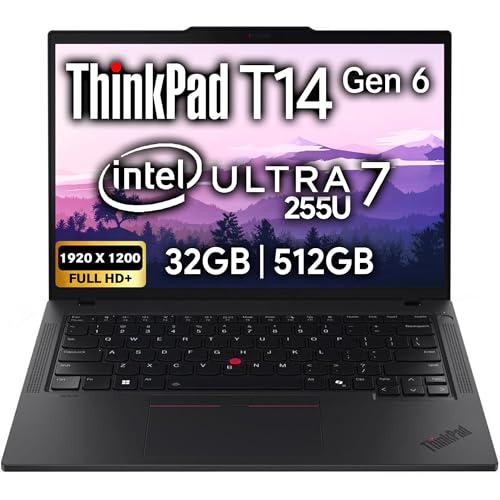
A dual-boot arrangement is a long marriage, and this pick is for buyers who choose the machine by how it will behave in year four of that marriage. The Gen 6 listing describes an Intel Ultra 7 255U with 32GB of DDR5 memory and a 512GB SSD, a 14-inch FHD+ IPS display, a 5MP webcam, fingerprint reader, backlit keyboard, Wi-Fi 6E and two Thunderbolt 4 ports, under Windows 11 Pro. The newest platform in the guide brings the longest firmware future — and firmware is the substrate a dual-boot setup lives on, because boot entries, Secure Boot databases and power behaviour are all firmware conversations that continue for the machine’s whole life.
The 512GB drive asks for the same deliberate split as the other ThinkPads here, and repays it with the guide’s best memory headroom alongside the AMD pick. Think of the division of labour across years: Windows feature updates arrive and occasionally rearrange the boot furniture; Linux distribution releases arrive and refresh their side; a platform still receiving active firmware attention absorbs both rhythms with the least friction. Buyers who have watched an ageing laptop’s vendor lose interest in its firmware will recognise this as the pick that postpones that abandonment the longest.
- Drive fitted, per the listing: 512GB SSD
- Memory: 32GB DDR5
- Processor: Intel Ultra 7 255U
- Panel: 14-inch FHD+ IPS
- Connectors highlighted: two Thunderbolt 4 ports
- Shipped operating system: Windows 11 Pro
Strengths
- The longest firmware runway in the guide, underwriting years of two-system updates.
- 32GB of memory matches the guide’s best for whichever system is booted.
- Pro-edition Windows provides the full encryption and management toolkit.
Trade-offs
- 512GB still requires the planned split rather than the terabyte picks’ freedom.
- Current-generation listings carry current-generation pricing.
- Integrated graphics keep gaming ambitions on the Windows side modest.
Best for: a buyer establishing a dual-boot machine intended to serve unchanged through years of updates on both sides.
Not suited for: a short-horizon buyer, who pays for a firmware future they will not stay to use.
There is a temperament dividend as well. New platforms attract the attention of both the maker’s engineers and the Linux community’s, so the small incompatibilities that any dual-boot life accumulates — a boot entry that needs reordering after an update, a sleep quirk in a new kernel — are most likely to be diagnosed and documented quickly on a machine like this one. Long marriages thrive on exactly that: not the absence of friction, but the speed with which friction gets resolved.
Framework Laptop 13 — The Owner-Serviceable Option
Framework’s laptop enters a dual-boot guide through the service door. It is sold only through the maker’s own store — no marketplace link exists, and Amazon results under the name are parts and accessories — and its storage, memory and mainboard are designed to be replaced by the owner. For a dual-booter, that changes the storage conversation entirely: the drive fitted at purchase is a starting point rather than a sentence, and an arrangement that outgrows its first drive can be re-founded on a larger one with a screwdriver and an afternoon, both systems migrated rather than a new laptop bought.
The expansion-card ports add a second, playful possibility. Because the machine’s edges are composed of swappable modules, a storage card can carry a portable system or a shared data pool that moves between machines, and the port selection itself can adapt as the dual-boot life evolves — wired networking for the desk era, extra USB for the travel era. The maker’s do-it-yourself edition, which expects an owner-installed operating system, also removes the usual first step of evicting a shipped Windows; a buyer planning a Windows-plus-Linux machine from day one can order the parts of that plan in the order that suits them, licences permitting, rather than inheriting someone else’s partition layout.
- Class: 13-inch laptop with ports composed from swappable cards
- Where it is sold: the maker’s own store only
- Storage model: internal drive replaceable by the owner
- Editions: assembled or do-it-yourself, the latter ready for self-installed systems
- Ports: expansion cards chosen and rearranged by the owner
Strengths
- A storage ceiling that can be lifted later answers dual booting’s commonest regret.
- Swappable storage cards offer a genuinely flexible second-system or shared-data route.
- The DIY edition starts from a blank drive, which is where dual-boot plans prefer to start.
Trade-offs
- Every decision — drive size, memory, ports — is the buyer’s to get right at order time.
- Support runs through one small maker rather than a global service network.
- Marketplace conveniences — delivery speed, discounts, returns — do not apply.
Best for: a hands-on owner who expects the partition map to evolve and wants hardware that evolves with it.
Not suited for: households expecting the dual-boot machine to arrive as a finished, fleet-standard appliance.
The Framework also reframes failure kindly. In a sealed laptop, a dying drive threatens both operating systems and all their state at once, and the recovery is a service event. In this machine the drive is a part, the part is listed, and the replacement is an owner’s task documented by the maker. Dual-boot setups concentrate risk in a single drive by definition; a laptop that makes that drive trivially replaceable, with backups kept as this guide will urge, converts the arrangement’s scariest failure into an errand.
Step back from the individual names and a pattern emerges that the comparison table will formalise: this guide contains two storage classes and three memory classes, and the buyer’s real decision is which class their life belongs to, with the brand and model following almost automatically. Dual booting punishes indecision about that question more than any other laptop purchase, because the classes are separated by a partition map that resists revision. Decide the class honestly — measure your current Windows installation’s appetite, add your Linux ambitions at their realistic size, and then add slack — and the table below becomes a formality that confirms a decision already made well.
Comparison Table: One Drive, Two Systems
| Pick | Drive (as listed) | Memory | Processor | Shipped Windows | Dual-boot character |
|---|---|---|---|---|---|
| ThinkPad T14 Gen 5 AMD | 512GB NVMe SSD | 32GB DDR5 | Ryzen 7 PRO 8840U | Windows 11 Pro | The even-tempered equal split |
| ThinkPad T14 Gen 5 Ultra 7 | 512GB SSD | 16GB DDR5 | Core Ultra 7 155U | Windows 11 Pro | The Thunderbolt household machine |
| ThinkPad X1 Carbon Gen 12 | 1TB Gen4 SSD | 32GB | Ultra 7 165U vPro | Windows 11 Pro | Partition freedom that travels |
| Dell XPS 13 9350 | 1TB NVMe SSD | 16GB DDR5 | Core Ultra 7-256V | Windows 11 Home | The terabyte in a 13.4-inch bag |
| ThinkPad T14 Gen 6 | 512GB SSD | 32GB DDR5 | Ultra 7 255U | Windows 11 Pro | The longest firmware future |
| Framework Laptop 13 | Owner-chosen, replaceable | Owner-chosen, replaceable | Mainboard chosen at order | DIY edition ships without one | The arrangement that can be rebuilt |
How Much Space Does Each Operating System Honestly Need?
Do the arithmetic with real appetites rather than installer minimums. A Windows installation with its applications, its update cache and a normal life around it is comfortable in the low hundreds of gigabytes and resentful below them; its update mechanism in particular behaves badly when the drive tightens, postponing and then compounding its demands. A desktop Linux installation with a development environment, containers and a few virtual machines wants a similar order of room, though it can live leaner if its owner keeps home and system disciplined. Between them, a shared data area formatted in a filesystem both systems read natively — the humble workhorse arrangement — holds the documents, media and archives that belong to the household rather than to either system.
Against that arithmetic, the guide’s two drive classes explain themselves. At 512GB, the split is a real plan: Windows takes the larger share if it hosts games or creative suites, Linux takes a defined estate with its growth capped by habit, and the shared area stays modest. At 1TB — the Carbon and the XPS — the same plan becomes generous in every column at once, and the owner stops performing the quarterly audit of what can be deleted. Neither class is a mistake; they are different relationships with one’s own files, and the honest question at purchase is which relationship you actually have.
One refinement separates calm setups from anxious ones: leave unallocated slack. A drive partitioned to the last gigabyte cannot adapt when a Windows feature update wants temporary room or a Linux experiment wants a second root partition to evaluate. Slack is the dual-boot equivalent of a household emergency fund — invisible when things go well, decisive when they do not — and it is the strongest argument for buying one drive size above your arithmetic’s answer.
What Does Secure Boot Change About Installing Linux Beside Windows?
Secure Boot is the firmware’s insistence that boot code be signed, and modern mainstream Linux distributions accommodate it directly: their bootloaders arrive signed through the established programme, so a standard installation on these machines proceeds with Secure Boot left enabled — the setting you want, since Windows expects it and its absence can disturb the Windows side’s own security posture. The friction appears at the custom edges: self-built kernels, out-of-tree drivers and exotic boot arrangements may ask you to enrol your own keys or step outside the standard path, which is a reason for ordinary dual-booters to stay on the standard path and let the distribution handle the signatures.
Drive encryption is the second firmware-adjacent negotiation, and the one that surprises people. Windows’ BitLocker binds its keys to the machine’s measured boot state; rearrange the boot furniture carelessly and Windows may ask for a recovery key at the next start — an entirely recoverable event if the key is saved somewhere reachable, and a small disaster if it is not. The calm procedure is unglamorous: before installing Linux, record the recovery key outside the machine, consider suspending encryption during the installation window, and re-enable it once the boot arrangement has settled. The XPS’s Windows Home edition adds a wrinkle, since its encryption offering differs from Pro’s; owners should check which mechanism their edition uses and apply the same record-the-key discipline to it.
Boot order is the third negotiation, and the friendliest. Modern firmware keeps a list of boot entries; the Linux installer adds its own, and the machine’s setup utility lets you order them. A well-mannered setup leaves both entries intact and lets the Linux boot menu offer Windows as a choice, so the daily ritual is one menu rather than a firmware visit. When a later update disturbs the order — the next section’s subject — the fix is a two-minute reorder in the same utility, provided you know the utility exists, which you now do.
One more firmware setting earns a mention because it decides whether the Linux side can be installed at all on some machines: the storage controller’s mode. A minority of laptops ship with their NVMe drive behind a vendor RAID mode that mainstream Linux installers historically could not see, requiring a switch to the standard AHCI/NVMe mode in the firmware setup before installation — a switch that must be made carefully, with Windows prepared for it, or not at all. The business machines in this guide are the class least likely to spring this trap, and their fleet documentation covers it where it exists. The practical habit is simply to check the model’s known notes before installation day, so that a ten-minute firmware visit never becomes an evening’s archaeology with a half-installed system waiting.
Why Do Dual-Booted Clocks Disagree, and Other Small Betrayals?
Every dual-boot household meets the clock argument. Windows traditionally reads the hardware clock as local time; Linux traditionally treats it as UTC and displays local time by calculation. Boot from one system into the other and the displayed hour jumps by your timezone’s offset, and files acquire timestamps from a small time-travel incident. The fix is a known, one-time alignment — teach one system the other’s convention, most simply by having Linux use local time on a machine whose primary other resident is Windows — and after that single act of diplomacy the argument never recurs. It is included here because it is the moment many new dual-booters wrongly conclude that something is broken; nothing is broken, two conventions are merely meeting.
Windows Update is the second recurring character. Major Windows updates occasionally rewrite the boot order or refresh the Windows bootloader, and a Linux entry can find itself deprioritised afterwards. The recovery is procedural rather than dramatic: enter the firmware’s boot menu or setup, restore the Linux entry’s priority, and carry on — and the mature habit is to expect this after feature updates rather than be ambushed by it. Keeping the Windows recovery environment intact, and the Linux installation media within reach, converts every such incident into an errand.
The third small betrayal is shared-drive etiquette. Windows’ fast-startup habit can leave its partition in a state that Linux correctly refuses to write to, because the Windows session is hibernated rather than closed. Owners who share files through the Windows partition learn to disable fast startup or to keep shared material on the dedicated shared partition instead — the arrangement this guide recommended in the space section, which exists partly to make this entire paragraph somebody else’s problem.
Worth adding, since the betrayals above can make the arrangement sound fragile: it is not. A dual-boot setup that survives its first month — both updates cycles, a few reboots into each side, one clock fix — has passed the period in which nearly all of its surprises live, and the years after are characterised by long, dull stretches of both systems simply starting when asked. The folklore of dual-boot fragility is a fossil from an era of fragile bootloaders and hostile firmware. On the hardware class gathered here, the modern experience is closer to owning two laptops that happen to share a screen, with a menu at startup as the only daily evidence of the arrangement.
How Should the Installation Be Sequenced to Keep Windows Calm?
Order is the whole secret, and it is mercifully short. First, live inside Windows for a day: apply its updates, update the laptop’s firmware with the maker’s tools, make the factory recovery media, and record the drive-encryption recovery key somewhere that is not the laptop. Second, shrink the Windows partition from inside Windows, using its own disk tools, leaving the freed space unallocated — Windows resizes its own home more gracefully than any outside tool. Third, boot the Linux installer, confirm Secure Boot is enabled, and install into the freed space, letting the distribution’s installer handle its bootloader alongside the existing Windows entry.
Fourth, boot both systems twice before customising either. Confirm Windows starts cleanly, confirm its clock and yours agree after the fix described above, confirm Linux sees the shared area if you made one, and only then begin moving lives into their new rooms. Fifth — the step whose omission fills support forums — back up the whole arrangement once it works, at the partition level if your tools allow, so that the known-good state is a restore point rather than a memory. An hour of sequencing buys years of the arrangement simply working, which is the entire ambition of dual booting done properly.
Notice what this sequence never requires: exotic tools, disabled security, or a willingness to reinstall Windows when something sulks. The modern dual-boot installation on business hardware is a mainstream path walked by a large public, and its steps are documented for every machine class in this guide. The drama associated with the topic belongs to an earlier era of the technology; what remains is housekeeping, and housekeeping rewards exactly the temperament these business laptops were built for.
Should the Two Systems Share One Drive, or Should Linux Get Its Own?
The single-drive arrangement this guide assumes is not the only architecture, and its main rival deserves a fair hearing. A second internal drive — where a chassis offers a bay — gives each system its own physical estate: Windows never sees its partition resized, Linux owns a whole disk, and a failure in one drive leaves the other system bootable. It is the connoisseur’s arrangement, and on desktop machines it is this guide’s own preference. The constraint is that none of the listings in this guide states a second drive bay, and thin business laptops increasingly offer exactly one internal drive — so the plan must be built on the fitted drive, with the second-drive upgrade treated as a possibility to verify with the maker rather than a feature to assume.
The Framework rearranges the question in its own idiom: its internal drive is owner-replaceable rather than supplemented, and its storage expansion cards offer a genuinely separate physical home for a portable system or data pool, at card speeds rather than internal-drive speeds. For many dual-booters that trade is attractive — the main systems share the fast internal drive, while experiments, installers and shared archives live on a card that can move to another machine entirely.
External drives form the third architecture and the weakest as a permanent home: an operating system on a USB drive is a fine evaluation tool and a poor daily resident, slower and more fragile than either internal arrangement. Use the external route to audition a distribution beside your Windows before committing partition space to it — a rehearsal this guide endorses warmly — and then promote the arrangement indoors once the audition succeeds.
What Does a Sensible Backup Routine Look Like for Two Systems?
Two operating systems double the state worth protecting and halve nobody’s discipline, so the routine must be designed rather than improvised. Its foundation is a single external drive — or a network destination — large enough to hold an image of the whole internal drive plus file-level backups of both systems’ home areas. The image is the disaster recovery: it restores the partition map, both bootloaders and both systems exactly as they were, which is the one recovery a dual-boot machine cannot improvise from installers alone. The file-level backups are the everyday recovery, for the deleted document and the corrupted configuration, and they should run on a schedule each system keeps independently.
Timing matters as much as tooling. Take the whole-drive image at the moments of maximum regret potential: immediately after the dual-boot setup first works, before each system’s major version upgrade, and after any partition surgery. Those three habits convert every scary operation in this guide — the Windows feature update, the distribution release, the resize — into an experiment with an undo button. Owners who keep them describe dual booting as boring. Owners who skip them describe it as exciting. Choose your adjective at purchase time, because the drive for the backups belongs in the same order as the laptop.
Test the restore once, while nothing is wrong. An untested backup is a hypothesis, and the middle of a genuine failure is the worst laboratory ever devised for testing one. Restoring the image to a spare drive, or at minimum verifying it and walking through the boot-recovery steps on paper, takes an hour in a calm week and saves a weekend in a bad one.
Ways People Break a Working Dual-Boot Setup
The most reliable way to break one is to fill the drive. A Windows feature update that cannot stage itself, a Linux root partition at capacity mid-upgrade — both failures arrive disguised as update problems and are actually arithmetic problems, preventable by the slack this guide keeps recommending. The second way is to resize partitions casually from whichever system happens to be booted, rather than from the system that owns the partition, with a backup in hand. Partition tools are safe in the way ladders are safe: entirely, until the afternoon they are not.
A third way is neglecting the recovery key discipline — rearranging boot settings while drive encryption is armed and its key exists only inside the machine being rearranged. A fourth is deleting the Windows recovery partition to reclaim space, a small prize purchased by surrendering the safety net the whole arrangement leans on. A fifth is updating both systems’ major versions in the same evening, so that when something changes, two suspects stand in the room instead of one. Stagger the big updates; let each system prove itself before the other moves.
The final way is subtler: letting one system become a museum. A Linux side booted twice a year accumulates a mountain of updates and a stranger’s unfamiliarity when it is finally needed, and a Windows side treated the same way returns the favour. Dual booting works as a living arrangement only when both residents are visited regularly — which, happily, is also the entire reason for having two systems in the first place.
When Is Dual Booting the Wrong Answer Altogether?
Honesty requires the exit ramps to be marked. If the second system will be used for one application or one course module, a virtual machine delivers it without a single partition being touched, and the host keeps its whole drive. If the second system will be used a few times a year, a live USB with persistence is a complete answer. And if the exploration becomes a migration — the commonest story in this territory — the destination is a Linux-only machine or a Linux-first purchase, at which point the dual-boot laptop has served as the bridge it was always meant to be. Dual booting earns its complexity only when both systems are used weekly at full strength; below that threshold, simpler arrangements serve better, and this guide’s affection for the technique does not extend to recommending it as a lifestyle accessory.
The readers who should proceed without hesitation are equally identifiable: the developer whose employer mandates Windows while their craft lives in Linux, the student whose coursework spans both, the professional in the middle of a genuine, gradual migration who cannot afford a cliff edge. For them the arrangement is not a hobby but a load-bearing structure, and it deserves the deliberate hardware choice and careful sequencing this guide has laid out.
Final Recommendation
Choose by drive and by temperament. The ThinkPad T14 Gen 5 AMD is the guide’s centre: 32GB of memory, an even-tempered platform, and a 512GB split that works when planned once and respected. The X1 Carbon is the answer when the plan should not need respecting — a terabyte and travel weight for two equal digital lives. The XPS 13 performs the same terabyte trick in the smallest bag. The Intel T14 suits the Thunderbolt household; the Gen 6 suits the buyer marrying the arrangement for years and wanting the longest firmware attention on their side. The Framework serves the owner who expects to rebuild the arrangement as it grows. Whichever name you choose, honour the sequence — Windows settled first, space freed from inside Windows, Linux installed into the gap, both systems proven before either is customised — and the two residents will share the machine with less friction than most households manage with a bathroom. Two systems, one drive, no feud: that is entirely achievable with an hour of sequencing and a recovery key written down, and these six machines — chosen for their drives, their firmware manners and their long public records under both systems — are where to start.
Frequently Asked Questions
Should Windows or Linux be installed first?
Windows first, decisively. Every linked pick in this guide ships with Windows already installed, which is the arrangement you want: Windows establishes its bootloader and recovery environment, and the Linux installer then adds itself alongside, detecting the Windows installation and offering it in the boot menu. Installing in the reverse order invites Windows to overwrite the shared boot arrangements later, which is recoverable but entirely avoidable.
How much of a 512GB drive should Linux get?
Enough for the life it will actually lead. A Linux side used for development and study is well housed in roughly a third of a 512GB drive, with more if it will hold virtual machines or large datasets, and the shared data area — if you keep one — should be counted separately from both systems’ estates. The exact split matters less than leaving unallocated slack for updates and experiments; a plan with slack survives contact with reality.
Will Windows Update delete my Linux installation?
No — but major Windows updates occasionally change the boot order or refresh the Windows boot entry, which can make the machine start into Windows without showing the usual menu. The Linux installation itself is untouched, and the fix is to restore the Linux entry’s priority in the firmware’s boot settings, a two-minute task. Expect it after feature updates, keep your Linux installation media handy, and the event stays an errand rather than becoming an emergency.
Can Windows and Linux read the same files?
Yes, with one deliberate choice. A shared partition formatted in a filesystem both systems handle natively — exFAT for portable-style sharing or NTFS, which Linux reads and writes well — gives both systems the same documents, media and archives. The etiquette point is Windows’ fast startup: it can leave the Windows partition hibernated and unavailable for writing from Linux, which is why this guide recommends a dedicated shared area rather than rummaging inside the Windows system partition. The arrangement has a second, quieter benefit: if one system ever fails to boot, the surviving system can usually read the shared area — and often the failed side’s own files — well enough to rescue documents before repairs begin. Software failures are survivable by that design; a failure of the shared physical drive is survivable only by the backups this guide keeps insisting on.
Does dual booting slow either system down?
No. Unlike a virtual machine, a dual-booted system runs natively with the machine’s full processor, graphics and memory — the other system is simply files on another partition, consuming nothing but drive space while dormant. The costs of dual booting are the reboot required to switch and the storage divided between two residents, not performance. That full-strength nativeness is precisely why the arrangement survives alongside virtualisation.
Is Secure Boot compatible with a dual-boot setup?
With mainstream distributions, yes: their bootloaders arrive signed for Secure Boot, and the standard installation on the machines in this guide proceeds with Secure Boot left enabled, which also keeps the Windows side’s security posture undisturbed. Custom kernels and self-built boot arrangements step outside that signed path and require enrolling your own keys — a well-documented procedure, but one ordinary dual-booters can simply decline by staying on the standard path.
Related Guides
Dual booting is one answer to a question with several good ones, and the neighbouring guides examine its closest relatives: the running-Linux guide, for readers who decide one system — preinstalled by its maker — beats two systems sharing, our compatibility guide, which turns the verification habits used here into a complete pre-purchase checklist, and the drawing-tablet guide that opens this series’ next category, for the creative half of a dual-booter’s desk.