What's inside
- Key Takeaways
- Quick Picks
- How Did We Choose These Full-Size Drives?
- What Makes a Desktop Drive Different From a Portable One?
- How Much Capacity Do You Honestly Need?
- Where Should a Full-Size Drive Live, and How Should It Be Treated?
- How Do You Build a Backup System Around a Drive This Size?
- How Do You Migrate a Household Onto a New Desktop Drive?
- Can a Full-Size Drive Anchor a Home Media Setup?
- How Do These Desktop Drives Compare on Capacity and Desk Manners?
- How Should Several Computers Share One Full-Size Drive?
- What Mistakes Do Desktop Drive Buyers Keep Making?
- What Should You Do on the Day a Desktop Drive Starts to Fail?
- Final Recommendation
- Frequently Asked Questions
- Related Guides
As an Amazon Associate I earn from qualifying purchases. This post may contain affiliate links at no extra cost to you.
widgetverdict.com is reader-supported. When you buy through links on our site, we may earn an affiliate commission.
Where to buy: pick a drive below and follow its name — in the Quick Picks table or at the detailed review — through to its Amazon listing; the capacity ladder in this guide runs from 6TB to 20TB, so decide your rung before you click.
The best full size external hard drives are the unglamorous anchors of a home storage system: book-sized desktop drives that sit beside the computer, drink from their own power supply, and hold the library whole. “Full size” is a physical description before it is a capacity one. Inside each of these enclosures is a 3.5-inch desktop hard drive — the larger platter format that portables cannot use — and that format is precisely why the capacities here start where portable drives end. A full-size external is not carried, slipped into a bag or balanced on a laptop; it is placed, plugged in, and expected to stay.
The six picks divide by the two questions a desktop drive must answer. The first is capacity: 20TB and 18TB flagships from Western Digital for the household vault, a 14TB UnionSine in the middle, and 8TB and 6TB drives for owners whose libraries are measured in single terabytes. The second is what comes with the capacity: the WD My Book brings password protection and auto backup software in its title, the two Seagate picks name Rescue recovery services, and the WD Elements pair bring nothing but space — which, for many buyers, is exactly the point.
Read the placement and backup sections alongside the picks; they carry the migration, sharing and failure playbooks that decide how the purchase ages. A desktop drive’s value is decided less by its specification than by the system around it: where it sits, what it holds the only copy of, and what happens on the day it does not spin up. These are decade-scale purchases, and they reward decade-scale thinking.
Key Takeaways
- Every pick is a mains-powered desktop drive built around a 3.5-inch mechanism — capacity and stability are the trade for portability.
- The capacity ladder runs 20TB, 18TB, 14TB, 8TB twice and 6TB; buy for the library you will have in three years, not the one you have today.
- WD Elements models are the bare-vault picks: plug-and-play storage with no software layer named in their titles.
- The WD My Book 18TB is the only pick whose title names password protection and auto backup software.
- Both Seagate picks name Rescue recovery services in their titles — a last resort, never a substitute for a second copy.
- A full-size drive holding the only copy of anything is a risk with a power cable; the backup sections explain the two-drive pattern that fixes it.
- Placement is a specification too: a shelf with moving air, a labelled power brick and a surge-protected socket will do more for a vault’s decade than any figure in a listing title.
Quick Picks
| Pick | Badge | Why it earns its seat |
|---|---|---|
| WD Elements Desktop 20TB HDD | The Twenty-Terabyte Vault | The largest drive in the roundup: USB 3.0, plug-and-play, no software layer between you and the files. |
| WD My Book 18TB Desktop Hard Drive | Backup Software and Password Protection | 18TB with password protection and auto backup software named in its title — the managed-backup pick. |
| Seagate Expansion 8TB Desktop HDD | Plain Expansion With Rescue | 8TB of plug-and-play desktop expansion with a stated 1-year warranty and 1-year Rescue in its title. |
| UnionSine 14TB Desktop External Hard Drive | The Middle-Rung Challenger | 14TB of 3.5-inch desktop storage over USB3.0, its title naming PC, Mac, TV, desktop and laptop. |
| Seagate One Touch 8TB Desktop HDD | USB-C Desktop With Rescue | 8TB on a USB-C connection with Rescue Recovery named in the title, for modern desks. |
| WD 6TB Elements Desktop HDD | The Modest First Vault | 6TB of the same bare Elements formula, for libraries that do not need the flagship’s headroom. |
How Did We Choose These Full-Size Drives?
The first filter was the definition in the keyword: full size. Every pick is a desktop external built on the 3.5-inch format with its own power arrangement, not a portable in a larger mood. Within that definition we built a capacity ladder rather than a cluster, because desktop-drive buyers shop by the size of the hole they need to fill: a rung at the top for the serious vault, rungs in the middle for growing libraries, and honest lower rungs for households whose entire digital estate fits in a few terabytes.
The second filter was what each title adds to the capacity. A desktop drive market splits into bare volumes and managed products, and the roundup keeps both philosophies visible: the Elements pair as bare plug-and-play storage, the My Book as the managed option with its protection and backup software stated, the Seagates with their recovery services, and the UnionSine as the challenger brand’s plain large volume. Every claim in every review traces to the pick’s own listing title; where a title is silent — on encryption, on software, on warranty — the review says the title is silent rather than assuming either way.
Finally, we weighted the desk itself. A full-size drive lives in the open for years, beside monitors and under shelves, and its ownership experience is physical: heat, hum, cable runs, a power brick competing for the strip. The guide sections treat those realities as first-class criteria, because at this size they are.
What Makes a Desktop Drive Different From a Portable One?
The mechanism inside. Portable externals wrap 2.5-inch laptop-format drives, chosen for size and for sipping power from a USB cable. Desktop externals wrap 3.5-inch drives, a format with larger platters that reaches capacities portables cannot match, at the price of needing mains power through a separate supply. That single fact cascades through ownership: the desktop drive is faster to fill a shelf and slower to forgive a relocation, happier spinning for years in one place and pointless in a laptop bag.
The power supply deserves its sentence. A full-size drive’s brick is part of the product: it occupies a strip socket, warms a corner, and — if lost in a house move — can orphan a healthy drive until a correct replacement is sourced, since voltage and connector must match the maker’s specification. Label the brick with the drive’s name on the day the pair arrives. Future you, holding an anonymous adapter in a box of anonymous adapters, will be grateful.
Behaviour differs too. Desktop drives in this class are built for the always-attached life: the family archive that must be present whenever any household computer wakes, the media library a television or streamer reads nightly, the backup target that receives its copy on a schedule without anyone plugging anything in. That permanence is the format’s whole argument. A portable is a visitor; a full-size drive is a resident, and residents get different jobs.
How Much Capacity Do You Honestly Need?
Measure the present library, then argue with yourself about its growth. The measurement is easy: add the sizes of the photo library, the video folders, the music, the documents and the machine backups the drive will hold. The argument is about trajectory. Photographs grow by the year and never shrink. Video grows in steps — a new phone’s higher resolution quietly doubles the appetite. Backups of several household computers accumulate versions. A household at 3TB today with a new baby, a new camera habit or a new media hobby is not a 6TB household for long; it is a 14TB household on a delay.
The ladder in this roundup maps to recognisable estates. Six terabytes covers the documents-and-photographs household with a modest video habit and room to spare. Eight terabytes is the working media library: years of family video, a music collection, backups of two machines. Fourteen and eighteen terabytes suit the serious vault — the photographer’s archive, the videographer’s project history, the household that has decided to keep everything, once, properly. Twenty terabytes is the single-vault strategy at its fullest: one drive, one shelf, the whole estate, with the second-copy discipline doing the protecting that no single drive can.
Two warnings ride on the arithmetic. First, a drive should not live brim-full; leave a working margin so the filesystem and your own housekeeping have room to breathe, which means buying the rung above your honest total rather than the rung that exactly matches it. Second, capacity bought early is capacity bought once. Migrating a full drive to a larger one is an afternoon of copying and a week of double-checking; buying the larger drive at the start is a single decision. When the count is borderline, this guide’s counsel is consistent: step up a rung.
Where Should a Full-Size Drive Live, and How Should It Be Treated?
On a stable surface, in moving air, away from the floor. The floor is where floods start, feet land and vacuum cleaners collide; a shelf or a desk is where a decade drive belongs. Give the enclosure’s vents their breathing room — these cases shed the mechanism’s warmth through them — and keep the drive out of the hi-fi cabinet’s hottest corner and away from radiators and direct sun. Route the USB and power cables so nothing tugs at the enclosure when a chair rolls back, and consider the drive’s hum: a 3.5-inch mechanism is audible in a quiet room at night, which argues for the study over the bedroom for a drive that spins on a backup schedule.
Treatment is mostly a matter of not doing things. Do not move the enclosure while it is spinning; a desktop mechanism reading or writing is at its most vulnerable to a knock, and the correct sequence is eject, wait for stillness, then lift. Do not stack heavy objects on the case. Do not let the drive become the household’s default dumping ground with no structure — a vault with a filing system ages gracefully, while a vault of unsorted dumps becomes unnavigable at exactly the moment someone needs one file from it urgently.
Power events are the quiet risk. A desktop drive attached for years will ride through outages, surges and the occasional tripped breaker, and while modern drives park their heads safely on power loss, a modest surge protector between the strip and the brick is proportionate protection for a device holding a family’s archive. If the drive’s role is truly the vault, some owners add it to the same small battery backup that guards the computer, so a blackout becomes a graceful shutdown rather than an interruption mid-write.
How Do You Build a Backup System Around a Drive This Size?
Begin by demoting the drive in your mind: it is a component, not a system. A full-size external earns the title “backup” only when the data also lives somewhere else — on the computers it came from, on a second drive, or ideally both. The pattern that serves households is old and unglamorous: the working copies on the machines, the vault copy on the big desktop drive, and a third copy — often a portable — that lives in another building. The desktop drive’s size is what makes the middle tier effortless: everything fits, so nothing is triaged, so the copy actually happens on schedule.
Scheduling is where the My Book’s stated auto backup software and the bare Elements drives part company philosophically. A managed drive with bundled software lowers the discipline threshold: set the schedule once and the copies accumulate. A bare drive asks the owner to supply the routine — the operating system’s own backup tools, a copying utility, a calendar reminder. Neither philosophy is superior in the abstract; the honest question is which owner you are. The buyer who will genuinely maintain a manual routine loses nothing with a bare drive. The buyer who will not should pay for the managed one and let software carry the habit.
Whatever the tooling, verify on a rhythm. Open files from the vault at random a few times a year; run the backup software’s integrity check if it offers one; and once a year, rehearse the restore of one real folder to a scratch location. A backup system that has never been test-restored is a hypothesis. Readers planning the portable tier of the pattern will find Best 2 TB External Hard Disk Drives a useful companion, and the step between rungs is covered in Best External 6 Tb Hard Drives.
How Do You Migrate a Household Onto a New Desktop Drive?
Migration day decides whether the new vault starts life as a system or as another pile. Begin with the inventory: list what will live on the drive — which machines’ backups, which libraries, which archives — and create that folder structure on the empty drive before copying a single file. A vault that begins organised tends to stay organised, because every later addition has an obvious home; a vault that begins as one giant copy-paste inherits the chaos of every source it drained.
Copy in stages, largest and least-changing first. The photo and video archives move before the machine backups, because they are finished data that will not change while you work, and each stage gets verified before the next begins: compare file counts, open a sample from the beginning, middle and end of the copied tree, and confirm the destination drive reports the expected total size. Staging matters more at these capacities than at any other — a twenty-terabyte population is days of transfer, and discovering a problem at the end of one unbroken copy means discovering it at maximum cost.
Resist the urge to delete sources as you go. The old drives and folders stay untouched until the new vault has lived through a full backup cycle and a verification pass — a fortnight is the household rule this guide applies to every migration, whatever the hardware. Only then do the old containers get their new assignments: second copy, media shelf, or wiped spare. Households that skip the fortnight are the ones who discover, on day nine, that a folder of scans existed only in the place they emptied on day two.
Finish with the paperwork, which takes ten minutes and pays for years. Label the enclosure with its role and the month it entered service. Label the power brick with the drive’s name. Write the volume’s name to match the physical label. Record, in the household’s password manager or a notebook in the desk, what the drive holds, what backs it up, and where the second copy lives. A vault’s worst failures are administrative long before they are mechanical, and the migration is the one moment when the administration is already in your hands.
Can a Full-Size Drive Anchor a Home Media Setup?
For many households, this is the desktop drive’s second career and sometimes its first. A large external attached to a media-serving computer — or, in the UnionSine’s case, read directly by a television its title names — becomes the house library: films, recorded programmes, the music collection, the photo archive the TV’s slideshow draws on. The format suits the role precisely. Media serving is read-mostly, capacity-hungry and stationary, the three adjectives that describe a 3.5-inch desktop drive’s character.
Two disciplines keep the role healthy. The first is the standing one, sharpened: a media vault that is also the only copy of the family’s own recordings and photographs is two jobs in one enclosure, and the backup copy of the irreplaceable parts — the home video, the photos, the documents — must live somewhere else even if the replaceable media does not get the same courtesy. Films can be re-acquired; a child’s first steps cannot. File the irreplaceable tier separately on the drive, so the backup of that tier is a small, fast job that actually happens.
The second discipline is acoustic and thermal honesty. A drive that serves evening viewing lives in the room where people listen, and a 3.5-inch mechanism’s hum and seek chatter are part of the room’s soundscape; placing the enclosure on a soft mat, inside a ventilated cabinet rather than on a resonant shelf, keeps the library quiet. Heat runs the other way — the same cabinet must breathe. Media owners who solve the noise-versus-airflow puzzle at placement time rarely think about the drive again, which is the definition of infrastructure done well.

WD Elements Desktop 20TB HDD — The Twenty-Terabyte Vault
The Elements Desktop at 20TB is the largest single drive in this roundup and the purest expression of the bare-vault idea: USB 3.0, plug-and-play storage, model WDBWLG0200HBK-NESN, and nothing in the title about software, encryption or services. Western Digital sells you a very large, plain room and leaves the furnishing to you. For owners who already run their own backup tooling and file discipline, that plainness is the feature — no bundled application to decline, no account to create, no layer between the filesystem and the files.
Twenty terabytes changes what a single-vault household can attempt. The entire photographic and video estate, backups of every machine in the house, and years of growth headroom share one shelf position and one power brick. The concentration cuts both ways, and this guide states it without flinching: a drive holding everything must never hold the only copy of anything. Pair this flagship with an off-site portable rotation and the system is sound; run it alone and the household has built a magnificent single point of failure.
There is also a buying-sequence argument for starting here when the estate is already large. Households that climb the ladder one rung at a time — 6TB, then 8, then 14 — pay for three drives and two migrations to arrive where a single flagship purchase would have put them, and the retired middle rungs pile up in drawers. The counter-argument belongs to the modest estate and is made in the 6TB review below; but a household already counting double-digit terabytes should skip the stairs and take the top rung once.
The practicalities of the size deserve a sentence. Filling or verifying twenty terabytes is measured in days of copying, not hours, so the first population of this drive should be planned as a background project across a week, in stages, with spot checks after each stage. Thereafter its life is quiet: attached, scheduled, occasionally verified — the resident vault doing the least dramatic job in the house at the largest scale in this guide.
- Capacity: 20TB
- Interface: USB 3.0
- Form factor: desktop external hard drive, 3.5-inch class
- Model: WDBWLG0200HBK-NESN
- Setup style: plug-and-play storage, per the listing title
- Bundled software: none is named in the listing title, so plan on your own backup tooling
Strengths
- The roundup’s largest capacity, ending vault-size arithmetic for most households.
- A bare, honest volume that pairs with any backup software or routine.
- One shelf position and one brick for an entire household estate.
Trade-offs
- Concentration risk is real: it must be one copy among several, never the only one.
- No protection or backup features are named in the title.
- Initial population and full verification are multi-day background projects.
Best for: the serious household vault — a whole estate, one drive, disciplined second copies elsewhere. Not suited for: a buyer wanting the drive itself to manage backups or protect files, where the My Book’s stated features fit better.
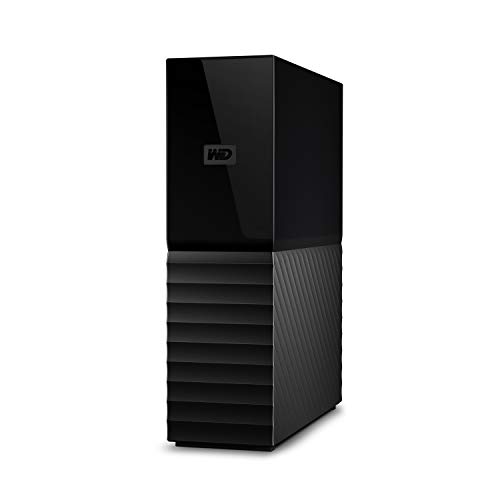
WD My Book 18TB Desktop Hard Drive — Backup Software and Password Protection
The My Book is the managed alternative to the Elements’ bare room: 18TB on USB 3.0, with password protection and auto backup software named in its own title, model WDBBGB0180HBK-NESN. Those two features redraw the buyer. Password protection speaks to the vault that holds tax records, scans of documents and the family’s private archive in a shared house or a small office, where the drive sits in the open and casual access is a genuine consideration. Auto backup software speaks to the owner who knows their manual routine would last a month.
The two features deserve separate weighing. The backup software is the everyday value: scheduled, automatic copies are the difference between a backup system and a backup intention, and for most households that difference is worth more than any specification in this roundup. The password protection is the occasional value — rarely used, decisive when needed — with one discipline attached: a forgotten password on a protected drive can lock the owner out as thoroughly as any stranger, so the credential belongs in the household’s password manager, recorded the day the drive is set up.
A small-office note sharpens the protection point. In a shared workspace the drive on the desk is within everyone’s reach, and the records on it — payroll, client files, the scanned contracts — are exactly the data a business least wants casual. Password protection does not make the My Book a security product in the enterprise sense, and this guide will not dress it as one; but as a friction layer between a shared desk and a private archive, it is the only pick in this roundup whose title offers anything of the kind, and small offices should weigh that accordingly.
Against the Elements flagship, the My Book concedes two terabytes and gains the management layer. Households with their own tooling and no shared-access concerns will take the space; households buying their first real backup system should take the software and the protection, and regard the small capacity difference as the price of a habit that will actually survive the year.
- Capacity: 18TB
- Interface: USB 3.0
- Form factor: desktop external hard drive
- Model: WDBBGB0180HBK-NESN
- Protection: password protection named in the listing title
- Backup: auto backup software named in the listing title
Strengths
- Automatic backup software carries the habit for owners who will not run it manually.
- Password protection suits a vault living in shared or office space.
- Near-flagship capacity; the management layer costs only one rung.
Trade-offs
- A forgotten protection password can lock out the owner, not just strangers.
- Two terabytes behind the Elements flagship at the top of the ladder.
- Owners with established tooling gain less from the bundled layer.
Best for: a first serious backup system for a household or small office that wants the drive to run the routine. Not suited for: a bare-volume purist with mature tooling of their own, who should take the Elements’ extra space instead.
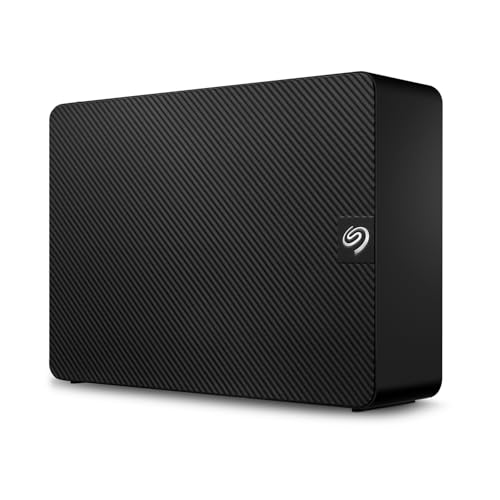
Seagate Expansion 8TB Desktop HDD — Plain Expansion With Rescue
Seagate’s Expansion line states its job in its name: 8TB of desktop storage for easy backup, plug-and-play, drag-and-drop, auto-detecting Windows and Mac, model STKP8000400. The title adds two specifics worth their own paragraph: a 1-year warranty and 1-year Rescue. The Expansion is the roundup’s straightforward middle — a large plain volume from the other big maker, for the household whose library has outgrown portables and whose needs stop well short of the flagship rungs.
The Rescue naming needs the guide’s standing interpretation, applied evenly to both Seagate picks. A manufacturer’s data recovery service is a last resort for a mechanically failed drive — a laboratory attempt, not a guarantee and never a plan. Its presence in the title is a genuine differentiator between otherwise similar plain volumes, because it gives a failed vault one more door to knock on. But the household that treats Rescue as its backup strategy has misunderstood the product; the strategy is still a second copy, and Rescue is what remains when the strategy was skipped.
Eight terabytes is the size where the media-library household lands: years of video, the full photo archive, backups of a couple of machines, and headroom that survives a few years of growth. The Expansion’s drag-and-drop framing suits the manual-copy owner, and its Windows-and-Mac detection suits the mixed household. Buyers who want the backup automated should look at the My Book; buyers who copy deliberately, folder by folder, will find this drive’s plainness congenial. Sensitive households may also weigh the options in Best Encrypted External Hard Drives With Cloud Backup.
- Capacity: 8TB
- Interface: USB 3.0
- Form factor: desktop external hard drive
- Model: STKP8000400
- Terms named in title: 1-year warranty and 1-year Rescue
- Compatibility named in title: auto detects Windows and Mac
Strengths
- A plain, large volume from a major maker at the media-library rung.
- Rescue services named in the title give a failed drive a recovery path.
- Drag-and-drop simplicity suits deliberate, manual copy routines.
Trade-offs
- No backup automation is named; the routine is the owner’s to run.
- The stated warranty term is the shortest framing in this roundup’s titles.
- Half the flagship rungs’ room; fast-growing video libraries will move on sooner.
Best for: a mixed Windows-and-Mac household wanting a large, plain expansion volume with a recovery path behind it. Not suited for: an owner who needs backups to happen without being remembered — that discipline must come from software like the My Book’s.
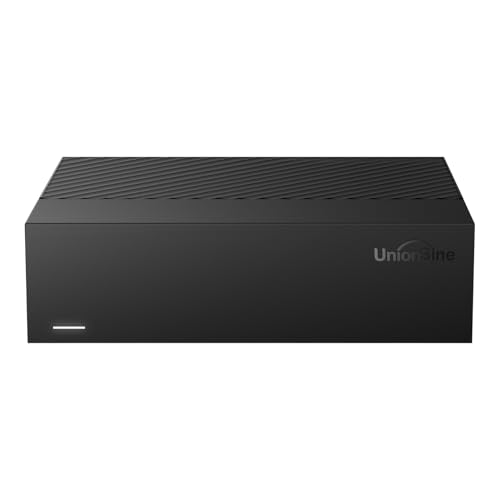
UnionSine 14TB Desktop External Hard Drive — The Middle-Rung Challenger
UnionSine’s desktop drive occupies the ladder’s most useful middle rung: 14TB in a 3.5-inch enclosure over USB3.0, model HD3513, its title naming PC, Mac, TV, desktop and laptop among its compatibilities. The TV mention is the interesting word. A desktop drive that a television can read becomes the household media vault in the literal sense — the film and photo library plugged into the biggest screen in the house — and 14TB is a size that lets that library be comprehensive rather than curated.
As the challenger brand in a two-maker category, UnionSine’s pitch is capacity per rung: it offers a size the big makers’ lines in this roundup skip, between the 8TB middle and the 18–20TB flagships. For the household whose honest count lands at ten or eleven terabytes, that rung is not a compromise but a fit — the flagship premium unspent, the middle rung’s ceiling avoided. The black enclosure and plain specification keep the proposition simple.
Placement thinking for this pick differs slightly from the vault pattern. A drive that serves a television migrates from the study to the living room, where its neighbours are a media cabinet’s warmth and a room’s evening quiet. Give it the cabinet’s best-ventilated shelf rather than the slot beside the amplifier, and set the household’s expectation that the library drive is not a toy to be unplugged for a laptop’s convenience. Its 14TB will fill with the family’s viewing history; treat it with the resident’s respect from the first evening.
The challenger’s homework is the usual: the title states capacity, interface, form factor and compatibility, and leaves warranty and service terms to the product page, so check them there before ordering — particularly the recovery and support arrangements, where the big makers’ titles in this roundup speak more explicitly. Buyers comfortable doing that one check get a well-aimed rung that the establishment’s ladder happens to lack.
- Capacity: 14TB
- Interface: USB3.0
- Form factor: 3.5-inch desktop external hard drive
- Model: HD3513
- Compatibility named in title: PC, Mac, TV, desktop, laptop
- Warranty and recovery terms: the listing title leaves those to the product page, so verify them there
Strengths
- A 14TB rung the big makers’ picks here do not offer.
- TV compatibility named, suiting a living-room media vault role.
- Plain specification and presentation; capacity is the whole pitch.
Trade-offs
- Warranty and service terms require a product-page check the rivals’ titles shortcut.
- No backup software or protection features are named.
- A challenger brand’s long-term support bench is thinner than the big makers’.
Best for: a household whose counted library lands between the middle and flagship rungs, especially with a TV media role. Not suited for: an owner unwilling to check warranty and recovery terms on the product page before ordering.

Seagate One Touch 8TB Desktop HDD — USB-C Desktop With Rescue
The second Seagate in the roundup shares the Expansion’s 8TB and its Rescue naming, and differs in the connector: the One Touch is a USB-C desktop drive, compatible with most Windows and macOS systems per its title, model STNB8000400. That single specification reassigns its desk. A modern laptop-centred setup — one USB-C cable culture, docks, monitors with hubs — takes this drive natively, where the USB 3.0 models ask for the adapter drawer.
Choosing between the two Seagates is therefore mostly a cabling census. Count the ports on the machines the drive will serve. A household of recent laptops and a modern desktop belongs to the One Touch; a mixed estate of older towers and games consoles belongs to the Expansion’s USB 3.0. Both drives then do the same job at the same capacity with the same recovery naming, and neither buyer has chosen wrong — they have chosen for different desks.
One more practical note belongs to the USB-C transition itself. Desks mid-migration often run a dock that offers both connector generations, and a USB-C native drive keeps the vault on the dock’s best port while older peripherals take the legacy ones. If the household’s next laptop is already specced and it is USB-C only — as most now are — buying the USB-A drive today means buying tomorrow’s adapter with it. The One Touch is the pick that skips that errand.
The One Touch name carries Seagate’s backup-oriented framing, but note precisely what this title does and does not say: it names Rescue Recovery and USB-C compatibility, and does not name bundled backup software. This guide therefore treats it as a plain volume with a recovery path, like the Expansion, and owners wanting automation should supply their operating system’s backup tools or a utility of their choice. Precision about that distinction is the difference between a drive bought for what it is and one resented for what its name vaguely suggested.
- Capacity: 8TB
- Interface: USB-C, per the listing title
- Form factor: desktop external hard drive
- Model: STNB8000400
- Recovery: Rescue Recovery named in the listing title
- Compatibility named in title: most Windows and macOS systems
Strengths
- USB-C connection fits modern laptop-centred desks without adapters.
- Rescue Recovery named, matching its sibling’s recovery path.
- The full 8TB media-library rung in a contemporary connector.
Trade-offs
- Older USB-A-only machines will need the adapter its sibling avoids.
- No backup software is named in the title despite the backup-friendly name.
- Same capacity as the Expansion, so the choice rests entirely on connector and desk.
Best for: a USB-C household wanting the 8TB rung with a manufacturer recovery path. Not suited for: an estate of older USB-A towers, where the Expansion’s connector is the native one.

WD 6TB Elements Desktop HDD — The Modest First Vault
The ladder’s bottom rung is the same bare formula as its top: a WD Elements Desktop at 6TB, USB 3.0, plug-and-play storage, model WDBWLG0060HBK-NESN. Six terabytes is a deliberate size, not a small one. It holds the documents-and-photographs household entire, backs up a couple of machines with versions to spare, and leaves the growth margin the capacity section insists on — for the estate that honestly counts itself in low single terabytes.
This pick’s role in the roundup is to give that household permission to stop climbing. The flagship rungs are seductive, and a 20TB drive bought for a 2TB library is not prudence but theatre — capacity that will sit empty while the drive ages at the same rate as a right-sized one. The 6TB Elements buys the correct amount of the correct product: the same plain volume, the same plug-and-play manners, sized to the estate in front of it. The money not spent belongs to the second-copy portable, where it protects rather than decorates.
Its future is also written kindly. Outgrowing 6TB does not waste the purchase: the drive demotes to the second-copy or media-shelf role when a larger vault arrives, and desktop drives demote gracefully because their jobs multiply as libraries grow. Buy it as the first vault of a modest estate, label it, schedule it, and let it be exactly big enough. There is a particular satisfaction in a drive that is precisely sized — full enough to justify its shelf, empty enough to breathe — and households that learn to buy storage that way rarely waste money on the ladder again.
- Capacity: 6TB
- Interface: USB 3.0
- Form factor: desktop external hard drive
- Model: WDBWLG0060HBK-NESN
- Setup style: plug-and-play storage, per the listing title
- Bundled software: none is named in the listing title, matching the Elements line’s bare-volume approach
Strengths
- The bare Elements formula at the right size for a modest estate.
- Leaves budget for the second copy that actually protects the data.
- Demotes gracefully to media or second-vault duty when outgrown.
Trade-offs
- A fast-growing video library will outgrow it sooner than any other pick here.
- No features beyond capacity are named in the title.
- Buyers near the rung’s ceiling should step up now rather than migrate later.
Best for: a documents-and-photographs household buying its first real vault at the right size. Not suited for: a keen videographer household, whose honest count already points at the ladder’s middle.
How Do These Desktop Drives Compare on Capacity and Desk Manners?
| Pick | Capacity | Interface | Named extras in title |
|---|---|---|---|
| WD Elements Desktop | 20TB | USB 3.0 | Plug-and-play storage |
| WD My Book | 18TB | USB 3.0 | Password protection, auto backup software |
| UnionSine Desktop | 14TB | USB3.0 | TV among named compatibilities |
| Seagate Expansion | 8TB | USB 3.0 | 1-year warranty, 1-year Rescue |
| Seagate One Touch | 8TB | USB-C | Rescue Recovery |
| WD Elements Desktop | 6TB | USB 3.0 | Plug-and-play storage |
The table reads as three decisions stacked, and deliberately in that order, because reversing them is how buyers end up with a beautiful connector on the wrong capacity. Capacity first, by the counted library plus a growth margin. Connector second, by the ports on the desk — one pick in six speaks USB-C. Philosophy third: bare volume, managed backup, or recovery-backed plain drive. A buyer who answers the three in that order will find exactly one pick waiting at the intersection, which is what a good ladder is for.
How Should Several Computers Share One Full-Size Drive?
The direct way is the rota: the drive lives beside the household’s main machine, and the other computers come to it — by carrying a laptop to the desk, or by the main machine sharing the drive across the home network while it is awake. Both patterns work, and both impose the same discipline: only one master writes at a time, and the drive is ejected cleanly before any cable moves. A desktop drive passed hand to hand around a house, plugged and unplugged daily, lives the portable life without the portable’s design assumptions, and its connectors and mechanism wear accordingly. Keep the resident resident; let the computers travel.
The network pattern deserves its honest footnote. Sharing a USB drive through a computer makes that computer the vault’s gatekeeper — backups from the other machines happen only while it is on and awake, which quietly breaks schedules in households where the main machine sleeps in another room or travels. Households that find the rota failing on exactly that point are the ones a dedicated network storage device exists for, and this guide names that boundary without crossing it: a full-size USB drive is the right tool for one desk and a disciplined rota, and the wrong tool to apologise into a whole-house server. Buy it for the job it does, and let its success tell you if the household ever needs the bigger architecture.
Within the shared drive, give each machine its own clearly named territory — a folder per computer for its backups, a shared territory for the family libraries — and resist the communal dumping folder. When a machine is replaced, its territory is migrated or retired as a unit, and the vault’s map stays legible to whoever inherits the desk. Legibility, at vault scale, is a feature worth more than any single specification in the table above.
What Mistakes Do Desktop Drive Buyers Keep Making?
Buying the capacity of the library they have instead of the one they are becoming is the first, and the capacity section’s whole argument. The second is letting the big drive become the only copy — the flagship’s review states the concentration risk plainly, and no recovery service converts a single copy into a system. The third is placement: on the floor, in the hot cabinet, under a stack of books, each quietly shortening a decade purchase’s decade.
The fourth is losing the power brick’s identity — unlabelled adapters in a drawer, a healthy drive orphaned by a house move. The fifth is forgetting the protection password on the one pick that offers protection, a self-inflicted lockout the My Book review warns about on setup day. And the sixth is treating the vault as a junk drawer: unsorted dumps from five machines, three folders all named “backup”, and no idea which copy of the family archive is the real one. A desktop drive rewards the household that files deliberately, and the filing costs an hour a year.
What Should You Do on the Day a Desktop Drive Starts to Fail?
Mechanical drives usually whisper before they shout, and the household that knows the whispers saves its data. The vocabulary is short: new clicking or grinding from an enclosure that used to hum; files that stall mid-copy and then complete; a drive that vanishes from the computer and returns after a replug; folders that take a long minute to open. Any one of these, appearing in a drive of any age, moves it from the trusted shelf to the copying-off shelf that same day — not next week, because a failing mechanism’s remaining life is measured in spinning hours and every unnecessary one is spent from a shrinking account.
The rescue order matters. Copy the irreplaceable first — documents, photographs, home video, the keys and records — in small batches, letting the drive rest between them if it is struggling, and copy to any healthy destination with room, including the computers themselves. Replaceable bulk — the media library, the downloads — goes last or not at all. If the drive stops responding entirely, stop feeding it power cycles; repeated attempts can worsen a mechanical failure, and that is the moment the recovery services named in the Seagate titles, or a professional laboratory, become the remaining road. A drive that holds the only copy of a family’s archive justifies that expense; a drive inside a proper backup system does not need it, which is the whole economic argument for the system.
After the rescue, close the loop. The replacement drive gets the failed one’s role and a fresh label with a new service date; the failed drive, once its data is safe or surrendered, gets wiped if it still responds and then recycled rather than shelved “just in case”, because a known-bad drive kept in circulation is a future accident wearing a familiar enclosure. And the household’s notes get one new line: when the drive entered service, when it failed, and what the symptoms were. That line, kept across years, is how a family learns its own realistic replacement rhythm — knowledge no listing title can sell them.
Final Recommendation
Count the library, add three years of growth, and take the rung above the total. That rule lands the serious estate on the 20TB Elements, the managed-backup household on the 18TB My Book, the between-sizes library on the UnionSine’s 14TB, the media household on one of the 8TB Seagates — Expansion for USB-A desks, One Touch for USB-C ones — and the modest estate on the 6TB Elements, bought without apology. Then do the thing that makes any of them a backup rather than a container: put a second copy somewhere else, label the power brick, and verify the vault a few times a year. The drive is the easy half of the purchase; the system around it is the half that saves you. A full-size drive chosen by counted need, placed with care, filed with intent and backed up in its turn will give a household a decade of quiet service — and quiet, from the largest box on the desk, is the highest praise storage ever earns.
Frequently Asked Questions
Why do desktop drives need their own power supply?
Because the 3.5-inch mechanisms inside them draw more power than a USB port supplies. The separate brick is the price of the format’s capacity advantage, and it is also why these drives suit a fixed desk rather than a bag — the brick, the cable and the shelf are a set.
Can I use a full-size drive with a laptop?
Yes, electrically and practically, provided the desk is the laptop’s home. The UnionSine’s title even names laptops among its compatibilities. What you give up is the portable idea entirely: the drive and its brick stay on the desk, and the laptop visits it.
Is a recovery service like Rescue a substitute for a backup?
No. A recovery service attempts to extract data from a failed drive, with no promise of success, after the failure has happened. A backup is a second copy that exists before the failure. The Seagate picks’ Rescue naming is a worthwhile last resort standing behind a backup system, never instead of one.
Should I leave a desktop drive switched on all the time?
These drives are built for the attached life, and most owners leave them powered with the computer, letting power management spin them down when idle. The gentler disciplines matter more than the switch: stable placement, ventilation, surge protection, and never moving the enclosure while it is working.
What file system should a shared Windows and Mac vault use?
Let the household’s main backup tool decide where possible, since backup software often requires its platform’s native format. A drive that must be written by both systems directly is the honest case for exFAT. The Seagate Expansion’s title notes it auto detects Windows and Mac, but detection is not the same as a shared write format — decide the format by the job, and write the choice on the label.
How long will a desktop drive last?
No title in this roundup promises a lifespan, and the honest variables are heat, power quality, handling and luck. Plan on the system rather than the device: second copies, periodic verification, and replacement at the first symptoms of distress rather than at a calendar date.
Can I run a full-size drive through a USB hub?
Usually, with one condition: the hub must pass data reliably, and the drive’s own power comes from its brick rather than the hub, so the arrangement is far safer than with bus-powered portables. A quality powered hub on the desk is a legitimate way to keep a vault attached to a laptop dock setup. What to avoid is the bargain unpowered hub at the end of a long cable chain, where intermittent connections interrupt writes — connect the vault as directly as the desk allows, and let lesser devices take the hub’s far ports.
One big drive or two smaller ones?
For a vault, the honest answer is one big drive for the working copy plus whatever second copy the backup system requires — which may well be a smaller, cheaper drive in another building. Two medium drives in the same enclosure row, holding one copy between them in some split arrangement, deliver neither the simplicity of the single vault nor the protection of geographic separation. Size the resident drive generously, then spend the next money on distance, not on a twin.
Related Guides
- Best 2 TB External Hard Disk Drives
- Best Encrypted External Hard Drives With Cloud Backup
- Best External 6 Tb Hard Drives