What's inside
- Quick picks: best wacom tablets for cel animation
- Quick Comparison
- The Picks in Detail
- What cel animation demands from a tablet
- Pen displays versus screenless tablets for animation
- Software that pairs with these tablets
- Ergonomics: drawing all day without injury
- From roughs to clean-up: the animation pipeline
- Buying Guide
- Frequently Asked Questions
- Conclusion
As an Amazon Associate I earn from qualifying purchases. This post may contain affiliate links at no extra cost to you.
Cel animation is drawing the same character again and again, one frame at a time, and the tablet you draw on shapes every one of those frames. A good animation tablet needs a pen that feels like a pencil, a screen with almost no gap between the pen tip and the line, and enough space to draw a full pose without constantly zooming in and out. It also needs to stay comfortable through hundreds of drawings, because a feature film can require tens of thousands of individual frames.
Wacom has been the default choice for professional animators for decades, and its current range covers every level of cel animation, from students learning the twelve principles to studio artists working on broadcast shows. This guide looks at six Wacom pen displays suited to frame-by-frame animation, explaining what each one offers an animator, where it falls short, and who should choose it. All six are pen displays with a built-in screen, because for cel animation, drawing directly on the image matters more than almost anything else.
Quick picks: best wacom tablets for cel animation
| # | Product | Where to buy |
|---|---|---|
| 1 | Wacom Cintiq Pro 27 | Check on Amazon |
| 2 | Wacom Cintiq Pro 22 | Check on Amazon |
| 3 | Wacom Cintiq Pro 17 | Check on Amazon |
| 4 | Wacom Movink 13 | Check on Amazon |
| 5 | Wacom One 14 | Check on Amazon |
Quick Comparison
The table below gives a fast overview of the picks in this guide, so you can shortlist two or three before reading the detail. Every entry here is a real, widely sold product, and each one suits a slightly different tablet, habit, or budget.
| Tablet | Screen | Best for |
|---|---|---|
| Wacom Cintiq Pro 27 | 27-inch 4K display | Best studio screen for animation |
| Wacom Cintiq Pro 22 | 22-inch 4K display | Best balance of size and desk space |
| Wacom Cintiq Pro 17 | 17-inch 4K display | Best compact pro display |
| Wacom Cintiq 16 (2025) | 15.6-inch 2K display | Best value desktop pen display |
| Wacom Movink 13 | 13.3-inch OLED display | Best portable OLED for animators |
| Wacom One 14 | 14-inch Full HD display | Best first pen display for animation |
The Picks in Detail

Wacom Cintiq Pro 27
The Cintiq Pro 27 also handles the unglamorous side of animation well: long sessions. Its large screen means less scrolling and zooming, which reduces repetitive strain, and the adjustable stand lets the tablet sit at an angle that keeps the wrist neutral. Studios that run the Pro 27 all day report that animators take fewer breaks for eye strain, because the 4K image stays sharp at any zoom and the etched surface reduces glare from overhead lights. For a production that runs for months, those ergonomic details matter as much as the specifications.
The Cintiq Pro 27 is the largest pen display Wacom makes, and for cel animation its size is the point. A 27-inch 4K screen holds a full character pose, a timeline, and reference images at once, so an animator can draw, check the previous frame, and compare against a model sheet without switching windows. The Pro Pen 3 offers 8,192 pressure levels and tilt recognition, and the etched glass surface gives the pen a slight grip that feels closer to paper than a glossy screen.
For animation work, the Cintiq Pro 27 supports 10-bit colour and covers 99 percent of Adobe RGB, so colours chosen on the tablet match what appears on a broadcast monitor or in a cinema. The 120Hz refresh rate keeps the pen stroke smooth even during fast sketching, and the eight ExpressKeys plus touch strips can be mapped to onion skin, playback, and frame navigation in software such as TVPaint, Toon Boom Harmony, and Clip Studio Paint. It connects with a single USB-C cable to a modern laptop, and the included stand adjusts from flat to upright.
Strengths: Huge 4K canvas that fits a pose, timeline, and references together, accurate colour for broadcast work, smooth 120Hz drawing, Pro Pen 3 with tilt, and programmable keys that speed up frame-by-frame workflows.
Trade-offs: Expensive, heavy, and tied to a desk, so it is not a portable option. It needs a powerful computer to drive the 4K display, and the full feature set only appears in professional animation software.
Who it fits: Professional animators and studios working on broadcast or film projects, and anyone whose daily work is hundreds of frames drawn on a large, accurate screen.
The Cintiq Pro 27 also works well as a second monitor when the pen is set aside, so the same desk space serves for editing, compositing, and review. Animators who work in teams will appreciate that the large screen makes it easy for a director to stand beside the desk and review drawings without crowding, which matters during dailies and feedback sessions.
Check price on Amazon: Wacom Cintiq Pro 27

Wacom Cintiq Pro 22
The Pro 22 earns its place in small studios because it is large enough for serious animation yet small enough to share a desk with a keyboard, a second monitor, and a coffee. Its colour accuracy means the work coloured on the tablet matches the final output, which reduces the back-and-forth of corrections, and its 120Hz refresh rate keeps the pen feeling direct even during fast rough sketching. Freelancers who bill by the project will appreciate that the tablet pays for itself in saved revision time, because fewer colour surprises means fewer rounds of fixes.
The Cintiq Pro 22 gives animators most of the flagship experience in a size that fits an ordinary desk. Its 22-inch 4K display is large enough to draw full-body poses at a comfortable scale, and the Pro Pen 3 with 8,192 pressure levels and tilt recognition handles everything from rough keyframes to clean final lines. The etched glass keeps the pen from sliding, and the 120Hz refresh rate makes fast sketching feel immediate rather than laggy.
Colour accuracy is a strength: the display covers 99 percent of Adobe RGB and 95 percent of DCI-P3, so work coloured on the tablet translates reliably to screens and print. The tablet includes ExpressKeys and touch strips for shortcuts, supports touch gestures, and connects over a single USB-C cable. In animation software, the screen is big enough to keep the canvas, the timeline, and a reference viewer open together, which is the layout most cel animators work in all day.
Strengths: Large 4K screen with excellent colour, Pro Pen 3, 120Hz smoothness, programmable keys, touch support, and a footprint that fits a normal desk without dominating it.
Trade-offs: Still expensive and desk-bound, and it needs a computer with a good graphics output to run the 4K display properly. The stand is good but not as flexible as a separate monitor arm.
Who it fits: Freelance animators and small studios who want a professional large-format pen display without the size and cost of the 27-inch model.
The Cintiq Pro 22 is a good choice for animators who also do storyboarding, because the screen is wide enough to lay out several panels side by side. It also pairs well with a second monitor for the timeline and bins, leaving the pen display entirely for drawing, which is how many professionals arrange their desks.
Check price on Amazon: Wacom Cintiq Pro 22

Wacom Cintiq Pro 17
The Pro 17 is the tablet animators reach for when the work moves between locations. It fits in a laptop bag with a 16-inch laptop, sets up with a single cable, and delivers the same 4K colour accuracy as its larger siblings, so a freelancer can colour a scene in a client office and trust that the colours will match back at the studio. Its size also suits animators who work in small apartments, where a 27-inch display would dominate the room, and its portability means the tablet can travel to festivals, workshops, and life-drawing sessions.
The Cintiq Pro 17 packs a 4K display and the Pro Pen 3 into a 17-inch body that fits on a crowded desk or in a bag for a studio visit. For cel animation, its size is a sweet spot: big enough to draw a character at a natural scale, small enough to carry between home and studio. The display covers 99 percent of Adobe RGB, supports 10-bit colour, and runs at 120Hz, so strokes feel responsive and colours stay trustworthy.
The tablet includes eight ExpressKeys, touch strips, and multi-touch, so common animation commands such as onion skin toggle, undo, and frame stepping can sit under the non-drawing hand. It connects with one USB-C cable, and the included stand folds flat for transport. Animators who work in TVPaint or Toon Boom will find the screen large enough for the canvas and a compact timeline, though very complex scenes may still need a second monitor for reference material.
Strengths: True 4K pro display in a portable size, Pro Pen 3 with tilt, excellent colour accuracy, 120Hz refresh, and programmable keys in a package that travels.
Trade-offs: Smaller than the 22 and 27-inch models, so large poses need more zooming. The price is high for the size, and it still needs a host computer.
Who it fits: Animators who split time between home and studio, freelancers who visit clients, and anyone who wants professional colour and pen performance in a carry-sized display.
The Cintiq Pro 17 is also a strong choice for animators who work in cafes or shared spaces, because it sets up quickly with a single cable and a laptop. Its 4K resolution keeps fine line work crisp even when the canvas is zoomed out, which helps when checking the overall shape of a pose rather than the detail of a single line.
Check price on Amazon: Wacom Cintiq Pro 17
Wacom Cintiq 16 (2025)
The 2025 Cintiq 16 is the right choice for animation students because it teaches the core skill, drawing directly on the image, without the distractions of a professional feature set. Its 2K display is sharp enough for clean-up work, its Pro Pen 3 feels the same as the pens on the expensive models, and its colour coverage is wide enough for student films and online distribution. Schools and colleges buy it in quantity for exactly these reasons, and a student who learns on the Cintiq 16 will feel at home on any larger Wacom display later.
The 2025 Cintiq 16 is the most affordable desktop pen display in this guide, with a 15.6-inch display at 2560 x 1440 resolution and the Pro Pen 3. For cel animation students and hobbyists, it offers the core experience that matters: drawing directly on the screen with a pressure-sensitive pen, with very little gap between the pen tip and the line. The display covers 99 percent of DCI-P3, so colours look rich and accurate for a tablet at this level.
The Cintiq 16 connects to a computer with a single USB-C cable where the port supports it, and the included fold-out legs set the screen at a comfortable drawing angle. It has no ExpressKeys, so shortcuts live on the keyboard, and there is no touch support, but neither matters much for animation, where the pen does almost all the work. It runs well with TVPaint, Clip Studio Paint, Krita, and Toon Boom, and the 2K resolution keeps lines sharp at normal drawing zooms.
Strengths: Affordable for a Wacom pen display, sharp 2K screen with wide colour, Pro Pen 3 included, single-cable connection, and a simple setup that just works.
Trade-offs: No ExpressKeys or touch, a smaller screen than the Pro models, and no 4K option, so very fine detail work needs more zooming. It needs a host computer.
Who it fits: Animation students, hobbyists, and beginners who want to draw on a real Wacom screen without paying professional prices.
The Cintiq 16 is a good first pen display for someone learning cel animation, because it teaches the hand-eye coordination of drawing on screen without overwhelming the buyer with features. It also makes a fine second display for a professional who wants a spare screen for rough work or for a home setup away from the studio.

Wacom Movink 13
The Movink 13 shines in the early stages of animation, when ideas move fast and the animator needs to capture poses before they fade. Its OLED screen makes rough sketches look vivid, its light weight means it can be carried to a park bench or a cafe table, and its single-cable setup means there is no excuse not to draw. Animators who keep a sketchbook habit will find the Movink 13 the closest digital equivalent, and the roughs drawn on it can be imported into a desktop setup for clean-up and colour.
The Movink 13 is the thinnest and lightest pen display Wacom has ever made, with a 13.3-inch OLED screen that weighs about as much as a magazine. For animators who draw on the move, its OLED panel delivers deep blacks, vivid colour, and 100 percent DCI-P3 coverage, and the Pro Pen 3 offers the same 8,192 pressure levels and tilt as the larger Pro displays. It slips into a laptop bag beside the computer that drives it, and it sets up with a single USB-C cable.
The OLED display is the star for animation: high contrast makes line work stand out against the background, and the fast response keeps strokes crisp during quick sketching. The tablet supports touch gestures, includes a slim pen that stores in the case, and works with TVPaint, Clip Studio Paint, and Toon Boom. The 13.3-inch size means drawing happens at a smaller scale than on a desktop display, so animators who draw big, loose poses may need to zoom more often, but for roughs, thumbnails, and clean-up work it is excellent.
Strengths: Beautiful OLED display with true blacks and wide colour, extremely thin and light, Pro Pen 3, touch support, and single-cable setup with a laptop.
Trade-offs: Small screen for full-body poses, premium price for the size, and it still needs a host computer. The slim pen is easy to misplace without the case.
Who it fits: Animators who travel, work in cafes, or draw on location, and professionals who want a portable second pen display alongside a desktop setup.
The Movink 13 is also popular with storyboard artists, because its size matches a storyboard page and the OLED screen makes panels look striking in review. For cel animators, it shines as a tool for rough animation and thumbnails, where speed and portability matter more than a huge canvas, and the finished frames can move to a larger display later.
Check price on Amazon: Wacom Movink 13
Wacom One 14
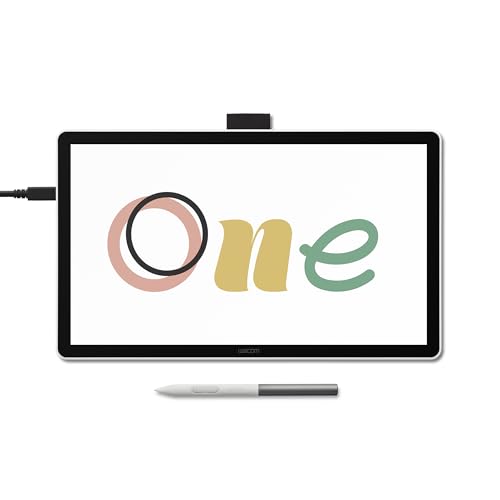
The Wacom One 14 is the most honest starting point for cel animation, because it costs little yet teaches the real skill: coordinating hand and eye on a screen. Its laminated display keeps the line under the pen, its battery-free pen never dies mid-drawing, and it works with free software such as Krita and OpenToonz, so the total cost of starting animation can be just the tablet itself. For a teenager or a hobbyist wondering whether animation is for them, it is the lowest-risk way to find out.
The Wacom One 14 is the entry point to drawing on a Wacom screen, with a 14-inch Full HD display and a battery-free pen that supports tilt. For someone starting cel animation, it offers the essential experience at the lowest cost in this guide: draw directly on the picture, see the line appear under the pen, and build the hand-eye coordination that screenless tablets cannot teach. The laminated display keeps parallax low, so the line appears where the pen touches.
The tablet connects to a computer over USB-C, works with the major animation programs, and includes a pen with 4,096 pressure levels, which is enough for learning and for finished work at a hobbyist level. There are no ExpressKeys and no touch, so shortcuts stay on the keyboard, and the Full HD resolution means fine detail needs zooming. For a student following online animation courses, or an artist testing whether cel animation is for them, those limits are acceptable trade-offs for the price.
Strengths: Lowest cost pen display here, laminated screen with low parallax, battery-free pen with tilt, simple USB-C setup, and enough quality to learn real cel animation.
Trade-offs: Full HD only, fewer pressure levels than Pro models, no shortcut keys or touch, and a smaller screen than the Cintiq line. It needs a host computer.
Who it fits: Beginners, students, and hobbyists starting cel animation, and anyone who wants to try drawing on screen before investing in a professional display.
The Wacom One 14 is a sensible gift or first purchase for a young animator, because it works with free software such as Krita and OpenToonz as well as paid programs. It also serves well as a portable second display for a professional who wants to sketch ideas away from the main desk without carrying an expensive Pro model.
Check price on Amazon: Wacom One 14
What cel animation demands from a tablet
Cel animation is different from illustration because the same drawing must be repeated with small changes, dozens of times. That means the pen must feel identical on frame one and frame one hundred, with no drift, no jitter, and no change in pressure response as the session goes on. Wacom pens are battery-free and use electromagnetic resonance, so their feel does not change as a battery drains, and the pressure curve stays consistent across a long session.
Parallax is the other critical factor. Parallax is the gap between the pen tip and the line on screen, caused by the thickness of the glass, and on a cheap display it makes precise line work frustrating, because the line appears slightly away from where the pen touches. Laminated displays, where the glass and the panel are bonded together, reduce this gap to almost nothing, and every display in this guide uses lamination or an etched surface to keep the line under the pen.
Pen displays versus screenless tablets for animation
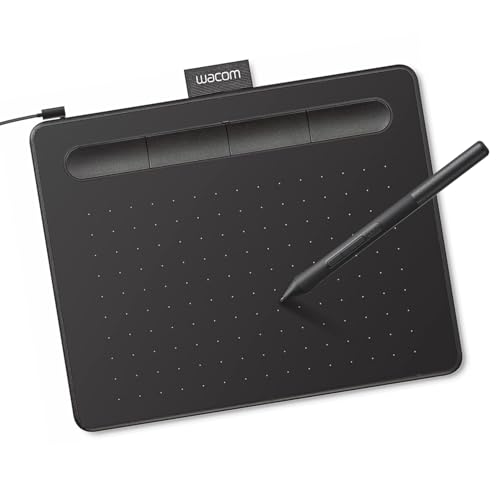
Screenless tablets such as the Wacom Intuos are cheaper and take up less desk space, but they force the animator to draw on a pad while looking at a separate monitor, which splits attention between the hand and the eye. Most animators can learn to do this, and many professionals do, but drawing directly on the image is faster to learn and more intuitive for posing and gesture, which is why this guide focuses on pen displays.
That said, a screenless tablet is a legitimate choice for clean-up and in-betweening, where the drawings are traced from existing keys and the hand-eye split matters less. Some studios keep both: a pen display for keys and roughs, and a screenless tablet for the repetitive in-between frames. If the budget only stretches to one device, a pen display is the better first purchase for cel animation, because it teaches the core skill of drawing what you see.
Software that pairs with these tablets
The tablet is only half the setup; the animation software decides how frames are organised, how onion skinning works, and how the finished film is exported. TVPaint is the industry standard for hand-drawn animation and pairs beautifully with Wacom displays, offering strong onion skin and timeline tools. Toon Boom Harmony is the choice for studio pipelines and television production, with powerful rigging alongside traditional frame-by-frame tools.
For individuals and smaller budgets, Clip Studio Paint offers excellent frame-by-frame animation with a one-time purchase, and Krita provides a capable free alternative with onion skin and timeline features. OpenToonz, the open-source software behind Studio Ghibli productions, is free and powerful, though its interface takes learning. All of these programs support Wacom pressure and tilt, so the tablet choice and the software choice can be made independently.
Ergonomics: drawing all day without injury
Cel animation is repetitive work, and the tablet setup shapes whether an animator stays healthy through a production. A pen display that sits too flat forces the wrist into an awkward angle, while one that is too upright strains the neck, so an adjustable stand is not a luxury but a necessity. The Cintiq Pro models include stands, while the One range benefits from a third-party stand, and the right angle is usually around 20 to 30 degrees from flat, similar to a drafting table.
Breaks matter as much as posture. Animators should stand, stretch, and rest their eyes every hour, and the 20-20-20 rule, looking at something 20 feet away for 20 seconds every 20 minutes, helps with eye strain. A tablet with an anti-glare surface reduces squinting, and a screen brightness matched to the room prevents the eyes from working too hard. These habits sound minor, but over a production of thousands of frames, they decide whether an animator finishes healthy.
From roughs to clean-up: the animation pipeline
A cel animation usually passes through several stages: thumbnails, rough keys, breakdowns, in-betweens, clean-up, and colour. The tablet serves every stage, but different stages benefit from different setups. Rough keys are best drawn loosely and quickly, where a portable display such as the Movink 13 shines, while clean-up demands precision and a large, stable screen, where the Cintiq Pro models earn their keep. Colour work needs the accurate display of a Pro model, because a colour chosen on a narrow-gamut screen can shift badly on broadcast.
Understanding the pipeline helps with buying, because a student who only does roughs does not need a Pro display yet, while a freelancer who delivers finished coloured scenes does. Buy the tablet for the stage you actually work in, and upgrade when the work moves to the next stage, rather than buying the most expensive display before the skills demand it.
Buying Guide
Choose the screen size by how you draw. Animators who draw big, loose poses need a large display, while those who draw tight, detailed work can manage on a smaller one. If possible, try drawing a full character pose at a comfortable scale on each size before buying, because the right size is the one that lets you draw without constant zooming.
Prioritise parallax and pen feel over resolution. A Full HD display with low parallax and a good pen will serve an animator better than a 4K display with a visible gap between pen and line. Resolution matters for fine detail, but the pen experience matters on every single stroke.
Check colour coverage if your work will be coloured or broadcast. A display covering 99 percent of Adobe RGB or DCI-P3 keeps colours consistent from tablet to screen to print, while a narrow-gamut display can make colours shift unexpectedly. For rough animation in black and white, colour matters far less.
Think about the desk, not just the tablet. A large pen display needs a sturdy desk, a good chair, and a monitor arm or stand that holds it at a comfortable angle. Budget for a stand if the tablet does not include one, and leave space for a keyboard beside it, because animation shortcuts live on the keyboard.
Buy for the work you do now, not the work you hope to do. A student learning the principles of animation will learn faster on a Wacom One 14 than on a Cintiq Pro 27 bought on credit, because the skill comes from practice, not from the display. Upgrade when the work demands it, not before.
Test the pen before you buy if you can. Visit a shop or a friend studio and draw a few lines, paying attention to how the pen feels at the start of a stroke and whether the line appears exactly under the tip. Pen feel is personal, and a tablet that feels right to one animator may feel wrong to another, so a short hands-on check is worth more than any specification.
Check driver support for your operating system. Wacom drivers support Windows and macOS well, and the company updates them regularly, but a new operating system release can briefly break compatibility. Check the Wacom driver page for your exact model and operating system version before buying, especially if you use a brand-new laptop.
Frequently Asked Questions
Do I need a screen to do cel animation?
No, many animators work on screenless tablets, but a pen display is easier to learn on and faster for posing, because you draw directly on the image. If you can afford a pen display, it is the better first purchase for cel animation; if you cannot, a Wacom Intuos with good animation software will still teach you the craft.
What size Wacom tablet is best for animation?
For most animators, a 16 to 22-inch display is the sweet spot: large enough to draw a full pose without constant zooming, small enough to fit a normal desk. Larger 27-inch displays suit studios, while 13 and 14-inch displays suit travel and smaller desks.
Is OLED better than LCD for animation?
OLED offers deeper blacks, higher contrast, and more vivid colour, which makes line work stand out and colours look richer. LCD displays are cheaper, brighter in sunlight, and have no risk of burn-in from static interface elements. For animation, either works well; OLED is a luxury, not a necessity.
Can I use a Wacom tablet with free animation software?
Yes. Krita and OpenToonz are both free and support Wacom pressure and tilt, and they cover the core tools of cel animation, including onion skinning and timelines. Clip Studio Paint is a low-cost paid option with stronger animation tools, while TVPaint and Toon Boom Harmony are professional choices.
How many pressure levels do I need for cel animation?
Most animators cannot tell the difference beyond 4,096 pressure levels in practice, because the useful range of line weight variation is narrower than the numbers suggest. More important than the count is a smooth, predictable pressure curve, which all Wacom pens in this guide provide.
Do Wacom tablets work with a Mac and a PC?
Yes, Wacom pen displays work with Windows and macOS, and the drivers support both. Some models also work with Android devices and Chromebooks for basic drawing, but full animation software needs a proper computer, so check the software requirements before choosing a host.
What is onion skinning and why does it matter?
Onion skinning shows faint images of the previous and next frames behind the current drawing, so the animator can judge how far a character has moved between frames. It is the single most important feature for cel animation, and every program mentioned in this guide supports it. A good tablet and good onion skinning together make the difference between smooth motion and guesswork.
How long does a Wacom pen display last?
A Wacom pen display typically lasts many years with normal use, and the pen itself lasts indefinitely because it has no battery to degrade. The display may dim slightly over time, and the pen nibs wear down and need replacing, but the tablet remains usable for five years or more. Wacom continues driver support for older models for a long time, which is one reason studios standardise on the brand.
Can I animate on a tablet without a computer?
Only with a standalone tablet such as the Wacom MovinkPad 11, which runs Android drawing apps directly. Most Wacom pen displays need a host computer to run animation software such as TVPaint or Toon Boom. For serious cel animation, a computer is still needed, because the software is more powerful than any tablet app.
What is the best cheap Wacom tablet for animation students?
The Wacom One 14 is the best cheap starting point, with a laminated screen and a battery-free pen at the lowest price in this guide. The Cintiq 16 is the better choice if the budget stretches, because its sharper screen and Pro Pen 3 will last longer as skills grow. Both work with free software such as Krita and OpenToonz.
What software do professional animators use with Wacom tablets?
TVPaint is the industry standard for hand-drawn animation, with strong onion skinning and timeline tools, while Toon Boom Harmony is the choice for studio pipelines and television production. Clip Studio Paint is popular with freelancers and offers excellent frame-by-frame tools at a lower price, and Krita is a capable free alternative. All of them support Wacom pressure and tilt, so the tablet and the software can be chosen independently.
Is a 4K display necessary for cel animation?
No, but it helps for fine detail and for checking the overall image at full resolution. A 2K display is enough for rough animation and clean-up, and many professionals work happily on one. A 4K display matters most for colour work and for final quality checks, where the extra detail reveals mistakes that a lower-resolution screen might hide.
Can I use a Wacom tablet for storyboarding as well as animation?
Yes, and many animators do. A pen display is excellent for storyboards, because the screen is wide enough to lay out several panels side by side, and the pen draws naturally on each panel. The Movink 13 is particularly good for storyboarding on location, while the larger Cintiq models suit a studio storyboard wall.
Conclusion
For cel animation, the right Wacom tablet is the one that matches the scale of your work and the size of your desk. The Cintiq Pro 27 and Pro 22 are the studio choices, with large 4K screens and accurate colour for professional production, while the Cintiq Pro 17 packs the same quality into a portable body. The Cintiq 16 offers the core pen-display experience at a fair price, the Movink 13 brings OLED beauty to travel, and the Wacom One 14 is the honest starting point for anyone learning the craft. Pick the largest screen you can comfortably use, pair it with software that supports onion skinning, and then draw: the frames will not animate themselves.