What's inside
- Key Takeaways
- Quick Picks
- How We Chose These Picks
- Comparison
- What does a 17-inch screen actually change about multitasking?
- How should you arrange a desk around a laptop this size?
- When does Windows 11 Pro actually matter?
- What does a working day on battery look like for a 17-inch machine?
- How do you keep work data safe on a personal-bought laptop?
- Why do remote workers choose screen size over almost everything else?
- What accessories actually earn their place beside a big work laptop?
- How long should a work laptop serve before replacement?
- Should a small business standardise on one of these models?
- What separates a work laptop from a home laptop with the same screen?
- How do you brief your employer — or yourself — before buying?
- What about ergonomics across a full working week?
- Common Mistakes
- Final Recommendation
- Frequently Asked Questions
- Related Guides
As an Amazon Associate I earn from qualifying purchases. This post may contain affiliate links at no extra cost to you.
widgetverdict.com is reader-supported. When you buy through links on our site, we may earn an affiliate commission.
Most laptop advice assumes work happens in motion, but a large share of it happens at one desk, on calls, inside spreadsheets that never fit a small screen — and that is the territory of the best 17-inch laptops for work. A 17.3-inch display holds a document and its source material together, keeps a video call visible while notes stay open beneath it, and gives a numeric keypad room to exist for anyone whose day runs on figures. This guide compares six machines for that desk-first working life, four tied to verified listings whose titles state their configurations outright, and two discussed without links because their specifications are set by corporate configuration rather than a single retail listing.
Work changes the buying questions. Memory stops being a luxury and becomes the difference between a smooth afternoon and a stuttering one. The operating system’s edition starts to matter, because professional features, update control and workplace sign-in policies live in the Pro tier. Storage stops being about photographs and becomes about mail archives, project folders and the local copies of everything the cloud syncs badly. Each pick below is judged against those working realities first, and against portability second — because a 17-inch laptop that commutes daily is a compromise, while one that anchors a desk is a strategy.
Read the ordering carefully. The first pick carries the most complete work specification in the group; the last linked pick is a premium ultralight that happens to share the screen size. Between them sit two mainstream machines that divide the sensible middle ground by memory, storage and price positioning. The prose-only pair at the end are true mobile workstations, included so buyers whose work involves CAD, simulation or heavy rendering can see where this guide’s mainstream picks stop and that heavier class begins.
Key Takeaways
- The HP 17 configuration with an Intel Core i7-1355U, 32GB of memory and Windows 11 Pro is the most work-ready specification in this group.
- Windows 11 Pro appears on two linked picks; buyers whose employer requires Pro features should treat the edition as a filter, not a detail.
- The LG gram 17 is the only pick here designed to travel — a 17-inch touchscreen WQXGA machine built around an Intel Core Ultra 9 processor.
- Memory divides the field sharply: 32GB, 16GB and 8GB configurations all appear, and the 8GB OmniBook suits only light, browser-centred work.
- A numeric keypad and a large panel make this class quietly superb for finance, operations and data-heavy roles.
- True workstation work — CAD, simulation, certified drivers — belongs to the prose-only class at the end, not to any mainstream pick.
Quick Picks
| Pick | Badge | Why it is here |
|---|---|---|
| HP 17.3 (Core i7, 32GB, 1TB) | Most complete work specification | A thin business HP whose listing pairs an i7-1355U with 32GB of memory, a terabyte of SSD storage and Windows 11 Pro. |
| ASUS Vivobook 17 (Core i7) | Balanced professional all-rounder | An i7-1355U Vivobook with 16GB of memory and 1TB of storage behind a 17.3-inch Full HD screen. |
| HP OmniBook 3 17.3 (Core 5) | Light-duty office value | A Core 5 OmniBook for browser-and-documents work, with 8GB of memory that defines its ceiling honestly. |
| LG gram 17 | The one that travels | A WQXGA touchscreen gram with a Core Ultra 9, 32GB of LPDDR5X memory and Windows 11 Pro, built to be carried. |
| Dell Precision 7770 | Prose-only workstation class | A configurable mobile workstation for certified, graphics-heavy professional work; specifications are set per order. |
| HP ZBook Fury 17 G8 | Prose-only workstation class | HP’s heavy-duty 17-inch workstation line, encountered mostly through corporate and refurbished channels. |
How We Chose These Picks
Work suitability was scored on the specifications that decide a working day, in this order: memory, storage, processor, operating system edition, then the panel. A linked pick needed its full configuration stated in its listing title — no guessing at memory from a model name, no assuming a Pro operating system where the title stayed silent. Four machines met that standard cleanly.
The panel bar was Full HD as a minimum, with the gram’s WQXGA touchscreen treated as the group’s ceiling rather than its norm. At 17.3 inches, anything below Full HD was excluded from the linked picks outright, because professional documents punish soft text for eight hours a day in a way home browsing never does. Screen size itself was non-negotiable: every machine here measures 17 inches or 17.3 inches.
Two machines were deliberately included without links to mark the boundary of the category. Mobile workstations such as Dell’s Precision and HP’s ZBook Fury lines are configured to order for employers, so no single retail listing represents them; describing them honestly means describing the class, its certified graphics and its service model, and letting buyers who need that class pursue it through the proper channels. Their presence here is a signpost, not a shortcut.
Finally, each pick was assigned the job it would actually be hired for. A guide that calls every laptop “great for work” says nothing. Below, one machine is for the heavy multitasker, one for the balanced professional, one for the light browser-based role, one for the executive who travels — and the differences between those assignments are the substance of the guide.

HP 17.3 (Core i7, 32GB, 1TB) — Most complete work specification
Specifications in this class usually involve a apology somewhere; this listing is the exception. HP’s 17.3-inch Full HD business laptop pairs an Intel Core i7-1355U with 32GB of memory, a 1TB solid-state drive plus a 512GB SD card for expanded storage, Windows 11 Pro, Wi-Fi 6 and a Copilot key, in a thin silver chassis. Read that list again slowly, because each line answers a complaint that working users actually file: not enough memory, not enough storage, the wrong Windows edition, yesterday’s wireless.
The memory figure transforms the working day. Thirty-two gigabytes lets a browser carry its dozens of tabs, a mail client hold years of archive, a spreadsheet suite run several workbooks and a call stay live — simultaneously, without the machine rationing attention between them. Knowledge work rarely involves one demanding program; it involves twelve undemanding ones competing, and memory is the resource that decides whether that competition stays invisible. On this configuration, it stays invisible.
Storage shows the same generosity with a practical twist. The terabyte SSD covers the working archive, while the bundled SD card expansion suits the overflow that accumulates in professional life: exported reports, recorded calls, the media folder nobody wants on the main drive. It is an unglamorous arrangement and a useful one, reflecting how people actually store work rather than how brochures imagine they do.
Windows 11 Pro matters for a defined set of buyers: those whose employers require Pro for device management or sign-in policy, those who need its remote and encryption tooling, and those who simply want the edition built for administered machines. If your organisation’s IT page specifies Pro, this pick and the gram are your shortlist; if it does not, the Pro badge here is a bonus rather than a reason. The i7-1355U, an efficiency-class chip with strong single-thread manners, suits office loads precisely — quick in documents, quiet in calls, cool across a long day.
Set against the group, this HP is the answer to a specific question: what if a mainstream 17-inch laptop simply stopped skimping? The result is not a workstation and does not pretend to be one — there is no discrete graphics claim in its listing and none is made here — but for the enormous territory of professional work that is documents, data, calls and cloud, it is the most completely specified machine in the guide.
- Display: 17.3-inch FHD
- Processor: Intel Core i7-1355U
- Memory: 32GB RAM
- Storage: 1TB SSD plus 512GB SD card expansion
- Operating system: Windows 11 Pro
- Wireless: Wi-Fi 6
- Extras: Copilot key; thin and lightweight business design; Silver
Strengths
- 32GB of memory removes the usual multitasking ceiling
- Windows 11 Pro suits administered, employer-managed work
- Generous storage with a practical expansion card included
Trade-offs
- Integrated graphics only — no discrete GPU in the listing
- Premium positioning within a mainstream line
- Large chassis still anchors it to a desk most days
Best for: professionals whose day is many applications at once — finance, operations, management — and whose employer environment favours Windows 11 Pro.
Not suited for: engineers needing certified workstation graphics, or anyone whose work is a single light application.
Think about the accounts-department test, because this machine seems designed by someone who has watched one work. Month-end arrives; the accounting package, the banking portal, three spreadsheets, the mail archive and a call with the auditor all need to be open at once, and the person doing it is not a computer enthusiast — they are a professional whose tool must simply not falter. Thirty-two gigabytes and a terabyte of storage are not luxuries in that week; they are the difference between a tool and an obstacle. Machines earn their keep in the busiest week of the quarter, not the average Tuesday, and this HP is specified for the busiest week.
One more working detail deserves attention: the thin-and-lightweight framing in the listing is relative to its class, not to ultraportables. This remains a big machine that happens to be slimmer than its ancestors. In a home office that doubles as a spare room, that slimness pays rent daily — the laptop slides onto a shelf when guests arrive, rather than dominating the desk as a permanent monument to the working week.
ASUS Vivobook 17 (Core i7) — Balanced professional all-rounder
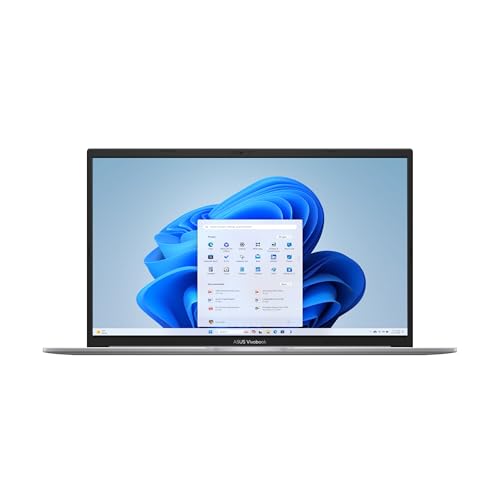
If the HP above is the maximalist answer, the Vivobook 17 is the balanced one. Its listing specifies a 17.3-inch Full HD display at 60Hz, an Intel Core i7-1355U processor, Intel Iris Xe graphics, 16GB of memory and 1TB of storage, in Cool Silver. Every figure sits exactly where a sensible professional would set it: enough memory for a busy desktop, enough storage for a working archive, a proven processor, and a panel with the resolution this screen size demands.
Sixteen gigabytes is the memory figure most working laptops should ship with, and its presence here — rather than the 8GB that budget lines default to — is what moves this machine from “home laptop with a big screen” to a credible professional tool. The i7-1355U behind it is the same processor family as the HP’s, tuned for responsiveness in the applications offices actually run: documents open briskly, calls stay smooth, and the machine never advertises its effort.
The terabyte of storage deserves its own sentence, because professional storage failure rarely looks like a full disk; it looks like a user deleting last year’s project folder to make room for this year’s, then needing it in a dispute. A terabyte postpones that reckoning beyond the plausible life of the machine for most roles. Combined with the Iris Xe integrated graphics — adequate for presentations, dual displays and light media work — the configuration covers the mainstream professional map without a single extravagant line.
What the listing does not claim is equally instructive. The operating system edition is not foregrounded the way the HP’s Pro is, so buyers whose employers mandate Pro should verify the edition on the listing page before ordering. The panel is a 60Hz Full HD screen: correct for documents, unremarkable for anything faster. Judge the Vivobook as the guide intends — the all-rounder whose specification contains no trap — and it is arguably the easiest recommendation here for an individual professional buying their own machine.
- Display: 17.3-inch FHD, 60Hz
- Processor: Intel Core i7-1355U
- Graphics: Intel Iris Xe
- Memory: 16GB
- Storage: 1TB
- Colour and model: Cool Silver, F1704VA-ES76
Strengths
- 16GB memory and 1TB storage — the sensible professional pairing
- i7 responsiveness for office workloads
- No weak line in the stated specification
Trade-offs
- Windows edition not foregrounded — verify if Pro is required
- 60Hz panel is functional, not luxurious
- Integrated graphics bound its creative ceiling
Best for: self-employed professionals and remote workers buying one machine to do everything mainstream work involves.
Not suited for: buyers who must have Windows 11 Pro confirmed in the title, or graphics-led creative work.
Freelancers should notice something else about this configuration: it is the one in the guide that a client would nod at. Turn up — physically or on a call — with a machine that opens their files instantly, shares a big clear screen and never stumbles mid-presentation, and the equipment quietly supports the professional image the freelancer is selling. Nobody hires a consultant for their laptop, but everybody reads competence from smooth tools. The Vivobook’s balance of specification and restraint makes that impression without the flagship price that would take a year of day-rates to justify.
There is a quieter virtue to a balanced machine: it disappears. Owners of all-rounders stop thinking about their laptop, which is the highest compliment working equipment can earn. The Vivobook’s specification reads like the minutes of a meeting where every department got what it needed and nobody got a trophy — and for the person who must simply work, every day, that is exactly the machine to own.
HP OmniBook 3 17.3 (Core 5) — Light-duty office value
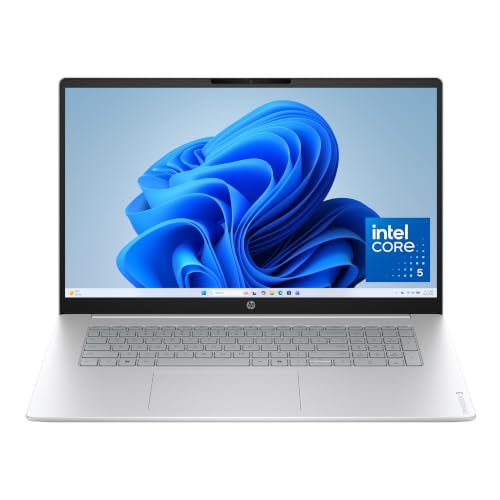
Not every job is heavy, and pretending otherwise wastes money. The OmniBook 3 17.3 pairs an Intel Core 5 120U with 8GB of memory, a 512GB solid-state drive, Intel Graphics and Windows 11 Home, behind a 17.3-inch Full HD display in Glacier Silver. That is a specification written for the browser-centred working day: web applications, documents in the cloud, email, calls and the occasional spreadsheet of ordinary size.
The Core 5 processor is a modern, willing chip for that workload — the current architecture shows in snappy responses and quiet operation — and the Full HD panel keeps text professional-grade across the big canvas. For a reception desk, a small-business front office, a teacher’s classroom machine or a home worker whose entire toolkit lives in a browser, this configuration involves no real compromise. It is a correct fit, bought at a mainstream price.
The ceiling, stated plainly, is the 8GB of memory. The moment the role grows — local applications multiplying, large spreadsheets arriving, a second monitor filling with dashboards — this machine will feel its limit before its rivals here do. Buyers should therefore purchase it for the job as it exists today, not as it might grow, or step up to the 16GB Vivobook if growth is likely. Home edition Windows carries a similar caveat for employer-managed environments.
Within its honest boundaries, the OmniBook has charm: a current platform, a tidy design that looks professional in a client-facing space, and none of the bloat of specification bought for imaginary workloads. Plenty of working people never open more than a browser and a documents folder, and for them the extra memory in pricier picks would sit unused for the machine’s entire life. Matching the tool to the actual job is not settling; it is procurement done properly.
- Display: 17.3-inch FHD
- Processor: Intel Core 5 120U
- Graphics: Intel Graphics
- Memory: 8GB RAM
- Storage: 512GB SSD
- Operating system: Windows 11 Home
- Colour and model: Glacier Silver, 17-dk0099nr
Strengths
- Current Core 5 platform feels responsive in browser work
- Full HD panel keeps documents crisp
- Right-sized price for light, defined roles
Trade-offs
- 8GB memory caps multitasking growth
- Windows 11 Home, not Pro
- 512GB storage fills faster in media-heavy roles
Best for: browser-centred roles — front office, teaching, small-business administration — with a stable, known workload.
Not suited for: heavy multitaskers or roles likely to grow into local, memory-hungry applications.
There is a dignity argument for right-sized machines that procurement rarely makes. Staff given equipment matched honestly to their work — quick where their work is quick, limited only where their work never goes — tend to trust the organisation’s other technology decisions too. The OmniBook’s clean fit for browser-centred roles is that kind of decision. It also simplifies support: one known configuration, one known ceiling, no mystery fleet of variants. Small organisations drown in variety; this machine is an argument for the opposite.
Employers buying several machines for a defined function often land exactly here, and sensibly. A fleet of right-sized OmniBooks, imaged identically and understood completely, serves a small organisation better than a mixed fleet of over-specified individuals. The machine’s virtue is not that it can do everything; it is that what it does, it does without drama, at a price that lets a small budget cover the whole team.

LG gram 17 — The one that travels
The three mainstream machines above all treat travel as an occasional inconvenience. The gram inverts that: it is a 17-inch laptop engineered around being carried, and its listing reads like a flagship manifesto — a 17.0-inch touchscreen IPS WQXGA display, an Intel Core Ultra 9-288V processor, 32GB of LPDDR5X memory, a 1TB PCIe solid-state drive, Intel Arc 140V graphics, AI Copilot features, and Windows 11 Pro behind a backlit keyboard. This is the executive instrument of the group, priced and specified accordingly.
The display alone separates it from the field. WQXGA resolution packs substantially more pixels than the Full HD panels elsewhere here, and on a 17-inch canvas that density shows up as finer text, more spreadsheet columns and a desktop that holds a presentation and its supporting data without compromise. Add touch — genuinely useful when reviewing documents in a chair that is not a desk — and the gram’s screen is the one a travelling professional would choose from this entire guide, every time.
Performance matches the panel’s ambition. The Core Ultra 9 is a current flagship-class mobile processor with integrated Arc graphics a clear step beyond the Iris Xe generation, and 32GB of fast LPDDR5X memory gives it room to work. Presentations, analysis, media handling and the general chaos of an executive’s open applications all sit comfortably inside this specification. Windows 11 Pro completes the brief for managed corporate environments.
The honest caveats are about role, not quality. A buyer who never leaves their desk pays for portability engineering they will never use, and the mainstream picks above deliver the same documents-and-calls day for considerably less commitment. The gram earns its place for the person whose office is a rotation of meeting rooms, client sites and airport lounges — and who refuses to surrender the big screen every time they stand up. For that person, nothing else in this guide is really a substitute.
- Display: 17.0-inch touchscreen IPS WQXGA
- Processor: Intel Core Ultra 9-288V
- Graphics: Intel Arc 140V
- Memory: 32GB LPDDR5X
- Storage: 1TB PCIe SSD
- Operating system: Windows 11 Pro
- Keyboard: backlit
- Extras: AI Copilot features per listing
Strengths
- WQXGA touchscreen is the finest panel in this guide
- Flagship processor and 32GB of fast memory
- Built to travel without surrendering screen size
Trade-offs
- Premium positioning far above the mainstream picks
- Portability engineering is wasted on a static desk
- Touch invites fingerprints on a presentation screen
Best for: executives and consultants who present, travel and analyse in equal measure.
Not suited for: static home offices where its mobility premium buys nothing.
Frequent presenters will find one more gram trait worth the money: confidence in unfamiliar rooms. Projectors fail, dongles vanish, and the professional who can simply open a 17-inch high-resolution screen on the table and present from it owns the meeting anyway. The touchscreen helps here too, letting you annotate a document in front of clients without the theatre of a mouse hunt. Equipment that rescues bad rooms is equipment that pays for itself in reputation, which never appears in a spreadsheet and always appears in a career.
Consider also the meeting-room effect. A 17-inch screen shared across a small table lets two or three colleagues review a document without crowding a projector into the conversation, and the gram’s combination of size and portability makes that spontaneous, screen-around-a-table working style practical. It is a collaboration tool as much as a personal one — a role none of the desk-bound picks can play, however strong their specifications look on paper.
Dell Precision 7770 — Prose-only workstation class
Some professional work outgrows every machine above: CAD assemblies, simulation, point-cloud processing, video finishing with certified drivers. That work belongs to mobile workstations, and Dell’s Precision 7000 series is one of its defining lines. The 7770 generation offered a 17.3-inch chassis configured to order — processor tiers, professional graphics options, memory and storage scaled to the employer’s specification — which is exactly why it appears here without a link: there is no single configuration to verify, only a class to describe.
What the class buys is certification and support. Professional graphics drivers validated against engineering applications, chassis built for sustained loads, and service agreements that treat a dead laptop as a business emergency rather than a retail inconvenience. Buyers whose software vendor publishes a certified-hardware list should start from that list, not from a shopping guide, and procure through channels that honour the certification chain.
For everyone else, the Precision’s presence here is a calibration tool. If your work is documents, data and calls, a workstation’s weight, cost and noise buy you nothing the HP at the top of this guide does not already provide. If your work genuinely needs one, no mainstream pick will substitute. Knowing which side of that line you stand on is the most valuable decision in this entire category.
- Display: 17.3-inch class (per configuration)
- Processor: configured to order
- Graphics: professional, certification-oriented options
- Memory: configured to order
- Storage: configured to order
- Listing status: described as a class; no single retail configuration pinned
Strengths
- Certified professional graphics for engineering software
- Built and serviced as business-critical equipment
- Configuration scales to genuinely heavy workloads
Trade-offs
- Cost and weight far beyond mainstream picks
- Procurement runs through configuration, not one-click retail
- Overkill for documents-and-calls work
Best for: engineers and technical professionals whose software demands certified hardware.
Not suited for: general office work, where its strengths go entirely unused.
Buyers tempted by workstation badges as a form of insurance should examine the insurance’s premium honestly. The Precision class costs more to buy, more to carry and more to service, and its advantages — certified drivers, sustained-load engineering — pay out only to software that demands them. For a structural engineer, that premium is the cheapest line in the project budget. For a marketing manager, it is a donation. The line between the two is drawn by the software list, and it should be consulted before the catalogue, every time.
HP ZBook Fury 17 G8 — Prose-only workstation class
HP’s answer to the same heavy brief is the ZBook Fury line, and the 17-inch G8 generation represents its traditional big-chassis era: a workstation built without much interest in thinness, offering desktop-adjacent configuration breadth and the service model that accompanies HP’s professional flagship range. Like the Precision, it is covered here as a class rather than a listing, because surviving examples reach buyers through corporate refresh and refurbished channels where the individual unit’s history matters more than the badge.
Shopping for one is an exercise in verification. Establish the exact graphics and memory fitted to the unit, ask about its service history and battery condition, and confirm what warranty the seller — not the original manufacturer — actually provides. A well-documented Fury from a corporate fleet can be formidable value for a small studio; an undocumented one is a lottery ticket with a large screen.
Its role in this guide mirrors the Precision’s: to mark the ceiling. Mainstream professional work ends well below these machines, and the four linked picks cover it completely. Buyers who finish this guide unsure whether they need a workstation almost certainly do not — the need, when real, announces itself through software requirements long before a shopping guide enters the picture.
- Display: 17-inch class (per configuration)
- Processor: configured to order
- Graphics: professional workstation options
- Memory: configured to order
- Storage: configured to order
- Where it surfaces: decommissioned corporate fleets and the refurbishers who resell them
Strengths
- Workstation-class expandability and service model
- Strong value possible through corporate refresh channels
- Chassis built for sustained professional loads
Trade-offs
- Unit history varies and must be verified
- Heavy, power-hungry design
- Seller warranty terms differ from new retail
Best for: small studios and technical buyers who can verify a unit’s specification and history.
Not suited for: buyers wanting a new machine with a uniform retail warranty.
A final note on the refurbished route to machines like the Fury: buy the seller before the laptop. Established refurbishers grade honestly, test batteries, and stand behind their grading when a unit disappoints; anonymous marketplace sellers may do none of those things. The price difference between the two channels is the cost of that assurance, and for a machine intended to earn money, it is usually worth paying. A workstation that fails in a deadline week costs more than the saving that bought it.
Comparison
| Pick | Display | Processor | Memory | Storage | Windows |
|---|---|---|---|---|---|
| HP 17.3 (32GB) | 17.3-inch FHD | Core i7-1355U | 32GB | 1TB SSD + 512GB SD card | 11 Pro |
| ASUS Vivobook 17 | 17.3-inch FHD 60Hz | Core i7-1355U | 16GB | 1TB | Edition to verify on listing |
| HP OmniBook 3 | 17.3-inch FHD | Core 5 120U | 8GB | 512GB SSD | 11 Home |
| LG gram 17 | 17.0-inch WQXGA touch | Core Ultra 9-288V | 32GB LPDDR5X | 1TB PCIe SSD | 11 Pro |
| Dell Precision 7770 | 17.3-inch, per order | Per order | Per order | Per order | Professional editions per order |
| HP ZBook Fury 17 G8 | 17-inch, per unit | Per unit | Per unit | Per unit | Per unit’s original configuration |
What does a 17-inch screen actually change about multitasking?
Multitasking on a small screen is really window-management: the work is hidden behind the work, and the day becomes a rhythm of switching. A 17.3-inch Full HD panel changes the geometry of that day. A document can occupy the left half at full readable width while its source — a spreadsheet, a brief, a dashboard — occupies the right. A call can run in a corner without evicting the notes. The benefit is not abstract screen area; it is the elimination of dozens of small context switches, each of which costs attention that never appears in a specification sheet.
The numeric keypad belongs in the same conversation. Finance, operations, logistics and data entry all run on figures, and a full keypad on the laptop itself — no dongled accessory, no cramped top row — speeds that work measurably and reduces errors quietly. It is the least glamorous feature in this guide and, for the roles that use it, among the most valuable.
How should you arrange a desk around a laptop this size?
Treat the laptop as the centre of a small system. Raised on a stand, its screen reaches eye level and the posture complaints that follow big laptops around mostly evaporate. If you add an external monitor later, the 17-inch panel becomes a superb second display rather than a redundancy — one of the hidden dividends of buying big. Keep the charger cable routed so the machine can leave for a meeting without excavating the desk, even if it leaves rarely.
Calls deserve their own arrangement. Position the laptop so its camera sits near eye level and a light source faces you; the big screen then shows colleagues at a scale where expressions register, which changes the quality of remote conversation more than any software setting. A headset for noisy environments completes a setup that costs little and professionalises every meeting you join from that desk.
When does Windows 11 Pro actually matter?
Pro matters when an organisation administers your machine: employer sign-in policies, managed updates, device encryption requirements and remote support tooling all live more naturally in the Pro edition. It also matters for specific features some professionals use directly, such as hosting remote desktop connections. If you buy your own machine for your own work and none of that applies, Home is not a defect — it is simply the edition aimed at unmanaged use, and the OmniBook above wears it honestly.
The practical move is to check before buying, not after. Employers who require Pro usually say so in their equipment guidance; a thirty-second search of that guidance page is worth more than any amount of forum debate. Two picks in this guide state Pro in their listings, which is why they anchor the recommendations for administered work.
What does a working day on battery look like for a 17-inch machine?
Mostly, it looks like a machine plugged in — and that is fine. The 17-inch class trades battery endurance for screen area by design, and its natural habitat includes a charger. Where battery does matter is the margins of the day: the meeting away from your desk, the afternoon working from a garden or a client’s office, the train journey spent clearing email. For those stretches, the efficiency-class processors in the mainstream picks here are allies; they were designed to sip power during exactly the light work that fills a mobile afternoon.
The discipline that protects you is charging habit, not specification worship. Keep the machine charged before leaving the desk, carry the adapter when the day is uncertain, and treat any manufacturer’s endurance figure as a best-case sketch rather than a promise. Buyers whose work is genuinely untethered for whole days should reconsider the format itself — or accept the gram’s engineering as the price of having both the screen and the freedom.
How do you keep work data safe on a personal-bought laptop?
Professionals buying their own machines inherit responsibilities an IT department usually carries. Three habits cover most of the risk. First, turn on the device encryption your operating system offers and store the recovery key somewhere that is not the laptop. Second, make backups automatic and boring: a cloud sync for working documents plus a periodic full backup to an external drive covers both the coffee spill and the ransomware headline. Third, separate the personal from the professional where you can — distinct accounts or at least distinct browser profiles — so that a family member’s download never shares a desktop with a client’s confidential files.
None of this requires a workstation or an enterprise contract; it requires an hour on the first weekend and the discipline not to postpone it. The large storage in several picks here helps, because local copies and archives have room to exist — but room is not a strategy. The strategy is the hour, and every buyer in this guide should schedule it before the machine’s first working Monday.
Why do remote workers choose screen size over almost everything else?
Because the screen is the office. A remote worker’s laptop display is where colleagues appear, where the work itself lives, and where eight hours of visual attention land every day. Small compromises there — cramped windows, soft text, a keypad that does not exist — are paid hourly, in eye strain and friction, while the compromises of a big laptop are paid twice a year in travel inconvenience. That asymmetry explains the loyalty this format inspires among people who work from home permanently: they have done the maths with their own days, and the big screen won.
It also explains why the secondhand market in 17-inch work machines stays lively. Professionals who have worked on the format rarely return to smaller screens voluntarily, and they replace like with like. Buyers entering the format for the first time are not experimenting with a fad; they are joining the considered preference of the people who stare at laptops longest.
What accessories actually earn their place beside a big work laptop?
Three, in most offices. A stand, because posture is a career-length concern and the big screen only helps when it sits at eye level. A proper headset, because call quality is the remote worker’s handshake and laptop microphones in echoing rooms undermine it daily. And a backup drive, because the terabyte inside several of these machines will accumulate work that exists nowhere else, and a single copy of anything important is a plan to lose it eventually.
Beyond those three, restraint pays. Expensive docking stations make sense when a desk hosts multiple monitors and peripherals that never move; they are jewellery for a laptop that works alone. A second charger for the bag or the other end of the house removes a small daily friction for a small price. Judge every accessory by the friction it removes per week — the stand and the headset remove some daily, which is why they lead the list, and why the novelty gadgets that promise transformation usually end up in the drawer beneath the desk they were meant to improve.
How long should a work laptop serve before replacement?
For the mainstream picks here, plan around four to five years of front-line service, with the 32GB configurations holding their pace longest. Professional replacement is rarely triggered by death; it is triggered by accumulation — heavier software, a fading battery, a support window closing — arriving together. Budgeting the replacement at purchase, as a monthly trickle rather than a surprise, is how small organisations and freelancers avoid the desperate mid-project purchase that always overpays.
The machine being replaced need not be retired entirely. A 17-inch laptop that can no longer carry a full workload still makes an excellent dedicated machine: a reception display, a training-room unit, a home server for files and media, or the household’s shared computer. Planning that second life at purchase time — choosing the configuration with enough memory to remain useful in a lighter role — is another quiet argument for not buying the minimum specification today.
Should a small business standardise on one of these models?
Standardisation is the unglamorous superpower of small-business IT. One model means one charger type, one set of drivers, one image to restore, and a spare machine that can replace any desk’s unit in minutes. Among these picks, the standardisation candidates are the HP configurations: the 32GB machine for roles that multitask heavily, the OmniBook for defined light roles — a two-tier standard that covers most small organisations without proliferating variety. The discipline matters more than the badge: whatever you choose, choose it for every seat that shares the role, document the configuration, and resist the individual exception that quietly doubles support work.
Buy a spare if the fleet reaches half a dozen. A failed laptop in a small business is not an inconvenience; it is a salary paid to someone watching a spinning cursor. One shelf unit, kept imaged and current, converts that emergency into a ten-minute swap, and it will justify its cost the first time it is used — after which it will be treated, correctly, as the best insurance the office owns.
What separates a work laptop from a home laptop with the same screen?
Less than marketing suggests, and more than the price tags admit. The hardware overlaps heavily: the same panels, similar processors, the same chassis families. The genuine separators are the operating system edition, the memory and storage ceilings a configuration offers, and the warranty’s fine print about response times and on-site service. A home laptop asked to work will usually succeed — until the day it fails mid-deadline and the consumer support queue becomes the most expensive queue in your business.
That is why this guide weighted edition, memory and storage above cosmetic differences, and why the recommendations split by role rather than by brand loyalty. The right question was never which logo belongs on a work laptop. It is which configuration lets a particular person do a particular job for four years without the machine becoming the story — and each pick above answers that question for a different worker.
How do you brief your employer — or yourself — before buying?
Write the requirements down before opening a single listing. The list is short: the applications you run simultaneously on your worst day, whether your organisation mandates a Windows edition or a sign-in method, the storage your archive genuinely occupies, and the rooms the machine must work in. Four lines, honestly answered, eliminate most of the catalogue and all of the regret. The buyers who suffer in this category are rarely the ones who chose the wrong laptop; they are the ones who never wrote down what the laptop was for, and discovered the requirements one disappointment at a time.
Then read the chosen listing the way an auditor reads an invoice: every figure in the title, matched against your four lines. If the memory matches, the edition matches and the storage matches, the remaining differences between the picks in this guide are matters of taste and travel pattern — and on those, your own habits are a better guide than any review, including this one.
What about ergonomics across a full working week?
A large screen helps the eyes and can hurt the neck if it sits too low, which on a desk it usually does. The geometry is unforgiving: laptop screens position their centre well below eye level, and a 17-inch panel’s size tempts owners to accept the arrangement because the image is big enough to read anyway. Reading is not the same as posture. Forty hours a week of slight downward tilt becomes the ache that owners blame on age. The stand mentioned earlier is therefore not an accessory suggestion but the completion of the purchase — the big laptop is half a workstation until its screen reaches eye level, and the other half costs very little.
The keyboard deck, by contrast, needs no rescue. The width that houses a numeric keypad also spreads the main keys generously, and touch-typists generally find these large decks the most comfortable in the laptop world. Pair the raised screen with the built-in keyboard only if the geometry works; once the laptop is on a stand, an external keyboard restores the natural arrangement. Total cost of the ergonomic fix remains modest, and it protects the one component of your office that cannot be upgraded later: you.
Common Mistakes
Buying memory for the job you have this month, then growing into a role the machine cannot follow, is the error this category punishes most reliably. Roles accumulate applications the way desks accumulate paper. If growth is plausible, buy the 16GB or 32GB configuration now; memory regret is the most common and most preventable dissatisfaction among big-laptop owners.
Ignoring the operating system edition until IT rejects the machine is the second classic. A laptop bought personally for employer work must satisfy the employer’s requirements, and those requirements are published, checkable and unforgiving. Verify the edition, the sign-in method and any encryption requirement before the purchase, not during onboarding.
Judging a 17-inch laptop by thinness photographs is a third. These machines are furniture-grade tools; their weight matters on the two days a year they travel and not at all on the other 363. Buyers who optimise for the photograph rather than the working day end up with a smaller screen and a permanent compromise — unless they genuinely travel weekly, in which case the gram exists precisely for them.
Finally, forgetting the second screen you already own. Many buyers purchase a large external monitor to pair with a small laptop, then discover the combined cost exceeds a 17-inch machine that needed no partner. Price the whole desk, not the single device, before deciding which route your office takes.
Parents working from home will recognise a final, unlisted specification: survivability around children and pets. A large laptop lives on shared surfaces, gets closed by small hands, and attracts the household’s traffic in a way a personal ultraportable never does. The mainstream chassis in this guide are built to consumer tolerances, not classroom ones, so the working parent should budget the same protections schools use — a rigid sleeve for storage, a desk position away from drink traffic, and backups that assume the machine’s life may be interrupted rudely. The work on it is professional even when the environment is not, and the setup should admit that honestly.
Hybrid workers splitting the week between home and an office desk should think in terms of the journey’s worst version: the rainy Tuesday with a full bag and a crowded train. If that journey happens twice a week, the mainstream picks remain entirely reasonable — their size is a known, bounded burden. If it happens daily with connections, the honest answer narrows to the gram or to a smaller laptop altogether, and no guide should pretend otherwise. The best work laptop is the one still being used willingly in month six, and willingness is a specification too.
One under-discussed benefit of standardising your own work on a large screen is what it does to your files. Workers on small screens develop defensive habits — closing documents early, avoiding side-by-side comparison, printing things that should never have been printed. A big panel quietly retires those habits, and the work itself gets more careful: drafts compared against sources, figures checked against tables, presentations reviewed at the size the audience will see them. Nobody buys a laptop to become more meticulous, yet owners of this format report exactly that side effect, and it may be the strongest professional argument in this entire guide.
Final Recommendation
Start from the job, and the choice mostly makes itself. Heavy multitaskers and anyone buying into an administered, Pro-requiring environment should take the HP 17.3 with 32GB — it is the most completely specified mainstream work laptop in this guide. The self-employed professional buying one machine for everything should take the Vivobook 17, whose balance of memory, storage and processor is the group’s sensible centre. Defined, browser-centred roles are served honestly by the OmniBook 3, and the professional whose office moves with them should accept no substitute for the gram. The workstations stand apart, for the minority whose software demands them. Work out which of those sentences describes your Monday morning, and you have your laptop — the screen size, for once, was the easy part.
And if the budget stretches to exactly one upgrade beyond the base choice, spend it on memory before anything else; the working day touches memory constantly and notices storage only occasionally.
Frequently Asked Questions
Is a 17-inch laptop practical for commuting?
For a daily train commute, honestly, it is a burden: the chassis demands a large bag and a generous table. For a car commute between home and office, or travel between meetings, it is entirely workable — and the gram in this guide was engineered to make exactly that pattern comfortable. Match the machine to the journey it will actually take, not the journey you imagine.
How much memory do I need for office work?
Sixteen gigabytes is the comfortable professional standard for a mixed workload of browser, office suite, calls and cloud tools. Thirty-two suits users who run many heavy applications concurrently or keep enormous spreadsheets and mail archives live. Eight remains viable only where the workload is defined, browser-based and unlikely to grow.
Can these laptops drive an external monitor?
Mainstream laptops in this class are routinely used with external displays, turning the big built-in panel into a second screen. Because port selections vary by model and are not stated for every pick in its listing title, confirm the exact video output on the listing page of your chosen machine before relying on a specific monitor or dock combination.
Do I need a workstation for spreadsheets and presentations?
No. Workstations exist for certified engineering and media applications with professional graphics requirements. Spreadsheets — even very large ones — are memory and processor work, and the mainstream picks here, particularly the 32GB HP, handle them without any workstation hardware. Spend the difference on memory and storage instead.
What should I verify before ordering a work laptop?
Four things, in order: the Windows edition against your employer’s requirements, the memory figure in the listing title, the storage capacity, and the return window in case the configuration differs from the description. Each takes under a minute on the listing page, and together they prevent nearly every disappointment reported with machines in this class.
Is a bigger screen better for video calls?
For the person presenting and note-taking, yes: colleagues stay visible at a useful size while documents remain open, and shared screens arrive legible instead of squinted at. For the people watching you, the camera and lighting matter more than your panel — raise the laptop so the camera meets your eyes, face a light source, and the big screen’s benefit (seeing everyone clearly) combines with theirs (seeing you properly).
Related Guides
Keep comparing with best 17-inch laptops that don’t overheat for sustained-load advice, set a firm ceiling in best 17-inch laptops under 1000, and trim the budget with best 17-inch laptops under 700.