What's inside
- Key Takeaways
- Quick Picks
- How We Chose These Picks
- Why Does a Desktop Still Want a Spinning Drive in an SSD Era?
- What Do RPM, Cache and Recording Technology Actually Change?
- How Do the Six Drives Compare Side by Side?
- How Do You Install an Internal Hard Drive Cleanly?
- How Much Capacity Should a Home Desktop Actually Buy?
- What Mistakes Do Internal Hard Drive Buyers Keep Making?
- How Does an Internal Drive Behave Across Its Whole Life?
- What About Noise, Heat and Power in a Real Room?
- Should You Buy One Large Drive or Two Smaller Ones?
- How Do You Migrate a Library Onto the New Drive Without Tears?
- What Does a Desktop Drive Mean for Games, Specifically?
- How Should You Treat Warranty and Support as Part of the Purchase?
- What Does the Inside of the Choice Look Like for a Photographer?
- How Do You Keep Several Internal Drives Organised as Volumes?
- How Do You Decide Between the Two 8TB Drives on This Page?
- What Should You Check in the First Month of Ownership?
- How Does an Internal Drive Fit a Home Office That Earns Money?
- What Is the Short Version for a Buyer With Ten Minutes?
- What Do Owners Say a Year After Choosing Well?
- What Is the One Thing to Do the Day the Drive Arrives?
- Final Recommendation
- Frequently Asked Questions
- Related Guides
As an Amazon Associate I earn from qualifying purchases. This post may contain affiliate links at no extra cost to you.
widgetverdict.com is reader-supported. When you buy through links on our site, we may earn an affiliate commission.
Where to buy: each of the six drives below is tied to a checked Amazon listing, so the name in the table is the name on the box that arrives.
Spinning disks were supposed to be finished by now, yet the best internal hard drives keep earning their bays because nothing else stores this much for this little fuss. A desktop that shoots video, archives family photos, holds a Steam library that grows every sale, or simply refuses to delete anything needs capacity first and bragging rights second. Solid-state drives own the boot disk job, and rightly so, but the second and third bays of a tower are still hard drive country: quiet terabytes that sit there for years, holding the bulk of a digital life at a cost per terabyte flash cannot touch.
The six drives gathered here split into two honest families. Four are desktop drives in the BarraCuda and WD Blue mould, built for everyday PCs that need room more than drama. Two wear NAS badges, the IronWolf and the Red Plus, and they earn a place in a desktop guide because plenty of home towers now double as media servers that never really sleep. Every pick is a 3.5-inch SATA drive, every one spins, and every one was chosen because its listing says plainly what it is. If you read one thing before ordering, read the section on recording technology further down, because that single detail decides more about long-term happiness than capacity does.
Key Takeaways
- Capacity is cheap on spinning disks: the 8TB picks here hold libraries that would cost several times more on flash.
- Desktop drives such as the BarraCuda line suit towers that sleep at night; NAS drives suit machines that run around the clock.
- Rotation speed shapes feel: the 7200 RPM BarraCuda 2TB answers quicker than its 5400 RPM siblings, which run cooler and quieter.
- Cache size, interface and form factor are printed in each listing title below; anything a title does not state, this guide does not claim.
- An internal hard drive is bulk storage, not a backup. Keep a second copy of anything irreplaceable somewhere else.
- All six picks are 3.5-inch SATA 6Gb/s drives, so a standard desktop bay and a spare SATA port are all the welcome they need.
Quick Picks
| Pick | Badge | Why it earns its place |
|---|---|---|
| Seagate BarraCuda 2TB Internal HDD | The responsive all-rounder | 7200 RPM and a 256MB cache make it the liveliest everyday desktop drive in this set. |
| Seagate BarraCuda 4TB Internal HDD | The family archive | Double the room at 5400 RPM for photo libraries, documents and media that value quiet over urgency. |
| WD Blue 8TB PC Internal HDD | The big quiet bay | Eight terabytes from Western Digital’s mainstream desktop line for towers that have outgrown smaller drives. |
| Seagate BarraCuda 8TB Internal HDD | The library vault | Seagate’s largest BarraCuda here, aimed at game libraries and content hoards in a single bay. |
| Seagate IronWolf 4TB NAS HDD | The always-on guest | A CMR NAS drive, stated in its listing, for desktops that moonlight as home servers. |
| WD Red Plus 2TB NAS HDD | The small RAID starter | CMR recording and NAS tuning in a modest capacity that suits a mirrored pair. |
How We Chose These Picks
We began with the listings themselves. Each drive below carries a verified Amazon listing whose title states the facts this guide repeats: capacity, form factor, interface, and where the maker prints them, rotation speed and cache. Where a title is silent, we stay silent too, and the pick sections say so rather than filling gaps with catalogue folklore. That discipline matters in this category because hard drive model families stretch across many revisions, and a specification borrowed from a neighbouring model is a specification invented.
Beyond the paperwork, we weighed the jobs desktops actually give these drives. A boot drive is not among them; every machine in this guide’s audience should start from flash. These are second drives, archive drives, library drives and server drives, so the judging favoured capacity per bay, acoustic manners, recording technology and the maker’s support operation over any single transfer benchmark. We also insisted on spread: two brands, three capacity tiers, both desktop and NAS tuning, so that a reader with a quiet office tower and a reader with a humming media PC both find a drive described in their own terms.
One boundary deserves stating early. Nothing here is an enterprise drive, and nothing here pretends to be one. These are consumer and small-NAS products with consumer expectations behind them, and the guide judges them that way: on whether they hold a household’s data gracefully for years, not on whether they survive a data centre.
Why Does a Desktop Still Want a Spinning Drive in an SSD Era?
Because data grows in bulk and budgets do not. A game library measured in terabytes, a decade of phone photos backed up properly, a folder of raw video from one enthusiastic holiday: each of these is a capacity problem wearing a speed costume. Flash solves the problems you feel every minute, the boot, the launch, the level load. Spinning disks solve the problem you feel once a month, when the drive is full and something has to be deleted before something else can be saved. A well-planned tower uses both, and this guide covers the half of that plan that holds everything.
There is a second, quieter reason. A hard drive that spends its life as the archive tier gets an easy life: long sequential writes when a library lands, long idle stretches after, occasional reads when someone wants an old album. That rhythm suits mechanical storage beautifully. The drive is never asked to be clever, only to be roomy and dependable, and modern desktop drives are very good at exactly that modest, essential job.
What Do RPM, Cache and Recording Technology Actually Change?
Rotation speed is the specification buyers feel without knowing its name. A 7200 RPM platter passes data under the heads more often than a 5400 RPM one, so the drive answers small requests sooner and streams large ones faster. The cost is a little more noise, a little more warmth and a little more power. In a tower under a desk that trade usually favours the faster spin; in a living-room media PC it often favours the slower one. Both speeds appear in this guide deliberately.
Cache is the drive’s short-term memory, a buffer of fast electronic storage that smooths the difference between what the computer asks for and what spinning platters can deliver in the moment. Larger caches, 256MB on several picks here against 64MB on the NAS pair, help bursty desktop patterns. Treat cache as a tiebreaker rather than a headline, because it flatters benchmarks more than archives.
Recording technology is the heavyweight of the three. Conventional magnetic recording, CMR, writes tracks side by side without overlap, and drives using it behave predictably under sustained writes and inside RAID arrays. Shingled recording overlaps tracks to squeeze out capacity and can slow dramatically when a drive must rewrite overlapped regions. This guide claims CMR only where a listing prints it: the IronWolf 4TB and the Red Plus 2TB both state it in their titles. For the desktop BarraCuda and Blue picks, whose titles do not raise the subject, we discuss them as everyday drives for everyday patterns, which is the work their buyers actually give them. Anyone building a RAID array should hold out for a drive whose listing states CMR outright, and two such drives are waiting further down this page.

Seagate BarraCuda 2TB Internal HDD — The responsive all-rounder
Start the list with the drive most desktops in most homes would pick if they could only pick one. The verified listing describes a 3.5-inch SATA 6Gb/s drive spinning at 7200 RPM with a 256MB cache, and that combination gives it a liveliness the slower-spinning drives here do not chase. As a home for a game library it keeps installs and updates moving briskly; as a document and photo drive it answers small requests without the sleepy pause people associate with mechanical storage. Two terabytes is also a psychologically comfortable size: large enough that a household stops rationing, small enough that backing it up stays a realistic chore.
Ownership of a BarraCuda is an undemanding affair. The drive arrives in frustration-free packaging according to its listing, mounts with four screws, and asks for nothing beyond a SATA data cable, a power lead and a format. Seagate’s support operation is one of the two giants of this industry, which matters in year three rather than week one. Put this drive in a tower that games, works and sleeps at night, and it simply disappears into the machine’s life, which is the highest compliment bulk storage can earn.
- Capacity: 2TB
- Form factor: 3.5 inch
- Interface: SATA 6Gb/s
- Rotation speed: 7200 RPM
- Cache: 256MB
Strengths
- The 7200 RPM spin makes it the most responsive everyday drive in this set.
- A generous 256MB cache smooths bursty desktop work and game installs.
- Two terabytes suits a single-drive household without immediate rationing.
Trade-offs
- Faster spinning means slightly more noise and warmth than the 5400 RPM picks.
- Capacity that feels generous today can pinch once 4K video arrives.
- Its listing does not discuss recording technology, so RAID builders should look at the NAS picks.
Verdict: choose it when the tower needs one lively, roomy drive for games and general storage; pass it by when the plan is a mirrored array, where the stated-CMR drives below argue better.

Seagate BarraCuda 4TB Internal HDD — The family archive
Four terabytes changes a household’s relationship with its files. This BarraCuda, listed as a 3.5-inch SATA 6Gb/s drive at 5400 RPM with a 256MB cache, is built for the archive pattern: photographs from every phone the family has owned, scanned documents, music collections, the video of school plays. Its slower spin is a deliberate temperament. In a tower that sits in a study or a shared room, the quieter mechanical voice and cooler running of a 5400 RPM drive are felt every day, while the speed difference is felt almost never, because archives are written once and read occasionally.
Consider it the natural partner to a fast but small system SSD. The operating system and the current projects live on flash; everything the household owns but does not touch daily migrates here, where space is plentiful and patience is cheap. Seagate pitches this capacity tier at desktop PCs generally, and that generality is the point: no exotic requirements, no server assumptions, just a big, calm place for a family’s accumulated digital weight.
- Capacity: 4TB
- Form factor: 3.5 inch
- Interface: SATA 6Gb/s
- Rotation speed: 5400 RPM
- Cache: 256MB
Strengths
- Four terabytes ends most households’ storage rationing for years.
- The 5400 RPM spin keeps noise and heat low in shared rooms.
- A 256MB cache keeps everyday browsing of large folders responsive.
Trade-offs
- Slower spin means game installs and big copies take longer than on the 2TB pick.
- One large drive concentrates risk; it still needs a backup partner.
- The listing is silent on recording technology, so treat it as a standalone drive.
Verdict: choose it as the quiet archive at the heart of a family PC; pass it by if the drive must double as a fast game library, where the 7200 RPM pick earns its noise.

WD Blue 8TB PC Internal HDD — The big quiet bay
Western Digital’s Blue line is the mainstream desktop range, and this listing stretches it to 8TB: a 3.5-inch drive on SATA 6Gb/s, spinning at 5640 RPM with a 256MB cache, carrying the model code WD80EAAZ. That slightly unusual rotation figure tells the truth about the drive’s intent. It is tuned for capacity and calm rather than for chasing the 7200 RPM BarraCuda, and in a tower whose job is to hold a media collection or a photographer’s working archive, calm is the correct priority. Eight terabytes in one bay also simplifies a build: one drive, one cable set, one volume to organise, instead of a patchwork of smaller disks each with its own habits.
The Blue badge carries an expectation of support that matters at this capacity. When a drive holds this much of a household’s life, the maker’s warranty process and diagnostic tools stop being fine print. WD’s ecosystem is mature, and the Blue line’s long presence in ordinary desktops means advice, documentation and replacement procedures are easy to find. Fill it gradually, keep a copy of the irreplaceable parts elsewhere, and this is the sort of drive owners forget about for half a decade at a time.
- Capacity: 8TB
- Form factor: 3.5 inch
- Interface: SATA 6Gb/s
- Rotation speed: 5640 RPM
- Cache: 256MB
- Model code in listing: WD80EAAZ
Strengths
- Eight terabytes in a single mainstream desktop drive simplifies any build.
- Calm tuning suits media towers and photo archives that run for hours.
- WD Blue’s long market presence makes support and documentation easy to reach.
Trade-offs
- Its spin speed trails the 7200 RPM pick, so impatient installers will notice.
- Backing up 8TB is a project in itself and must be planned, not improvised.
- The listing does not state recording technology; standalone use is the safe assumption.
Verdict: choose it when one large, quiet volume is the goal; pass it by for an always-on server role, where the IronWolf and Red Plus lines were designed to live.

Seagate BarraCuda 8TB Internal HDD — The library vault
Seagate’s own 8TB BarraCuda, model ST8000DM004 in its listing, makes a slightly different argument from the WD Blue beside it. The listing describes it plainly as a desktop HDD for everyday PC storage, gaming and content, on the same SATA 6Gb/s connection in the same 3.5-inch frame. Where the Blue leans toward the archive, this one leans toward the library: the enormous game collection that no longer fits anywhere else, the content creator’s footage shelf, the household that records television and keeps it. Notably, the listing title does not print a rotation speed or a cache figure, so this guide claims neither; what it claims is capacity, purpose and Seagate’s mainstream desktop pedigree, which the title does support.
That honesty cuts both ways for the buyer. If your pattern is bulk storage with occasional reading, the unstated figures matter little, because any modern 8TB desktop drive streams media happily. If your pattern involves heavy sustained writing, such as capturing video for hours daily, read the NAS picks below with their stated CMR recording before deciding. As a vault, though, this BarraCuda is exactly what its name promises: the biggest room in the BarraCuda house, offered for ordinary desktops rather than server racks.
- Capacity: 8TB
- Form factor: 3.5 inch
- Interface: SATA 6Gb/s
- Model code in listing: ST8000DM004
- Positioning in listing: everyday PC storage, gaming and content
Strengths
- Eight terabytes swallows game libraries and footage shelves in one bay.
- Mainstream BarraCuda positioning keeps installation and ownership simple.
- Seagate’s scale means documentation and warranty routes are well worn.
Trade-offs
- The listing states no RPM or cache, so speed expectations should stay modest.
- Heavy sustained-write workloads deserve a stated-CMR drive instead.
- A single 8TB volume is a large basket; a backup plan is not optional.
Verdict: choose it as the vault for a big library in an ordinary tower; pass it by when sustained writing or RAID is the real job, and take the IronWolf argument seriously.
Seagate IronWolf 4TB NAS HDD — The always-on guest
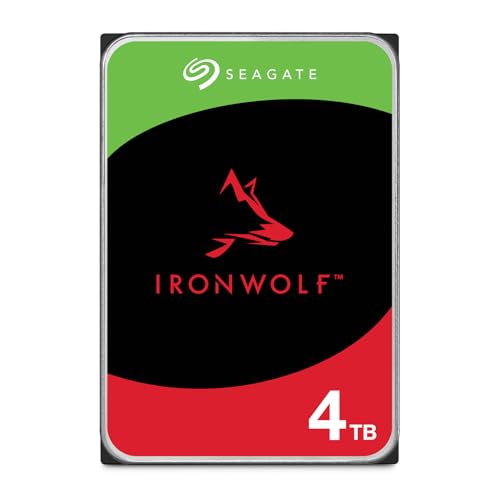
Plenty of desktops now lead double lives: games machine by evening, household server by night, streaming media and syncing phones while the family sleeps. That second life is NAS work, and the IronWolf exists for it. Its listing states the important facts without decoration: CMR recording, 3.5-inch SATA 6Gb/s, 5400 RPM, 64MB cache, built for RAID network attached storage. The CMR statement is the headline. It means the drive writes in the predictable, non-overlapping pattern that RAID arrays and sustained workloads prefer, and Seagate prints it in the title rather than leaving buyers to detective work.
Inside a desktop, an IronWolf trades a little desktop sparkle for stamina. Its tuning assumes company, vibration from neighbouring drives and a power button that stays on. A single IronWolf in a tower that hosts media for the whole house is a sensible over-specification; a pair in a small NAS or a mirrored desktop array is its natural home. The smaller 64MB cache matters less here than the recording technology does, because server patterns reward predictability over burst.
- Capacity: 4TB
- Form factor: 3.5 inch
- Interface: SATA 6Gb/s
- Rotation speed: 5400 RPM
- Cache: 64MB
- Recording: CMR, stated in the listing
- Intended home: RAID network attached storage
Strengths
- CMR recording is stated outright, which RAID and sustained writes want.
- NAS tuning suits towers that serve media around the clock.
- Four terabytes is a practical mirrored-pair size for home servers.
Trade-offs
- Desktop buyers who sleep their machines pay for stamina they may never use.
- The 64MB cache is modest beside the desktop picks’ 256MB.
- It shines brightest in pairs or arrays, which doubles the purchase.
Verdict: choose it when the PC moonlights as a server or an array is planned; pass it by for a simple games-and-documents tower, where the BarraCuda 2TB is livelier company.

WD Red Plus 2TB NAS HDD — The small RAID starter
The Red Plus line is Western Digital’s answer to the same always-on question, and this 2TB model, WD20EFRX in its listing, is the modest end of it: 5400 RPM, SATA 6Gb/s, CMR stated in the title, 64MB cache, 3.5-inch frame. Two terabytes sounds small beside the 8TB drives above until the intended pattern enters the picture. A mirrored pair of these gives a small household server two terabytes of protected, predictable storage, with CMR behaviour that keeps array rebuilds and sustained writes orderly. For a first NAS build or a desktop adding a mirrored volume for the family archive, that is a grown-up place to start.
Longevity of the model line is part of the appeal. The Red family has been the default suggestion for home NAS builders for years, and the Plus badge marks the CMR branch of it, which is the branch worth buying. Owners get WD’s NAS-oriented support and firmware assumptions, including error behaviour designed to cooperate with RAID controllers rather than fight them. It will not make a games tower feel quick, and it does not try to; it makes a small server feel trustworthy, which is a rarer trick.
- Capacity: 2TB
- Form factor: 3.5 inch
- Interface: SATA 6Gb/s
- Rotation speed: 5400 RPM
- Cache: 64MB
- Recording: CMR, stated in the listing
- Model code in listing: WD20EFRX
Strengths
- Stated CMR recording suits mirrored arrays and steady server writing.
- Red Plus tuning assumes always-on, multi-drive homes.
- A modest capacity keeps a first mirrored pair affordable to build and back up.
Trade-offs
- Two terabytes fills quickly if media ambitions grow.
- As a lone desktop drive it feels sedate beside the BarraCuda picks.
- Its value only fully appears inside an array or NAS, not solo.
Verdict: choose it as the foundation of a small mirrored setup; pass it by when the machine is a single-drive desktop, where its talents have no stage.
How Do the Six Drives Compare Side by Side?
| Drive | Capacity | Speed stated | Character |
|---|---|---|---|
| Seagate BarraCuda 2TB | 2TB | 7200 RPM | Lively everyday drive |
| Seagate BarraCuda 4TB | 4TB | 5400 RPM | Quiet family archive |
| WD Blue 8TB | 8TB | 5640 RPM | Big calm volume |
| Seagate BarraCuda 8TB | 8TB | Not stated in listing | Library vault |
| Seagate IronWolf 4TB | 4TB | 5400 RPM | Stated CMR, NAS tuning |
| WD Red Plus 2TB | 2TB | 5400 RPM | Stated CMR, array starter |
Read the table as two conversations. The first four rows argue about capacity and temperament inside an ordinary desktop. The last two change the subject to duty cycle and recording technology. A buyer who knows whether the machine sleeps at night already knows which conversation they belong to, and the capacities then settle themselves by the size of the library being housed.
How Do You Install an Internal Hard Drive Cleanly?
Power the machine fully down, open the case, and slide the drive into a 3.5-inch bay with its label facing the way the case designer intended, usually upward or outward. Four screws, hand firm rather than forced, hold it. Connect a SATA power lead from the power supply and a SATA data cable to a free motherboard port, giving the cable gentle bends rather than kinks. On the first boot, enter the operating system’s disk management, initialise the drive, and format a fresh volume before copying anything across. That five-minute ceremony is the whole installation; the rest of the drive’s life should be this uneventful.
Two habits at install time pay off for years. First, label the drive in software with its purpose and purchase year, because future-you will thank present-you when three volumes stare back from an explorer window. Second, run the maker’s diagnostic once while the drive is empty, so a unit that arrived unhappy gets exchanged in week one rather than discovered in month nine with a library aboard.
How Much Capacity Should a Home Desktop Actually Buy?
Count what you own, then double it, then round up to a size in this guide. A household with five years of phone photos, a modest game habit and no video ambitions lives happily in 2TB to 4TB. Add a teenager with a capture card, a parent who edits family films, or a media collection ripped from discs, and 8TB stops sounding extravagant. The reasoning is that data almost never shrinks, drives live for years, and migrating a full drive is tedious in a way that buying headroom is not.
There is one counterweight: backup maths. Every terabyte you fill internally is a terabyte that deserves a copy externally, so an 8TB vault quietly commits you to an 8TB-class backup plan. Buyers unwilling to fund that second copy should buy the smaller drive and keep the discipline affordable, because an unbacked 4TB archive is safer than an unbacked 8TB one only in the sense that the eventual loss is smaller.
What Mistakes Do Internal Hard Drive Buyers Keep Making?
The first is treating an internal drive as its own backup. It is not; it is one copy, in one machine, sharing fate with that machine’s power supply, roof and luck. The second is buying a NAS drive for a gaming tower or a desktop drive for an array, mismatching tuning to duty in both directions. The third is ignoring recording technology when an array is planned: only drives whose listings state CMR, like the IronWolf and Red Plus here, belong in that plan without further homework.
Fourth, people fill a new drive completely within a month and then blame it for the household’s hoarding. Fifth, they forget the SATA cable, discovering at midnight that the old drive’s cable cannot stretch to the new bay. Finally, many buyers never note which physical drive holds what, so a failure years later becomes archaeology. A label maker and a notes file prevent that entire genre of bad evening.
How Does an Internal Drive Behave Across Its Whole Life?
A hard drive’s first year is its easiest. The platters are fresh, the free space is everywhere, and the household is still congratulating itself on the purchase. The character of the drive reveals itself in years two to five, when the archive has grown into the capacity and the drive’s daily pattern settles into routine. Desktop drives like the BarraCuda pair and the WD Blue spend those years in a forgiving rhythm: long idle stretches, occasional bulk writes when a library lands or a backup runs, reads when someone browses old photographs. That rhythm is why consumer drives so often outlive the computers around them.
The NAS pair live harder lives by design. An IronWolf or a Red Plus in a tower that serves media after dark accumulates powered hours at several times the desktop rate, and its tuning assumes exactly that. This is the practical meaning of the duty-cycle argument running through this guide: not that a desktop drive placed in a server role fails theatrically, but that each family is engineered, warranted and supported around a different expectation of hours. Matching the drive to the expectation is the cheapest reliability a buyer can purchase, cheaper than any extended warranty, because it aligns the product’s design centre with the household’s actual behaviour.
End of life deserves a sentence of its own. Drives rarely die without any whisper: new noises, slowing behaviour, error reports from the operating system or the maker’s diagnostic. The household that runs a diagnostic once a year and treats warnings as instructions rather than insults almost never loses data to a drive, because the failing unit gets replaced while it can still be copied. Every pick in this guide comes from a maker whose diagnostic tools are free and plain to use, and building that annual check into the same week as some other household ritual is a genuinely valuable habit.
What About Noise, Heat and Power in a Real Room?
Specifications whisper about these things; rooms announce them. A 7200 RPM drive in a tower on a wooden desk in a quiet study is audible in a way the same drive inside a carpeted living-room cabinet is not. The BarraCuda 2TB’s liveliness therefore suits the machine that works during the day and sleeps at night, in a room where its voice blends into working hours. The 5400 RPM drives, the 4TB BarraCuda and both NAS picks, speak more softly, which is why media towers that share a room with a sofa so often end up filled with them.
Heat follows the same gradient. Faster spin and constant duty warm a case’s interior, and a tower with several drives aboard should give them air space rather than stacking them like books. None of the six picks here is exotic in its needs: a case with a front intake fan moving air across the drive cage keeps all of them in comfortable territory. Power draw, a few watts per drive, matters mainly to always-on machines, where the NAS pair’s design assumptions again fit the job. None of these factors should overturn a capacity decision on its own, but together they explain why two drives of identical size can feel so different to live with, and why this guide keeps describing temperament alongside terabytes.
Should You Buy One Large Drive or Two Smaller Ones?
The single large drive is the simpler life: one volume, one cable set, no decisions about which library lives where. The 8TB picks exist for households that value that simplicity, and for a media archive or a game vault it is honestly earned. Two smaller drives buy flexibility instead. A 4TB archive drive beside a 2TB games drive lets each be replaced, backed up or upgraded on its own schedule, and a failure costs half the library rather than all of it. Many towers quietly evolve into this shape, adding the second drive when the first fills rather than planning it from the start.
Backup maths should arbitrate. Whatever internal capacity the household fills must exist again somewhere as a copy, so two 4TB internals commit the owner to roughly 8TB of backup thinking, same as one 8TB internal does. The difference is organisational, not financial. Buyers who enjoy curating volumes will thrive with two drives; buyers who want storage to disappear should buy one large drive and let it. Both answers appear in this guide’s picks because both household temperaments are real, and the drives themselves are indifferent to which philosophy houses them.
How Do You Migrate a Library Onto the New Drive Without Tears?
Plan the copy as an overnight citizen rather than an afternoon sprint. Start by deciding what actually migrates: the current game rotation, the complete photo archive, the documents folder, and then the deep storage that even you open once a year. Copy in that order, in separate runs, verifying each stage by opening a sample of files before starting the next. A migration done in verified stages can be interrupted by life at any point and resumed without doubt, while a single heroic copy that fails at hour six leaves the household unsure what actually arrived.
Keep the old arrangement alive until the new drive has survived a week of ordinary use. That patience converts every migration mistake into an inconvenience: the folder copied to the wrong volume, the application still pointing at the old path, the backup job that needs retargeting. Once the week passes, the old drive can be wiped and reassigned, perhaps as the internal partner in the backup plan it previously only watched. The drives in this guide are patient hardware; the migration method should match their temperament.
What Does a Desktop Drive Mean for Games, Specifically?
Modern game libraries are the capacity story of the decade. A single flagship title can occupy what an entire shelf of older games once did, and households that play across years accumulate libraries no system SSD can hold. The hard drive’s role in that world is the vault and the rotation: everything owned lives on the big spinning drive, and the titles in current play sit on flash. Moving a game between the two, through the launcher’s own storage tools, takes minutes rather than the hours a fresh download costs on ordinary connections, which is why a 4TB or 8TB internal drive quietly becomes a gaming accessory as surely as any controller.
The BarraCuda 2TB’s 7200 RPM spin gives it a small extra role in that arrangement: of the desktop picks here, it is the one happiest to run games directly when the SSD is full and patience is short. The 5400 RPM drives will run them too, with loading pauses that remind everyone why the rotation system exists. None of this requires apology. A library strategy that pairs fast flash for the present with deep spinning room for the collection is how most experienced gaming households already live, and this guide’s desktop picks were chosen to serve the second half of that strategy at several sizes.
How Should You Treat Warranty and Support as Part of the Purchase?
As part of the product, because at these capacities it is. Register the drive or at least keep the order confirmation somewhere findable, note the purchase date in the same notes file that records which volume holds what, and learn where the maker’s diagnostic tool lives before you need it. Seagate and Western Digital both run mature support operations, and the difference between a smooth replacement and a miserable one is almost never the drive; it is whether the owner can produce a model number, a date and a diagnostic result without an archaeological dig through email.
Support also shapes the NAS choices quietly. An IronWolf or Red Plus carries its maker’s NAS-oriented support assumptions, which is one more reason those drives belong in always-on roles rather than desktop drives pressed into service. Buyers will likely never speak to either company, and that is the outcome everyone wants. The point of treating support as part of the purchase is that the one household in twenty that does need it experiences a process instead of an ordeal.
What Does the Inside of the Choice Look Like for a Photographer?
A working photographer’s tower is the desktop use case at its most demanding, because photographs arrive in floods and stay forever. A wedding or a season of family shoots lands as tens of gigabytes in an evening, gets culled and edited over weeks, and then must simply exist, safely, for years. The pattern maps neatly onto this guide’s desktop tier: current work on flash, the growing archive on a large spinning drive, with the 8TB WD Blue’s calm tuning or the big BarraCuda’s vault capacity absorbing each season without drama. The 5400-class spin that gamers find leisurely is invisible in this work, because the archive’s job is to receive and to hold.
The photographer’s one non-negotiable is that the internal archive is never the only copy, which is why this guide’s backup companion exists and why the archive drive’s size should be chosen with its backup partner in the same thought. Photographers who internalise that pairing early build archives that survive their own success; the drive choice itself, at that point, is the easy part.
How Do You Keep Several Internal Drives Organised as Volumes?
By giving each volume a name that states its job and its year, and by keeping a simple map. A tower with three internal drives and volumes called Local Disk, Local Disk 2 and New Volume is a tower preparing a future misunderstanding. The same machine with volumes labelled Archive 2026, Games Library and Media Server explains itself to anyone who opens it, including its owner in five years. The map, a notes file listing which physical drive holds which volumes and when each was bought, takes ten minutes to write and converts every future upgrade, failure or migration from detective work into administration.
Folder discipline inside each volume matters less than the volume’s identity, provided the top level stays shallow and honest: one folder per major purpose, nothing important buried six levels deep. Hard drives reward this light organisation out of proportion to its cost, because the data they hold is precisely the data nobody looks at until the day it is urgently needed.
How Do You Decide Between the Two 8TB Drives on This Page?
It is the closest call in the guide, so it deserves its own examination. The WD Blue 8TB states its temperament in numbers its listing prints: 5640 RPM and a 256MB cache, a calm mainstream tuning for a tower that archives and serves media. The Seagate BarraCuda 8TB states its purpose instead, everyday storage, gaming and content, and leaves its spin and cache unprinted, which this guide has respected by claiming neither. A buyer who values knowing the drive’s exact character from the listing will lean WD; a buyer whose pattern is a game vault and who is untroubled by the unprinted figures will lean Seagate, on the strength of the BarraCuda line’s desktop pedigree.
Either way, the household gets the essential thing, which is 8TB of mainstream desktop storage from one of the industry’s two giants, with support operations to match. The tie-breakers that actually matter in ownership are mundane: which maker’s diagnostic software the owner already knows, which drive the household’s backup plan already assumes, and simple continuity with drives already in the case. Deciding on those grounds is not a failure of analysis; it is analysis arriving at the level where the products genuinely differ.
What Should You Check in the First Month of Ownership?
Three quiet things. First, that the drive’s reported health stays clean through its first heavy writes, the library migration and the first full backup, because infant failures announce themselves early and exchanges are easiest inside the first weeks. Second, that the volume’s free space still shows the headroom you planned, since a drive that fills to the brim in month one was sized by optimism rather than by the counting exercise earlier in this guide. Third, that the backup job, whatever tool the household uses, has actually included the new volume; backup configurations are famous for protecting the drives that existed when they were set up and politely ignoring newcomers.
Pass those three checks and the drive graduates from purchase to furniture, which is the destiny of all good internal storage. The households that perform them spend ten minutes; the households that skip them occasionally spend a weekend. Every pick in this guide comes from a maker whose health tools make the first check a two-click affair, so the only real requirement is remembering that the first month is a probation worth observing.
How Does an Internal Drive Fit a Home Office That Earns Money?
A working home office raises the stakes on every theme in this guide. Client files, accounts, project archives and correspondence are not a hobby archive; they are the business’s memory, and their loss has a price that can be calculated by an accountant. The internal drive’s role in that office is the capacious local tier: the working archive on a BarraCuda or a Blue, large enough that nothing gets deleted for space, organised by client and year, and paired, always, with a backup arrangement that treats the office’s data as the business asset it is. Offices that also serve files to a second machine or a collaborator should look hard at the NAS pair in this guide, because an IronWolf or Red Plus in the office tower brings the always-on assumptions the role quietly requires.
The office also changes the replacement rhythm. A household can nurse a doubtful drive; a business should not, because the cost of the drive is trivial beside the cost of the day it fails mid-deadline. Replace at the first trustworthy warning, keep the purchase records with the business’s other receipts, and let the retired drive’s second career happen in a drawer rather than in service. That discipline, more than any specification, is what separates an office that treats storage professionally from one that merely owns professional-looking hardware.
What Is the Short Version for a Buyer With Ten Minutes?
One lively drive for a growing tower: the BarraCuda 2TB. One quiet archive for a family’s accumulated files: the BarraCuda 4TB. One big calm volume for a media tower: the WD Blue 8TB. One vault for a game library that has outgrown every smaller idea: the BarraCuda 8TB. One server-hearted drive for the tower that works after dark, with CMR stated in its listing: the IronWolf 4TB. One foundation stone for a first mirrored array, CMR stated likewise: the Red Plus 2TB. Every sentence in that paragraph is a door into a fuller section above, and a buyer who recognises their own machine in one of them can order with the rest of the guide as confirmation rather than as required reading.
The ten-minute buyer should still spend thirty of those seconds on the two habits that protect any of these choices: keep a copy of the irreplaceable data somewhere else, and write down which volume holds what. Hardware this dependable rewards owners who meet it halfway with exactly that much administration, and no more.
What Do Owners Say a Year After Choosing Well?
That they stopped thinking about storage, which was the purchase’s entire ambition. The archive sits where it was put, the library loads, the backups include the new volumes because someone checked in the first month, and the drive’s name surfaces only when a visitor asks how the household keeps so much. Owners of the NAS pair describe a similar peace with a different flavour: the media tower simply serves, night after night, and its drives have become part of the house’s infrastructure rather than its conversation. A year of that invisibility is the honest benchmark every pick in this guide was chosen against, and it is a benchmark no specification table can print.
What Is the One Thing to Do the Day the Drive Arrives?
Write its name down. Model, capacity, purchase date, the volume label you give it and the job you bought it for, entered into the household’s notes before the first file lands. That single act of administration, five minutes with a keyboard, is what separates the owners who glide through future upgrades and replacements from those who perform archaeology on their own machines. The drive will do its silent work for years regardless; the note is for the human, whose memory is the only component in the system with no warranty.
Final Recommendation
Most desktops should start with the BarraCuda 2TB: its 7200 RPM spin and generous cache make it the drive that feels least like a compromise while a household’s library is still growing. Archives that have already outgrown that scale belong on the 4TB BarraCuda or, at the serious end, the 8TB pair, with the WD Blue’s calm tuning suiting media towers and the big BarraCuda suiting game vaults. Towers that serve the house after dark should skip the desktop line entirely and take the IronWolf 4TB or a Red Plus pair, where stated CMR recording and NAS tuning match the job. Whatever capacity you choose, the vault under your desk earns its keep quietly for years, and this household’s files finally have a room of their own.
One last word on confidence. Every drive in this guide was chosen from a listing that states its essential facts in plain language, and a buyer who has followed the reasoning this far already owns the skill that matters most in this category: reading what a listing actually promises, and declining to imagine the rest. Keep that skill, and the next storage purchase, whatever form it takes, will go as calmly as this one.
Frequently Asked Questions
Can one of these drives be a boot drive?
It can, but it should not be the plan. Any of the six will run an operating system, yet a small SSD makes the same machine feel years younger for everyday responsiveness. Use flash for the system and these drives for the library.
What does CMR mean, and should I care?
CMR is conventional magnetic recording, where tracks sit side by side without overlap. Care if you run RAID or write heavily for long stretches, because CMR drives behave predictably under that pressure. In this guide only the IronWolf 4TB and Red Plus 2TB state CMR in their listings.
Is 5400 RPM too slow for games?
For storing games, no; for loading them, it is slower than both a 7200 RPM drive and any SSD. Many players keep the current rotation on flash and the back catalogue on a 5400 RPM drive, moving titles between them as tastes change.
How long do internal hard drives last?
Years of ordinary service is the normal expectation, but any single drive can fail early, which is why backups matter more than lifespan statistics. Keep a second copy of the irreplaceable material and replace drives that start reporting errors rather than negotiating with them.
Do I need a special cable or bracket?
A standard SATA data cable and a SATA power lead from the power supply are the whole requirement, plus a free 3.5-inch bay. Older cases occasionally need the data cable bought separately, so check the spares drawer before the drive arrives.
Can I mix a NAS drive and a desktop drive in one PC?
Yes, as separate volumes they coexist happily, and many towers run a BarraCuda for games beside an IronWolf for media. Mixing them inside one RAID array is the combination to avoid, because their tuning and error behaviour differ.
Related Guides
Storage decisions travel in packs, so these companion guides cover the neighbouring ground: Best Backup Hard Drives, Best Encrypted Portable Hard Drives, and Best External 2TB Hard Drives.